
Invoices – Set "Do not invoice" in bulk
Set completed orders with no billing to 'Do not invoice' for easy tracking. Use filters, update the status, and manage them in a separate tab.
Table of contents
When there are completed orders that do not require billing, the revenue value should be set to 0. To clear these orders, the status can be set to ‘Do not invoice’, which puts them into a separate tab. To move an order to this status, it must first be set to ‘Ready to invoice’ (click here for details).
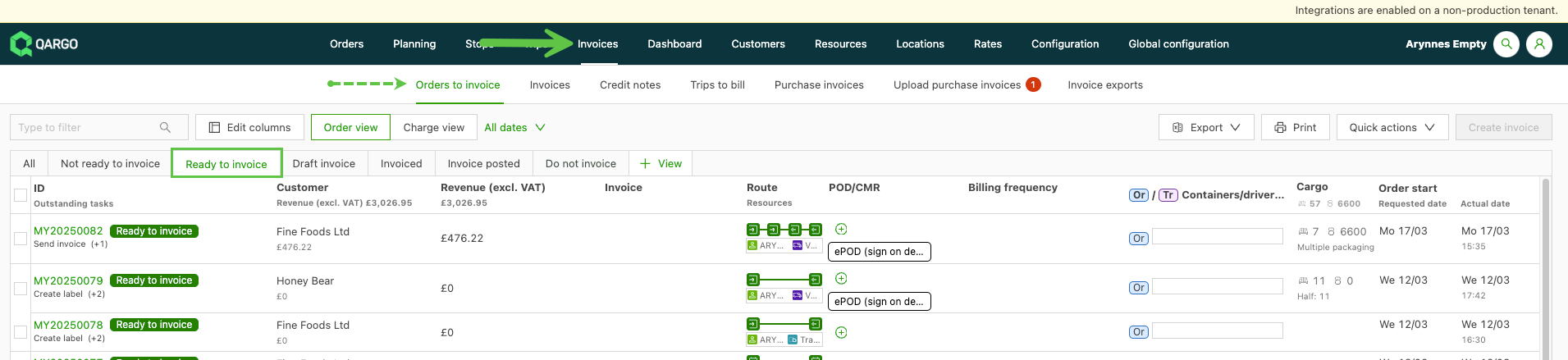
- Navigate to Invoices and click the ‘Orders to invoice’ submenu.
-
Use the column header filters to display the records to update. (Note: a maximum of 100 records can be displayed.) Select the records using the checkboxes.
-
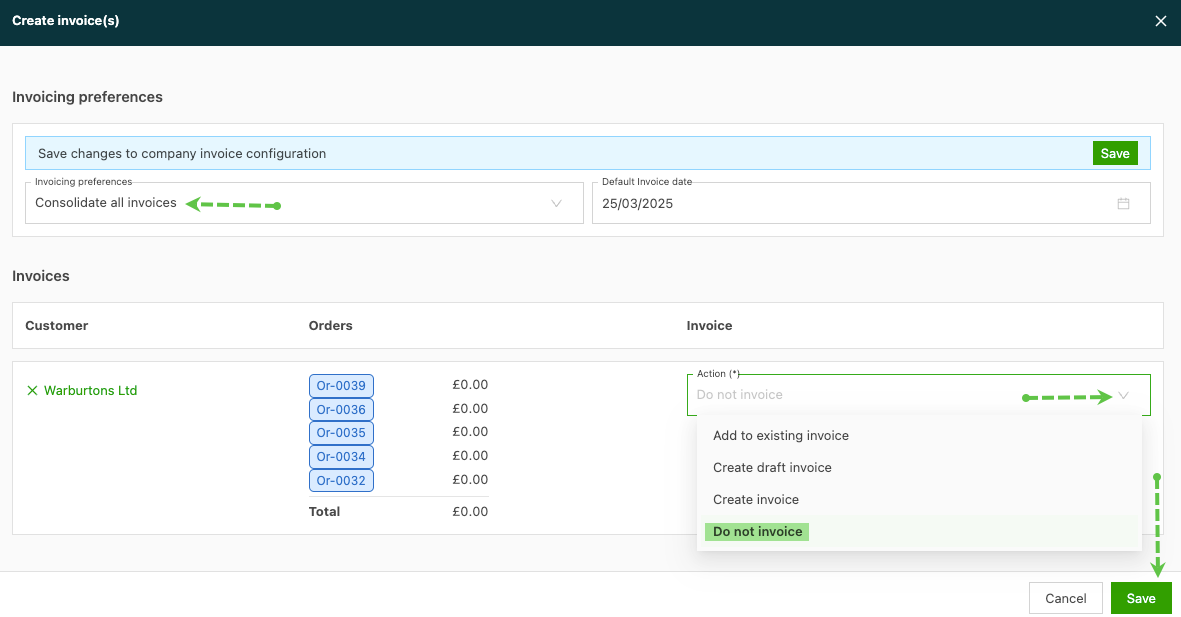
Click the ‘Create invoice’ button. This opens a new window showing the selected orders. If the orders are all for the same customer, use the option to consolidate the invoices. This groups the orders so the ‘Do not invoice’ action only has to be selected once.
- No invoices are actually created. Instead, all the orders are updated to the Do not invoice status.
-
Click Save to update.
-
The order status is set to ‘Do not invoice’ and the orders no longer appear in the list.
-
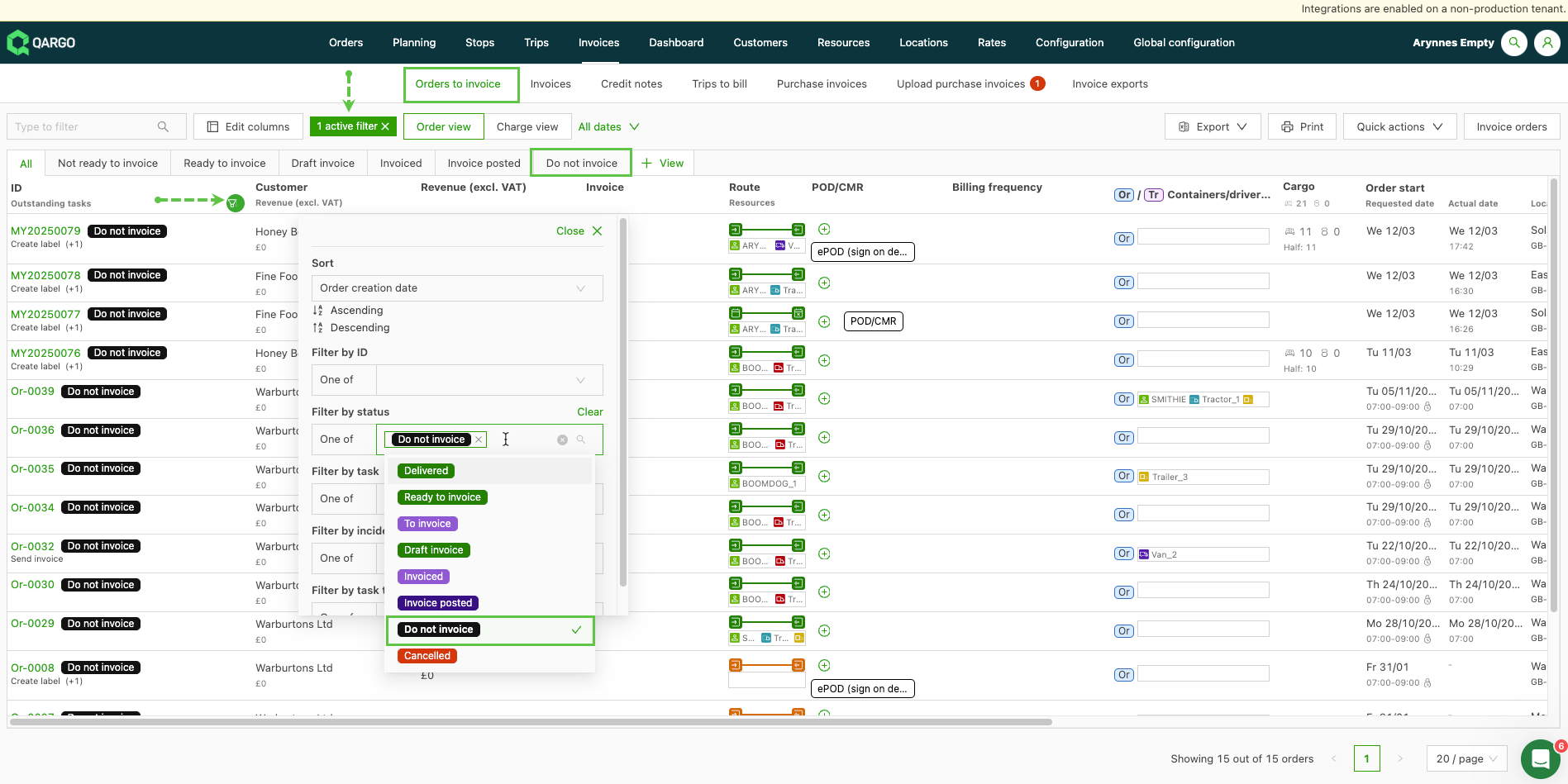
To view the orders, navigate to the ‘Orders to invoice’ submenu.
- Click the ‘Do not invoice’ tab to view the list of orders.
- Use the column header filter and filter by status.
Set “Invoice externally” in bulk
In addition to Do not invoice, selected orders can be marked as Invoice externally in bulk directly from the Orders page using the Quick actions menu.
- Invoice externally means the charge lines for those orders are handled outside of Qargo (e.g., through a third-party billing system).
- Orders with this status are excluded from Qargo’s billing workflow.
How to set “Invoice externally” in bulk
-
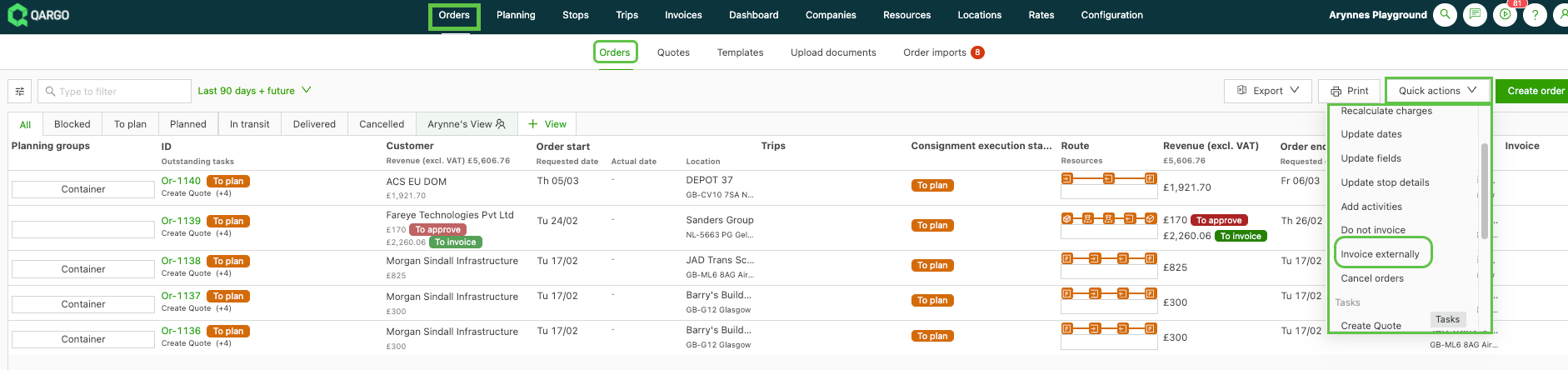
Go to Orders and select the orders to update (use filters or checkboxes)
-
Click the Quick actions button (top right of the order list)
-
Select Invoice externally from the menu
-
Confirm the action
Charge lines that are already processed are not affected:
- Lines already in another status (e.g., Approved, Posted, Do not invoice) are not affected.
- Setting “Invoice externally” at the quote level is not currently available through this quick action. This must still be done per order.