Invoices FAQ: create an invoice that holds multiple orders.
Create an invoice that contains more than 100 orders using different options depending on how and when the orders are processed.
Table of contents
An invoice can include 100 or more orders for several reasons. These orders can be added all at once or over a period of time. When a customer has a monthly billing frequency, daily or even weekly shipments can quickly become overwhelming to process once a month. A consolidated shipment can also contain more orders than the page can display, because the page maximum is 100 orders. The options below help users continue billing more efficiently.
Option 1: Filter and select all rows.
The Invoice list page displays a maximum of 100 rows. When more than 100 invoice records need to be selected, use the link option to select all orders that match the filters, across all pages. The link also removes the need to adjust the number of records displayed.
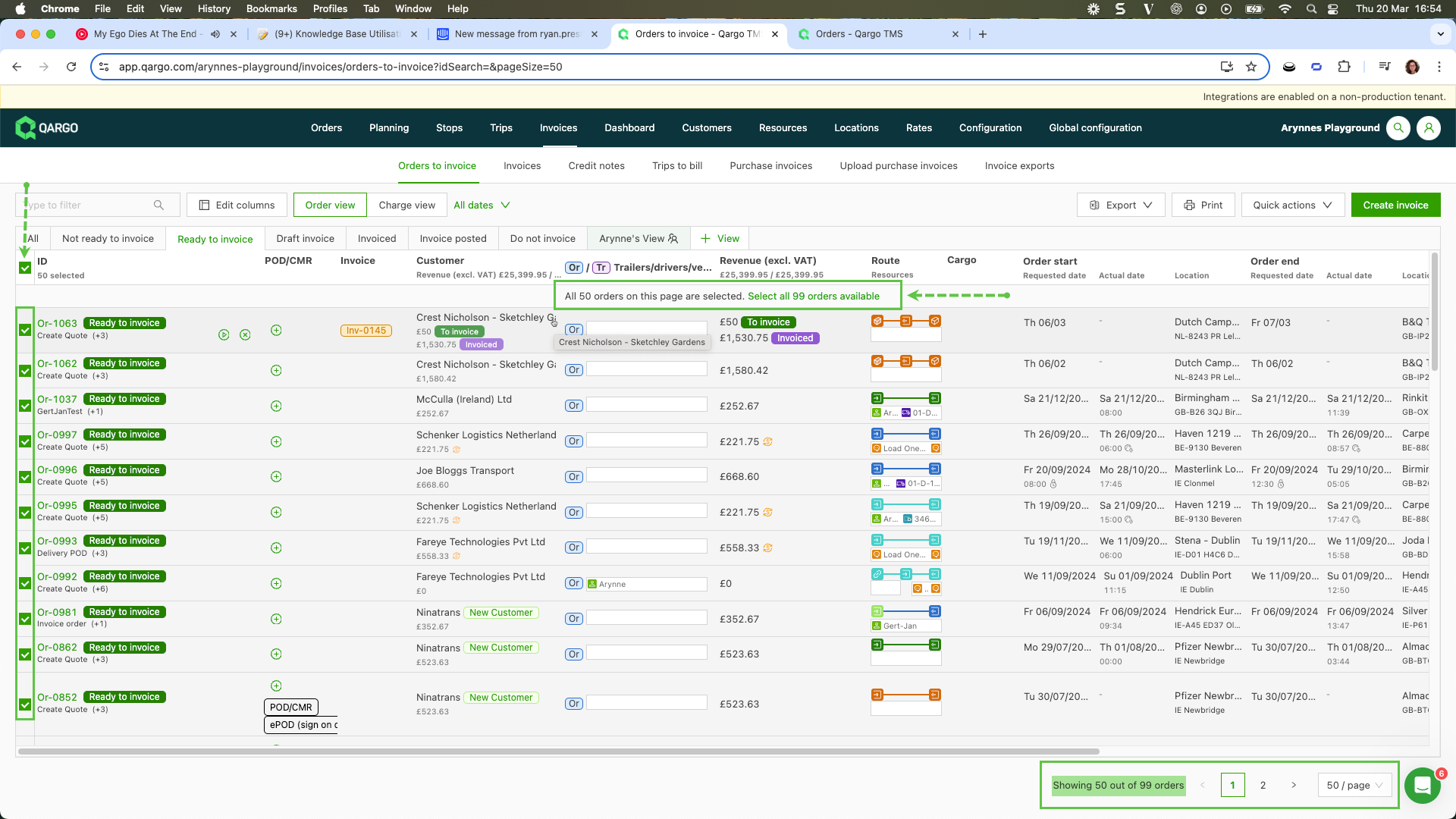
By default, selecting all on the page selects only the maximum number of records displayed.
- Click ‘Select all … orders available’ to include all invoices.
- After making this selection, continue with the ‘Create invoice’ button to create an invoice that holds more than 100 lines at once.
Option 2: Add orders to existing invoice
After an invoice has been created, more orders with the same billing customer can be added to it.
-
From the invoices list page, open the invoice to be updated.
-
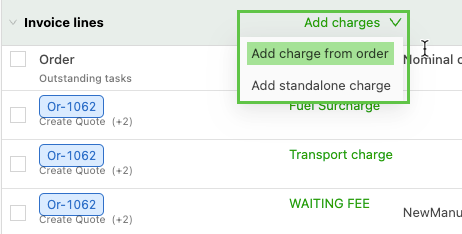
Navigate to the invoice lines and select ‘Add charges’.
-
Use the ‘Add charge from order’ option.
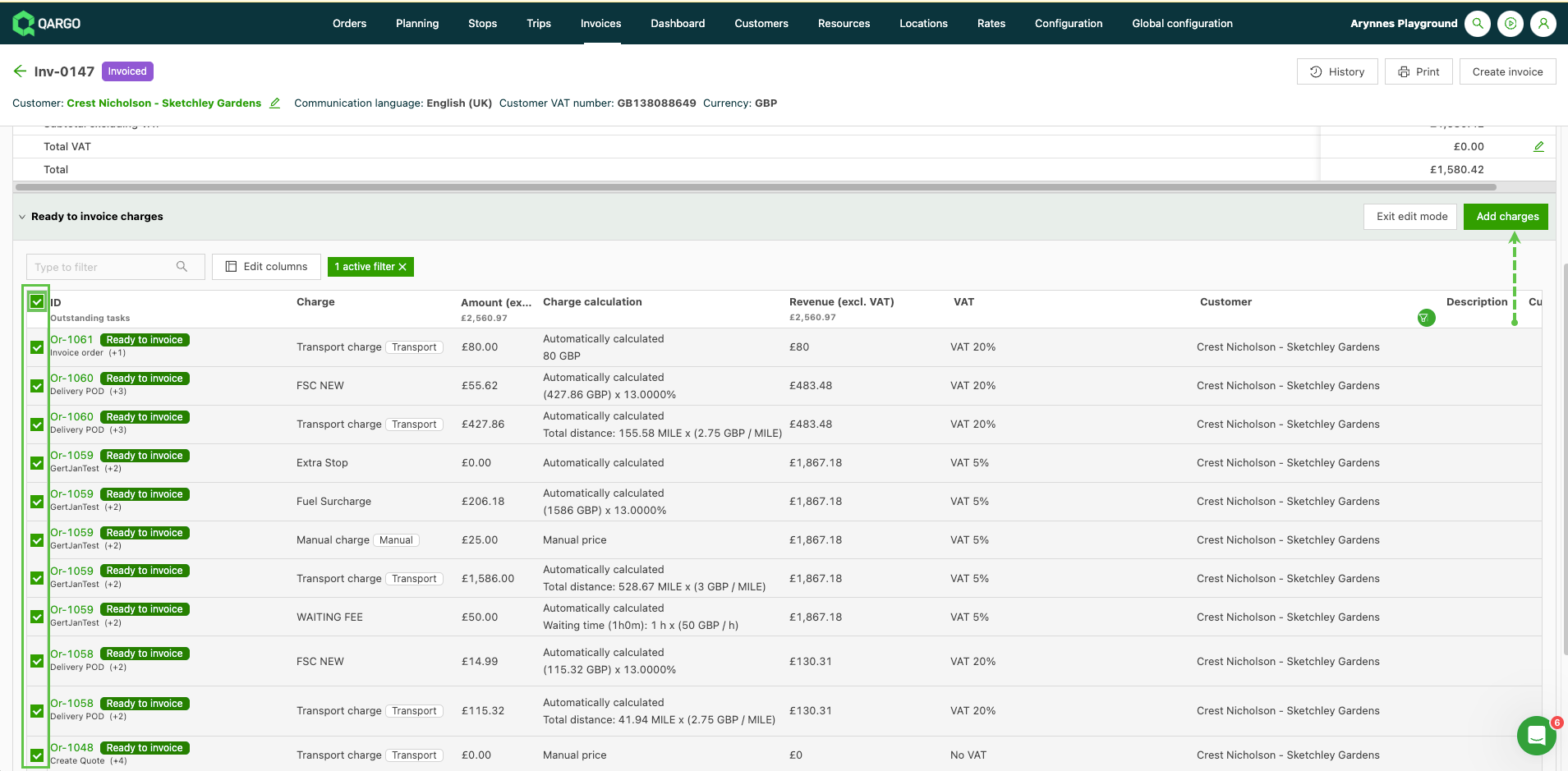
This shows the available orders (in Ready to invoice status) with the same billing customer that can be added to the order. To select all orders, use the top checkbox.
Option 3: Add orders to existing invoice
When an invoice already exists, new orders can easily be added to the existing invoice or draft invoice.
- Navigate to the ‘Orders to invoice’ view and select the invoices using the checkboxes
- Click the ‘Create invoice’ button
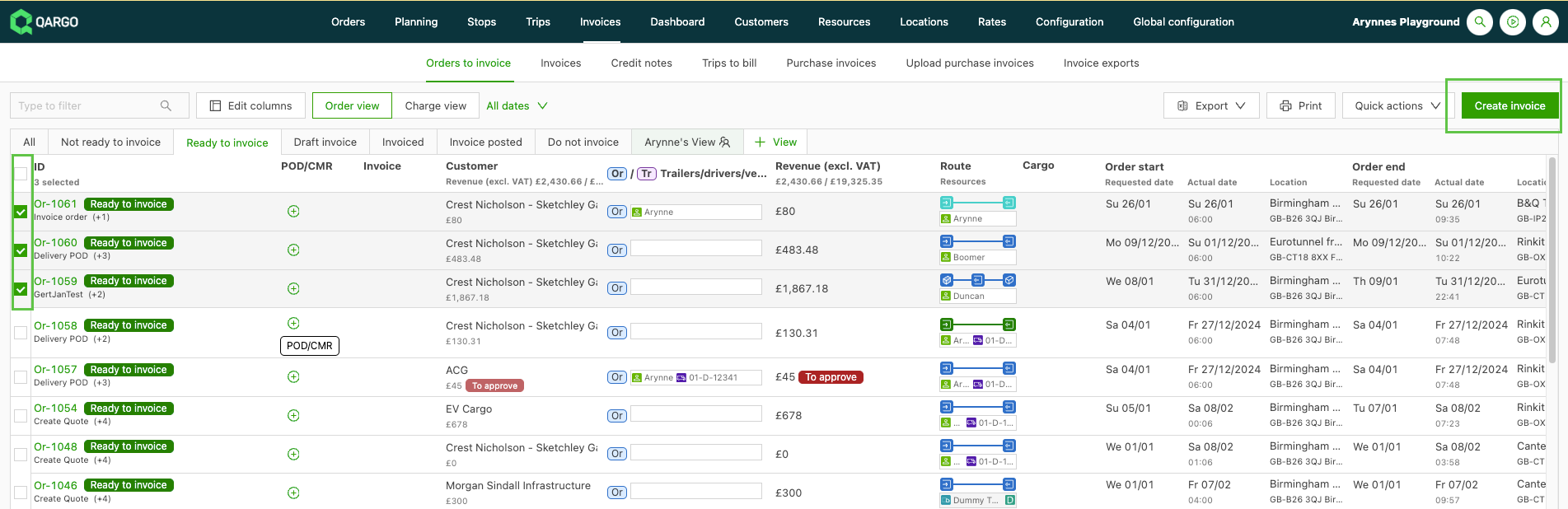
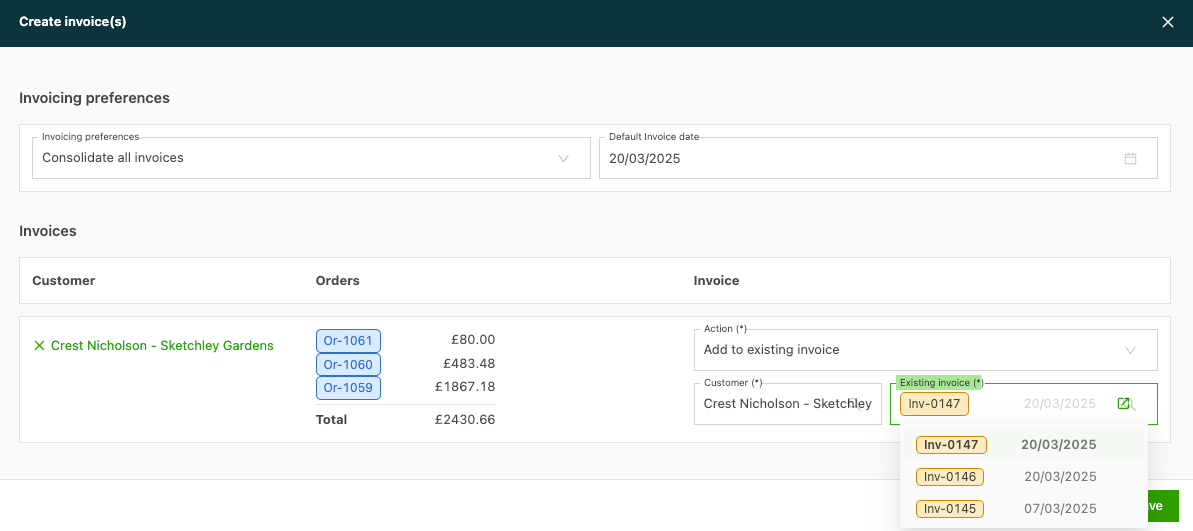
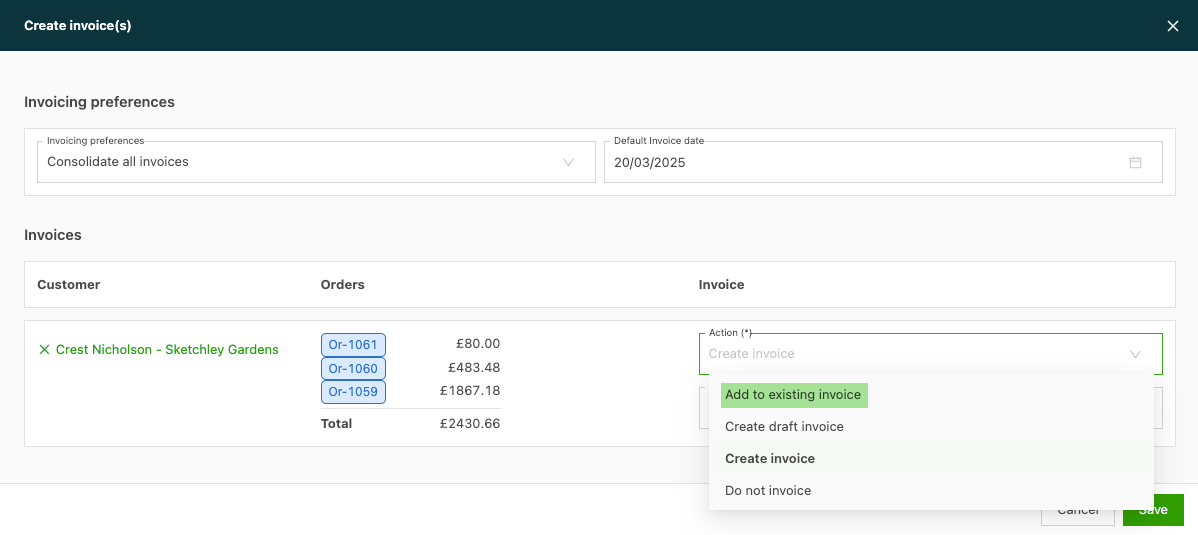
- From ‘Create invoice(s)’, click the ‘Action (*)’ field to open a drop-down menu with options to select.
-
Select the “Add to existing invoice” option.
-
In the ‘Existing invoice’ field, select the invoice to add the selected orders to. Only invoices associated with the same billing customer are shown. The customer can be updated if required.
-
Click Save