
Invoices - Order view <-> Charge view
Order view shows full order totals for billing. Charge view filters by charge type, allowing partial billing and quick rate edits.
Table of contents
There are 2 options to view ‘Orders to invoice’.
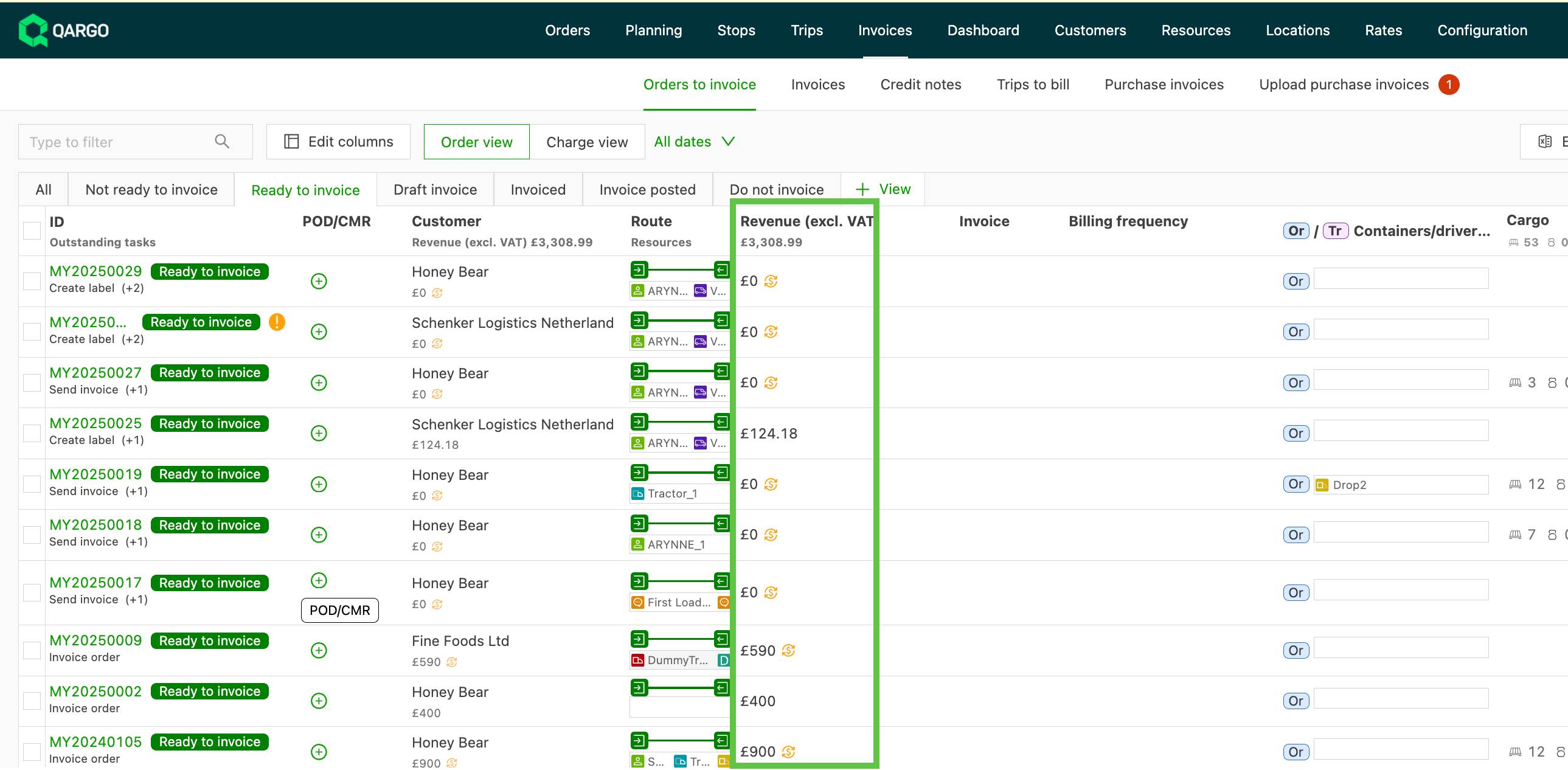
- Order view: Displays orders by specific order number. Filtering options are available on the order number column header.
- Charge view: Displays orders sorted by charge type. Filtering is available on the charge column header, which makes specific charges visible.
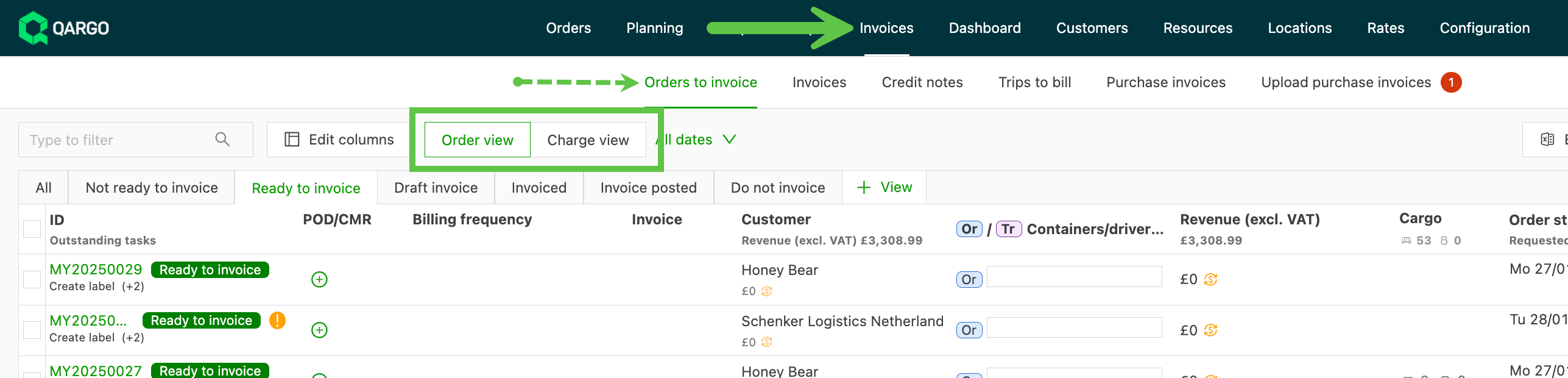
Order view shows the total values of the order and supports full billing of the order. The order view option shows the total of the charges in the order, while each charge line is visible in Charge view.
Order view:
-
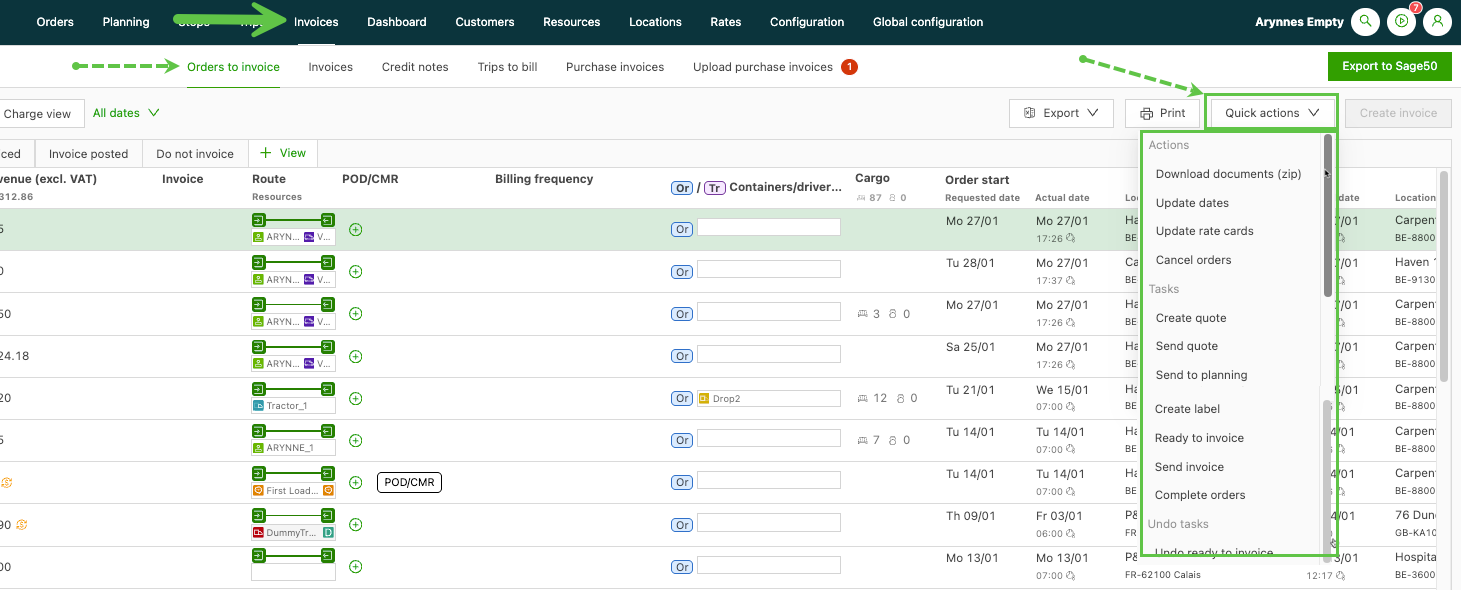
The Order view lets users apply a variety of ‘Quick actions’ to one or more orders by selecting the checkboxes.
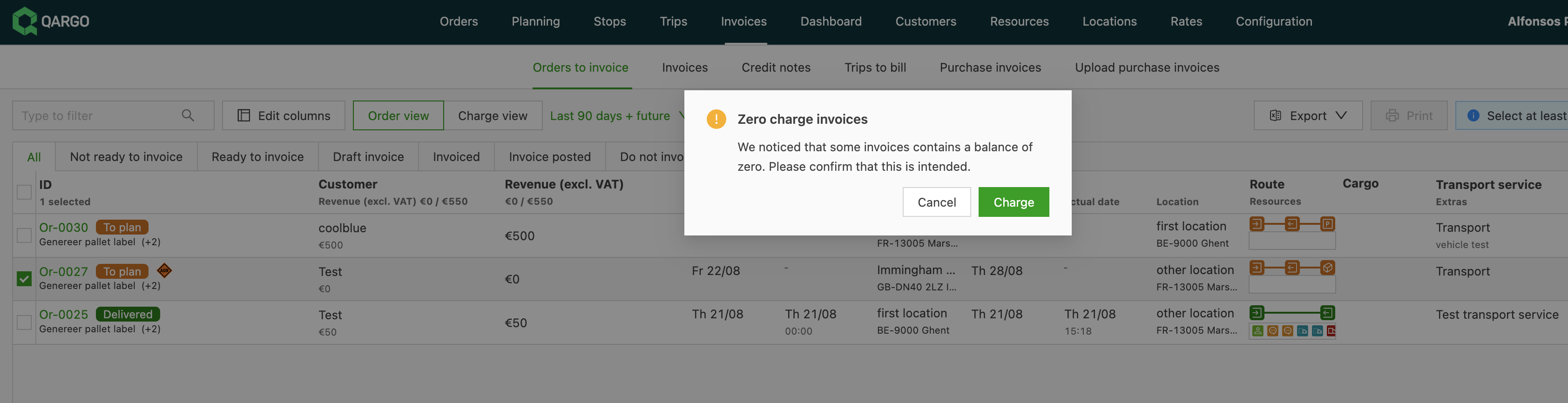
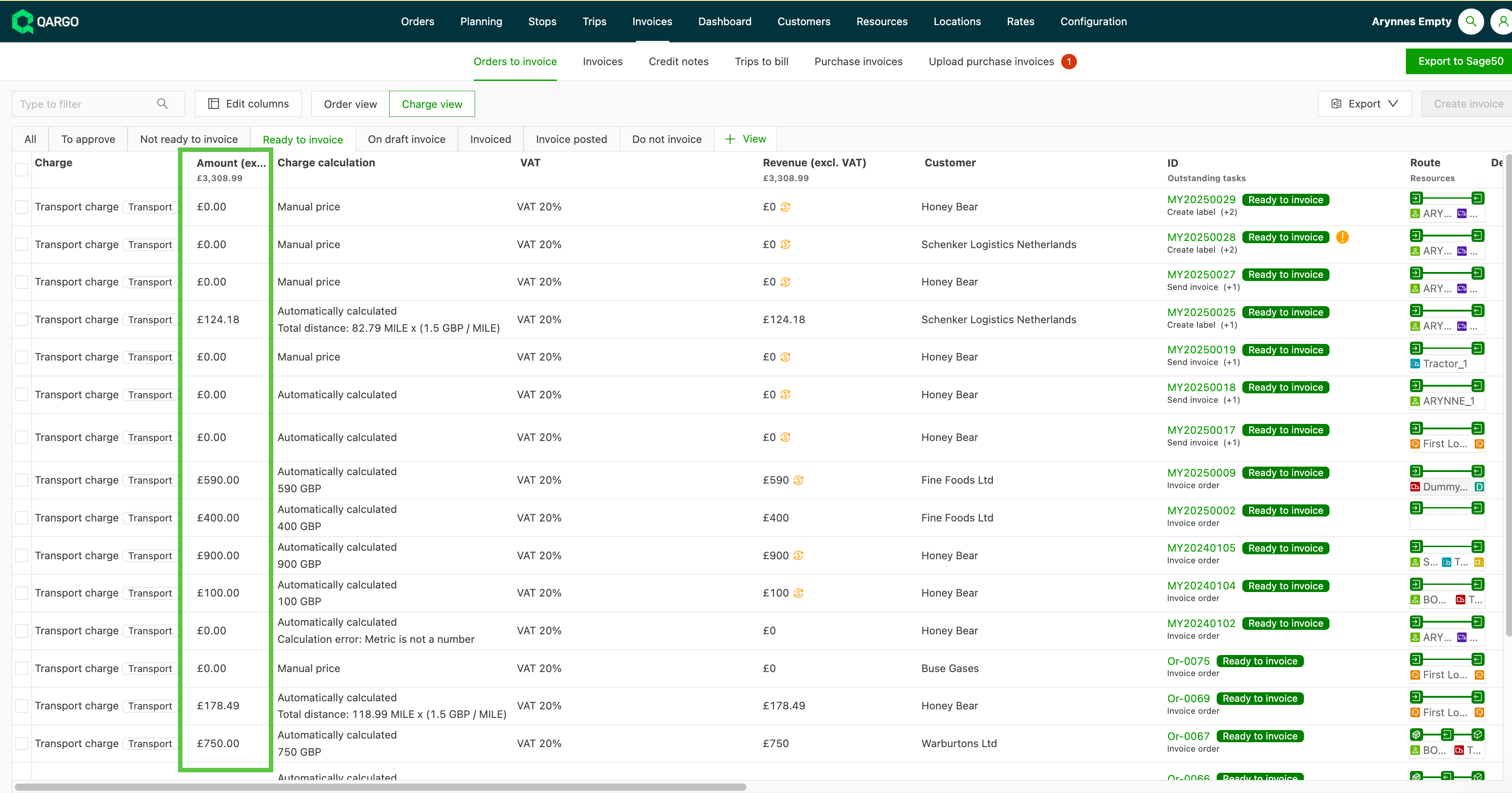
To prevent billing errors, Qargo now displays a warning if an order has a zero-value transport charge. This new safeguard appears when an order is set to Ready to invoice from the Quick actions menu, or when a new invoice is created.
Charge view:
-
In the Charge view, filtering by charge type allows rates to be added or modified quickly, directly from the list view.
-
If one or more orders need to be partially invoiced (i.e., some charges should be invoiced in advance), this can be done in the Charge view.
-
The example below shows charges from the same order split per line.
-
A single charge (or multiple charges, if applicable) can be selected to be invoiced or added to an existing invoice.
-
Orders that have been partially invoiced or are still to be invoiced can also be followed up.
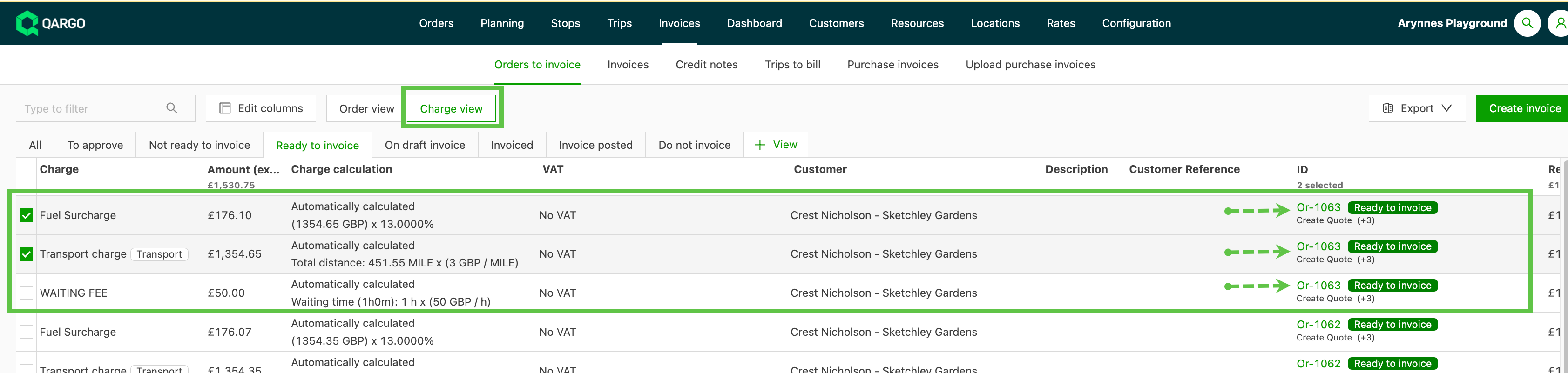

- In the charge view, filters can also be applied per customer, per charge type and per tax type, as well as sorting revenues, filtering location details and much more. (See also: Customize invoice list view)