
Orders – status explained
Table of contents
The status of an order changes based on the tasks that have already happened for that order. The order status is shown next to the order number.
Qargo also distinguishes between load status and order status. For example, a load status remains “Planned” until the driver explicitly confirms the start of the load, even if pickup or delivery scans are performed. The order status, on the other hand, depends on the completion of all stops across all legs of the journey.
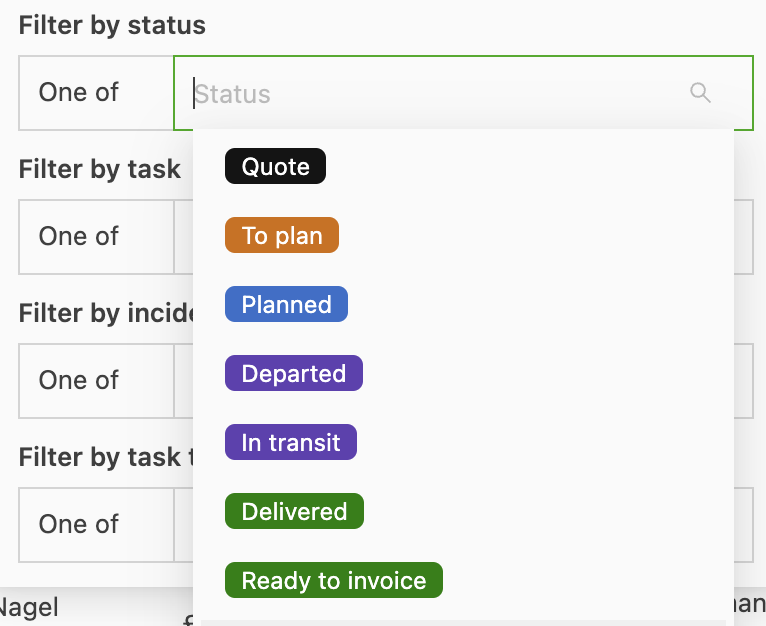
Quote
- An order has been created, but the ‘Send to planning’ task has not yet been executed.
- Often used when a customer asks for a price but has not yet confirmed the order, or when waiting for confirmation before scheduling.
To convert a quote into an order, take the following steps:
Limitation: moving orders from ‘To plan’ to ‘Quote’
It is not possible to move an order directly from the ‘To plan’ status back to ‘Quote.’ However, the order can be recreated as a quote with the following steps:
-
Open the order in question.
-
Use the “Copy” function (e.g., “Create similar order”) to start a new order.
-
When creating the new order, select ‘Quote’ as the type or status.
-
Update the details as needed and save the new order. This approach keeps the original record while creating a new quote in its place.
-
Go to the Quote page in Qargo.
-
Find and click the Send to planning task button.
-
Once the Send to planning task is completed, the quote is converted into an order and appears under shipments to be planned.
To plan
- An order has this status when the ‘Send to planning’ task is done.
- Appears in orange in the list overview and is ready to be planned with resources.
If a driver performs pickup or delivery scans but does not confirm “start load,” the load status remains “Planned” until the load is explicitly started. This makes sure the load status accurately reflects the driver’s actions.
Planned
- When resources are assigned, the order status changes to planned.
- If there are multiple shipments on an order, the order status does not change until all shipments have the order status planned.
In multi-terminal journeys, an order may remain in “Planned” status even after the final leg is delivered with proof of delivery (POD). This happens if earlier legs still have stops in “Planned.”
In transit
-
The status updates once the driver or planner indicates that the first stop is completed and the goods are ‘In transit’.
- If an order has only one shipment, or all shipments have the same pickup stop, the status updates as soon as the first stop is completed.
- If an order has multiple shipments, the order only changes to “In transit” when all pickup stops of the shipments have been completed.
Example:
An order has four shipments and only three of them have been picked up. The order remains “Planned” until the last one has also been picked up. This is intentional, to make sure no shipments are overlooked.
Delivered
-
When all stops on the order are completed, the status changes to “Delivered”.
-
The delivered status can be reached in several ways:
-
By setting all tasks to Completed separately
-
Via the complete load times button.
-
Complete without scheduling.
- This is a button in the order. This way, the order cannot be scheduled and is immediately set to completed.
-
Enabling the feature flag “Auto complete previous stages when the delivery stop is completed” can also automate the completion of preceding stages once the final delivery is completed.
Ready to invoice
- The Ready to invoice task must be performed to move the order to the “Ready to invoice” status.
- When the task to send the order to invoicing is triggered, the status shows “Ready to invoice”.
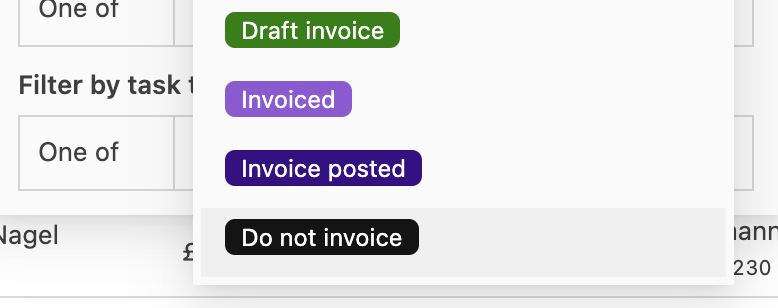
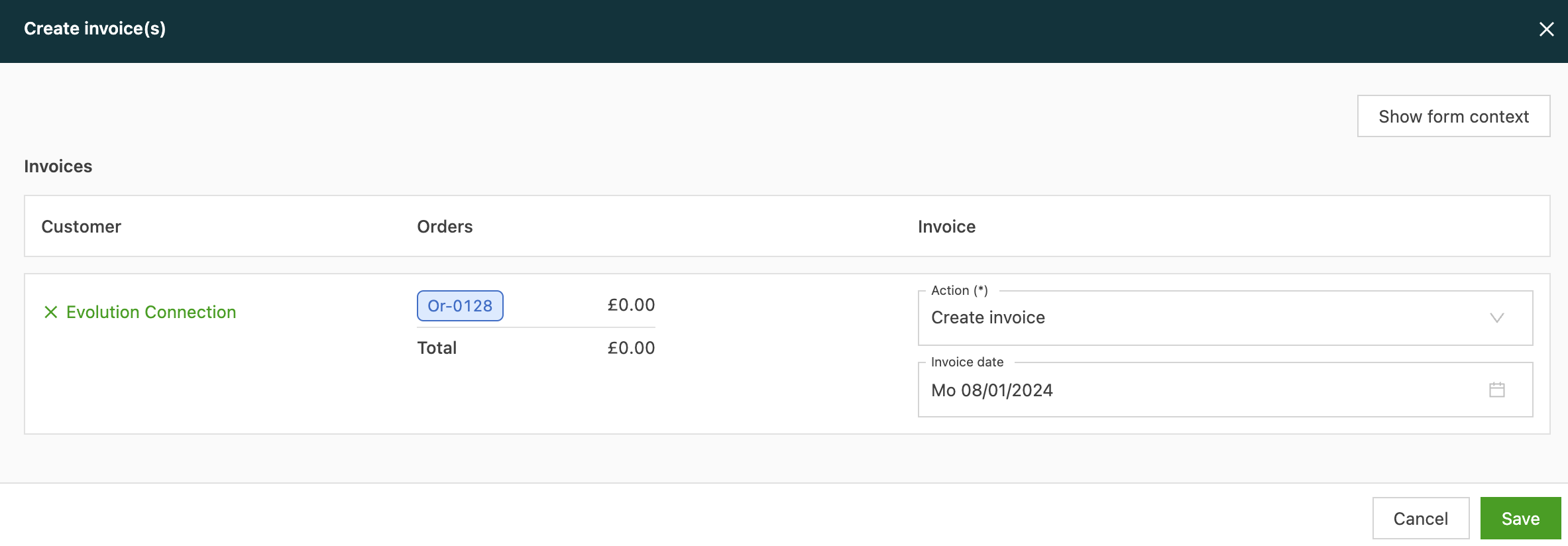
Draft invoice / Invoice / Do not invoice
The finance department can decide to:
- create a draft invoice
- create an invoice
- not invoice
The status changes according to the selected option.
Invoice posted
- When the task to send the invoice to the bookkeeping software is triggered, the status of that invoice changes to “Invoice posted”
- Once an invoice is Posted, no further updates or changes can be made to the data.
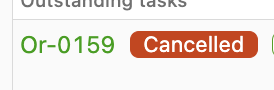
In addition to the statuses above, there are also the statuses “Canceled” and “Template”. These statuses are not shown in the dropdown menu when filtering on a status on the order list page.
Canceled
-
Will not be invoiced or scheduled.
-
Cancel an order on the order screen; the order must have one of the following statuses:
- Quote
- To plan
- Planned
Template
- This order is used to create other orders quickly. It cannot be invoiced or scheduled.
- Templates are found under Orders > Templates.

Click the button to learn more about using order template features.
Managing order statuses in Qargo
Managing order statuses in Qargo involves several key tasks, including completing loads, resetting statuses and marking orders as delivered. This guide provides step-by-step instructions for each task, for efficient order management.
Completing loads and updating order statuses
To set an order to “Delivered” by completing a load, take the following steps:
- Use the Complete load times action to finalize the load.
- Alternatively, open the specific stop within the load and use the calendar icon to complete the stop and adjust times as needed.
- Make sure all stops in the load are completed. Once all stops are marked as completed, the order status automatically updates to “Delivered.”
Resetting order or stop statuses
If an order or stop was marked as “Delivered” by mistake, its status can be reset:
- Use the Reset load option in Qargo.
- Select the specific stop to revert.
- The delivery status of the selected stop is rolled back, so the order statuses can be adjusted as needed.
Marking orders as delivered
If the transport team did not complete the usual steps to mark orders as delivered, the status can be updated manually:
For a single order
- Open the specific order in Qargo.
- Trigger the Complete order task to set the status to “Delivered.”
For multiple orders
- Go to the Order overview page.
- Use the Quick actions feature to complete multiple orders at once.
These steps help manage order statuses in Qargo efficiently and keep records accurate and up to date.