Orders - Cancel a shipment / an order
This article shows how to cancel a shipment and an order, the differences between the two, and when to use each option.
A shipment is an element of an order and can therefore be canceled independently of the order itself. This lets the user still provide the customer with an invoice if required, even if the shipment (order) is no longer required. If only the shipment is canceled, the customer can still be invoiced for certain charges or dead freight.
Cancel a shipment
To cancel a shipment in an order:
- Navigate to the order detail view and locate the Shipments section.
- Select the shipment(s) to be canceled.
- A pop-up confirmation message is displayed. Select Yes to confirm the cancellation.
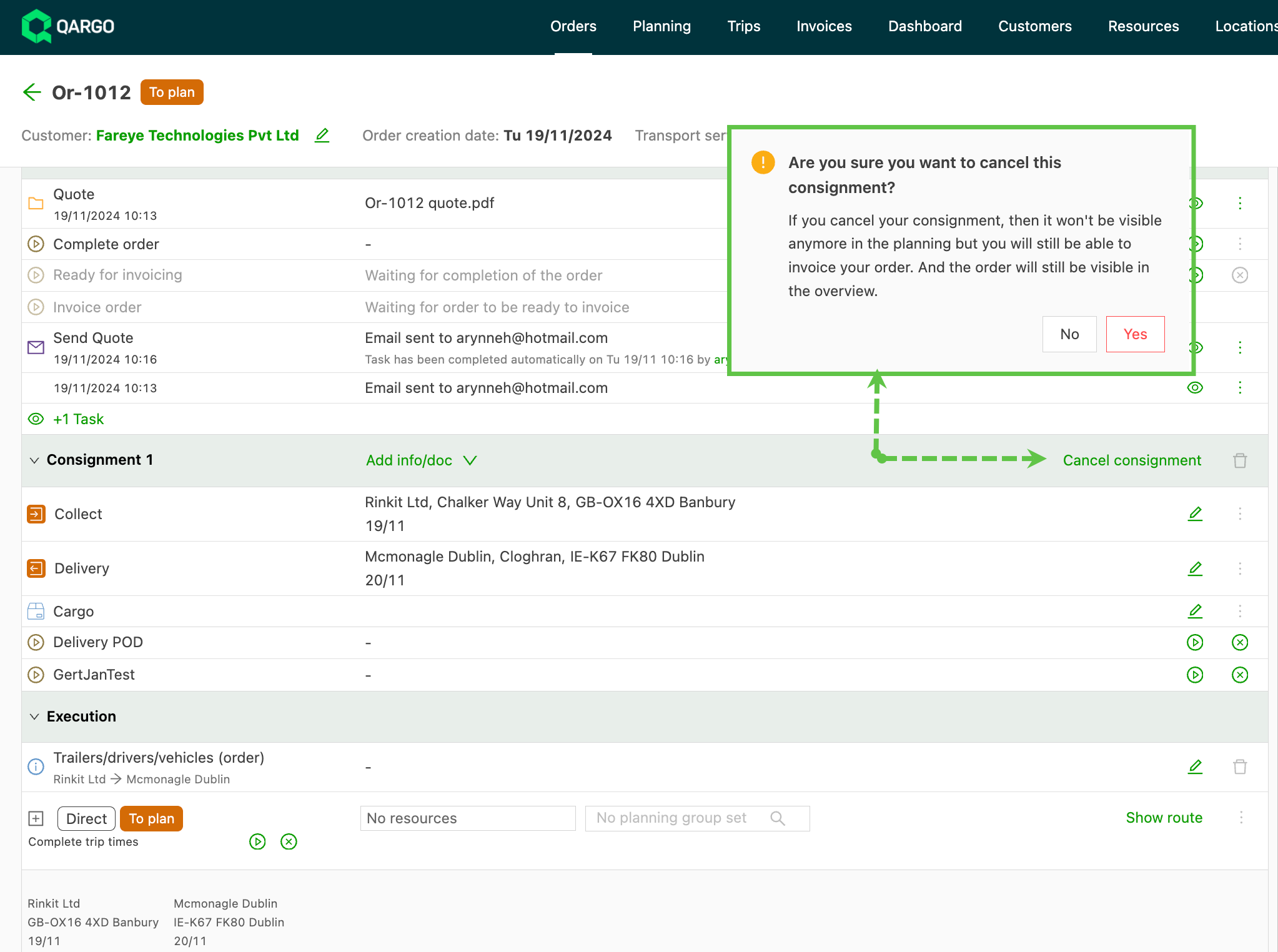
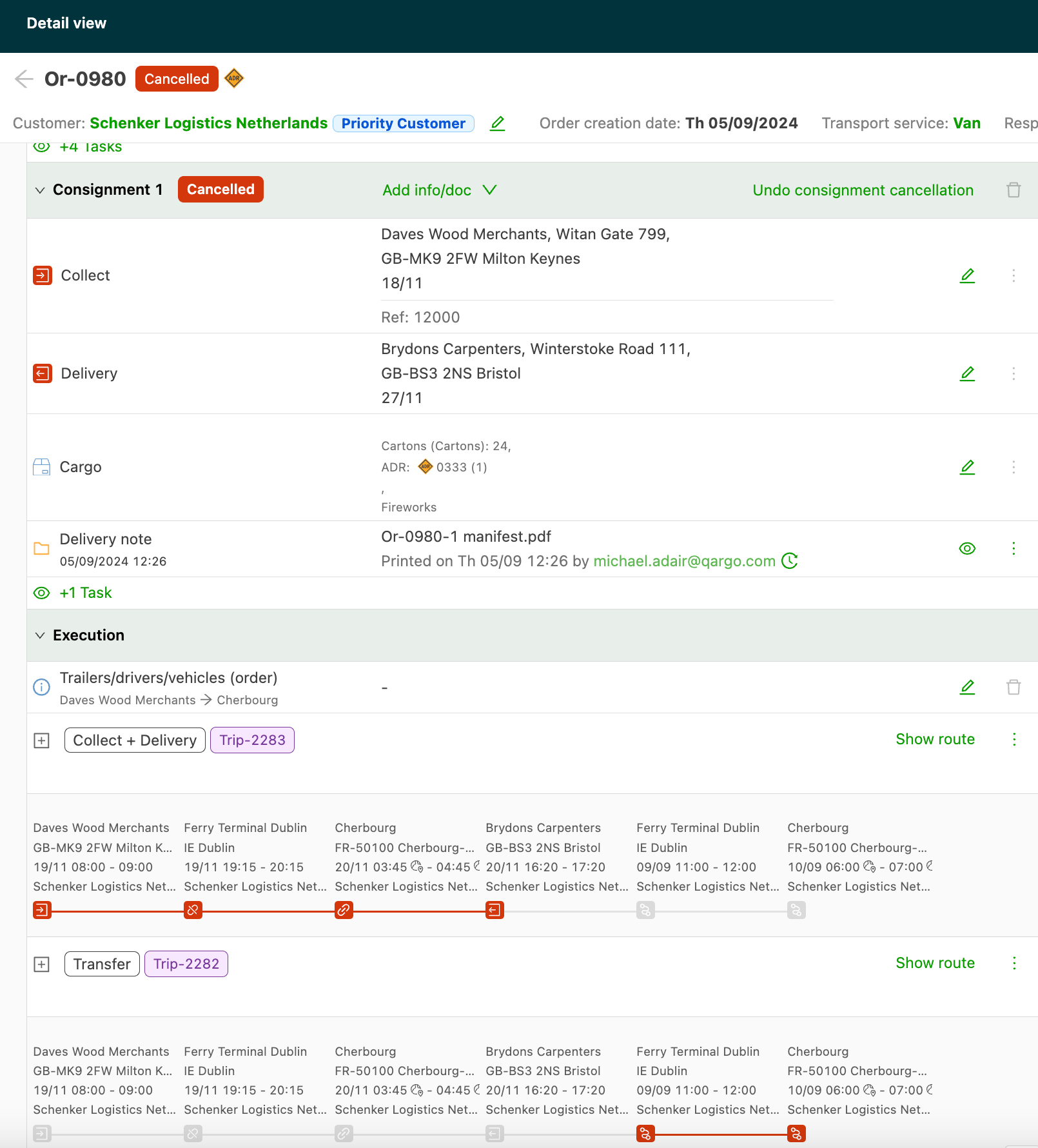
The canceled shipment and its associated details remain in the order but display a status of Canceled. There is an option to Undo the cancellation.
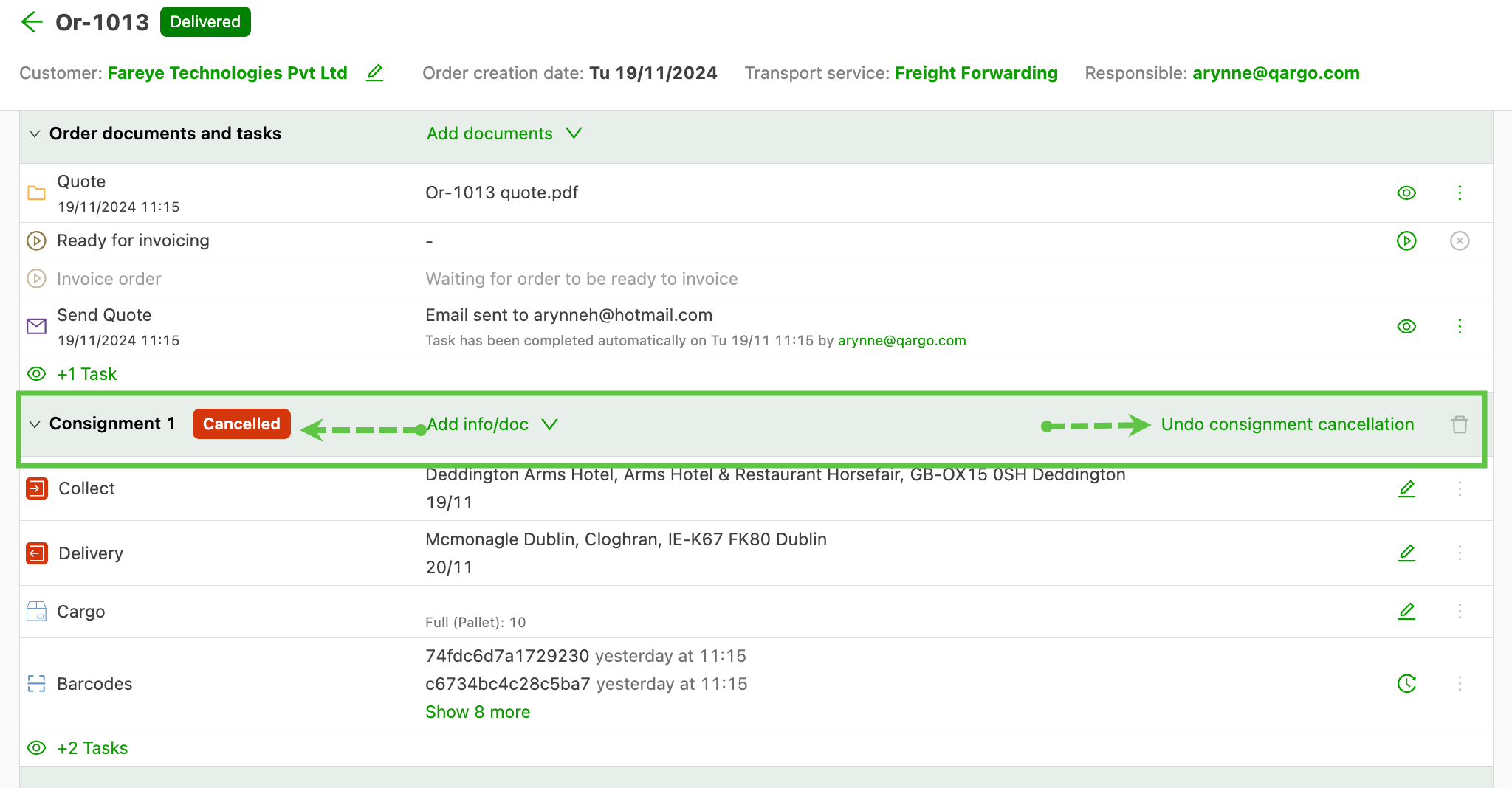
If there are multiple shipments on the order, each one needs to be canceled individually by clicking the Cancel shipment option.
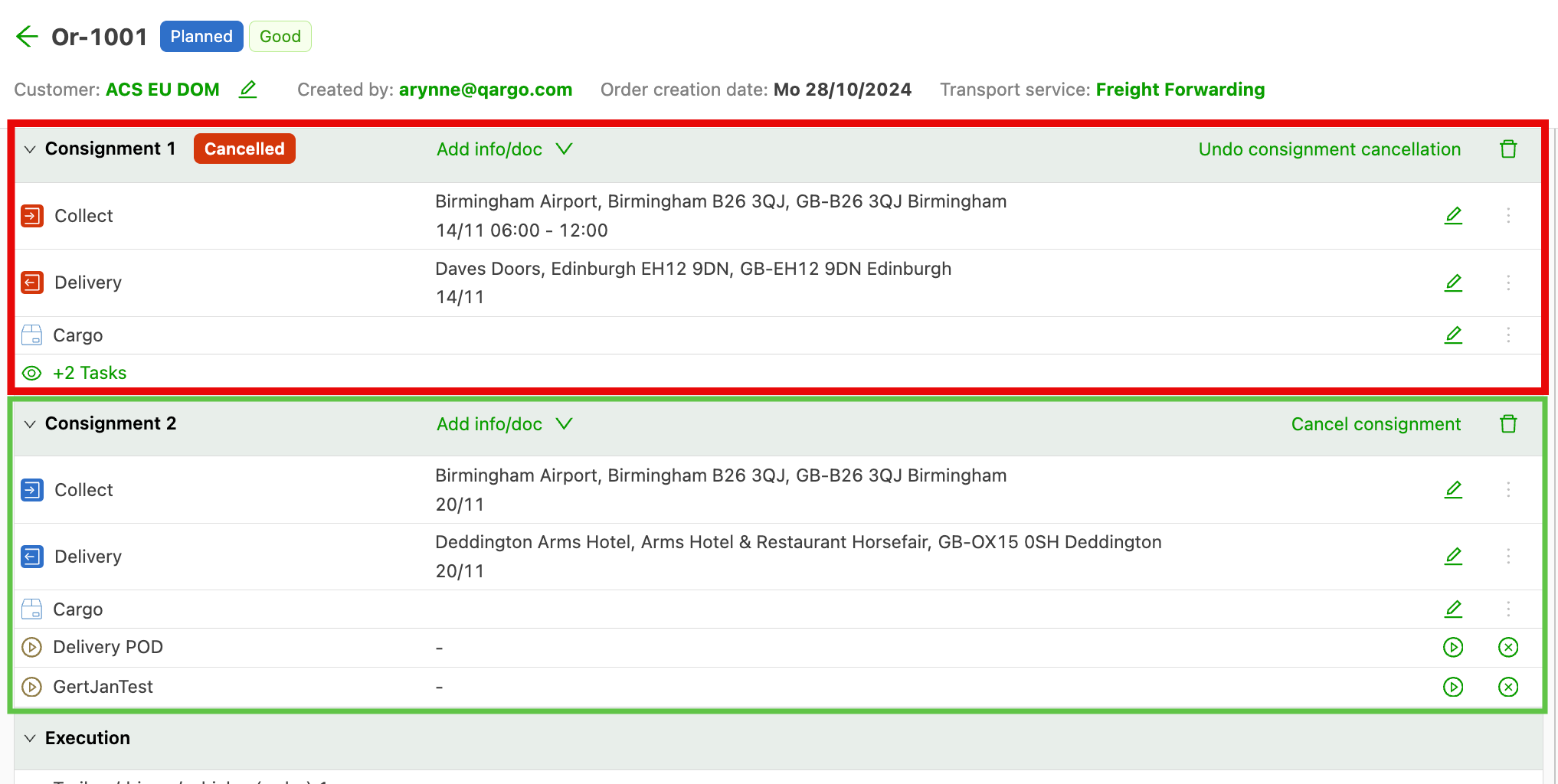
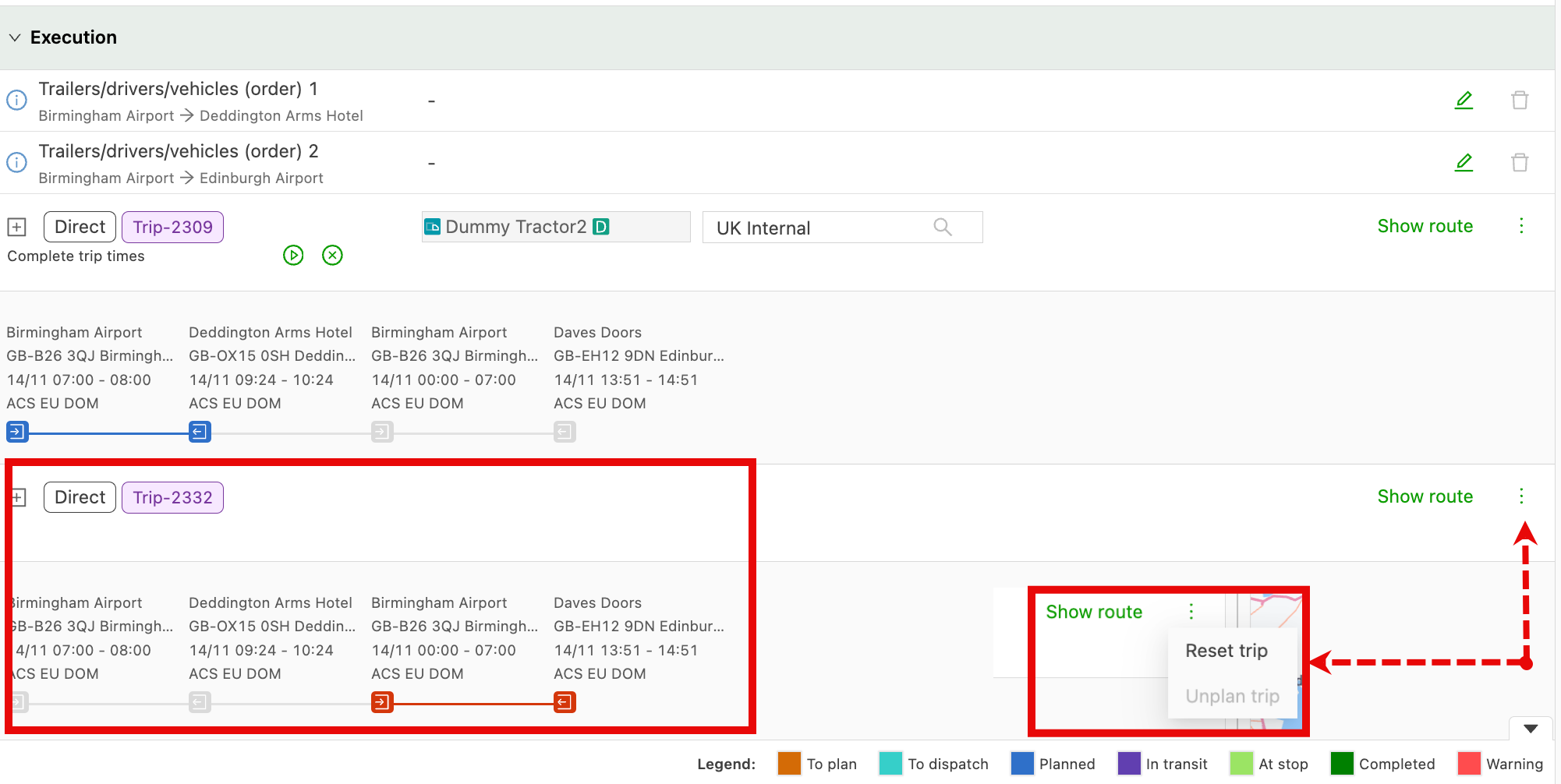
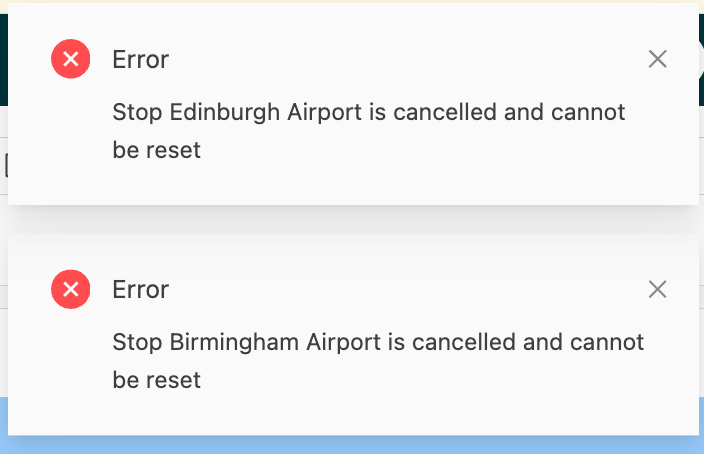
The associated stops for the canceled shipment are removed from the routing and appear grayed out. A second load is created with the canceled stops. There is an option to Reset the load. However, if the associated shipment still has a canceled status, an error is displayed for each stop.
In some instances, it may be appropriate to cancel the entire order. However, canceling an order makes it unavailable for billing.
Cancel an order
-
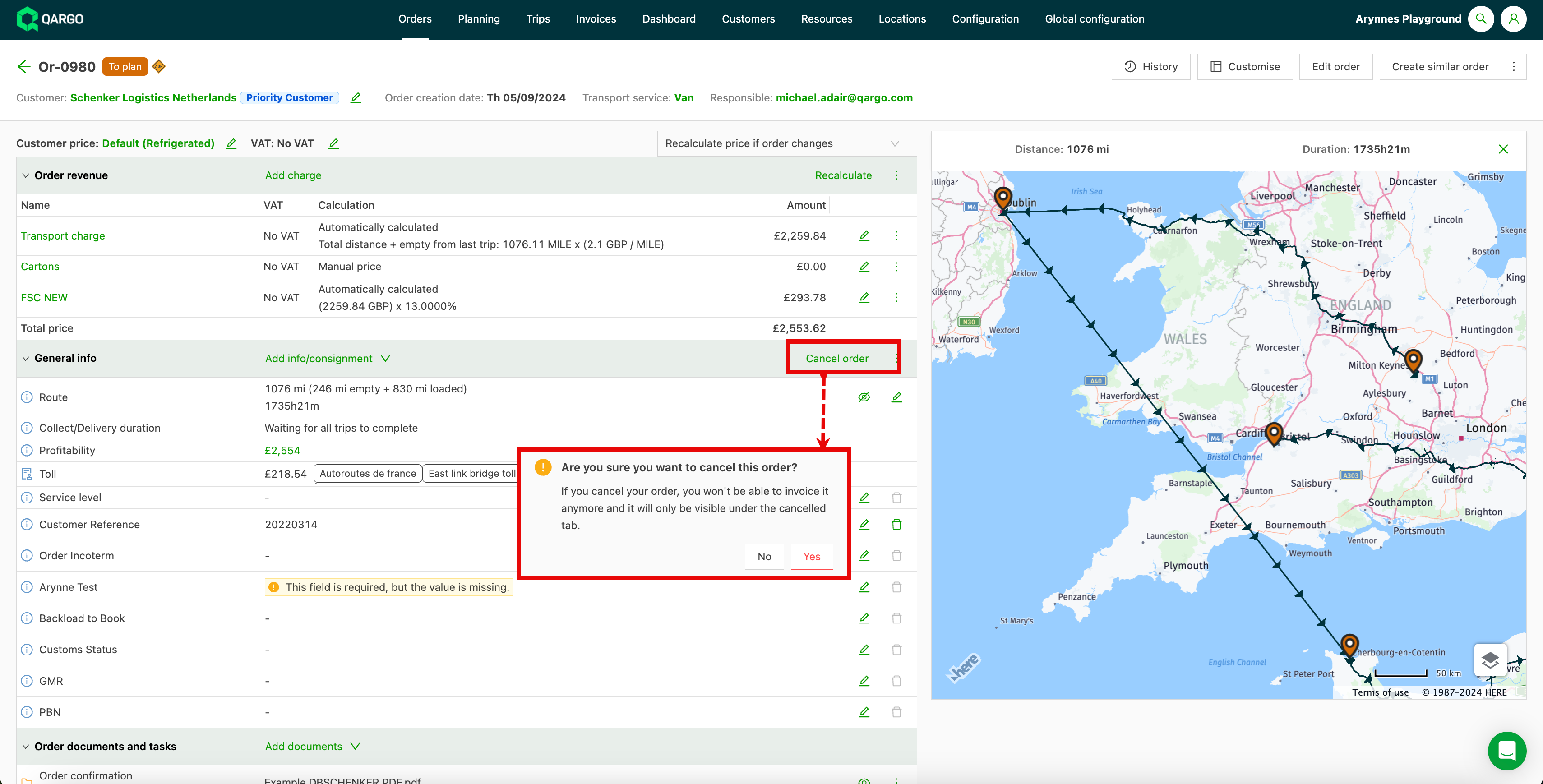
To cancel an individual order, navigate to the order details view.
-
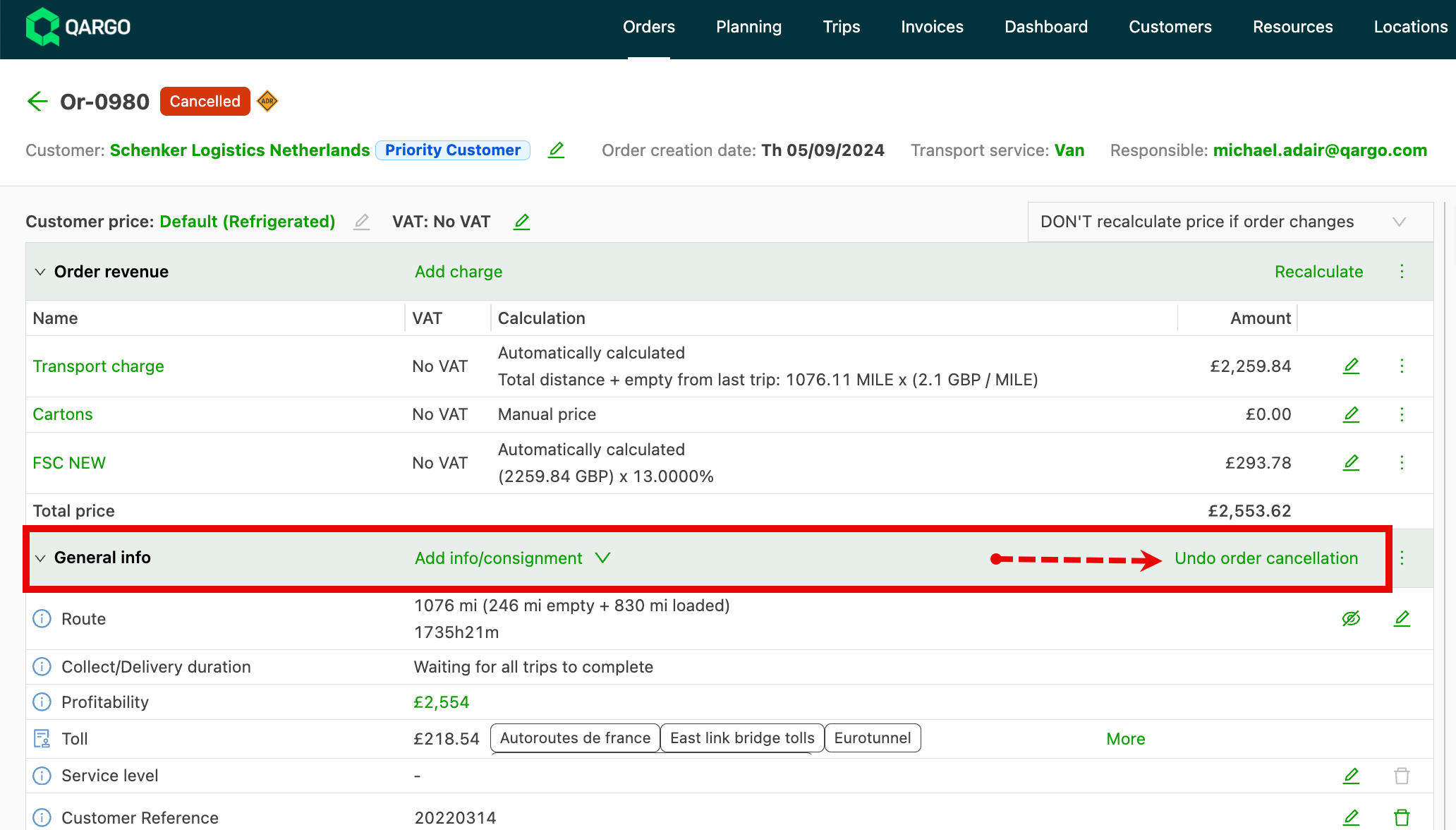
In the General info section, click Cancel order.
-
A pop-up confirmation is displayed. Click Yes to continue.
-
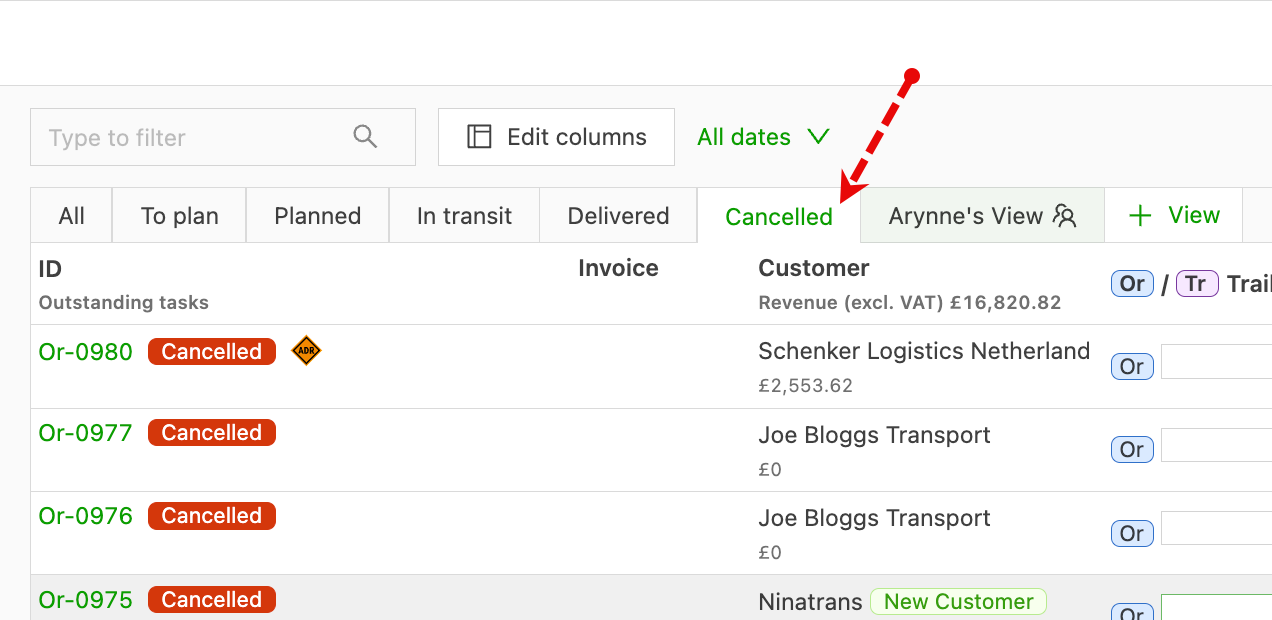
The order status updates to Canceled and the order moves to the Canceled tab in the order list. There is an option to Undo order cancellation in the General info header.
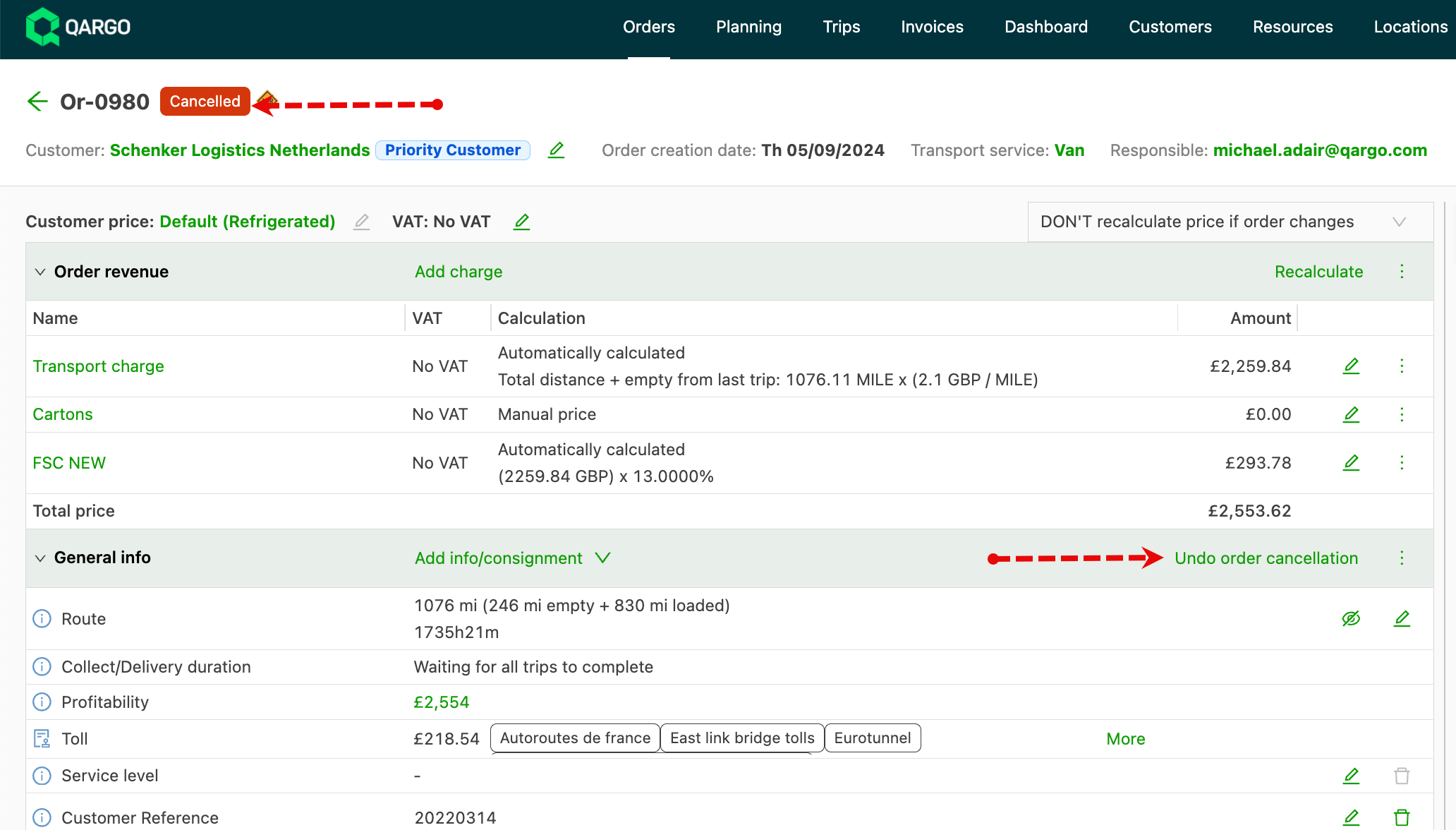
When the order is canceled, all shipments are canceled and the load is reset.
Cancel multiple orders (cancel orders in bulk)
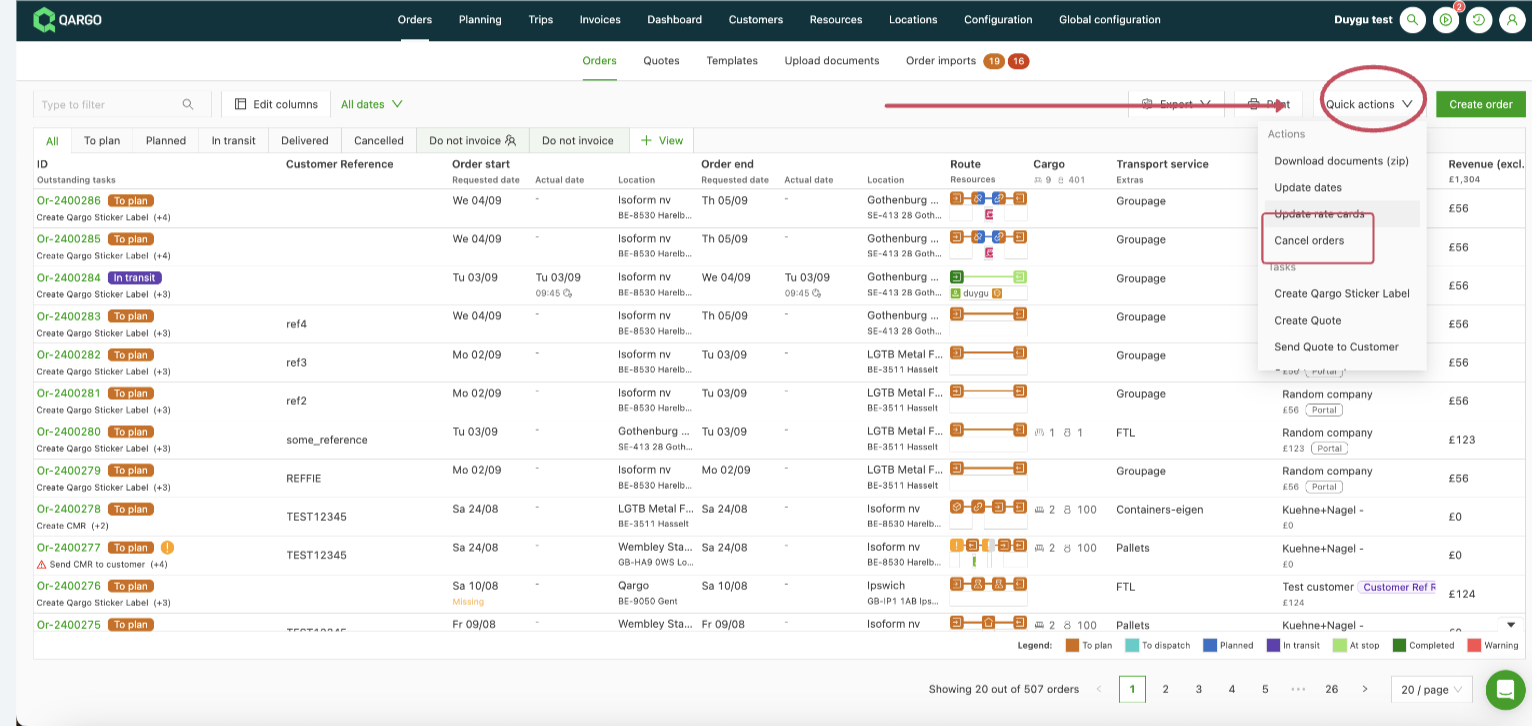
If multiple orders need to be canceled, this can be done from the main Orders view page using the Quick actions feature.
-
On the Orders page, open Quick actions.
-
Select the orders to cancel.
-
Click Cancel orders at the bottom right.
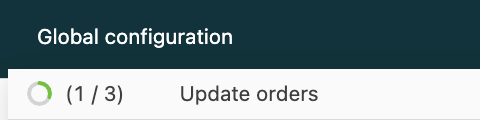
Cancellation runs in the background. Progress is shown at the top right. The order list refreshes automatically once all selected orders are canceled.
Undo a bulk cancellation
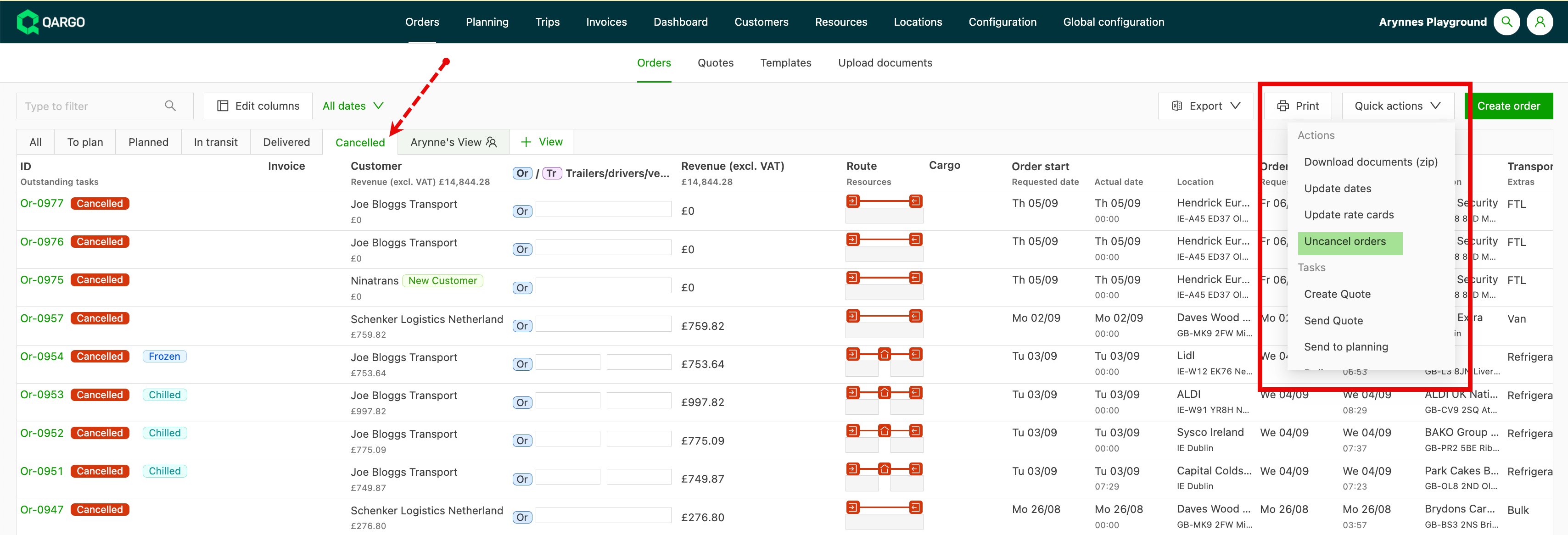
Go to the Canceled tab and use the bulk uncancel action. The orders return to To plan.
Note: Order and shipment cancellations can be reverted by clicking the Undo order/shipment button.