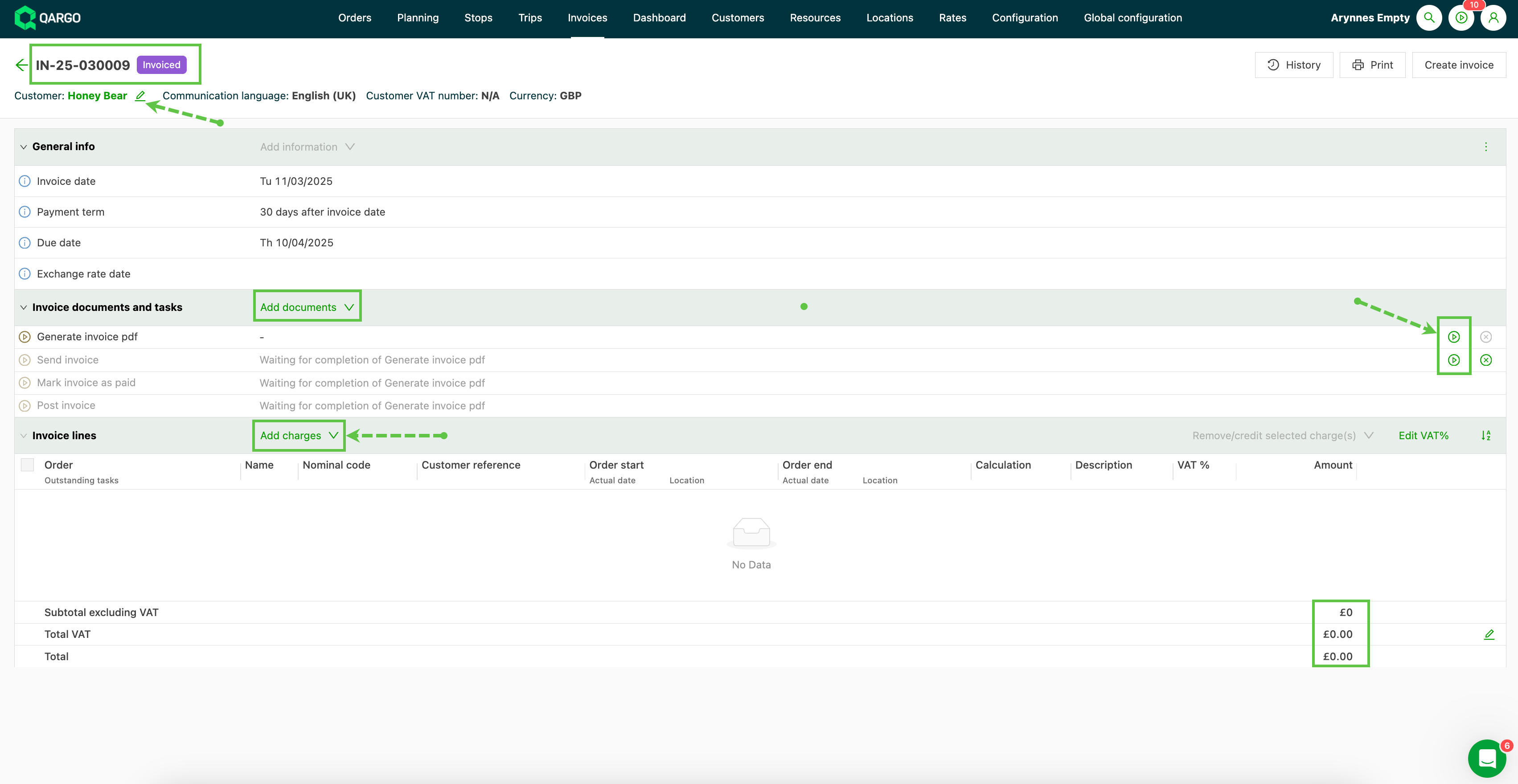
Invoices – cancel or reuse invoices
Cancel an invoice via Invoices > Invoices. Orders revert to "Ready to invoice." Find canceled invoices under "Canceled" or undo the cancellation to reuse them.
Table of contents
\
Canceling an existing invoice {#h_130de2541d}
-
Go to Invoices > Invoices and find the invoice to cancel.

-
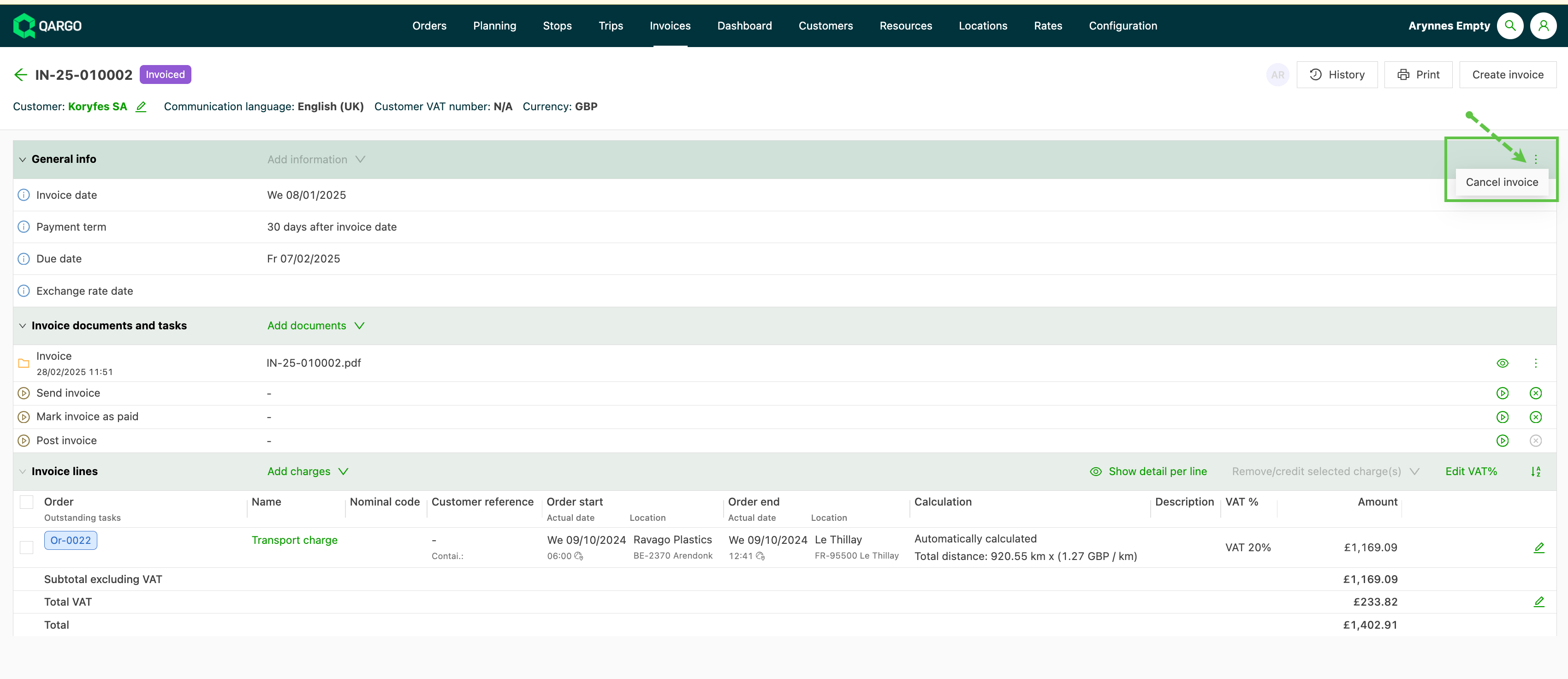
Open the invoice details view and find the 3 dots on the right side of the page.
-
Click the 3 dots and select “Cancel invoice”.
Any orders linked to the invoice are automatically removed from it and get the status “Ready to invoice”.
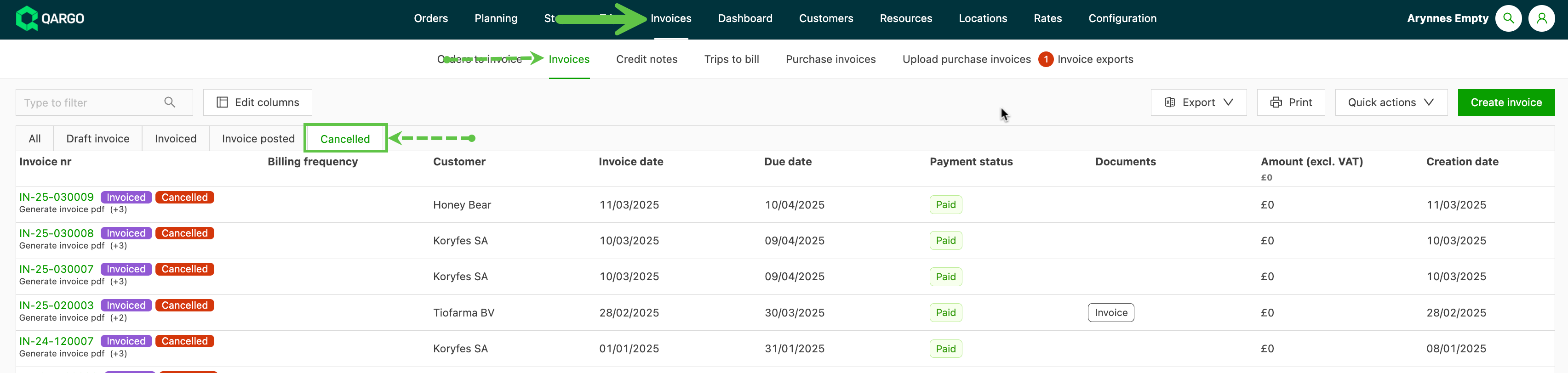
- Canceled invoices are listed under the “Canceled” column.
Undo a canceled invoice
To reuse the invoice (number), undo the cancellation and continue the billing process.
- Go to the “Canceled” tab under Invoices.

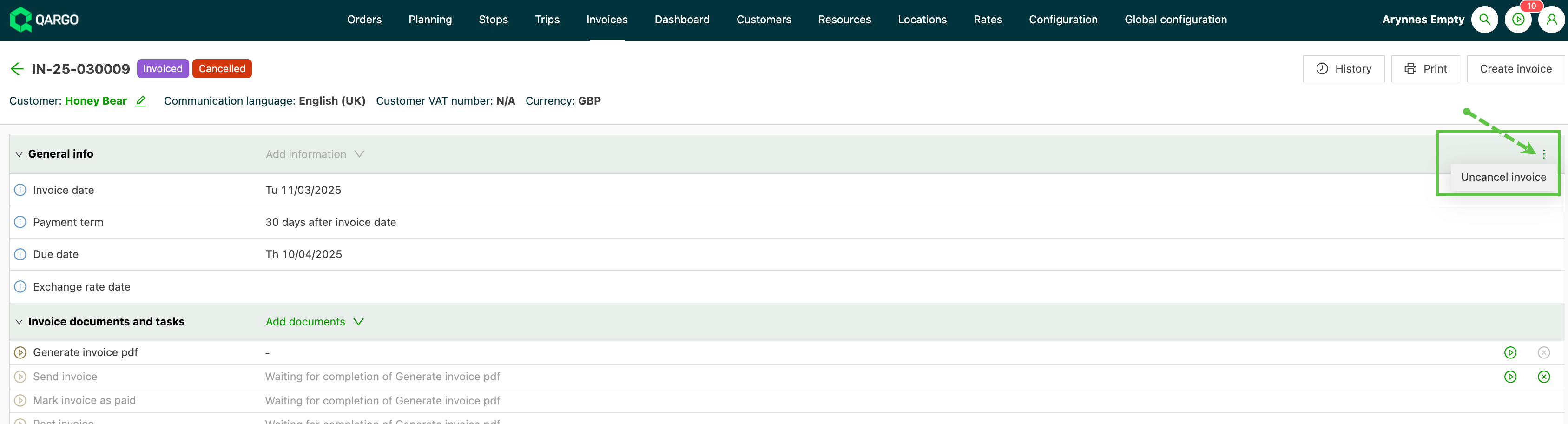
- Select the invoice to set back to the Invoiced status. Click the invoice number to open the invoice details view.
- In the General info header, click the 3-dot menu and select “Uncancel invoice”.
Reusing an invoice number
Once an invoice number has been uncanceled, the number becomes available again. However, any charges on the original invoice are removed and the invoice is set to 0.
- The status of the invoice is reset to Invoiced.

If the invoice shows “Invoice outdated”, use the Retrigger function to update the invoice preview details. When troubleshooting discrepancies, such as duplicate entries or unexpected charges, review the relevant bills or configurations to resolve them.
- Invoice details can be updated, including the customer and charges. The invoice can then be processed as a standard invoice.