
Feature release May 2025
This article highlights the new features and enhancements released by Qargo this month.
Week 1
Customer portal: Add a default order status.
Orders: Exclude stops from distance and stop calculations
Loads: Warning when removing resources
Edit columns: Customize options now searchable
Planning: New option to merge multiple orders
Locations: Internal stop default duration
Rates: New extra charge options for stops
Week 2
Configuration: Enhanced uses for packaging and product types
Rates: Rate calculation – Add location metric
Rates: ZIP code-based consolidation
Planning: Do not dispatch on stops
Orders: Bulk update to order fields
Map: Improved visualization for trailers
Orders: Automatically create recurring orders.
Week 3
Invoices – Auto-assign billing groups to orders
Exports – Add costs and profit/loss
Fuel surcharge – Improved visualization on invoices.
Week 4
Orders: Add load ID column to list view
Invoices: Asynchronous invoice creation
Orders: Bulk update to activities on orders
Orders / Loads: List view – Flexible date selection options
Errors: Improved error handling
Loads: Upload documentation via contract carrier FMS
Week 1
Customer portal: Add a default order status.
A new option is available under transportation services to set the order status for customer portal orders that use this service. The default for this option is set in the organization settings and in the customer profile. Adding the option to the transportation service ensures the portal configuration matches the carrier’s business workflow.
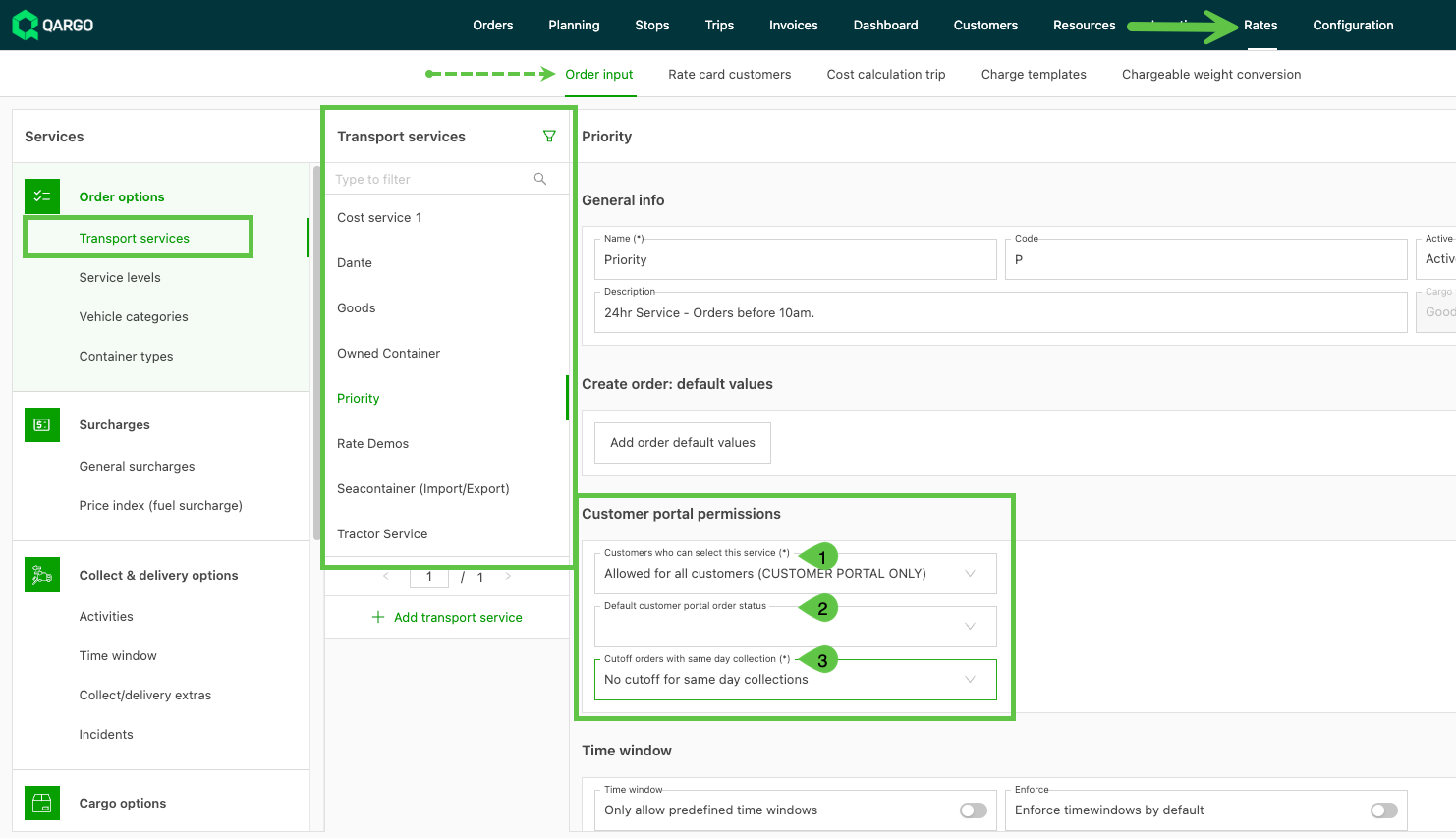
Click the link to learn more about using order status and defaults in the customer portal.
Customer portal order status and defaults
Orders: Exclude stops from distance and stop calculations.
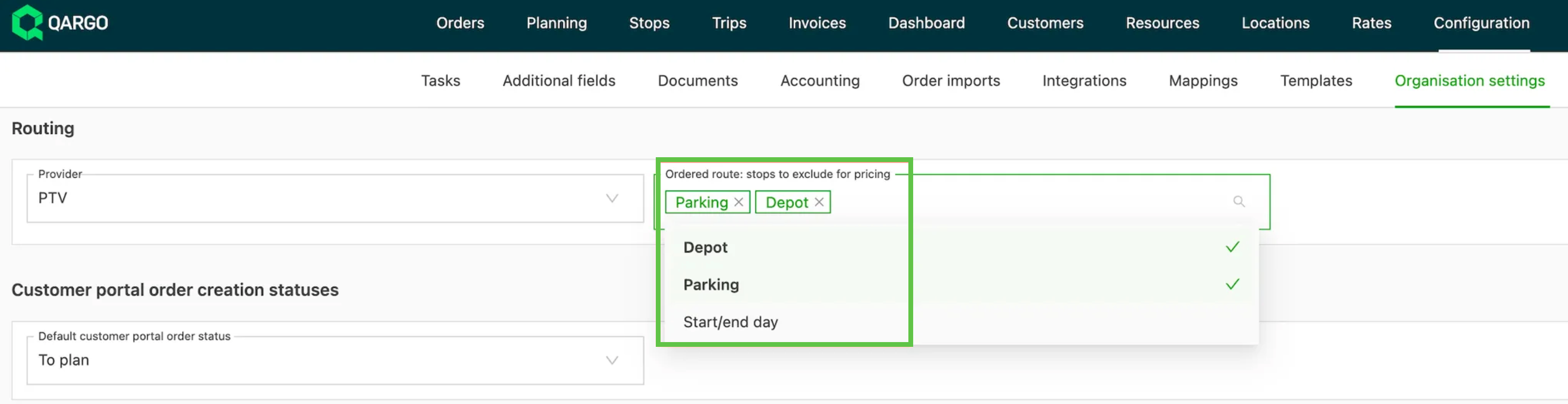
It is now possible to exclude certain stops from order route distance calculations. This is useful when those stops should not be taken into account for rating based on distance.
-
Stops that can be excluded:
- Terminal (unload + load goods; drop + pickup container)
- Parking (drop + hook trailer; drop + hook chassis)
- Start day / End day
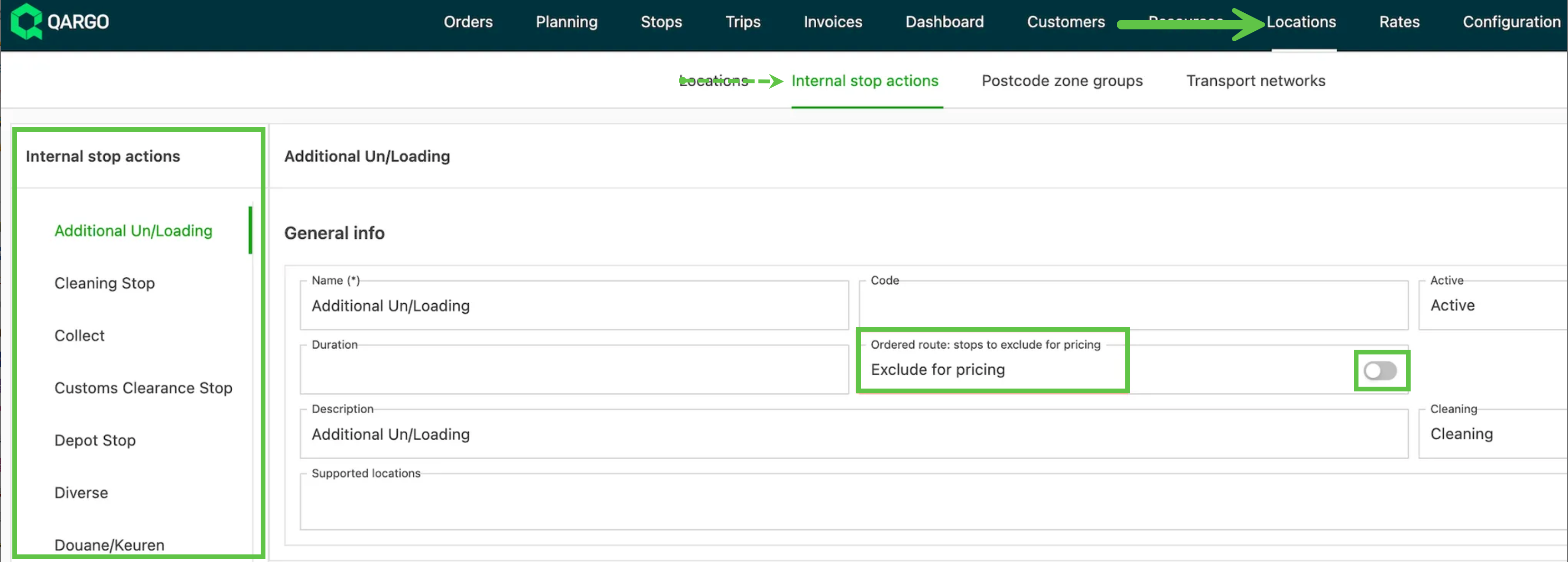
Internal stop actions can also be excluded from the order route distance calculations.
Stops are still shown in the order route details, including on the customer portal. However, the map now includes a filter option for Order and Load. The order route does not show excluded stops, and the distance reflects this. The load route includes all stops.
Read more about excluding stops here.
Loads: Warning when removing resources
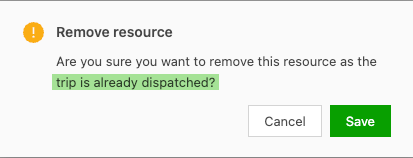
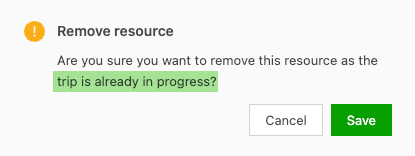
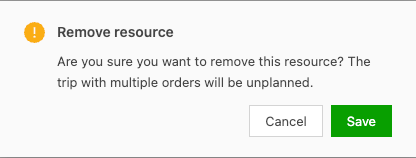
Sometimes it is necessary to remove a resource that is allocated to a load. This now generates a warning if:
-
the load is already dispatched
-
there are multiple orders on the load
Edit columns: Customize options now searchable
Where there is an option to ‘Edit columns’ or ‘Customize’ the data displayed in a view, the side menu now includes a search filter. This helps find specific data options more efficiently. It is available across multiple modules (for example Orders, Loads, Stops, Invoices), on every page where this option exists.
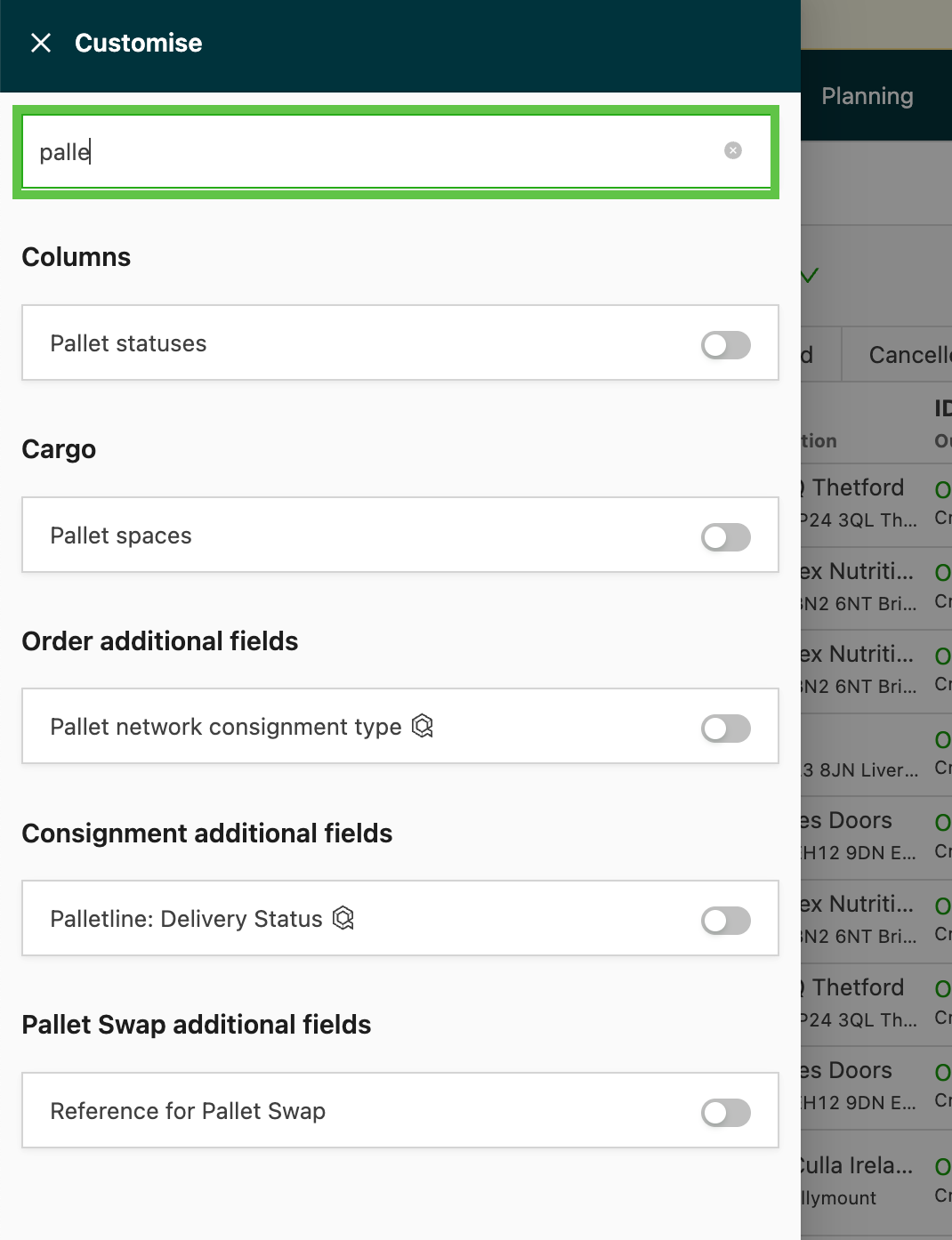
The search shows all options that include the keyword, so the user can quickly customize the view.
Planning: New option to merge multiple orders
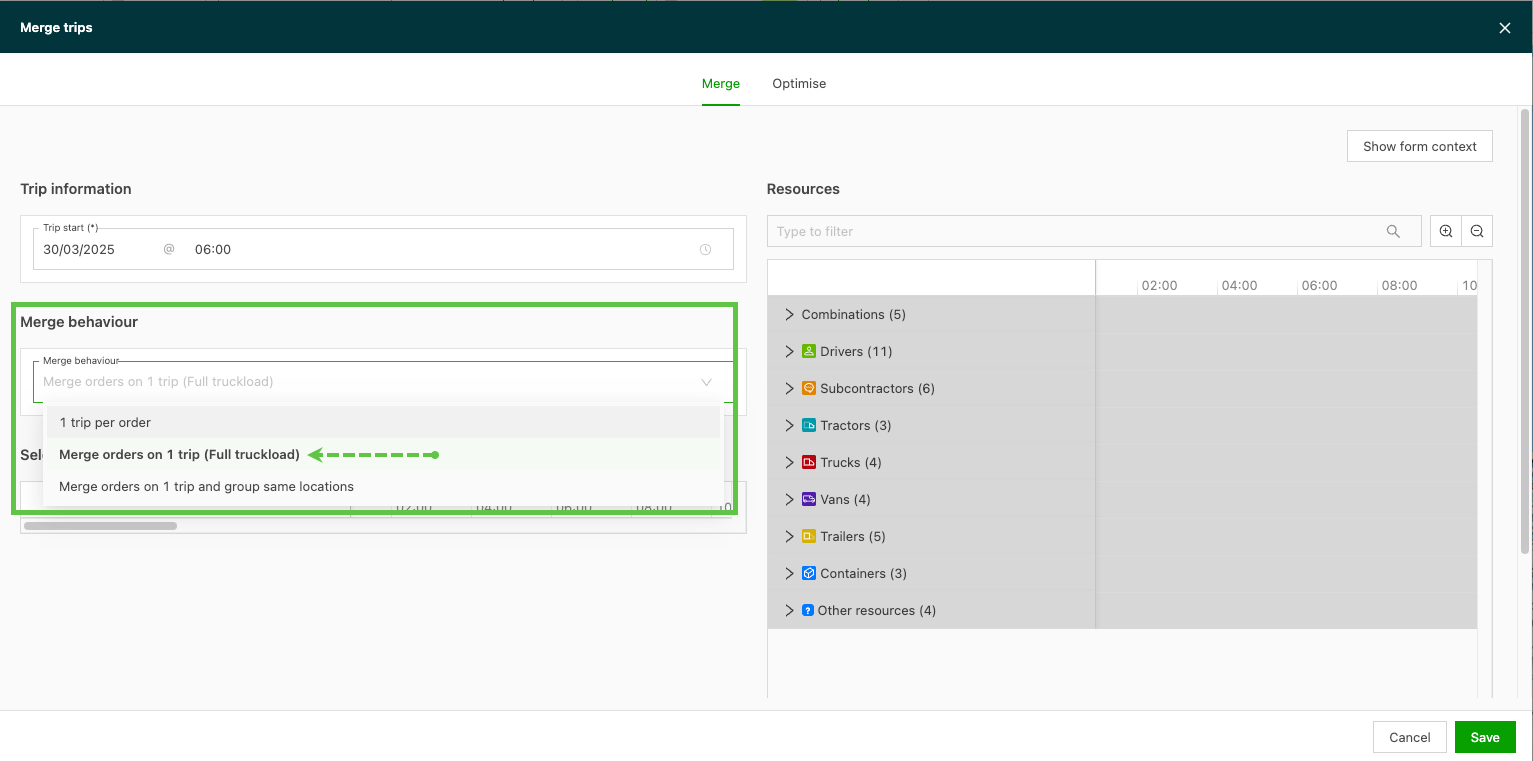
There is a new option when planning multiple orders to a single load. When the orders make up a full truckload (FTL), grouping orders or changing the stop order isn’t necessary. This option keeps the orders in the same order in which they are added to the load.
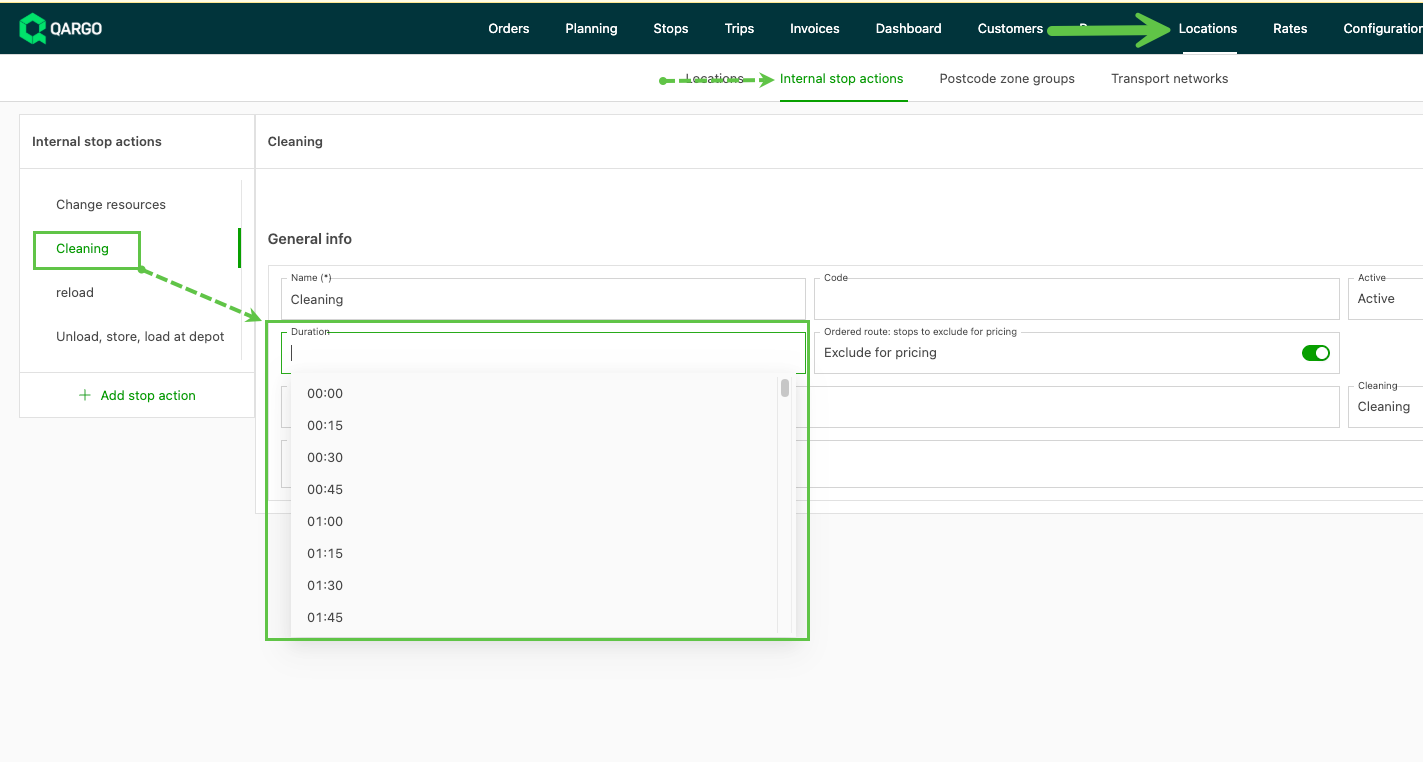
Locations: Internal stop default duration
It is now possible to assign a duration to internal stop actions. When a new stop action is created, no duration is set by default. Select the appropriate time from the drop-down and click save.
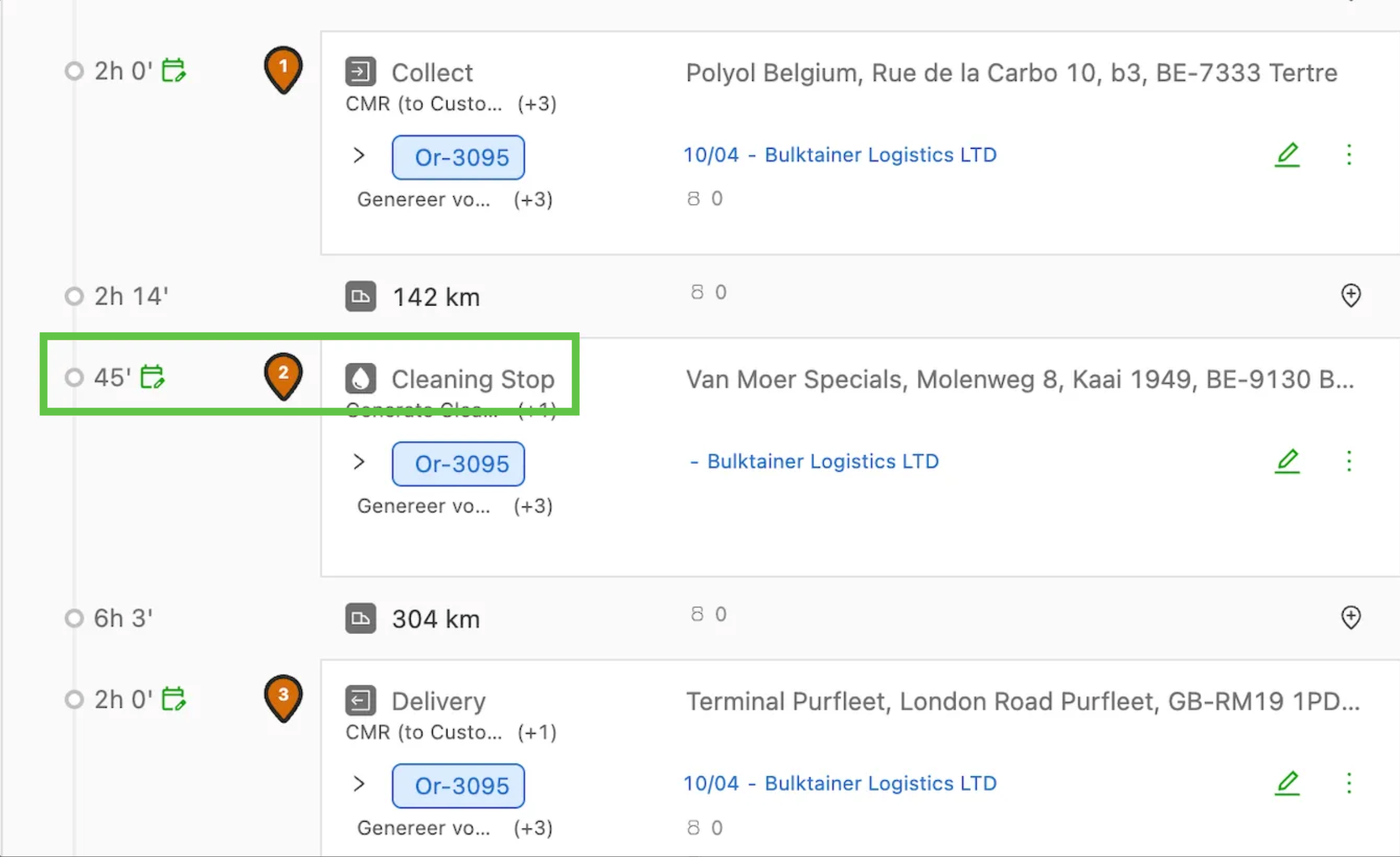
Once the duration is added, it shows in the route when the stop is included.
Click below to learn more about this function.
Rates: New extra charge options for stops
There is a new option for rating internal stops on an order. Stop extras can now be created as:
- Pickup: the extra can be added on pickup stops
- Delivery: the extra can be added on delivery stops
- Other stops: the extra can be added on all stops other than pickup and delivery
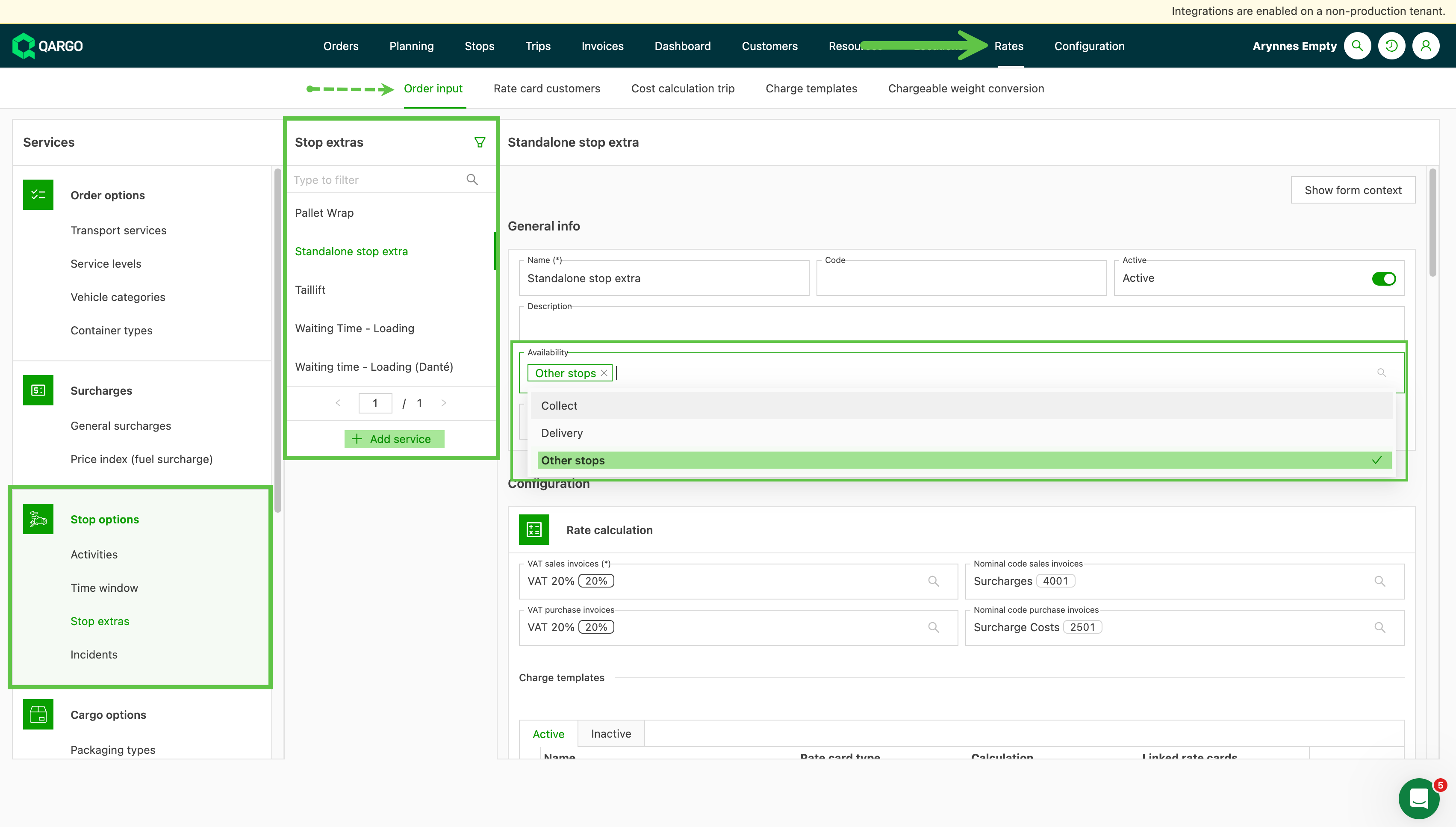
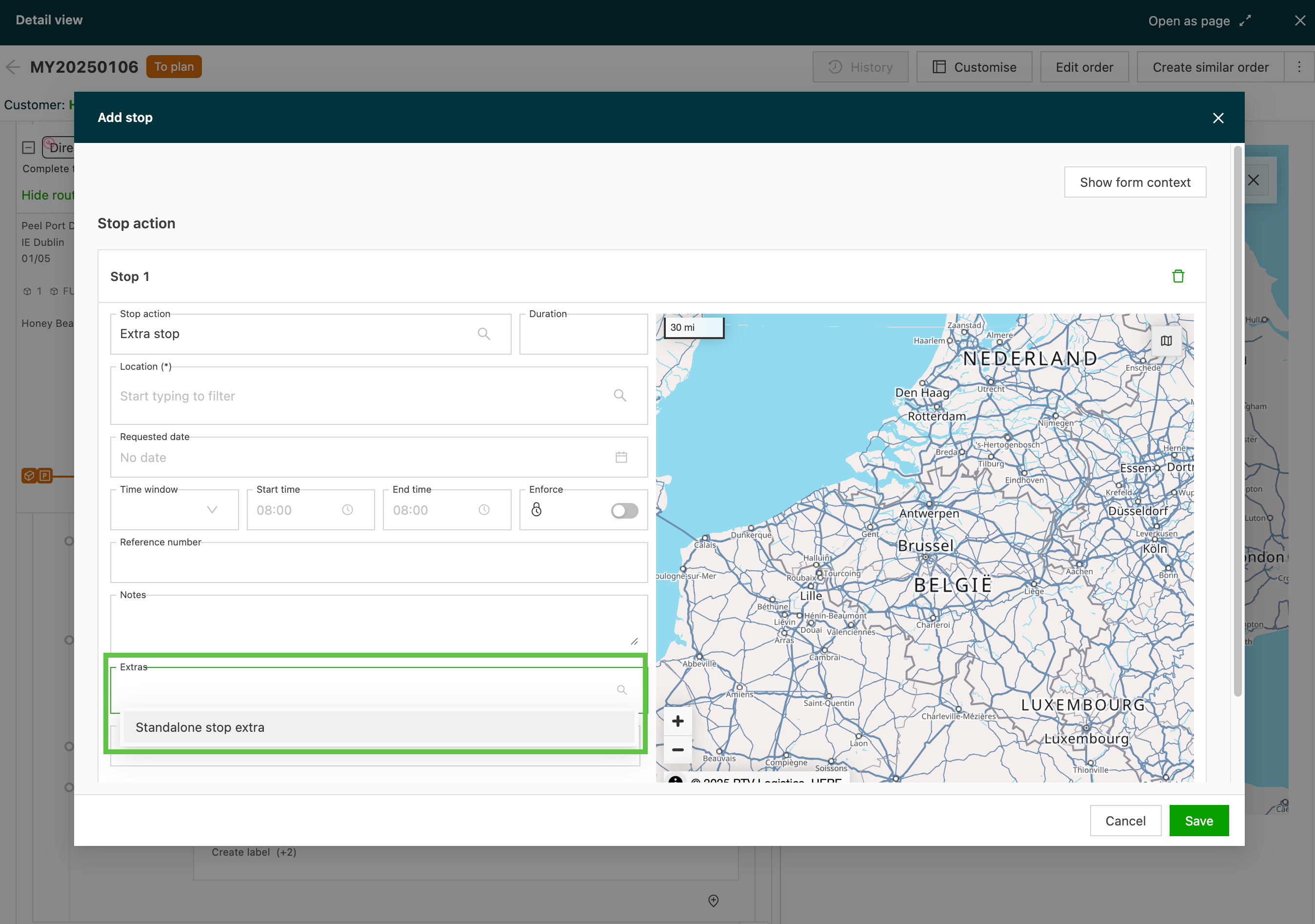
- Once activated on a price list, the charge becomes available when the extra stop is added with the extra selected.
Click the link below to read more about stop extras.
Rate card FAQ – Extra charge for stops
Week 2
Configuration: Enhanced uses for packaging and product types
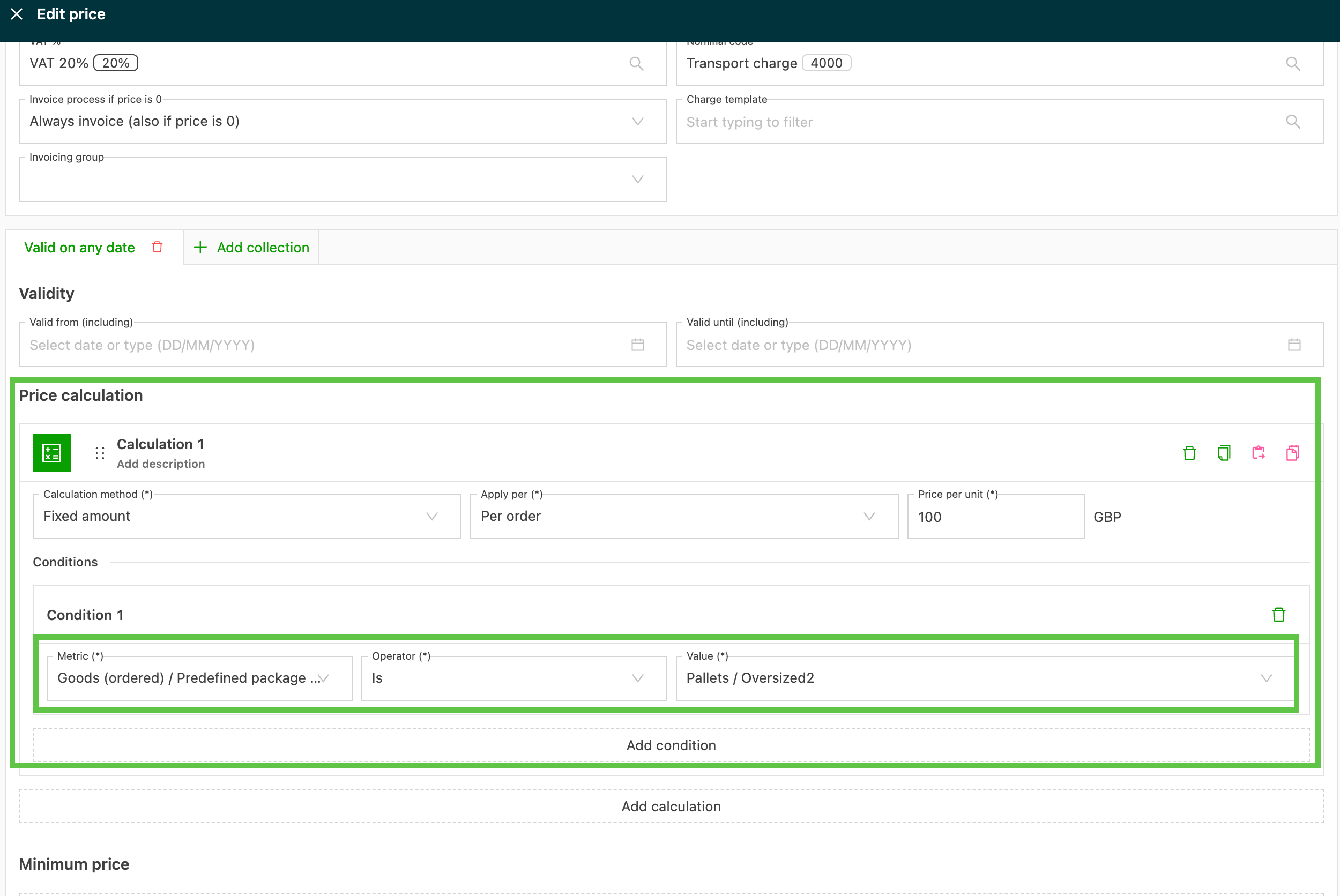
Packaging and product types are now more flexible, with new options for a more streamlined workflow. Specific packaging and product types can now be used as:
-
Conditions to automatically assign orders to planning groups and departments.
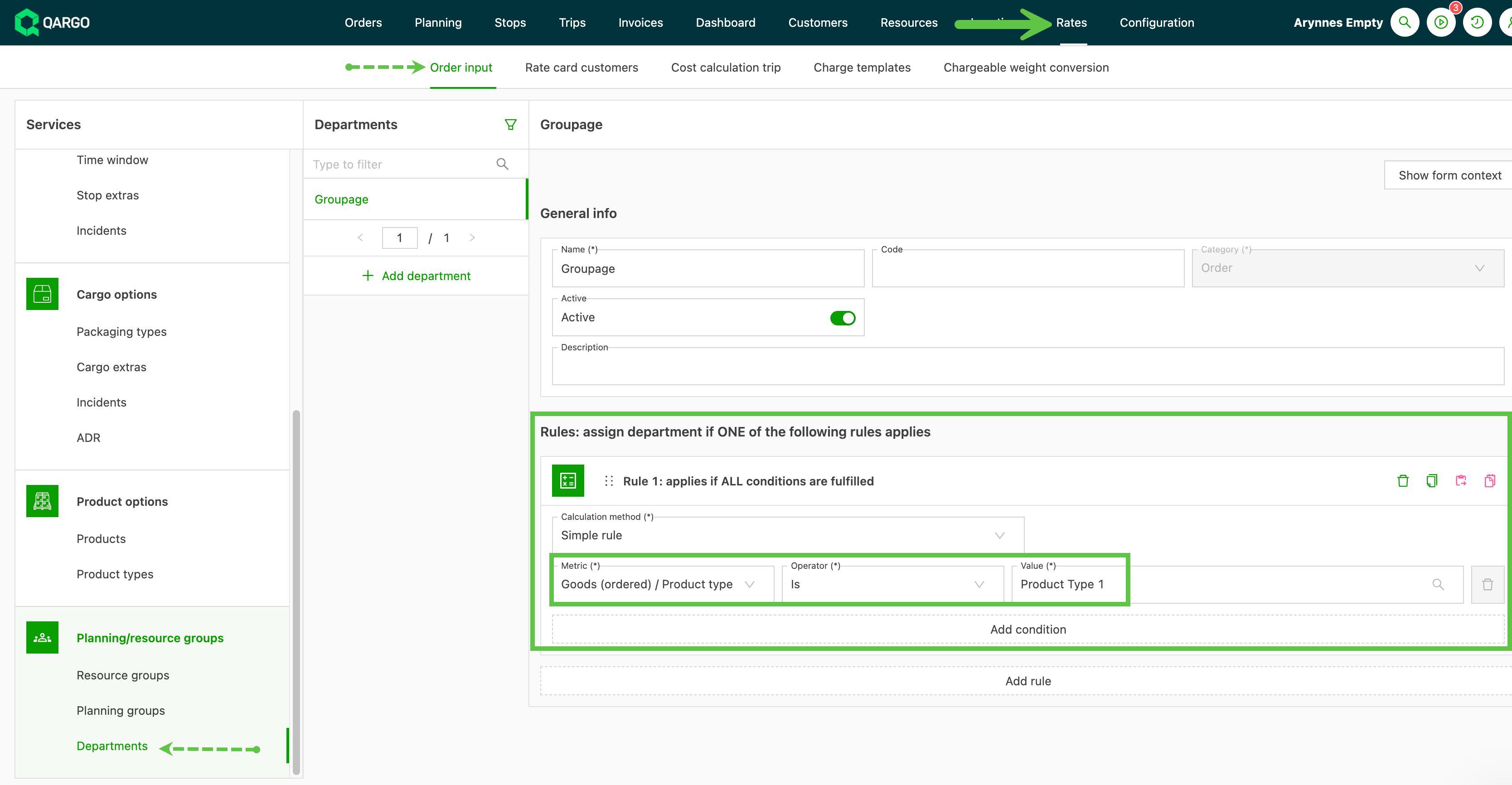

Click here to learn more about using planning groups.
-
Conditions for fixed rates per order.
Rates: Rate calculation – Add location metric
Rating based on locations is possible by creating a price list that uses specific stop locations as part of the calculation metrics. This is useful when a single customer has different rates for different locations in the same ZIP code.
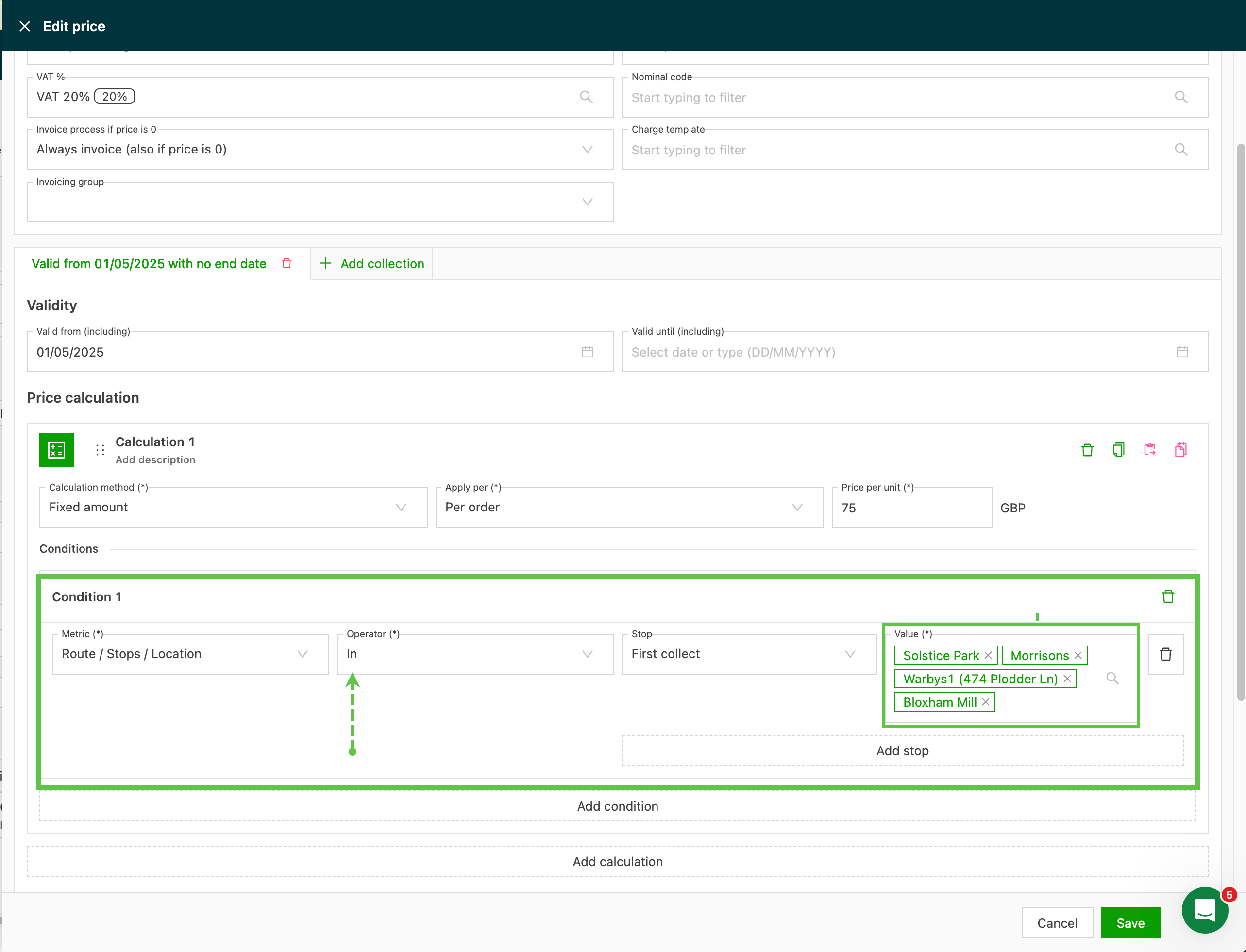
Where there are multiple stops, the options for how the order is rated include:
-
Simple fixed price per order, based on a single specific location
-
Rate table option, based on the route stop location.
- The stop is specified in the table
- Where there are multiple stops, an option to add all charges or apply the maximum charge
-
Rate table option, based on the stop location only.
-
The stop exists in the load and is not specific to the route.
- Where there are multiple stops, an option to add all charges or apply the maximum charge
-
Rate card FAQ – Price by location
Rates: ZIP code-based consolidation
When rating multiple orders on a single load, the system now offers enhanced location-matching criteria for consolidation:
- Exact location matching (existing functionality): Consolidates rating when locations are exactly the same across orders
- ZIP code matching (new): Consolidates rating when ZIP codes match, even if the specific addresses differ
- ZIP code prefix matching (new): Consolidates rating when only the ZIP code prefix matches (e.g., UK, NL)
Previously, addresses had to match exactly to qualify for consolidated rating. Now it is possible to define the level of location matching required. For example, when two orders:
- Are assigned to the same load
- Share the same ZIP code for pickup addresses
- Use a rate card with consolidation set to “pickup/delivery address & same load” at “ZIP code” level
The system automatically combines the charges across both orders, which makes rating calculations more efficient.
Benefits
- More consolidation opportunities: Identify more potential consolidation scenarios with flexible matching criteria
- Greater rating accuracy: Apply the right level of rate consolidation for the business model
- Simplified billing: Create cleaner, more logical invoices for customers with multiple pickups/deliveries in similar areas
To learn more, click the link below.
Rate card FAQ – Consolidate on ZIP code
Planning: Do not dispatch on stops
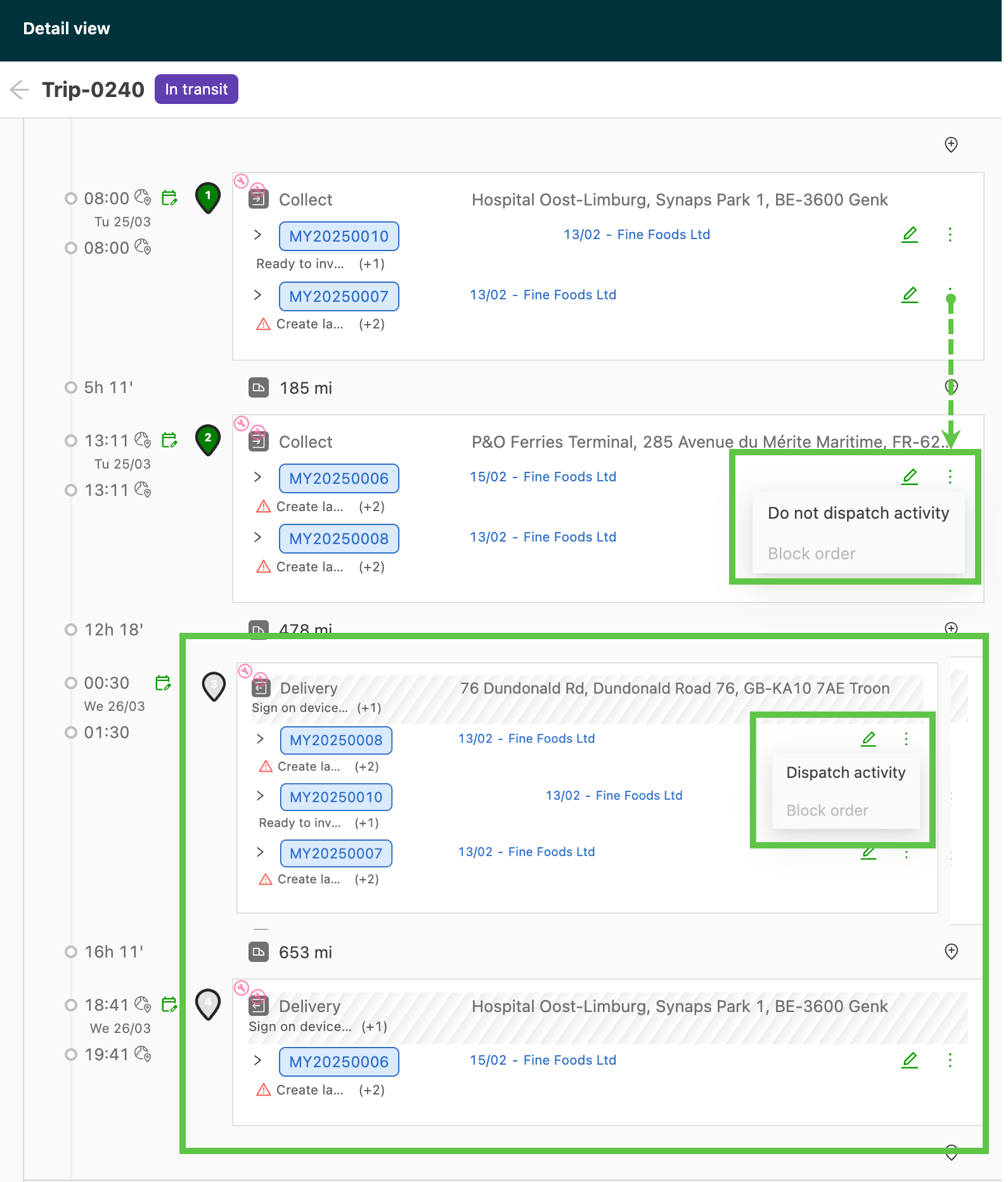
This new function lets users mark specific stops (pickup / delivery / terminal / intermodal terminal) as ‘Do not dispatch’. The load stays planned to the resource, but planners get more control over which stops are shared with drivers and contract carriers.
Dispatching stop by stop improves the handling of last-minute changes to loads. It also controls what contract carriers and drivers see in the app and portal.
- Use the menu on the individual stop to set the status to ‘Do not dispatch’.
- Once marked as ‘Do not dispatch’, the stop is grayed out.
- To make the stop available again, use the menu to set it back to ‘Dispatch activity’
To learn more about using planning features, click the link below.
Planning: Blocked orders / Do not dispatch
Orders: Bulk update to order fields
New bulk update actions are now available, including updates to order / shipment fields and stop details.
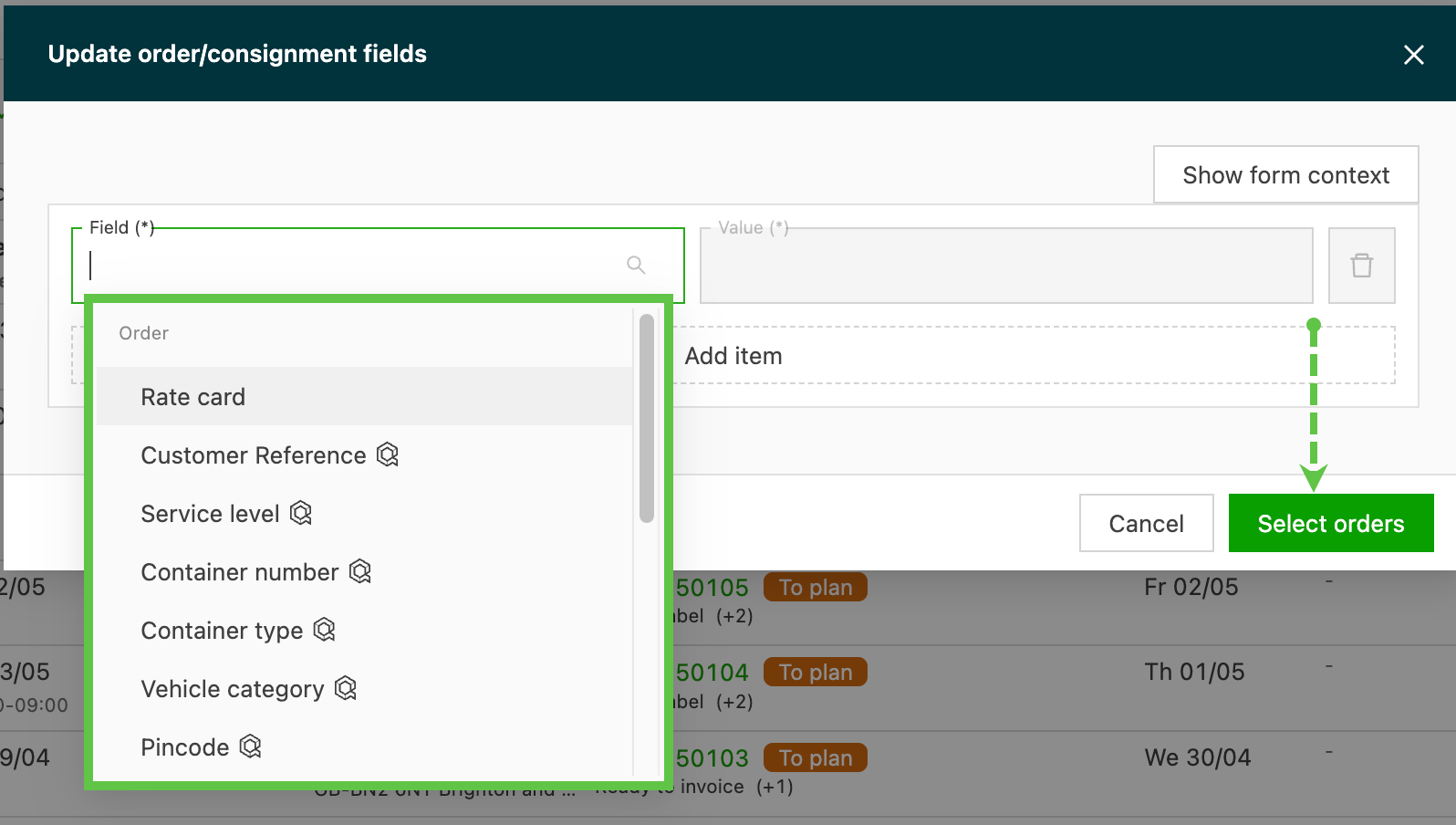
This makes it much easier to:
- Apply the same location or reference to multiple orders in just a few clicks
- Correct data inconsistencies at scale (particularly useful for large order batches)
- Update reference numbers for orders
- Apply charges or extras in bulk after portal uploads
- Make last-minute planning changes, often combining or splitting loads
Read more about the bulk updates available on orders.
Orders – Complete quick actions in bulk
Map: Improved visualization for trailers
Trailers are now displayed on the map with a separate icon.
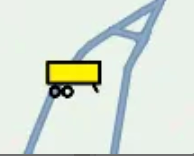
The resource colors have also changed: yellow for trailers, and blue for trucks and other resources.
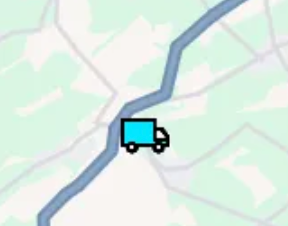
This matches the colors used for resource types in other parts of the app.
Orders: Automatically create recurring orders
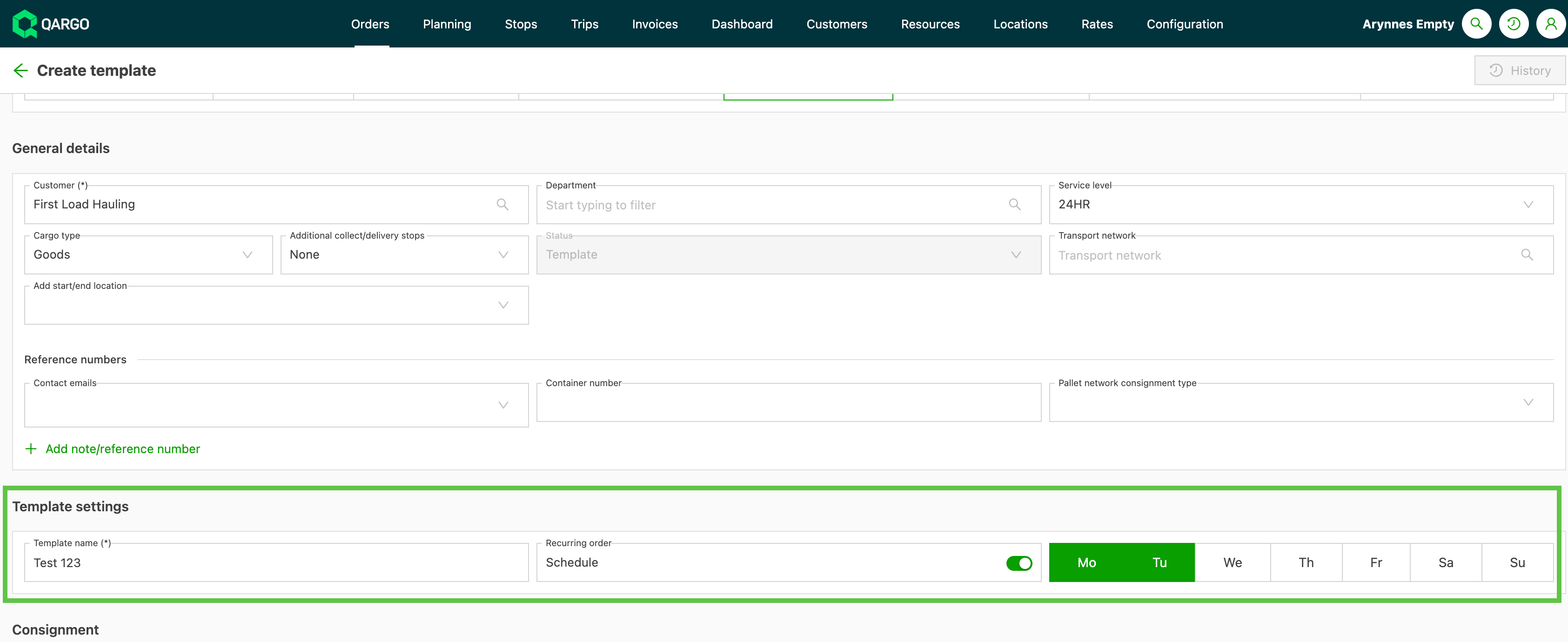
Use recurring templates to create a schedule over a date range and quickly create multiple orders.
- New tab category for Recurring template orders
- Templates created with a recurring schedule show in the Recurring tab.

- To create a recurring order template, toggle ‘Recurring order / Schedule’ on:
-
The schedule is shown in the top-left corner of the order details page
- Click the edit icon to update the schedule
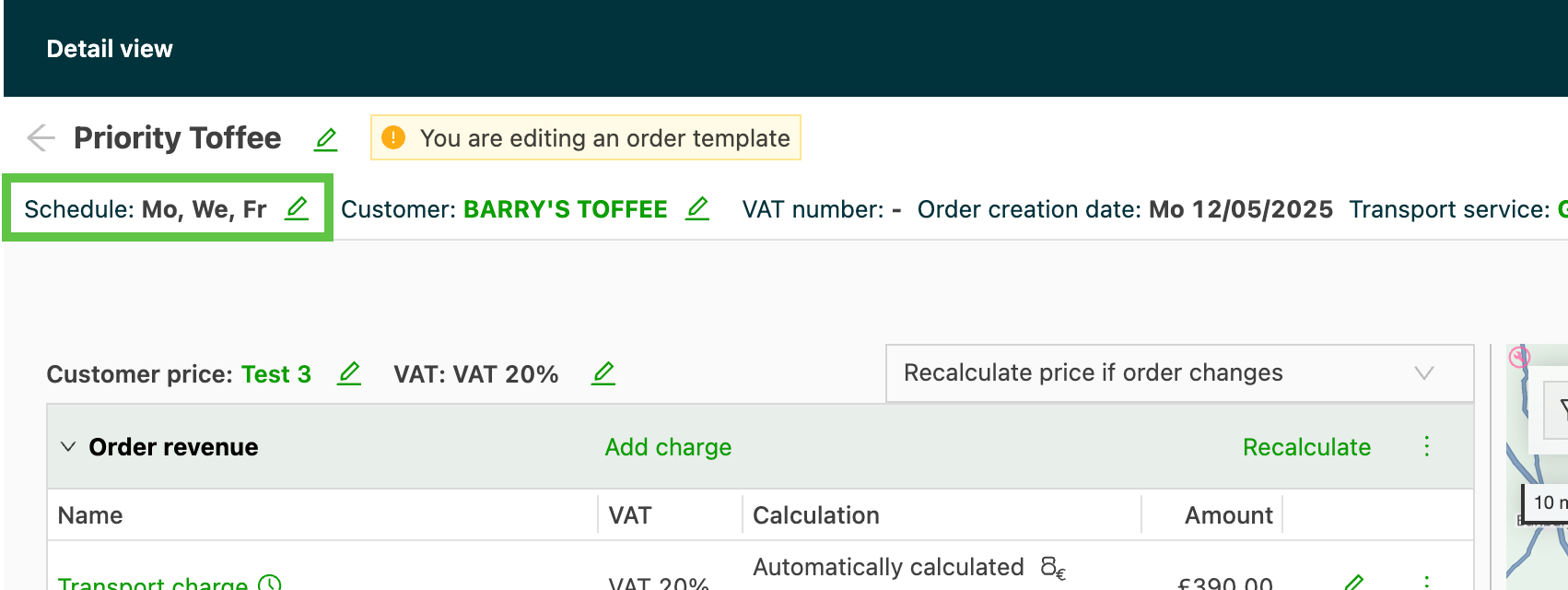
Create multiple orders over a date range.
Click the link below to learn more about creating orders in bulk.
Create scheduled orders in bulk
:::
Week 3
Invoices – Auto-assign billing groups to orders
-
Orders can now be automatically assigned to billing groups based on the customer configuration
-
Configuration options:
- Field-based grouping (e.g., by ZIP code)
- Time-based grouping (daily, weekly, monthly)
- Optional conditional filters
-
Process: Groups are assigned when the “Ready to invoice” task is completed
-
Flexibility: Manual assignment remains available and is not overwritten
-
Note: Customer changes require manual intervention to recalculate the appropriate group
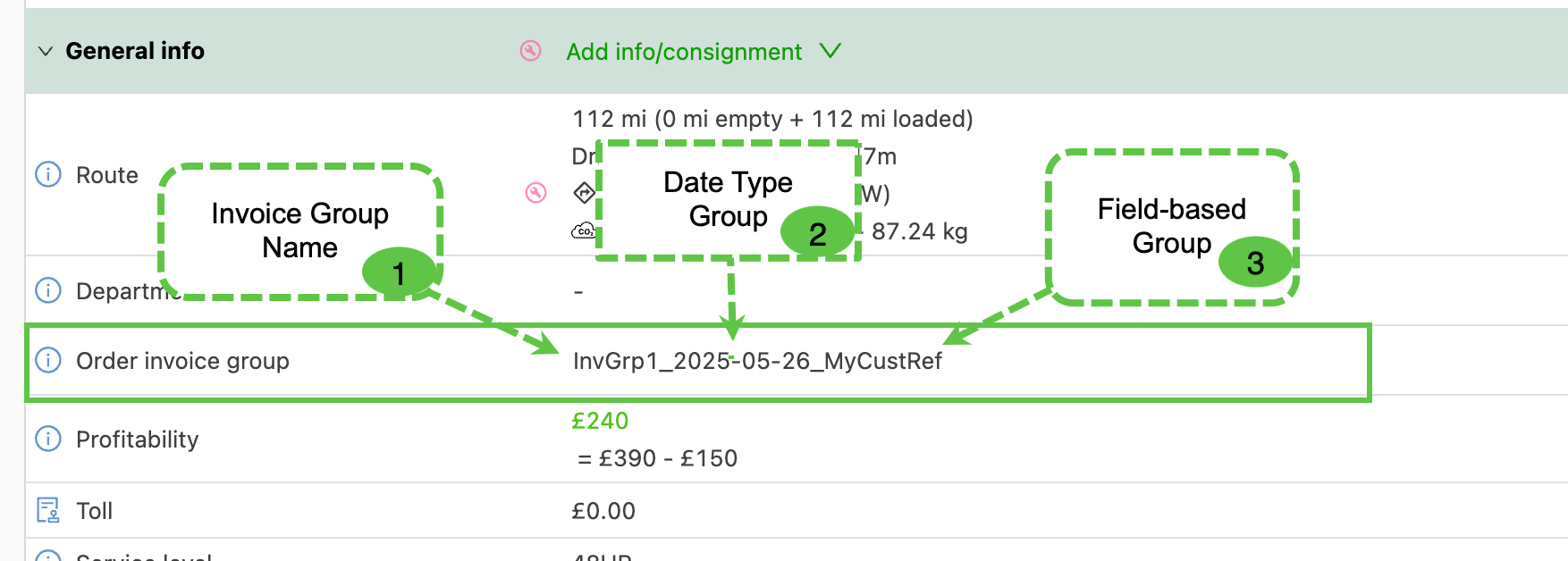
Invoices – Auto-assign invoice groups to orders
Exports – Add costs and profit/loss
SuperAdmin users can create custom exports that can be pulled from various list pages across the platform.
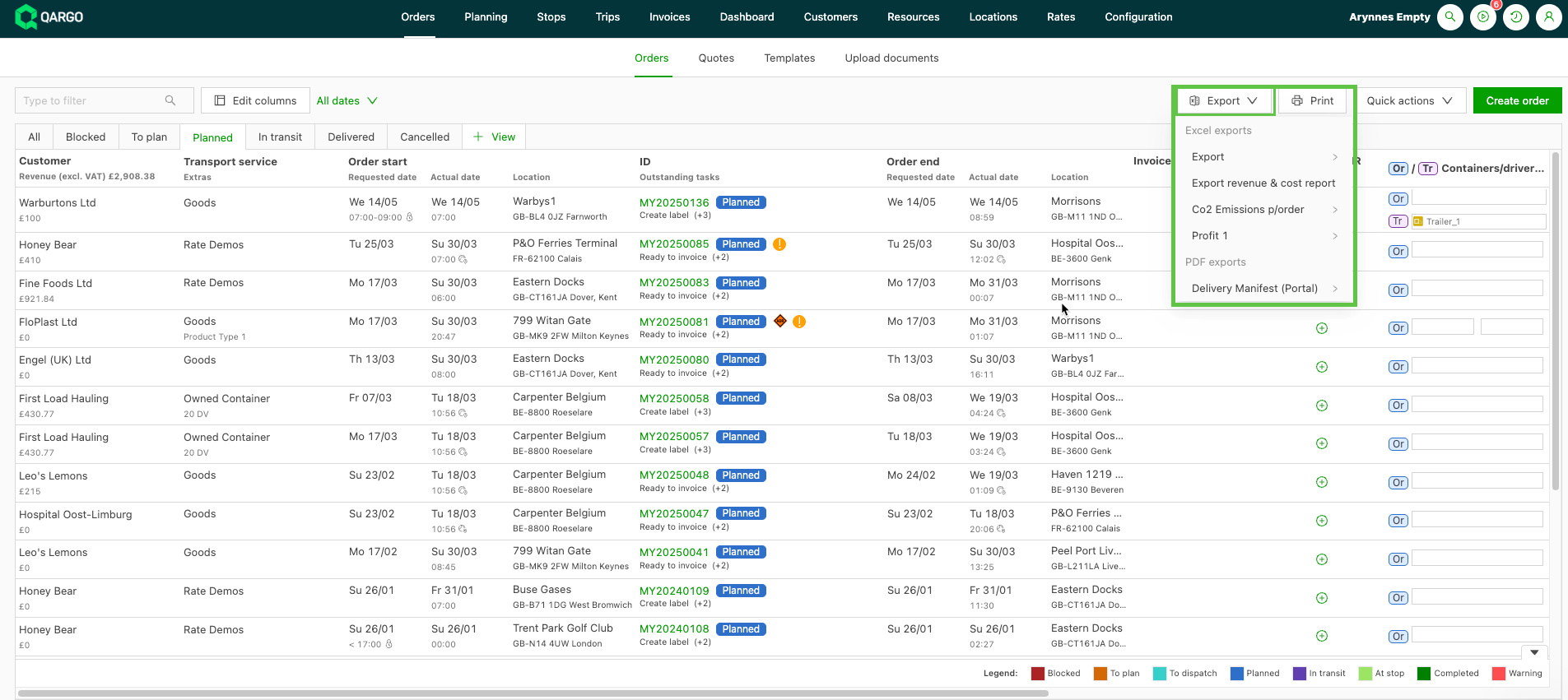
New options are now available to include profitability and costs when configuring the report.
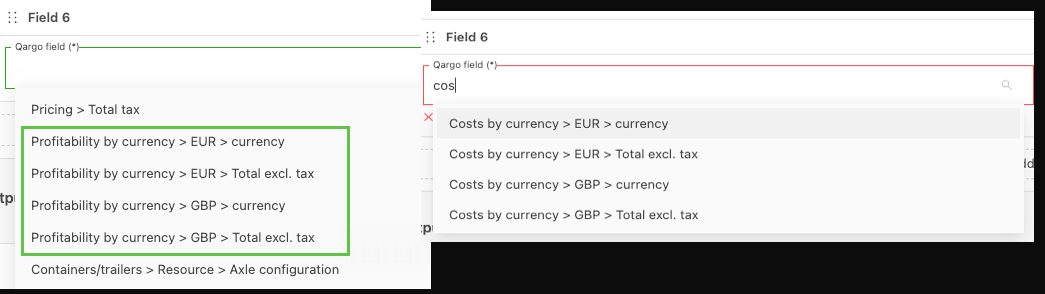
Click here to learn how to use these options when configuring custom exports. To learn how to export data, click the button below.
Fuel surcharge – Improved visualization on invoices.
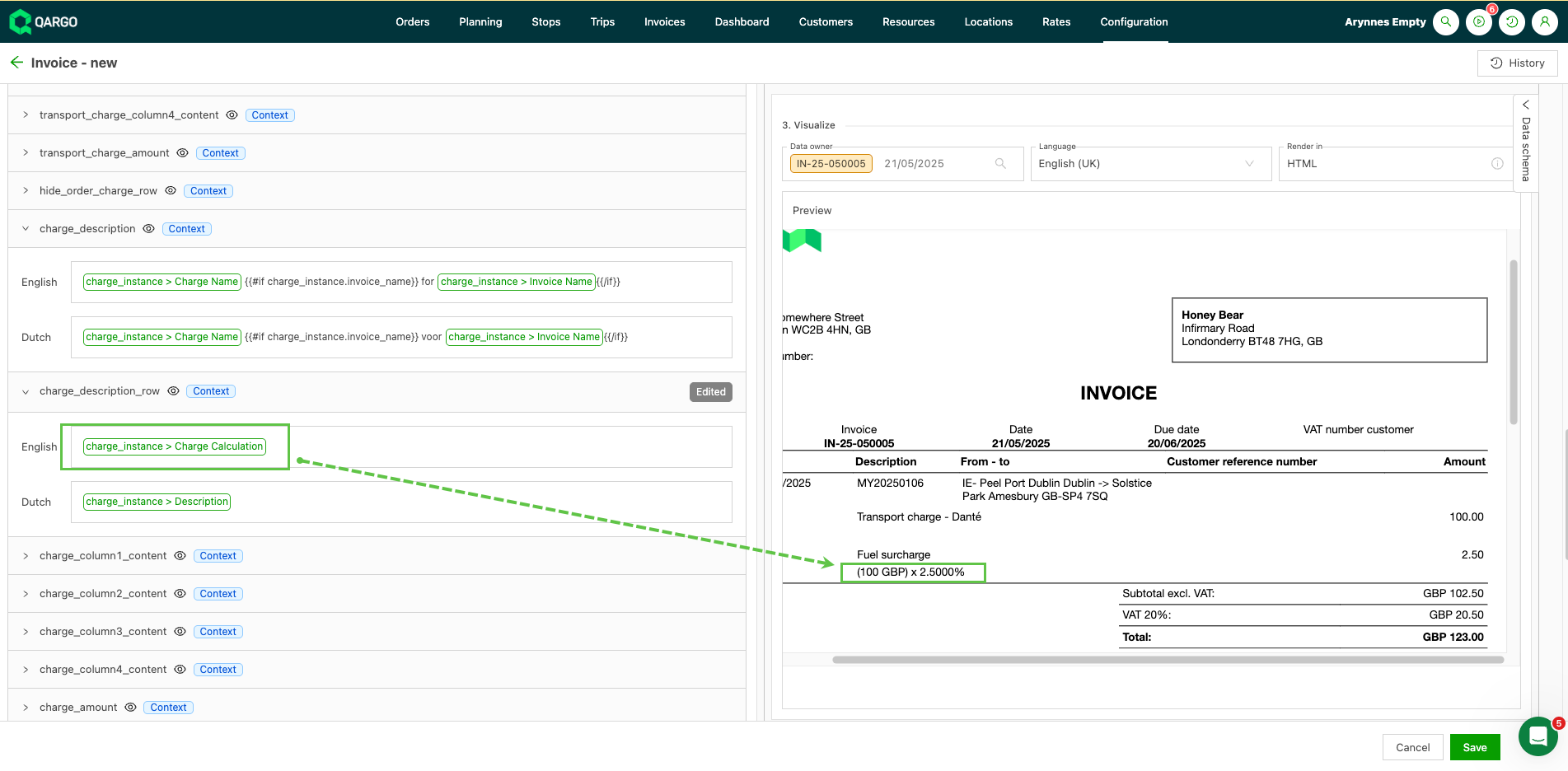
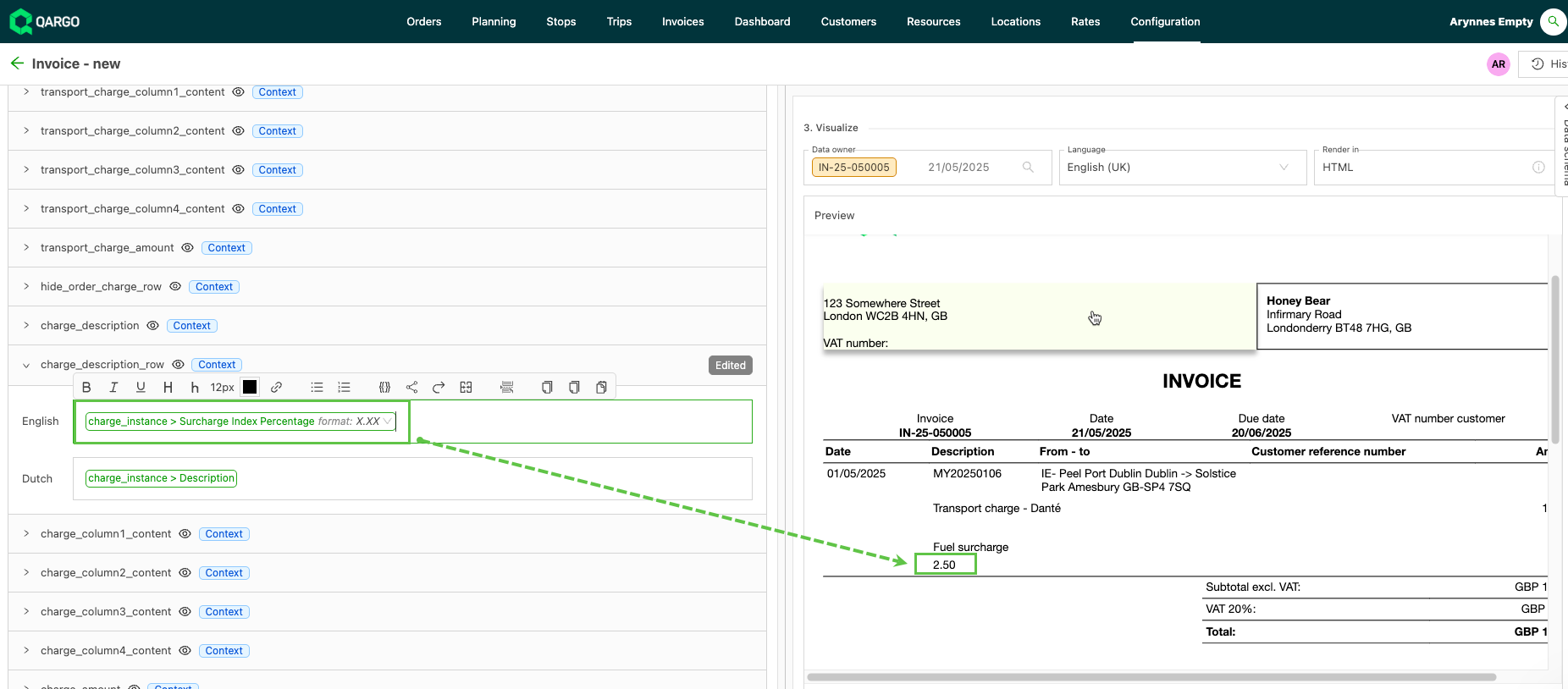
Super Admin users can now adjust how the fuel surcharge is shown on invoices. Users can now choose whether or not to show the calculation; previously, it was only available with the calculation.
To show the calculation:
To show only the amount, without the calculation:
For more details about price indexes, including the fuel surcharge, click the link below.
:::
Week 4
Orders: Add load ID column to list view
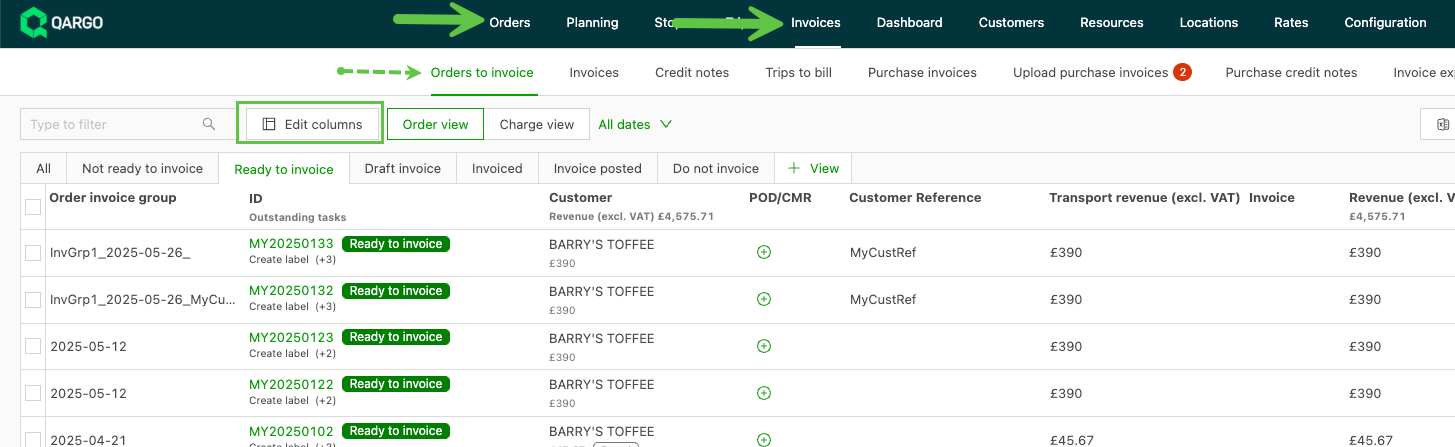
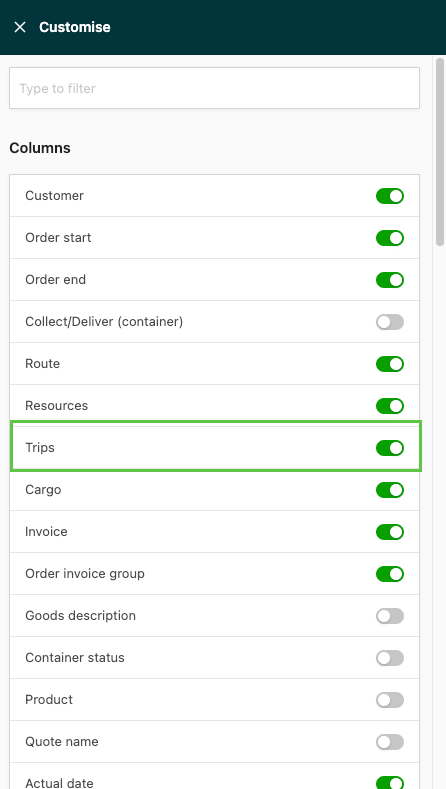
It is now possible to show ‘Loads’ as a column in the Orders and Orders to invoice list views. Adding this column to the table shows the load number, giving easier access to details without navigating through other screens.
-
From Orders or Orders to invoice (Invoice), click ‘Edit columns’
-
Once toggled on, drag the column to the desired position in the table.
Click the link below for details of other options to customize the orders list view.
Invoices: Asynchronous invoice creation
Invoice processing is now asynchronous. This allows a greater volume of invoices or charges to be processed and reduces timeout errors.
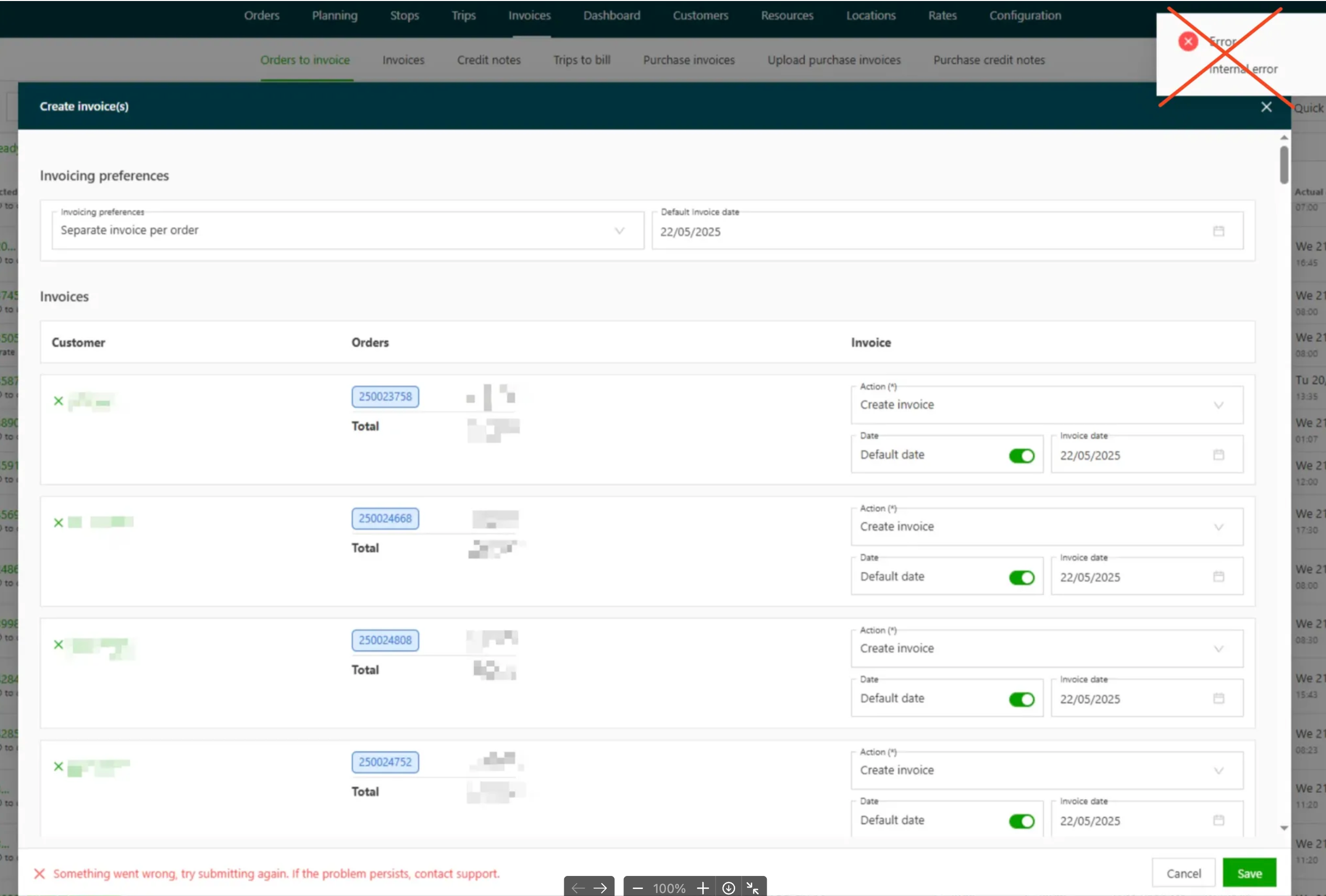
This update makes the process more efficient. Users no longer have to filter by a specific customer to process multiple invoices.
To learn more about the sales invoice process, click the link below.
Orders: Bulk update to activities on orders
Add additional stops or splits to multiple orders at once through the enhanced Quick actions menu. No more repetitive manual entry: handle multiple orders with a single action.
The system handles different stop types based on the order structure:
Intermodal stops
- Added once per order, regardless of the number of loads
Empty equipment/driver stops
- Added per load for maximum flexibility
- Added once for merged shipments
- Added multiple times for shipments on separate loads
Split orders and other stops
- Added per shipment for precise control
Step-by-step process
-
Open Quick actions
- Go to the Orders or the Orders to invoice list page
- Click Quick actions and select ‘Add activities’
-
Configure the activity
- Choose the desired activity from the Activity drop-down
- Select the position from the Position drop-down
-
Set the stop details
- Complete all relevant stop information
- The available options vary based on the selected activity type
-
Apply to multiple orders
- Click ‘Select orders’ to choose the target orders from the main list
- Click ‘Add activities’ to run the bulk action
Position limitations Currently, bulk stop additions are supported only before or after the first pickup/delivery.
Click the link below to learn more about bulk updates via Quick actions.
Add activities via Quick actions
Orders / Loads: List view – Flexible date selection options
The date selector now offers three distinct filtering modes to suit different workflows:
-
Last 90 days + future (default)
- Shows all orders from the past 90 days plus future dates
- Ideal for full order visibility
-
Single date filter
- Filter results for one specific date
- Defaults to the current date for quick daily views
-
Date range selection
- Choose custom date ranges using a calendar interface
- Maximum range limited to 1 year for optimal performance
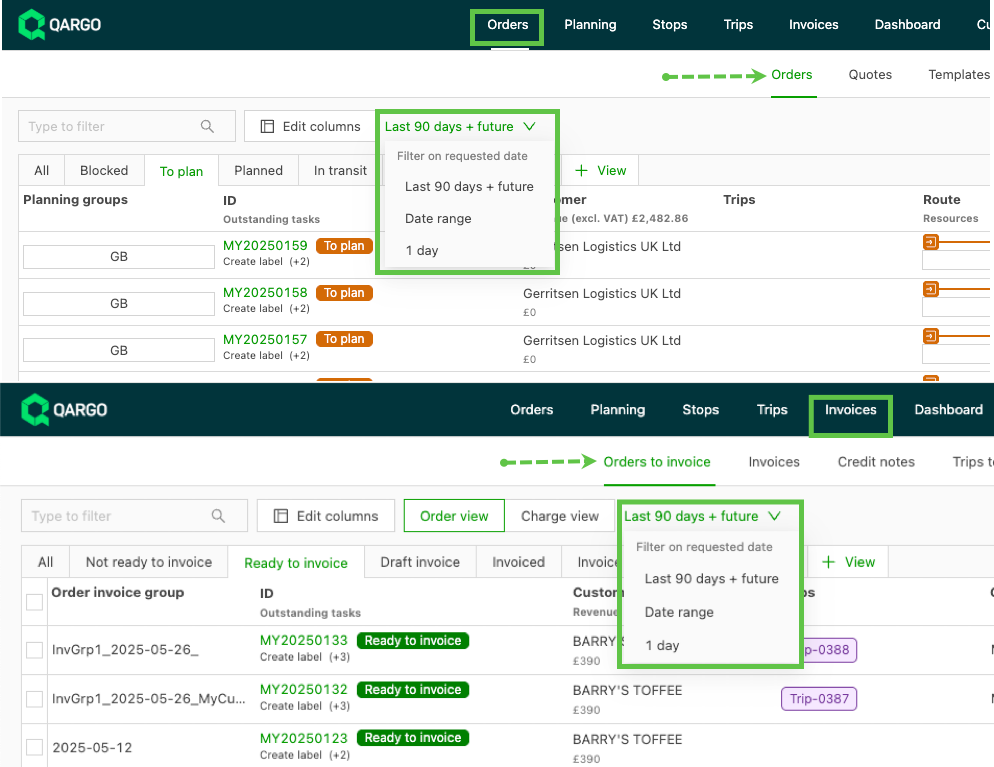
Quick date range presets
For common filtering needs, preset options are now available:
- Past week
- Past month
- Past 3 months
- Past year
Select a preset and the dates are applied automatically, with no manual calendar selection needed.
- Orders: Filtered by Requested date
- Loads: Filtered by Actual date
Improved performance The date selector updates have resulted in faster page loading times and smoother navigation.
Errors: Improved error handling
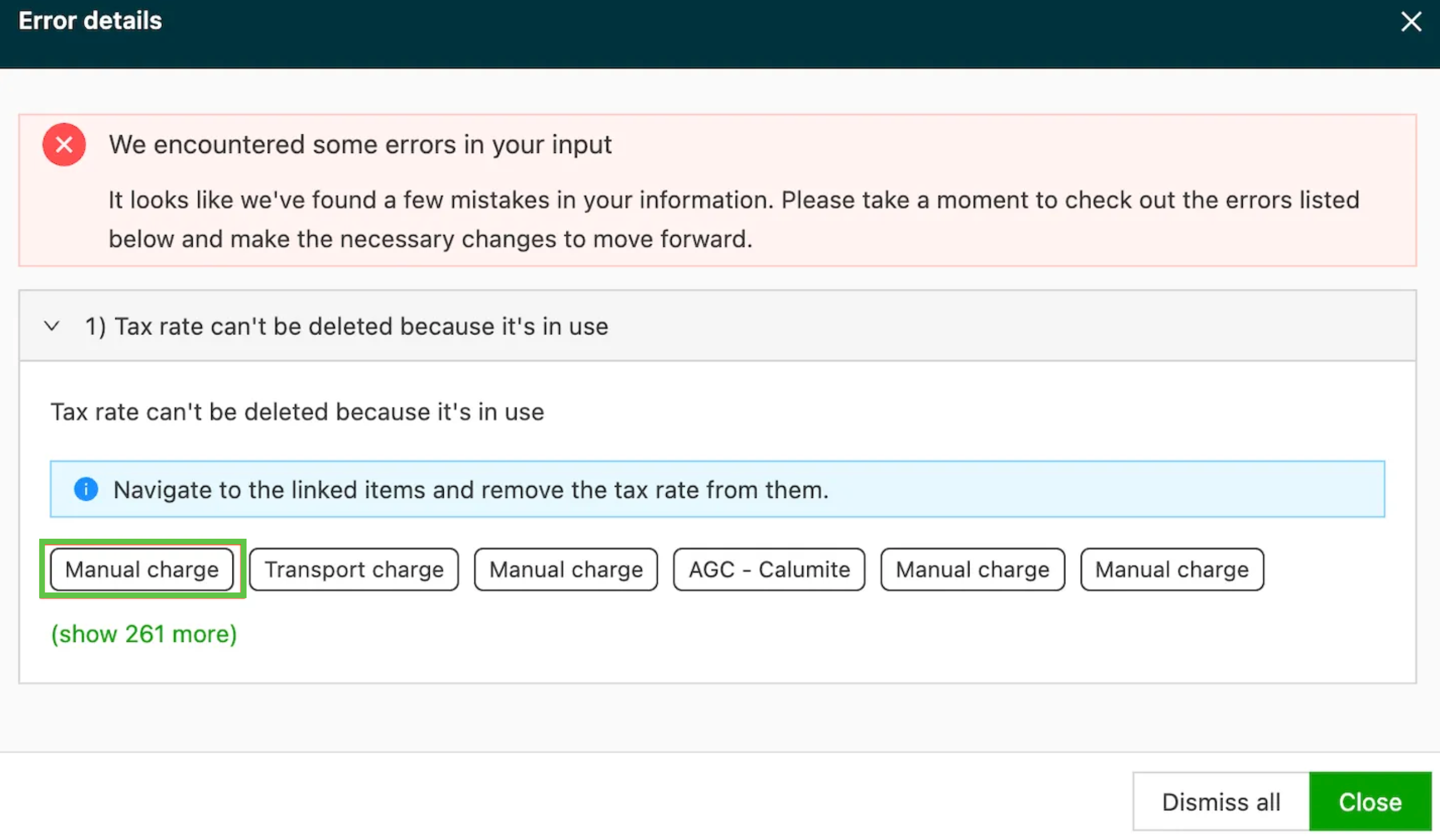
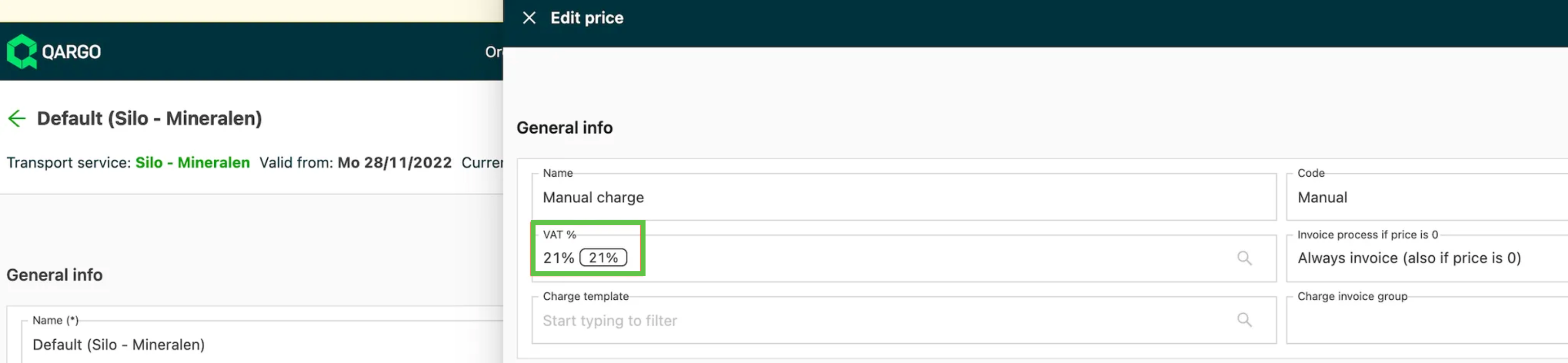
When resolving validation errors, it is now quick and easy to find why the error is shown and how to fix it.
- Click ‘Show more details’ to open the error page.

- On the error details page, the user can click the included tags to open a new tab where the error can be resolved.
Loads: Upload documentation via contract carrier FMS
With the contract carrier / fleet dispatch API, it was not possible to upload scans or documentation. The latest API update lets users upload a file for POD/CMR. This allows the contract carrier to add POD documentation directly into Qargo as part of the integration. :::