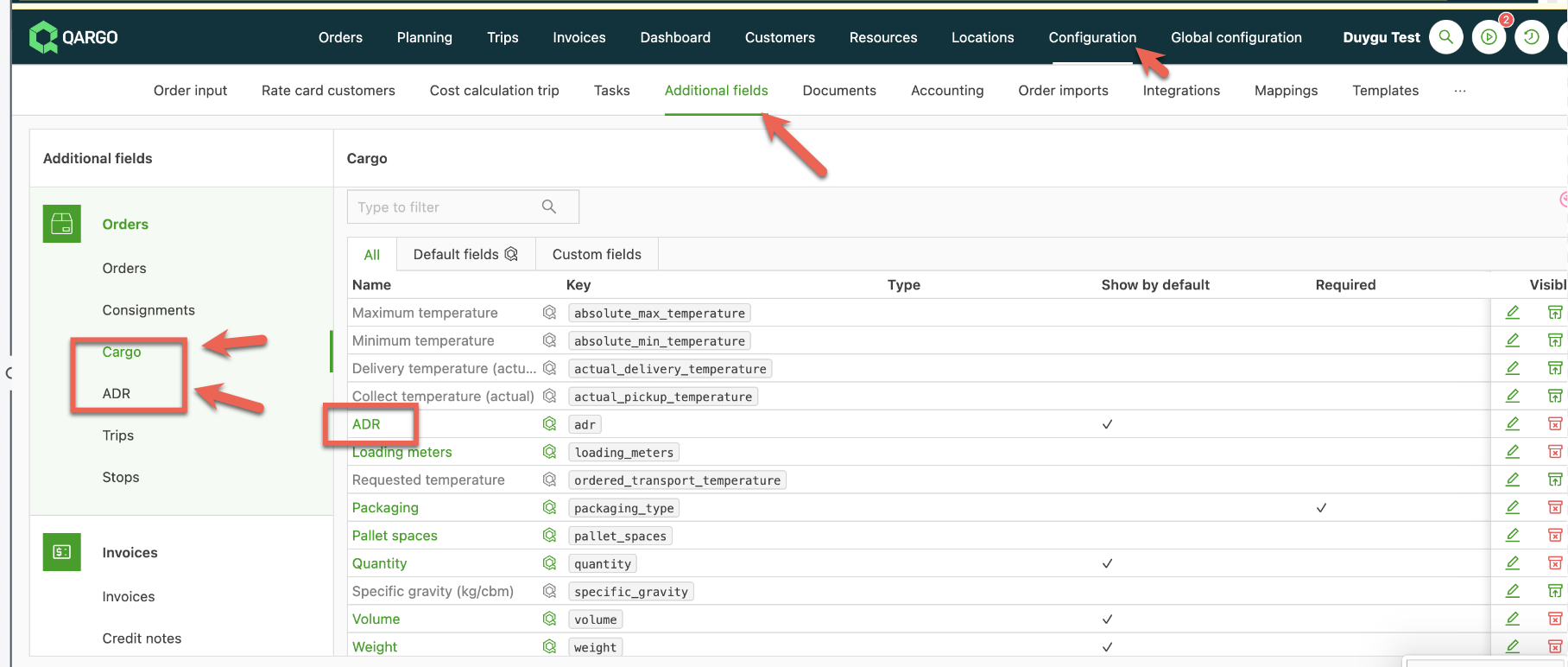
ADR: Configuration for cost/revenue charges
Configuring revenue and cost charges for hazardous materials (HazMat) items (ADR) saves time and effort while ensuring accurate rating.
It is now possible to configure cost and revenue charge defaults and to configure restrictions on ADR. This works in a similar way to the existing functions for extras or time windows. No more double selections or confusion: simply select “Hazardous materials” and the rating is applied automatically.
\
How to configure ADR revenue charges (customer rate cards) {#h_8dc45b88c2}
Navigate to the Configuration > Order input tab.
Select the section called ADR. There are two options:
- ADR
- Limited quantity
These can be configured in a similar way to the other order input options.
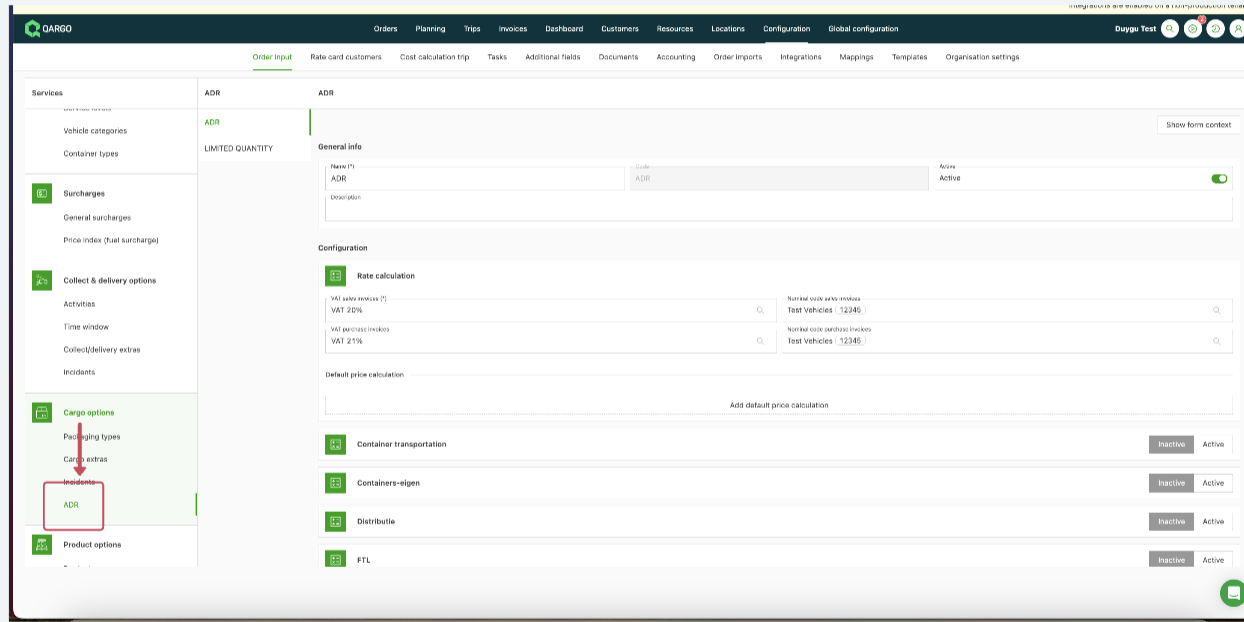
To automate extra charges, link the ADR and Limited quantity options to the price list. Extra charges are then applied to ADR orders:
Add the rate for ADR in a linked rate card by clicking the ✏️ pen icon. Whenever the goods in an order are selected as ADR, the ADR surcharge is applied automatically:
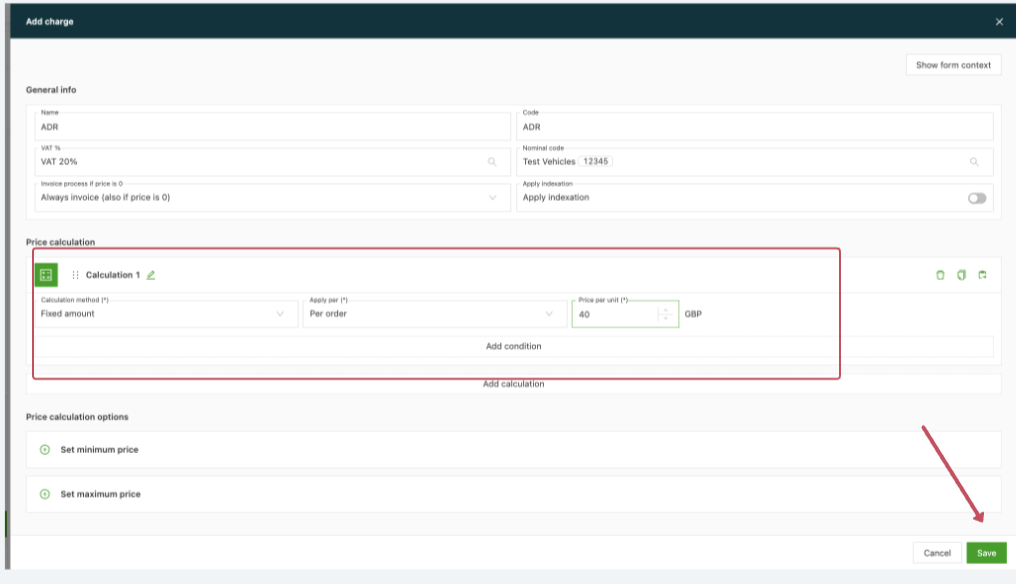
This can also be viewed, linked and adjusted on the customer-specific rate card:
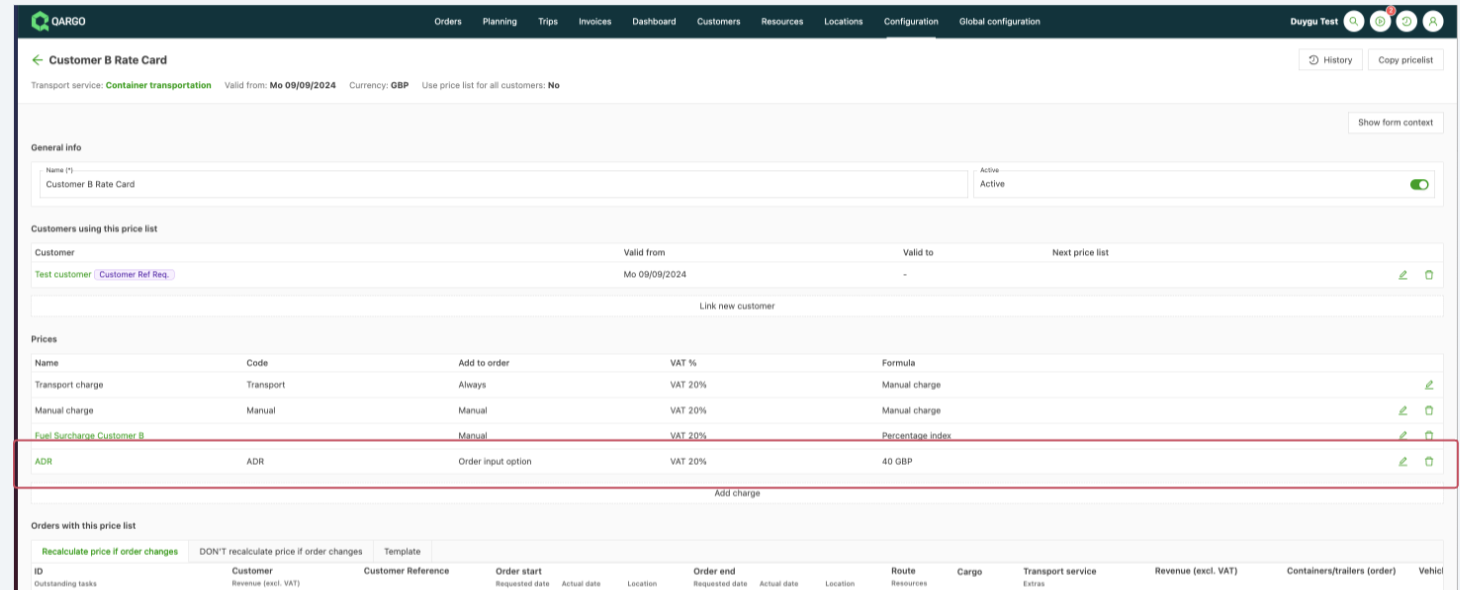
This configuration ensures that the charge is added automatically once the goods have been selected as “hazardous” from the goods dropdown in the item details:
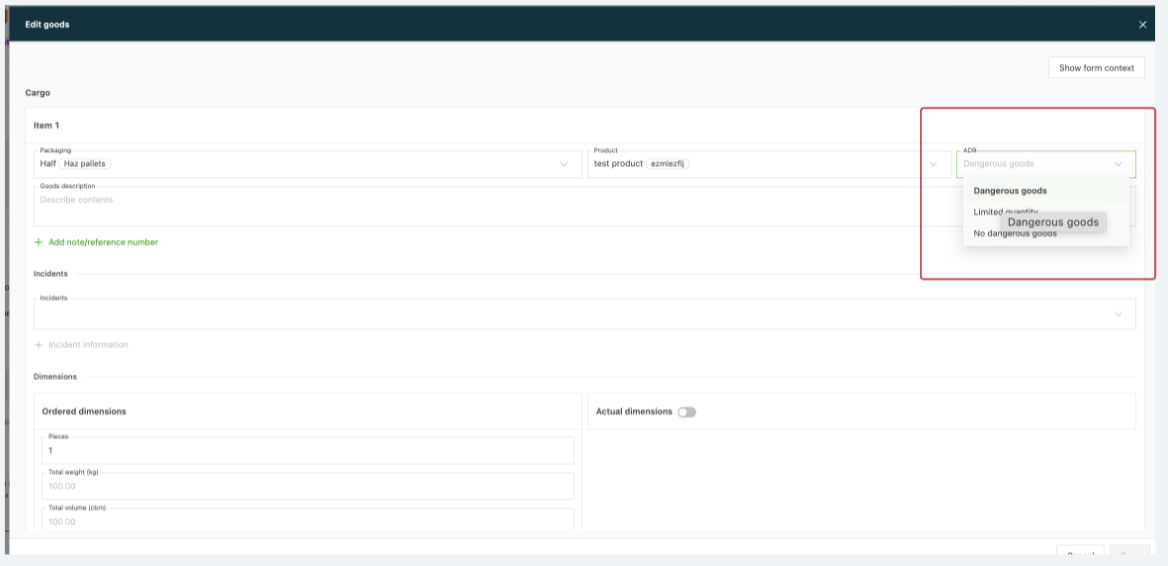
Example:
\
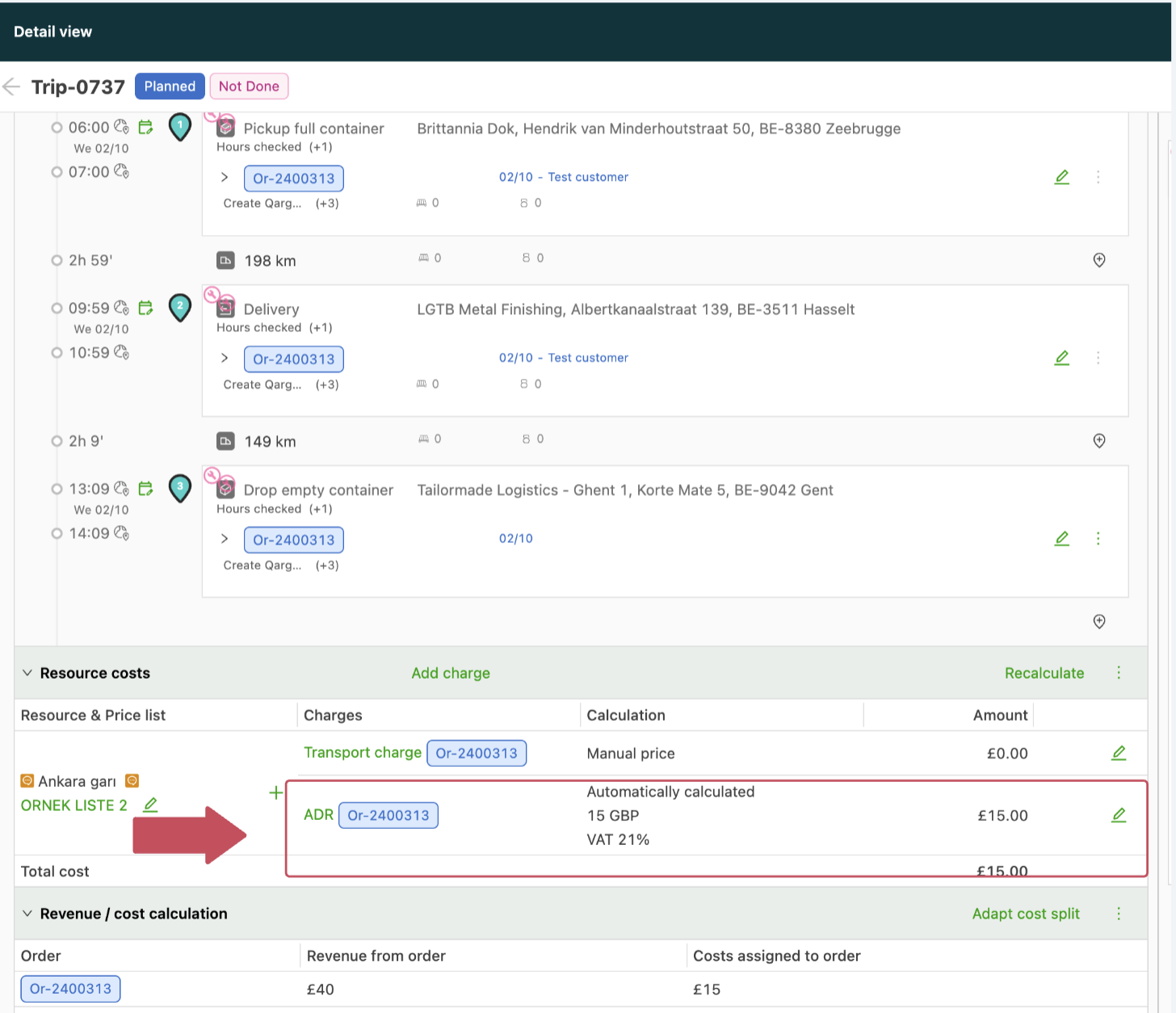
How to configure ADR cost charges (cost/contract carrier rate cards) {#h_e1c150d132}
Navigate to Configuration > Cost calculation for loads and locate the rate card to which the ADR/Limited quantity option should be added as a cost:
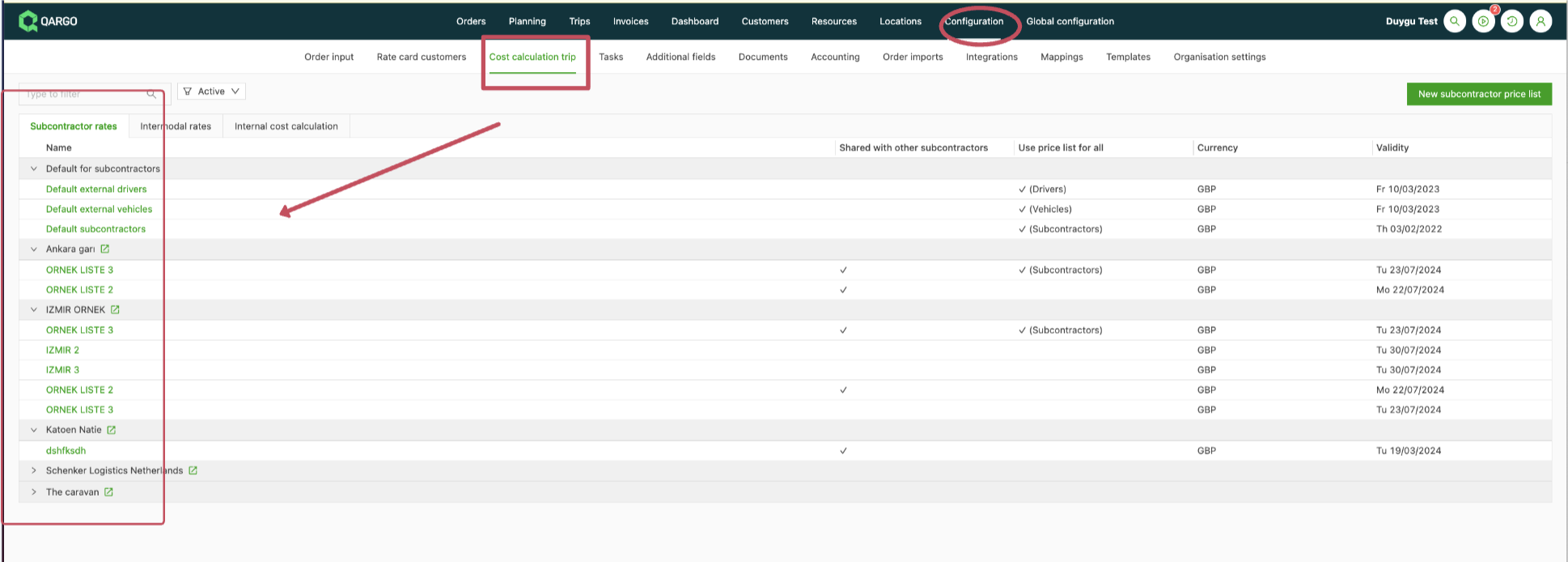
Open the rate card and click the add charge option:
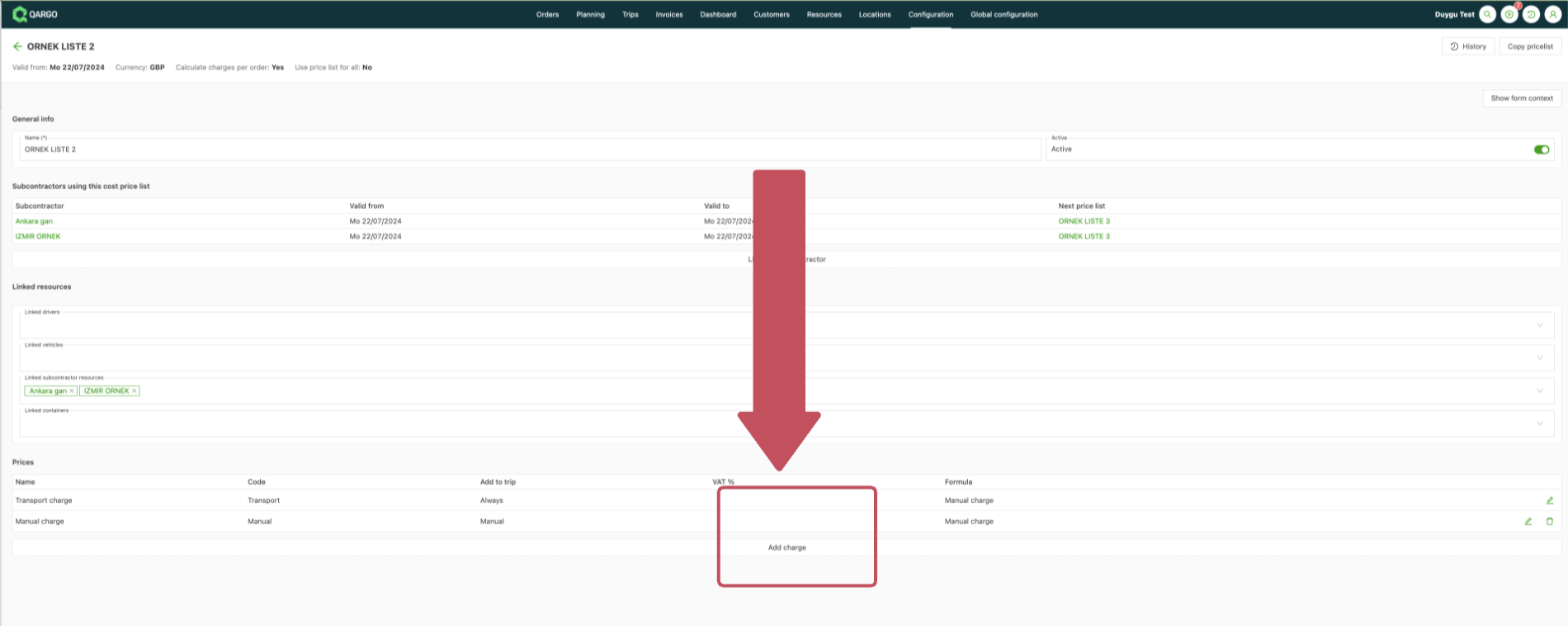
Select ADR and/or Limited quantity, and link them to the cost price list:
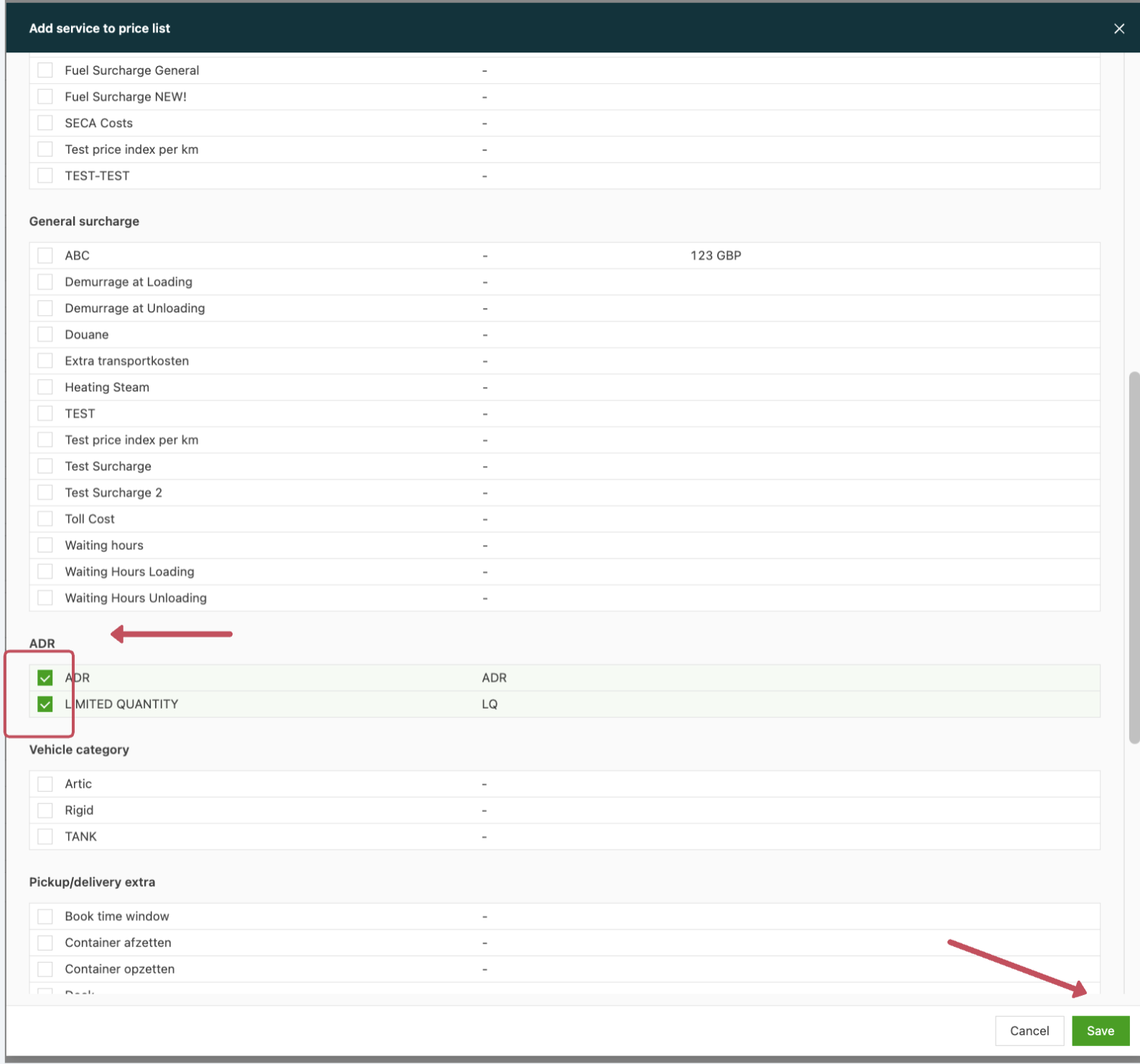
Add the rates to the surcharge by clicking the ✏️ pen icon, then save the changes.
\
💡Tip: {#h_1523240ee5}