
ADR restrictions/compatible resources
This article explains how to avoid errors so that only compatible resources are planned on loads with restrictions, such as hazardous materials (HazMat).
Table of contents
Overview
To streamline planning and reduce errors, specific resources (such as drivers, vehicles and contract carriers) can be restricted. This ensures they are compatible with ADR (hazardous materials (HazMat)) transport and other add-ons (for example, products or stop extras). This feature helps keep load planning accurate and compliant. It reduces the risk of assigning non-compliant resources during scheduling.
In addition to general vehicle restrictions, vehicle type–specific restrictions can now be defined to control exactly when compatibility checks are applied during planning.
How to configure ADR and add-on restrictions
Follow the steps below to configure compatible resources:
-
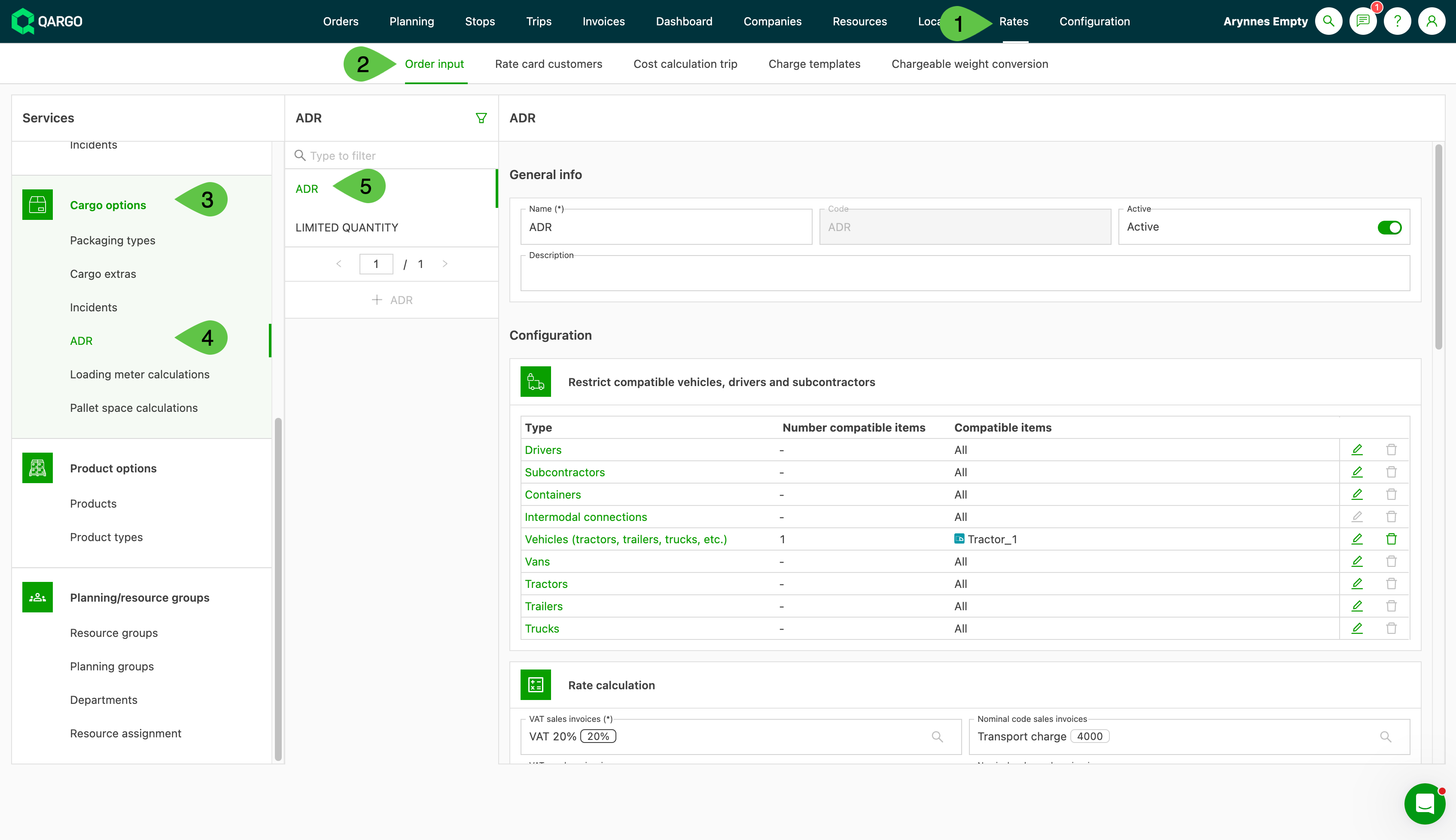
Go to the Rates menu.
-
In the submenu, select Order input.
-
On the left-hand side, select Freight options.
-
Select ADR (or another supported add-on, such as Products or Stop extras).
- The ADR page opens by default. If it does not, click to select the ADR input screen.
-
In the Configuration panel, assign compatible resources as required.
-
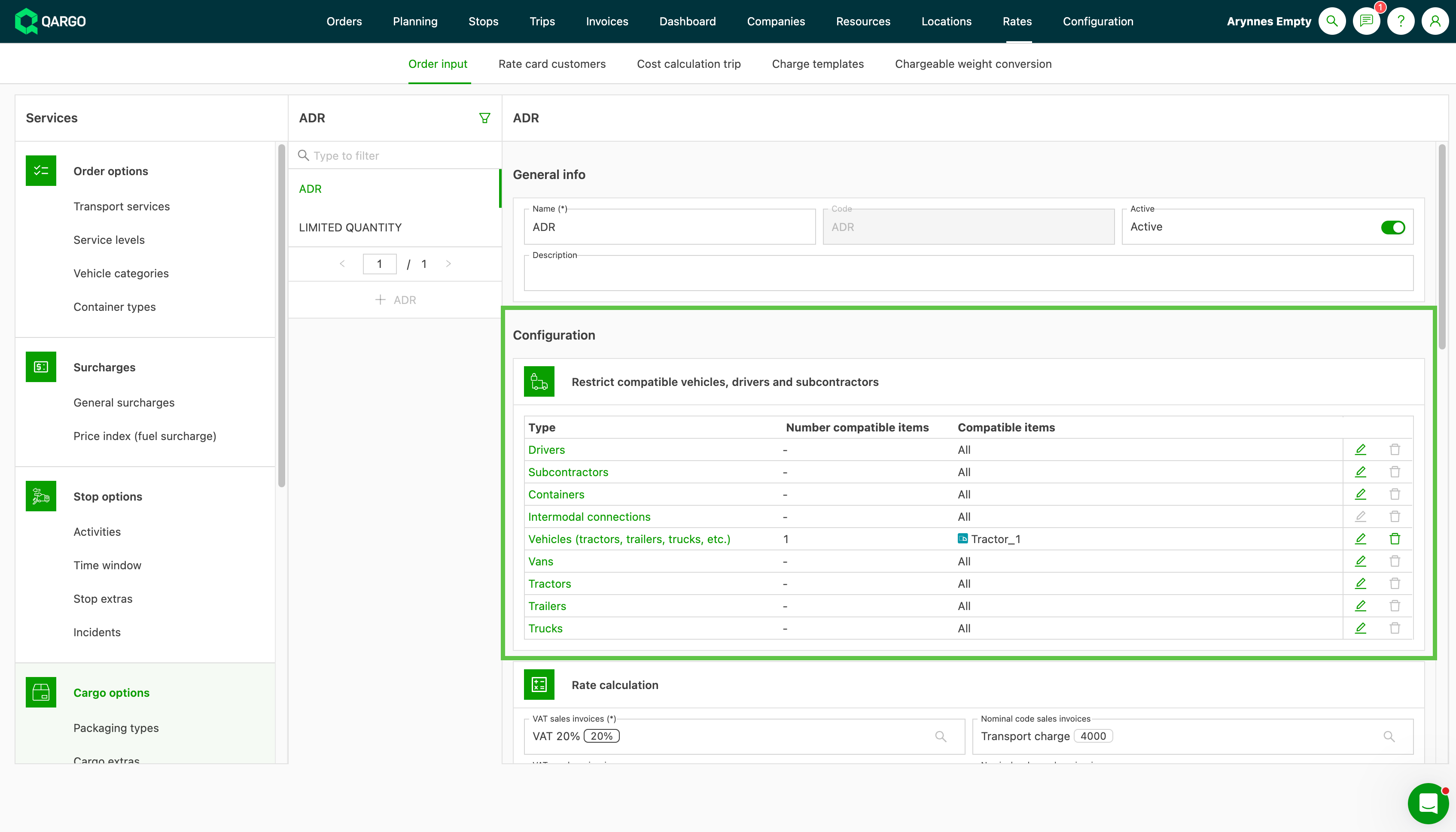
In the Configuration panel, assign specific drivers, vehicles or other resources that are compatible with ADR regulations.
Restriction categories
When configuring compatibility, it is possible to choose where and when the restriction is validated.
General resource restrictions
- Drivers
- Vehicles
- Contract carriers
Restrictions set here are checked as soon as the relevant resource type is assigned to a load.
Vehicle type–specific restrictions (new)
Restrictions can also be applied to a specific vehicle type:
- Trailers
- Tractors
- Trucks
- Vans
The existing Vehicles restriction remains available and unchanged.
When to use each vehicle category
Choose the restriction category based on when the system should perform the compatibility check:
- Use Vehicles if the restriction should be validated as soon as any vehicle is assigned to the load.
- Use a specific vehicle type (Trailer, Tractor, Truck or Van) if the restriction should only be validated when that particular type of vehicle is assigned.
Example scenario
- An ADR extra is restricted to Truck A
- A load contains the ADR extra and is assigned to Tractor X
Case 1 – Restriction configured under Vehicles
- Only Truck A is considered ADR-compatible across all vehicle types
- Result: ❌ A violation is generated, indicating that no ADR-compliant vehicle is available
Case 2 – Restriction configured under Trucks
- Only Truck A is ADR-compatible for trucks
- Other vehicle types remain compatible
- Result: ✅ No violation is generated
Assigning and managing resources
-
Go to ‘Order input’
-
In the side menu, select the option that requires compatibility to be added.
- If available, a Configuration panel is shown with a list of resource types
-
Click any resource line to open the list and select compatible resources or
click the Edit icon and modify compatibility. -
To remove all selected resources, click the Delete icon.
- A confirmation message is displayed before removal.
-
To remove individual resources, click the line and deselect the relevant items.
- After completing the setup, click Save to apply the changes.

Example use cases
- ADR planning: Apply ADR restrictions only to trucks while leaving other vehicle types unrestricted
- Product compatibility: Ensure specific products can only be transported using defined trailers
Important notes and limitations
-
Compatibility changes are not applied retroactively. They affect new loads only after the configuration is saved.
-
Vehicle type–specific restrictions cannot be created from the resource detail page.
- Restrictions created there always apply to the general Vehicles category.
Click here for details on how to complete the additional ADR details.