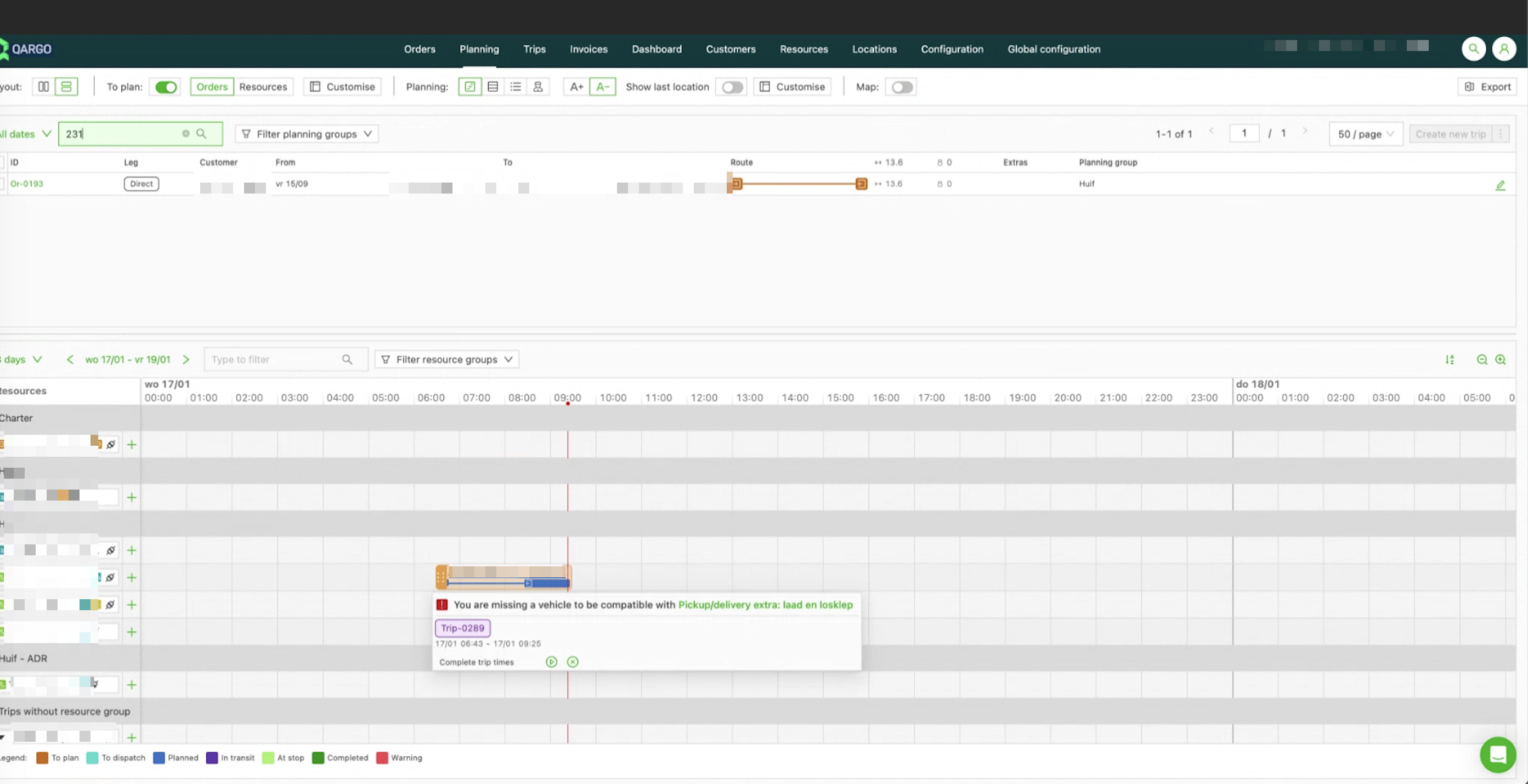
Rates – stop extras
Table of contents
Stop extras can be added so users can include specific items or service extras at particular stops. Once the extra is saved, it can be set as compatible with specific resources.
For example, if certain resources have a liftgate, these resources can be marked as compatible with this extra.
Configure stop extras
-
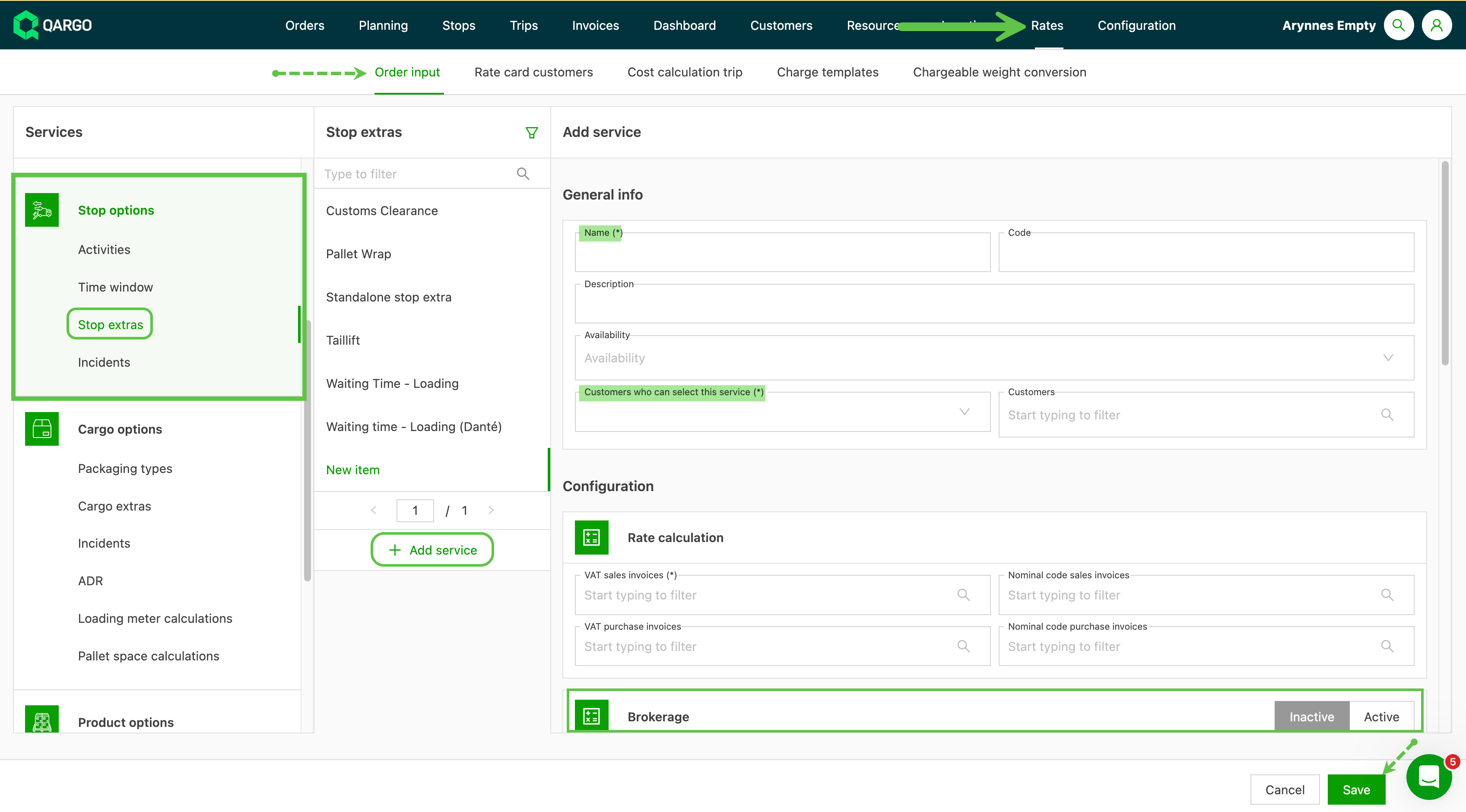
Navigate to Rates > Order input
-
Click Stop extras in the left sidebar
-
Click Add service
-
Give the new extra a name, and select the stops where it will be available
-
Options include:
- Pickup – available at the pickup stop location
- Delivery – available at the delivery stop location
- Other stops – available at standalone stops
-
-
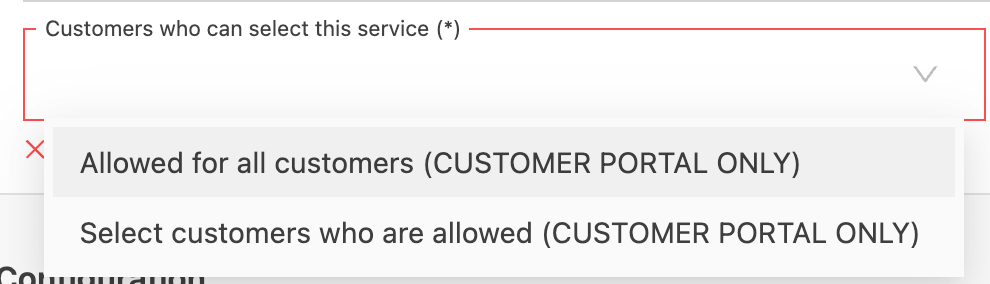
Select the customers who can select this service; this applies to the customer portal only
-
Options include giving visibility to all customers or to selected customers
-
-
Select the transportation services on which the extra will be active
-
Click Save
Set compatibility
Once the stop extra has been saved, a new Configuration panel is displayed, where users can set resource compatibility for the extra.
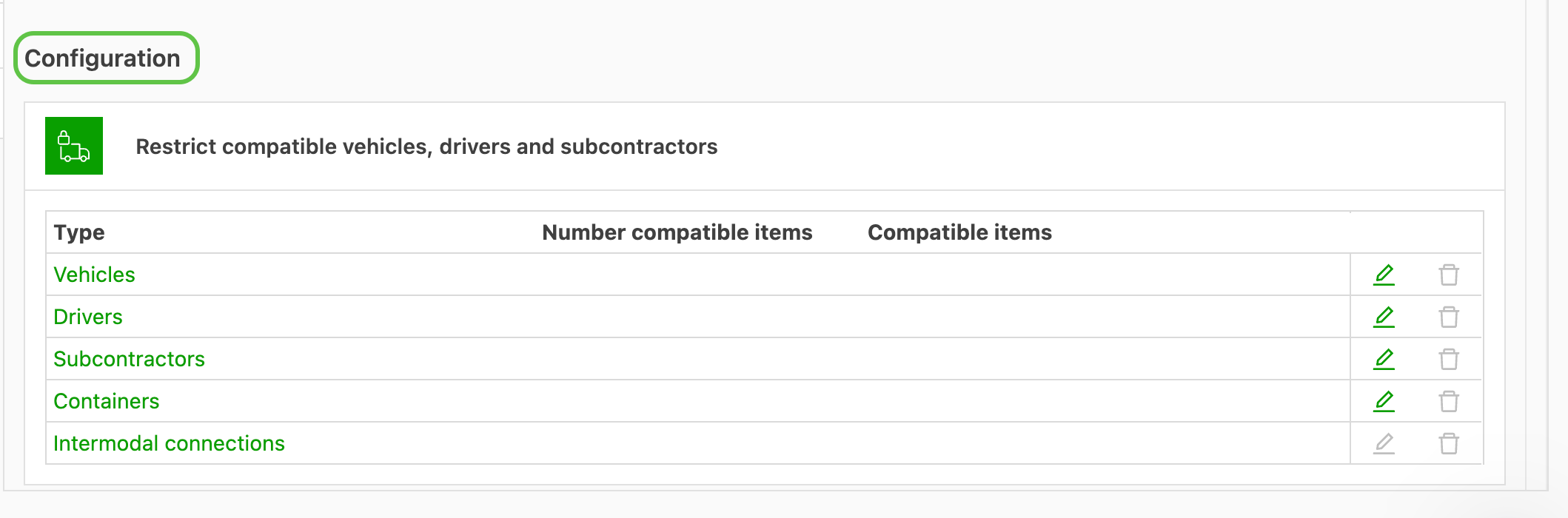
- Click the resource line to update, or select the pencil icon
- In the new window that opens, select the checkbox next to the resource to update
- Click Save