
Configurable fields for ADR
This article shows how to activate and configure ADR fields so they can be used during order capture and when editing goods on a load.
Table of contents
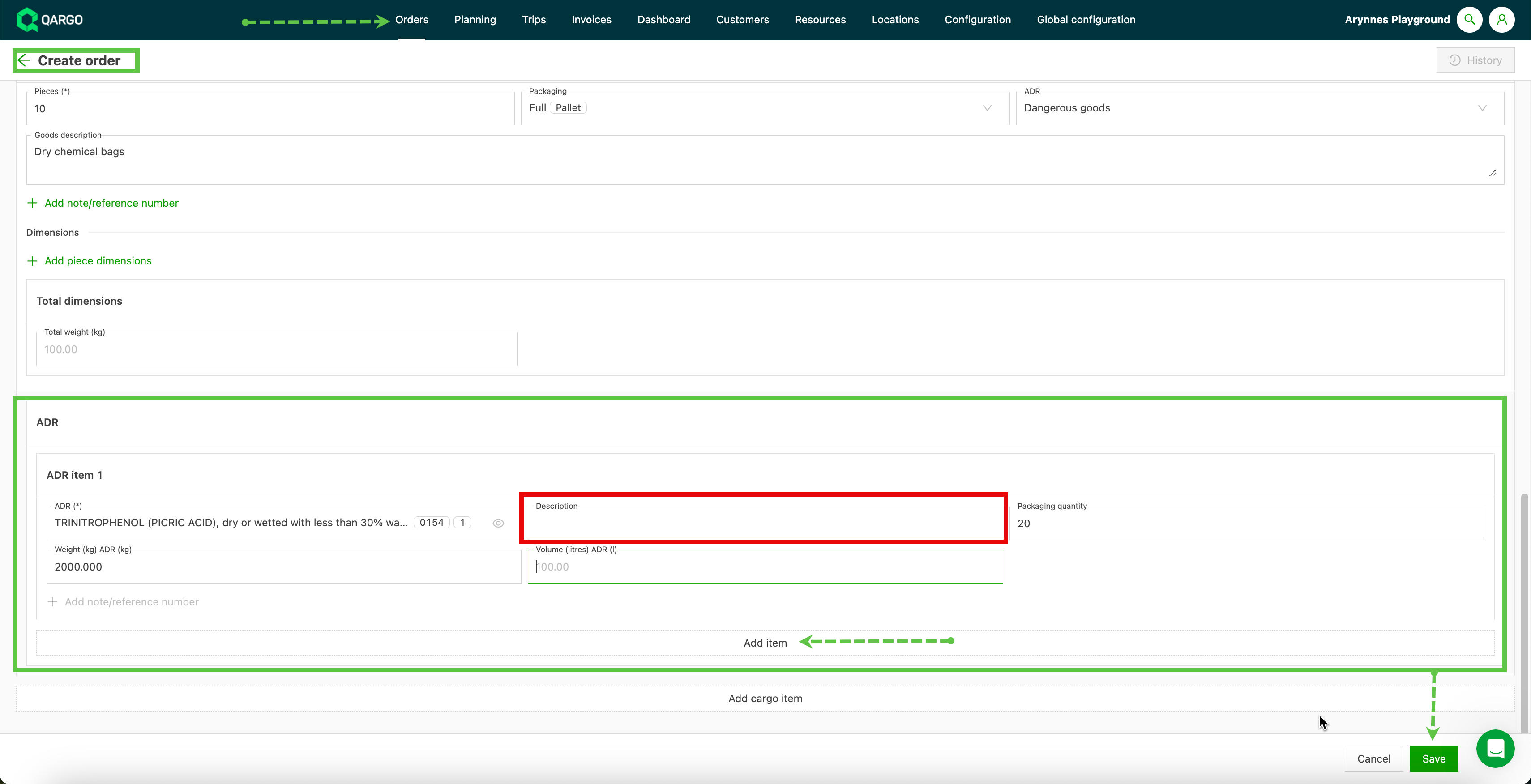
Carriers that haul hazardous materials (HazMat) often need additional criteria when creating orders. A hazardous materials (HazMat) section can be configured in both the Create order screen and the Edit goods (freight) screen. Once this section is fully configured, all enabled fields in the ADR section are available during Create order and Edit goods.
The Edit columns feature on the order list view lets users show dedicated ADR details on the list view page, giving better visibility of key data
This also applies to the customer portal. Restrictions are available so that customers who submit an order that includes hazardous materials can be required to complete the ADR fields before saving the order.
Terminology
| Term | Definition |
|---|---|
| ADR | The international agreement governing road transport of hazardous materials |
| UN number | A four-digit code assigned by the United Nations to identify a specific hazardous substance or article (e.g., UN 3082) |
| LQ (limited quantity) | A classification for hazardous materials transported in quantities below the threshold that triggers full ADR requirements |
| Packaged item | A line-level item within a good on an order, used to record detailed freight information including ADR data and custom fields |
| Customize panel | The column-selection interface on list views in Qargo, used to toggle which columns are visible |
Use cases
- Operations teams managing hazardous materials transport can isolate all ADR orders at a glance with the ADR yes/no filter, without opening each order individually.
- Teams handling multiple ADR classes can filter by a specific UN number to locate orders with a particular substance.
- Companies tracking waste or compliance-sensitive data at the packaged item level can show those custom fields as columns on the Orders list.
Step 1: Activation of the ADR field
- Navigate to Configuration
- Additional fields
- Select Freight in the left-hand menu
- Click the edit icon (pencil) next to ADR and set it to Active.
- Include the transportation services that ADR should show on.
- Toggle whether ADR fields are always visible on the order
- Toggle whether ADR is required as a mandatory field, if selected.
Step 2: Configure additional ADR order capture fields.
Once the ADR option is set to active under Freight, a second section titled ADR appears in the left-hand menu. This is where additional specific fields can be configured to show in the ADR section on the order.
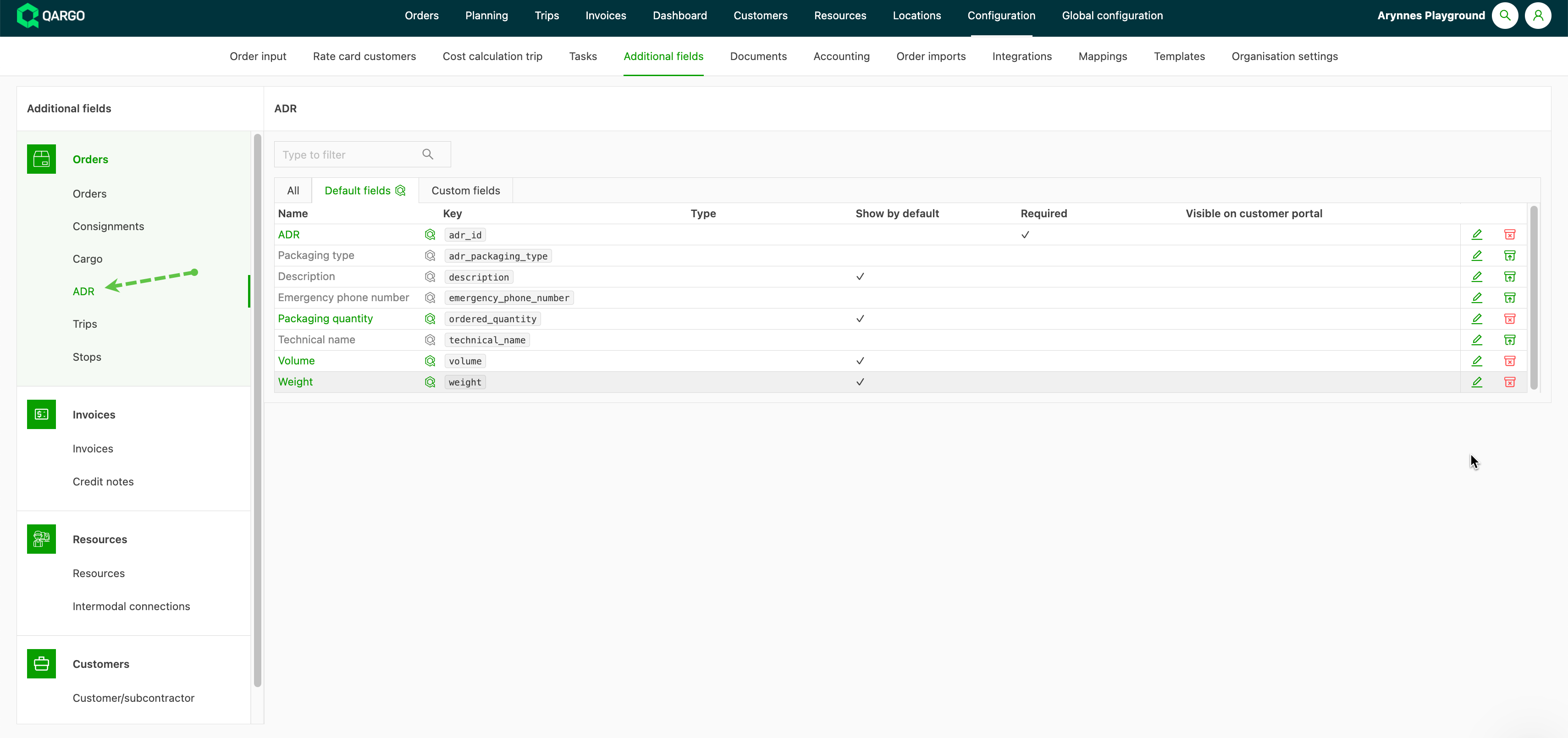
Select the additional fields that are required on the order. Available options include:
- ADR
- Packaging type
- Description
- Emergency phone number
- Packaging quantity
- Technical name
- Volume
- Weight
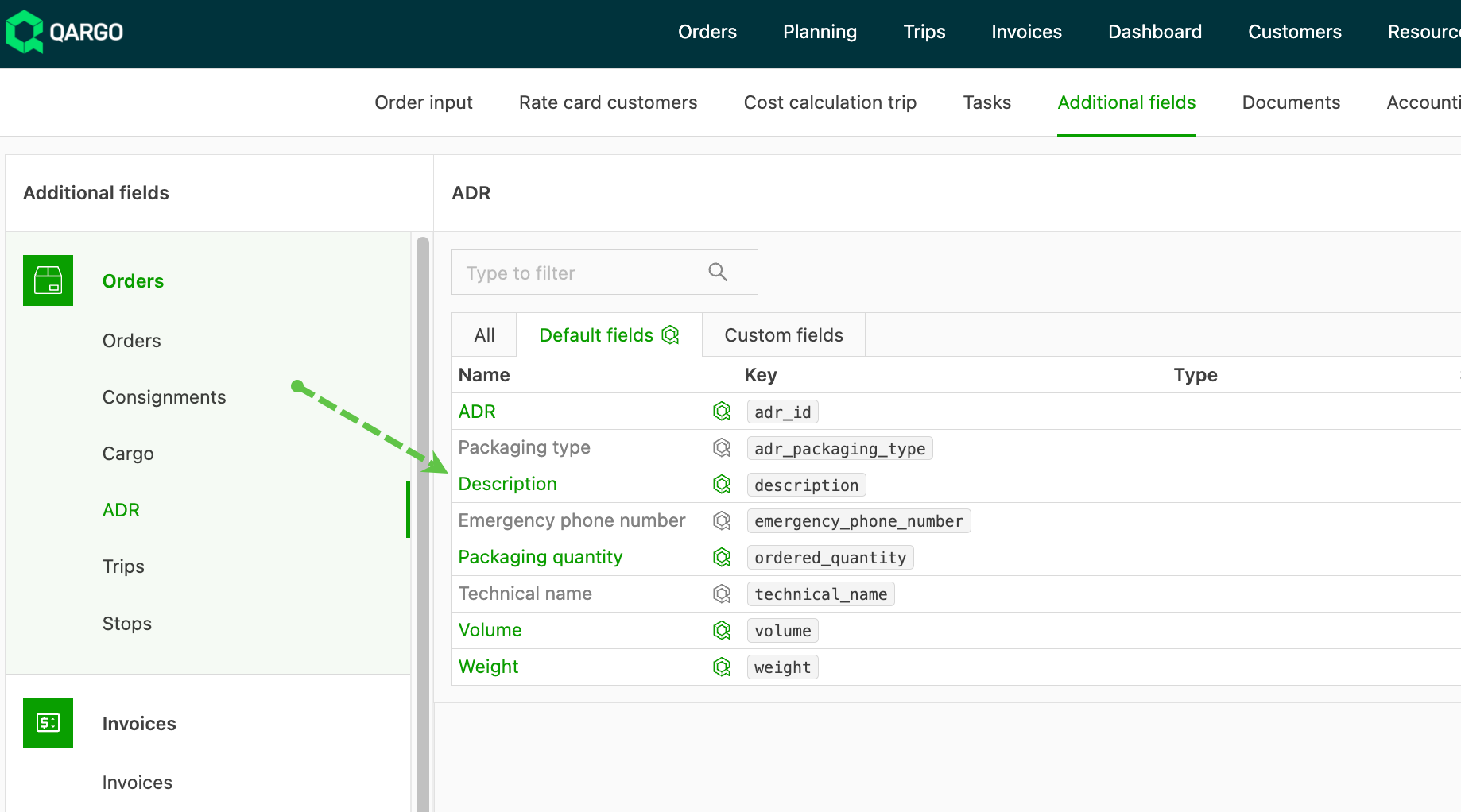
These fields show in the ADR section that appears on the Create order / Edit goods screens.
\
Optional / required field settings {#h_dd71007630}
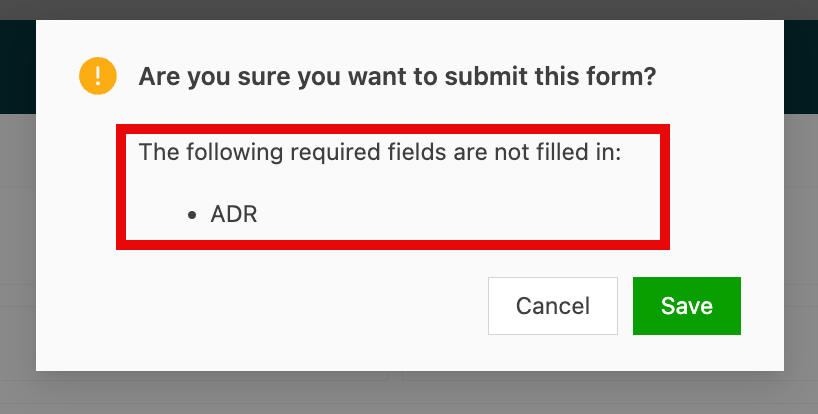
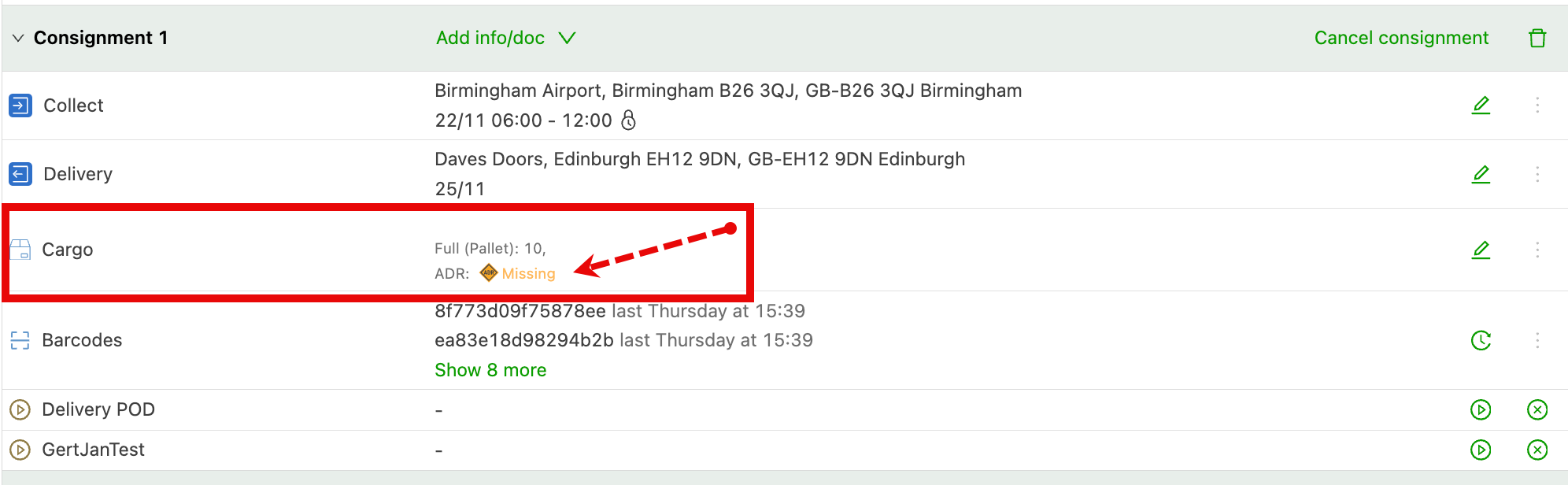
If the order is saved with missing ADR details, a Missing note appears next to the ADR icon in the shipment on the order page.
\
Customer portal {#h_d521d764ce}
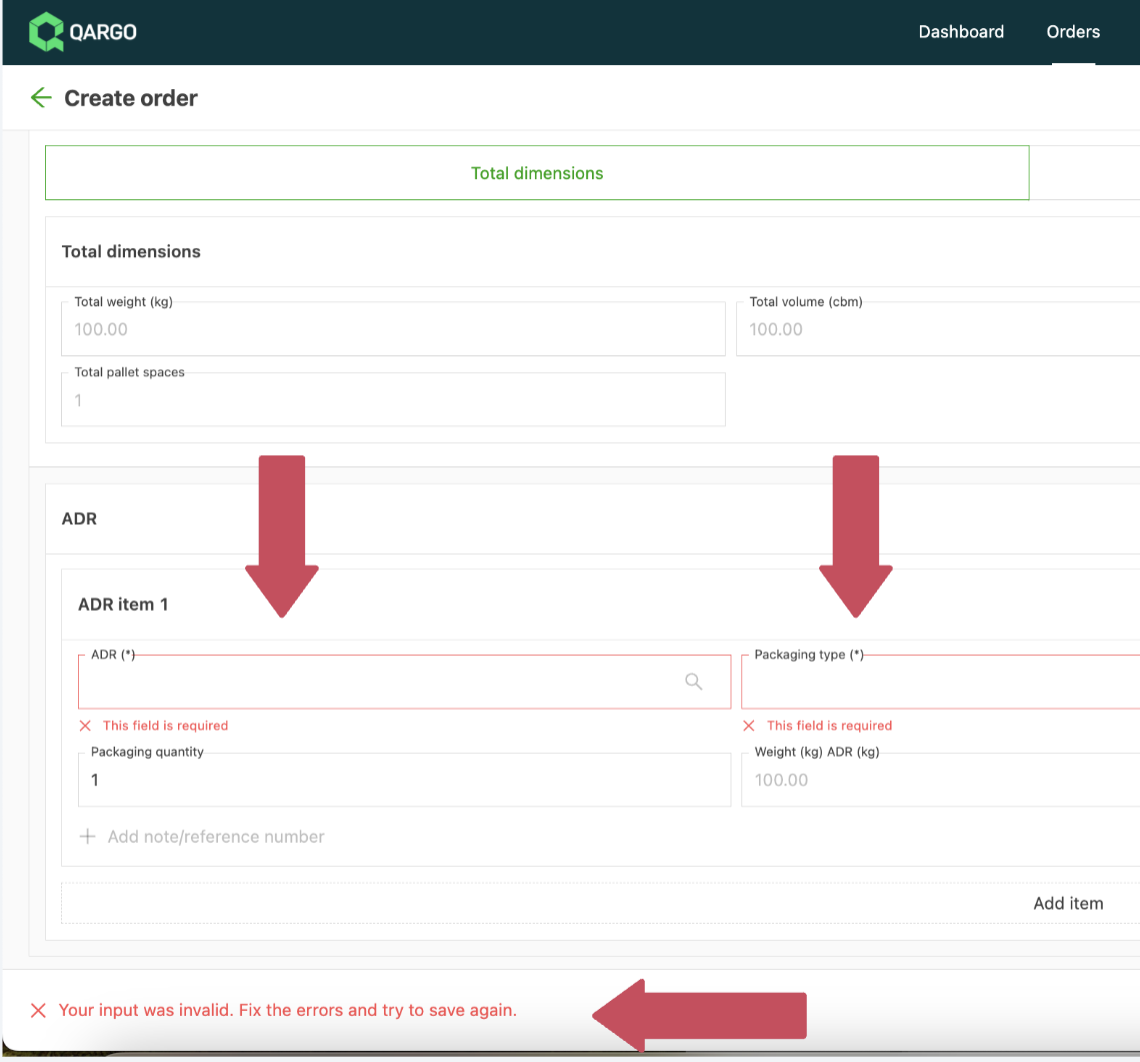
If ADR fields are required on the order, customers submitting an order via the customer portal must enter the details before the order can be saved. If required data is missing, the portal user sees an error indicating what needs to be completed.
Viewing ADR information
Three options on the Orders list:
- A dedicated ADR + UN number column displaying the ADR status, the limited quantity flag and the UN number(s) per order.
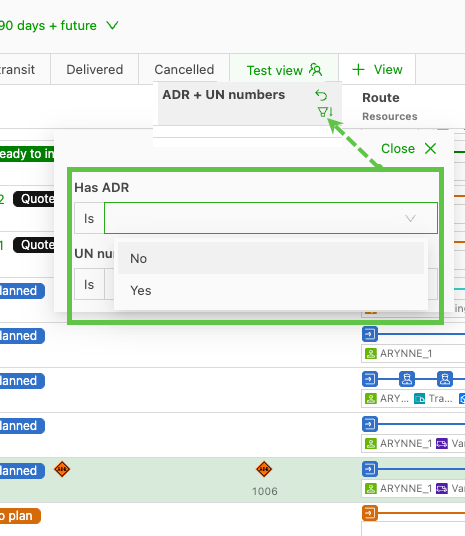
- New ADR filters: filter orders by ADR yes/no or by one or more specific UN numbers.
- Packaged item custom fields available as toggleable columns and filters on the Orders list.
Operations and compliance teams handling hazardous materials, waste shipments or compliance-sensitive workflows can check ADR status or packaged item details for each order right from the Orders list.
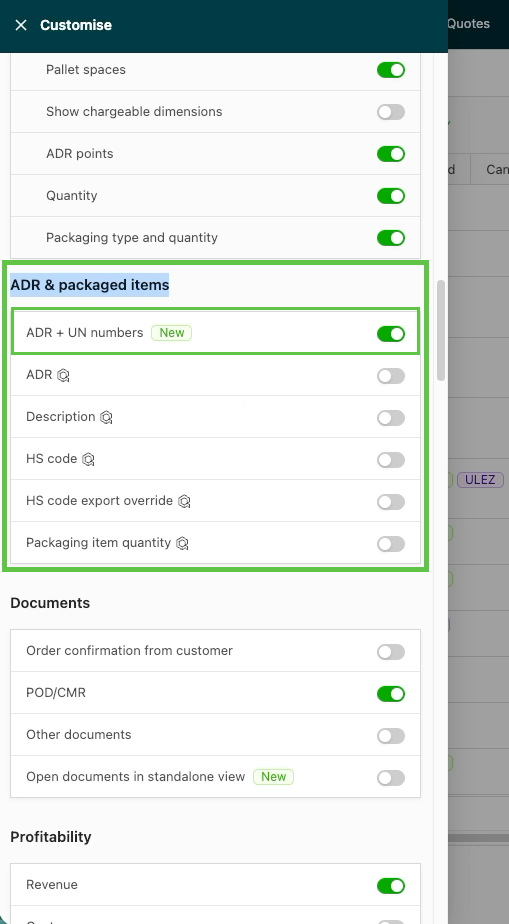
- Enable the ADR + UN number column via the Customize panel.
- Use the filter panel to filter by ADR presence or UN number.
- Add packaged item custom field columns via the ADR & packaged items section in Customize.
Edit columns structure
The Edit columns panel on the Orders list has been restructured into grouped sections:
- Goods: contains Product and Goods description.
- Freight dimensions: contains Quantity, Packaging type and quantity, and freight dimension fields.
- ADR & packaged items: contains ADR + UN nr and any packaged item custom fields.
Enabling the ADR + UN number column
-
Navigate to Orders > Orders
-
Open the Edit columns icon
-
Locate the ADR & packaged items section in the panel
-
Enable the ADR + UN nr toggle
-
View the new column on the Orders list. Each order displays the ADR icon (◇), the LQ icon where applicable, and the associated UN number(s).
- Hovering over the icon shows the full ADR details: class, UN number, packing group and HazMat points.
- When an order has multiple packaged items with different UN numbers, all UN numbers are shown comma-separated (e.g., ◇ 3082, 1993, 1263).
Filtering by ADR
- Select the ADR filter to filter orders by ADR yes/no. This quickly isolates all orders containing hazardous materials.
- Select the ADR number filter to filter by one or more specific UN numbers.
- Apply the filter. The Orders list updates to show only matching orders.
Adding packaged item custom field columns
- Open the Edit columns icon.
- Locate the ADR & packaged items section.
- Enable the custom field columns relevant to the workflow. These must first be configured as custom fields at the packaged item level in Configuration.
- View the values on the Orders list. When an order has multiple packaged items with different values for the same custom field, the values are shown comma-separated.
Troubleshooting
| Issue | Possible cause | Solution |
|---|---|---|
| Packaged item custom field columns not visible in the Customize panel | Packaged items feature flag not enabled on the tenant | Contact a Qargo admin to enable the Packaged items feature flag |
| ADR column not showing UN numbers | No packaged items with ADR data exist on the order | Check that ADR information is entered at the packaged item level on the order |
| Multiple UN numbers shown for one order | Order has packaged items with different ADR substances | Expected behavior: each distinct UN number is listed comma-separated |
| LQ icon visible but no standalone LQ filter available | LQ filter not included in this release | The LQ icon is visible in the ADR column but cannot be filtered on directly in v1 |
| ADR filter not available in the filter panel | Page may need a refresh | Refresh the page and check the filter panel again |