
Feature release July 2025
This article highlights the new features and enhancements released by Qargo this month.
Week 1
Configuration: Email load contacts
Configuration: Split revenue enhancement
Qargo mobile app: Driver scan pickup/delivery
Orders: Enhanced date filters
Week 2
Orders: Add additional stops to Owned and Sea container orders
Rates: Rate based on number of pickups or number of deliveries
Integrations: WhatsApp driver messaging
Resources: CO2 emissions support for electric vehicles
Invoices: Create similar invoice
Configuration: Print directly from Qargo
Orders: Upload multiple documents at once
Week 3
Update: Qargo can take care of the Peppol workflow
Qargo Network: Support more stop activities
Week 4
Invoices: Customize invoice default date
Configuration: New table views for products, surcharges and more
Week 5
Qi: Smarter, more accurate AI for order creation from confirmation documents
Bulk update details via ‘Quick actions’
Customer portal: Invoice charge visibility and approval function
Invoices: New invoice status for improved workflow
Week 1
Configuration: Email load contacts
Add contacts directly to a load so they can be used as recipients for emails linked to the load or to stops on the load. This simplifies emails, so the correct contact person receives load-related communications.
-
Enable the feature by activating the default field Contact emails
- Navigate to Configuration > Additional fields
- Under Loads, activate Contact emails to show it in the load details
-
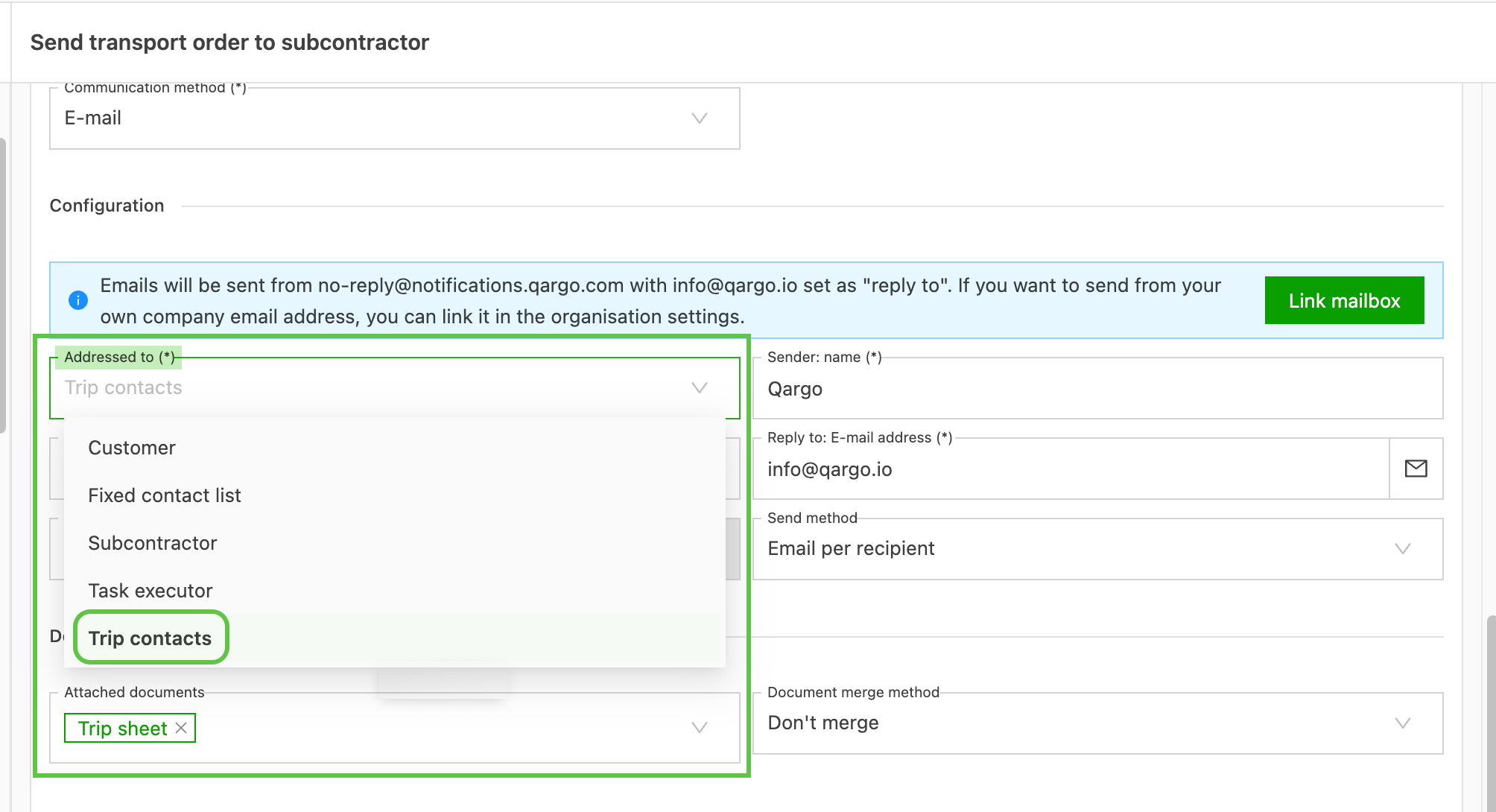
Configure Contact task to send emails to load contacts
- Navigate to Configuration > Tasks
- From the Load tasks, select or add the email task
- Select Load contacts in the Addressed to field.
Configuration: Split revenue enhancement
When calculating revenue, it is possible to split revenue among loads for a more accurate picture of revenue distribution. Revenue can be split based on:
- % of leg: Manually assign a percentage of the total revenue to each leg of the load (e.g., 25% to pickup, 50% to trunk, 25% to delivery). The revenue for each leg is then calculated directly as that percentage of the load’s total revenue.
- Distance: The total revenue for a load is divided proportionally according to the distance traveled on each leg.
- Time: The total revenue for the load is allocated proportionally based on the time spent on each leg or stage of the journey.
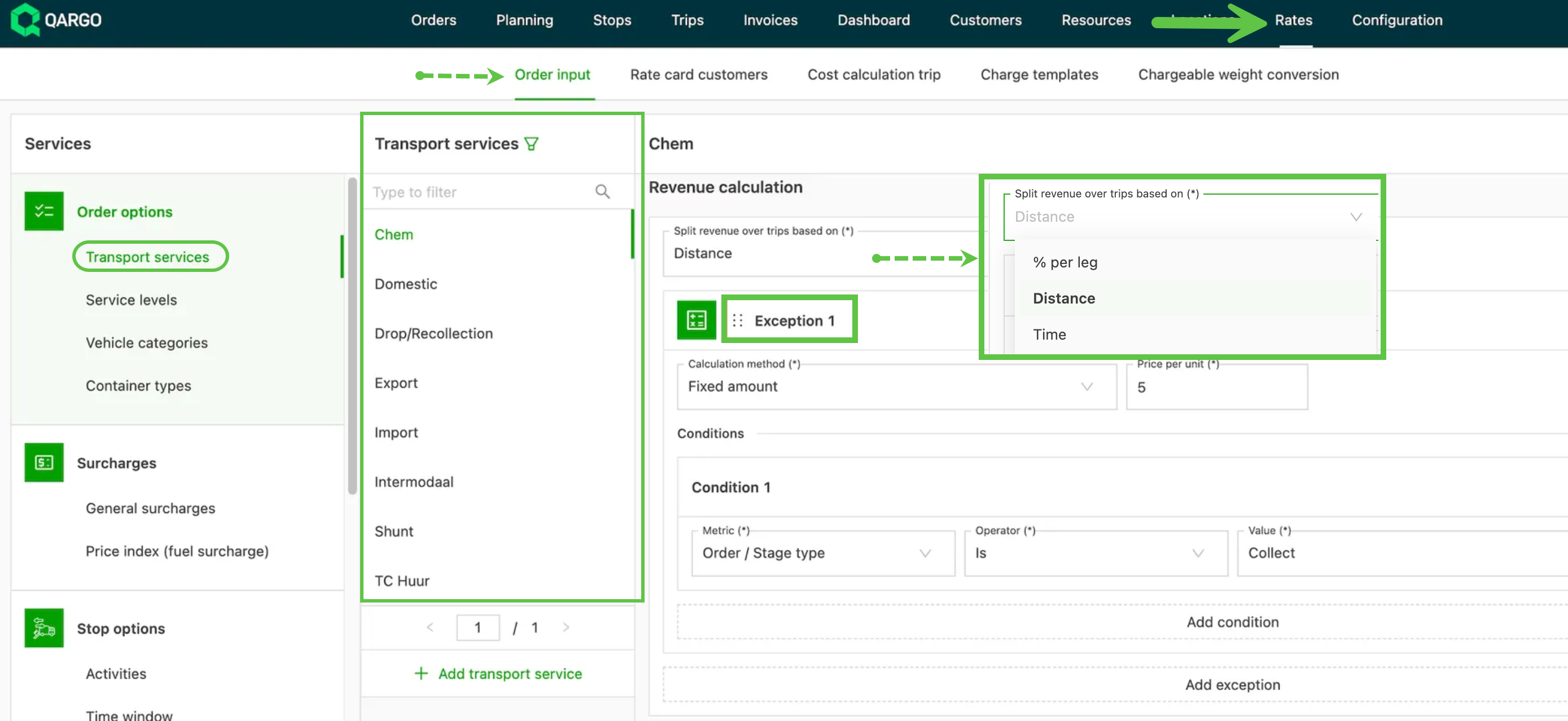
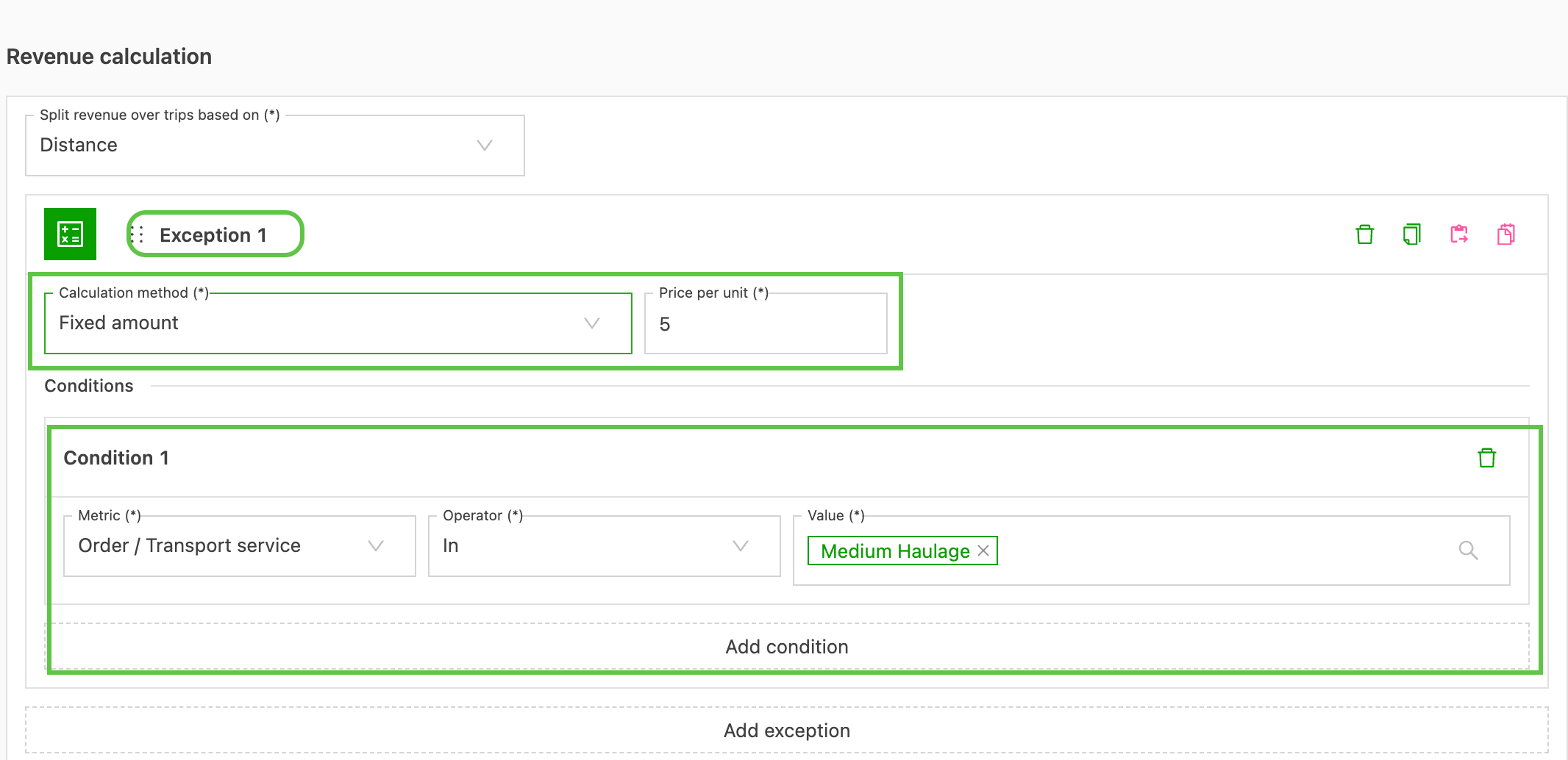
To offer further flexibility when determining revenue splits, it is now possible to add exceptions to the split. Similar to how rate cards are entered, an exception uses conditions that can be configured to set specific criteria for when to apply additional charges or rules for how revenue is adjusted.
Qargo mobile app: Driver scan pickup/delivery
Drivers using the Qargo mobile app can now use the barcode scanning function. After a new workflow task is added to the driver question path in the app, drivers see the requirement to Scan the pallet/barcode. This task can be added to both pickup and delivery stops for full tracking and visibility of the shipment.
- Using the device camera as the scanning tool, the driver can quickly scan and confirm the barcode.
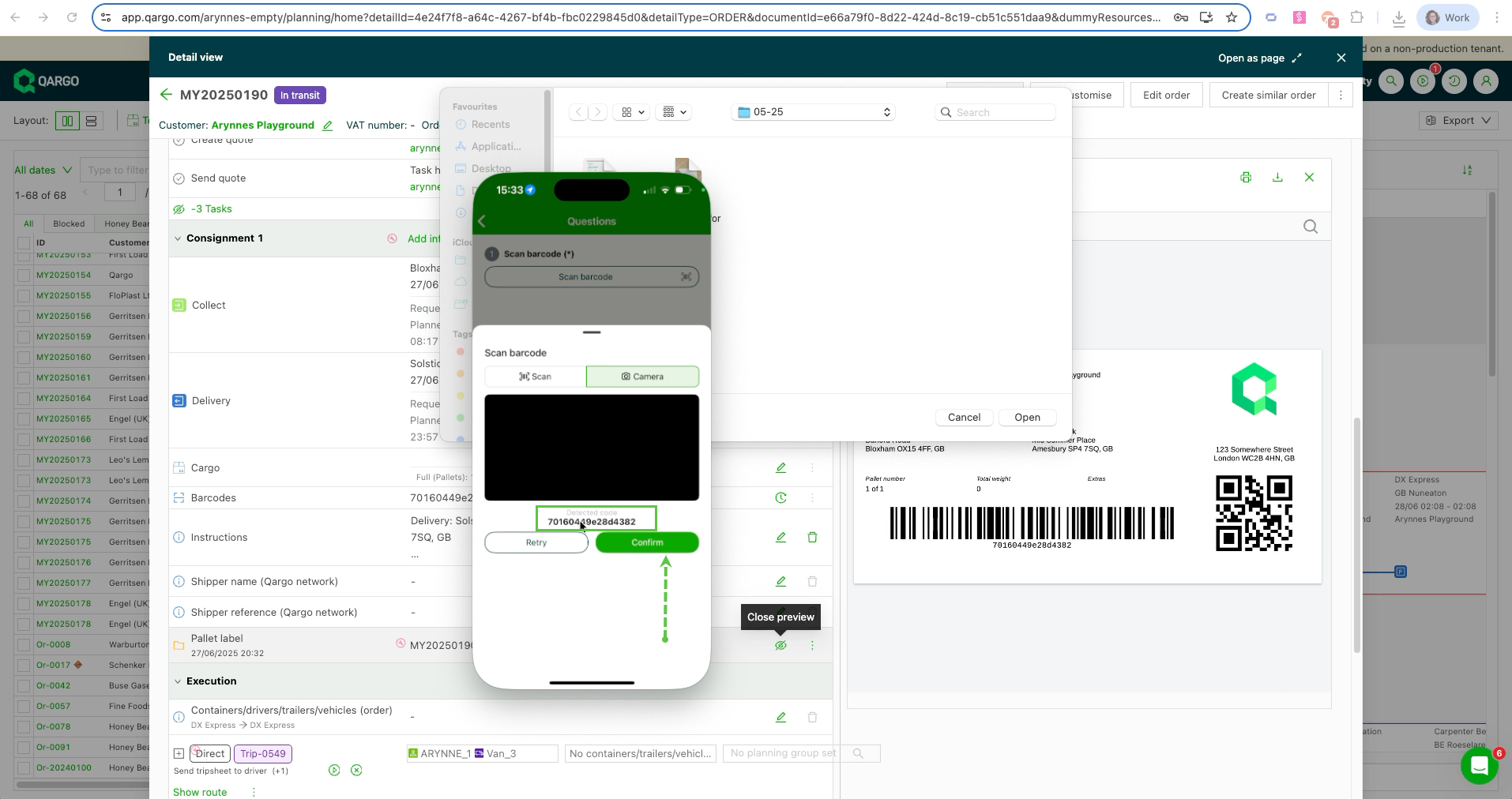
- Once scanned, a label is added to the shipment and the details are logged in the pallet tracking history.
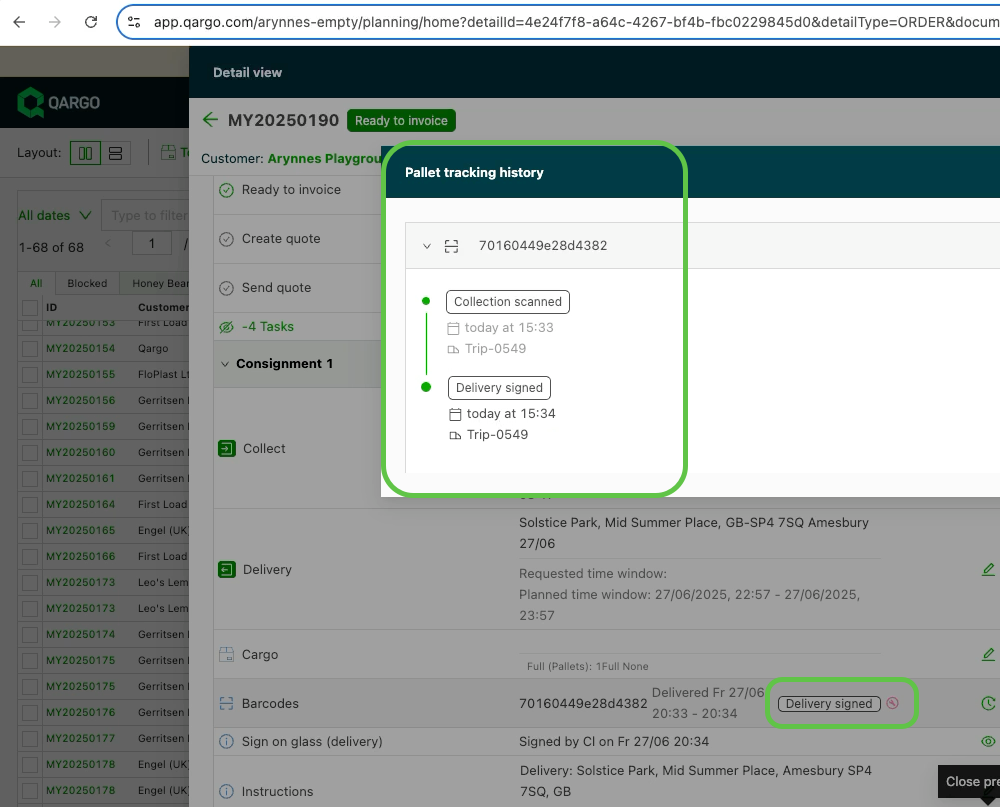
- Allowing barcode scanning at pickup and delivery gives greater visibility of which pallets were delivered, based on which barcodes were scanned
Learn about the Qargo mobile app
Orders: Enhanced date filters
In addition to all standard date selectors (1 day / Last 90 days + future / Date), it is now possible to add filtering relative to ‘today’. By filtering on the individual column, Order start or Order end, users can set the filter based on requested or actual dates.
- Select Today and specify the number of days before/after to view
- If the user navigates away from the page, performs other functions or even closes the page, the filter is retained and the dates are remembered.
- Because the filter is based on a number of days relative to ‘today’ (i.e., the current date), the dates adjust automatically each time the user loads the page.
Filtering by date is more convenient than ever with this new option!
Week 2
Orders: Add additional stops to Owned and Sea container orders
If the selected transportation service is Owned or Sea container, standalone stops can be added during order creation.

Users can add custom stops to the shipment and define where in the load the stop should be added:
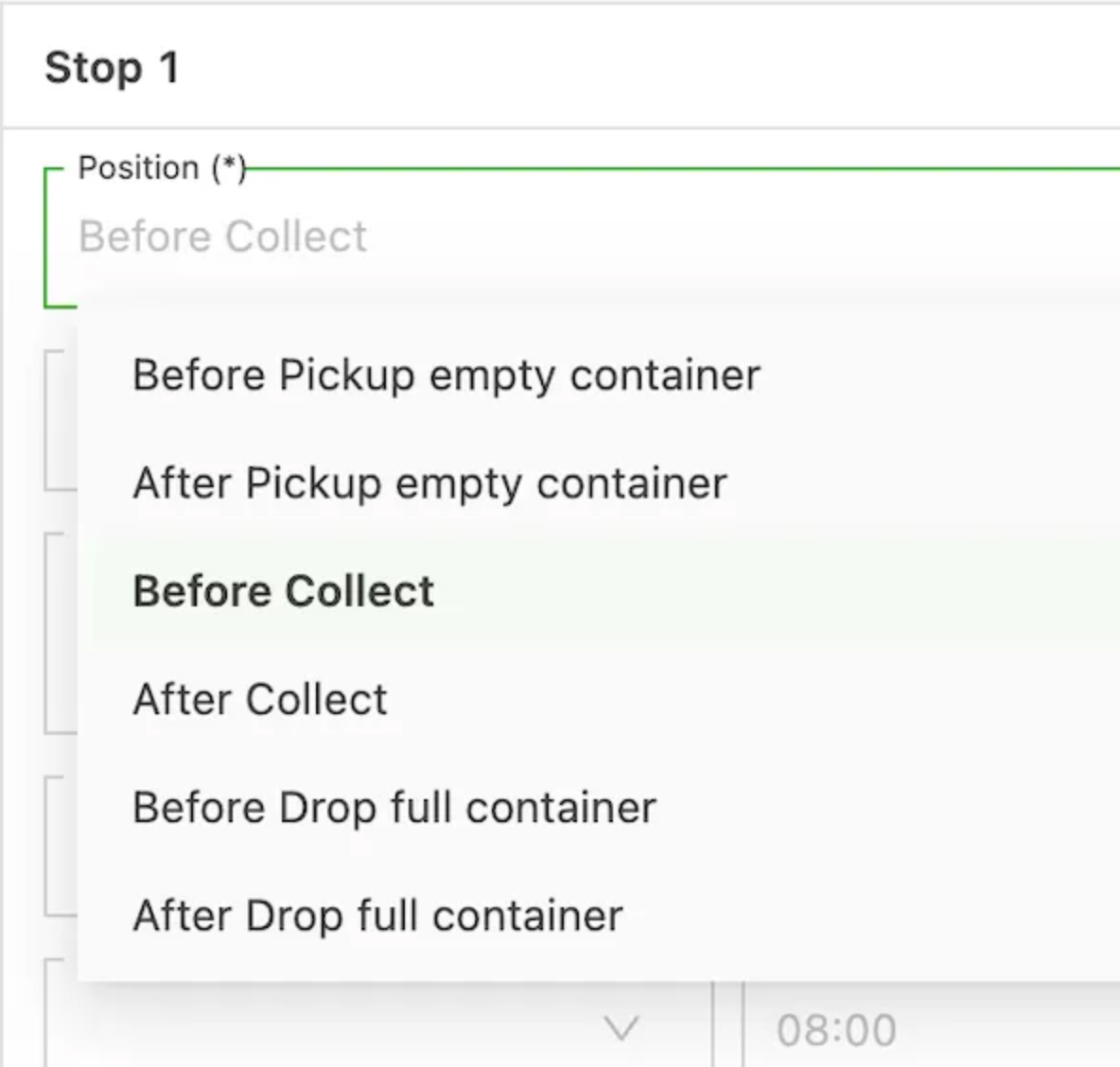
Multiple stops can be added to the shipment. Please note: this feature has some limitations.
- Only applicable to container orders (Owned/Sea container)
- Not applicable to transportation network orders
- Not compatible with creating multiple legs, i.e., dropping a chassis with a container
Rates: Rate based on number of pickups or number of deliveries.
Rating can now be based on the number of pickup stops and delivery stops. Two new metrics have been created on rate cards:
- Number of pickups (under Route > Number of pickups)
- Number of deliveries (under Route > Number of deliveries)
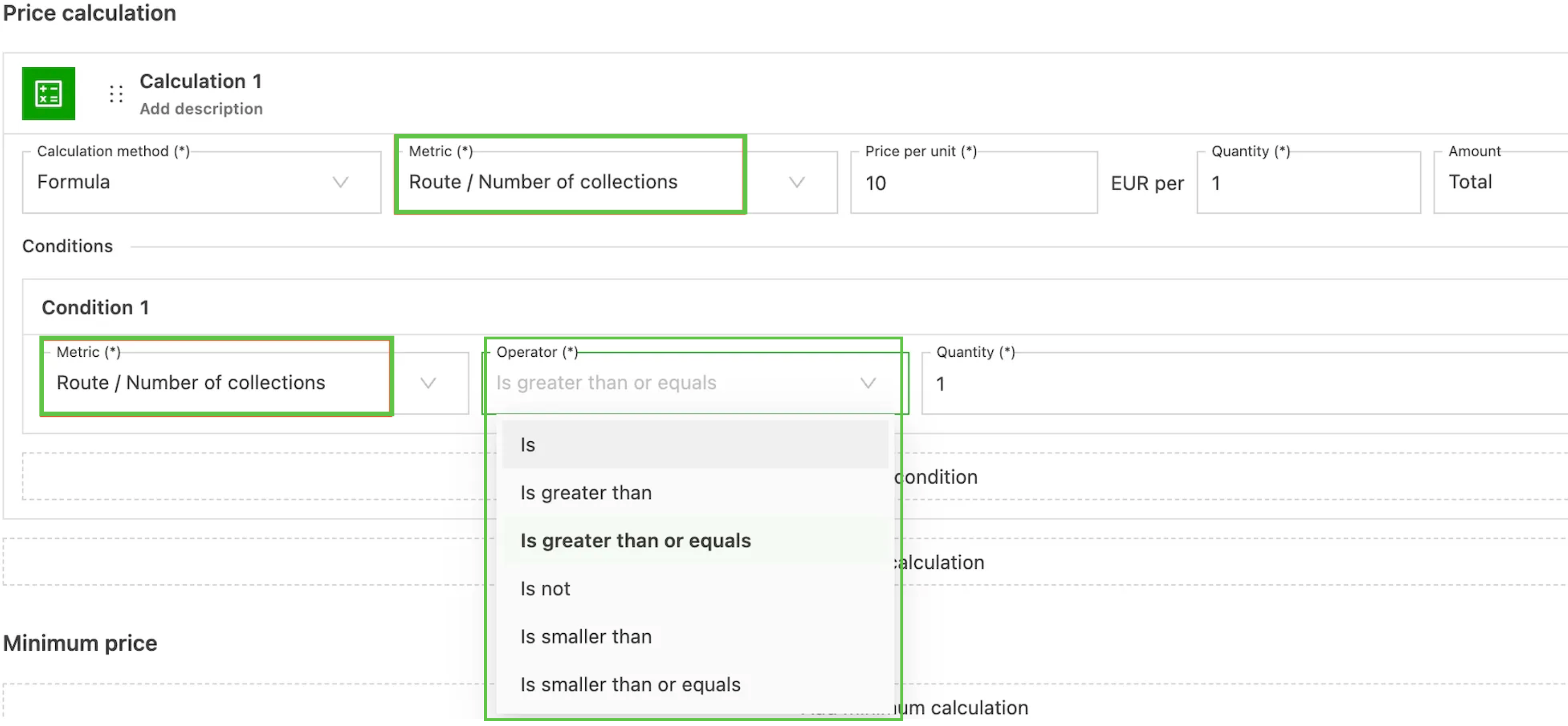
These new metrics can be used in formulas as well as rate tables. They can also be used in rate card conditions.
Integrations: WhatsApp driver messaging
Qargo now integrates with WhatsApp Business, bringing direct driver communication into the daily workflow. This integration removes the need to switch between apps while managing fleet operations. All conversations are managed in one place, giving complete visibility into driver communications.
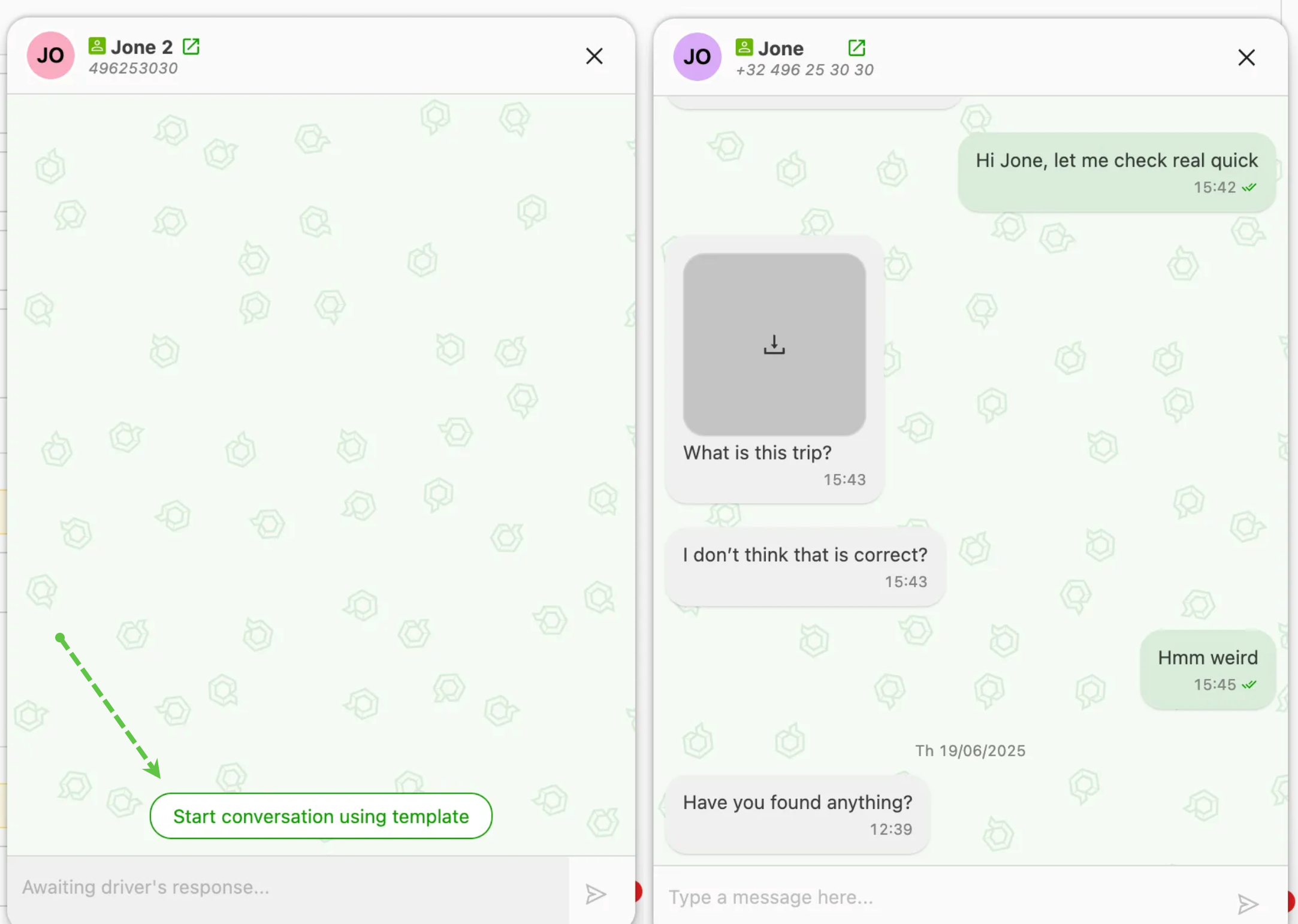
Key features:
- Direct communication: Start WhatsApp conversations from driver pages, load details and resource assignment screens
- Unified interface: All WhatsApp conversations appear in Qargo’s familiar interface
- Complete history: All message history is preserved within Qargo for reference and record-keeping
- Smart access: WhatsApp options appear everywhere drivers can be assigned, from order lists to planning screens
How it works:
-
Drivers can start conversations at any time.
-
Qargo users can start a conversation with a driver by sending a WhatsApp template message.
- The driver can accept the message to open the communication channel. Once a conversation is active, messages can be sent freely for 24 hours.
To learn more about the WhatsApp integration, click here.
Setting up the WhatsApp integration in Qargo
Resources: CO2 emissions support for electric vehicles
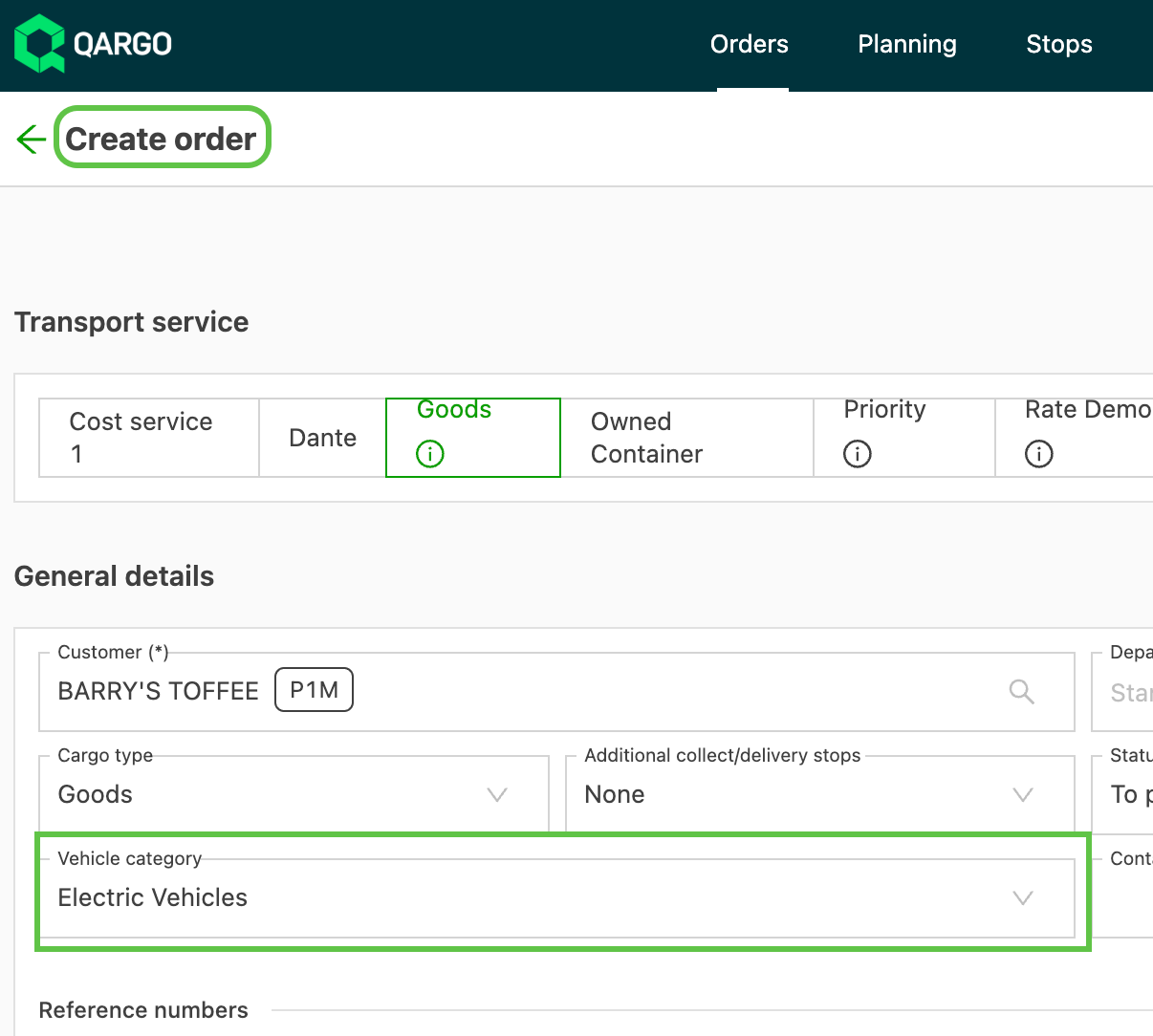
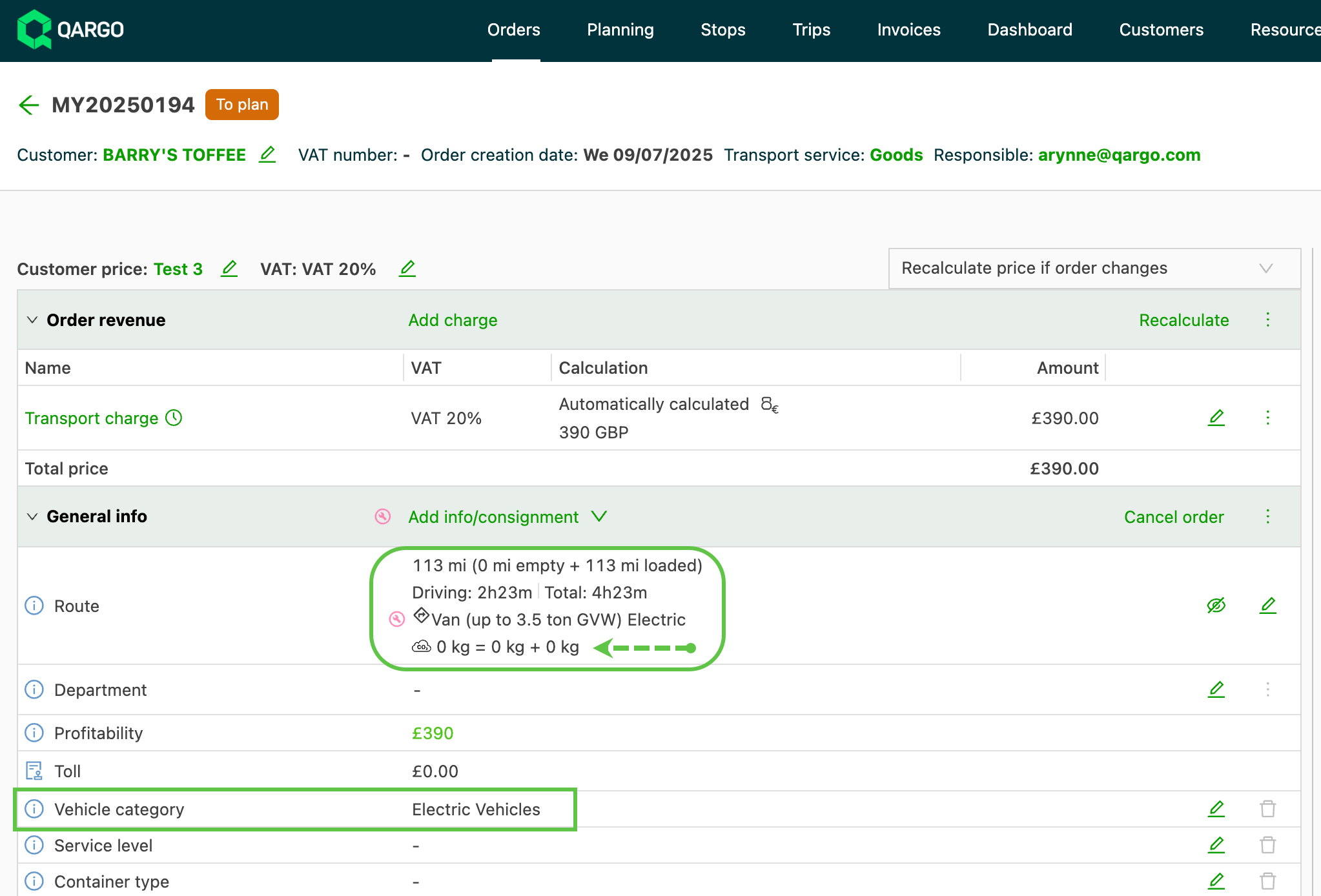
Some configuration is required. Once it is set up, using the vehicle category on an order or selecting an electric vehicle for the load shows the CO2 emissions correctly.
For orders to show the CO2 emissions correctly for electric vehicles, the vehicle category on the order needs to be set to ‘Electric vehicles’ (requires setup: see Rates - Vehicle categories for more details). This option overrides the standard vehicle type used to calculate the CO2 emissions and rates the order at 0 kg instead.
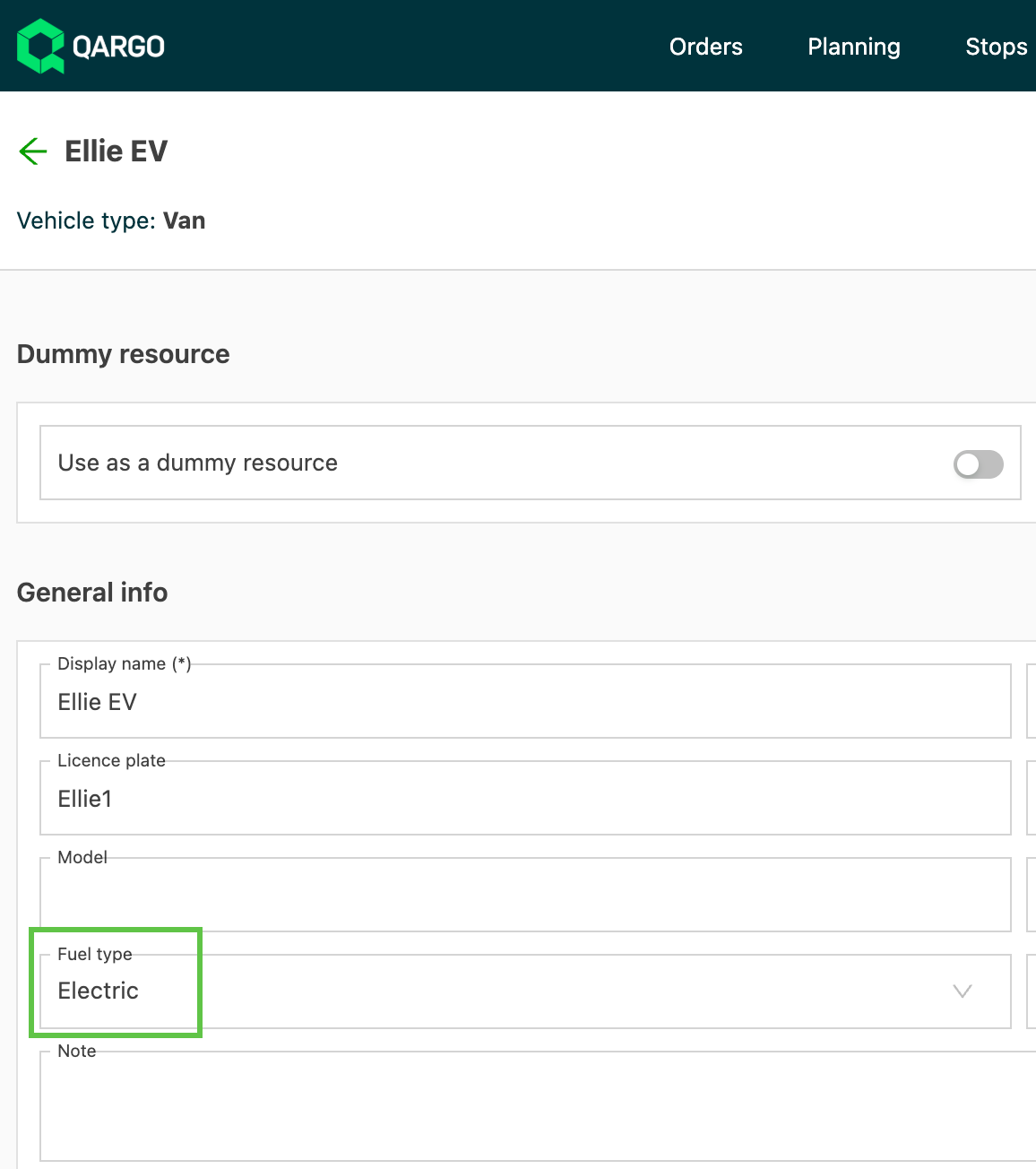
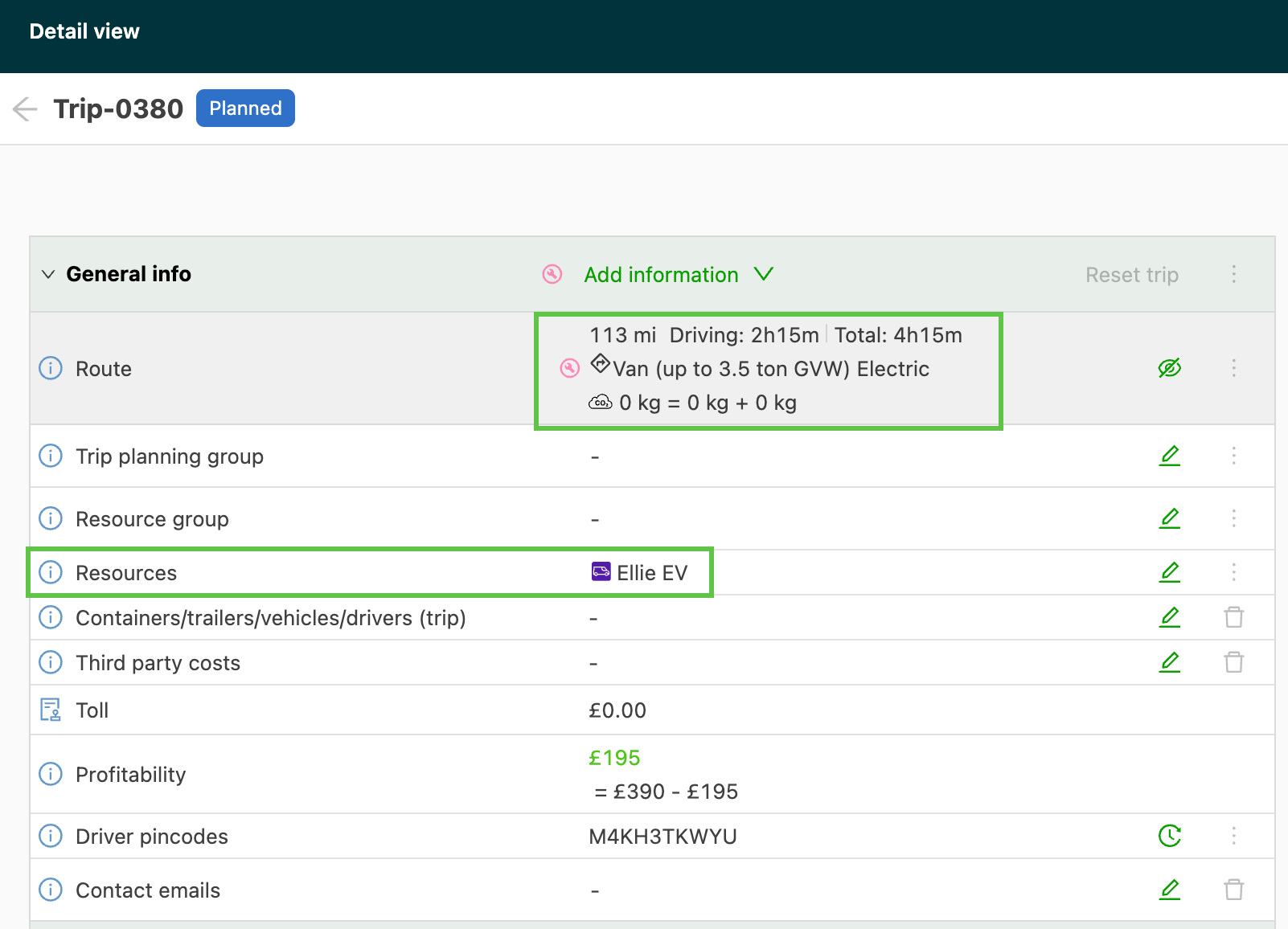
For loads, the CO2 calculation is still based on the vehicle assigned to the load. Select the engine type on a vehicle profile; it is taken into account when calculating the CO2 emissions of loads. For vehicles with an electric engine, the resulting CO2 emissions shown are 0 kg.
Important to note:
-
Only combustion/electric vehicle combinations are supported
- Hybrid vehicles and biofuels are treated as regular diesel engines and show higher CO2 emissions.
-
Applies only to new orders/loads, or when the route is recalculated, once configured.
Invoices: Create similar invoice
When the same invoice recurs regularly, users can now copy the invoice quickly to create a similar invoice.
From the invoice, click the hamburger menu (three dots) to display the Create similar invoice option.
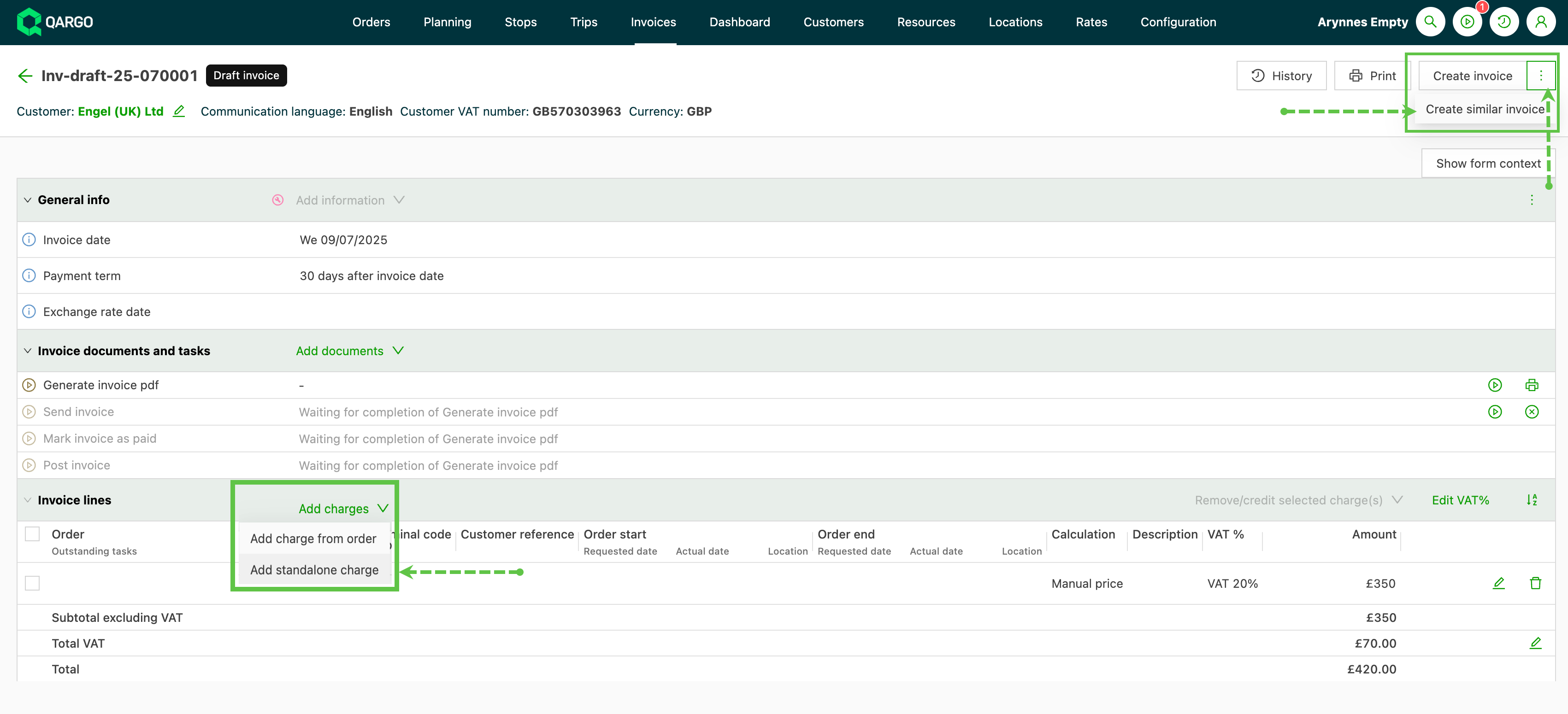
The new invoice is created with the Draft status.
If the option is not available for the invoice, it is grayed out and a warning is displayed.

Configuration: Print directly from Qargo
No more downloading documents to the computer just to print them. Documents can now be printed directly from Qargo to local printers, saving time and removing the hassle of managing downloaded files.
🎯 Smart printer assignment
Configure different printers for different document types. Set the accounts office printer for financial documents and the planning office printer for operational documents, automatically.
⚡ Easy printing
Print documents directly from order lists, task views and document details with a single click.
🔧 Flexible configuration
- Add multiple printer configurations
- Set default printers for specific document types
- Customize print settings (copies, color/grayscale)
- Quick re-trigger and reprint options
Where to find it:
- List view pages: New print options alongside the existing download functionality. Quick-action print button for task documents
- Order details: Instant print icon for immediate document printing
- Task execution: Choose between download only or printing directly
FAQ - Print documents in Qargo
Orders: Upload multiple documents at once
Save time by adding all needed documents to the order in one screen! When uploading documents to an order, it is possible to select multiple documents.
- Select multiple documents of the same document type
- Upload different document types at the same time
- Use the description to define the same document type
- Also available in the customer portal :::
Week 3
Update: Qargo can take care of the Peppol workflow
This feature is being enhanced with additional capabilities that will streamline the processing of incoming invoices from the Peppol network when it launches in Q3 2025.
🎯 Enhanced Peppol integration
The workflow will handle the complexity of multi-source invoices from the Peppol network, including:
-
Load-related transportation invoices
-
General business expenses (office supplies, utilities, etc.)
- Forwarded for processing
-
Credit memos and adjustments
⚙️ Flexible integration options
For organizations with existing Peppol registrations, multiple integration pathways will be offered:
- API endpoint integration: Direct upload capability for Peppol integrators
- Direct system pull: Automated invoice retrieval from supported accounting systems
Key benefits
For transportation operations
- Minimal manual intervention: Transportation invoices are matched and processed
- Improved accuracy: Qargo Intelligence ensures precise invoice-to-load matching
- Faster processing: Immediate routing eliminates processing delays
For finance teams
- Streamlined workflow: Non-transportation invoices are automatically forwarded to the appropriate systems
- Configurable routing: Set up custom email addresses for different invoice types
- Seamless accounting & ERP integration: Direct connection to the existing accounting solution* (*selected set of accounting systems)
For IT administrators
- Flexible setup options: Choose the integration method that best fits the existing infrastructure
- API-first approach: Robust endpoints for custom integrations
- Selective system support: Direct pull capabilities for compatible accounting systems
Qargo Network: Support more stop activities
The Qargo network now supports container and sea container activities. This means that when these stops are added to container/sea container transportation service orders, they can be pushed to the contract carrier’s order through the Qargo network.
The following stops are now also supported:
- Pickup/drop empty container
- Hook/drop empty chassis
- Hook/drop empty trailer
- Custom stops
If the stops are added after the load has already been planned to the contract carrier and sent over the Network, the Outsource to Network task sends the update to the contract carrier account.
Learn more about Qargo Network
:::
Week 4
Invoices: Flexibility in default invoice dates for sales invoices
Until now, the default invoice date was always set to the current date. While simple, this did not always reflect operational needs. With this update, there are now three different options for setting the default invoice date, tailored to how each company works:
- Current date: As before, uses today’s date as the invoice date.
- First pickup date: Automatically uses the first requested start date from all orders on the invoice.
- Last delivery date: Automatically uses the last requested end date from all orders on the invoice.
⚙️ How it works
The preferred default invoice date can be set at the tenant level under organization settings.
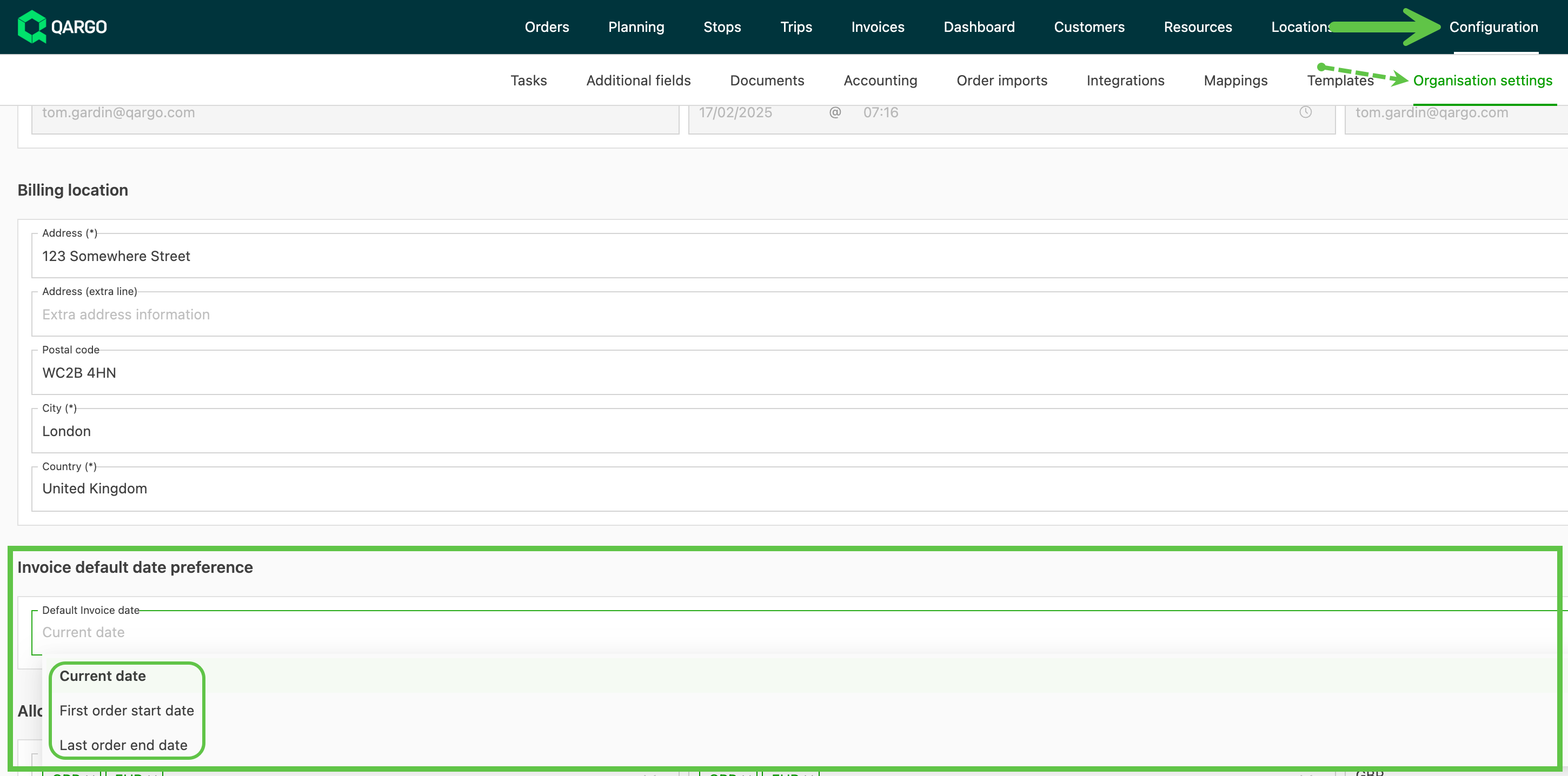
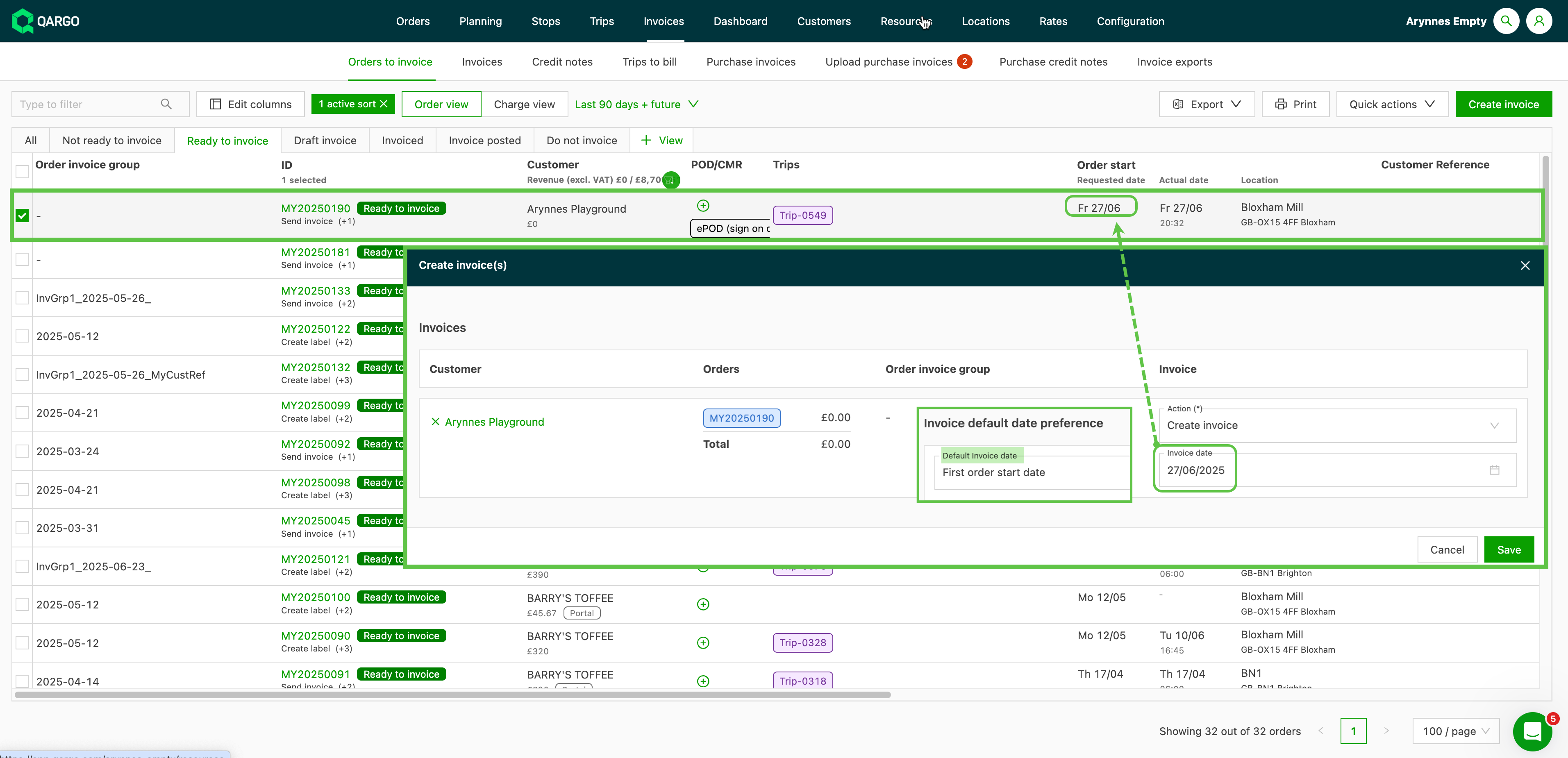
Once configured, this preference applies automatically when:
-
Creating single order invoices (e.g., using the order’s requested start date).
-
Creating bulk invoices, where the system uses the default but also allows a manual override.
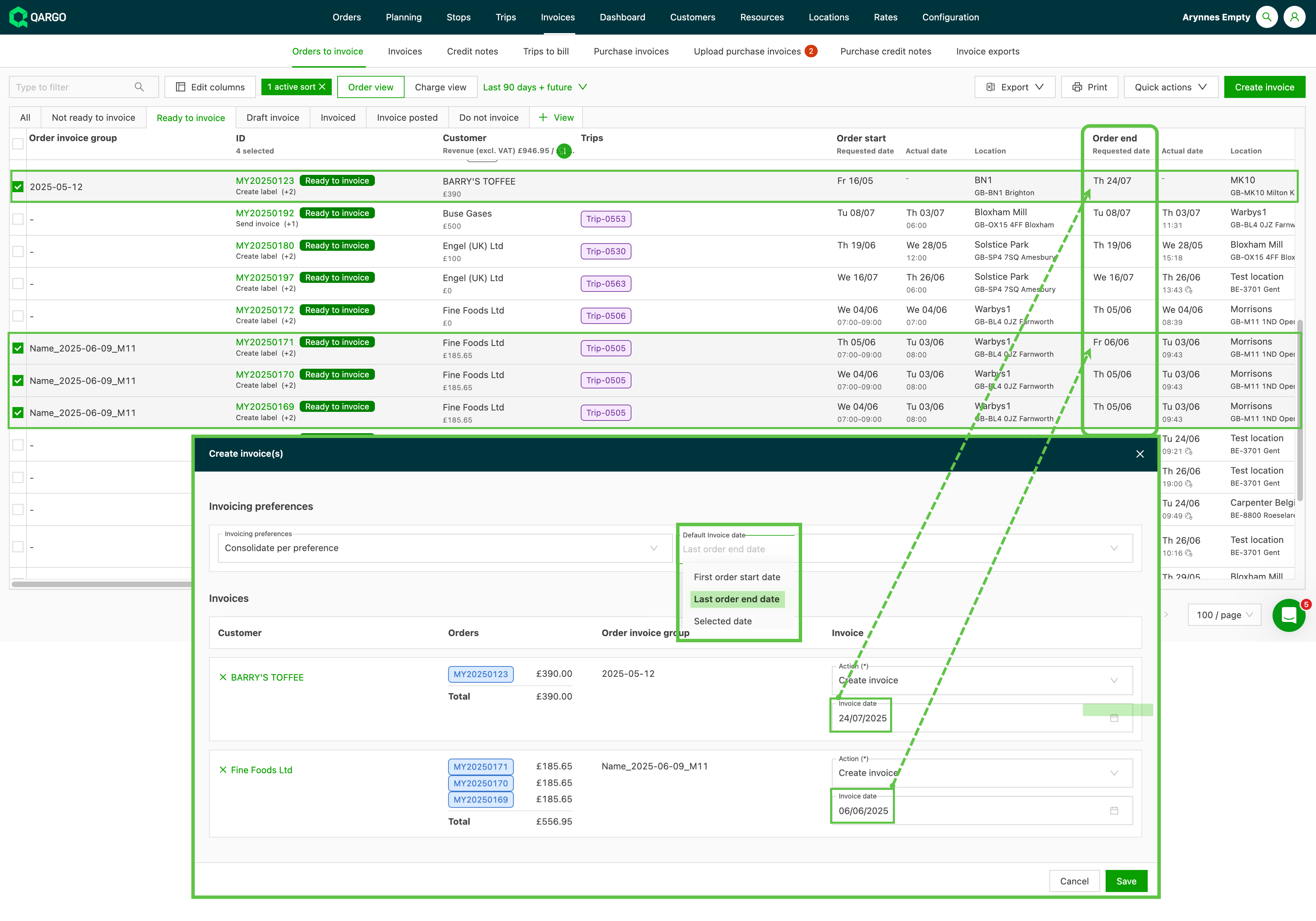
💡 Need a custom date instead? No problem. It is still possible to select a specific date manually during invoice creation or to update invoice dates individually, just like before.
🔍 A quick note
This enhancement currently applies only to sales invoices, not to carrier invoices.
✅ What this means for users
No more manual changes for each invoice. With smarter default options, users can:
- Reflect operational timelines more accurately
- Improve billing consistency
- Save time on admin work
Configuration: New table views for products and surcharges
Getting the needed information quickly is now easier than ever.
🎯 What’s changed?
Previously, viewing details for products, general surcharges and the price index required clicking into each item one by one, which could be time-consuming.
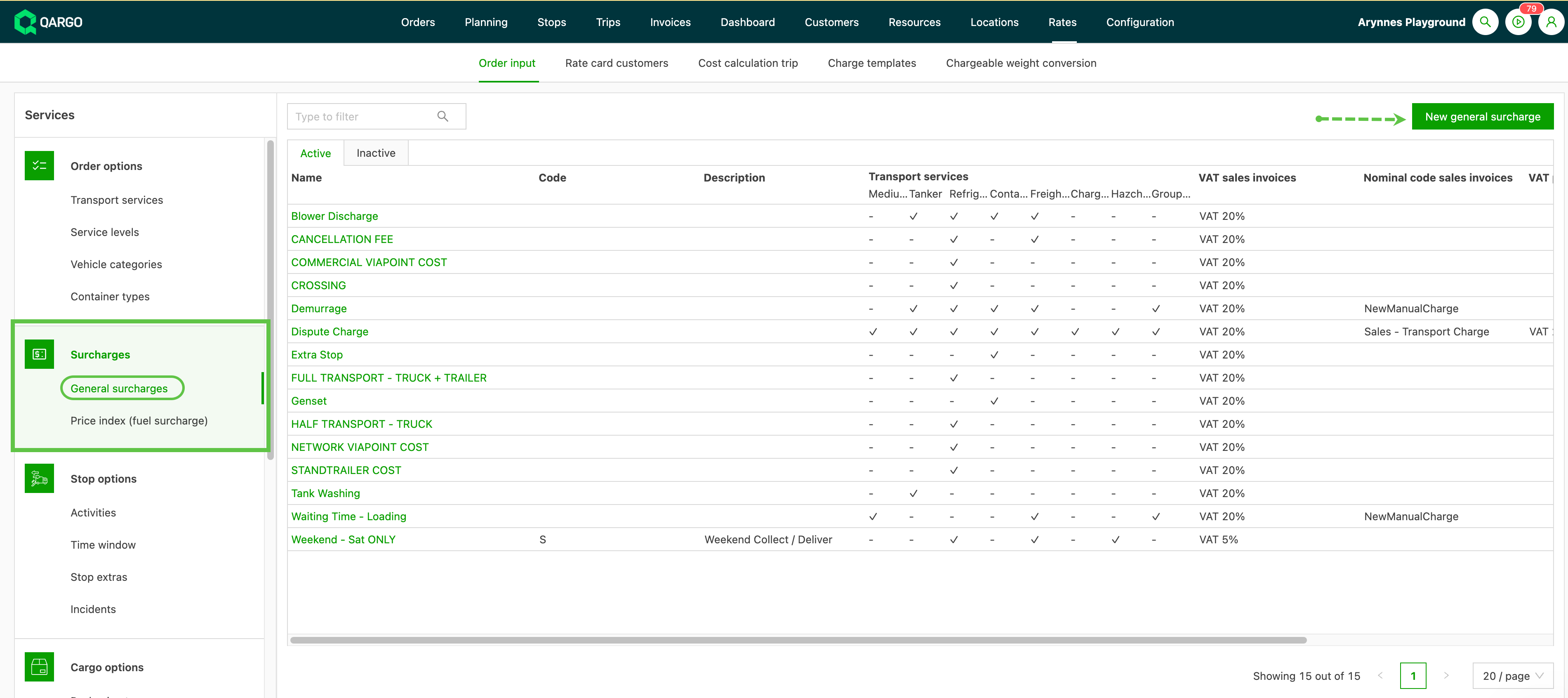
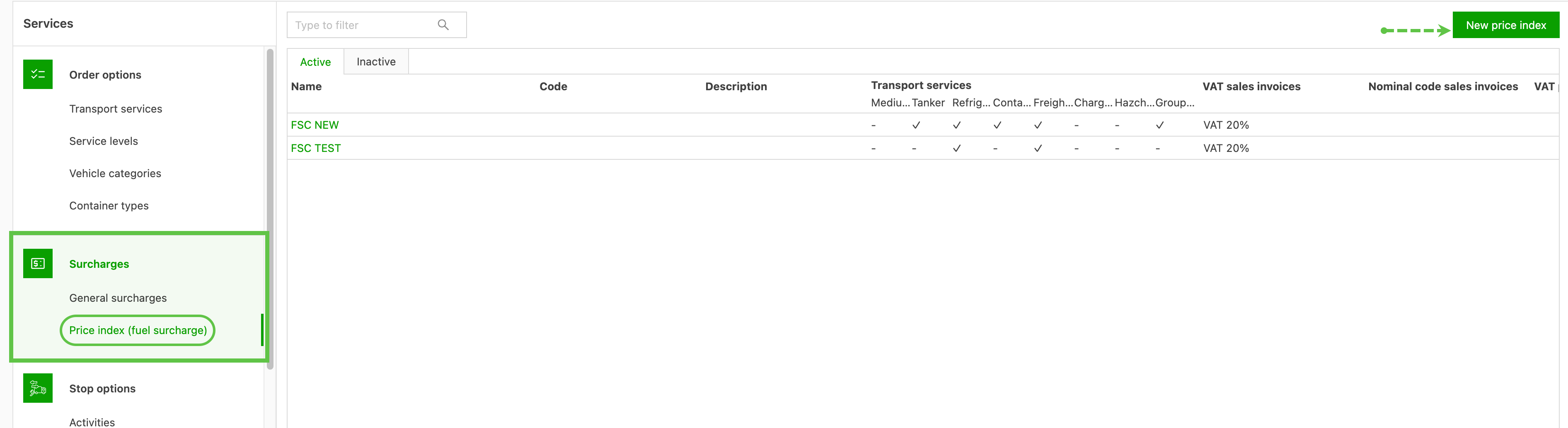
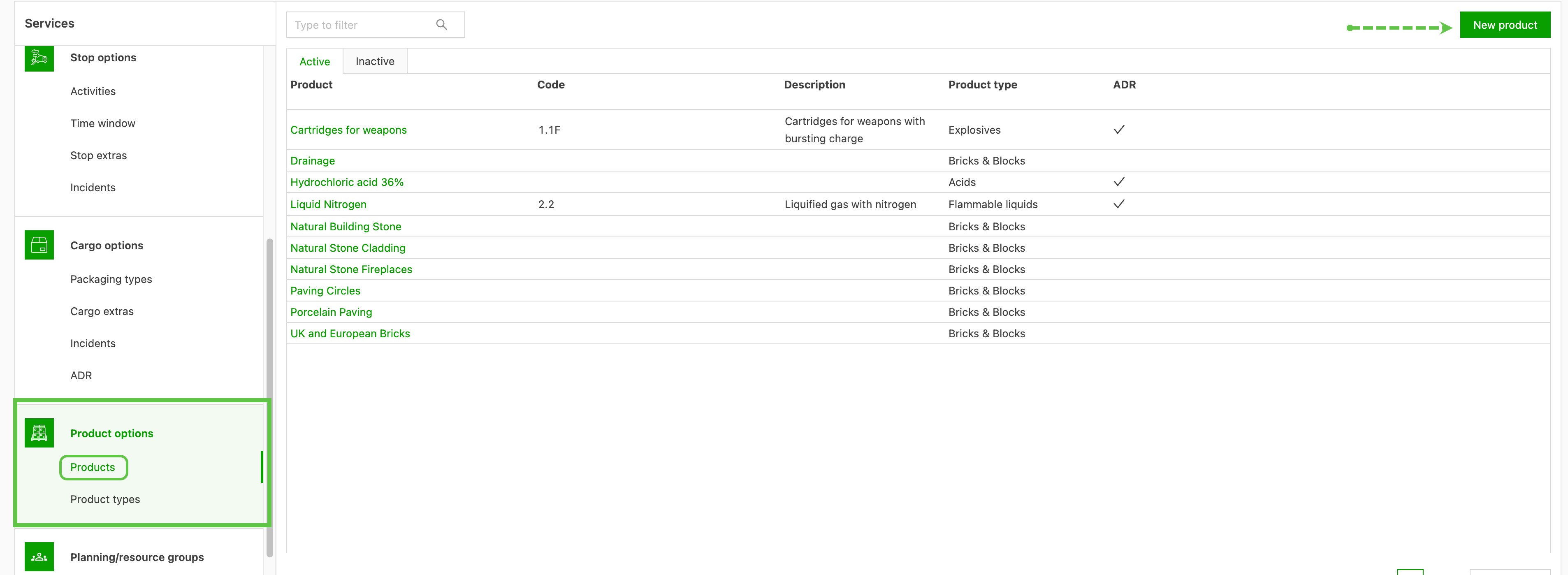
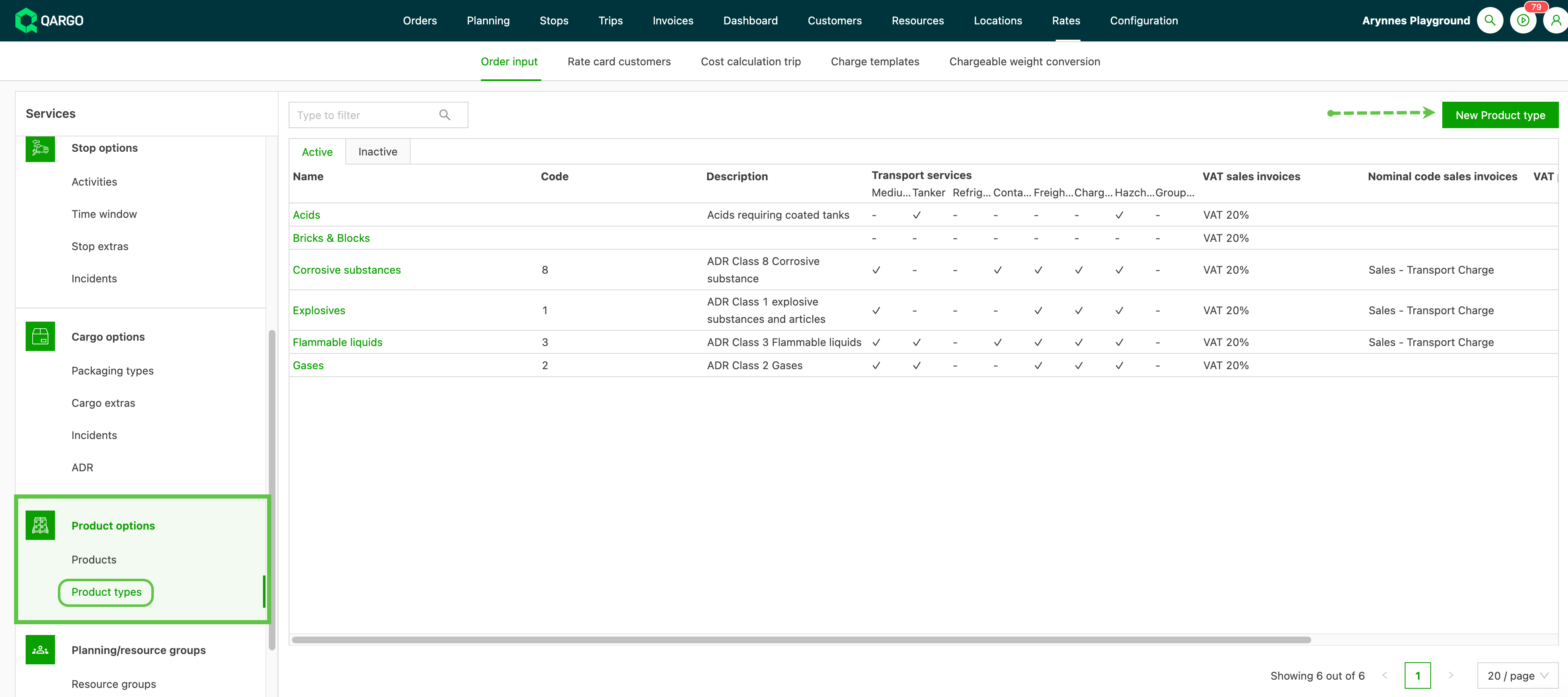
With the new table view layout, key details are now immediately visible, so users can scan, sort and find what they need without all the clicks.
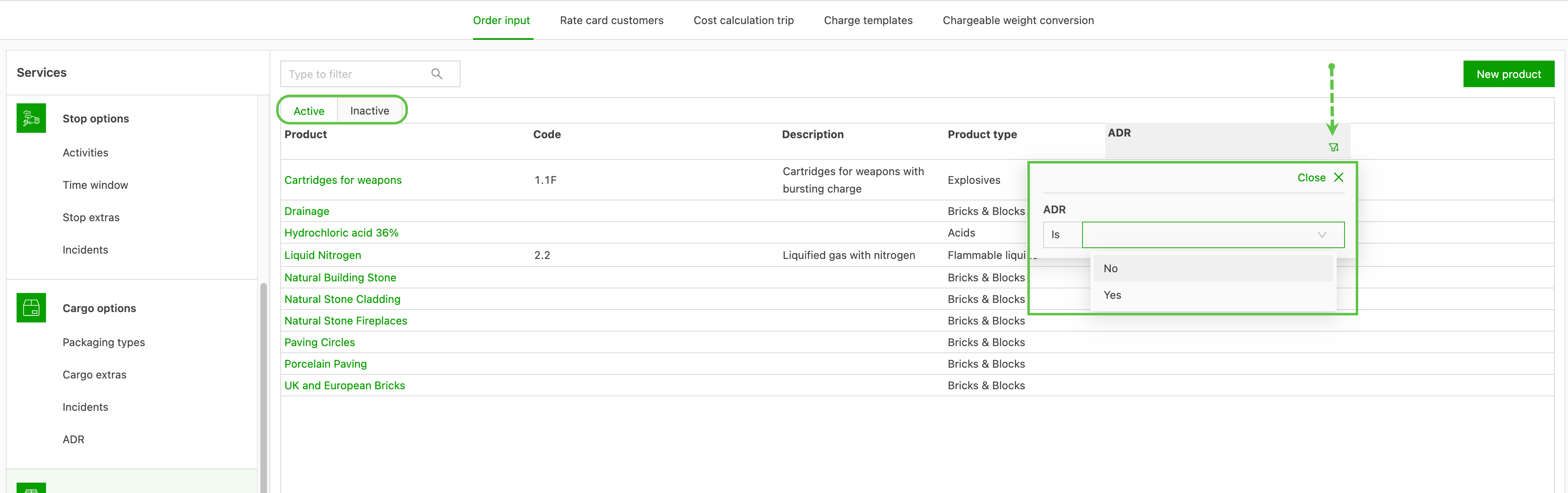
🧩 What’s included
- ✅ Clear table views on selected pages, with essential information at a glance
- ✅ Separate tables for active and inactive items
- ✅ Sorting and filtering options to quickly narrow down results
- ✅ A new, consistent “Create” button at the top right to add new items easily
- ✅ Still possible to click into any item for full details
Whether managing rating updates, checking product statuses or reviewing surcharges, this layout helps get the job done faster.
📌 Why it matters
- No more clicking into every item just to see a basic detail
- Easier visibility into what is active or inactive
- Faster workflows and less time spent navigating menus
Week 5
Qi: Smarter, more accurate AI for order creation from confirmation documents
This release brings a powerful upgrade to how the platform uses AI when creating orders from order confirmation documents. The update brings smarter suggestions, broader coverage and better automation to streamline the workflow.
🎯 What’s new?
When importing an order confirmation, users already benefit from AI-generated suggestions and automatic pre-fills. This experience is now even better, with three key improvements:
📍 Expanded location suggestions
The AI can now suggest more relevant locations based on the document. Previously, suggestions were limited, often showing just one or none at all. The models have been optimized to interpret location data more effectively, so users see broader, more accurate options when setting up the order.
🧾 Enhanced pre-fills for more fields
Pre-fills now go beyond the basics. Fields like container no., which were previously unsupported, are now included. This means less manual entry and more time saved, especially when processing multiple orders.
🕒 Smart detection of start and end times
When the document includes both a start and an end time, the system now automatically recognizes and pre-fills those fields. This further reduces friction and increases accuracy.
💡 Why this matters
- Faster order creation: More fields are completed automatically, reducing manual input.
- Improved accuracy: Smarter suggestions mean fewer corrections and better data integrity.
- Smoother workflows: Greater automation leaves more time to focus on what matters.
Bulk update details via ‘Quick actions’
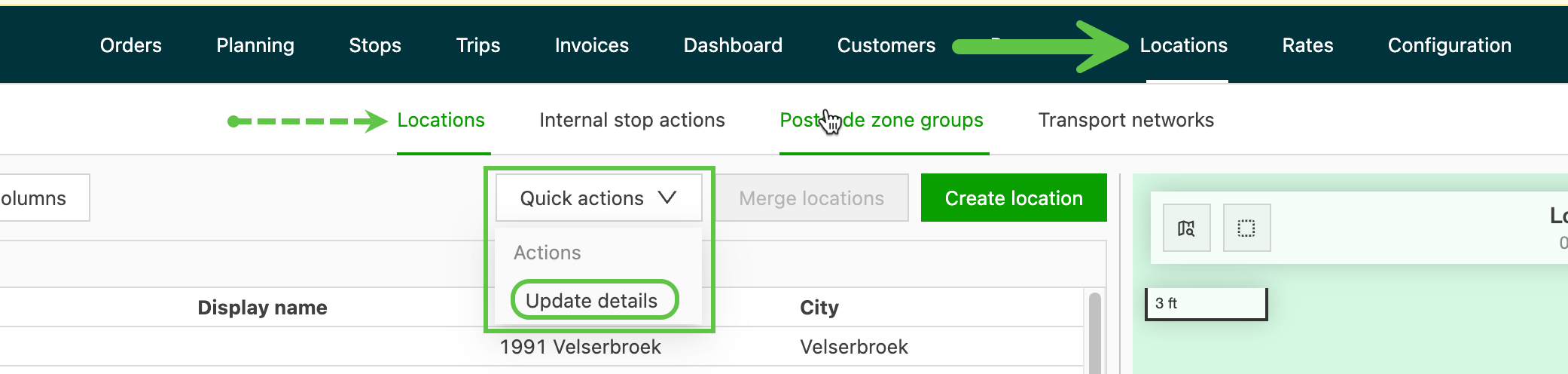
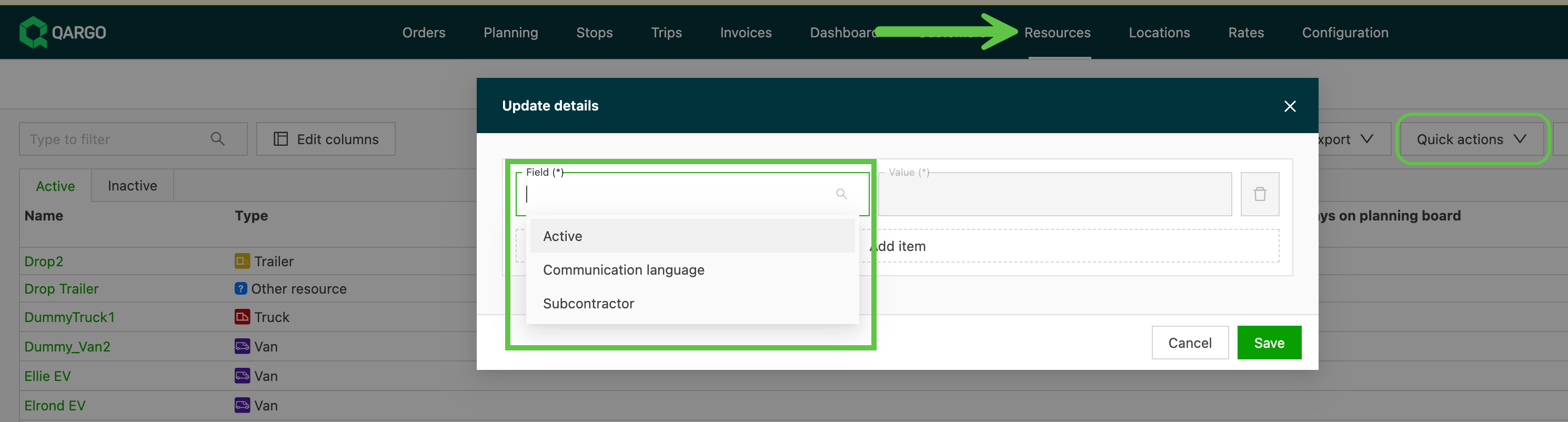
Managing data is now much easier. A new way to update customer, location, vehicle and driver details quickly and in bulk is now available. This update offers a faster, more efficient way to update multiple records at once, whether adjusting contact information, updating status fields or correcting entries across multiple items.
🧩 What’s included?
A new Quick actions > Update details button is now available on these key pages:
- Customers
- Locations
- Vehicles
- Drivers
With just a few clicks, users can select multiple records and update one or more fields at the same time, with no need to open each entry individually.
📌 Customer impact
- Save time by updating multiple items in one go
- Improve consistency across data
- Simplify workflows for large-scale updates
Customer portal: Charge visibility and approval options
Two powerful new features have been added to the customer portal to improve transparency and streamline collaboration with customers:
1️⃣ Charge visibility in the customer portal
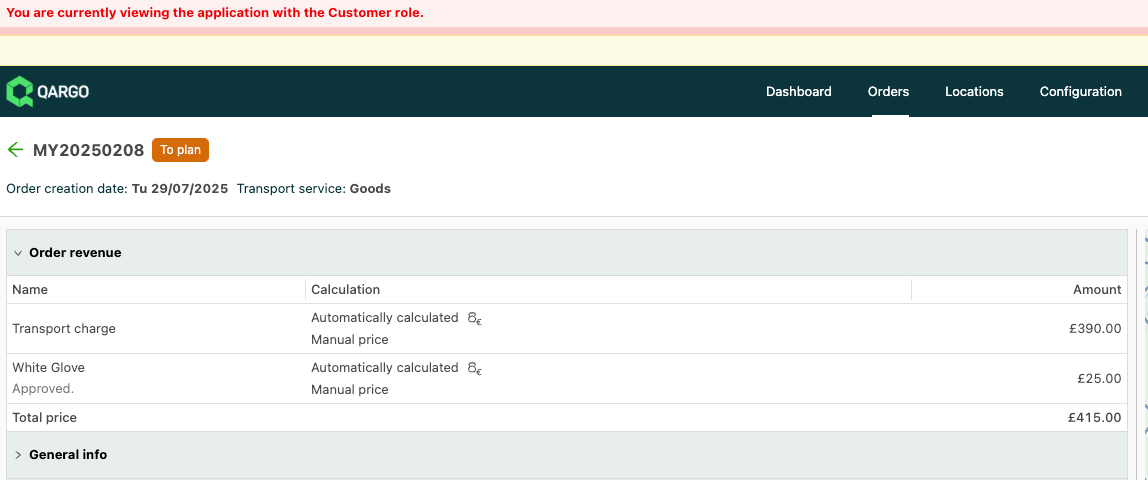
Order-related charges can now be displayed directly in the customer portal.
How to enable it:
- Go to the Customer profile
- Scroll to the Contacts panel
- Toggle on “Show charges on customer portal”
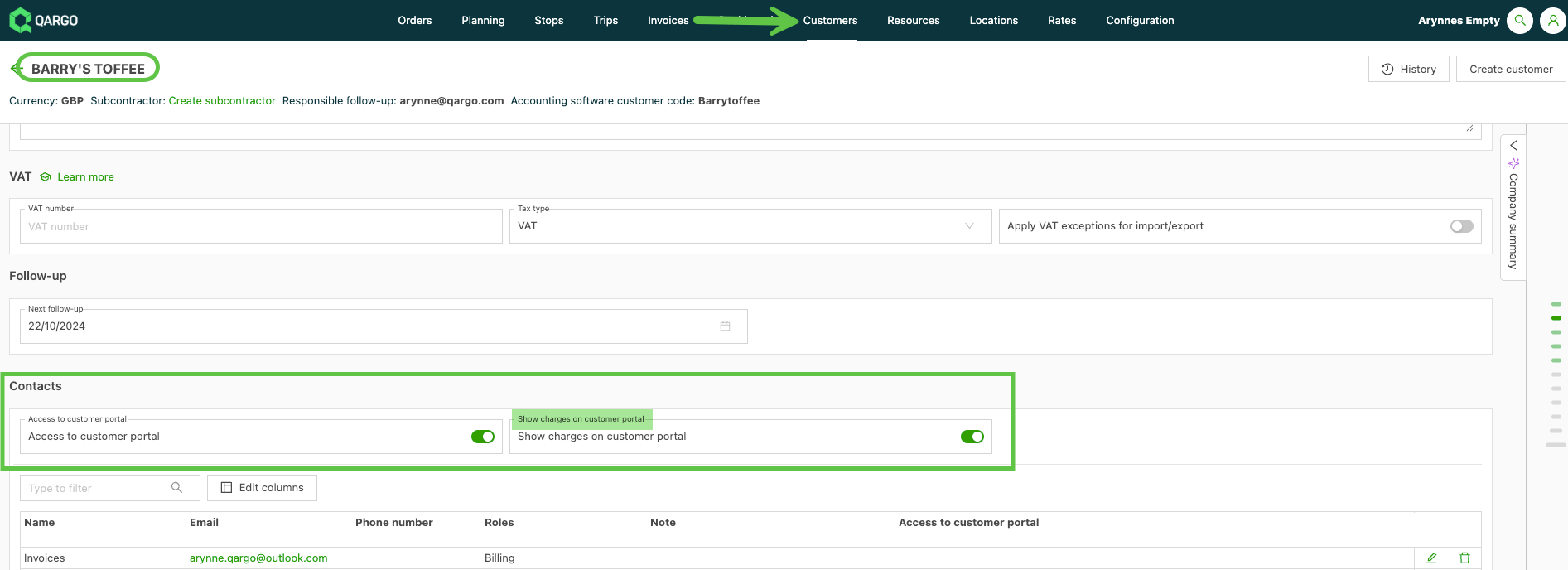
- With this setting enabled, customers can view all relevant charges associated with their orders right from the portal, with no need for back-and-forth emails.
2️⃣ Approve or reject charges
When charge visibility is enabled, customers can now approve or reject charges that are marked for review.
How it works:
- Charges requiring action are labeled “To approve”
- Customers can hover over the label to view the Approve and Reject options
- A comment field lets them provide context for their decision
- Click Save to submit the response
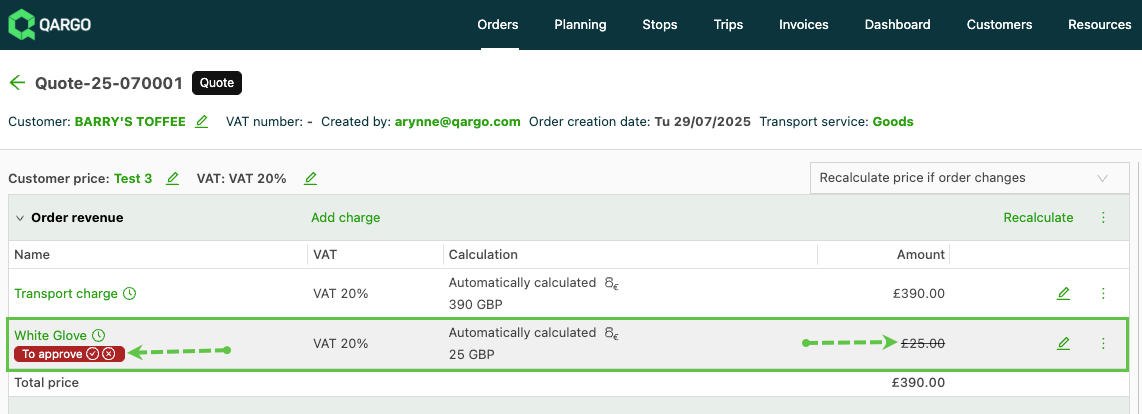
- The order updates accordingly: approved charges are confirmed, while rejected ones are flagged or removed based on the action taken.
Click the link to see how charge approvals work on customer portal orders.
Invoices: New ‘Invoiced externally’ status for charges
A new way is now available to manage charges that do not need to be invoiced through Qargo but still affect financial tracking: Invoiced externally.
🚛 What is “Invoiced externally”?
The Invoiced externally status is designed for charges that:
- Should not appear on Qargo-generated invoices
- Will be invoiced via another system or method
- Still contribute to revenue and profitability figures
🛠️ How to use it
- On any charge (from rate cards, cost calculations or the order view), select “Invoiced externally” as the charge status.
- This can be done manually or configured as part of the charge setup.
- The charge is then tracked in Qargo for internal reporting but is not included in the customer invoice.
📈 Why it matters
- Keep financial tracking complete: Charges still count toward profitability, even if they are billed outside Qargo.
- Avoid double billing: Prevent charges from being invoiced in multiple places.
- Streamline workflows: Manage all charges in one place, even when billing is handled elsewhere.
Use Invoiced externally to maintain accurate financial records without disrupting external billing processes.