Qargo Network: what, why and how?
Qargo Network automates outsourcing between transportation companies, syncing orders and statuses in real time and eliminating manual data entry.
Table of contents
[
](https://qargo.storylane.io/share/nlw5pirrtl5w)
Introduction
Qargo Network (sometimes called internal (out)sourcing) addresses the traditionally cumbersome, manual process of outsourcing work between transportation companies. The Network lets one Qargo environment pass a job, such as a load or a specific stop activity (i.e., pickup), directly to another Qargo environment. Once configured, the load automatically appears in the contract carrier’s Qargo environment for operations. All relevant details are exchanged automatically, with no manual intervention or duplicate data entry.
As the job progresses, the original company can see all updates in real time. Documents, proof of delivery (PODs) and status updates are all synchronized. This transparency and automation save significant time and remove the need for manual communication and document chasing.
This is useful for multi-entity companies, collaborations between business units or close contract carrier relationships.
Example use cases:
- Routing jobs between two entities, i.e., goods handled by multiple partners using a hub-and-spoke model.
- Centralizing jobs between companies or business units that are operationally separate but financially related.
Key benefits:
- Orders, reference numbers and status updates are synchronized automatically.
- Cuts manual data entry and reduces duplication and errors.
- Lets each entity keep separate order and billing processes while collaborating operationally.
- Internal tracking and billing can be set up so the receiving entity invoices the sending company, while the latter invoices the end customer
- Multi-tenant setups with internal sourcing allow strict visibility controls and make it possible to centralize billing or automate cost transfers
- Route orders to internal partners based on criteria such as transportation service, ZIP code, etc.
Configuration
Setting up Qargo Network requires some assistance from the Qargo Integrations Onboarding Manager (IOM). The IOM completes the initial setup of the module. Super admin users can also add to the configuration and make certain updates as required.
There are 2 elements to create in both tenants so the Network functions work as expected.
- Dispatch = contractor
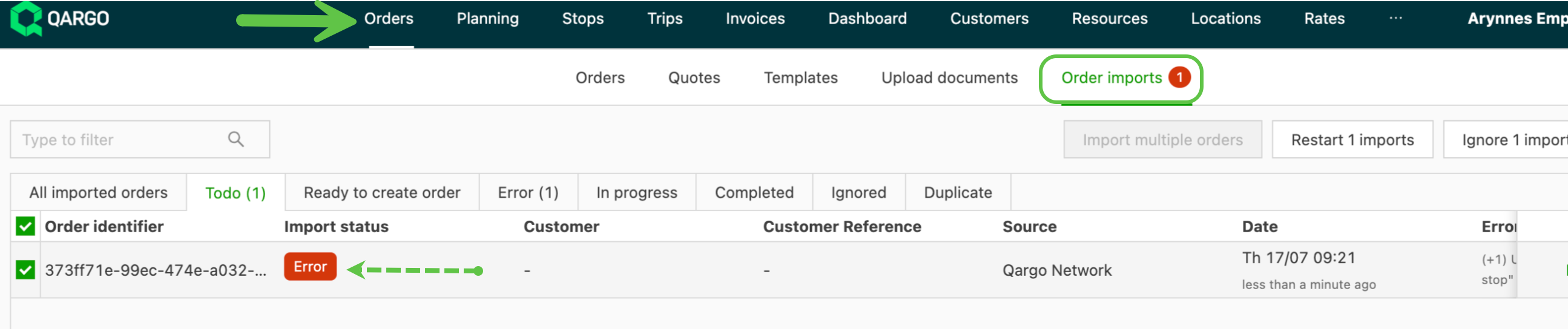
- Order import = contract carrier
Once the module has been activated, the following may need updating:
-
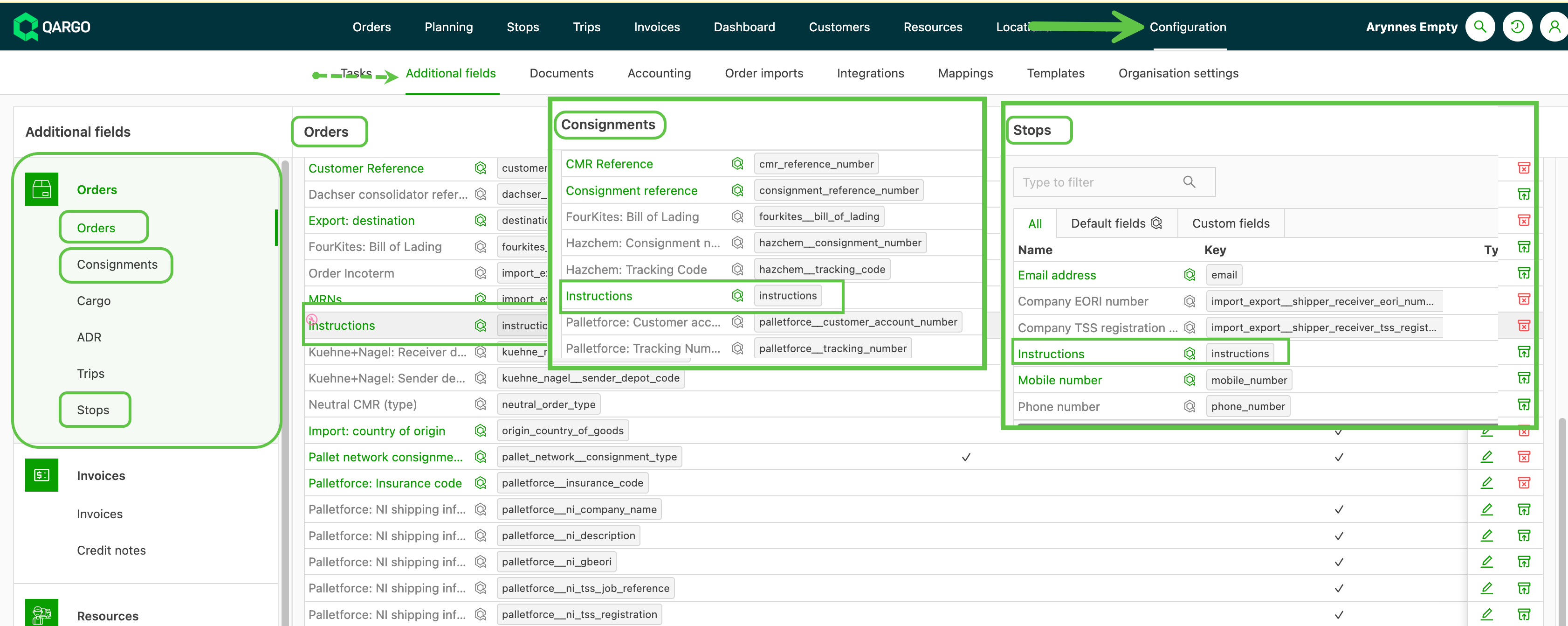
Configuration > Additional fields:
-
The ‘Instructions’ field must be activated on:
- Order
- Shipment
- Stop
-
-
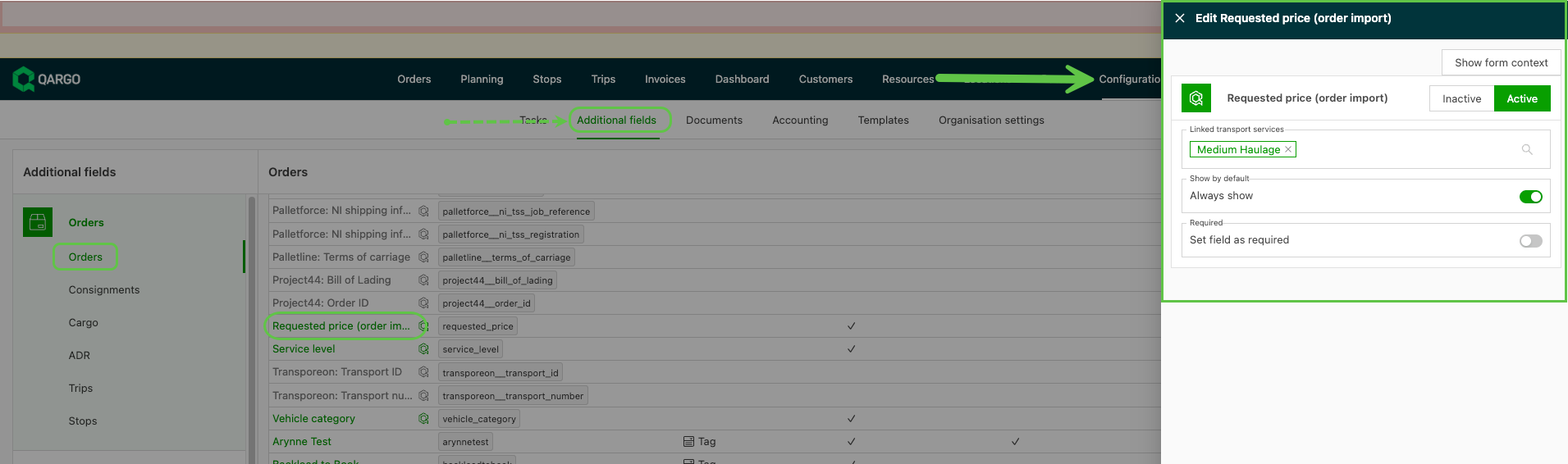
The ‘Requested price (order import)’ field must be activated on:
- Order
Create resource group
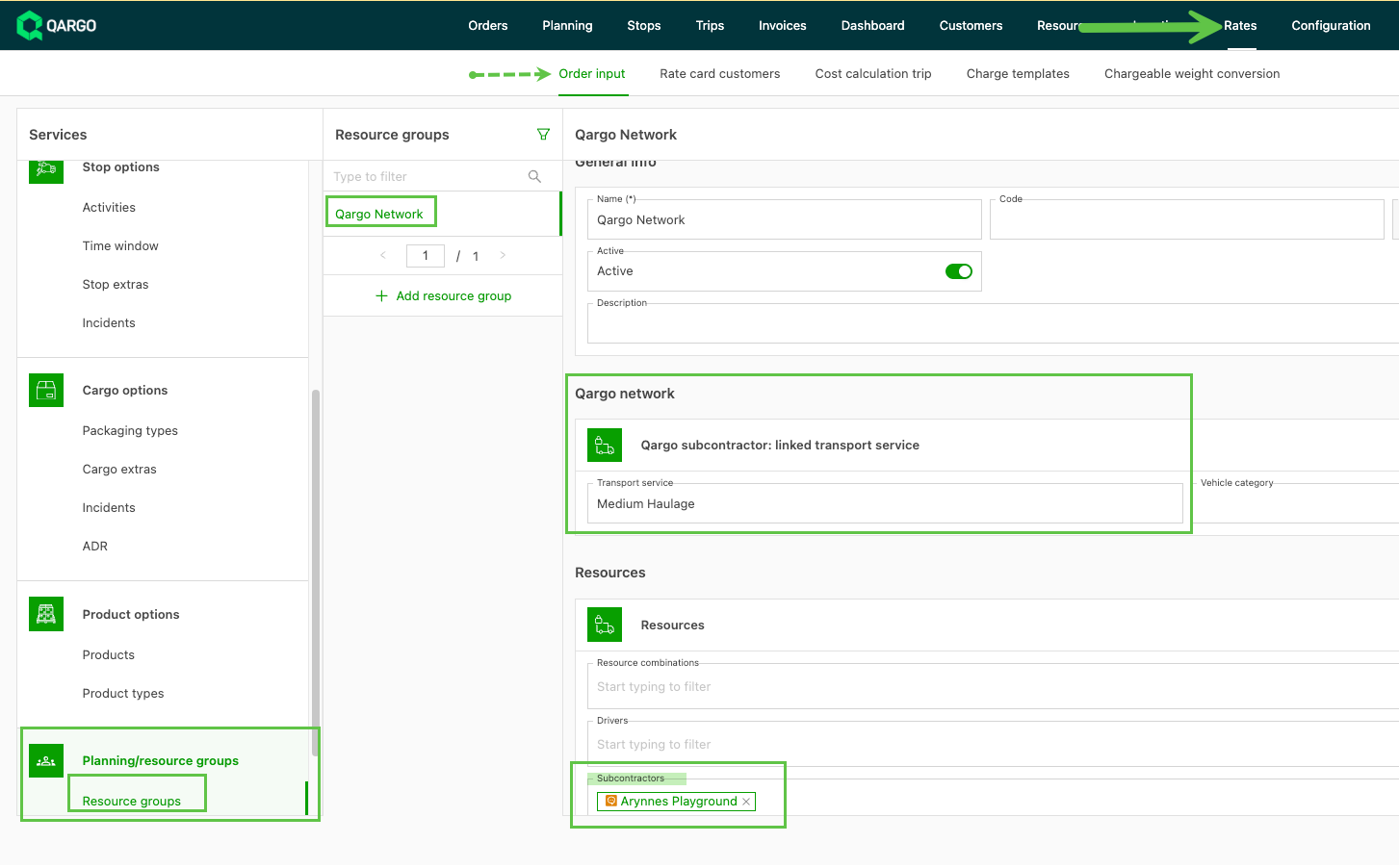
Create one or more resource groups that map to the transportation service(s) and vehicle categories of the contract carrier tenant. When working with multiple contract carriers, add a resource group for each one.
Fill in:
- Name of the resource group
- Name of the contract carrier’s transportation service (exact match)
- Contract carrier’s name
Contractor customer configuration
-
In the contract carrier tenant, create a customer profile for the carrier that will send the order
- This is required so a price list can be created and linked.
Workflow tasks: dispatch
With the integration configured, the next step is to create the workflow task that dispatches the order from the contractor to the contract carrier.
-
Create a new ‘Dispatch to Network’ task in the main workflow tasks. Give it a name that makes clear this task sends the order via Qargo Network.
- Set the task to ‘Always skip task’
-
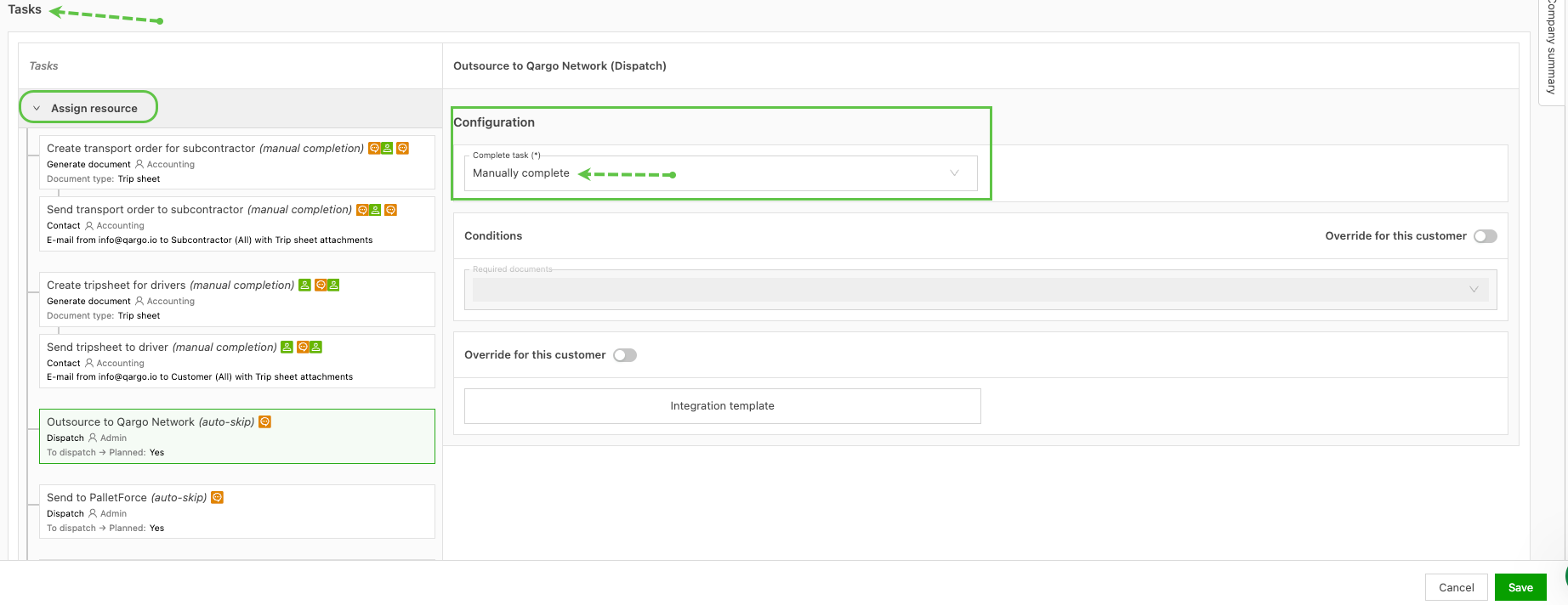
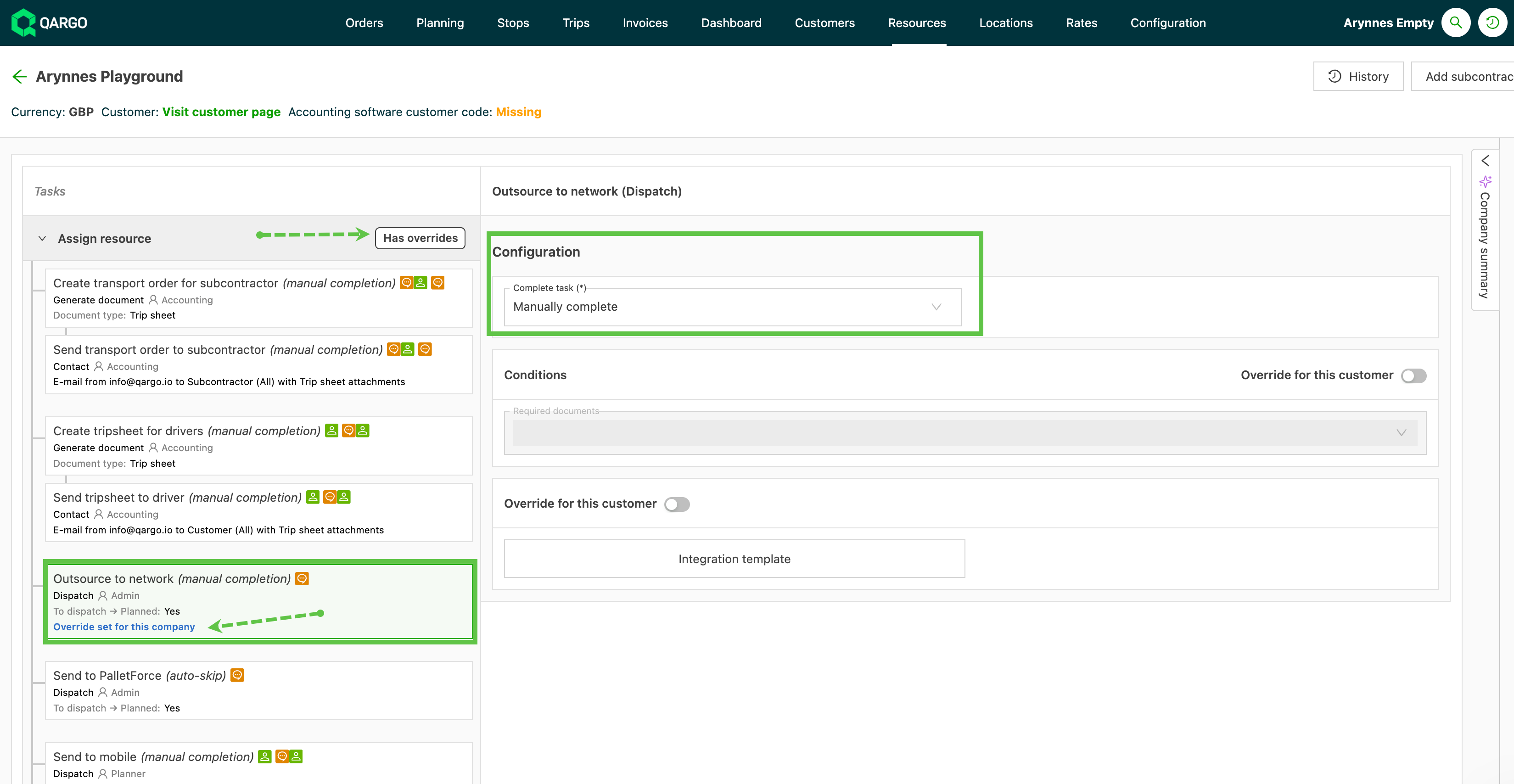
In the contract carrier profile, under the ‘Assign resources’ tasks, update the dispatch to Network task to ‘Manually complete’
1**.** Create Qargo Network dispatch task (outsourcing)
-
Go to Configuration > Tasks
-
Create the task under Loads > Load tasks > Assign resources
-
Fill in the details under General info:
- Task type = Dispatch
- Responsible = Admin
- Schedule task after = Assign resource
- Complete task = Always skip task
- Resources = Contract carrier
- Integration = Qargo network
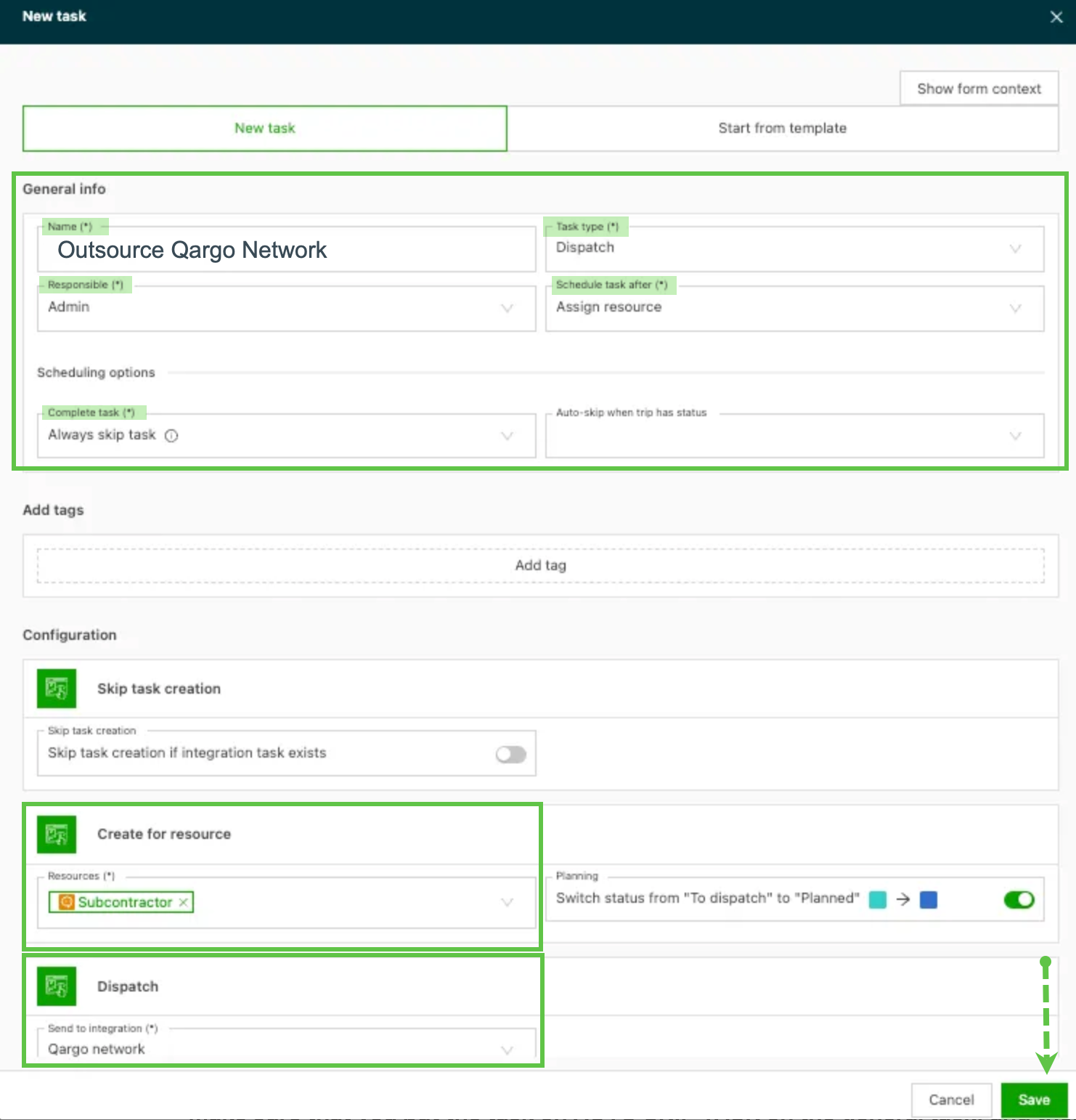
2. Create contract carrier dispatch task (override)
- Go to the contract carrier profile under Resources > Contract carrier
- Scroll to the Tasks section at the bottom of the profile.
- Expand Assign resources by clicking the arrow.
- Click the new Network dispatch task that was created.
- In the configuration panel, set Complete task to ‘Manually complete’.
- Updating the task on the contract carrier adds a ‘Has overrides’ label
It is now possible to dispatch an order to the contract carrier using the Qargo Network integration.
Add stops to order
It is possible to add a stop to an order that has already been planned to the contract carrier.
-
In the original order, open the route and click the add stop icon.
-
Select the stop activity
-
Enter any required location and date details for the new stop
-
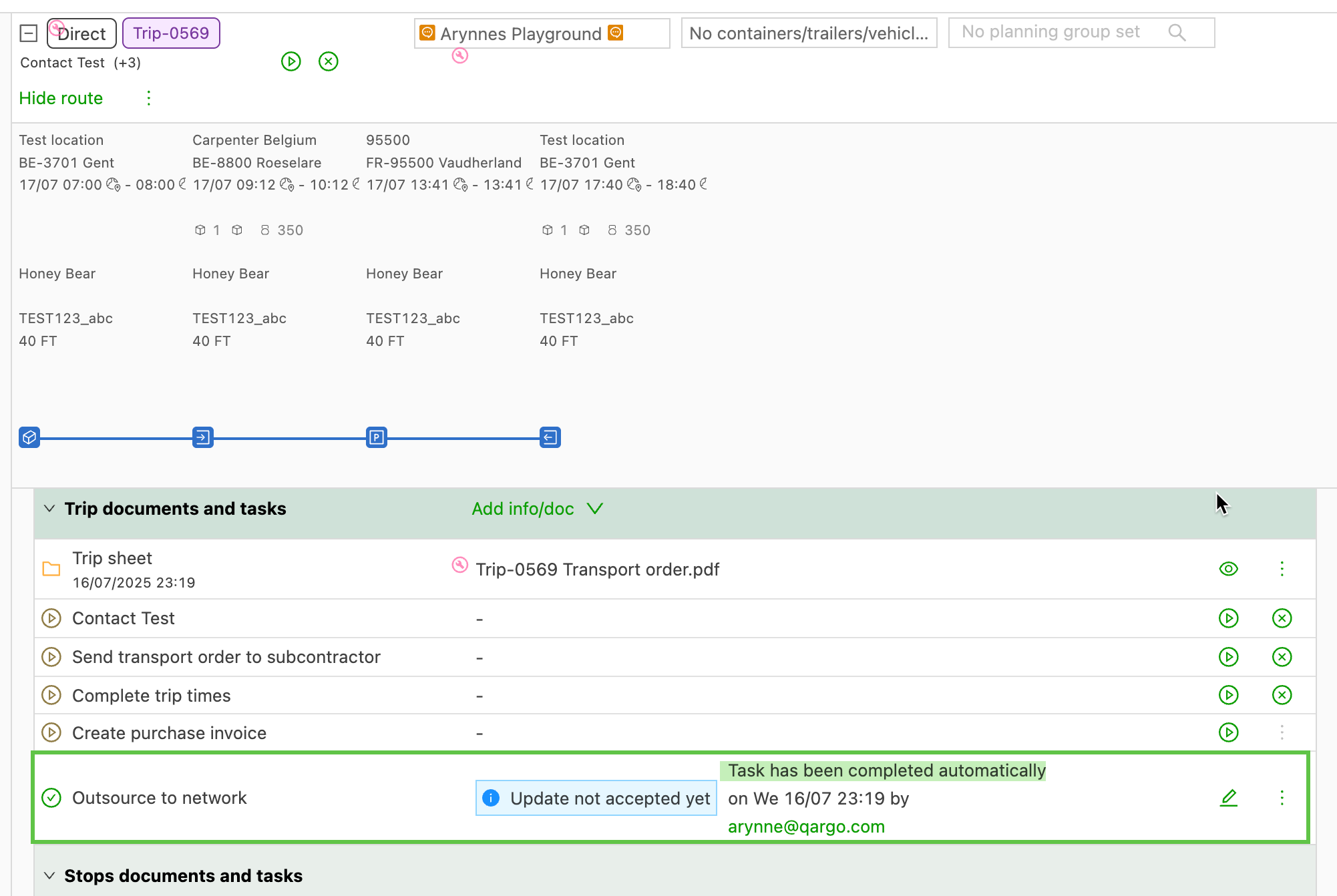
Go to the tasks and find the task that sends the order to the contract carrier
-
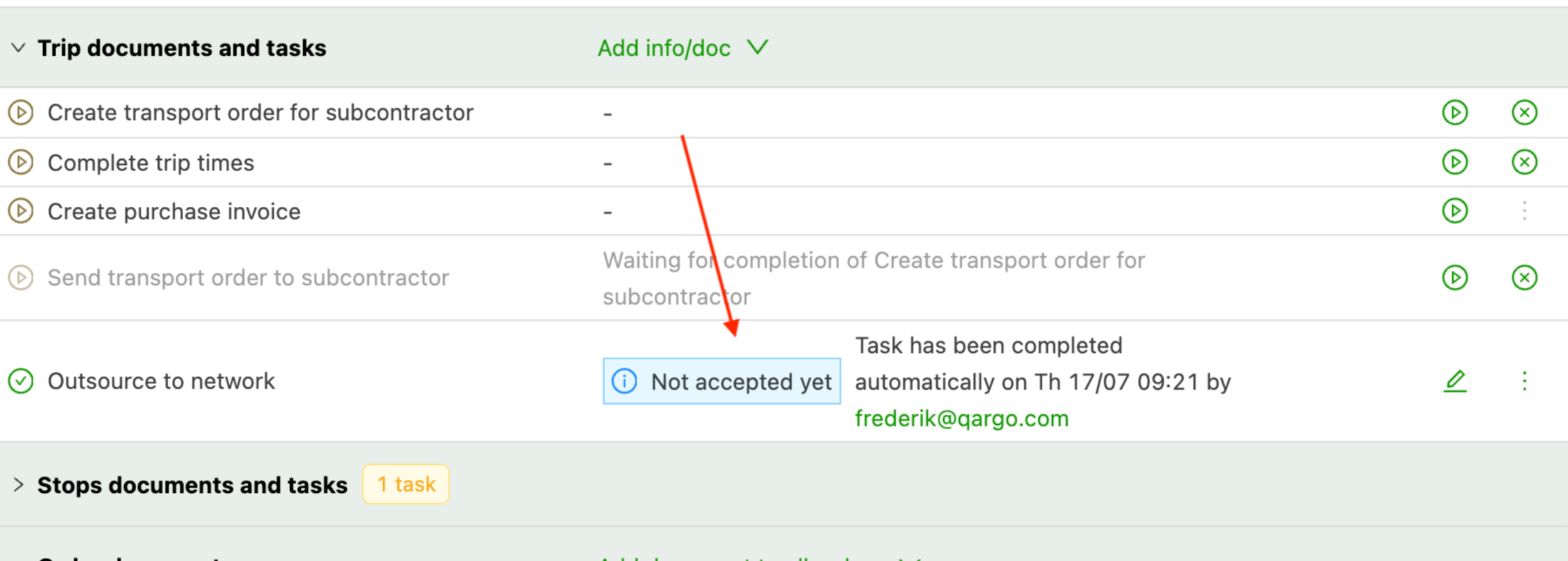
The update should be sent automatically, but the task can also be triggered again manually.
Price calculation (optional)
Payment to the contract carrier can be set at a predetermined rate, added to a rate card under Cost calculations. Rates can be set as agreed with the contract carrier. Orders transferred through the Network then include the agreed rate automatically.
The example below shows how to set up rates that transfer a portion of the initial revenue to the contract carrier as their rate.
Contractor
-
Create a cost calculation rate card for the contract carrier.
-
Use the option to calculate a percentage of the allocated revenue for the load (Formula / Trip / Allocated revenue / %)
- With this option, the contractor can set the share of the invoiced revenue that is transferred to the contract carrier.
Contract carrier
-
Create a customer rate card for the contractor carrier.
-
Use the option to calculate the revenue based on the requested price of the order (%)
- With this option, when the order is received from the contractor via the order import, the requested price is added as the revenue.
Example:
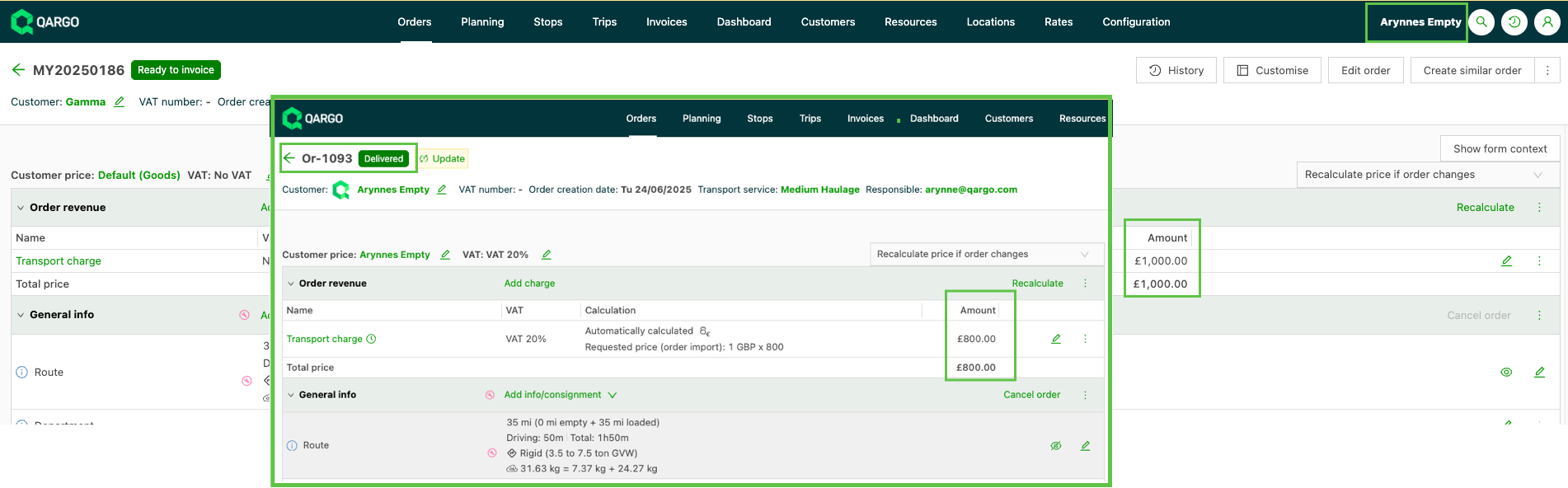
- Carrier A agrees to work with Carrier B via Qargo Network. The companies agree that Carrier B will be paid 80% of the revenue.
- Carrier A receives the customer order with the agreed price of £1,000.00
- Carrier A sends the order to Carrier B (contract carrier) via Qargo Network.
- When the order arrives in Carrier B’s Qargo account, the invoice value shows the agreed amount.