
Feature release February 2025
This article highlights the new features and enhancements released by Qargo this month.
Week 1
Planning: Drag and scroll function updated
Blocked status: Hold orders from planning
Planning: Merge load toggle
Tasks: Control completing tasks without required documents
Week 2
Planning: Resource availability, including trailers and containers.
Palletforce: Insurance code options added.
Week 4
Rates: New ‘Between’ filter option available on rate tables.
Rates: Export rate tables from customer price lists.
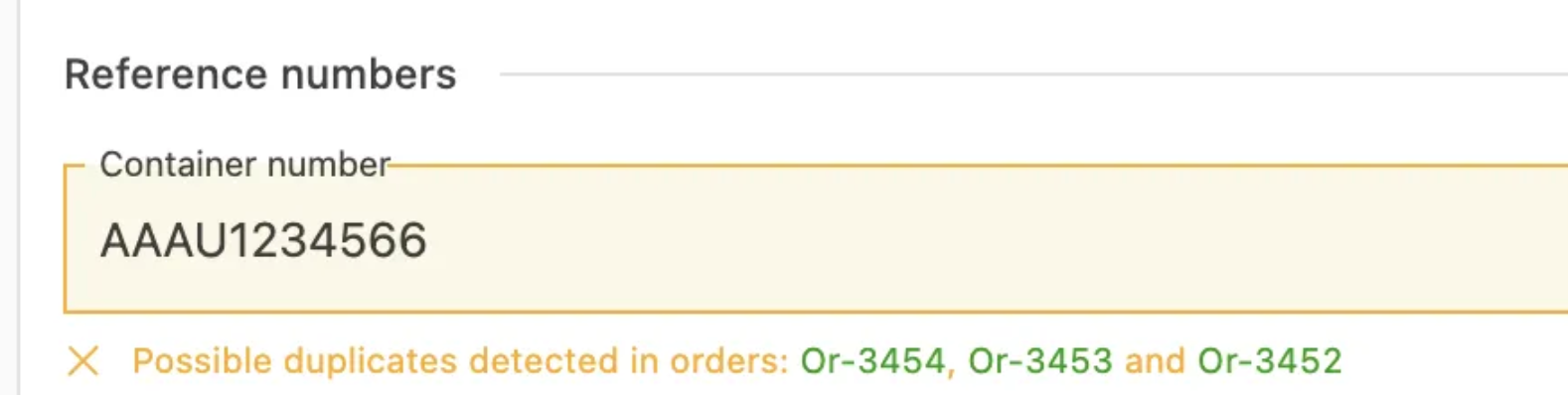
Order capture: Duplication check on container no.
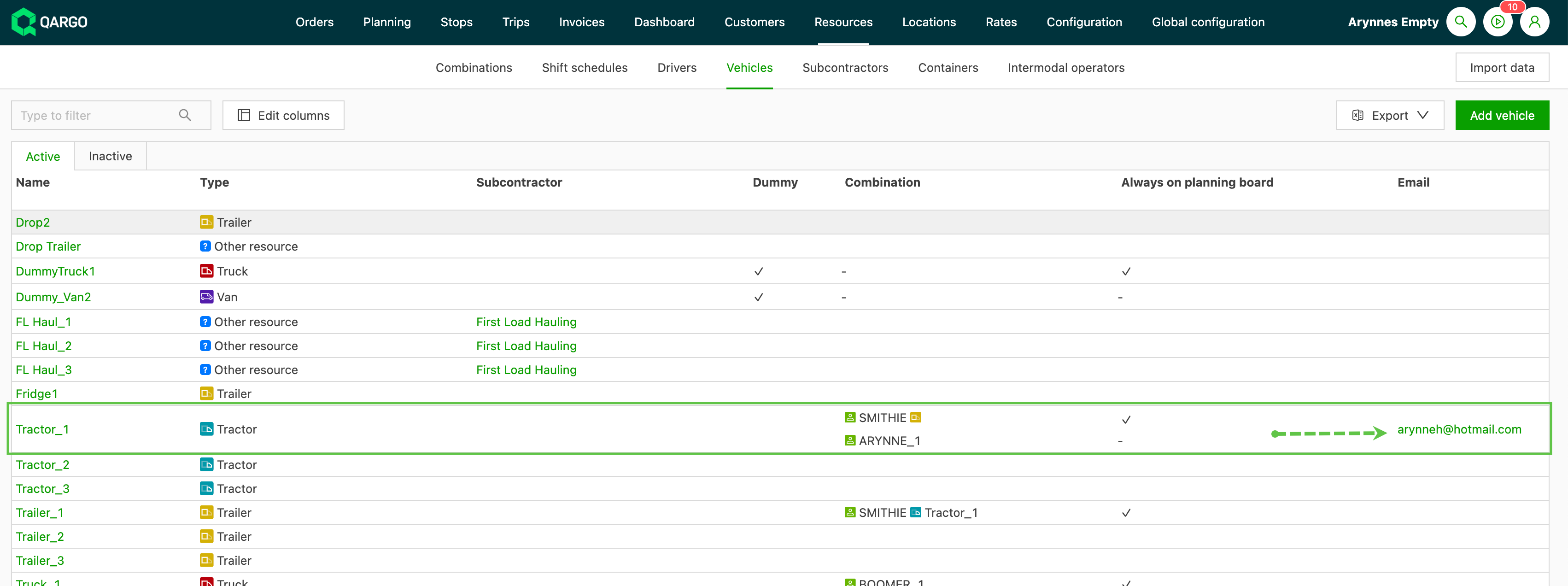
Resources: Vehicles now show emails for mobile app access.
Planning: Resource availability report.
Orders: List view – Show last order.
Rates: Consolidate price calculation for multiple orders.
Invoices: Unpost invoice available.
Invoices: Print documents from invoice detail.
Week 1:
Planning: Drag and scroll function updated
The ability to drag and scroll through the planning page has been replaced with new and more efficient planning functions. The new ‘Select and drop’ function provides a faster and smoother planning experience.
This change introduces multiple benefits for the user:
- New ‘Select and drop’ feature. User-friendly and more accurate: select multiple orders to plan to a resource.
- Streamlined planning and load modification experience. Easily unplan, select and move either orders or loads between resources.
- Significant improvement to overall performance on the page. Users will notice that the new functions are much quicker and offer a greater level of responsiveness.
Click for *new* planning functions
Blocked status**: Hold orders from planning**
Introducing the Block operations function, which makes it easy to place orders on hold and prevent planning activity while keeping them visible in the Blocked tab.
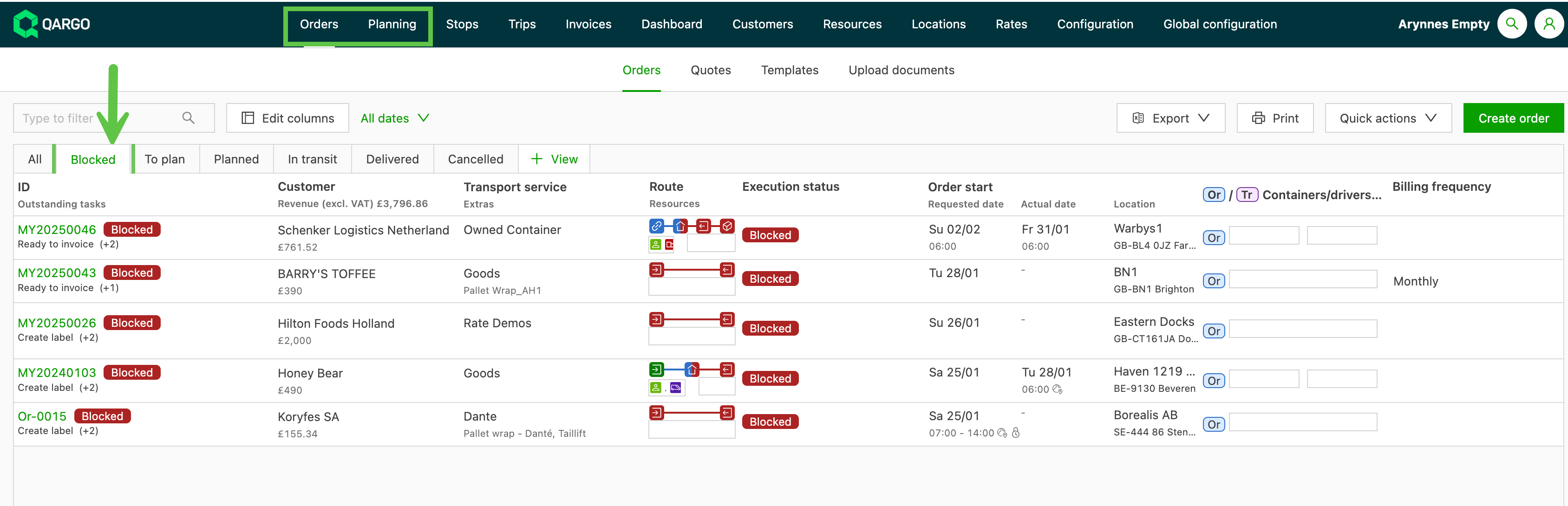
Key features:
• Place orders on hold – Block operations for single or planned orders.
• Clear ‘Blocked’ status – A red label is shown, along with a reason for blocking.
• Seamless unblocking – Orders can be easily restored for planning.
How it works:
-
Block a single order: Navigate to the Operations panel in the order, select Block operations, enter a reason and save. The order moves to the Blocked tab.
-
Block a planned order: Orders already assigned to a resource can be blocked. The order is removed from the load and placed in Blocked status.
-
Block one order from a multi-order load: Select the order from the Route panel, choose Block order, enter a reason and save. The order is removed and placed in the Blocked tab.
-
Split and block an order: If part of an order cannot be carried out, split the order and mark the affected leg as Blocked.
What happens when an order is blocked?
- It cannot be planned or assigned to a resource.
- Intermodal connections cannot be created.
- If an order already has an intermodal connection, it cannot be blocked.
Unblocking an order
Navigate to the Operations panel and select Unblock operations. The order moves back to To plan and is available for planning again.
This update ensures better control over order operations, allowing users to pause orders without losing visibility.
Click to read more and streamline the planning process
Planning: Merge load toggle
When planning multiple orders, there is now the option to choose whether the orders should be planned as single loads.
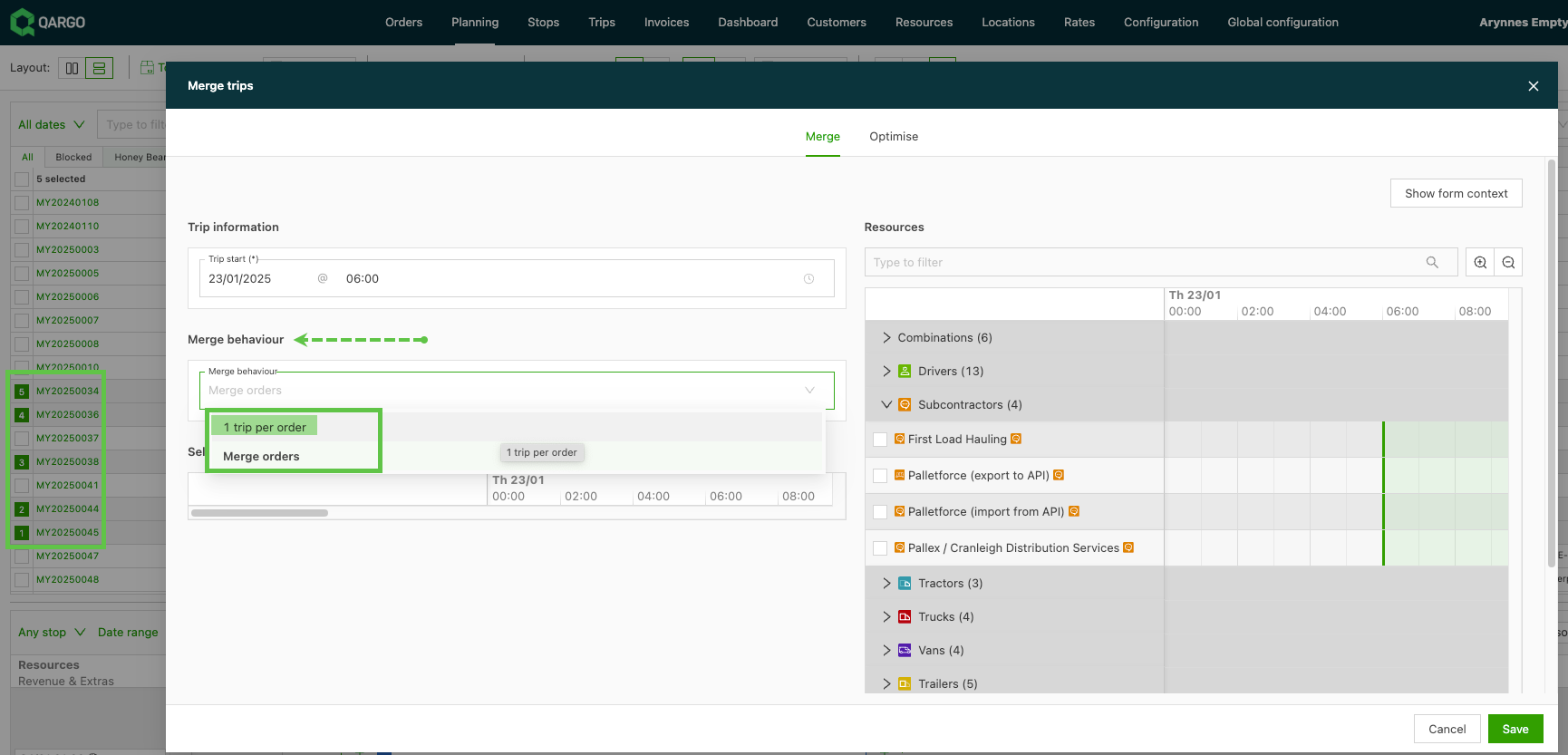
This option gives users the ability to bulk plan multiple orders to a single resource (a contract carrier, for instance) while maintaining individual loads.
The option to merge these into a single load is still available. When merging multiple orders into a single load, the selected sequencing is still respected.
Tasks: Control completing tasks without required documents
It is now possible to add required documents to the following configured task types:
- Contact
- Generate document
- Integration tasks
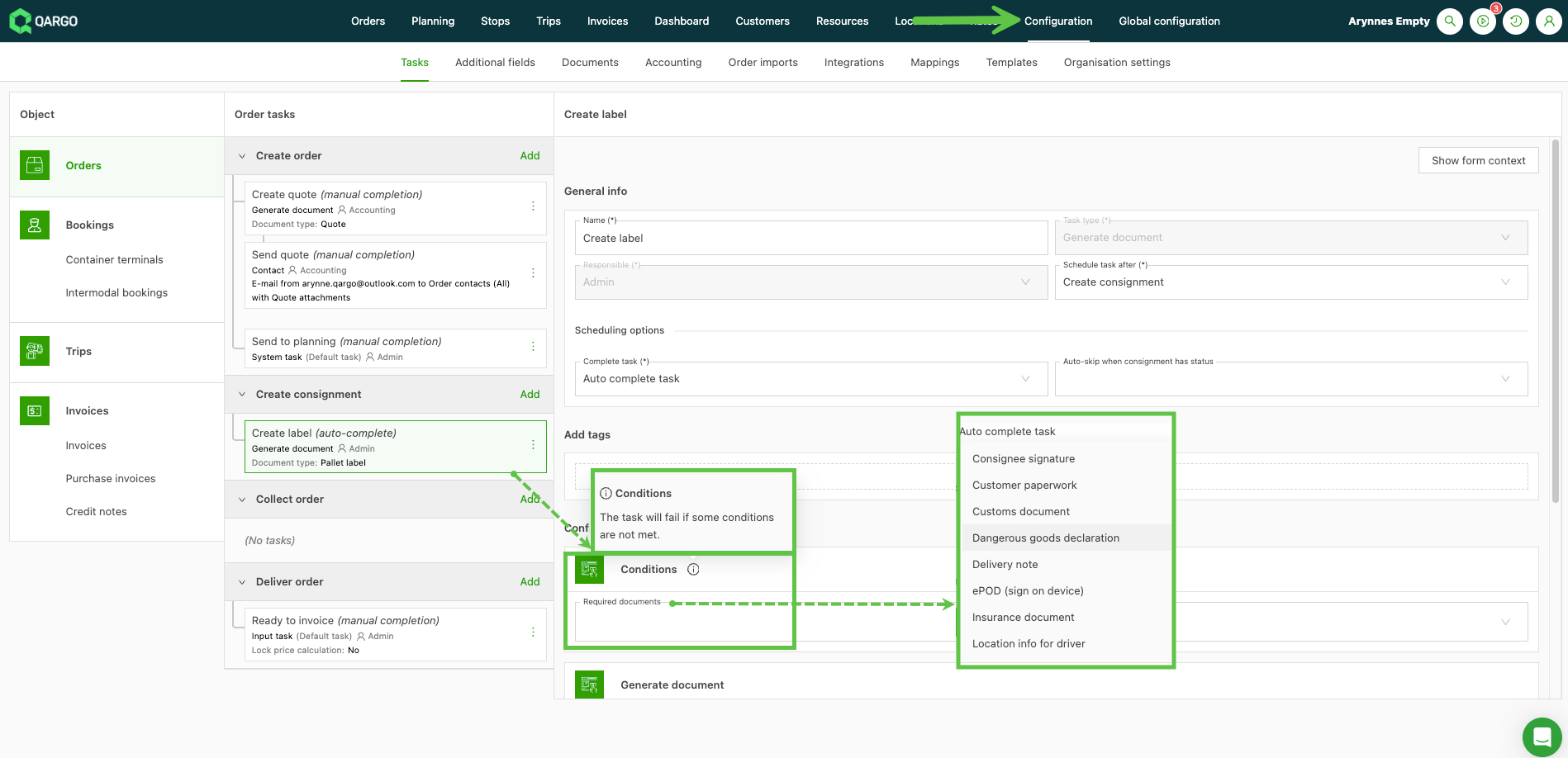
If a required document is not present, the task shows an error.
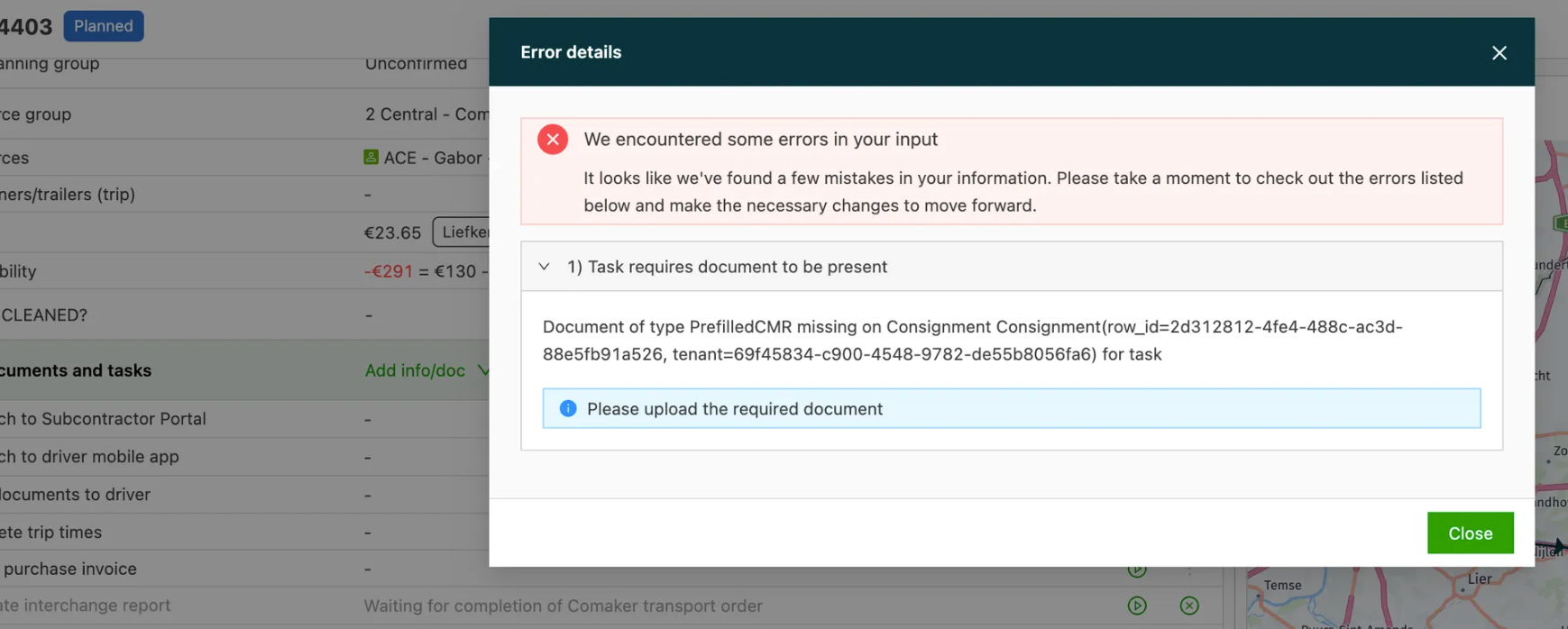
The user has the option to manually acknowledge and bypass the error, and proceed with the task.
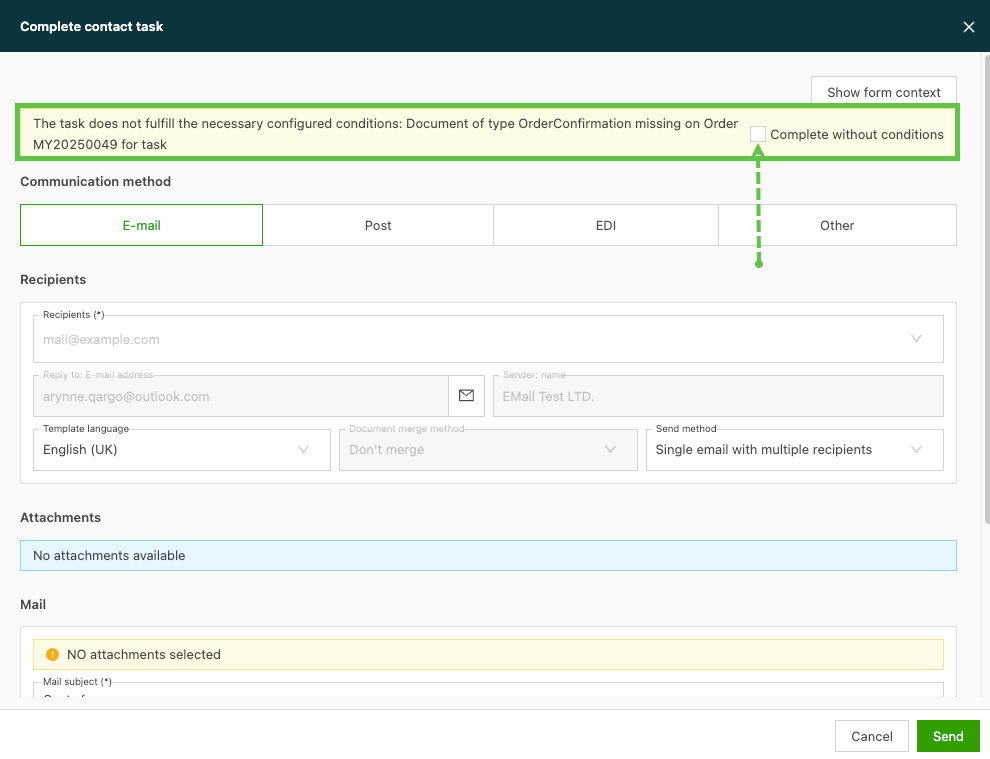
Alternatively, the task can remain in error until the required documents are available. Once they are available, the task can be retriggered and the task workflow can continue.
Week 2:
Planning: Resource availability, including trailers and containers.
The ‘Available?’ column shows the current status of the resource.
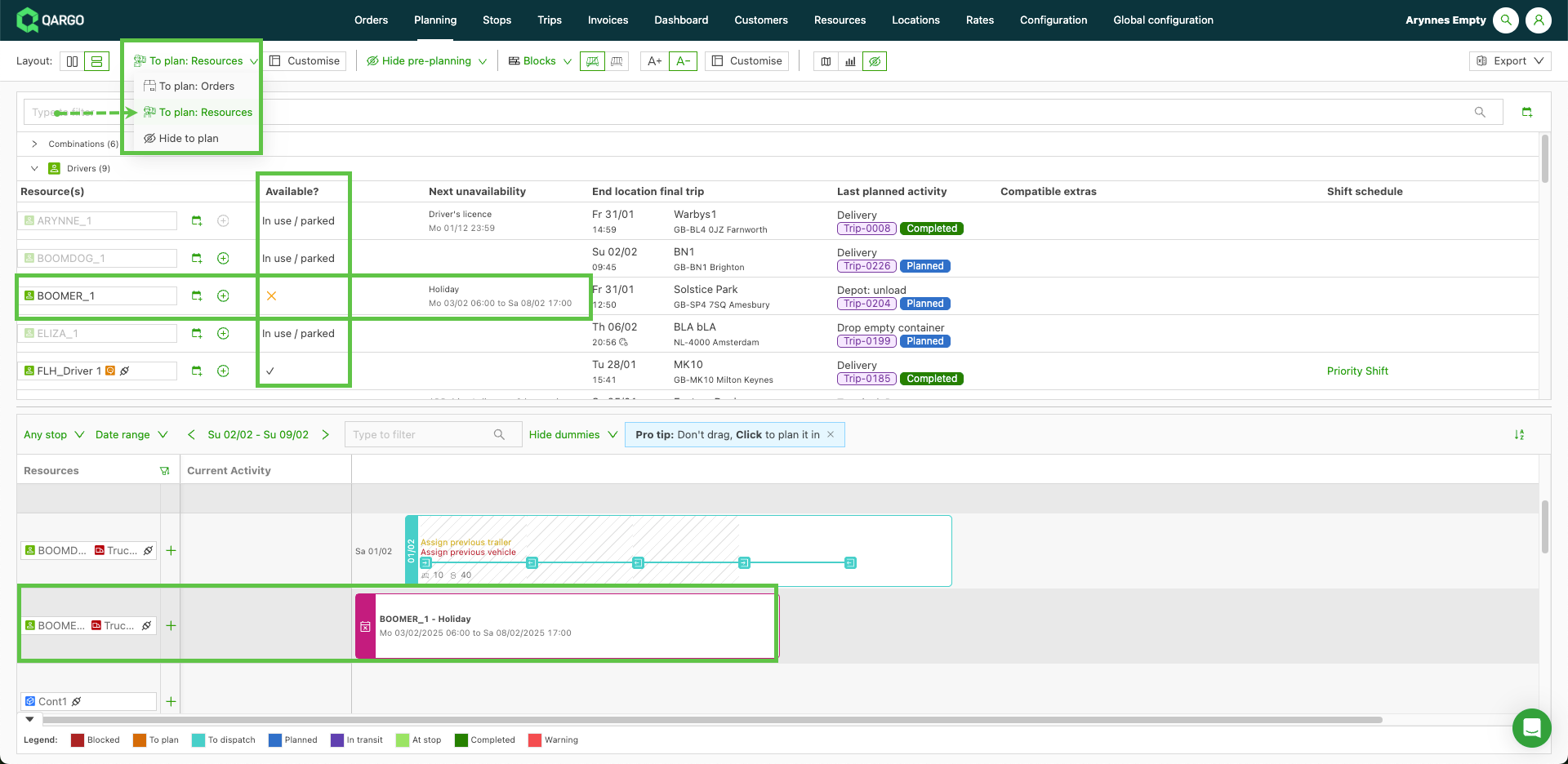
There are 3 status options available:
- Available – Indicated by a check mark. The resource is available for planning.
- Unavailable – Indicated by an X. The resource is unavailable for planning due to a specific unavailability that has been entered, i.e., vacation, maintenance.
- In use / Parked: The resource is already in use or parked (trailer / container) or at end of day (driver). The resource is unavailable.
It is now possible to see both trailers and containers in this pre-planning view. The Available? column also shows when viewing planning by trailer or container specifically.
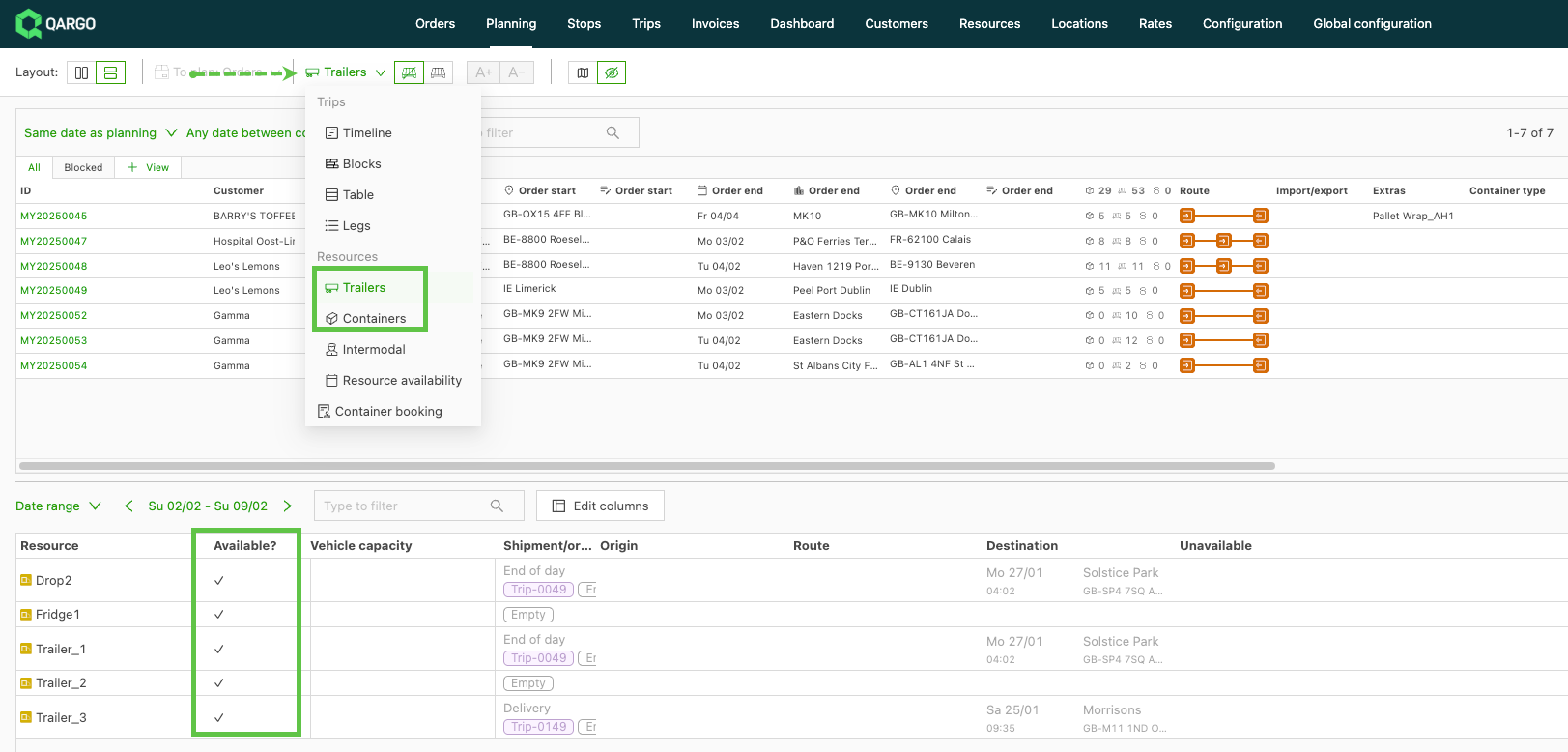
Click here to read more about availability overviews.
Palletforce: Insurance code options added.
As part of the Palletforce integration configuration, there is an option to add an insurance code for goods. The default is to add it at the integration level. However, there are also options to set the code at both the customer and order level.
The values for these should be activated in Additional fields for both order and customer**.**
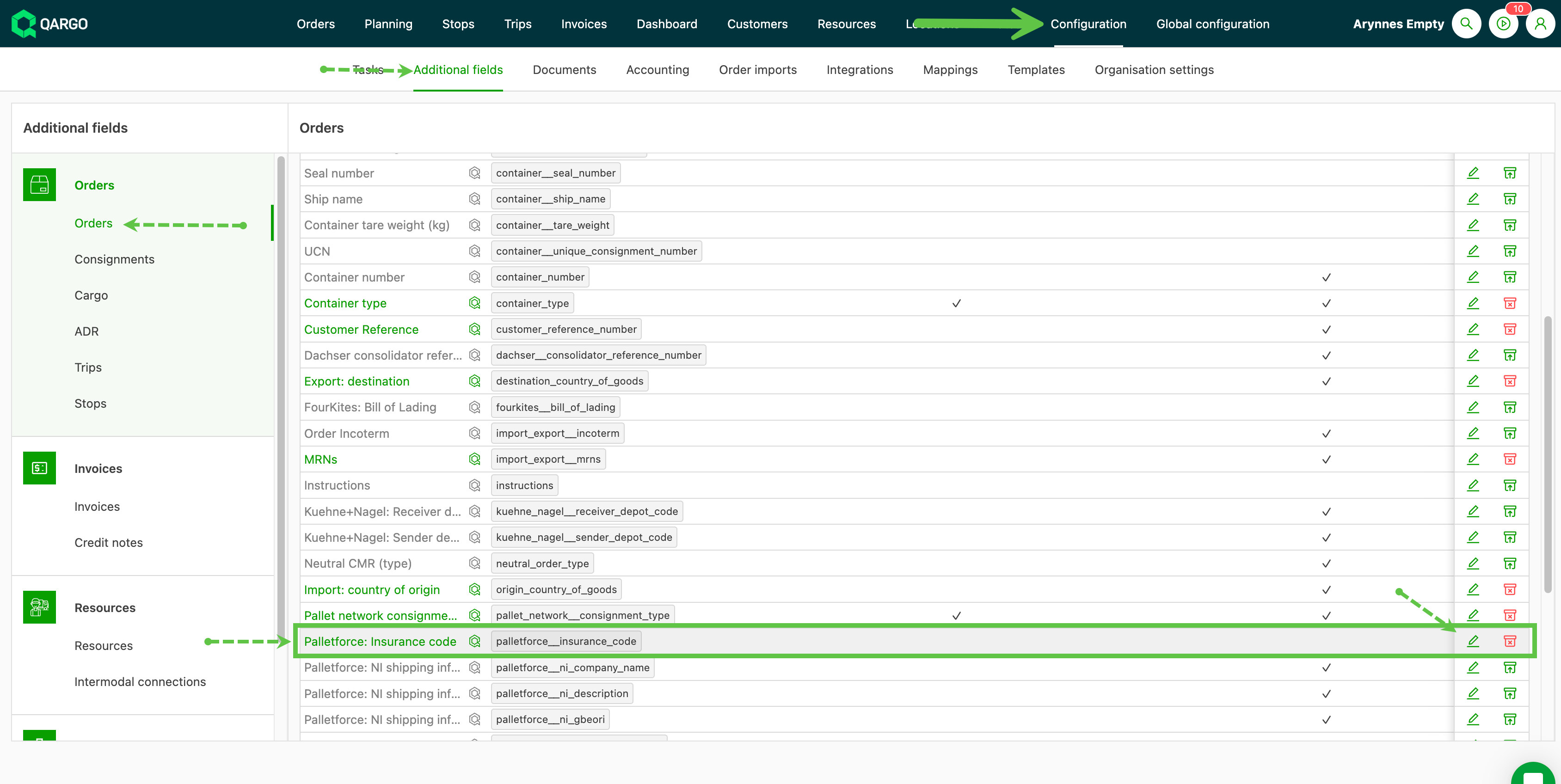
Once activated, the ‘Palletforce insurance code’ field is available to complete. There is also the option to include a dropdown menu with the standard insurance codes.
Once set up, the sending logic in the export is as follows:
- Order level code, if present; otherwise
- Customer level code, if present; otherwise
- Integration level code.
:::
Week 4:
Rates: New ‘Between’ filter option available on rate tables.
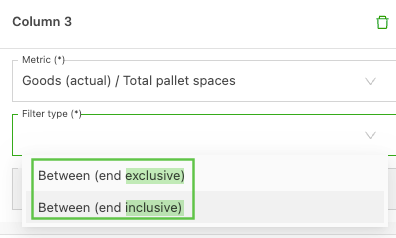
When using a range of values to build a rate table, there are 2 ‘Between’ filter options to choose from. Ranges can represent anything from a ZIP code to a quantity or distance value. When available, the 2 filter options show as ‘Between (end exclusive)’ and ‘Between (end inclusive)’.
-
End exclusive: This excludes the end value entered in the range
-
Example
- 0-700 = 0-699
- 701 - 1400 = 700 - 1399
-
-
End inclusive: This includes the end value entered in the range
-
Example
- 0-700 = 0-700
- 701 - 1400 = 700 - 1400
-
Click here to learn more.
Rates: Export customer price lists.
Customer price lists are now more accessible, with an option to export price lists.
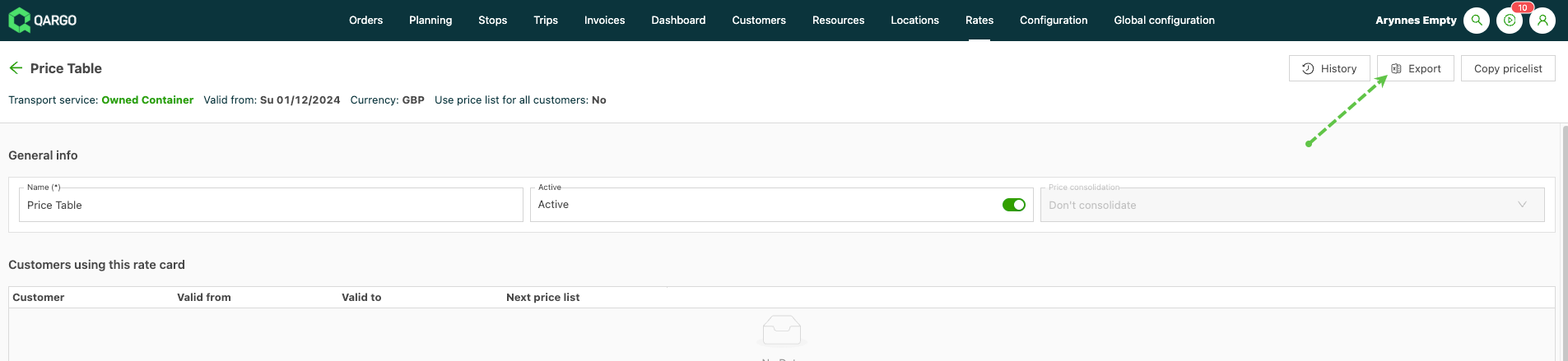
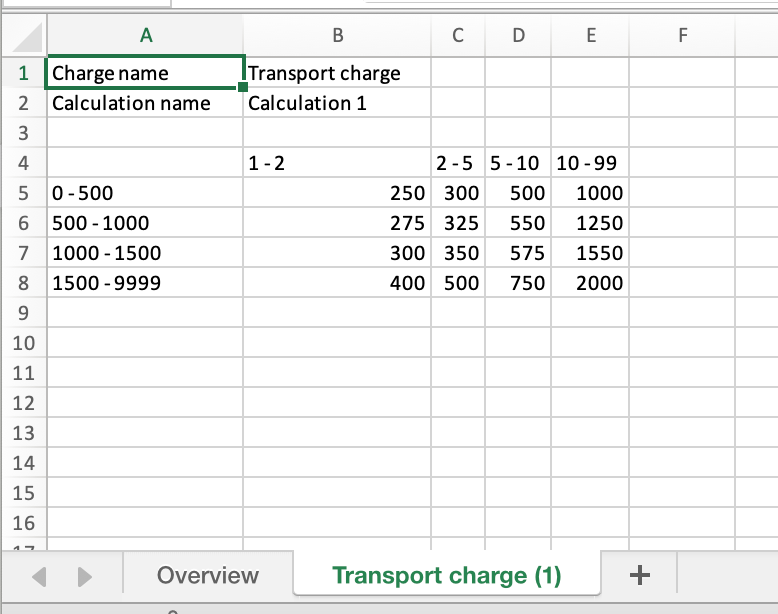
From the price list, click the ‘Export’ button. An xls file is generated and downloaded. Each download includes an Overview tab with details of the transport charge and any additional surcharges included in the price list.
If the transport charge includes a rate table, this is also included as a tab.
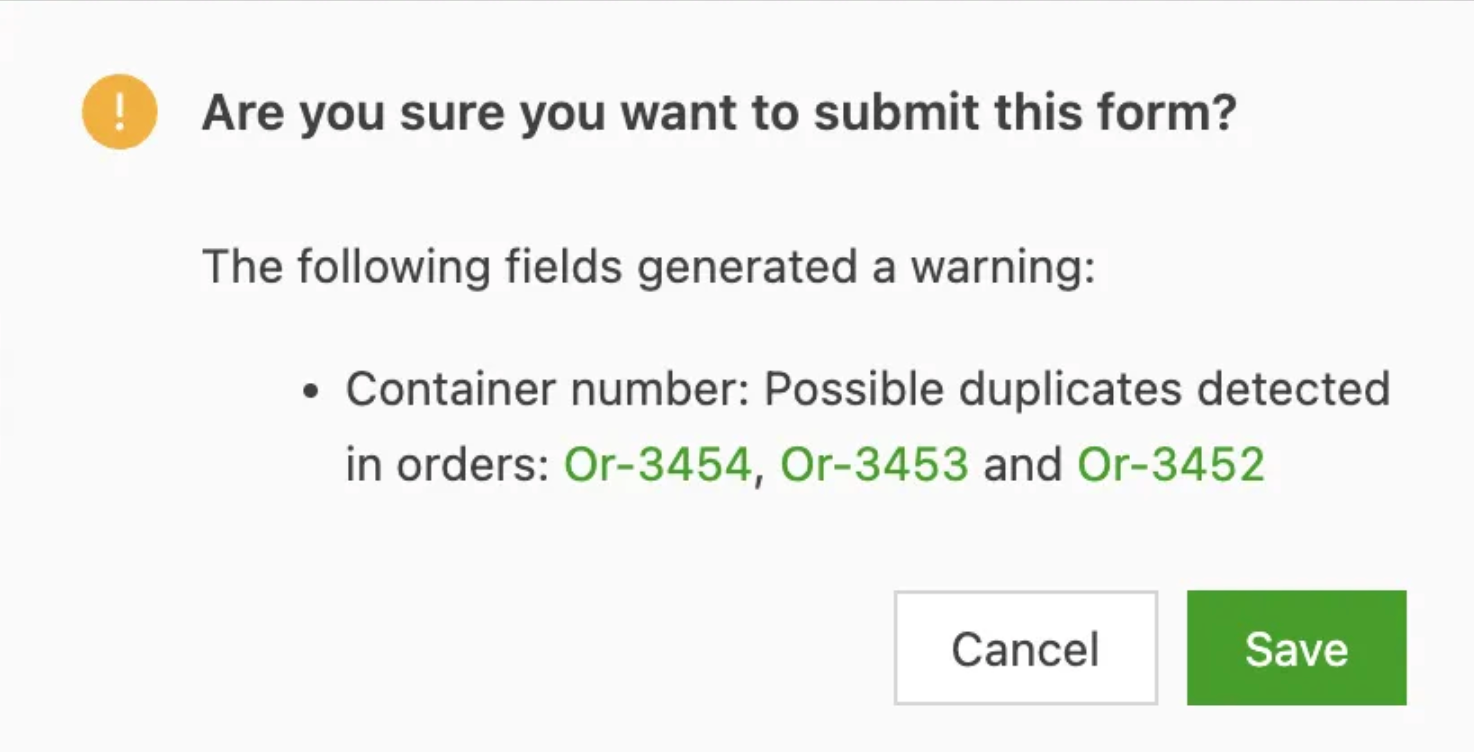
Order capture: Duplication check on container no.
If container no. is enabled in order creation, it is found under General information.
Resources: Vehicles now show emails for mobile app access.
It is possible to assign the Qargo mobile app to a vehicle rather than a specific driver. Assigning the app to the vehicle follows the same process as assigning it to the driver. There is a section in the vehicle profile, ‘Mobile app / Contract carrier portal’, where access to the mobile app is activated by setting the toggle. Add the email address and save. It is also possible to use the PIN code feature to access the app.

The main vehicle list page also shows the email address.
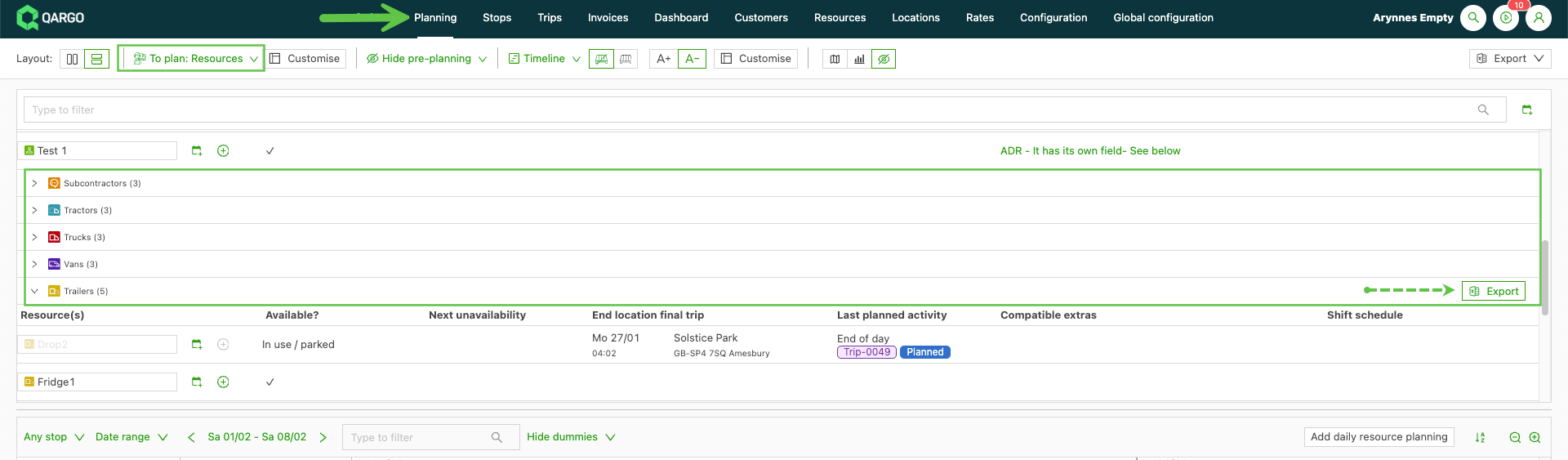
Planning: Resource availability report.
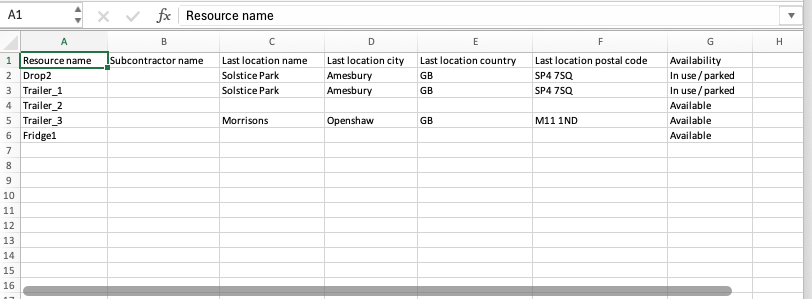
Under planning, it is now possible to export an overview of resource availability based on the resource type. Under To plan, select Resources. When hovering over each line, the Export option shows on the right side. The export shows the resource availability, including last location details.
Orders: List view – Show last order.
Clicking on the order line (not the order number) opens the order in a detail view. Once this is closed, the page shows the last order clicked as highlighted.
Learn more about customizing the orders page here.
Rates: Consolidate price calculation for multiple orders.
Consolidated rating enables grouping of orders that meet specific criteria, allowing for enhanced rates automatically.
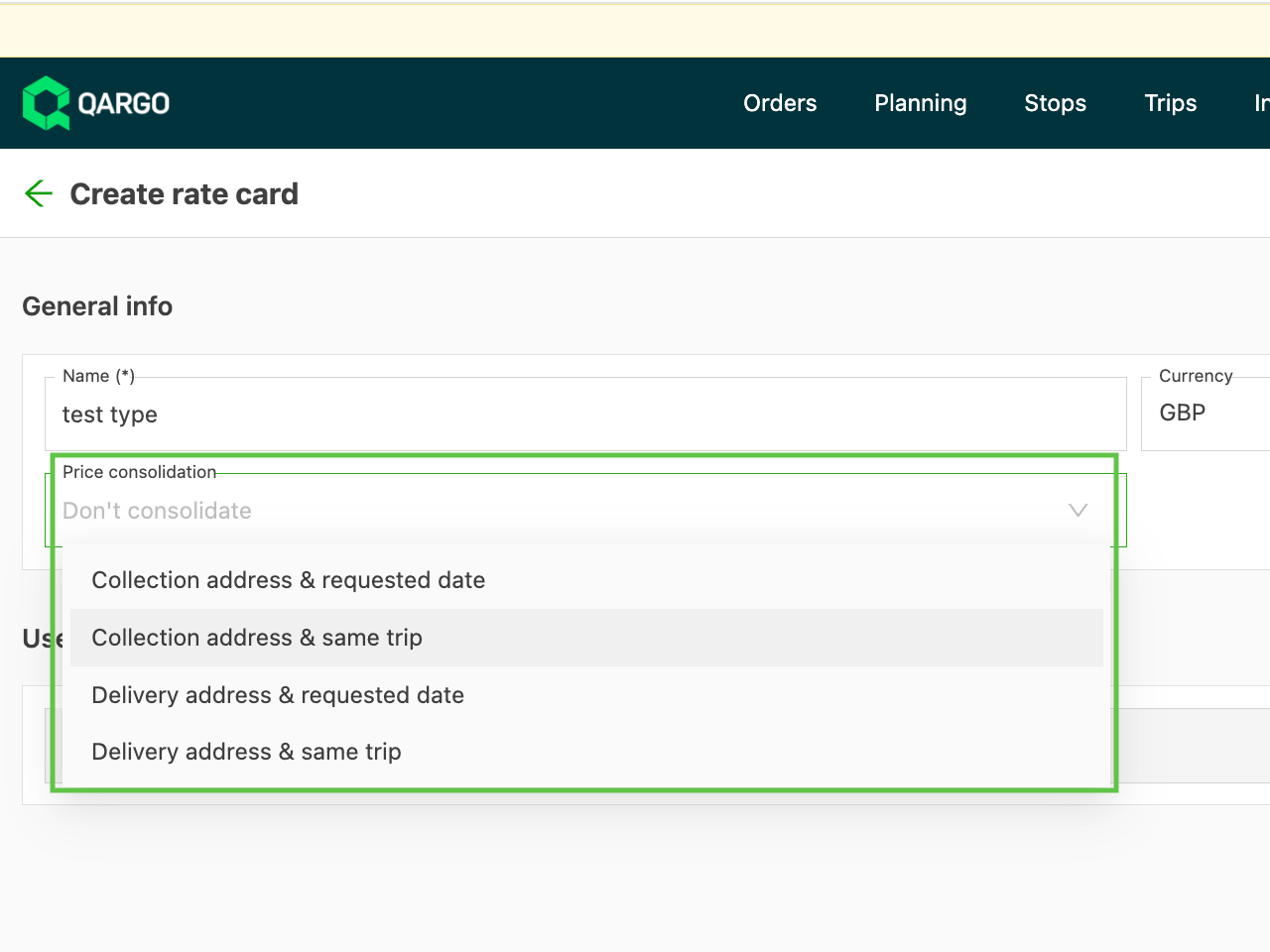
Configuration:
• When creating a rate card, select a consolidation method (this cannot be changed later).
• Certain charges allow selecting a consolidated metric in rate tables, but only if:
• A consolidation method is set.
• The rate table is Fixed amount or Per metric per order.
• The metric is a Goods metric.
How it works:
• Orders with the same rate card, customer and consolidation method are grouped together.
• This allows the price to be calculated based on the combined quantity of goods.
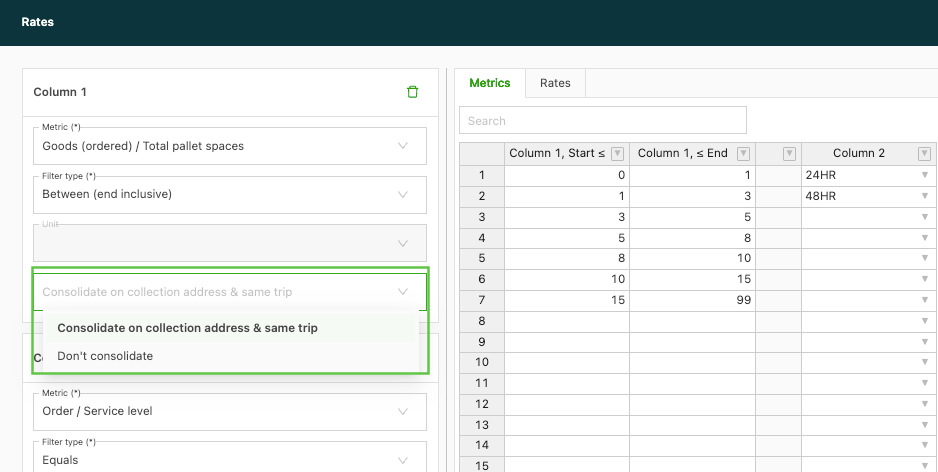
This ensures cost efficiency while applying volume-based discounts automatically.
Click to learn about consolidated rating.
Invoices: Unpost invoice available.
Once an invoice has been set to Posted status, the available actions are limited. For instance, it is not possible to make any changes to the invoiced amounts or the customer. The associated order(s) are also restricted in what can be changed, i.e., modifications to dates.
To make any changes to posted invoices, users previously had to contact Qargo admin users to unpost the invoice. This function is now available to super admin users in the account.
Learn more about invoice actions here.
Invoices: Print documents from invoice detail.
It is possible to print documents directly from the invoice detail page. If the Print option is selected before the invoice has been generated, the print preview displays any associated documents that are selected for printing. Once the invoice has been generated, it also shows in the print preview.
:::