
Feature releases October 2024
This article highlights the new features and enhancements released by Qargo this month.
Table of contents
Features – weeks 4–5
Enhanced functionality for empty trailer activity
Improved map display of tracked resources during a load.
Order capture: format change for entering shipment dimensions.
Incoterms – new additional field.
Match documents by container IDs.
Show invoice columns in the orders and loads table.
More flexibility when creating invoices in bulk.
Features – week 3
Planning board – new customization toggle options *new*
Order view – display additional resources
Order overview – add stop duration column
Customer CRM follow-up date
Features – weeks 1–2
Customer statuses – *new* status options now available.
Adding email attachments as documents *new*
Adding documents for contract carriers and customers
Keep selection order/sequence when merging loads
Enhancements – weeks 4–5
Customer portal now shows an invoiced status.
Option to add a formula to “decrease by” on the rate card.
Improved address entry using Google Maps locations.
More options for individual exports.
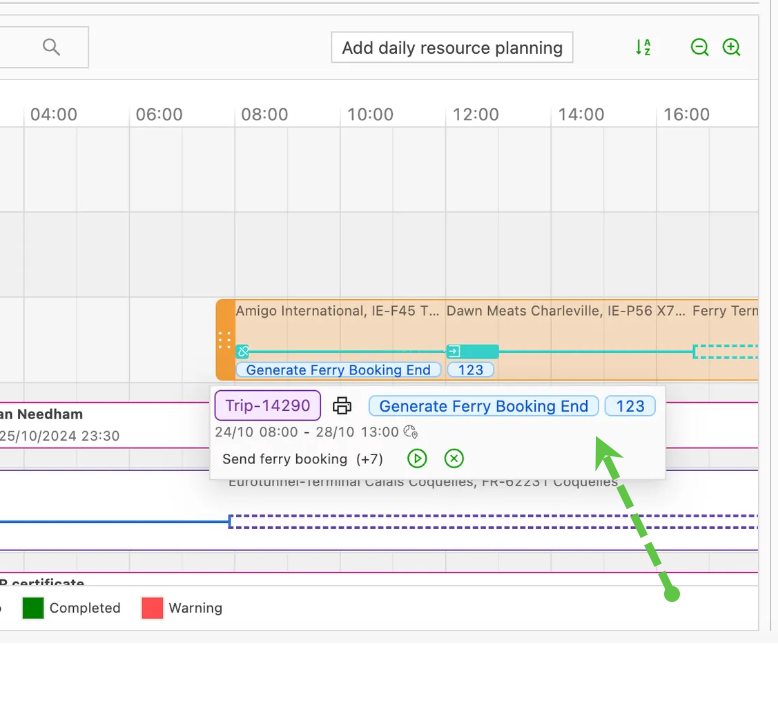
Show load task tags in the planning board
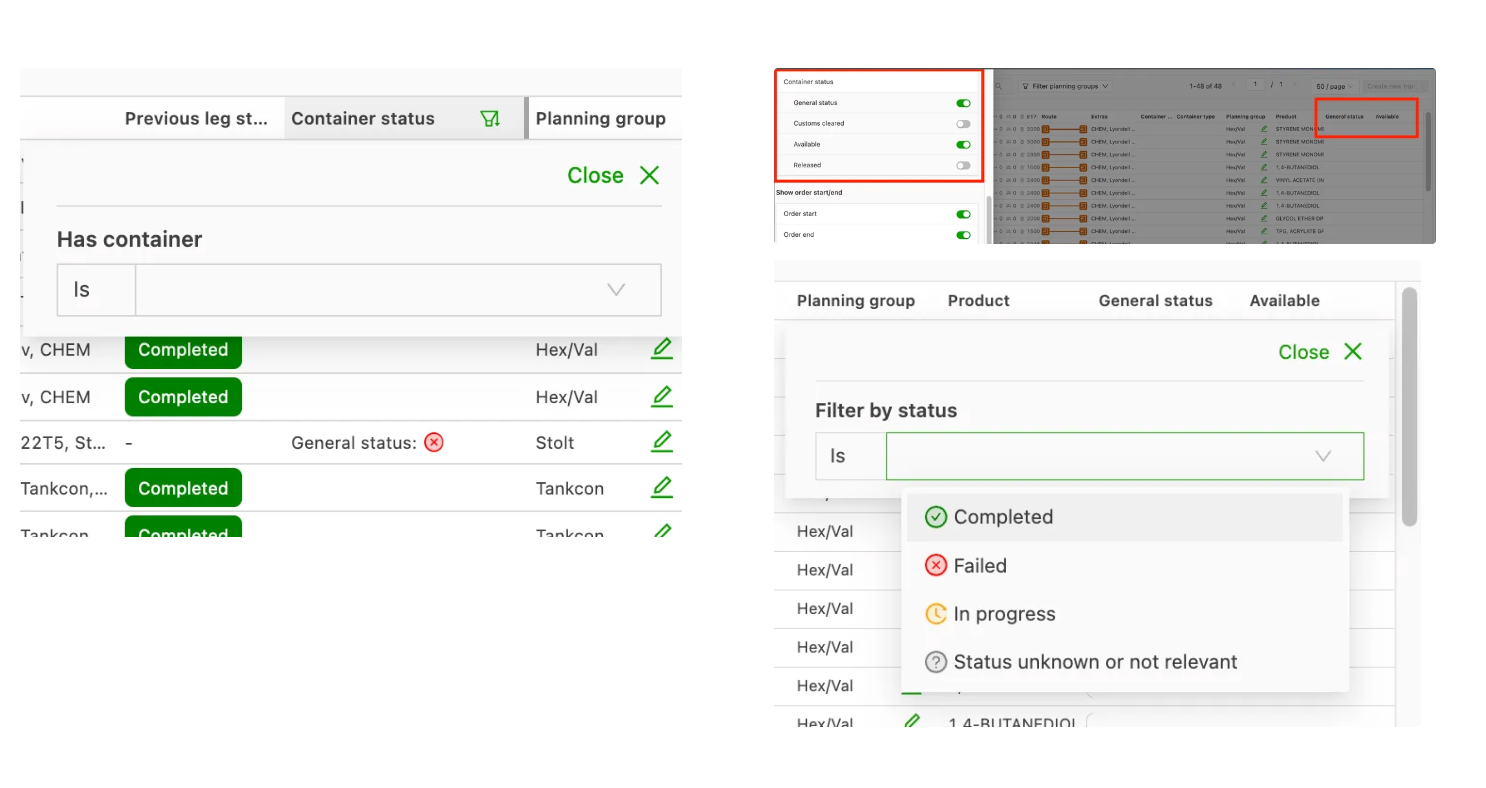
Show container status in To plan
Edit freight from the order list
Enhancements – week 3
Cost/revenue split – allow users to enter a value
Separate pallet network toggle
Add configuration for sending emails to multiple recipients
Enhancements – weeks 1–2
Importing credit memos
Typing in the date picker
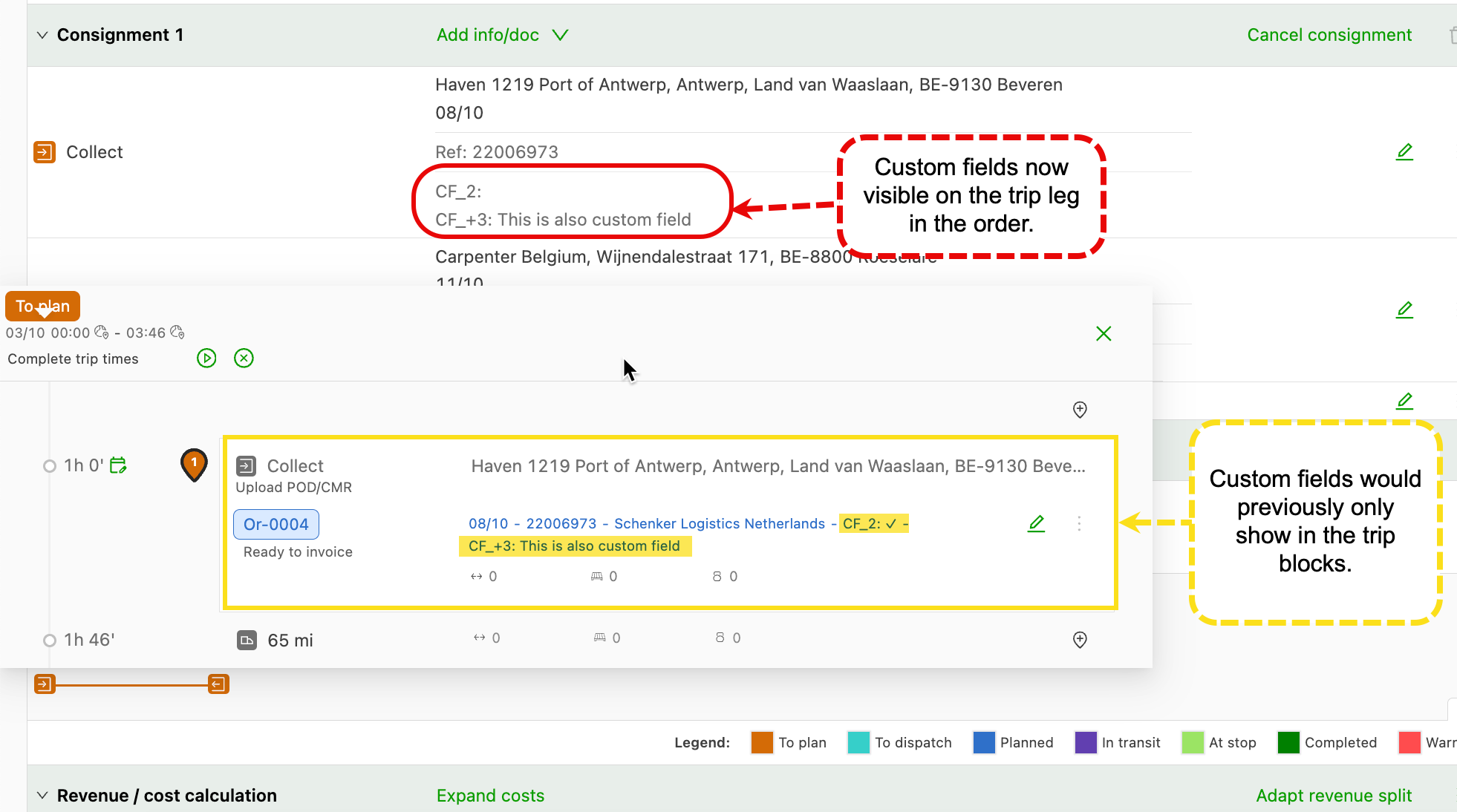
Order detail – show custom fields
Features – weeks 4–5
Enhanced functionality for empty trailer activity
Better support for trailers and chassis and for start/end of day activities has been added to the application. A new set of actions can be selected in the order capture screen to improve tracking of resources outside of stops.
The new actions in the order capture screen are:
- Start/end of day
- Drop/hook empty trailer
- Drop/hook empty chassis
All of these are available for the Goods and Owned container (renamed to Owned container/trailer) transportation services. For all of the above actions, the activity can be split to add parking, cleaning or intermodal connections.
The full list of options is available here.
Improved map display of tracked resources during a load.
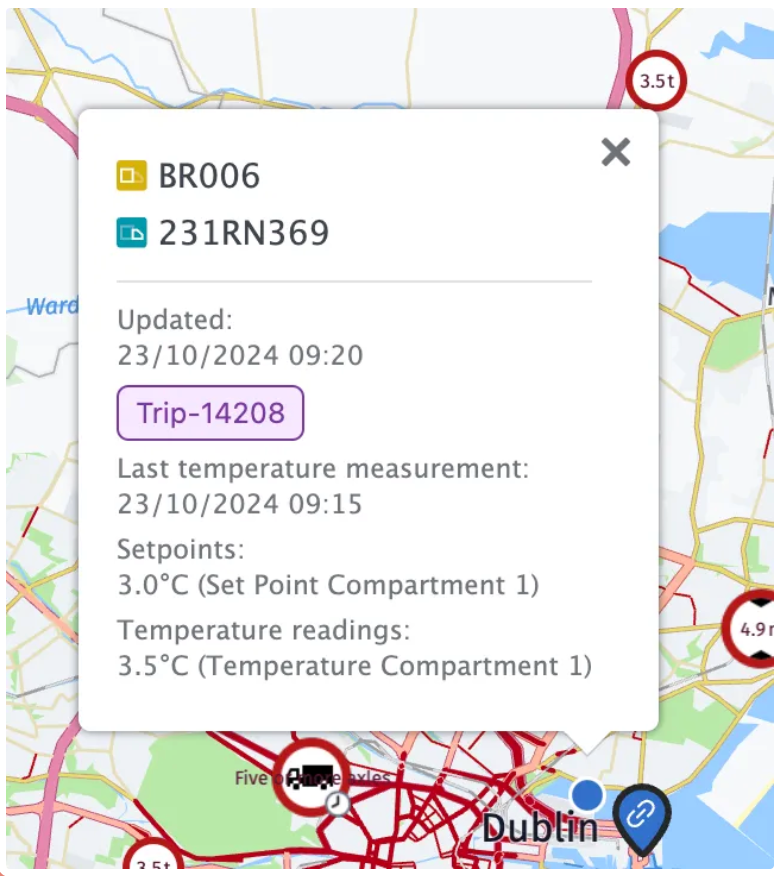
All resources were shown on the planning board map, which could get crowded when multiple resources from the same load appeared as separate dots. Now, resource dots from the same load are merged. Clicking the “merged” dot now shows a list of all resources that have provided the latest updates (i.e., location/temperature updates, etc.).
Order capture: format change for entering shipment dimensions.
The layout for entering piece and total dimensions for shipments has changed. The tabs for choosing between showing only total dimensions, or showing total dimensions and piece dimensions, have been removed.
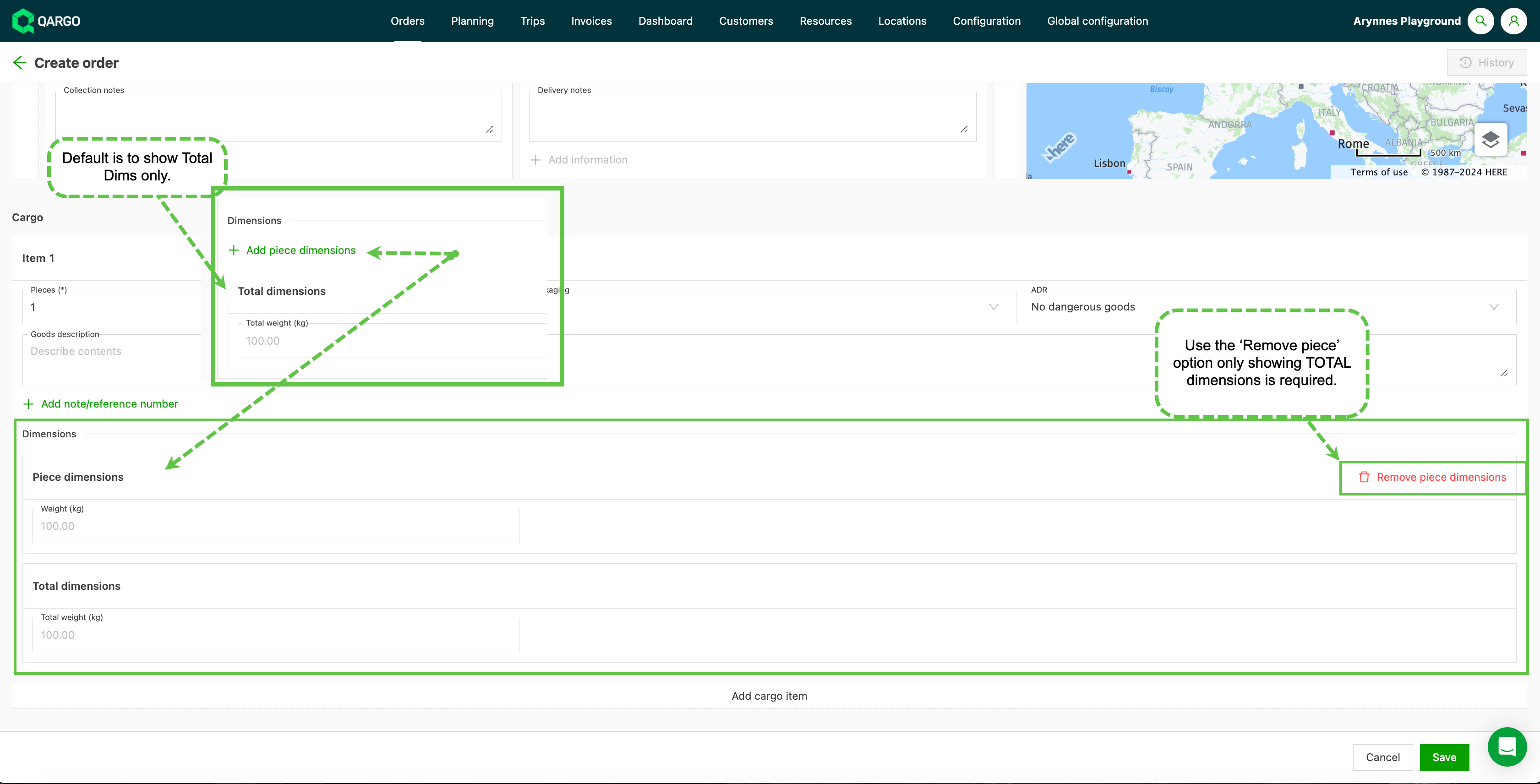
The tabs are replaced with an add/delete piece dimensions button, which makes the action more explicit. Having all the data available on the same screen reduces issues where data is entered but not saved before leaving the screen, which often required the user to re-enter the data.
Incoterms – new additional field.
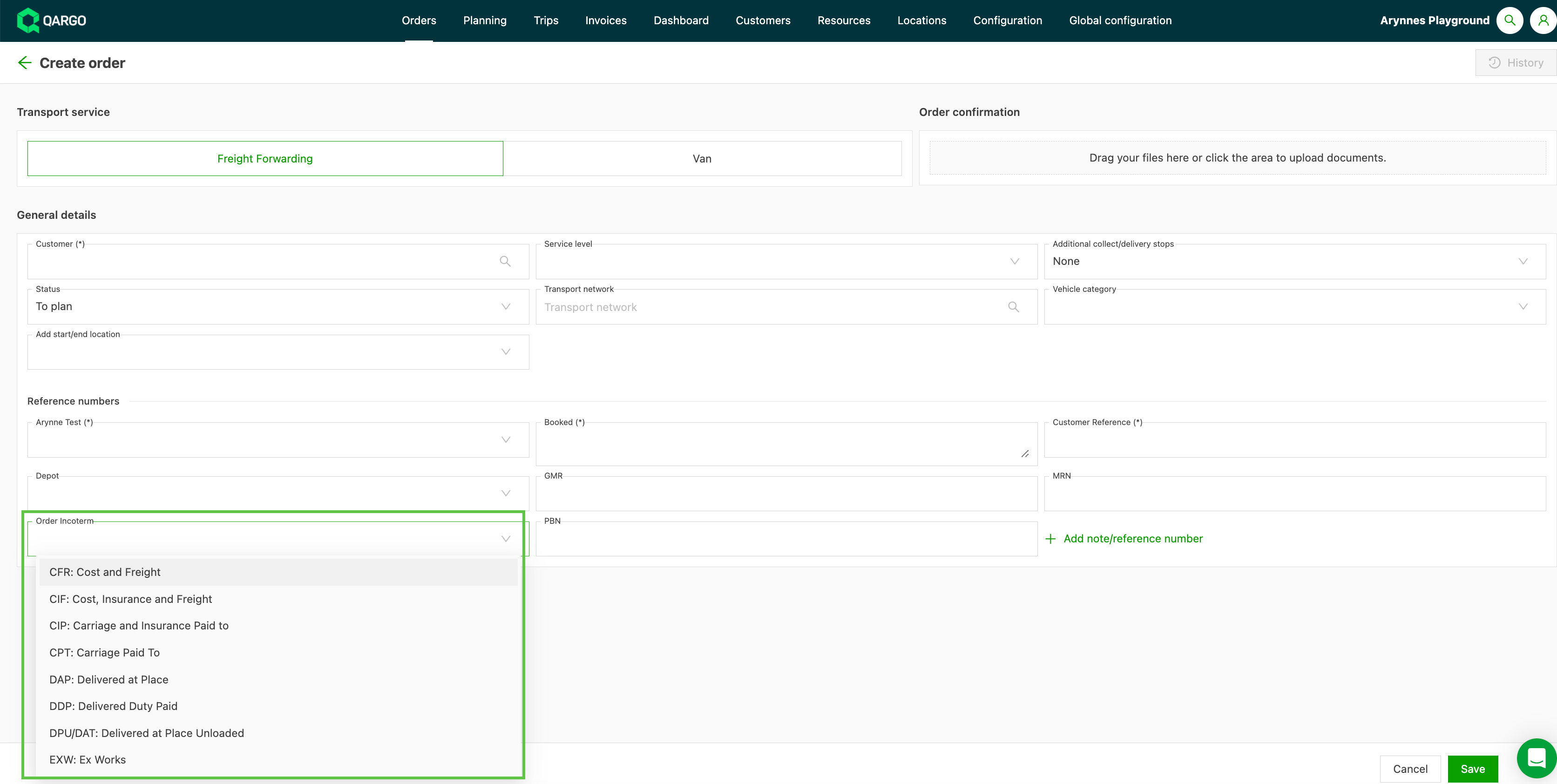
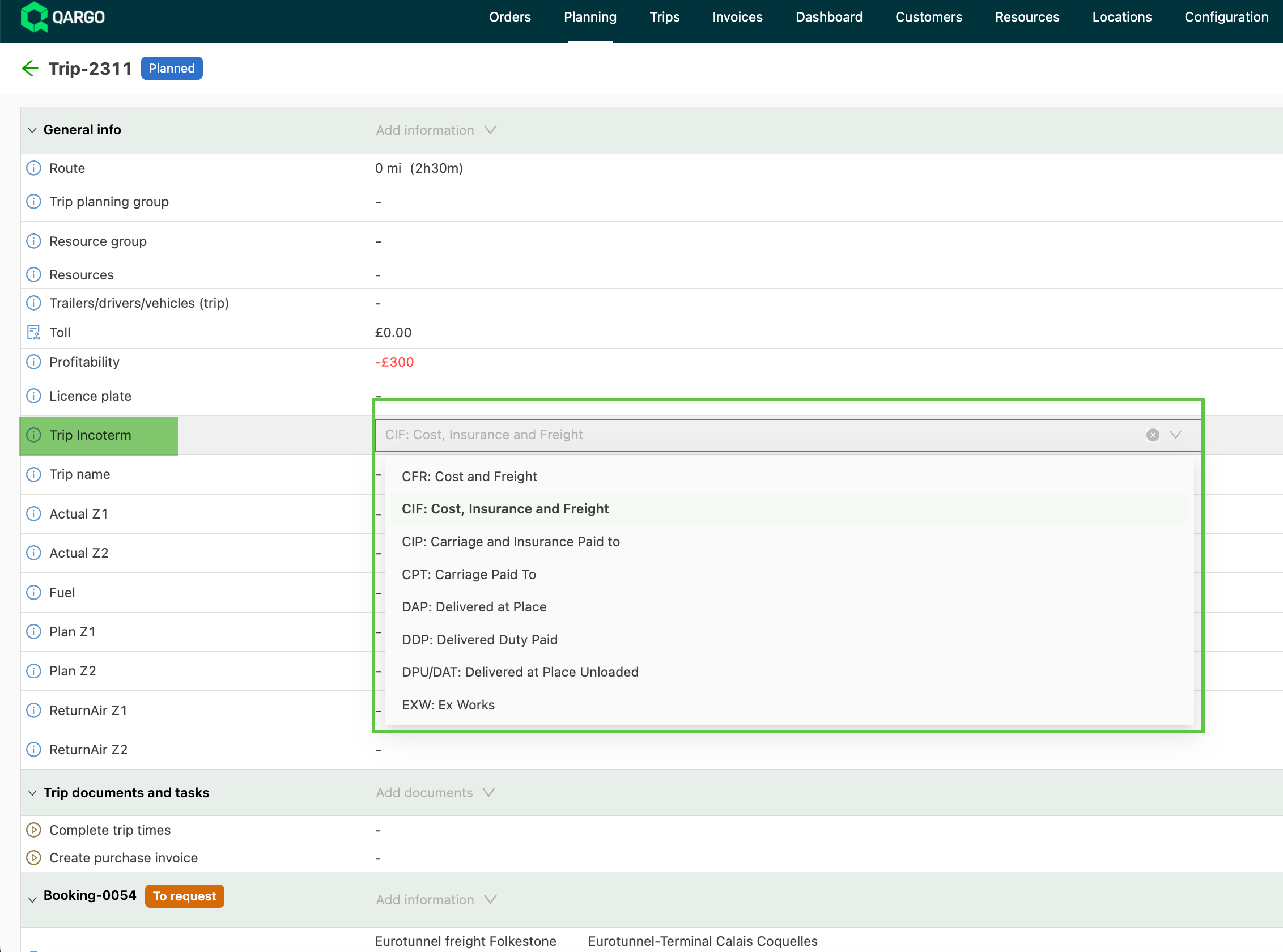
Incoterms define the responsibilities of sellers and buyers in a transaction (e.g., insurance). The new additional field “Incoterm” can now be enabled for a tenant in the configuration window, at order level and at load level.
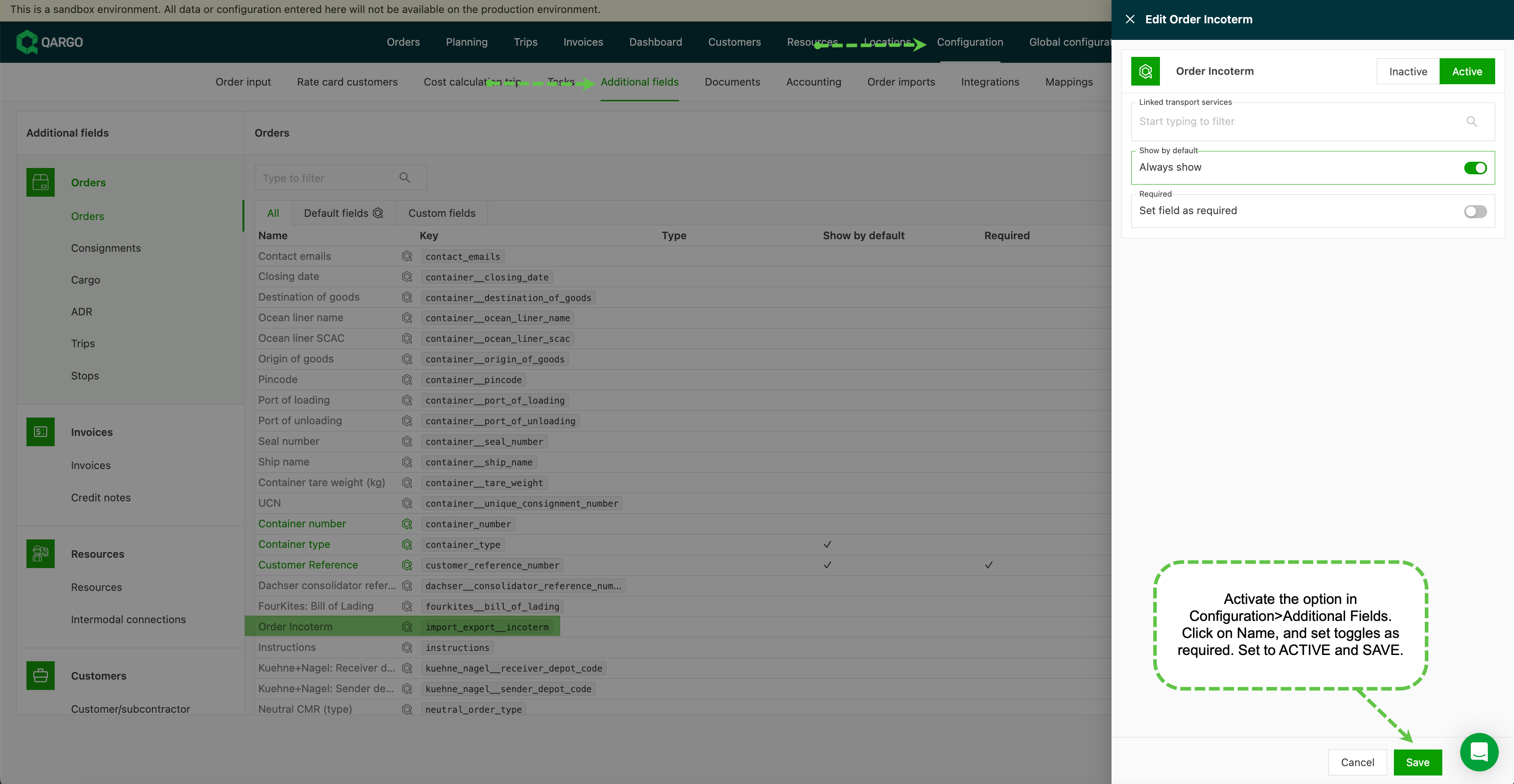
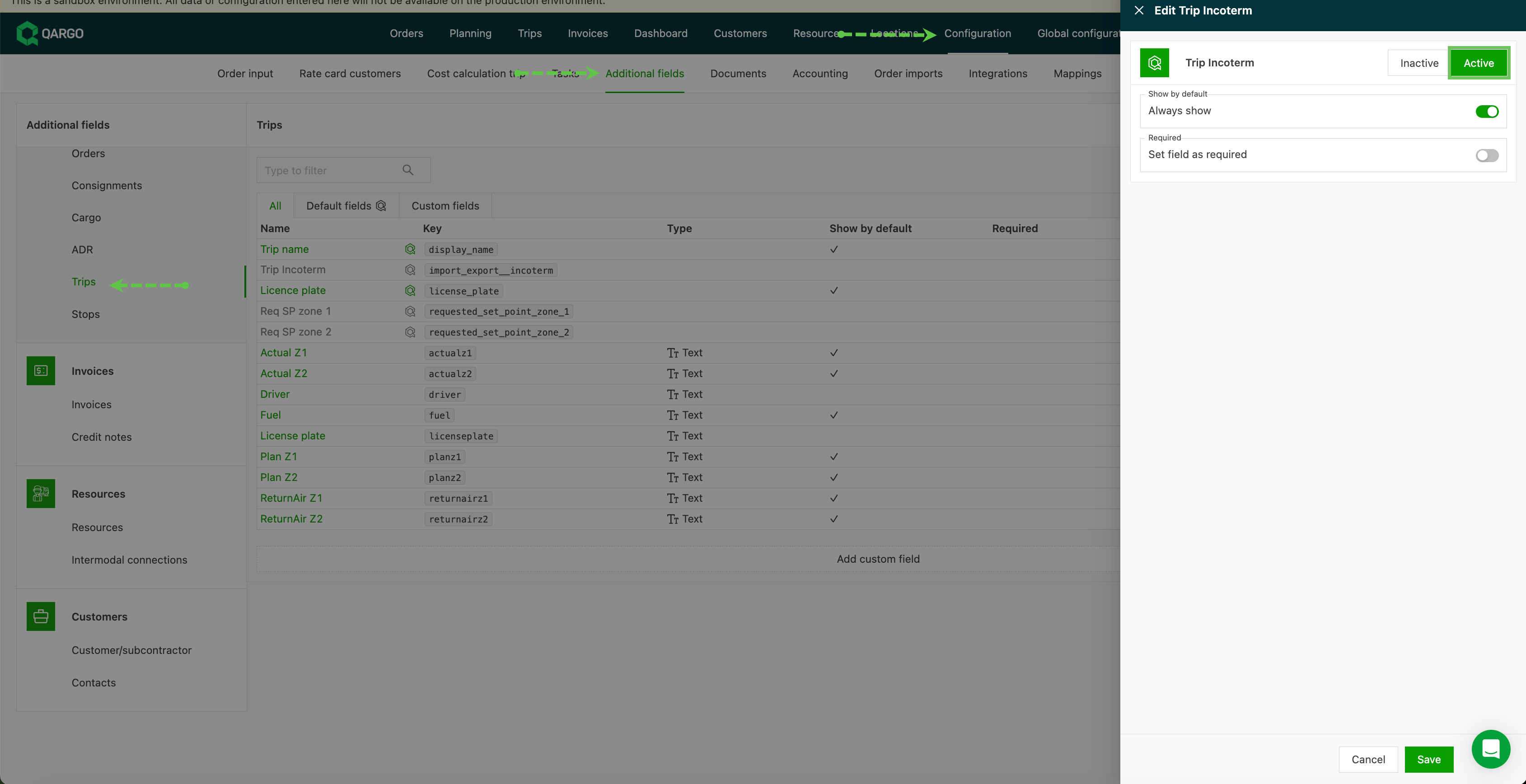
Through a dropdown, users can specify the Incoterm (if applicable) for an order or load.
Match documents by container IDs.
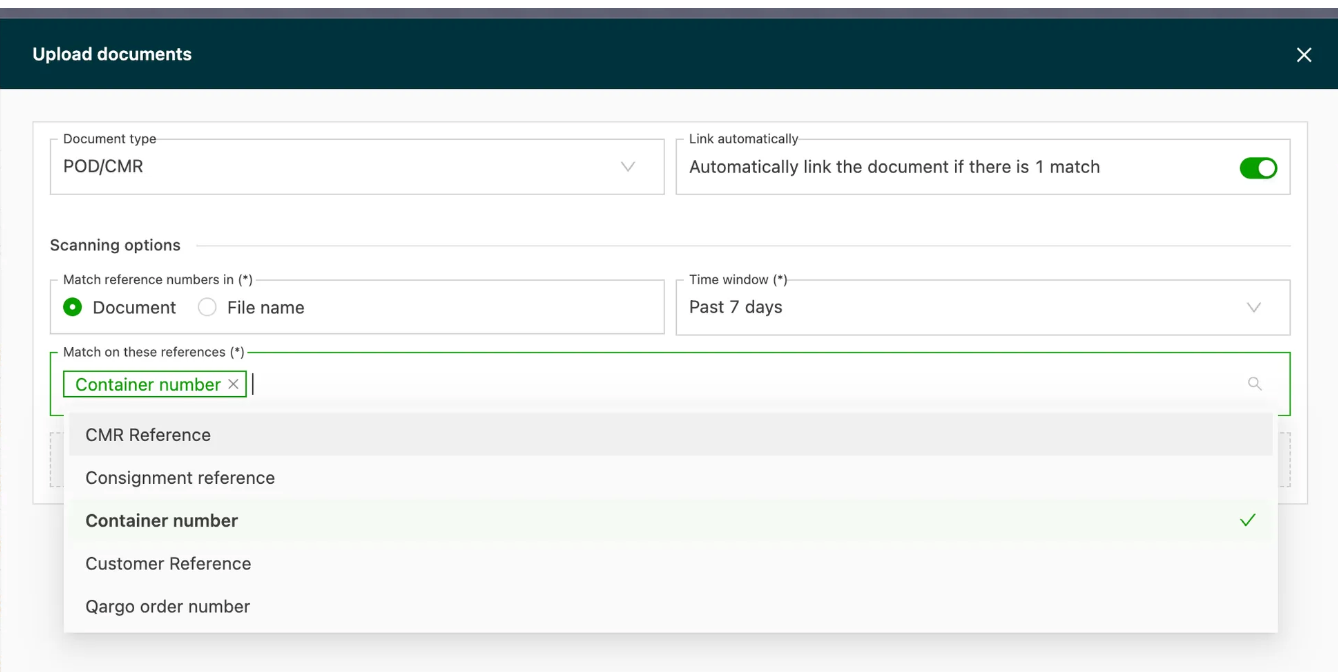
When scanning documents and matching paperwork, it is now possible to match by the container no. on the order.
Show invoice columns in the orders and loads table.
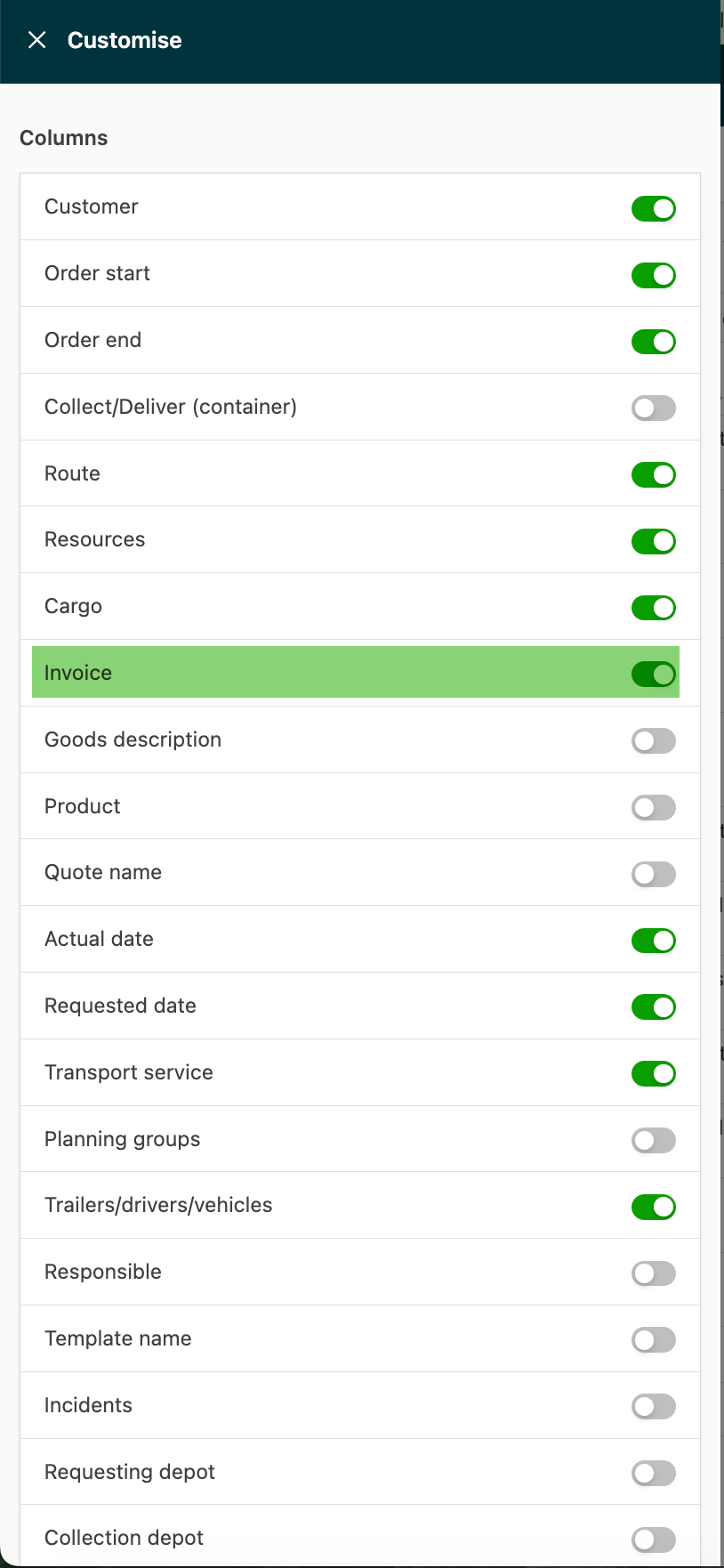
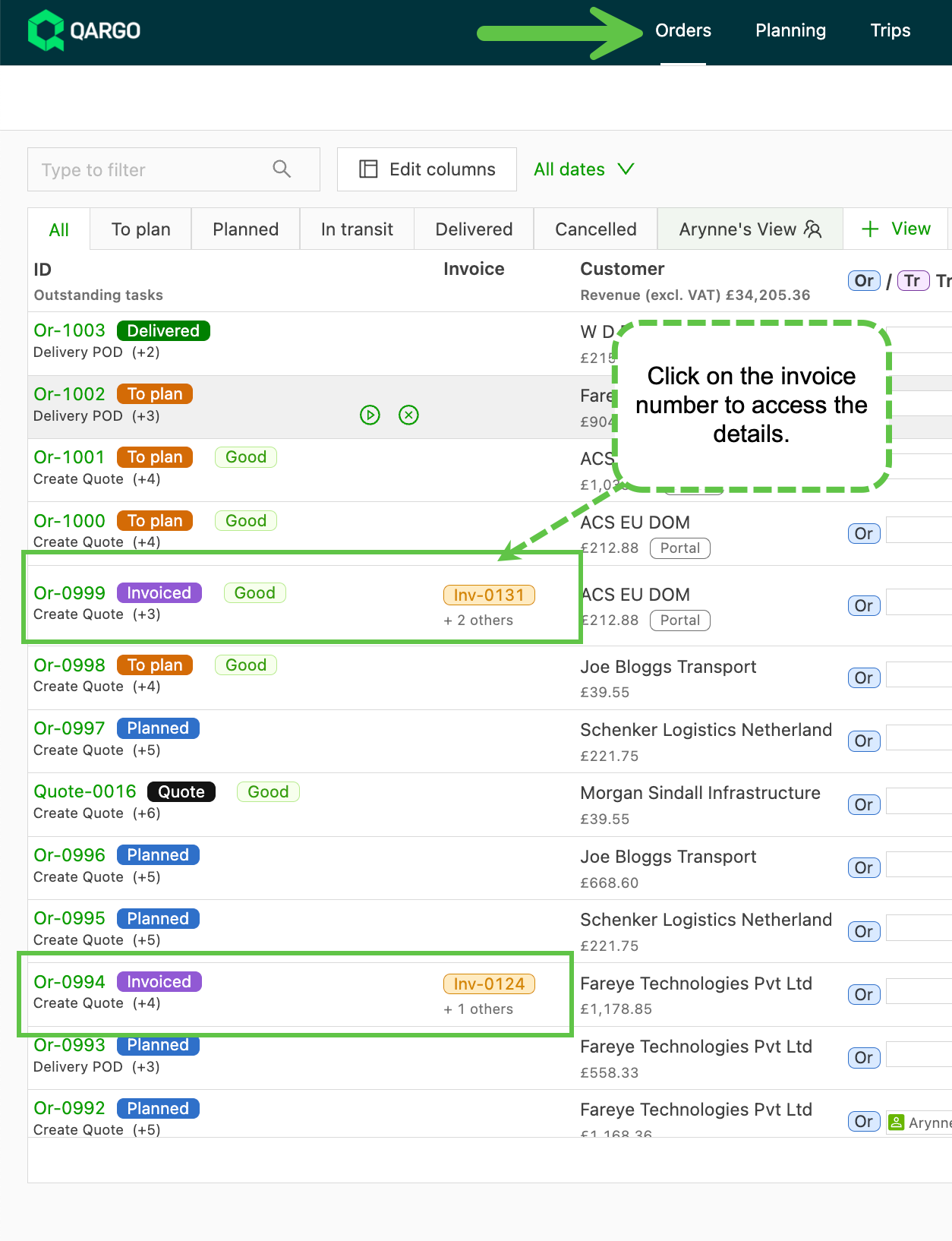
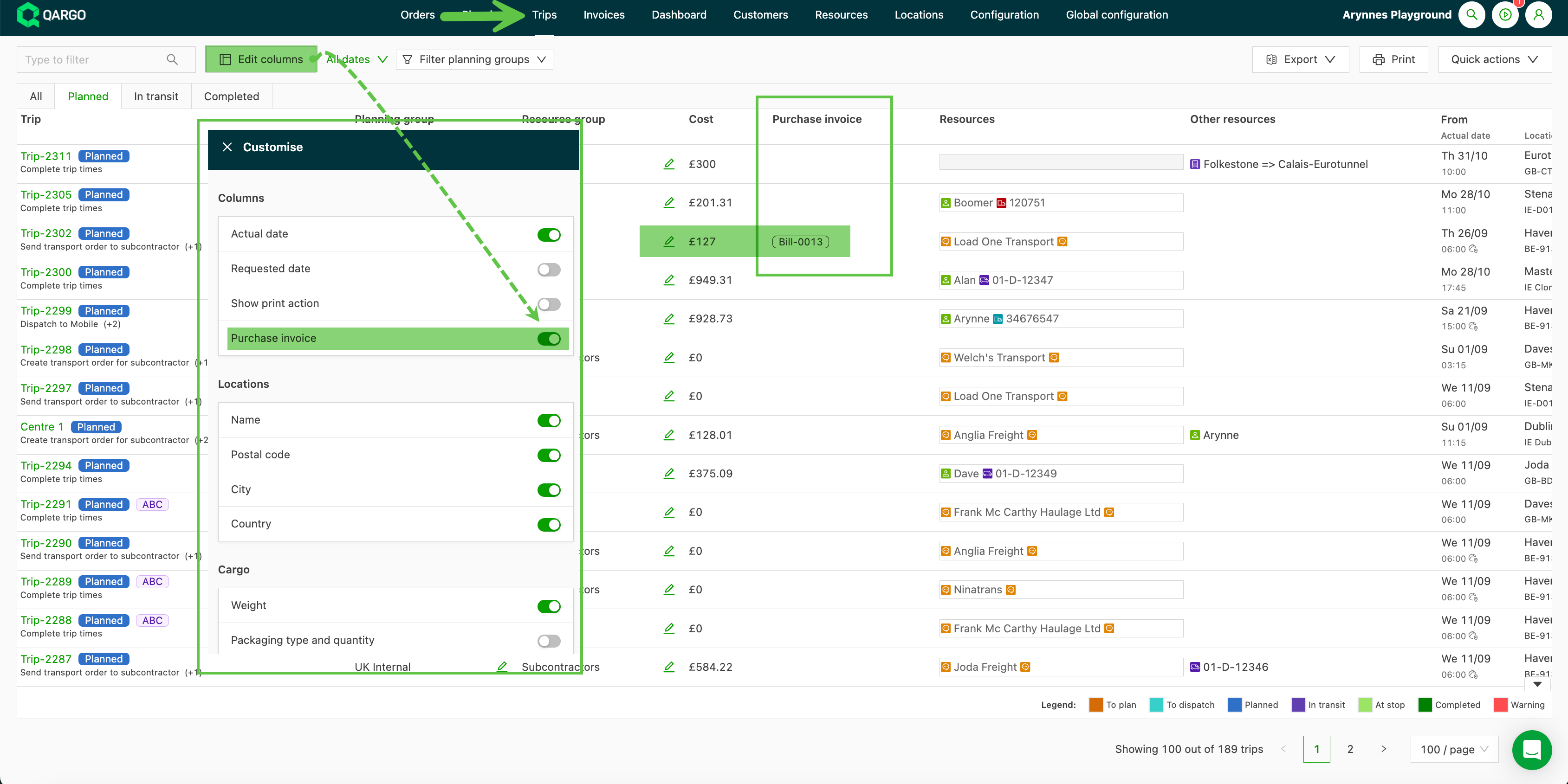
It is now possible to toggle a new column in the Orders and Loads tables that makes the invoice number visible.
Use the Edit columns button to toggle on the Invoice (in orders) or Carrier invoice (in loads) options.
More flexibility when creating invoices in bulk.
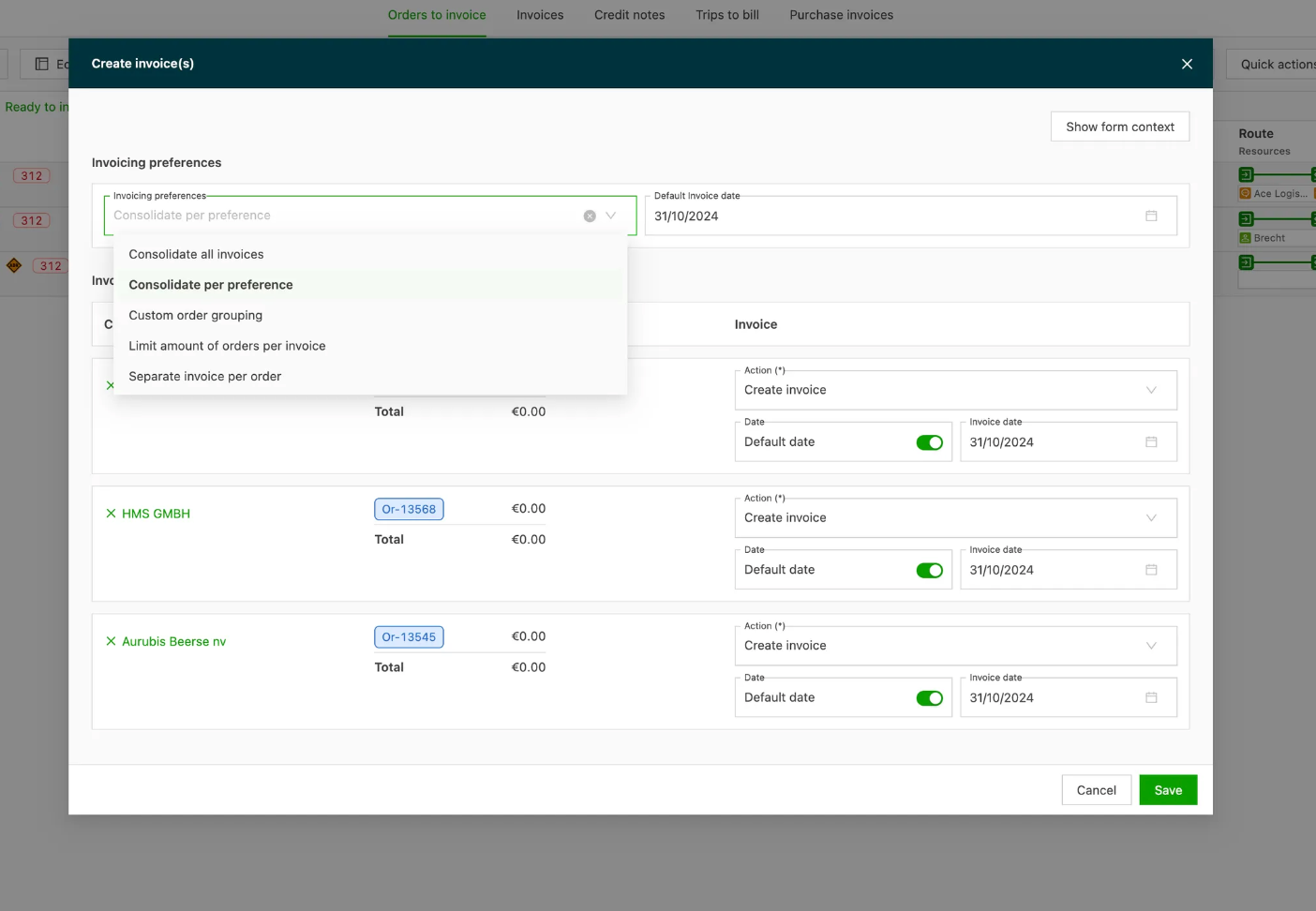
A default preference can be set for each customer. When orders to invoice were selected from multiple customers, the customer preference was ignored and a default grouping was applied instead. Now, the customer preference is kept.
When billing orders, it is possible to specify how the order invoices are sent to the customer (per x amount, grouped by container type, etc.).
 :::
Enhancements – weeks 4–5
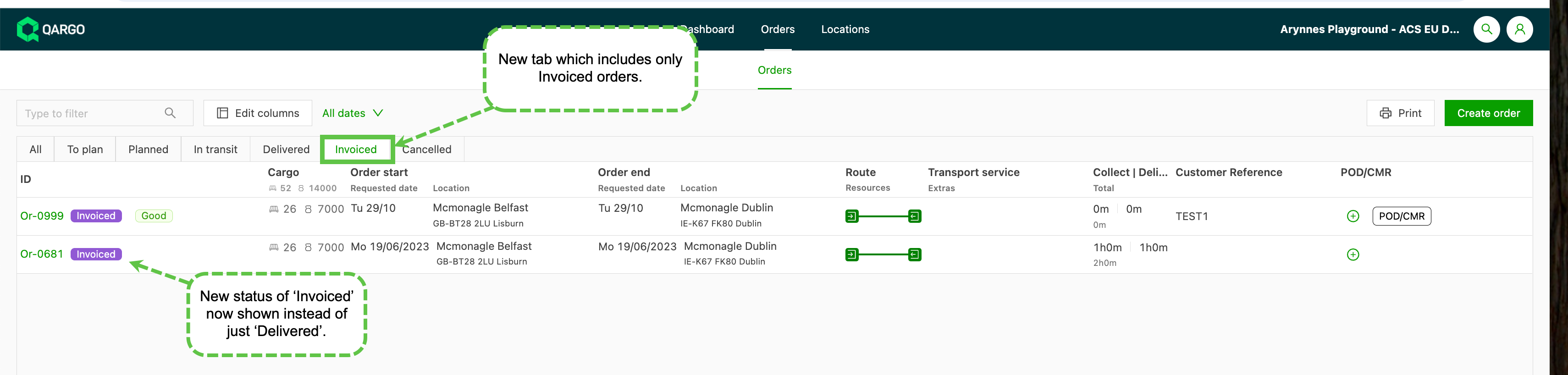
Customer portal now shows an invoiced status.
Once an order was completed, the last status shown in the customer portal was “Delivered”. This meant users of the customer portal lacked visibility when trying to identify orders that had been invoiced. The portal has been updated to include the invoiced status. This includes a new tab (Invoiced) as well as the status “Invoiced” displayed next to the order number. This improves the user experience and makes it more transparent when looking for invoiced orders.
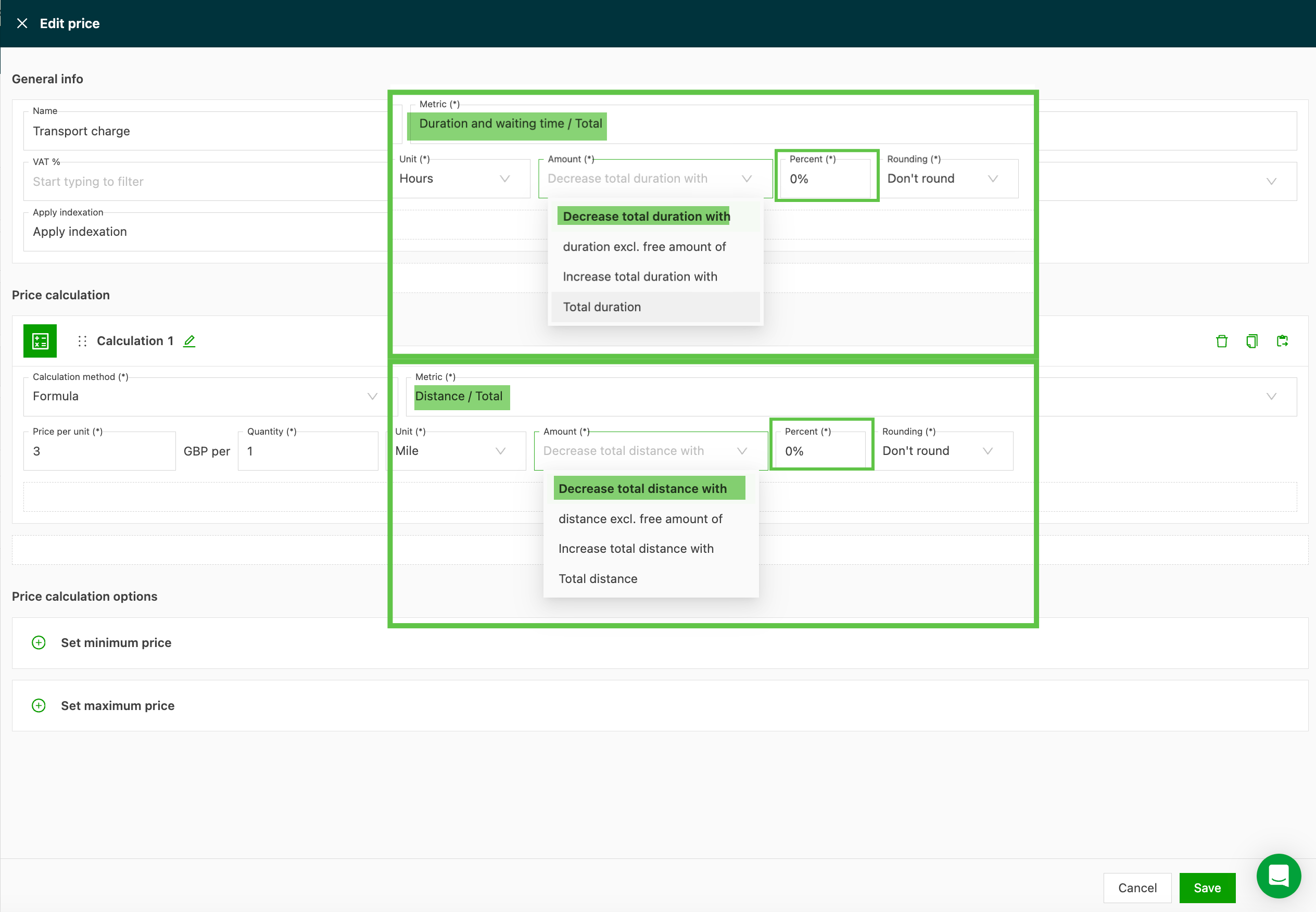
Option to add a formula to “decrease by” on the rate card.
When configuring a rate card, there is currently an option to set a default increase by a certain % for revenue price lists when using a specific metric (Distance/Time). When the rate card is set using either a Formula or a Rate table, and a metric is set for either Distance or Time (Duration/Wait time), it is now possible to set a default % decrease for cost price lists
Improved address entry using Google Maps locations.
When adding a new location, the address found by Google (shown on the map) could differ from the address filled in the form.
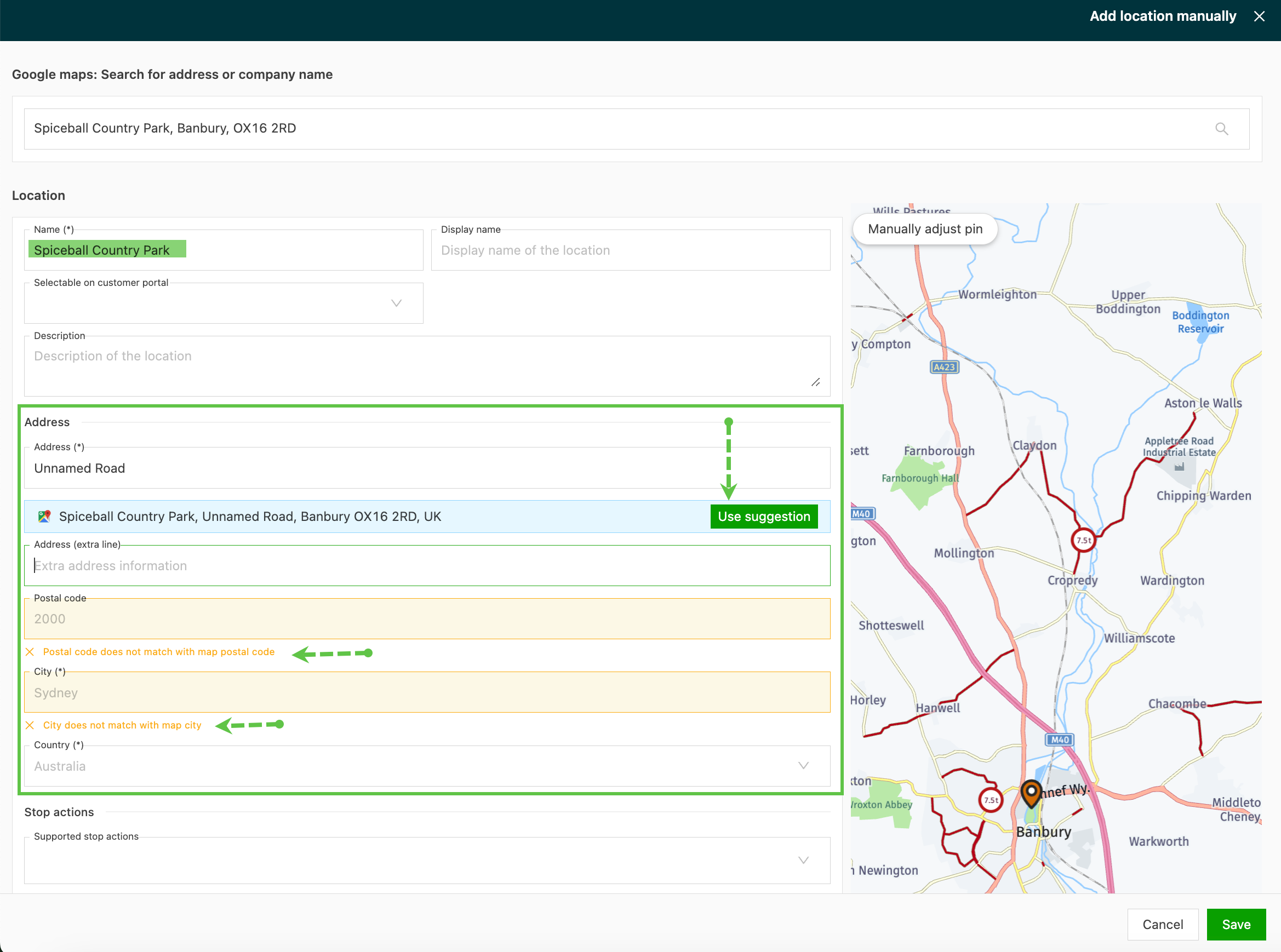
To make this clearer, a warning is now shown when the address differs from the Google address. The warning also shows a button to replace the address in the form with the one Google provided, if that is the preferred address.
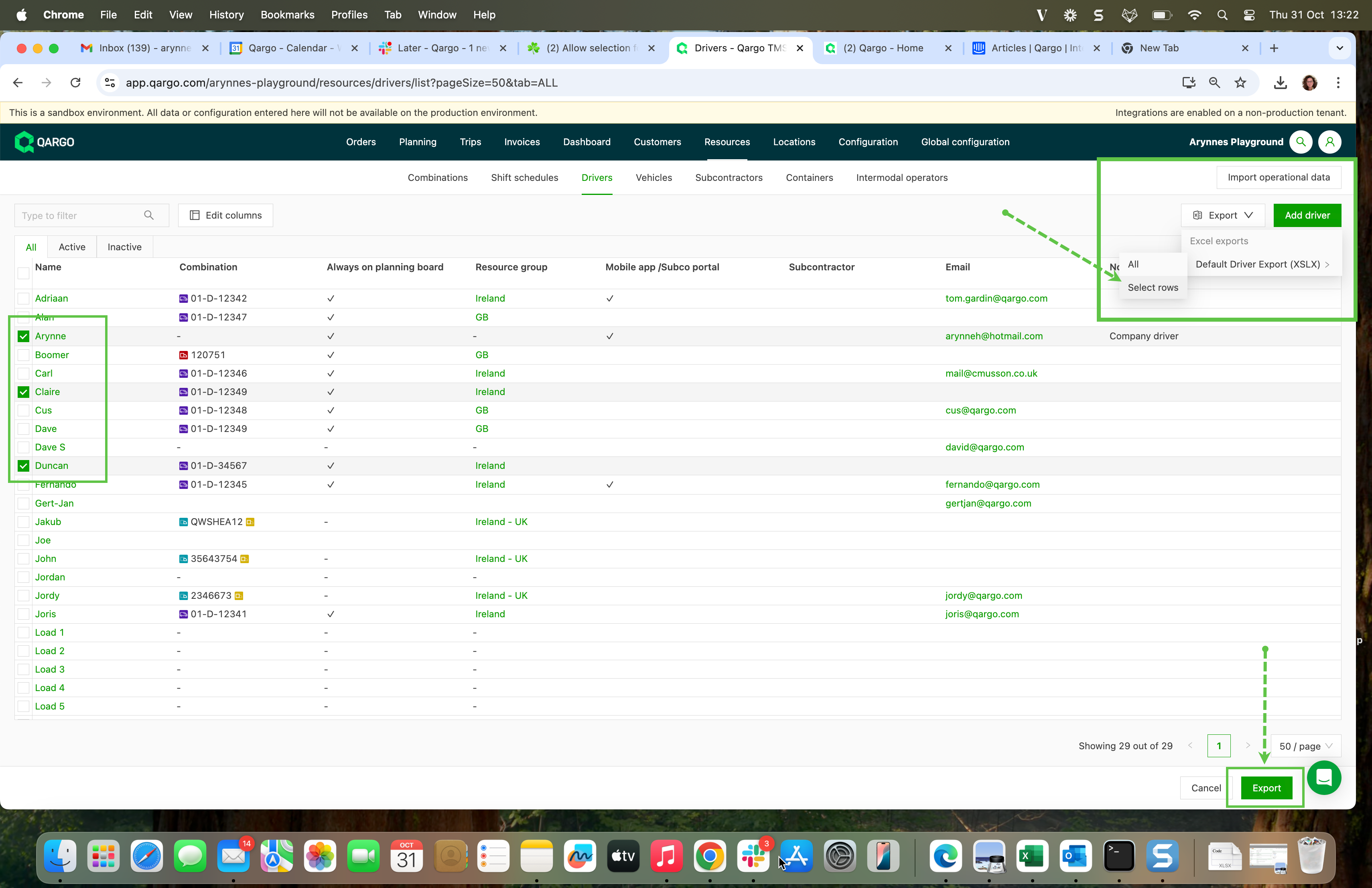
More options for individual row exports.
It is now even more convenient to extract data from a Qargo tenant. Previously, the order list was the only place where individual rows could be selected for export. This has now been extended to:
- Invoices (Invoices / Credit memos / Loads to bill)
- Customers (Customers)
- Resources (Drivers / Vehicles / Contract carriers / Containers)
Show load tags in the planning board.
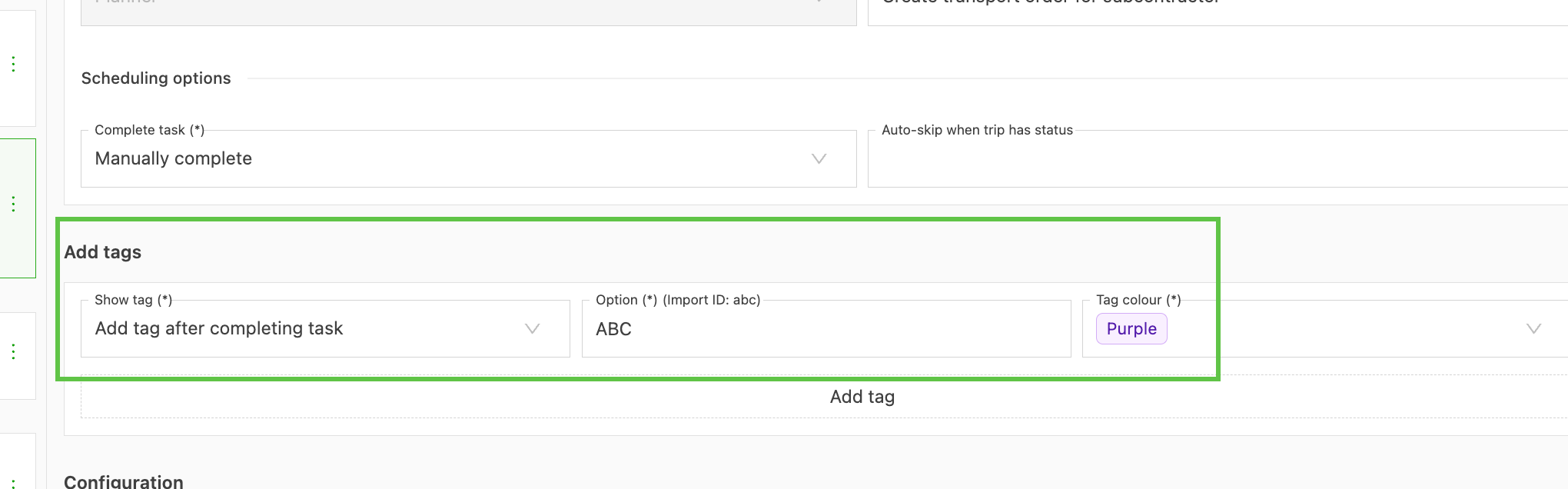
Certain tasks are very important and should be displayed more clearly when they are completed or outstanding. Using the tag functionality in the task, tags can now be set automatically once a task is completed, which improves overall visibility.
Show multiple container statuses in To plan
Previously, only the general status was shown in To plan, with a filter for whether a status was present or not. Now there is full flexibility over all statuses, and filtering on specific statuses is possible. Before on the left, new on the right:
Edit freight from the order list.
The freight column in the Order table and To plan table is now clickable and opens the order to edit the freight properties (e.g., weight/quantity) of the first shipment in the selected order.
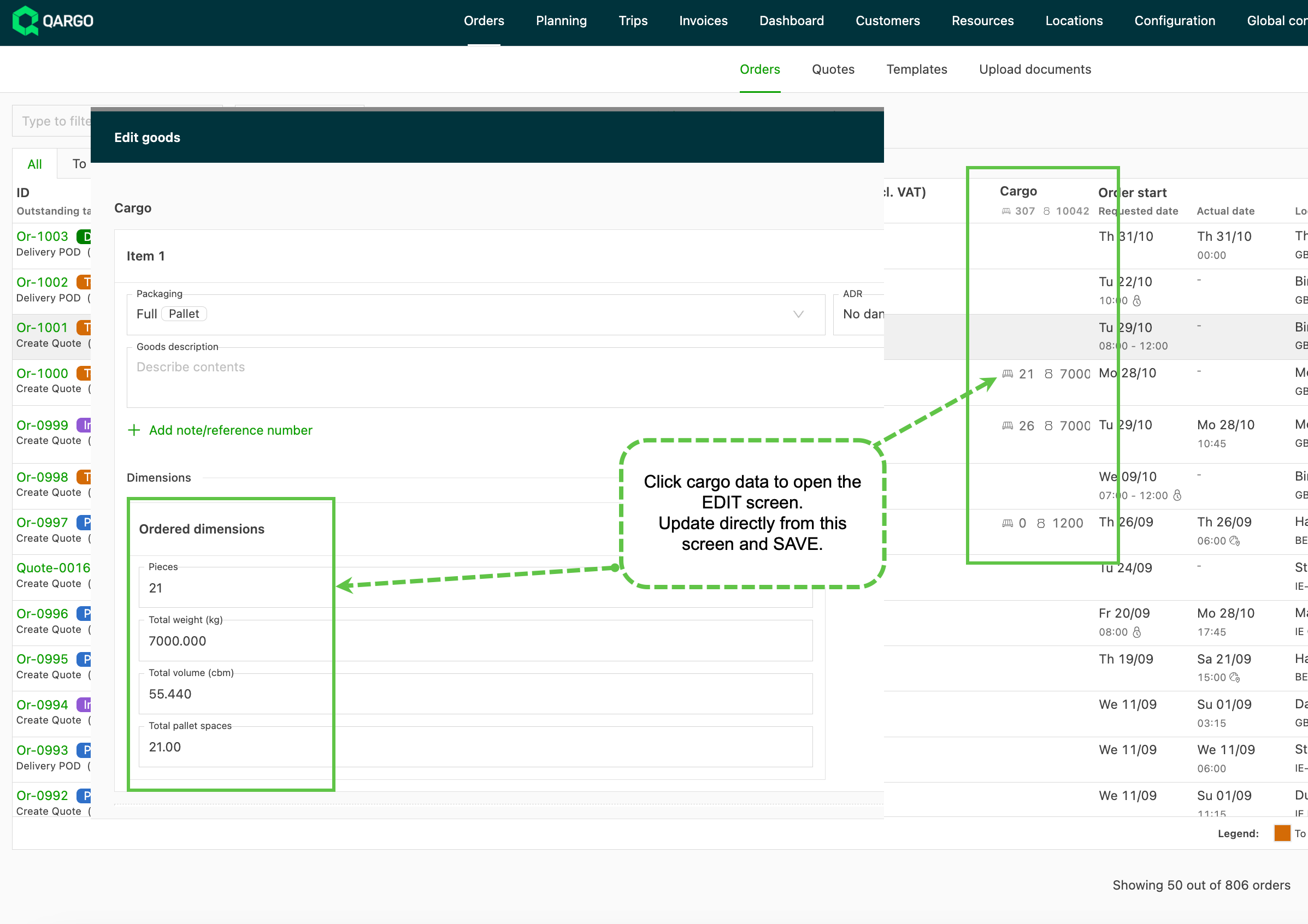
When multiple shipments are present, an alert is shown to indicate that the user is editing the first one. :::
Features – week 3
Planning board – new customization toggle options:
More options have been added to the customization toggles available in the planning board. These toggle options allow users to be more selective about what is added to the board and help improve the overall granularity of what can be displayed. The new customization view has been reordered into more logical groupings.
- Resources have been moved to the top and grouped with Resource info.
- Load info details totals over the whole load (Freight load totals / Revenue / Duration)
- New options to include Load additional fields (where configured)
- Stop info gives specific details relating to the individual stop (Location / Freight / Order)
- New option to show the department if available on the customer order
- New options to include Order additional fields (where configured)
- New options to include Stop additional fields (where configured)
New planning board – customize options:
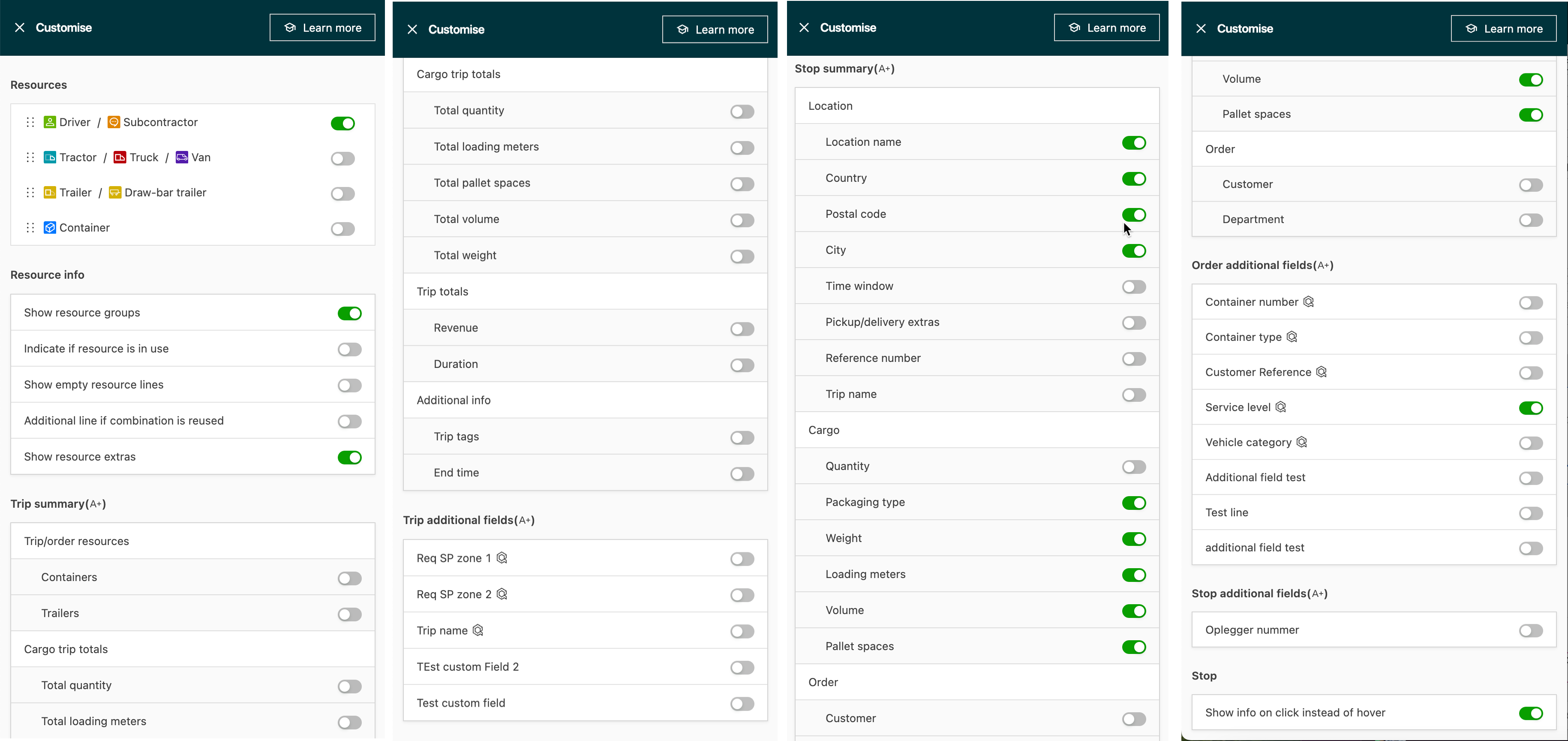
3 new customizable views available.
-
A+ expanded view: Shows all the enabled toggles in the selected view (Timeline / Table)
-
A- condensed view: Summary view showing reduced information. It is now possible to select which toggles to show independently of what is displayed in the A+ view.
-
Load/order detail page: Toggles can be further modified in the Customize views, independently of what is selected to show in the planning board. This can simplify the view and eliminate duplication of data that is already available on those screens.
For more details, see the full article below.
Planning board – customization toggle options
Order view – display additional resources.
Secondary resources allocated to either an order or a load can now be seen directly from the order view. The Container/trailer column now shows both resources assigned to the order or load resource.
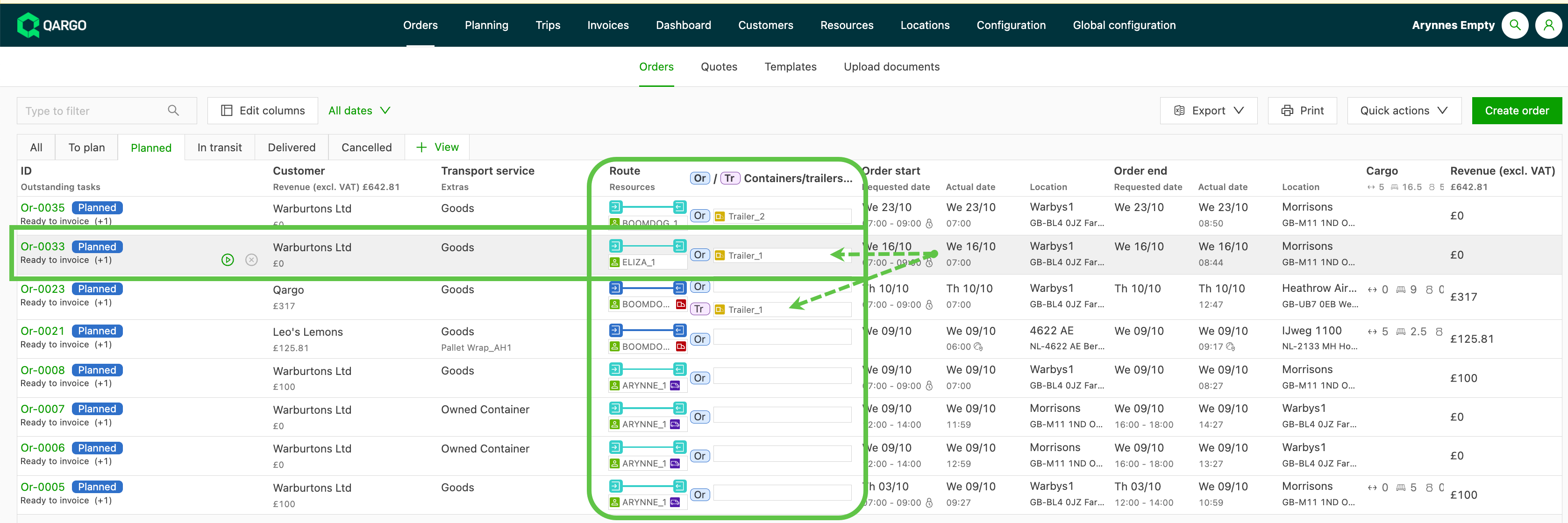
Resources can be assigned or updated directly from these fields.
Click here to read the full article.
Order overview – add stop duration column
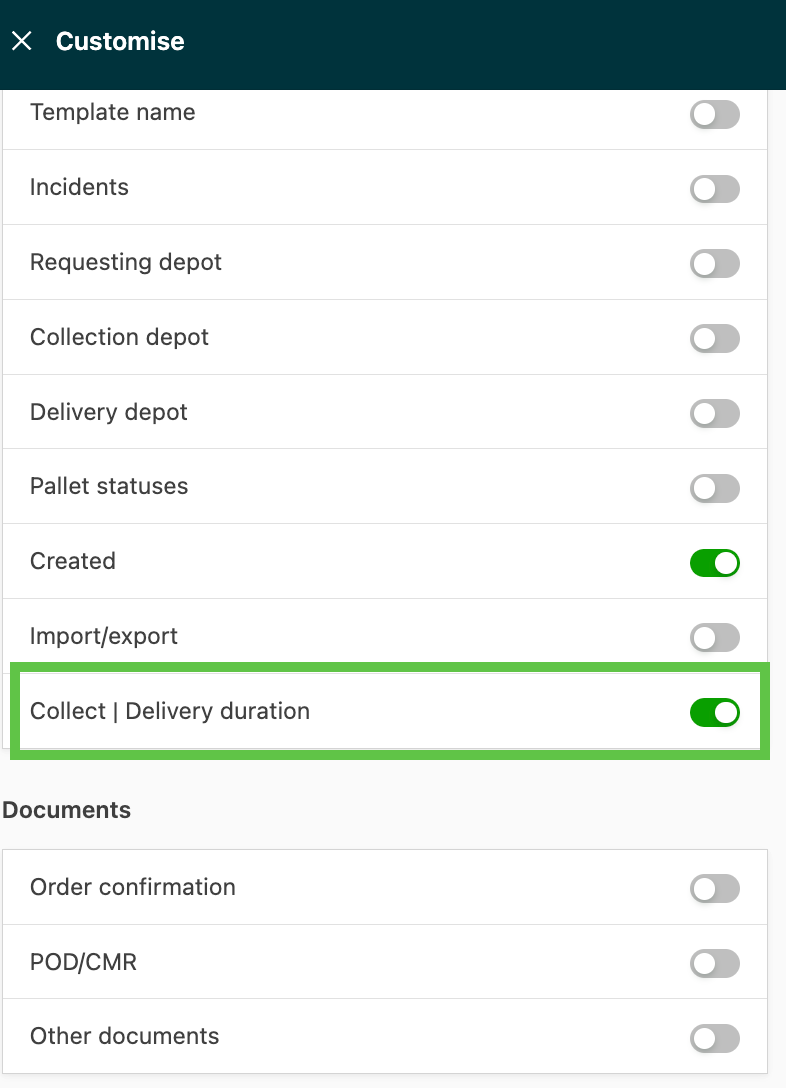
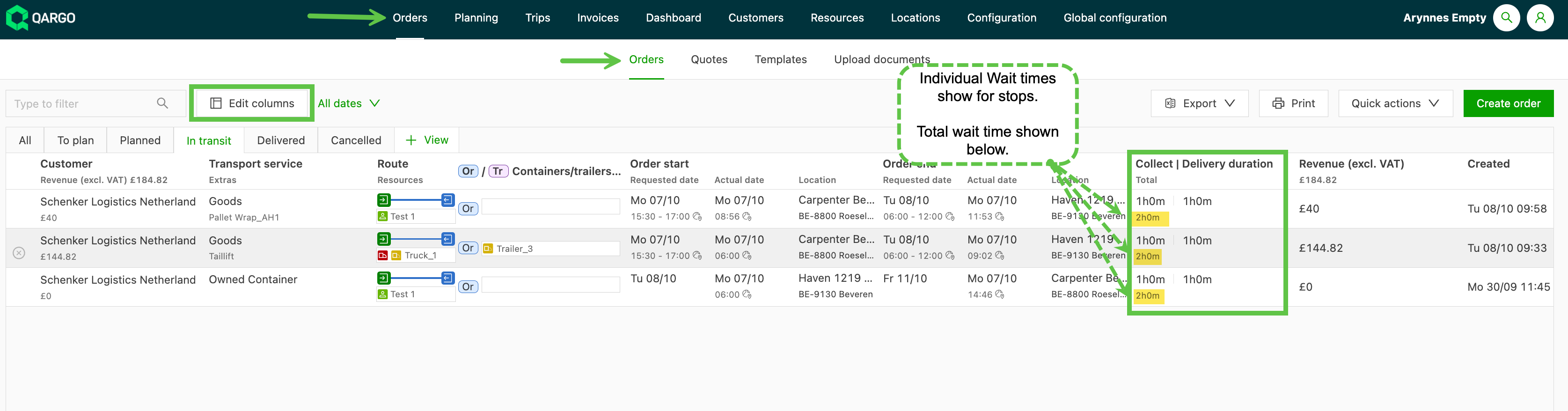
A new column has been added to the orders table in Qargo to display the stop durations for loads, showing all pickups and deliveries. This feature is enabled by default (but can be turned off in the edit columns panel) and improves visibility of wait hours on loads.
The individual wait times are shown by pickup/delivery stop. These are taken from the order details and the actual times when the load completes. The total times are consolidated and shown in the line below the stop times.
Customer CRM follow-up date
Some CRM functionality has been added to the customer list and the customer detail page. Users can now add a follow-up date to the customer and are then automatically set as the follow-up responsible.
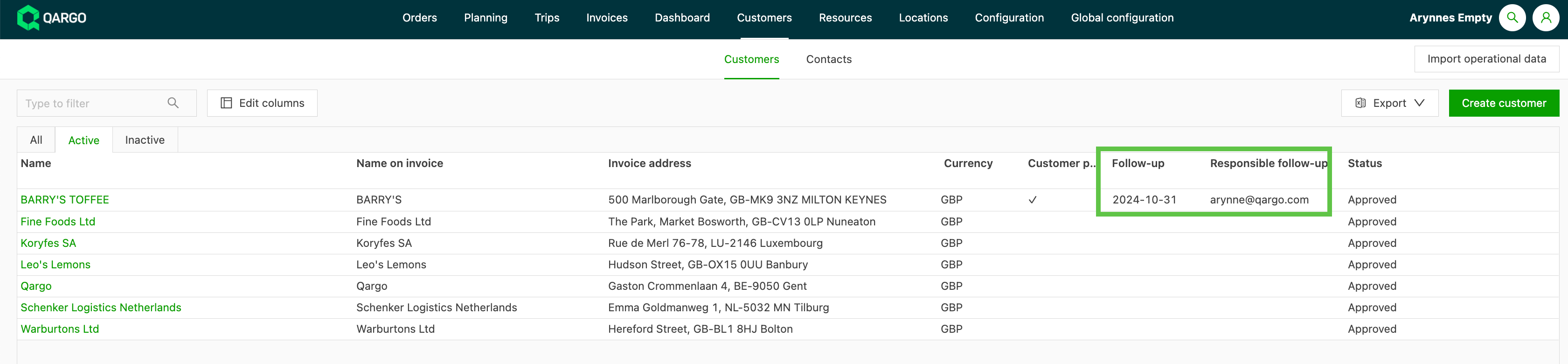
Updates can be made directly on the customer by clicking the date. Past due dates turn orange, and filtering on the column allows users to easily identify customers that require follow-up.
Click below to learn more about customer CRM in Qargo.
Enhancements – week 3
Cost/revenue split – allow users to enter a value
For loads with multiple orders, it is now possible to manually edit the percentage of the cost/revenue assigned to each order. Previously, the cost was allocated as a percentage (%) only. This update now allows users to enter a specific cost in either format:
More information is available in the full article here.
Separate pallet network toggle
The toggle that determines whether the route is calculated is now separate from the toggle that determines whether the resources are only shown on the pallet network planning. Users can now choose which of the two to use.

Add configuration for sending emails to multiple recipients.
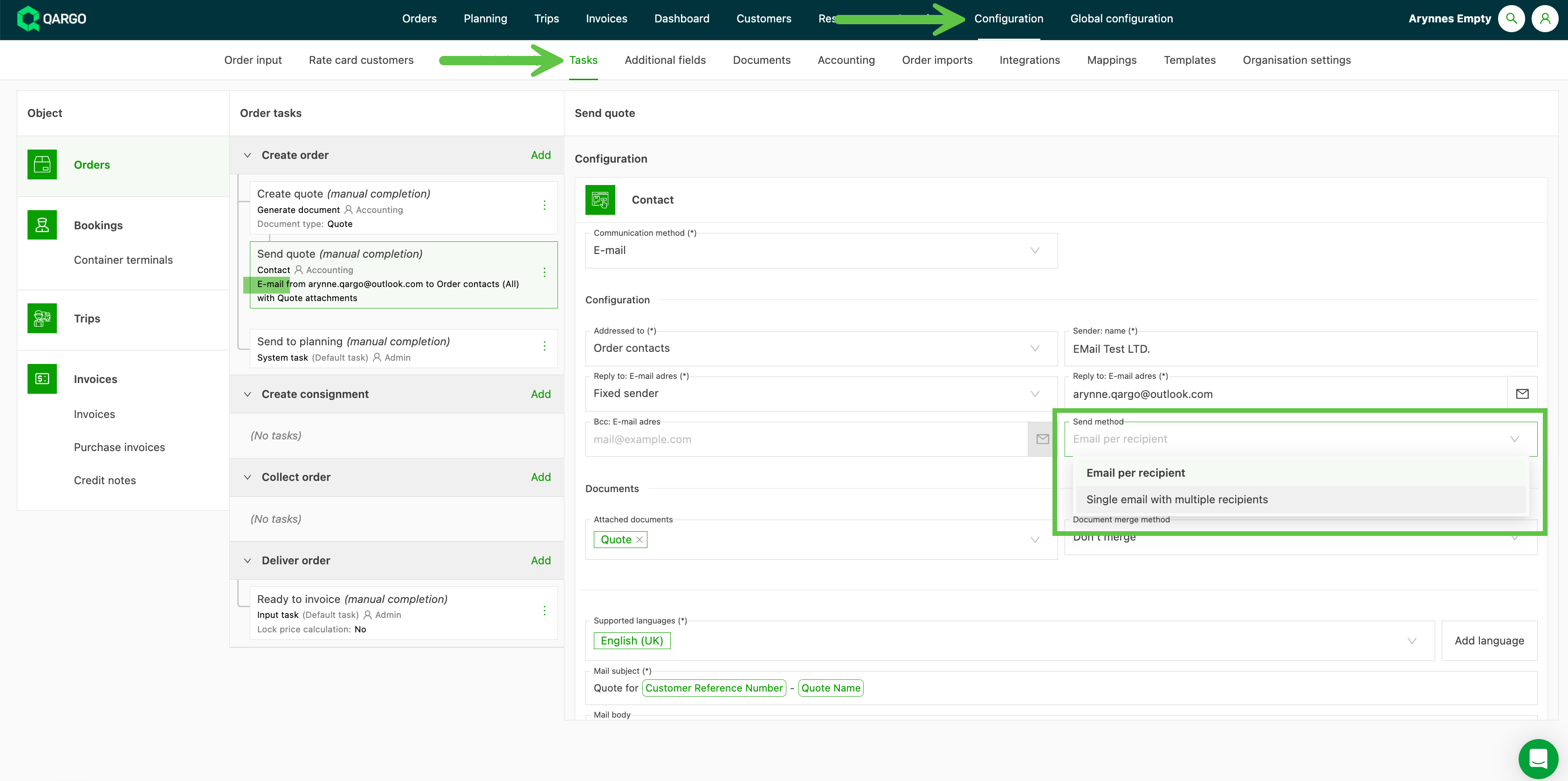
When sending emails to multiple recipients, a new option has been added to configure how they are sent. Either a separate email is sent to each recipient (the previous behavior and also the default), or a single email is sent with multiple recipients.
The default behavior is to send a separate email per user. To send 1 email to multiple users instead, change this in Configuration > Task settings. The email then includes all the users in the To: address line.
Features – weeks 1–2
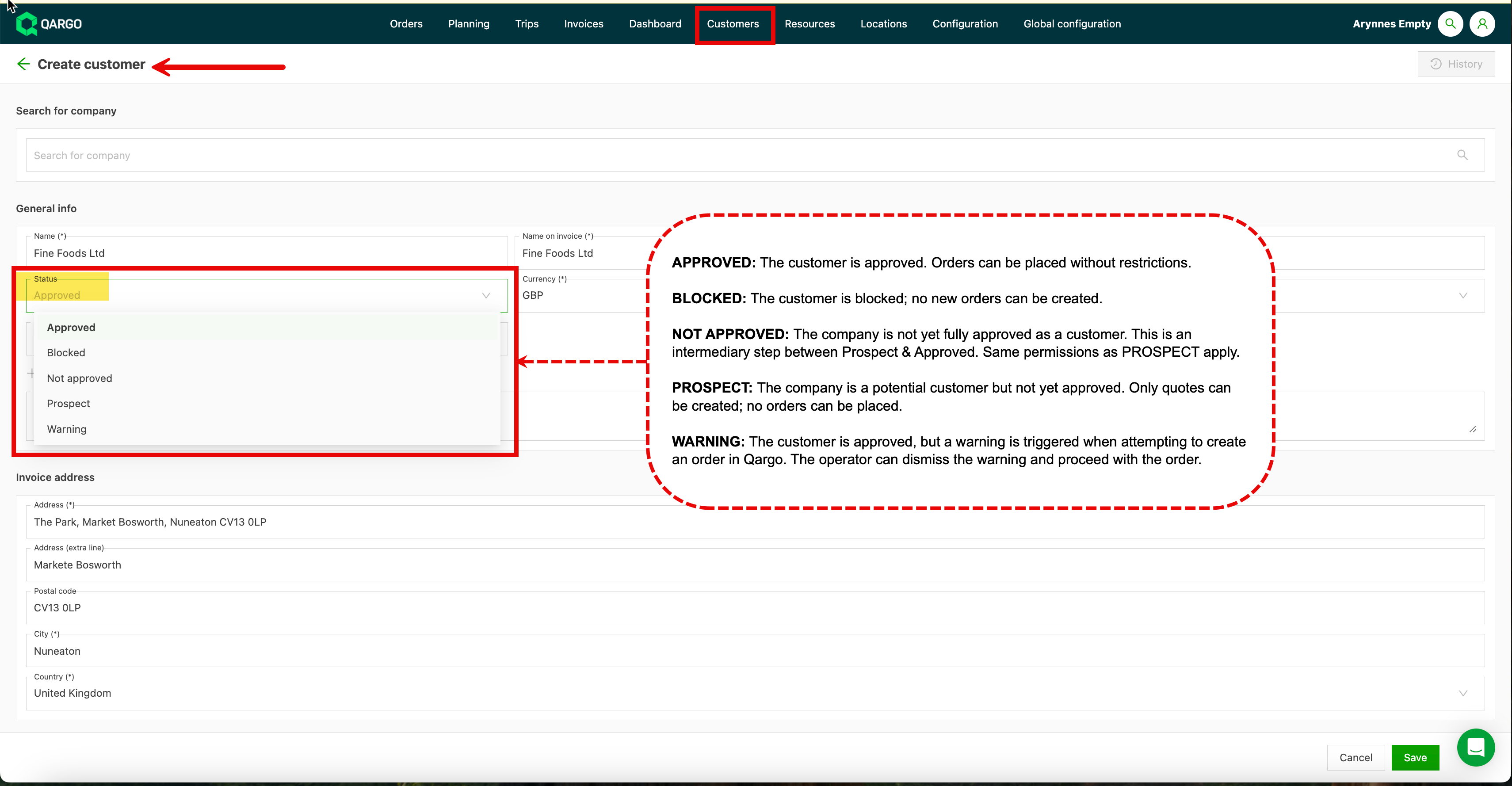
Customer statuses – new status options now available!
The Blocked toggle for customers has been replaced with a status dropdown, allowing more granular permissions for order creation. To learn more about customers in Qargo, click here.
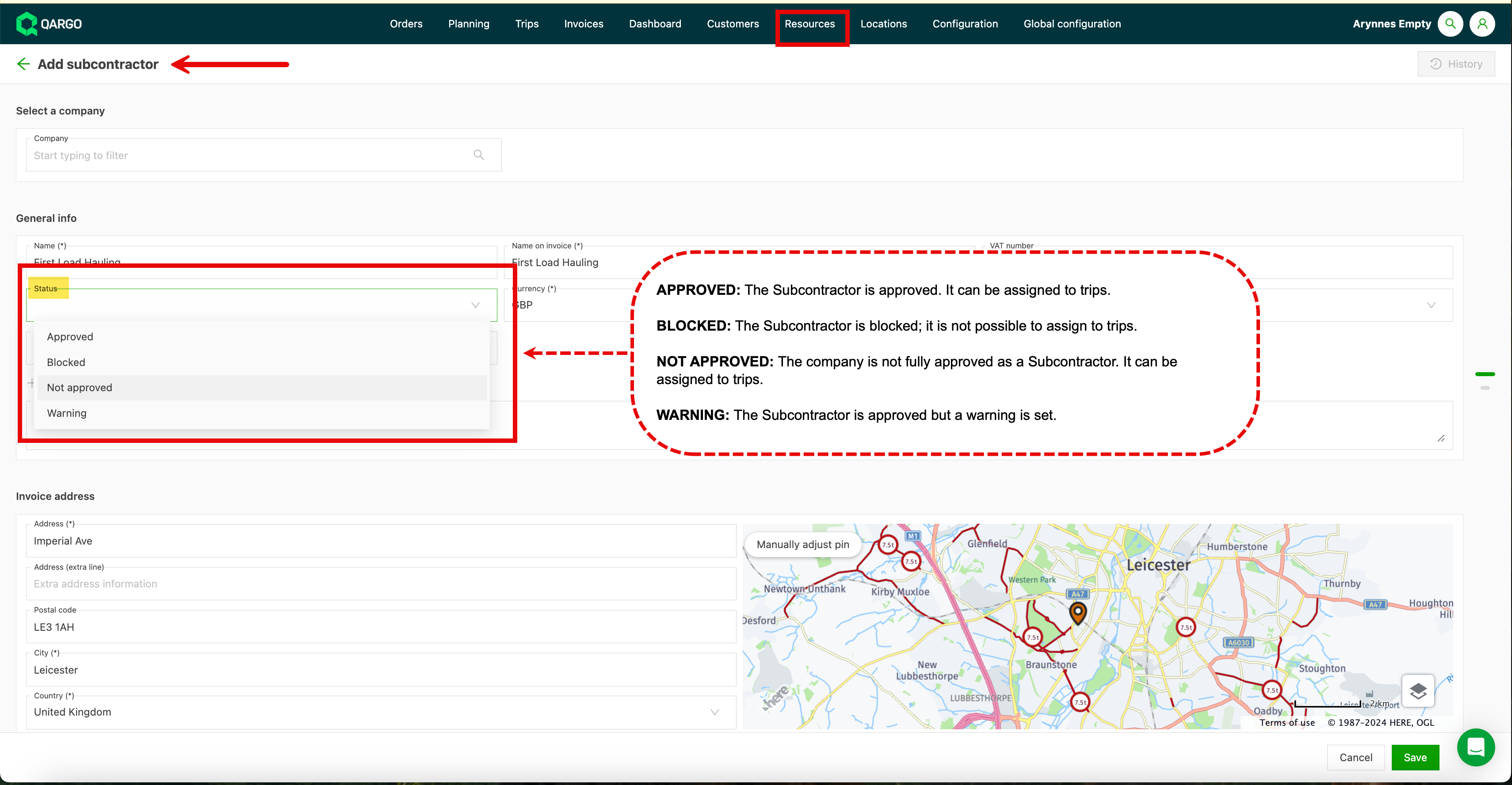
Could not display content
Adding email attachments as documents
New functionality has been added to the Outlook add-in to improve working with email attachments. In summary:
- It is now possible to create a quote from an email. Previously, orders created from emails defaulted to “To plan”.
- If the email contains multiple PDF attachments, the user is now prompted to select which document to scan.
- The user can select which PDF attachments to add. The document type is set to that of the email; however, the user can edit (pencil icon) the document type.
- Linked attachments and the document type are shown in the order sidebar view.
- Attachments can be added/removed by clicking an already linked attachment in the order card.
Click the button below to learn about this new feature.
Qargo Outlook plug-in: adding attachments
Adding documents for customers and contract carriers.
Customers
Documents can now be added to customer profiles. A new section titled “Documents” is available, with an “Add document” option.
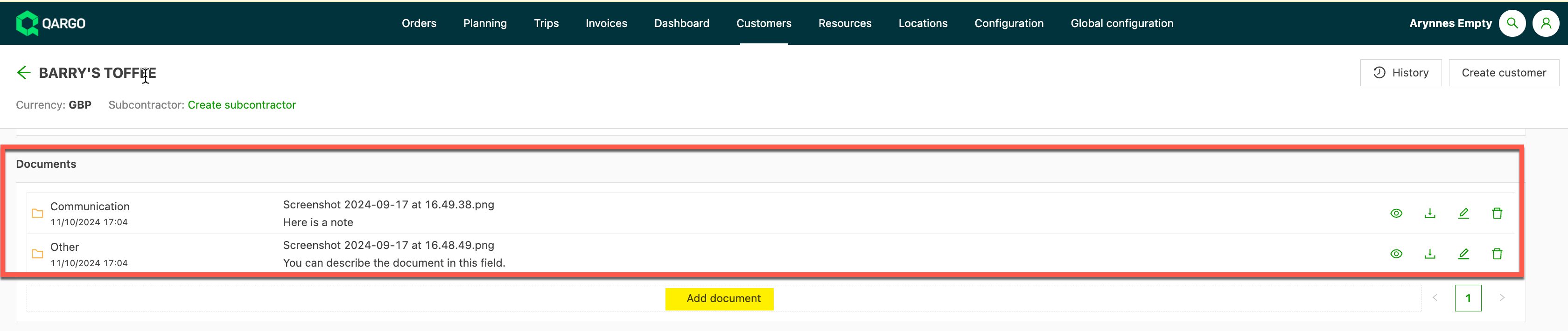
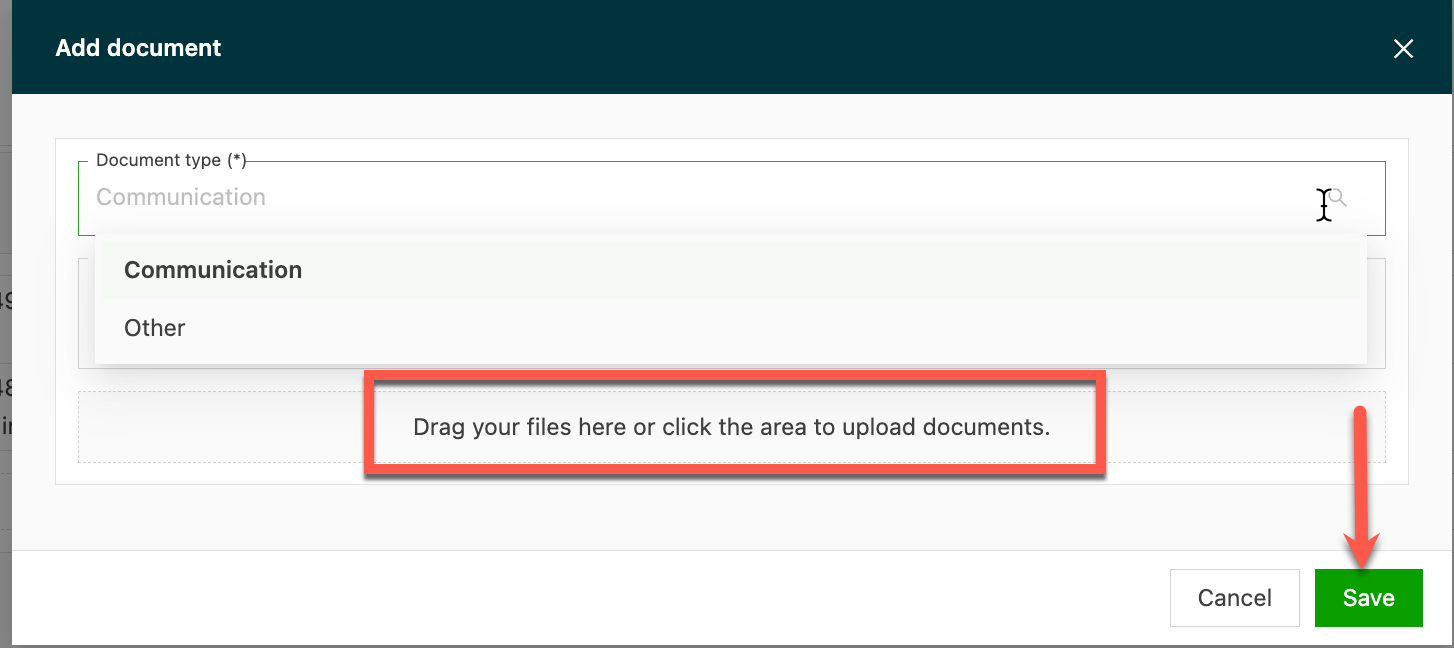
When adding the document, select the document type from the dropdown.
Further details can be provided in the Description box. Uploading a copy of the document is required.
Contract carriers
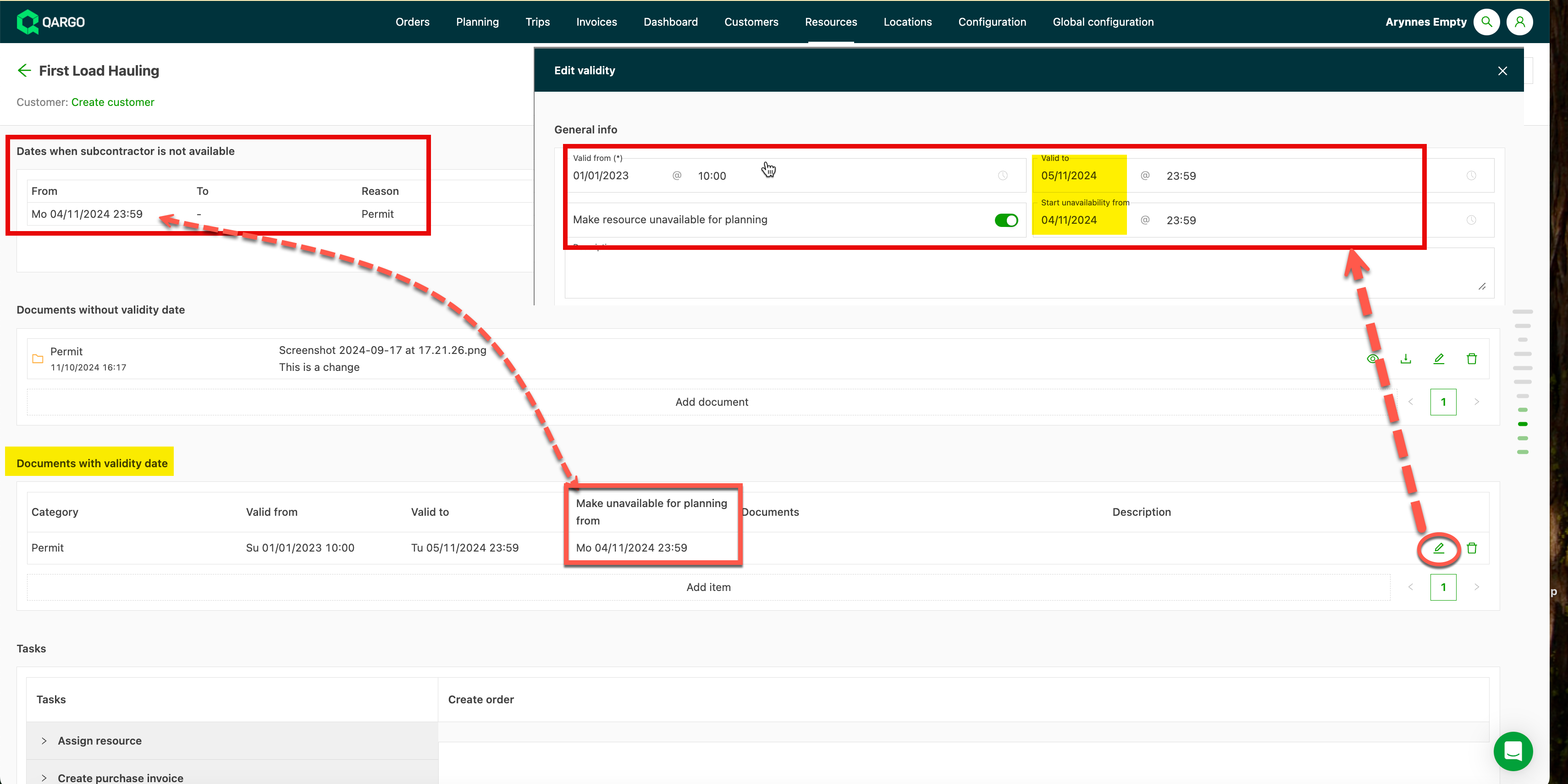
There are now 2 options for adding documents to contract carriers: with and without validity dates. A document type can be chosen in the dropdown list. Some examples of documents that can be added are:
- Driver’s licenses
- Certificates
- Technical examinations
- Insurance policies
When the Valid from/to dates are used together with the “Make resource unavailable” toggle, Qargo automatically adds this to the “Not available” schedule. The “Unavailable” date can be set manually ahead of the “Valid to” date to provide a window before the expiration dates and avoid potential planning issues. Otherwise, the Unavailable date defaults to the Valid to date.
Learn more about adding documents to resources
Keep selection order/sequence when merging loads (new)
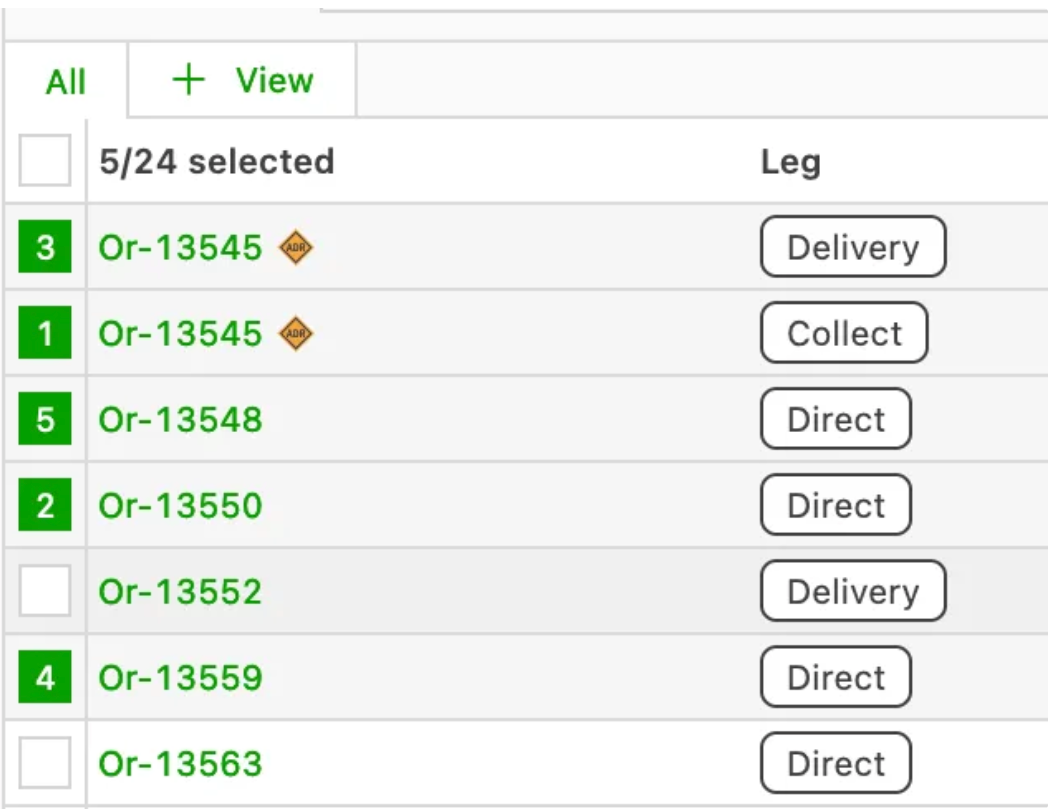
The order in which loads are selected is now kept when merging them together. This gives the user more control over how the resulting order is sequenced.
For example, take the following three loads:
- Pickup Gent -> Terminal Antwerp
- Pickup Hasselt -> Terminal Antwerp
- Pickup Brussels -> Terminal Antwerp
If they are selected in the order 2, 3, 1, the resulting load is:
- Pickup Hasselt -> Pickup Brussels -> Pickup Gent -> Terminal Antwerp
To indicate this, the selection numbering is now shown in both the To plan section and the legs view.
Enhancements – weeks 1–2
Importing credit memos now available.
Sending credit memo UBL files through the accounting export (via email) is now supported. Sales invoices were already supported, and more recently carrier invoices. Now that all types of invoices are covered, integrating with existing accounting integrations that support the UBL standard should be easier.
Typing in the date picker
Users can now type the date instead of always having to click the calendar.
Order detail – show custom fields
 :::