
Locations - Adding documents to a location and auto-share to the driver mobile app
Locations can have their own Documents section, such as driving instructions, site maps and access rules, so site paperwork does not have to be attached by hand to every order passing through that location, and reaches drivers automatically.
Terminology
| Term | Definition |
|---|---|
| Location document | A file uploaded directly to a location’s detail page |
| Location info for driver | Document type for driving instructions, site access info or special instructions |
| Communication | Any form of communication related to the location |
| Other | Catch-all document type for anything not covered by the above |
| Driver mobile app/carrier portal: documents | The Configuration screen that decides which document types reach the driver mobile app and the carrier portal |
| Contact tasks | A task that sends a communication (email, EDI, etc.) to a configured contact |
Prerequisites
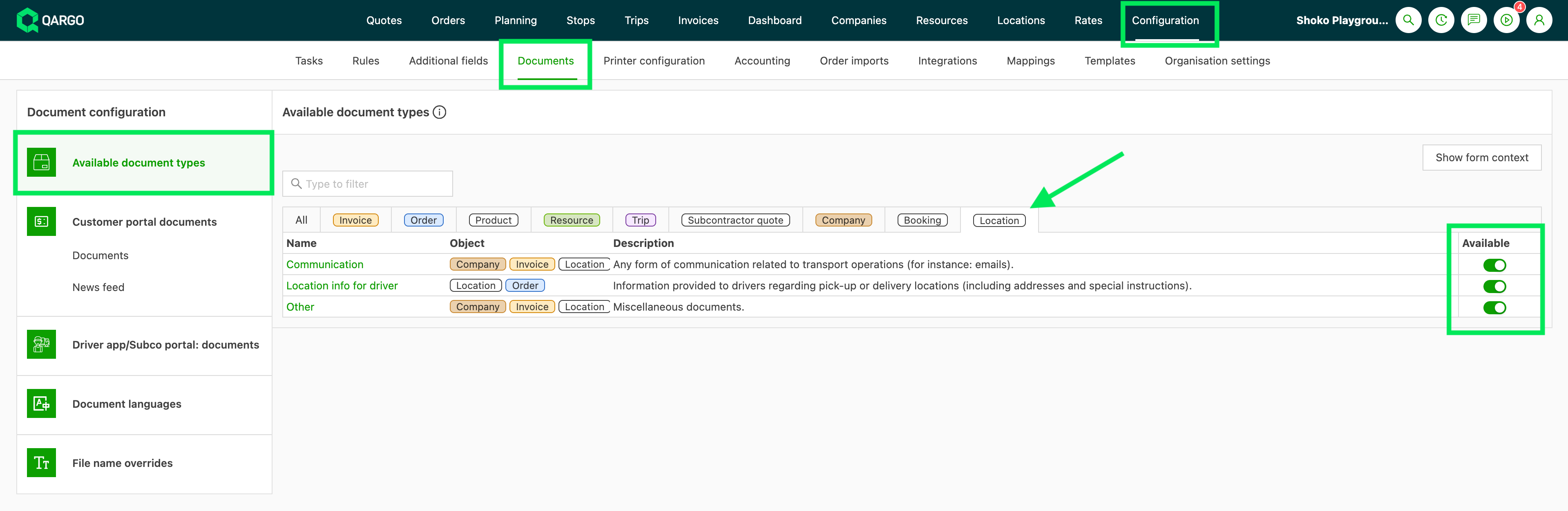
The available document types need to be enabled in the Documents section.
-
Navigate to Configuration > Documents.
-
Select Available document types from the side menu.
-
Click the Location tab.
-
Enable the location document types.
-
Save.
Adding a document to a location
-
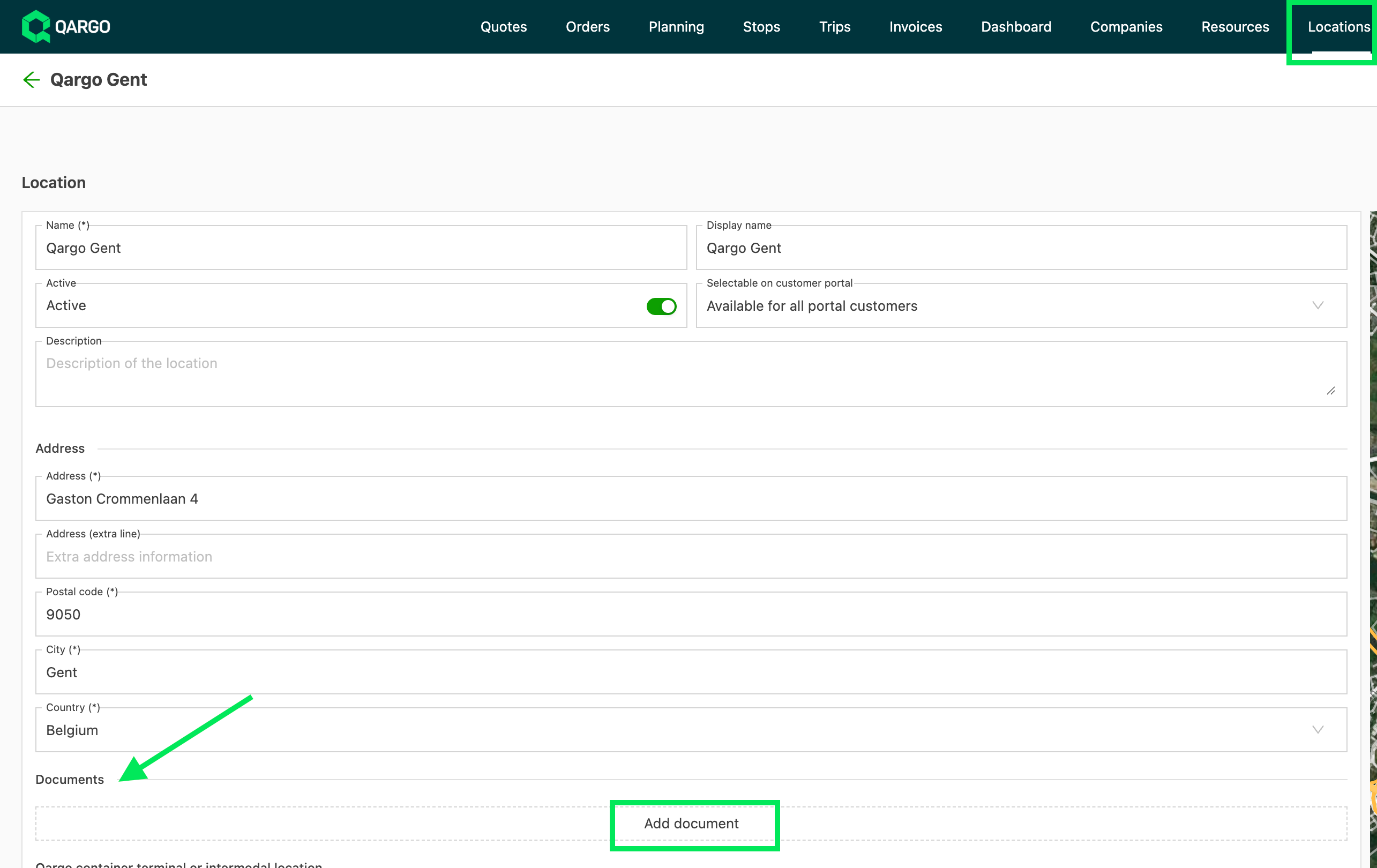
Navigate to Locations > Locations.
-
Open the relevant location to add a document.
-
Scroll to the Documents section, directly under the Address section.
-
Click Add document.
-
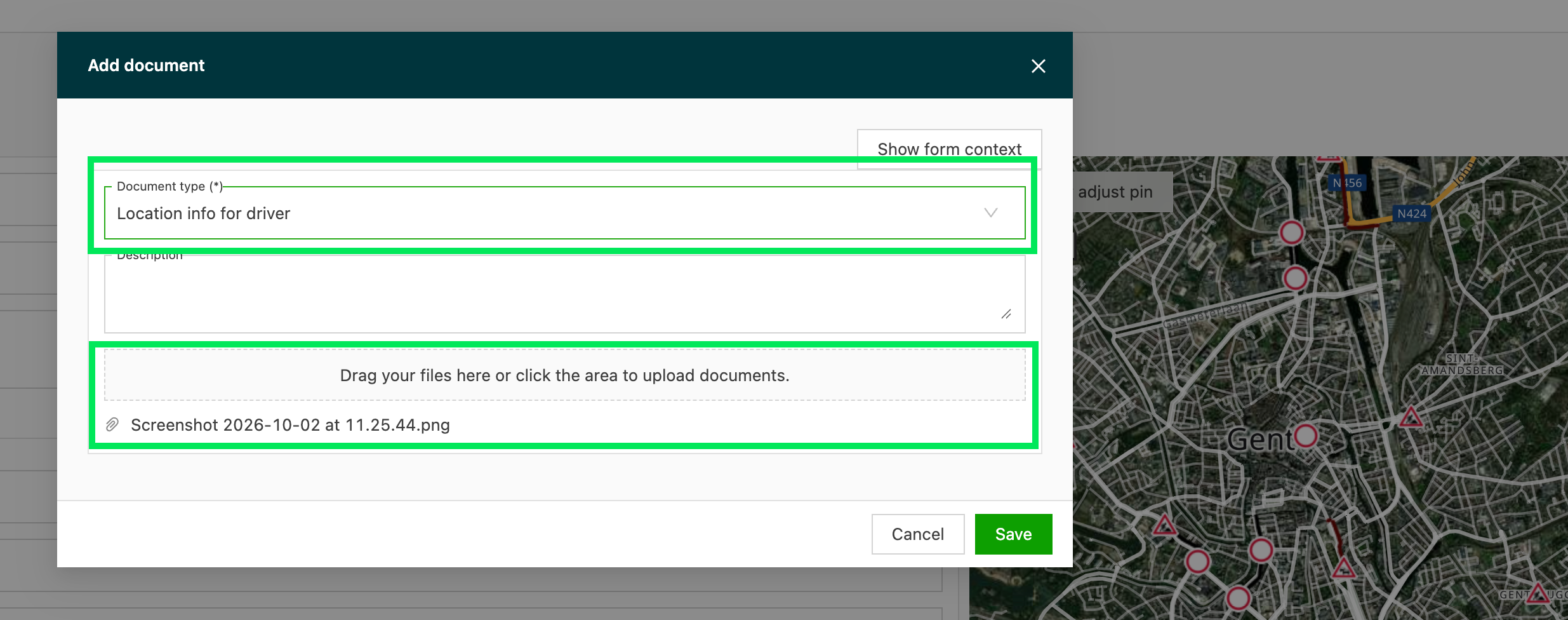
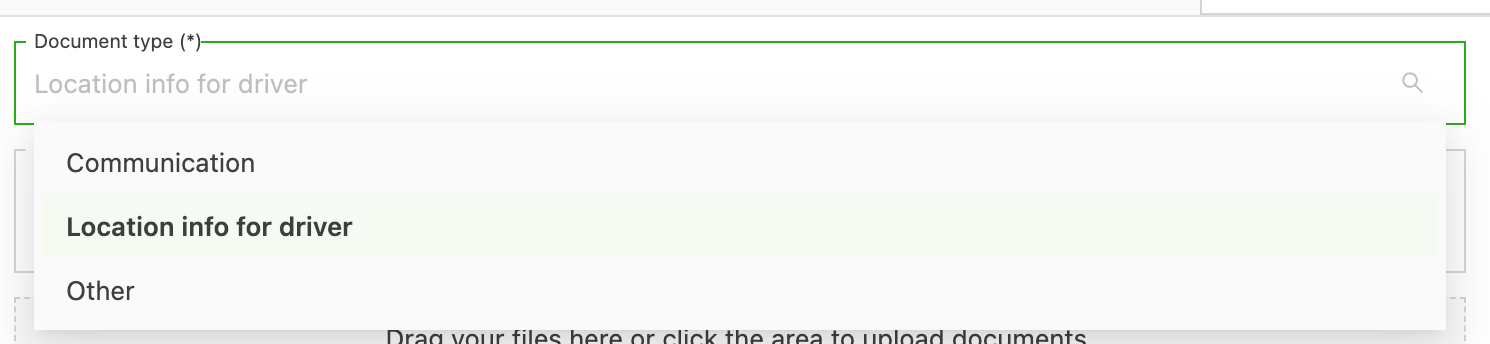
Choose a document type (Location info for driver, Communication or Other), then upload a file.
-
Save.
-
Click the Eye icon to preview it in the right-hand panel.
Sharing with drivers and contract carriers
-
Navigate to Configuration > Documents.
-
Select Driver mobile app/carrier portal: documents.
-
Click the Location tab.
-
Enable the location document types that should reach drivers and contract carriers.
-
Save.
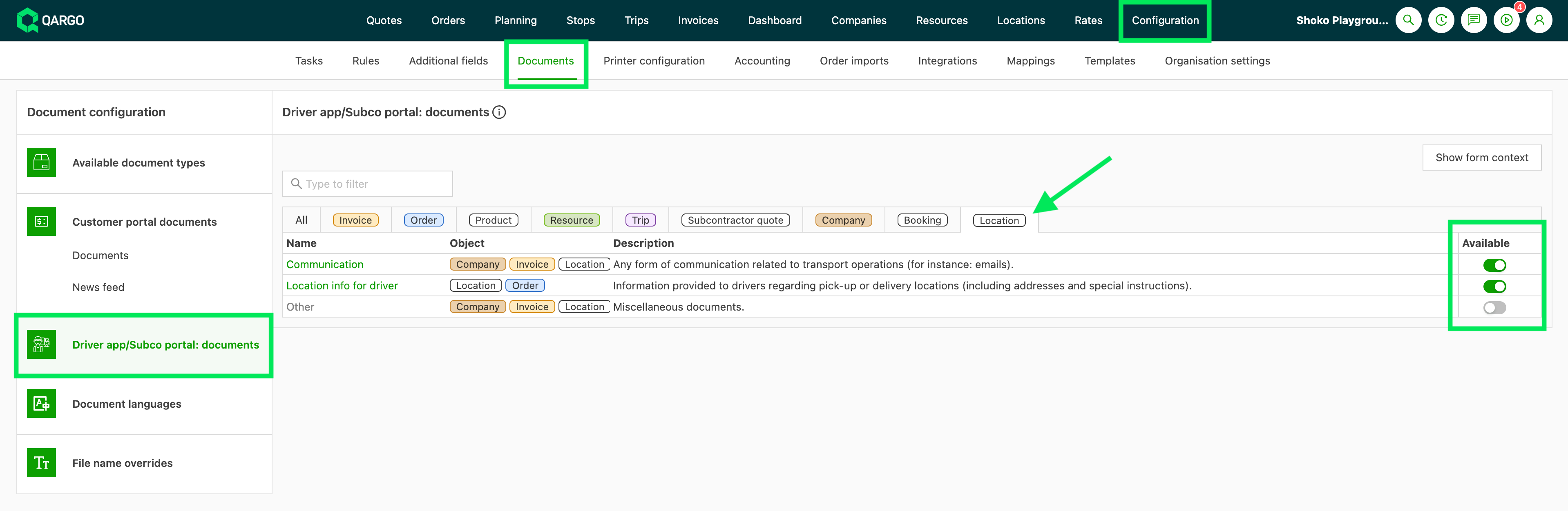
Once toggled on, every stop at that location automatically shows the uploaded documents to the driver (driver mobile app) and to any contract carrier (carrier portal). See Document visibility on the mobile app and Carrier portal - Document configuration.
Troubleshooting
| Issue | Resolution |
|---|---|
| The needed document type isn’t in the dropdown on the location. | Enable it for the Location object in Configuration > Documents > Available document types. |
| A driver or contract carrier doesn’t see the document. | Confirm that the document type is enabled under Driver mobile app/carrier portal: documents (Location tab), and that the load was dispatched after the document was added. |
| There’s no option to set an expiration date. | Location documents don’t support validity dates. Remove or replace the file manually when it’s out of date. |