
Feature release October 2025
This article highlights the new features and enhancements released by Qargo this month.
Week 1
Customs & intermodal PBN/GMR code sync
Order group consolidation
Week 2
🎥 Watch this week’s video summary
Configuration: Enhanced location data import
Planning: Improve visibility for containers (import / export) on the planning board
Planning: Display custom fields by freight
Week 3
🎥 Watch this week’s video summary
Auto assign resources with Excel tables
Always-skip task: Skip on creation
Week 4
🎥 Watch this week’s video summary
Documents: Refresh & download function
Orders: Bulk action – add incidents
Orders: Contract carrier quotes
Week 1
Customs & intermodal PBN/GMR code sync
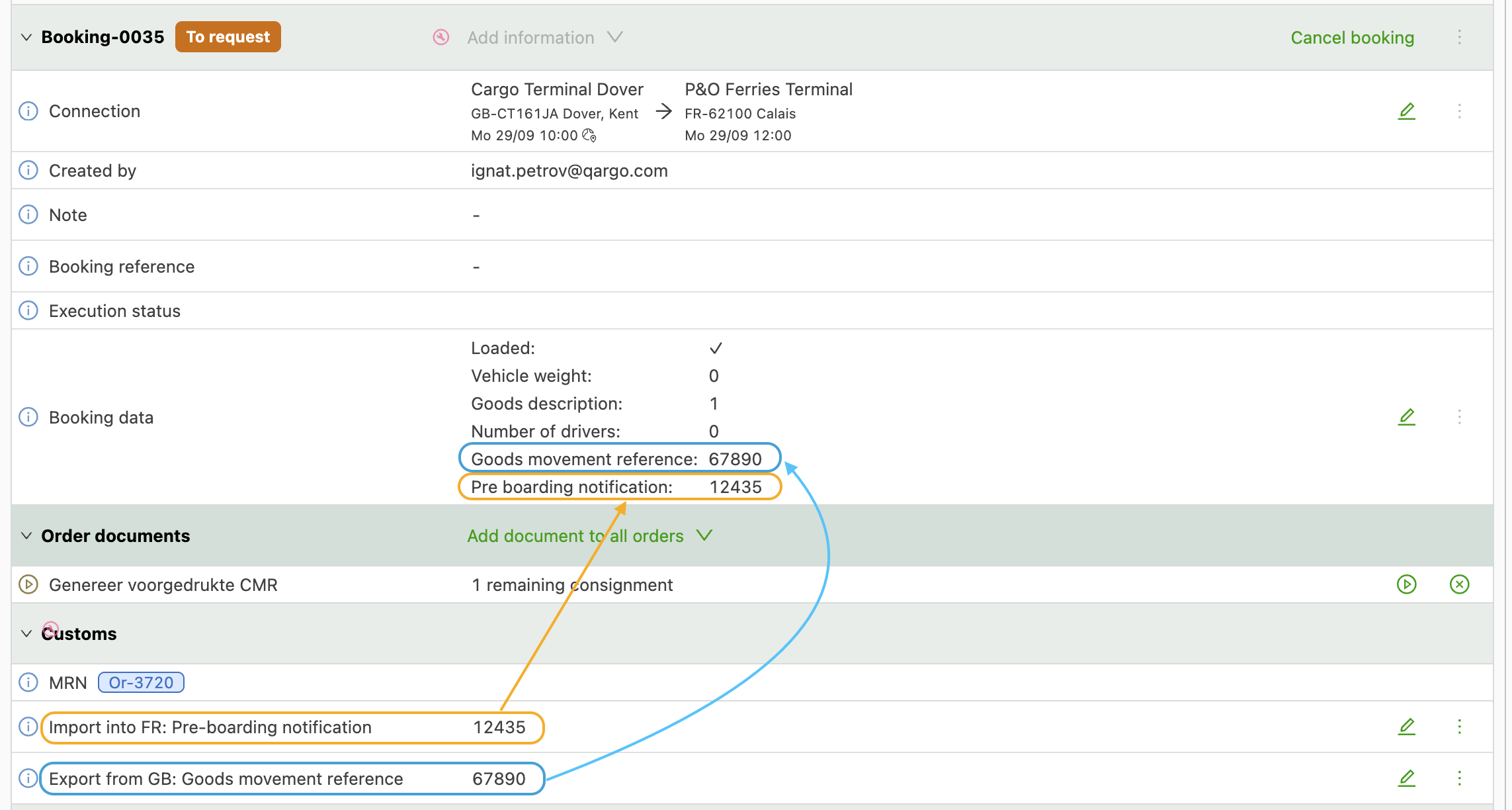
Qargo now features Customs & intermodal code synchronization, a powerful automation tool that eliminates manual data entry. It automatically syncs PBN and GMR codes between matching intermodal and customs bookings.
🧩 What’s new
Qargo has implemented two-way synchronization for essential customs data, making cross-border intermodal planning seamless:
- Intermodal booking creation: Whenever a new intermodal booking is created, the system automatically checks for existing customs bookings with the same source and target countries. If a match is found, it populates the PBN and GMR codes.
- Customs booking updates: The system now constantly monitors customs bookings. Whenever a customs booking is created, updated, or deleted, the system automatically looks for the matching intermodal bookings and updates their PBN and GMR codes accordingly.
🧪 Use cases
When PBN/GMR codes are entered into a customs booking, Qargo instantly and automatically updates the corresponding intermodal booking. This ensures border control data is accurate across both records.
Order group consolidation
This new feature makes it possible to manually link several related orders together into one Order group. This makes complex billing easy, because a single, consolidated price can be applied across all grouped orders.
🧩 What’s new
-
Simple grouping: Order groups can now be created to gather related shipments or tasks together. Orders can be added to a group during creation or at any time using a quick action.
-
Flexible consolidated billing: It is now possible to choose exactly how a consolidated price is applied to the group:
-
Flat charges: Take a single fixed charge and either split it evenly across all orders or assign the total amount to just one order for simplified billing.
-
Metric-based charges: For charges based on metrics (like distance or wait time), the total cost can be:
- Divided by metric: Split the total cost among orders based on the distance or weight of each individual order.
- Split equally: Divide the total cost evenly among all orders in the group.
-
🧪 Use cases
A large project can include many shipments but have one final contract price. In that case, all related orders can be grouped and invoiced together without losing track of details.
Week 2

Configuration: Enhanced location data import
Enhanced location data import offers quick and efficient updates to locations, including critical configuration fields and detailed schedules, via a simple Excel upload.
🧩 What’s new
The location import functionality is expanded to support several key configuration fields:
-
Display name: Set a user-friendly name for a location.
-
Customer portal availability: Control which imported locations are visible and selectable via the customer portal.
-
Custom fields: Import stop pre-fill data using key-value pairs. This instantly populates specific information when that location is used.
-
Opening hours: Import complex operational schedules by adding multiple time intervals for different days of the week. This ensures planners have the most accurate access information
- Required format:
HH:mm-HH:mm
- Required format:
🧪 Use cases
- Directly import complex operational Opening hours for different days and multiple time intervals, so planners always rely on accurate location access schedules.
- Use the enhanced import to upload Custom field data. This improves pre-fill accuracy for stops and reduces manual entry.
🚢 Planning: Improved visibility for containers (import / export)
Enhance the planning experience with greater visibility for container movements. Easily identify import / export status directly within planning views and load details.
What’s new
-
Import/export status display
- For sea containers and owned containers, the Import / export status now appears in the Planning block movement details.
- Available as a column option in the Planning table view.
How to use
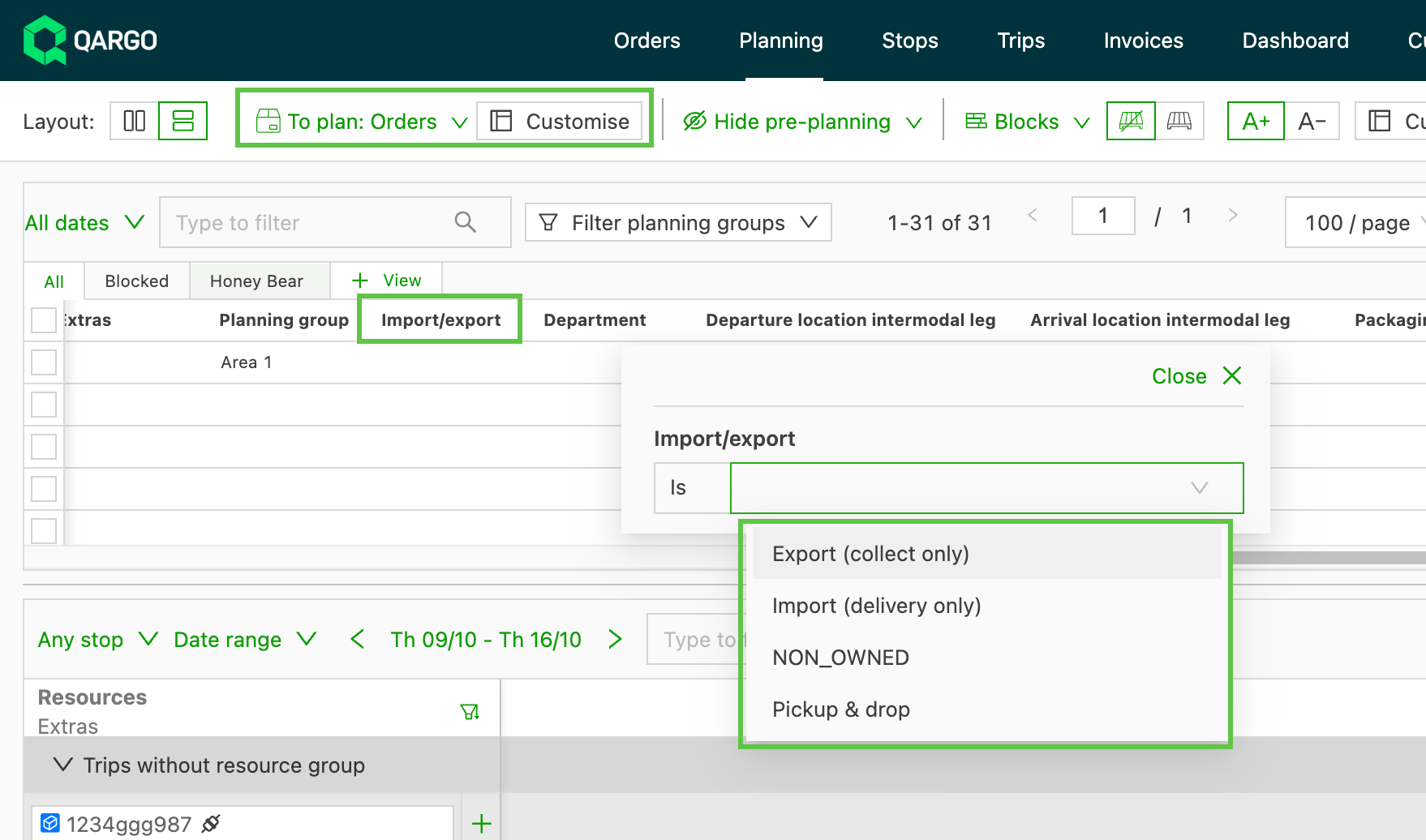
- In the Planning table view, click ‘Customize’ to toggle on the new ‘Import/export’ column.
- The Import/export column header is filterable. This makes it possible to quickly sort and view containers based on their status.
In load views
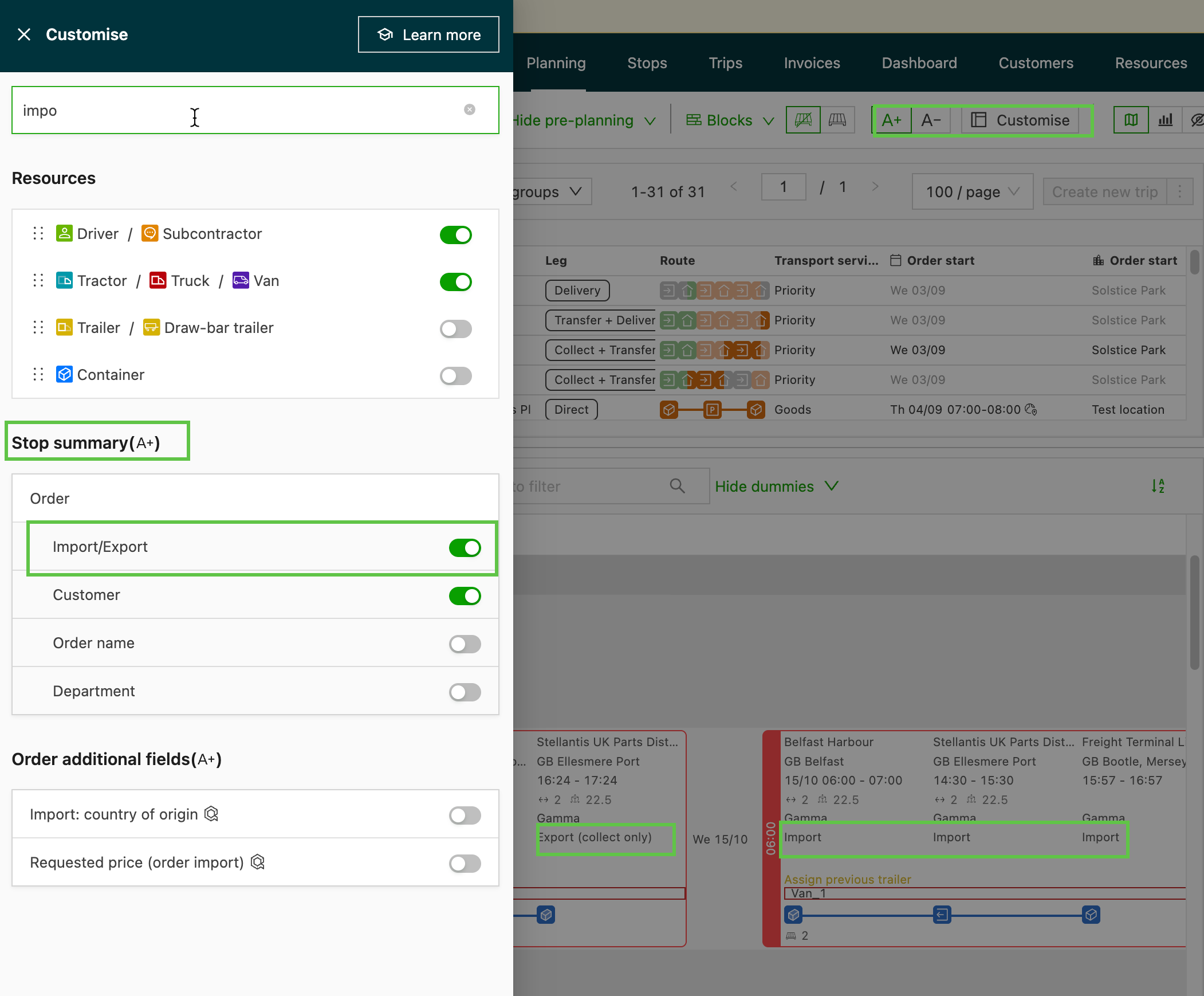
- Available in both Minor (A-) and Major (A+) views.
- Use the ‘Customize’ button to enable Import/export details in the load view.
- The Load block now displays Import/export information derived directly from the order.
Benefits
- Improved clarity when planning and tracking container movements
- Faster identification of import/export tasks within both table and load views
- Customizable display options to suit each workflow
📦 Planning: Display custom fields by freight
Display custom fields based on freight (goods) for improved visibility in load planning. Multiple shipments can be part of the same order but planned into separate loads. In that case, custom values are now shown per load stage, rather than for the overall order.
🧩 What’s included
-
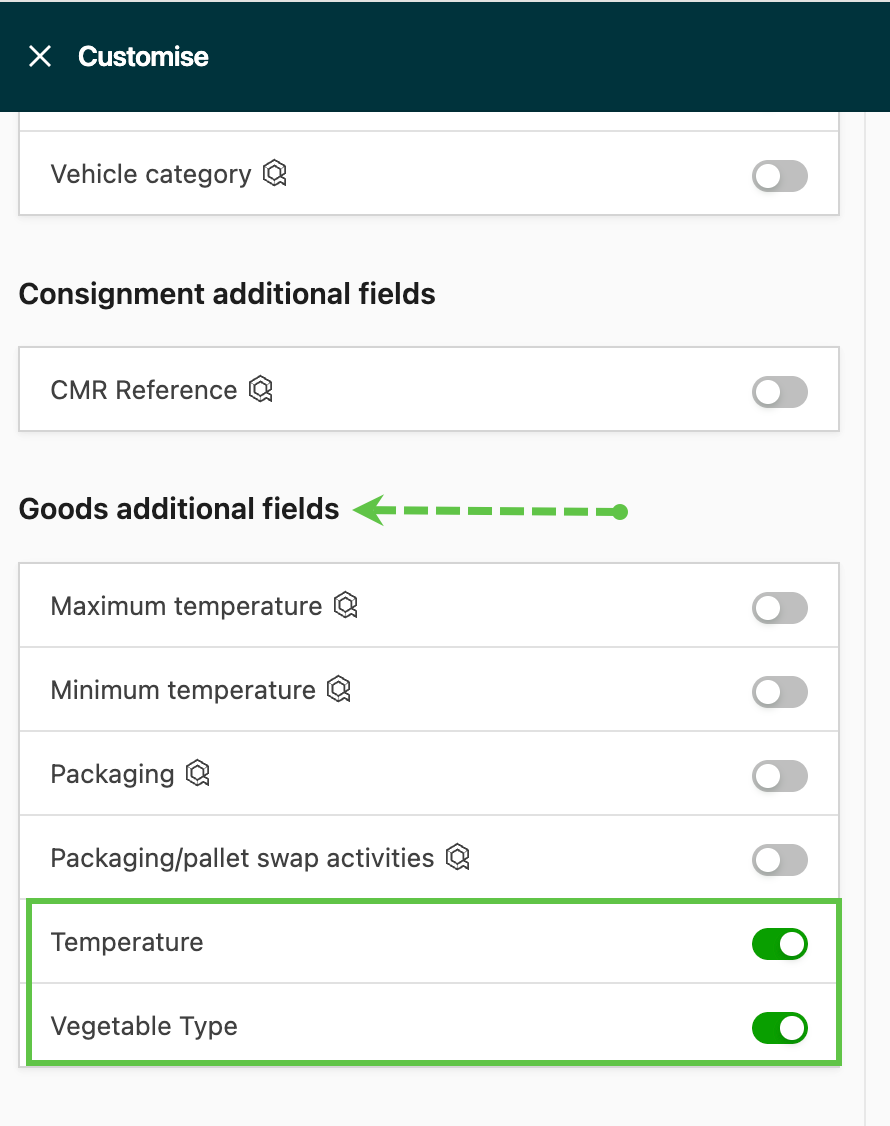
Custom fields based on freight details can now be displayed in the Load planning view.
-
Use the ‘Customize’ button to add custom field column(s) to the planning table.
-
Use the ‘Plan onto separate load’ option to separate shipments and improve visibility for each individual load.
-
Once separated, custom fields display per shipment. This helps planners identify and group compatible goods more easily.
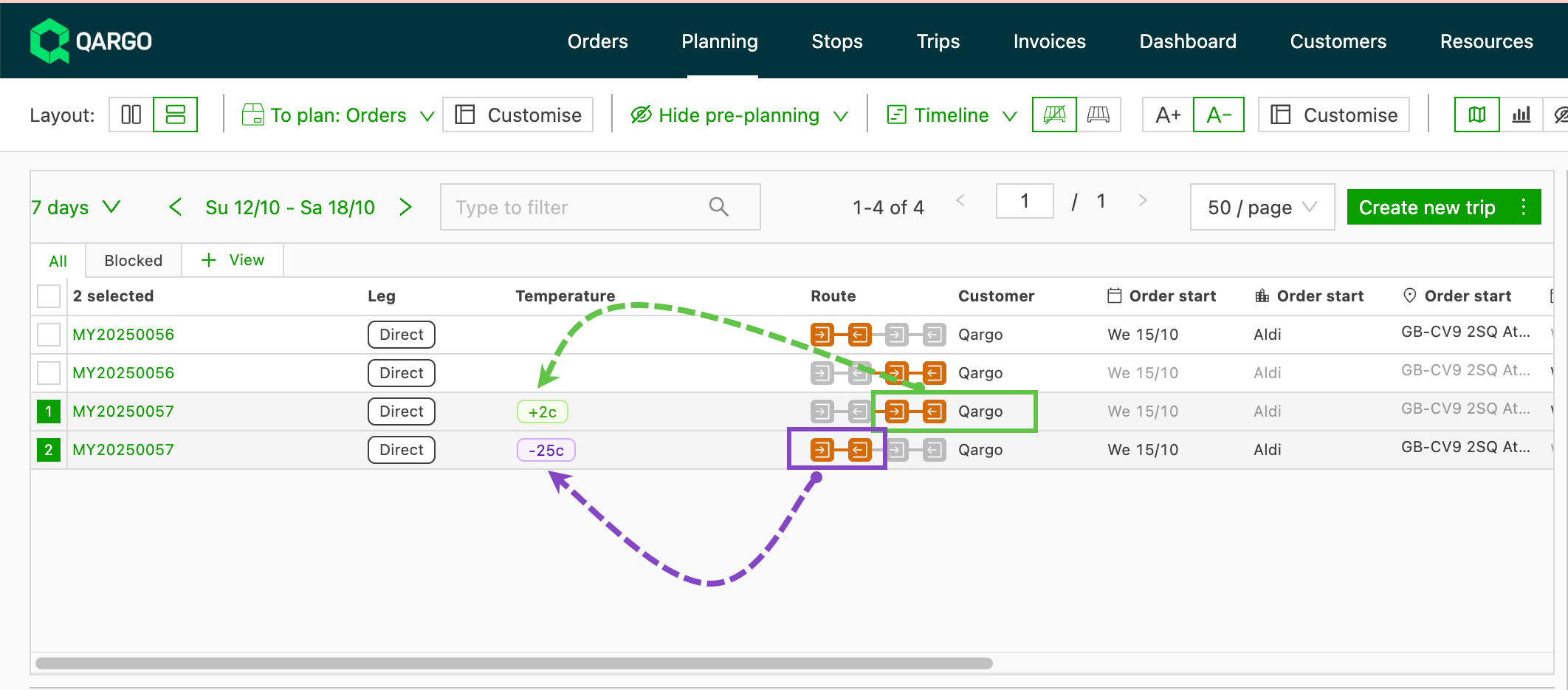
🧪 Use cases
- For example, a custom field at freight level indicates temperature, and an order includes multiple shipments with different temperature requirements:
After splitting the order, planners can immediately see which shipments can be transported together based on those temperature settings.
🔍 Limitations
- Currently, custom field visibility applies only within the Load planning table view.
- The relevant custom fields must be configured at the Freight level to appear here.
📌 Customer impact
- Improved visibility of shipment-level details.
- Greater planning accuracy and efficiency, reducing the risk of incompatible load assignments.
Week 3
📊 Planning: Auto assign resources with Excel tables
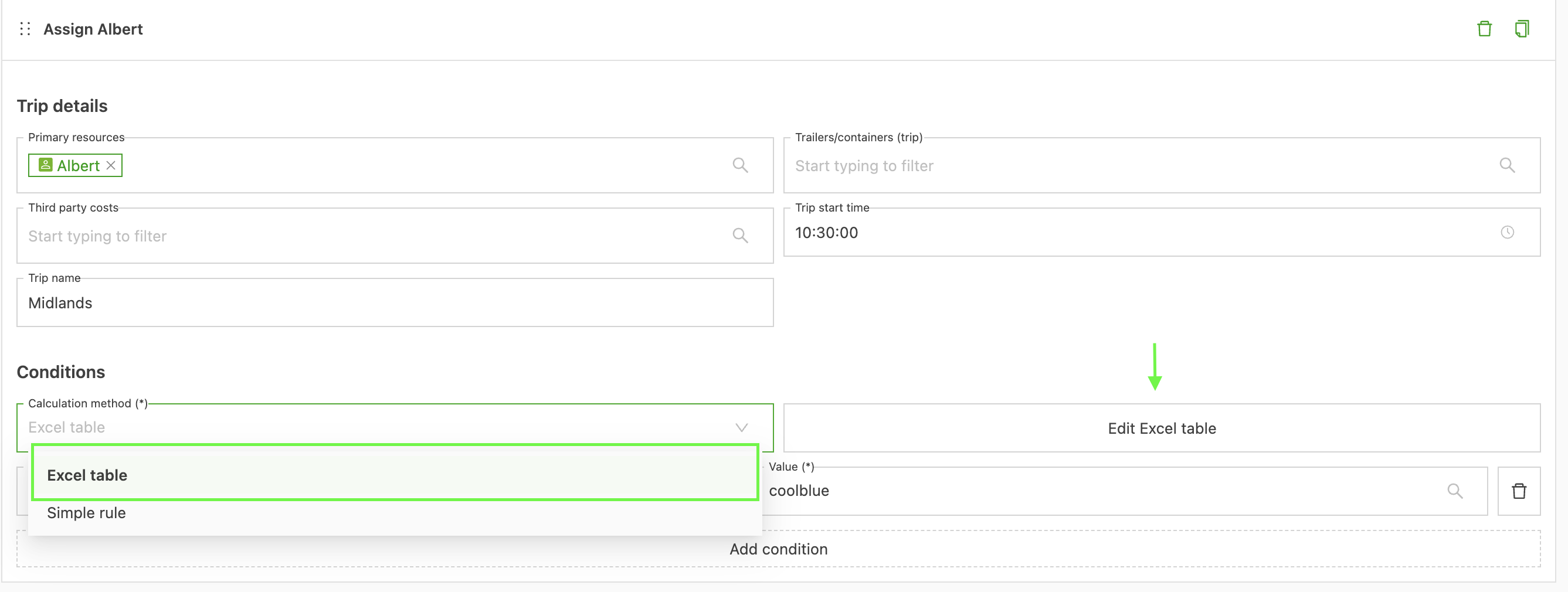
This feature significantly enhances resource planning. It makes it possible to create resource assignment conditions using Excel tables. Planning accuracy improves because the correct resource is auto assigned to the load based on multiple, defined conditions.
🧩 What’s new
The Auto assign resources functionality has been extended with the following key updates:
- Excel table: The new Excel table calculation method is available for establishing assignment conditions. It supports more complex conditions than simple rules.
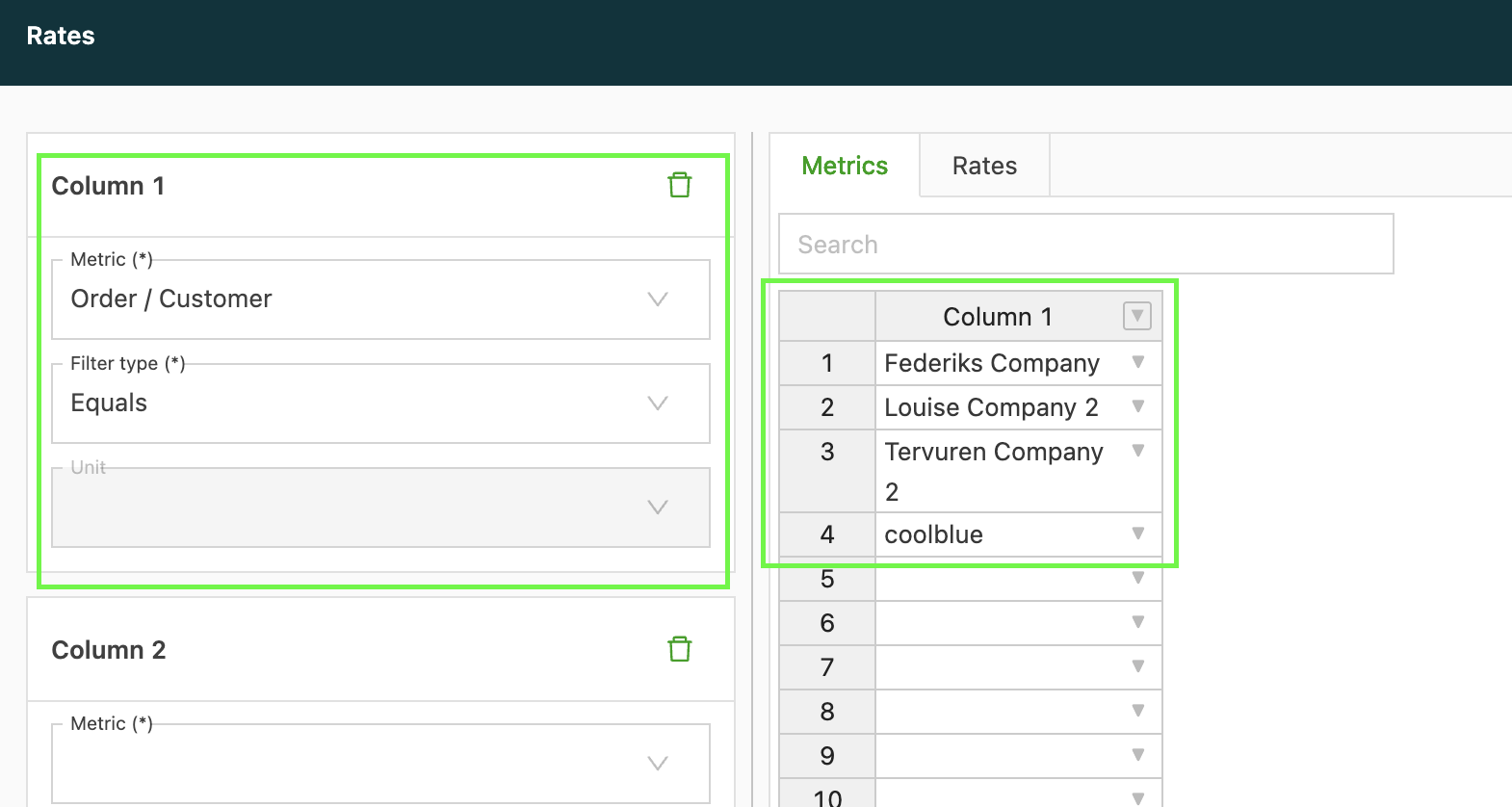
- Combined conditions: Table rules can still be combined with additional simple conditions for maximum flexibility.
🧪 Use cases
- Simplified onboarding: Complex internal rules for new customers or partners can be configured rapidly by uploading a single table.
- Zone-based fleet allocation: A table maps multiple ZIP code zones against different vehicle types. This guarantees the correct capacity is assigned by delivery area.
📵 Configuration: Auto-skipped tasks hidden on the driver mobile app
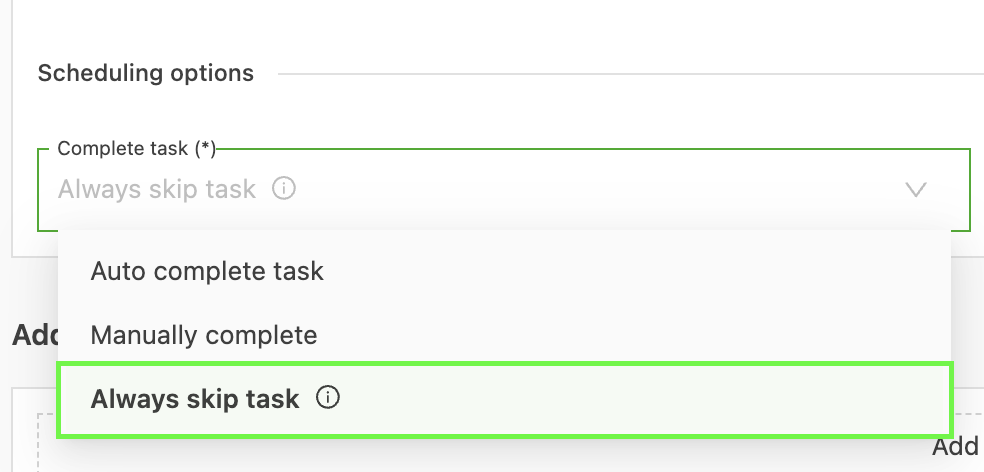
Tasks marked as ‘Always skip task’ in the scheduling options are now automatically hidden from the Qargo driver mobile app when created. This keeps the driver’s task list clean, showing only actions that require the driver’s intervention.
Week 4

Documents: Refresh & download function
Regenerate key documents quickly and easily to work faster and keep operations moving efficiently. Retrigger and download documents instantly, right from the document’s timestamp.
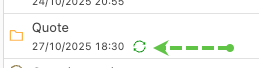
A new “Retrigger” button regenerates documents with one click, using the same settings as the last generation. There is no need to open the retrigger task modal unless making changes. This update saves time and keeps the workflow seamless.
⚙️ How it works
- Find the timestamp on the document.
- Click the new Retrigger button next to it.
- The document automatically regenerates using the same configuration as before.
- Download it instantly and get back to what matters most: keeping trucks on the road.
📚 Pro tip
To adjust the document’s setup or change parameters, the document can still be retriggered the original way via the retrigger task modal.
Orders: Bulk action – add incidents
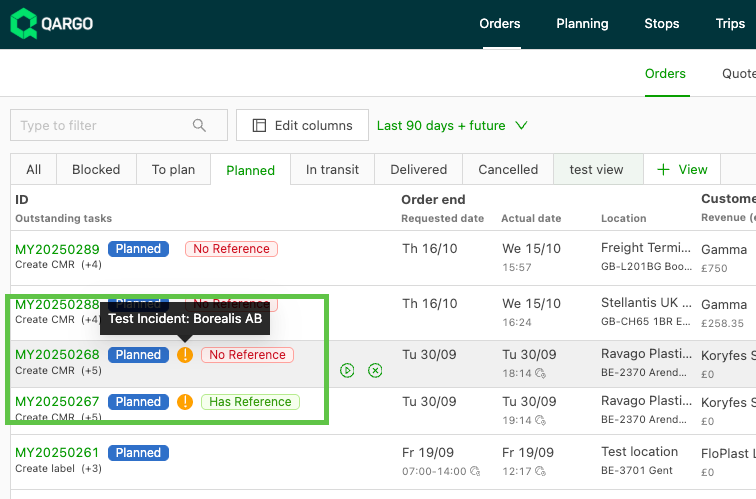
An incident can occur at a specific stop, such as a delay, damaged goods, or a missed delivery window. It often affects every order linked to that location.
With this update, it is now possible to log the incident once and automatically apply it to all relevant orders. This reduces manual entry and improves data consistency.
The incident will be:
- Added directly to the stop on the load.
- Displayed individually on each order linked to that stop.
This ensures full visibility and consistency across all related orders, without entering the same information multiple times.
Orders: Contract carrier quotes
The new Contract carrier bidding functionality centralizes the process of sourcing and managing contract carrier bids. It moves bid tracking out of external email chains and directly into the transport workflow. This feature enhances operational efficiency by automating the critical steps from quote approval to load operations.
🧩 What’s included
-
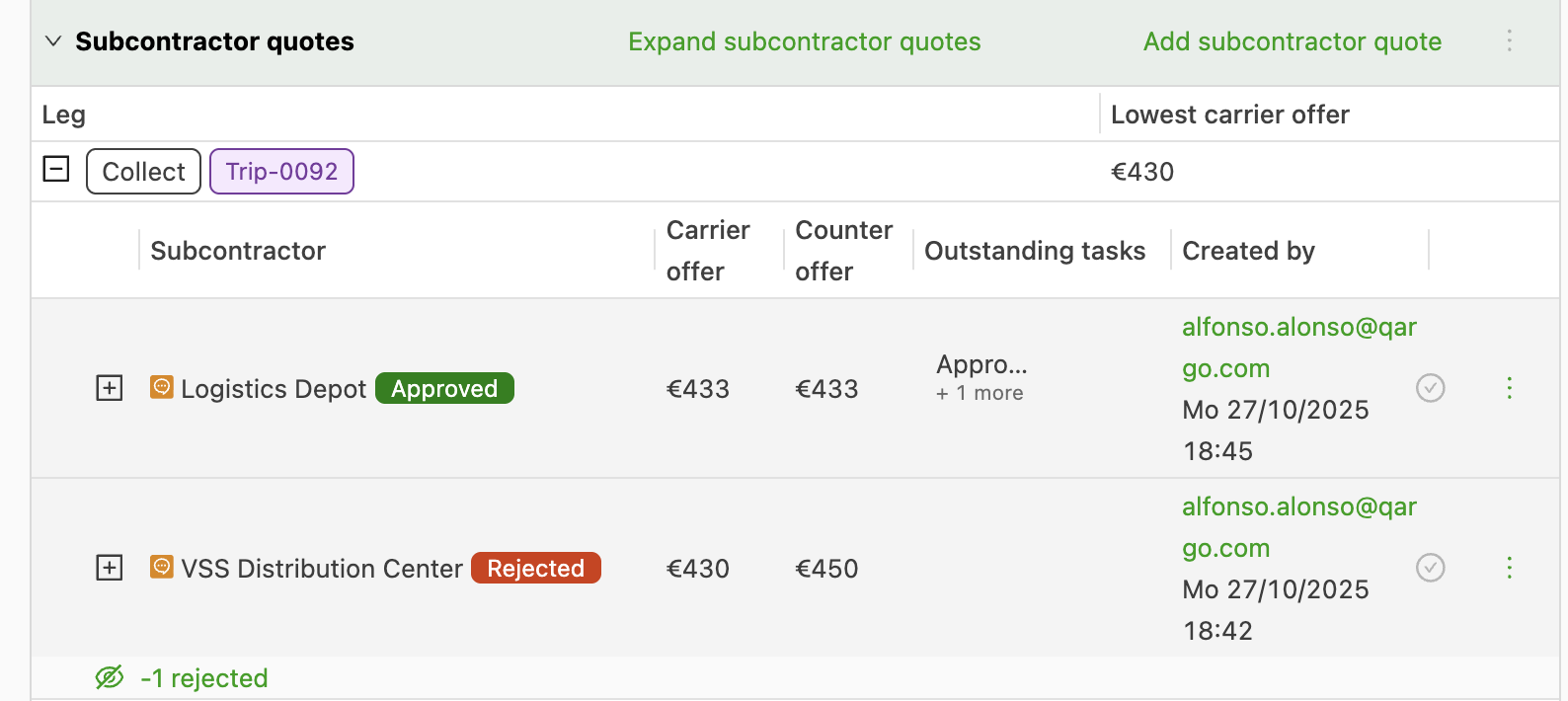
The Order view now includes a dedicated section for Contract carrier quotes. This section makes it possible to log multiple contract carrier offers and counter-offers against a specific order leg.

-
Quotes are tracked with a status of ‘To request’, ‘Rejected’, or ‘Approved’.
-
Workflow automation is triggered upon approval: the system automatically creates a load, assigns the contract carrier as the resource, and rejects all other competing quotes for that order leg.
-
An optional approval flow can be configured via Configuration > Tasks > Loads.
-
A new column has been added to the Planning module. It helps quickly identify orders with outstanding quotes and provides a quick option to Accept or reject bids directly from the planning table.
🔍 Limitations
- A centralized table or overview of all outstanding bids and contract carrier quotes is not available yet.
- The platform currently allows manual planning of orders that have outstanding quotes. In such cases, the system does not display warnings or alerts.
📌 Customer impact
- Centralized and streamlined management of the entire bidding process.
- Significant reduction in manual administrative effort and email tracking.
- Increased control and speed in converting an approved quote into a confirmed, planned load.
:::