
Orders – order groups
Order groups consolidate multiple individual orders into a single, manageable unit for streamlined oversight and operation
Table of contents
Click the video below for a full walkthrough on how to set up this functionality

Order groups is a powerful feature in Qargo that allows users to bundle different orders together and manage them as a single unit. This is particularly useful for handling complex jobs or multiple deliveries to the same client.
A common use case for this feature is when a user needs to consolidate multiple orders for a single client. This makes it easier to track and manage the entire delivery process.
📖 Key terminology
- Order groups: A feature in Qargo that allows users to bundle different orders together and manage them as a single unit.
- Configuration module: The section in Qargo where users can adjust settings and enable features like order groups.
- Orders module: The section in Qargo where users can create, manage, and track orders.
📑 Workflow steps
Once the order groups feature is activated, users can start creating and managing order groups:
1. Go to the Orders module, click the newly enabled Order groups tab, and then click the Create order group button.

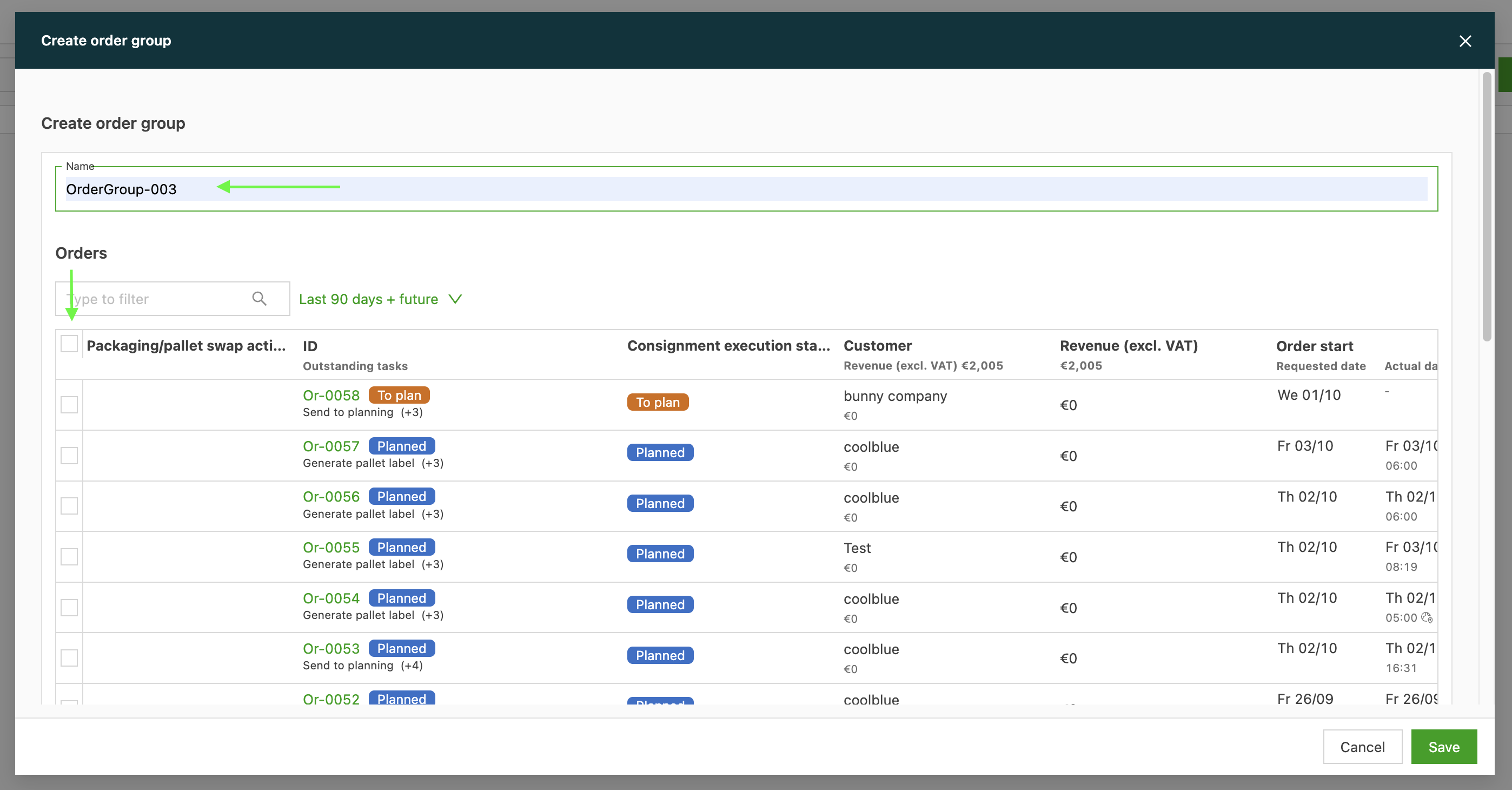
2. Enter a name for the group and select the orders to include. Click Save
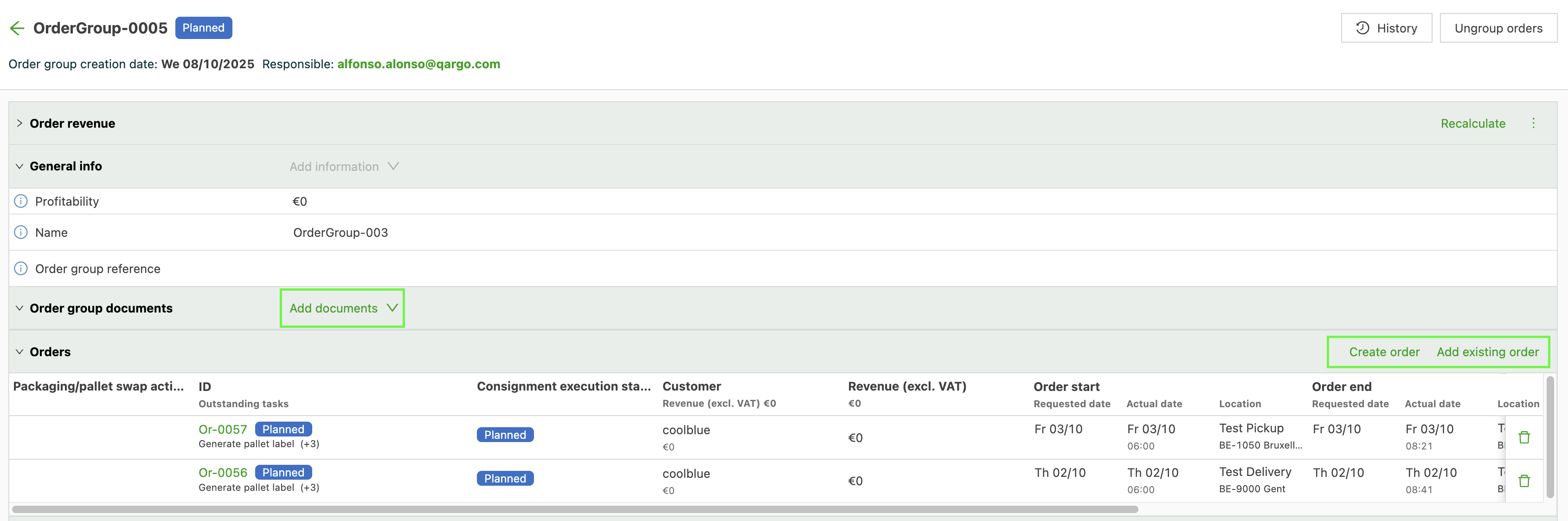
On the main order group page, everything can be managed in the order section. New or existing orders can be added to the group at any time, and relevant documents can even be added directly to the order group itself.
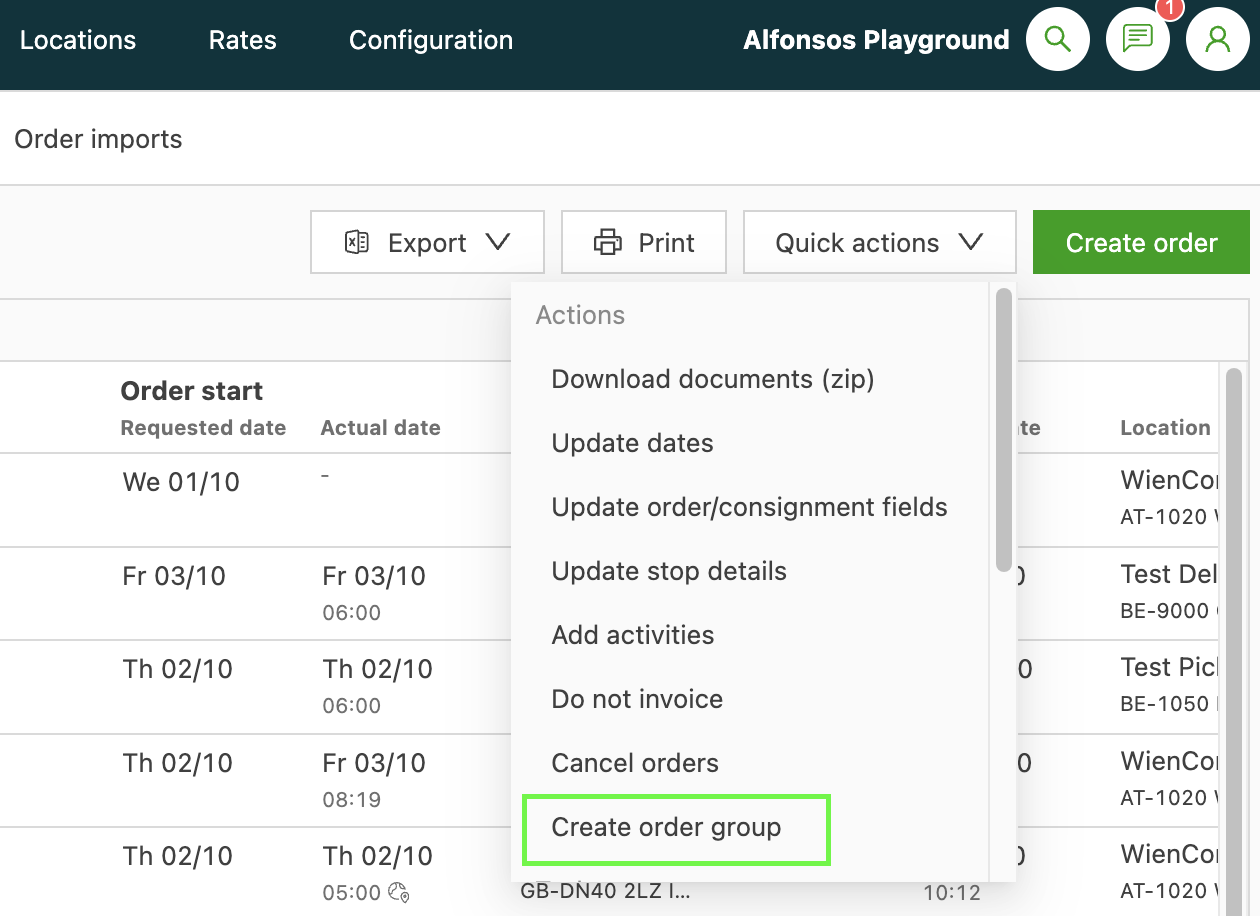
From the main Orders tab, a quick action menu next to any existing order can be used to create a new order group and include that order immediately.
To link an order to a group while creating it:
1. Go back to the Configuration module and select Additional fields. Then click Orders and look for the Order group field.
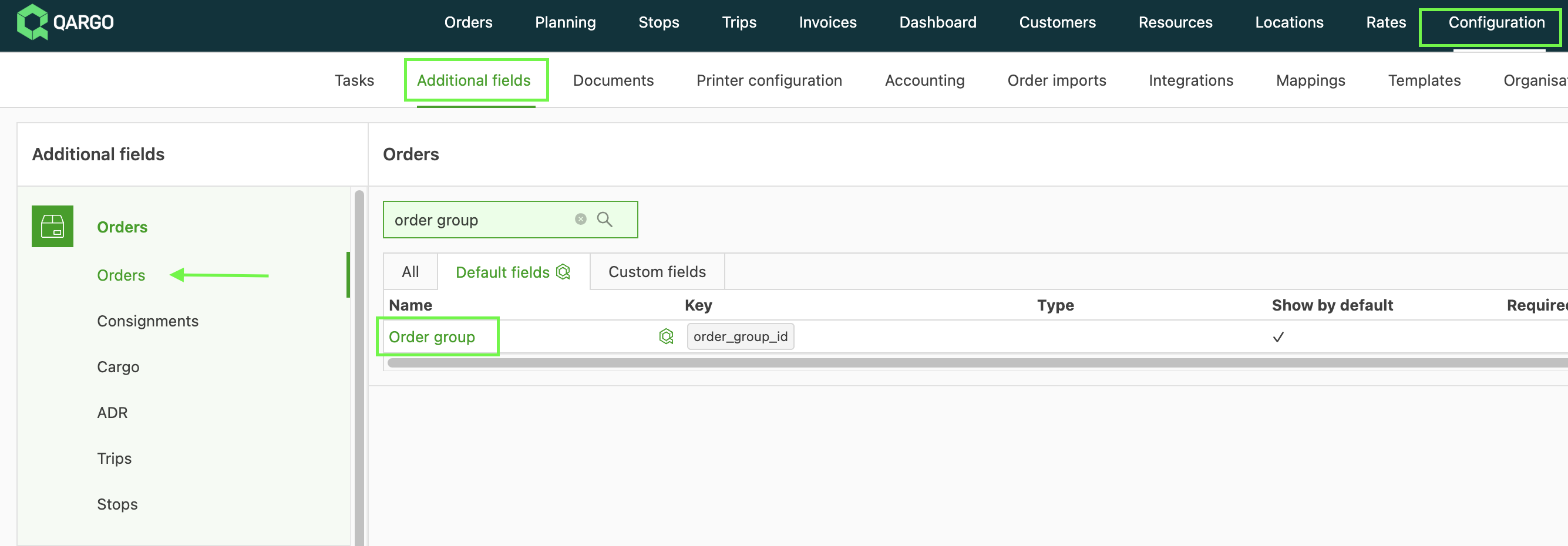
2. Activate it and turn on Always show. Click Save.
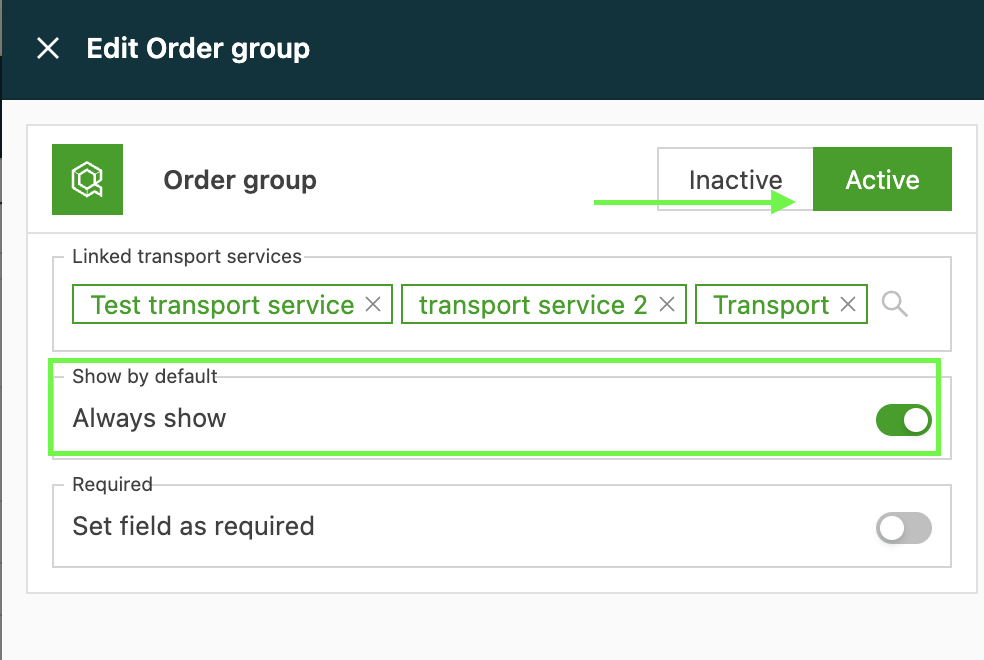
Now, when a single Order is created, the Order group field appears right there, so the order can be assigned instantly.
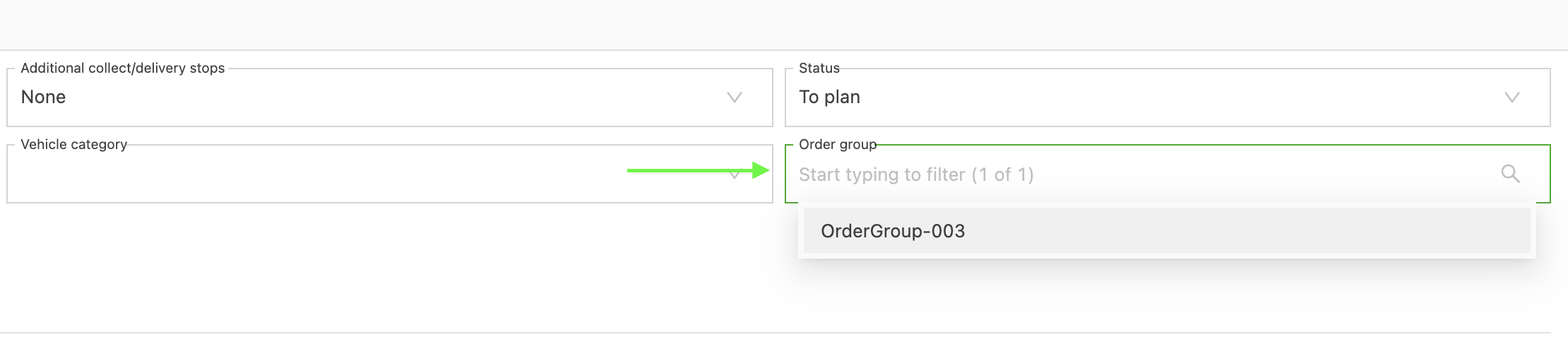
📝 Additional use case examples
- Project management: Use order groups to manage complex projects that involve multiple orders. This helps streamline operations and reduce administrative overhead.
- Client deliveries: If a client has multiple orders, use order groups to consolidate these orders. This makes it easier to track and manage the delivery process.
The order groups feature is a powerful tool that can help streamline operations, reduce administrative overhead, and provide a clearer overview of complex projects. This guide aims to help users understand how to use this feature effectively.