
Templates: setting up groupage CMRs
This article provides a video walkthrough and step-by-step instructions on how to set up and configure the groupage CMR document functionality.
Table of contents
Click the video below for a full walkthrough on how to set up this functionality.
This guide introduces the groupage CMR document functionality in Qargo. The feature generates a separate CMR document for each delivery stop when a single load involves multiple deliveries and terminal unloads. This simplifies paperwork for complex groupage operations.
📖 Key terminology
- CMR: Convention on the Contract for the International Transportation of Goods by Road. This is a standard shipment note used throughout Europe for road transport.
- Groupage: A method of transporting shipments from multiple customers in a single vehicle to maximize space and efficiency.
- Template: A predefined format for documents that ensures consistency when generating paperwork such as CMRs.
- Task: An automated or manual workflow action set up in Qargo, often used for document generation or operational processes.
🛠️ Configuration
To activate and set up the groupage CMR functionality, follow these steps:
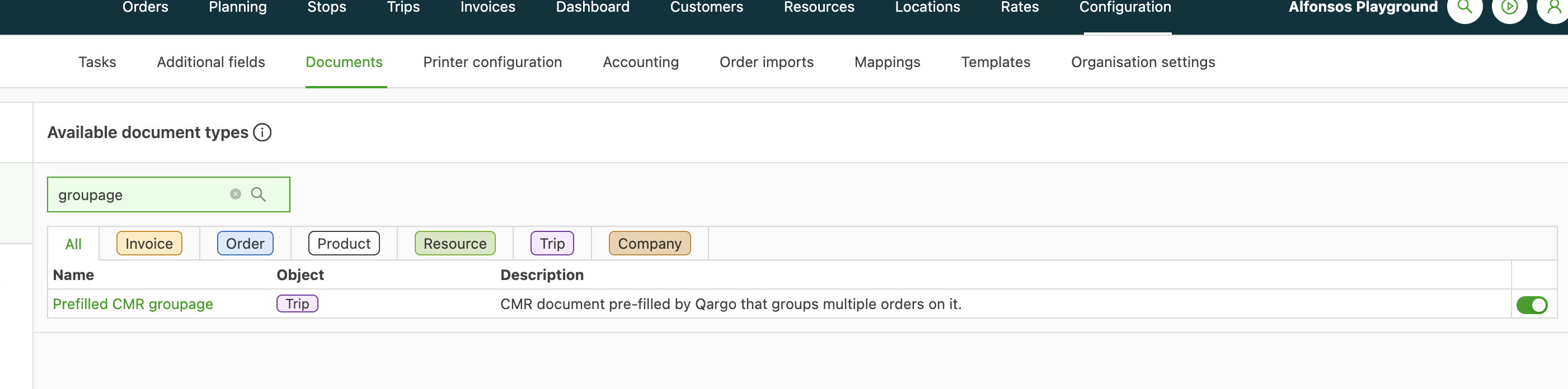
1. Enable the groupage CMR document type
- Navigate to the Configuration module and click the Documents tab.
- Enable the Pre-filled CMR Groupage document.
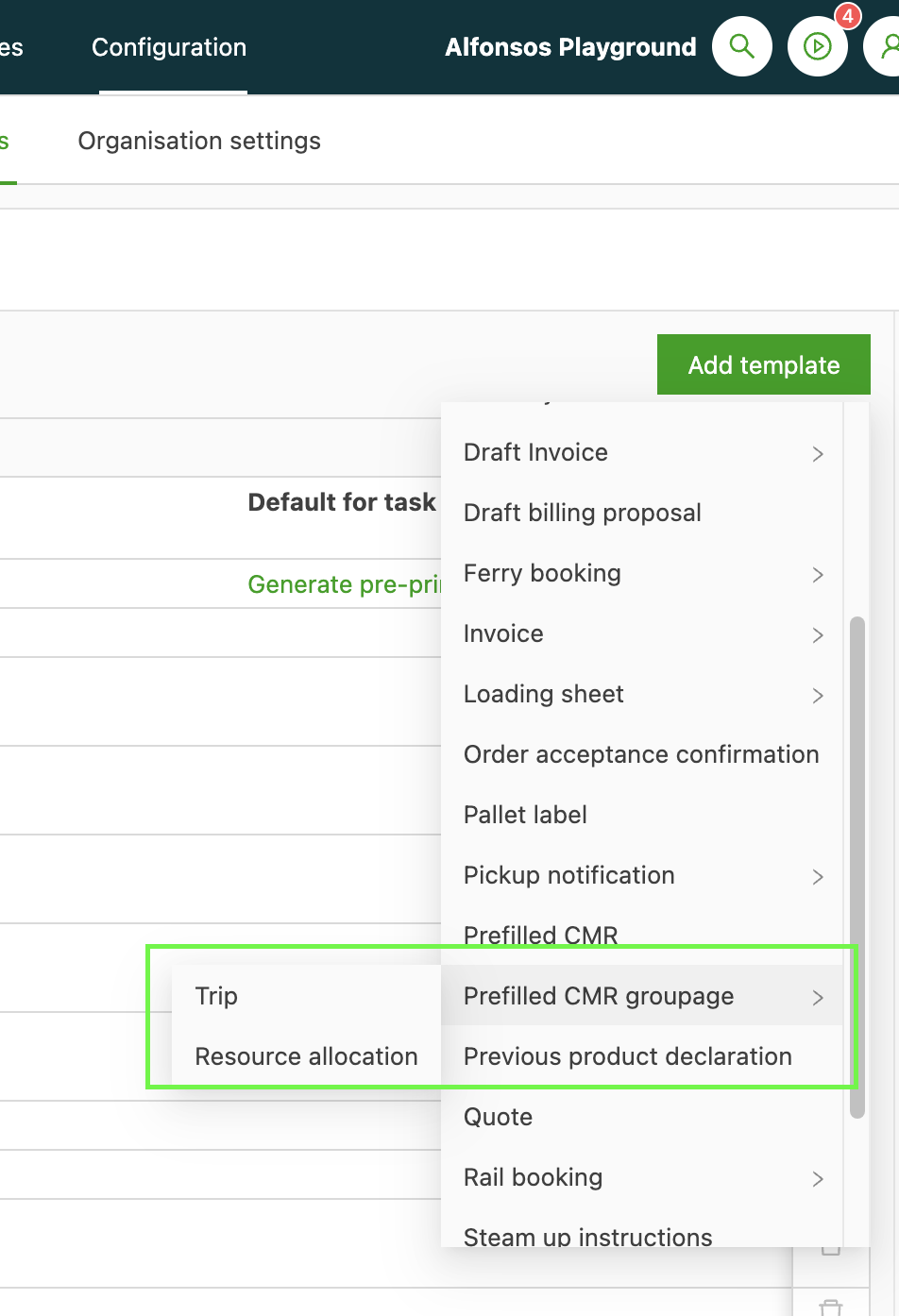
2. Create a template for the groupage CMR
- Navigate to Configuration > Templates.
- Select Documents in the left panel.
- Click Add template and select Pre-filled CMR Groupage. Choose whether the template is based on a load or a resource allocation.
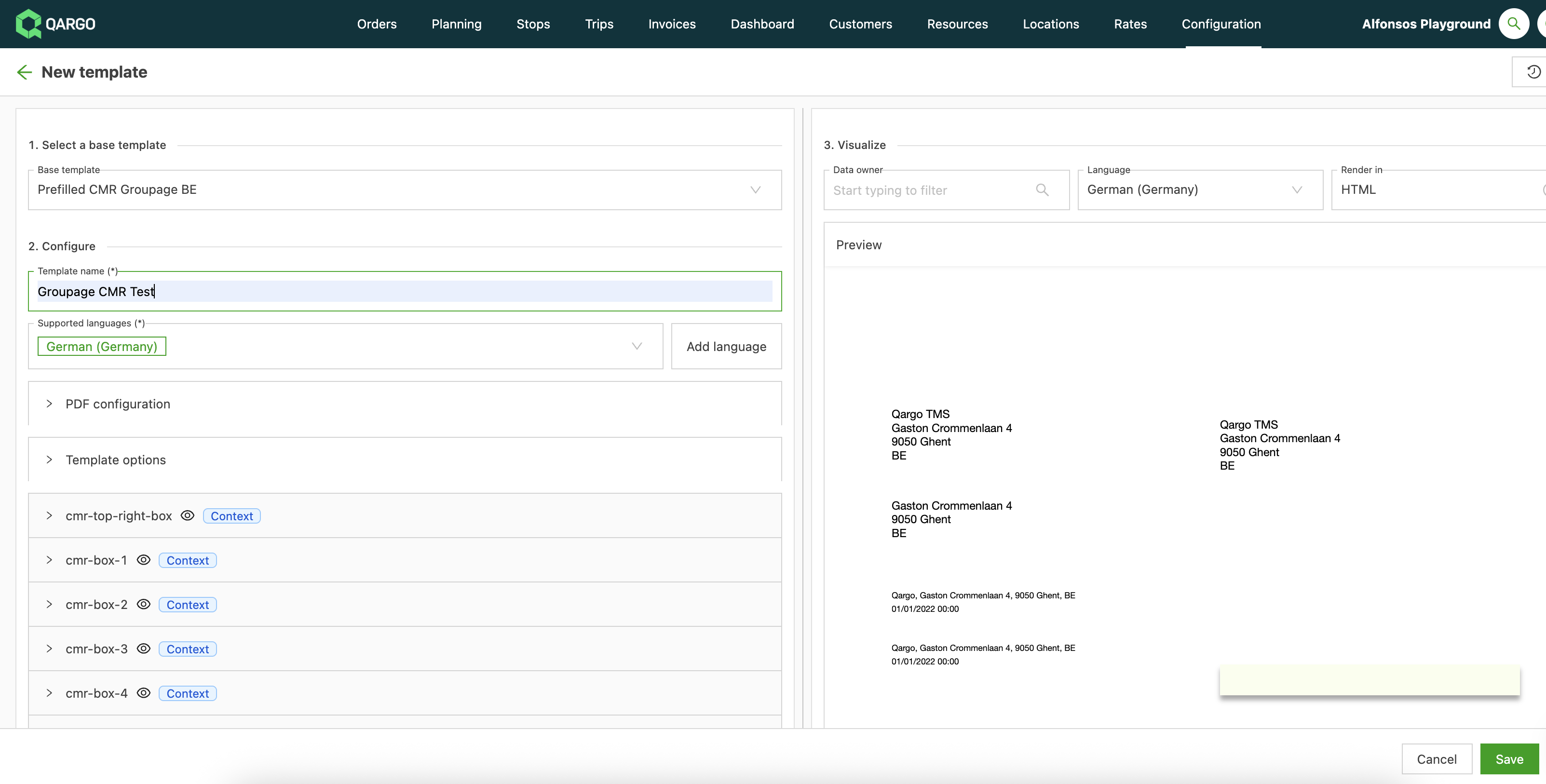
- Configure the template content as needed, then click Save.
3. Integrate document generation using tasks
- Open the Tasks tab in the Configuration module and select Loads.
- Create a new task to generate the groupage CMR document.
- In the task’s general info, choose Generate document as the task type.
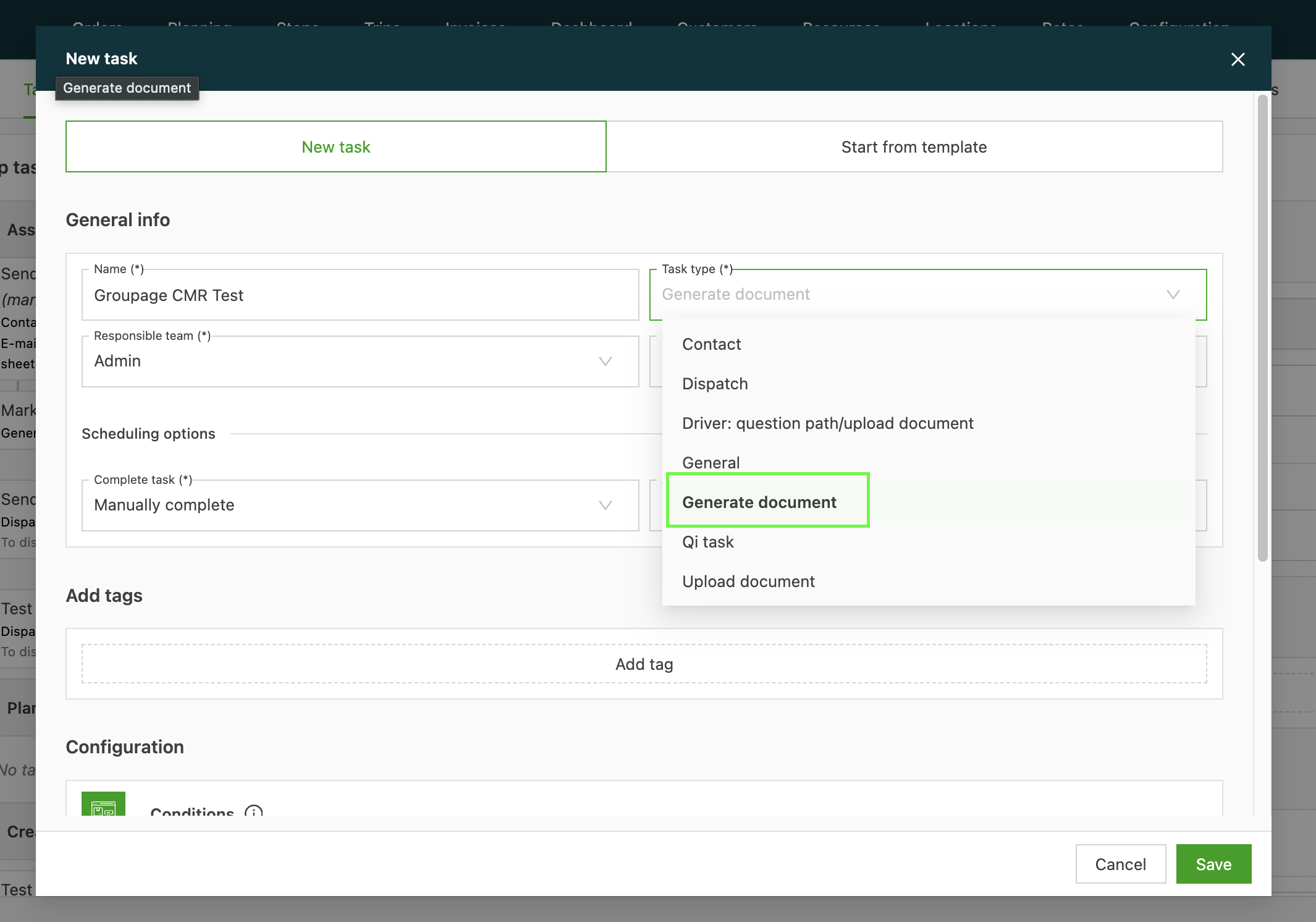
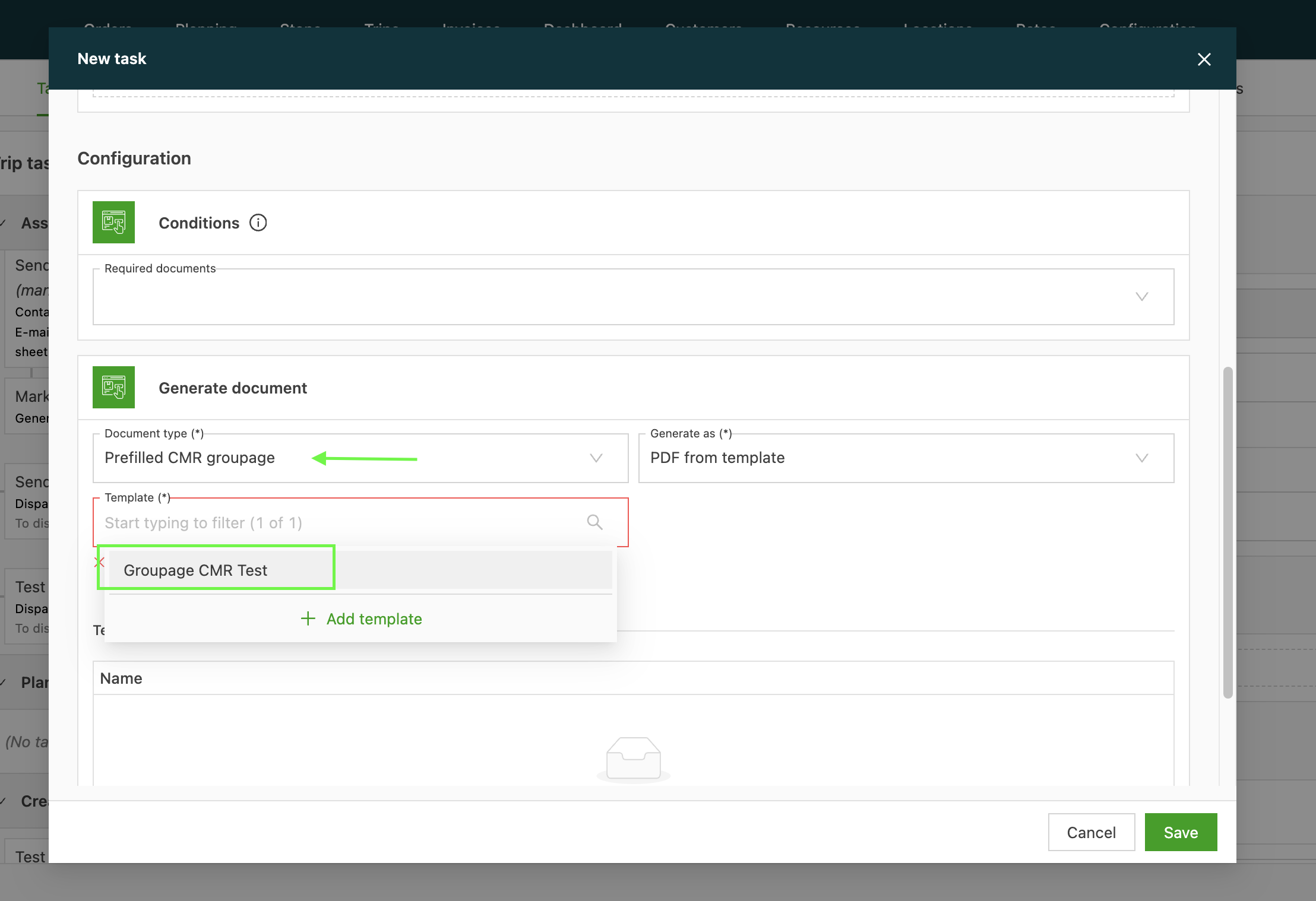
- In the Generate document section, select Pre-filled CMR Groupage as the document type and choose the appropriate template.
- Once the configuration is complete, the groupage CMR documents can be generated from the relevant order or load page in Qargo, in the load documents and tasks section.
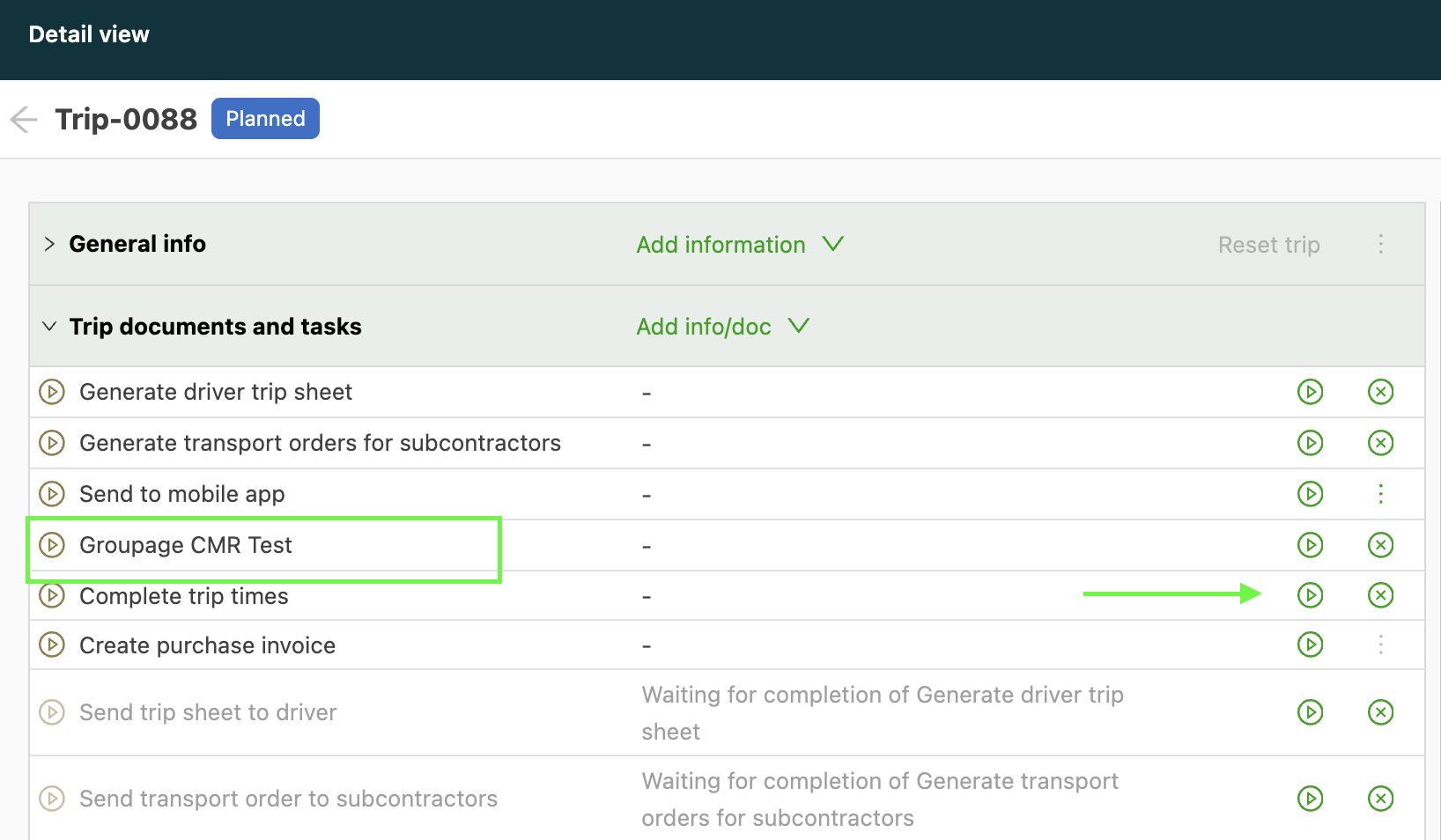
- From there, trigger the generation of the groupage CMR. The system then handles the process automatically and creates all the necessary separate CMR documents for each unique delivery group in the load.
This process eliminates the need to manually generate or separate paperwork for complex multi-drop loads. It increases efficiency and reduces the likelihood of errors.
Adjusting the layout of the CMR
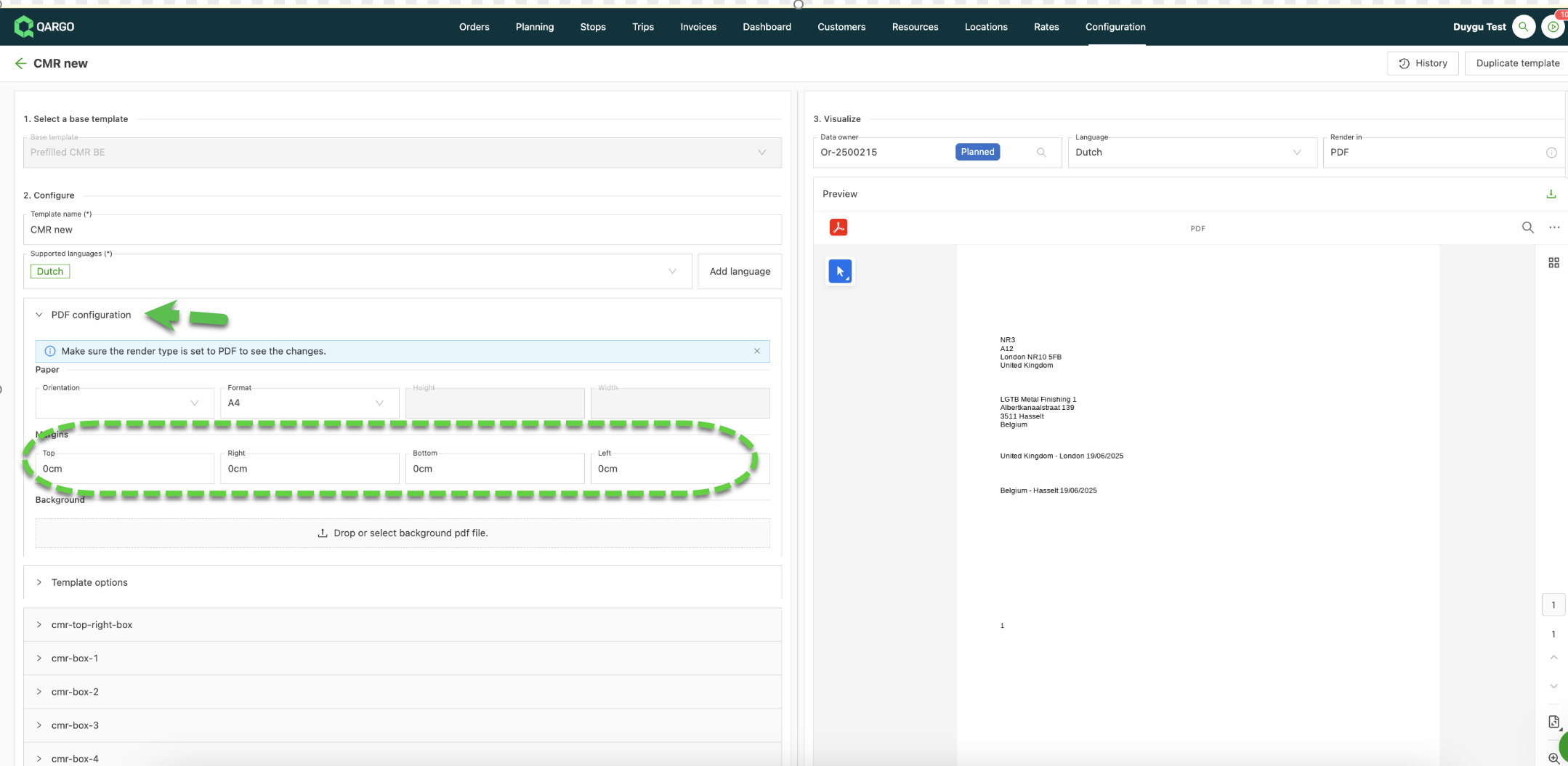
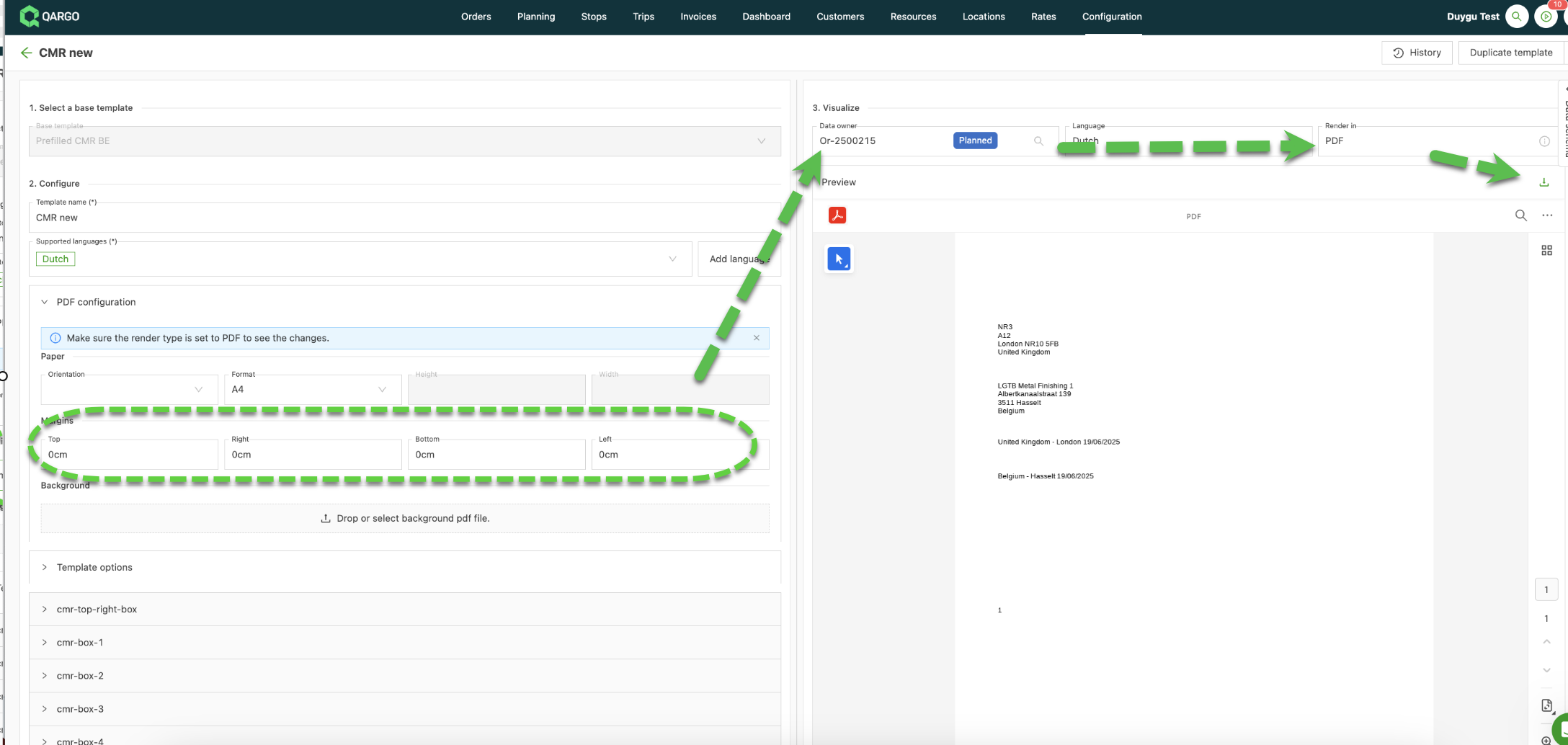
The page margins of the groupage CMR template can be adjusted when the printed text does not line up with the pre-printed CMR form. Margins shift the printout as a whole.
-
Navigate to Configuration > Templates.
-
Open the groupage CMR template.
-
Expand PDF configuration.
-
Adjust the values under Margins (Top, Right, Bottom, Left). The unit must be included, for example 3cm.
-
Set Render in to PDF and select a Data owner to preview the change.
-
Download the PDF and print it to check the placement on paper.
🚛 Use case examples
- Optimizing document generation for multi-stop export journeys where multiple shipments are combined and delivered to different destinations.
- Streamlining operations where goods from various customers are grouped and require individual CMRs for every onward delivery.
- Simplifying compliance for logistics teams managing consolidated loads heading to several distribution centers, so that each center receives the correct documentation.