
Rates FAQ: Why does the Rates module look different?
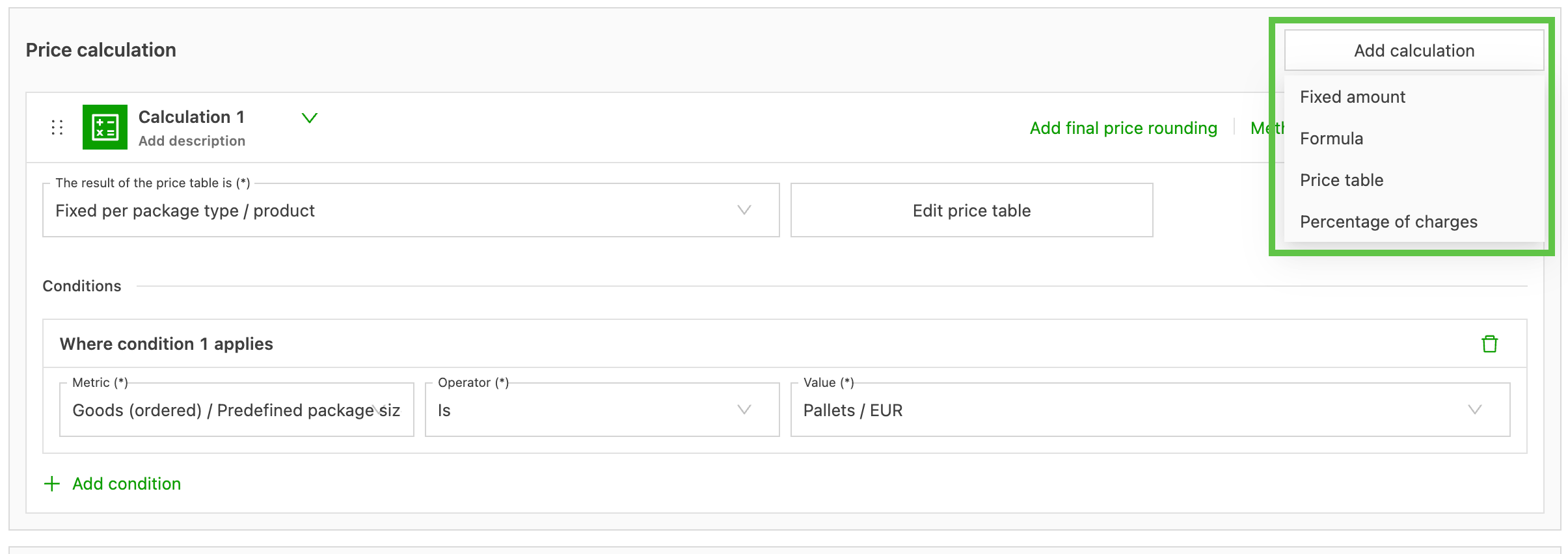
New rate card editor: the "Add calculation" button at the top of the Calculation section is used to pick a method, and the pencil icon edits or changes it anytime.
Table of contents
Q. When adding a new rate card, the screen looks different. How are calculations added? How can the price calculation method be changed if the wrong one was selected first? Why is the drop-down for selecting the calculation method missing?
A. The Rates module in Qargo has been updated with a completely redesigned editor. It offers the same powerful functionality with an improved, user-friendly interface. This redesign brings clarity and flexibility to handling rate cards and their calculations. It makes rate configuration faster and more intuitive for complex logistics operations.
A common use case for this feature is a logistics manager who needs to quickly set up or adjust detailed transportation service rating for multiple customers, with clear visibility and easy editing of complex rate structures.
🎥 This video highlights the main differences between the old and new editor:
Key terminology
- Rate card: A set of prices and charging rules for specific customers or services.
- Transportation service: The particular type of transportation (e.g., full truckload, groupage, express) associated with a rate card.
- Charge: An individual price rule or calculation within a rate card.
- Calculation method: The logic used to determine the price (e.g., fixed amount, formula).
- Condition: Specific rules that limit or modify a calculation (e.g., minimum amount, by weight or distance).
- Unit suffix: The indicator (such as ”€” or “kg”) shown next to input fields, showing the associated unit for that value.
Use case examples
- Streamlining complex charge structures, such as multi-tiered rating by weight or distance, with collapsible calculation sections to avoid confusion and maintain focus.
- Updating units or currencies for multiple charges in a large rate card, with the new inline drop-downs within each input field for faster, less error-prone edits.
Workflow steps
-
Access the Rates module - Navigate to the Rates module from the Qargo main menu.
-
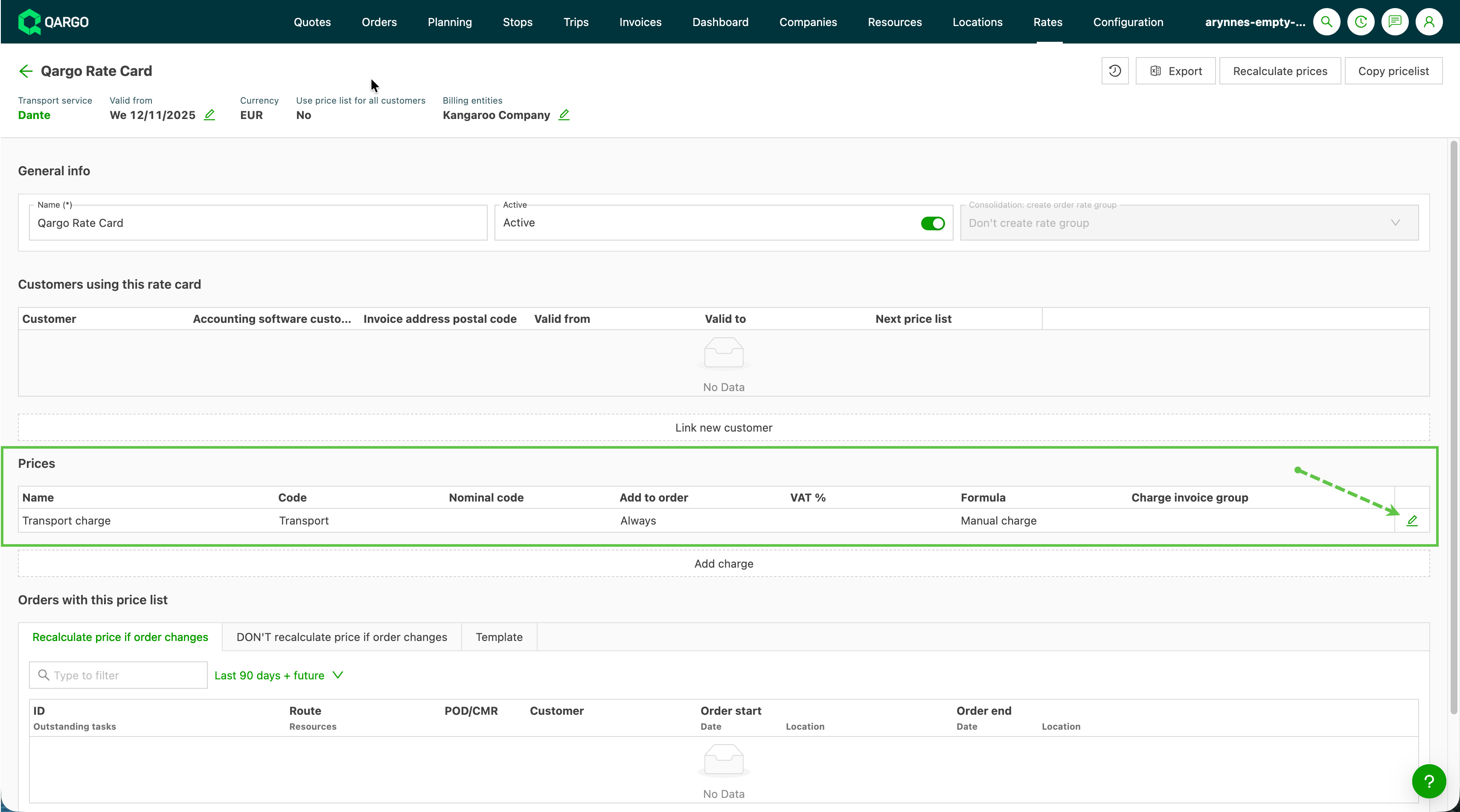
Edit a rate card - Click a rate card entry in the list to open its detailed view.
- The main rate table and basic layout remain unchanged, so the screen stays familiar.
-
Open the charge editor - Click the edit (pencil) icon next to any charge to open the redesigned editor.
-
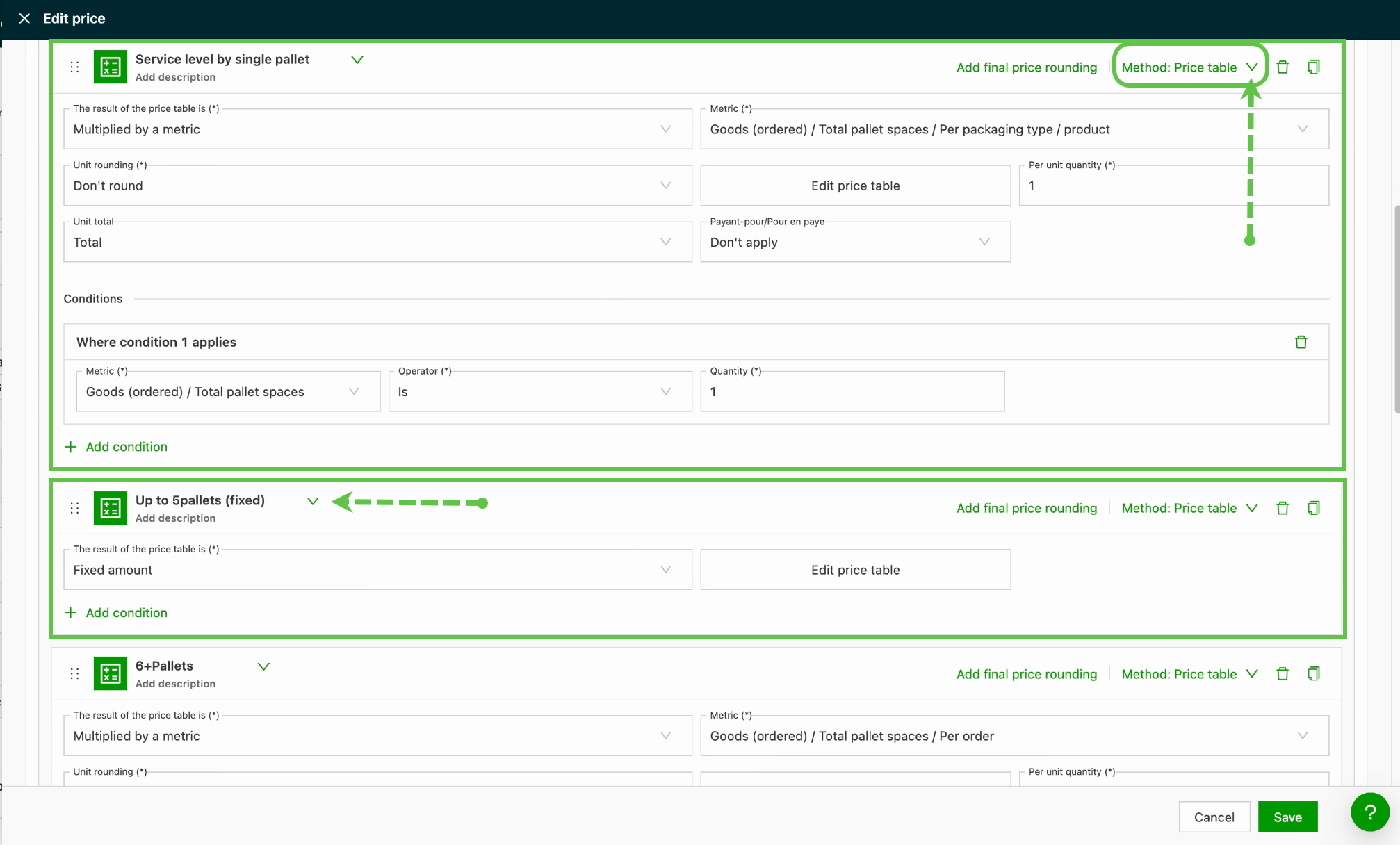
Review and modify calculations - Each calculation now appears in a visually distinct block, with the calculation method displayed in the top right.
- Collapse or expand calculations by clicking the arrow beside the title. This allows work on the needed section without unnecessary scrolling.
-
Add new calculations - The “Add calculation” button is now located at the top of the Calculation section. Click it to select a calculation method before the new block appears.
-
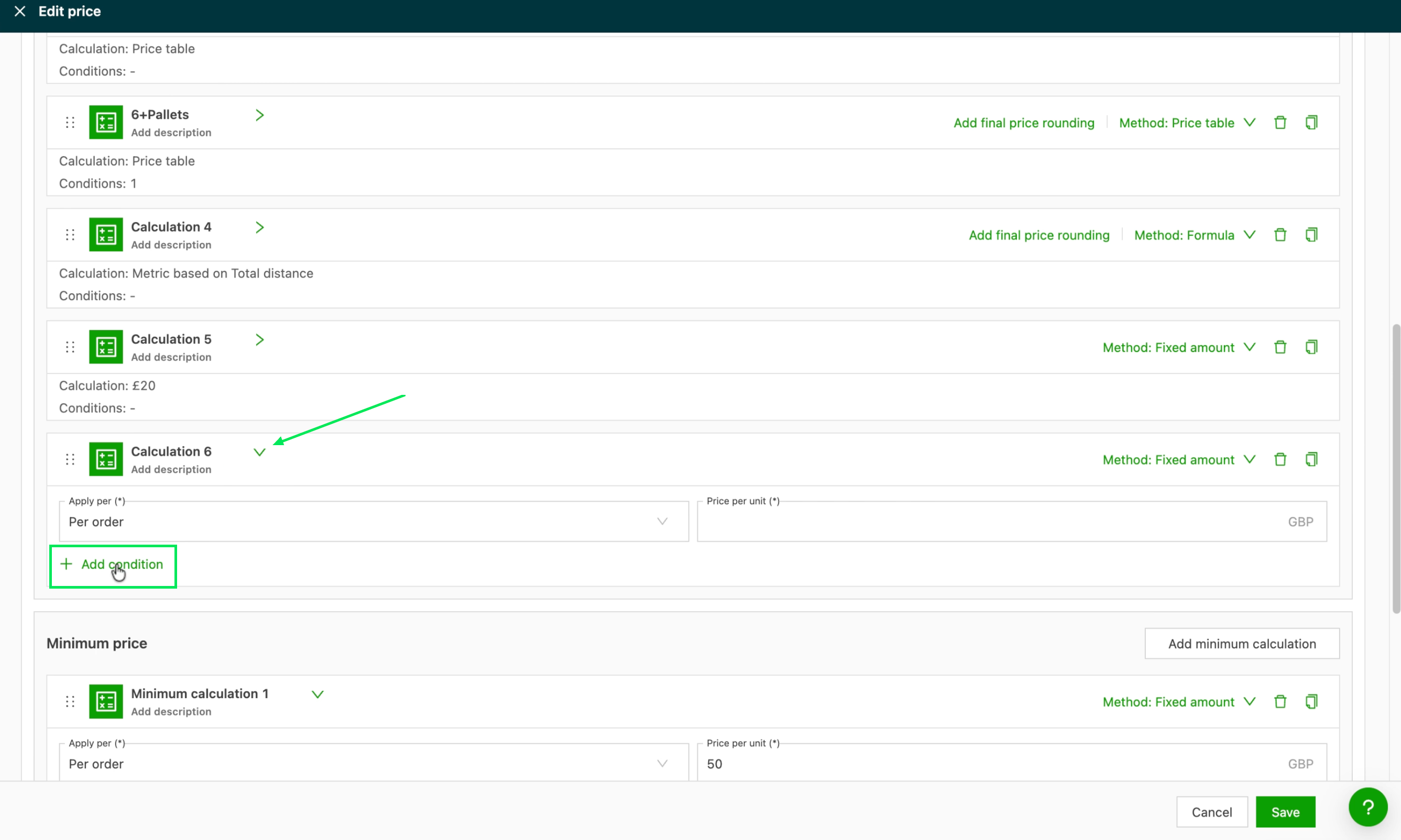
Add or edit conditions - The process for adding conditions to a calculation remains the same. When a calculation is expanded, the button appears directly beneath it for easy access.
-
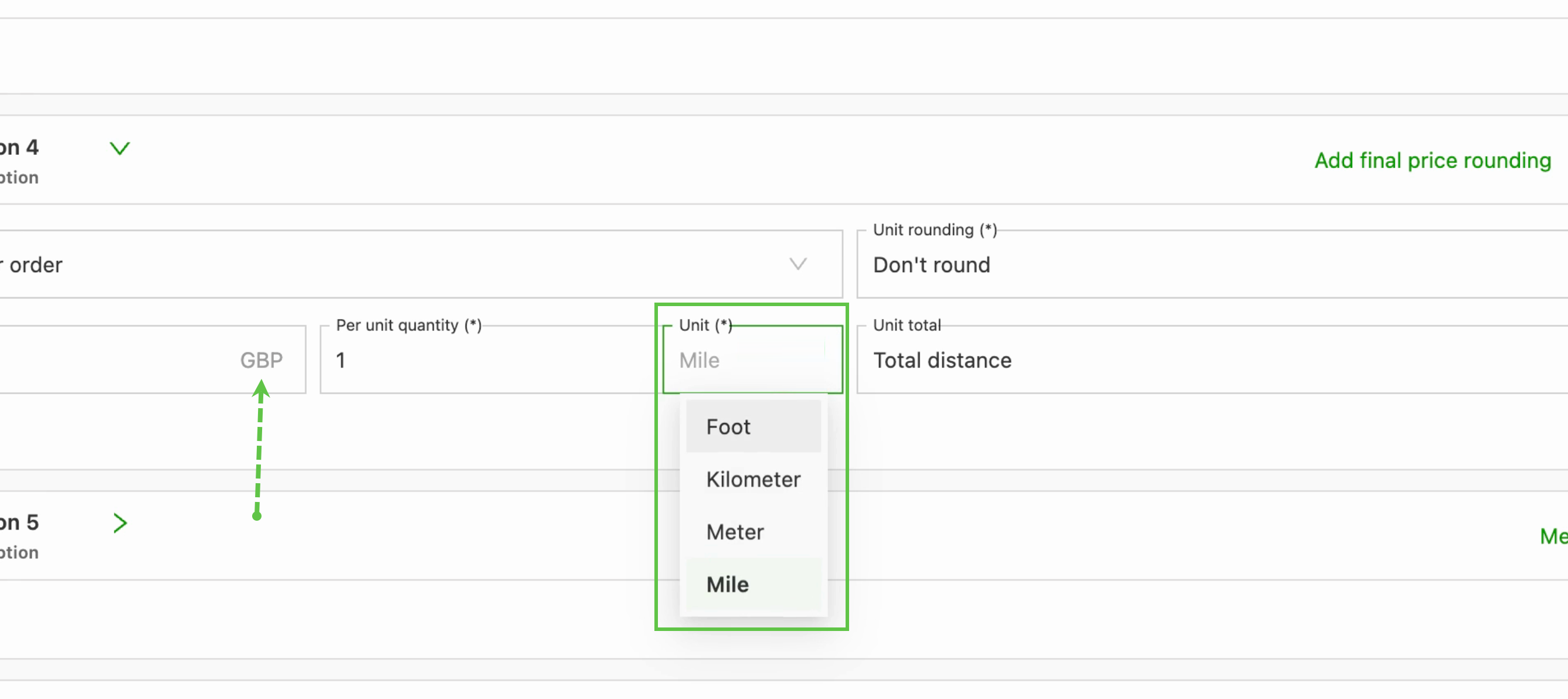
Set units and amounts - Input fields now display units as suffixes directly inside each field, along with improved drop-downs for quantity units and currency for better clarity.
-
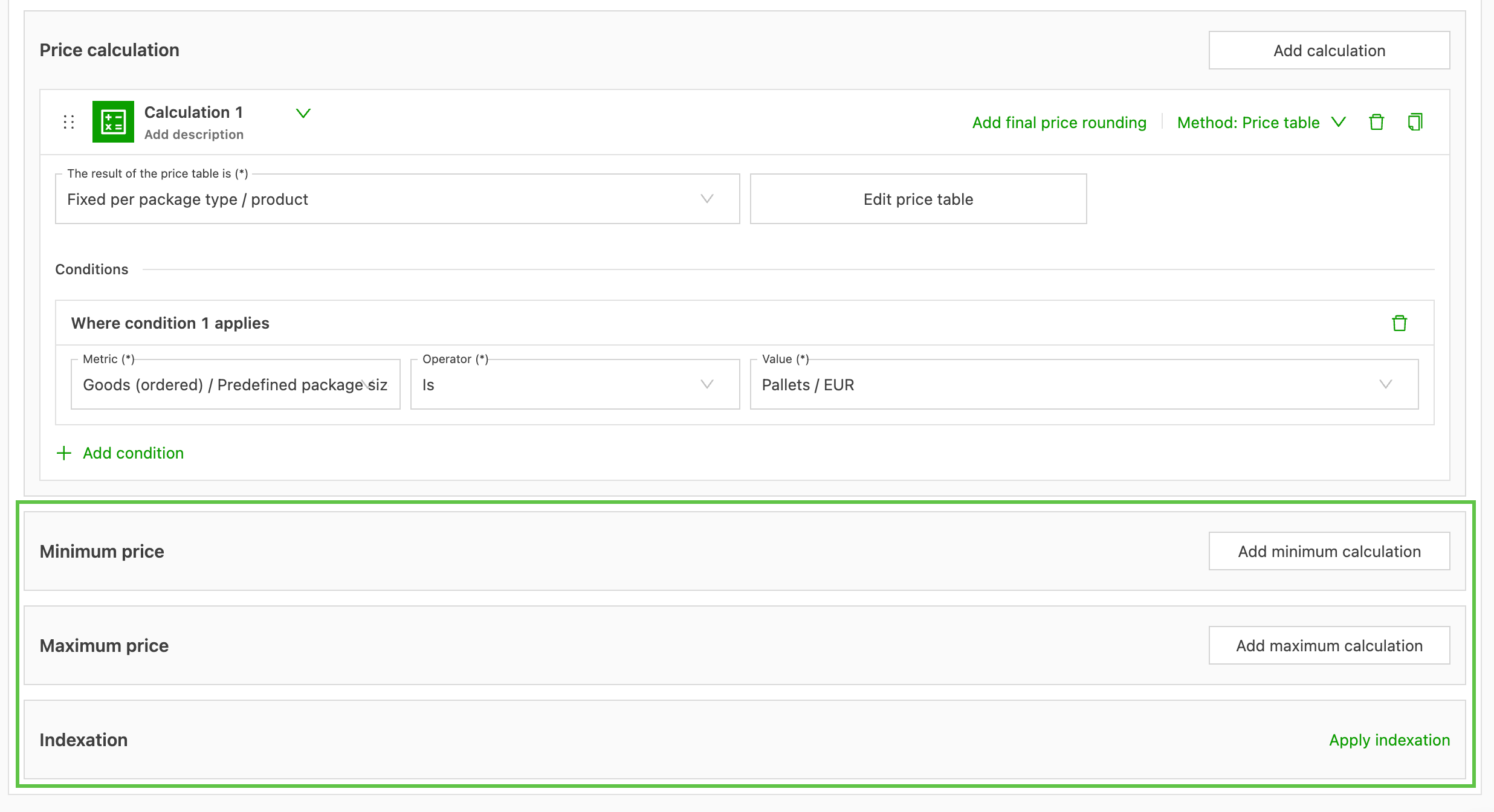
Configure additional fields (minimum/maximum/indication) - Minimum price, maximum price, and indexation have their own collapsible, colored sections at the bottom of the editor for quick access and visibility.
With the redesigned Rates module, managing, editing, and configuring even the most detailed transportation rating scenarios becomes significantly more efficient and transparent.