Orders – Adding incidents to an order
Incidents can be added via Order details or Load stops. Actions appear in views with visual indicators for affected orders and load stops.
Table of contents
Incidents can be identified in various ways, on both the Load and the Order pages. This can be used to record a stop-specific issue, for instance a failed pickup or a refused delivery.
Configure default actions
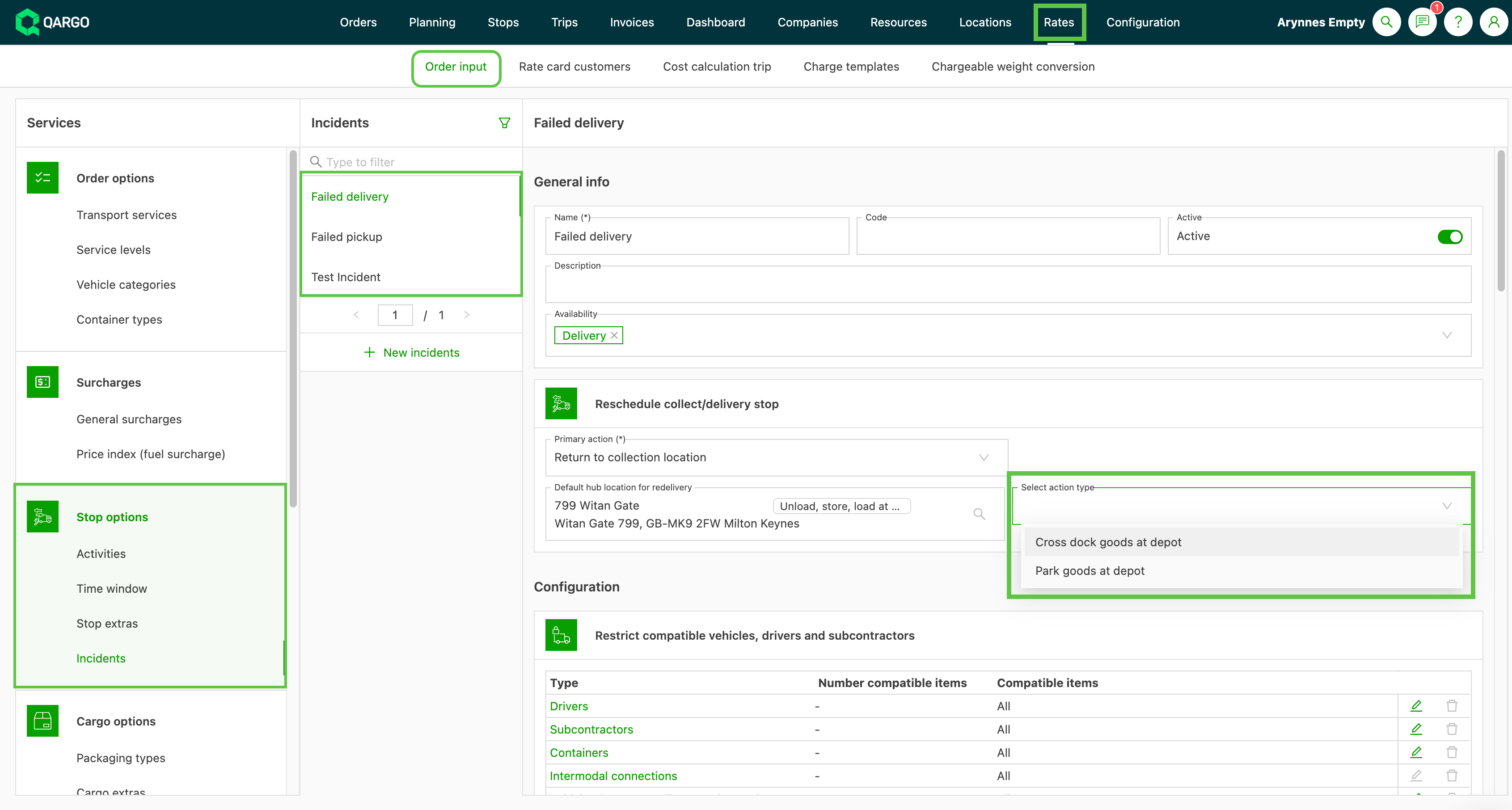
There are 2 configuration options when creating a terminal action for an incident.
- Cross-dock goods at terminal: use this where the freight is to be unloaded and stored at the terminal.
- Park goods at terminal: use this where a full trailer will be returned and parked (dropped) at the terminal.
-
Set the primary action most likely to occur based on typical business needs.
- For example
Trailer-based operators can now resolve incidents by parking trailers at a terminal instead of unloading goods. A new incident configuration option allows businesses to select ‘Park at terminal’, triggering drop and hook actions rather than cross-docking.
- For example
Add incident to order
-
Open the stop where the incident occurs (pickup / delivery)
-
This can be from either the Shipment panel or the stop icons in the route visual.
-
-
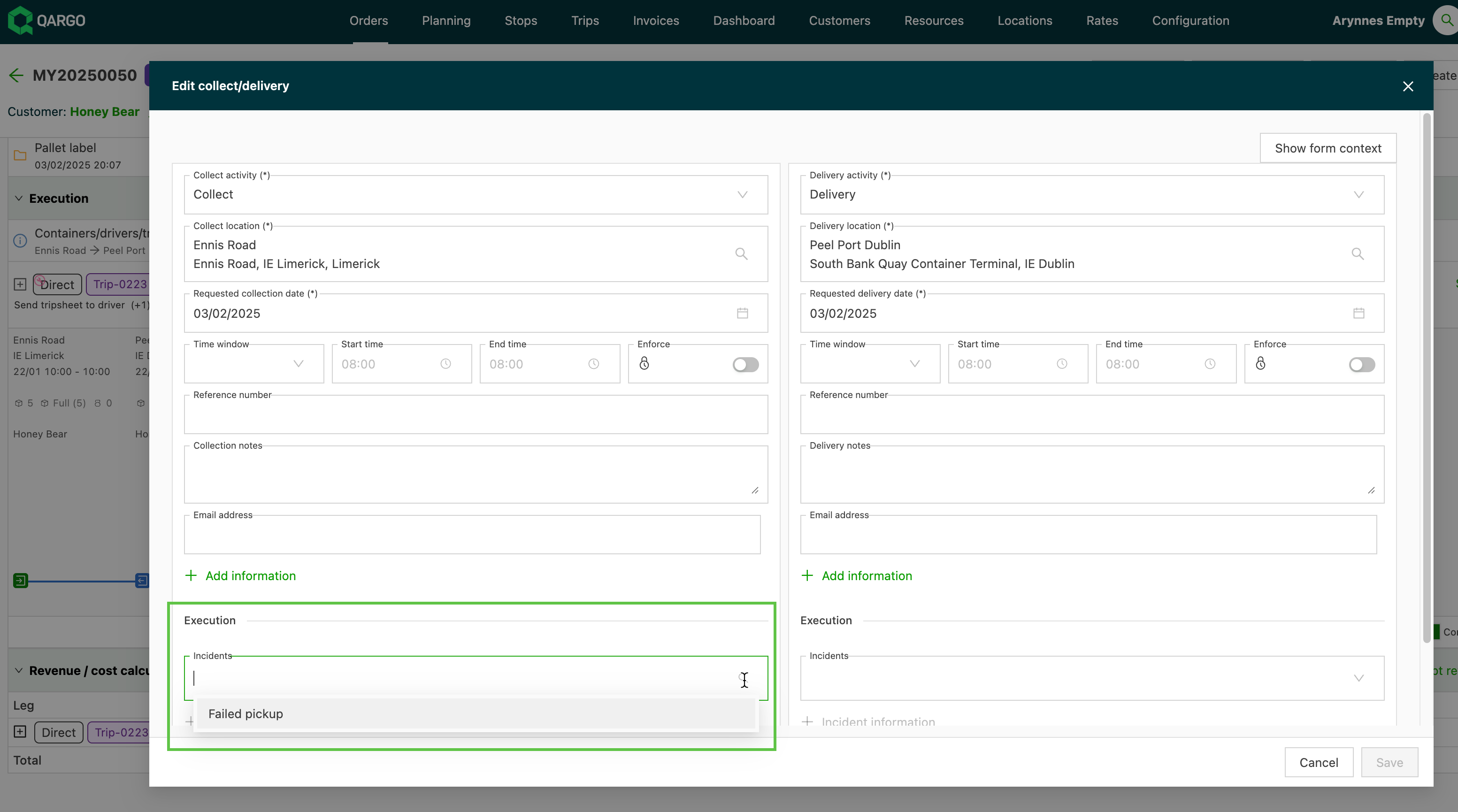
Click the pencil to edit the load and add the incident.
-
Click the Incident dropdown and complete the reason for the incident.
-
Click Save.
-
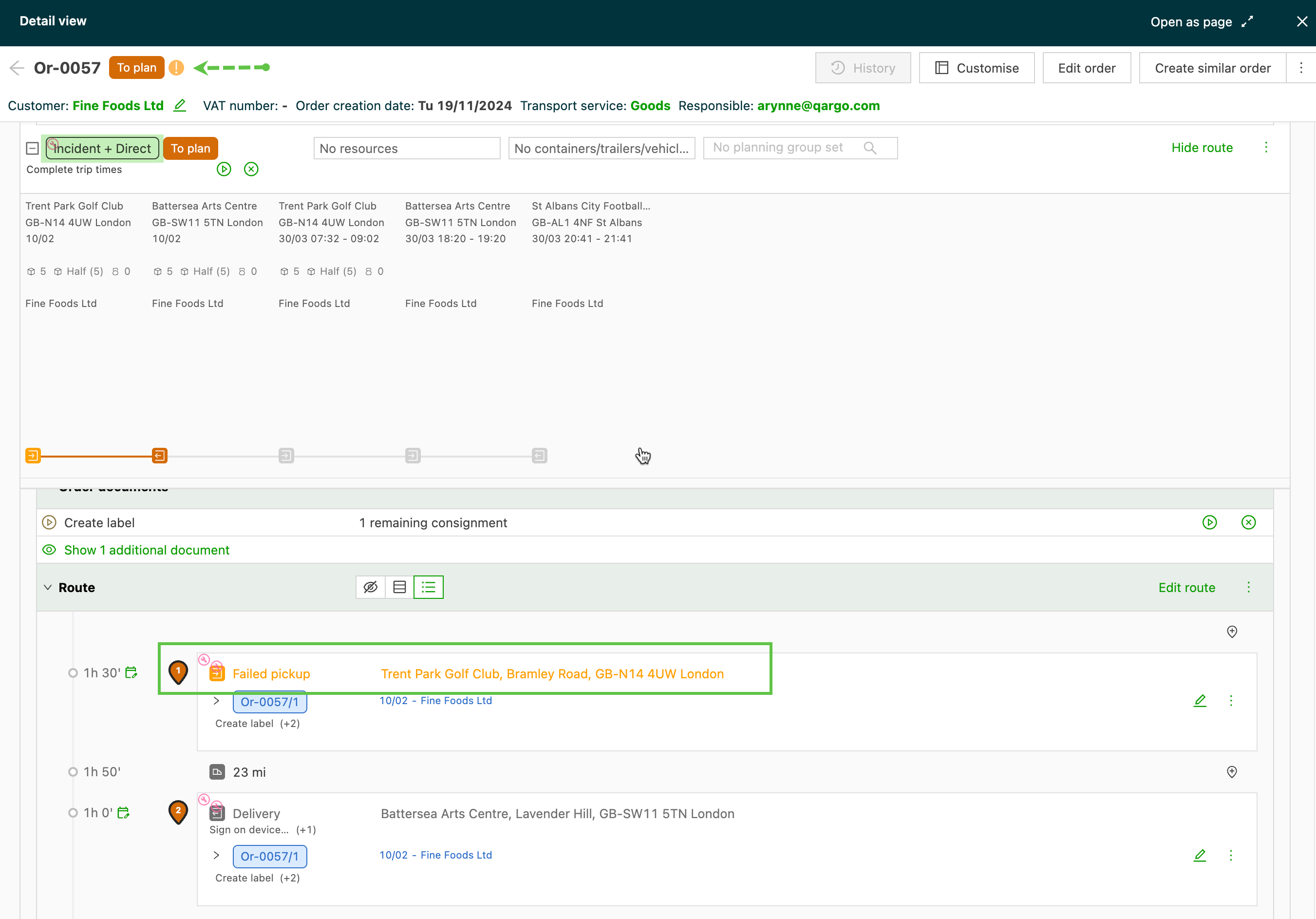
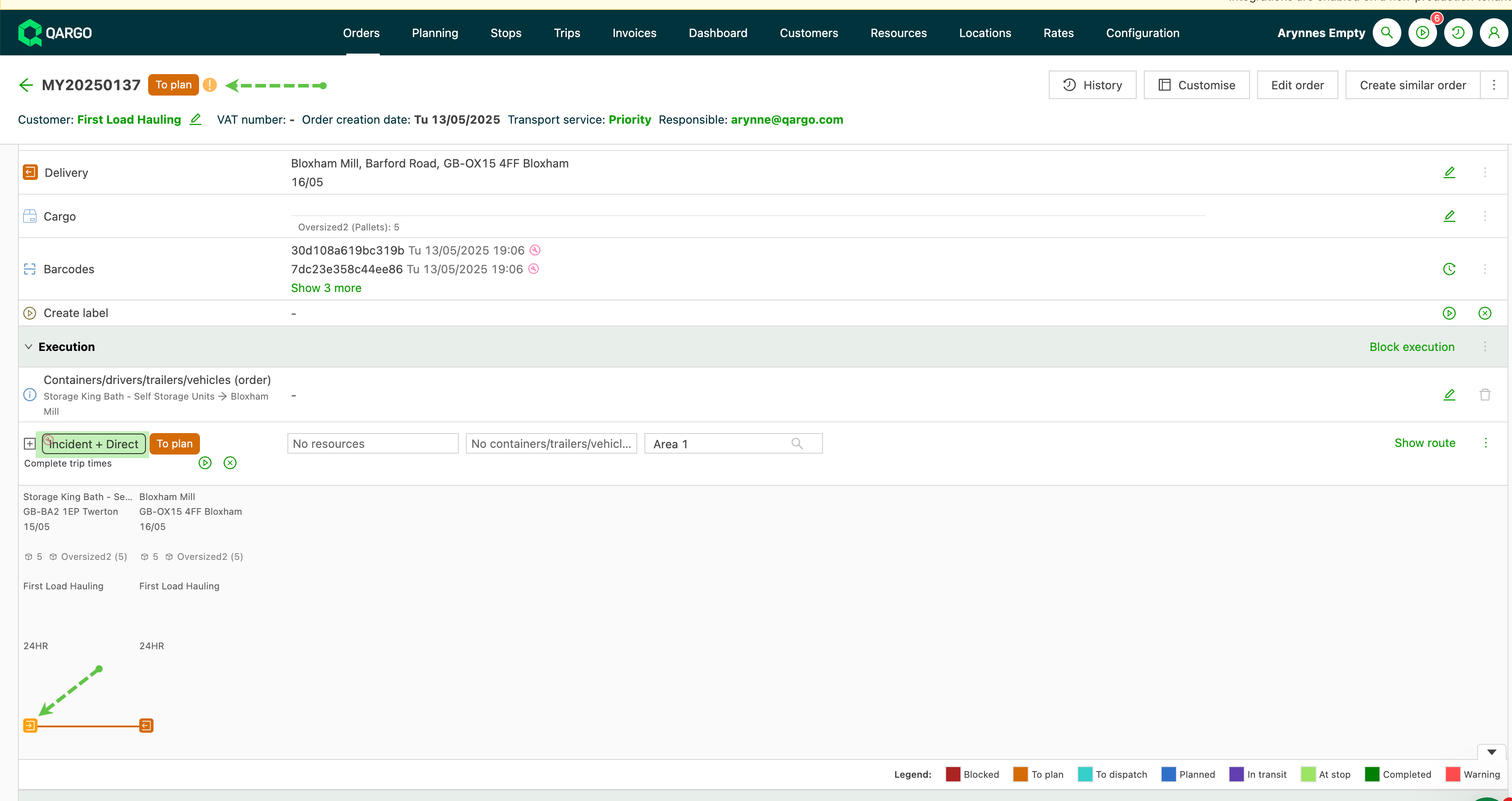
An alert is indicated next to the order number & status
-
The stop visualization on the route will turn orange to indicate the warning.
-
The stop activity will update with a label showing ‘Incident’
-
A warning will display in the order list
- Hover over this to show the reason for the incident.

- Loads are displayed on the loads page:
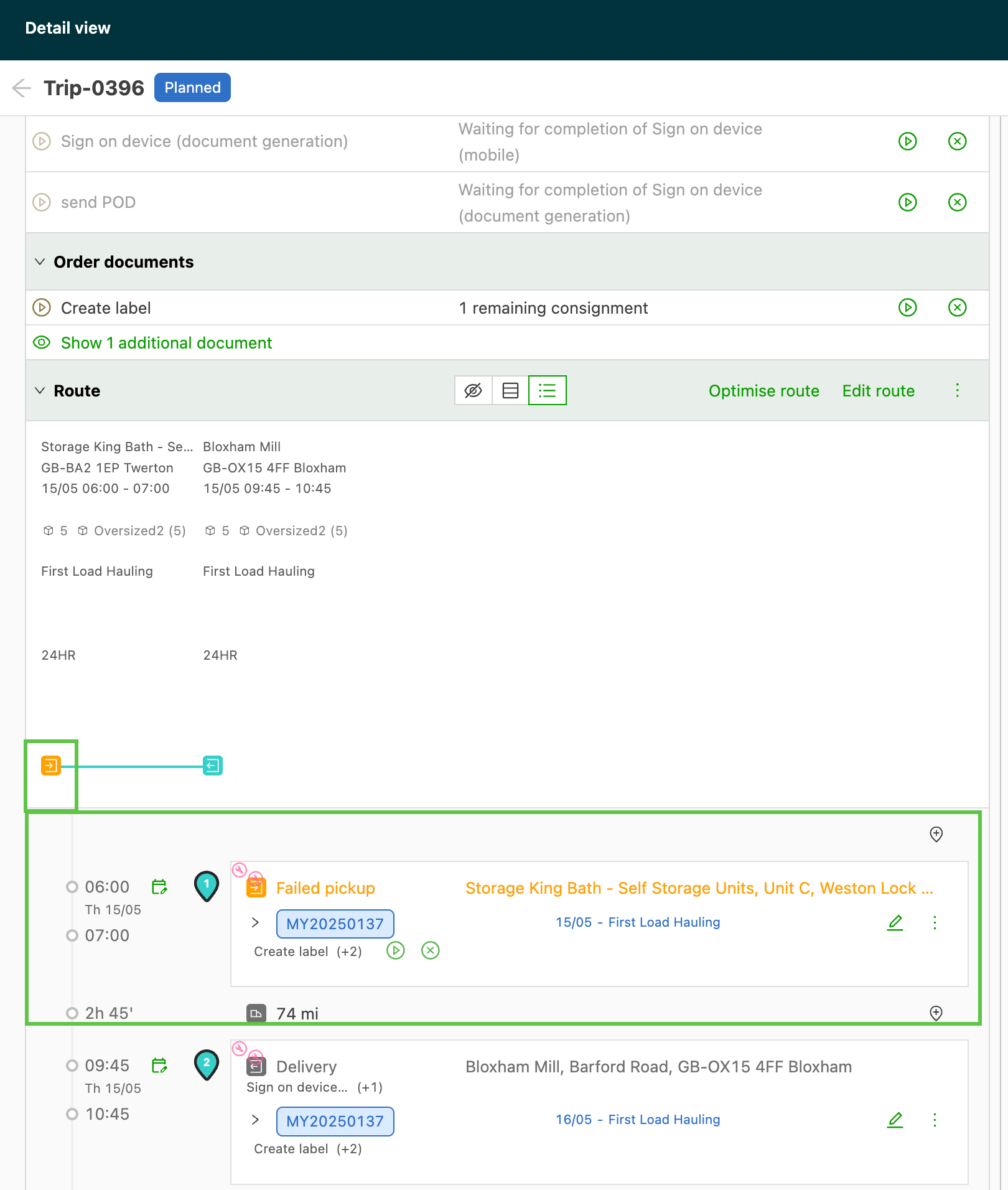
Add incidents to orders in bulk
Where multiple orders with the same stops are consolidated on a load, adding an incident to one order will add the incident to all the orders on the same stop.
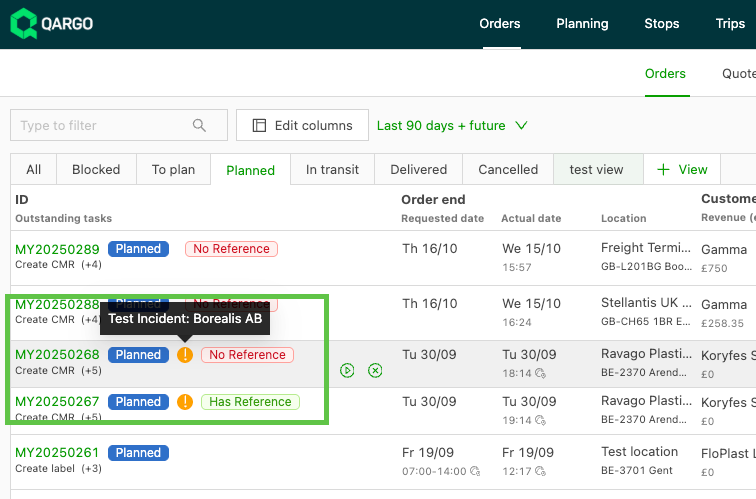
- Update the stop on the load with the incident
- All the orders consolidated on the load on the same stop will have the incident added.
- The incident will display on each individual order
Add incident to load
From the load, incidents can be added to the specific stop where the incident occurred.
- Click the stop icon to open the stop details.
- Navigate to the ‘incidents’ field.
- Add the reason from the available dropdowns.
-
A warning notification will show against the stop with the incident.
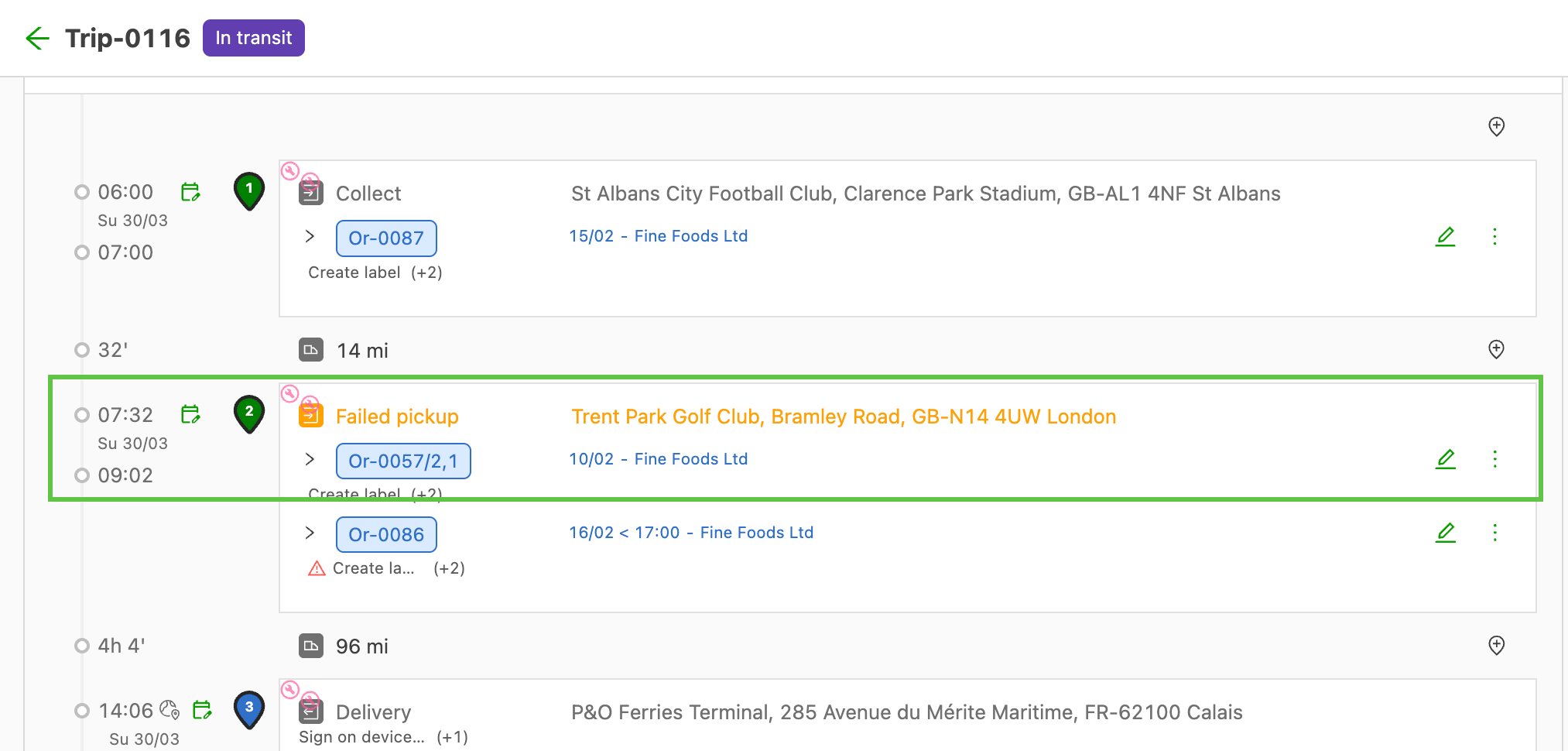
Example:
- 2 shipments to be picked up from the first stop.
- The incident can be recorded against the specific order, while the 2nd pickup can be completed.
- The affected order can then be unplanned from the load.
- The order will also update to show the incident in the details.