
Configure incidents (pickup and delivery)
Configure incidents and set actions such as Block, Cancel, Don't replan, Retry, or Return, with a hub location.
Incidents, such as a failed delivery or pickup, can be configured for use on orders or loads. Each incident is recorded against a specific stop.
-
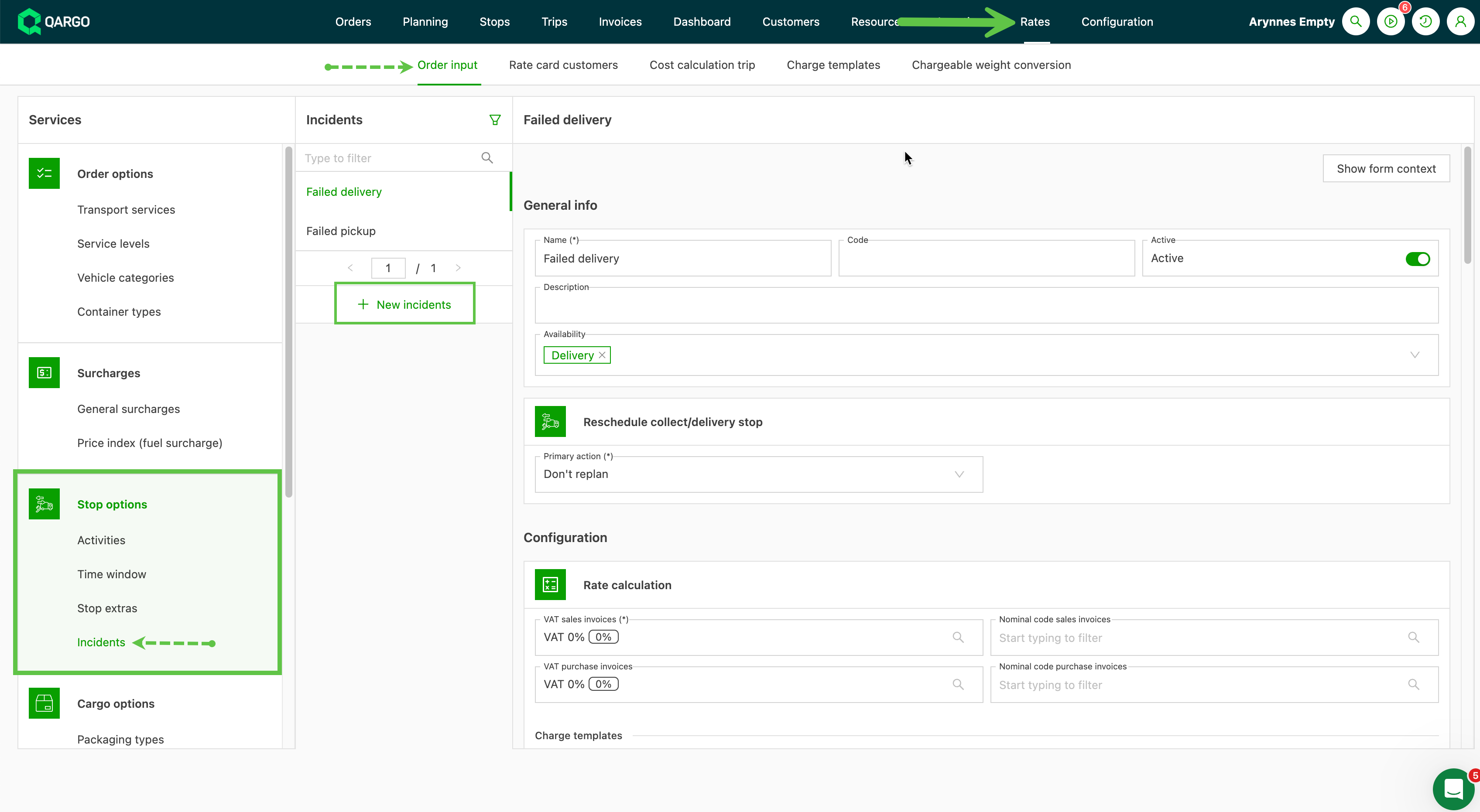
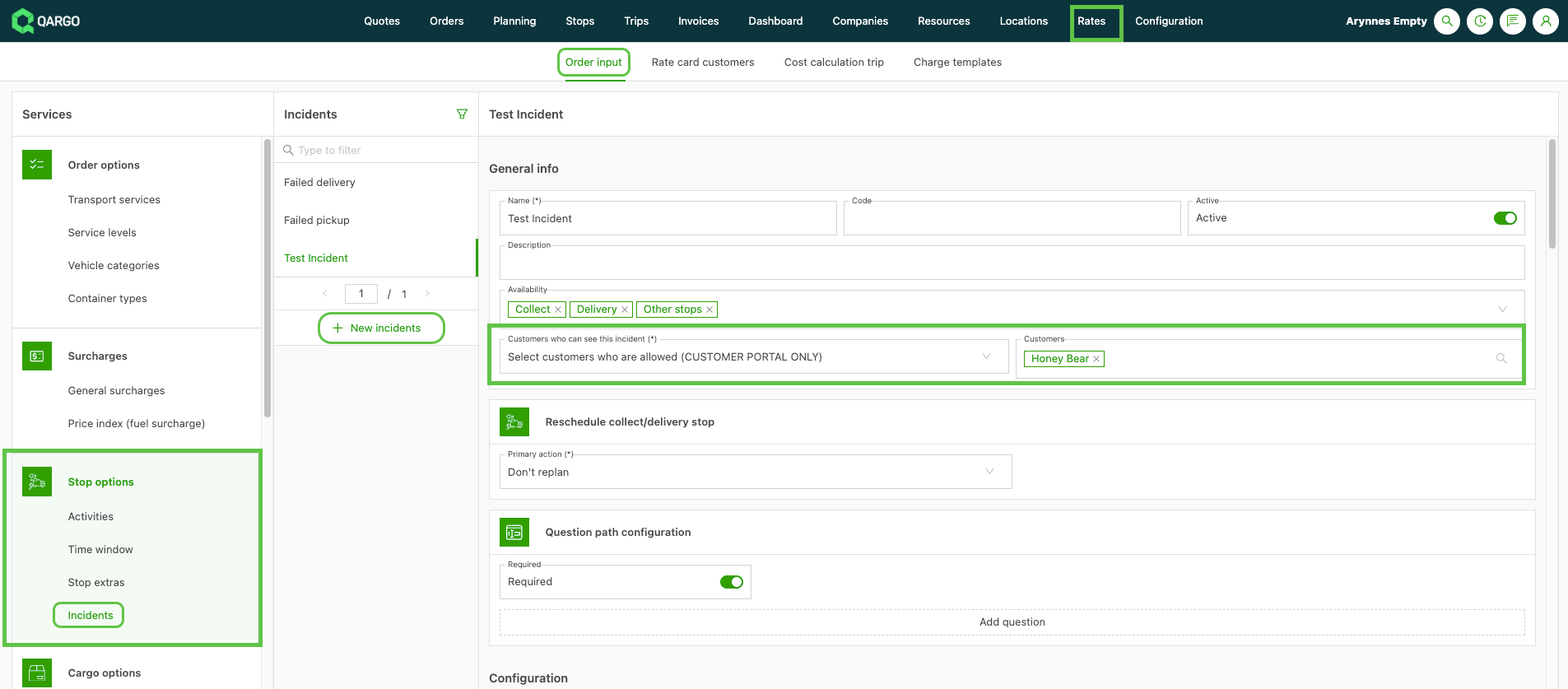
Navigate to Rates > Order input
-
Left-hand menu: Stop options – click Incidents
-
Click New incidents to add a new option and complete the details under General info.
-
Select which stops the incident can be used on
-
Set which customers can view incidents in the customer portal (all or selected customers only)
-
Set the stop action when the incident is recorded. Options include:
- Block operations – can’t be replanned and moves to Blocked status
- Don’t replan – no further action, but available To plan
- Retry pickup/delivery – reschedules the stop.
-
Set a question path (optional) if the Qargo mobile app is used and specific steps or information are required.
-
-
If charges apply, add a charge template that can be applied to specific rate cards
- Link the specific rate card to the transportation service as required.
Make sure the incident is set to Active against the transportation service in the configuration settings. This makes it visible in the dropdown menu when adding an incident.
-
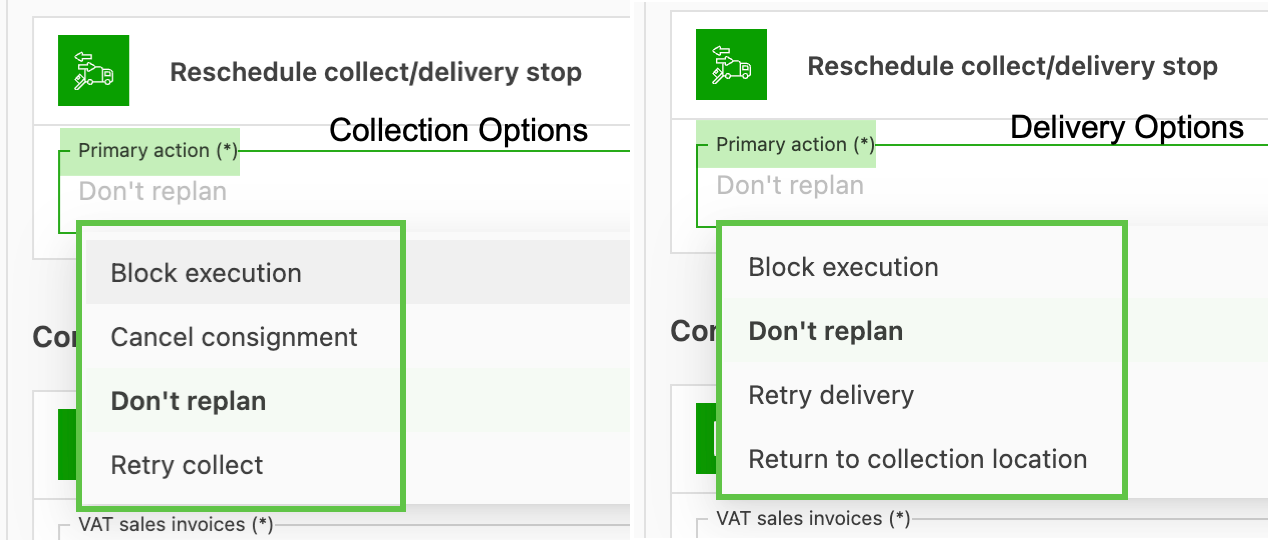
Select the Primary action required once an incident is recorded. Options include:
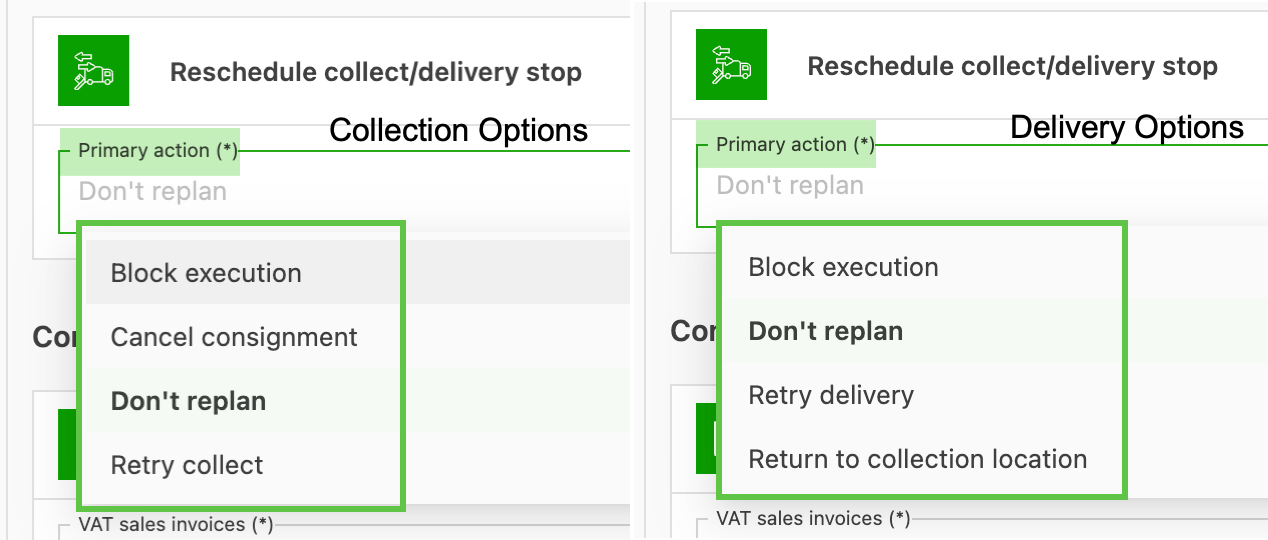
- Block operations: The order is blocked and no further planning activity is available. The order moves to the Blocked tab in Orders.
- Cancel shipment (Pickup): The shipment is canceled. The order status updates based on the shipments on the order (Planned, In transit, Delivered).
- Don’t replan: The order incident is recorded, but the order status does not update.
- Retry pickup/delivery: This option records the stop as an incident and creates a new To plan status on the order. For deliveries, a default hub location must be specified for the redelivery. The freight on board is rescheduled to ship from this location on the next load.
- Return to pickup location (Delivery): The shipment is replanned. A default hub location must be specified for the redelivery. The freight on board is rescheduled to ship from this location on the next load.
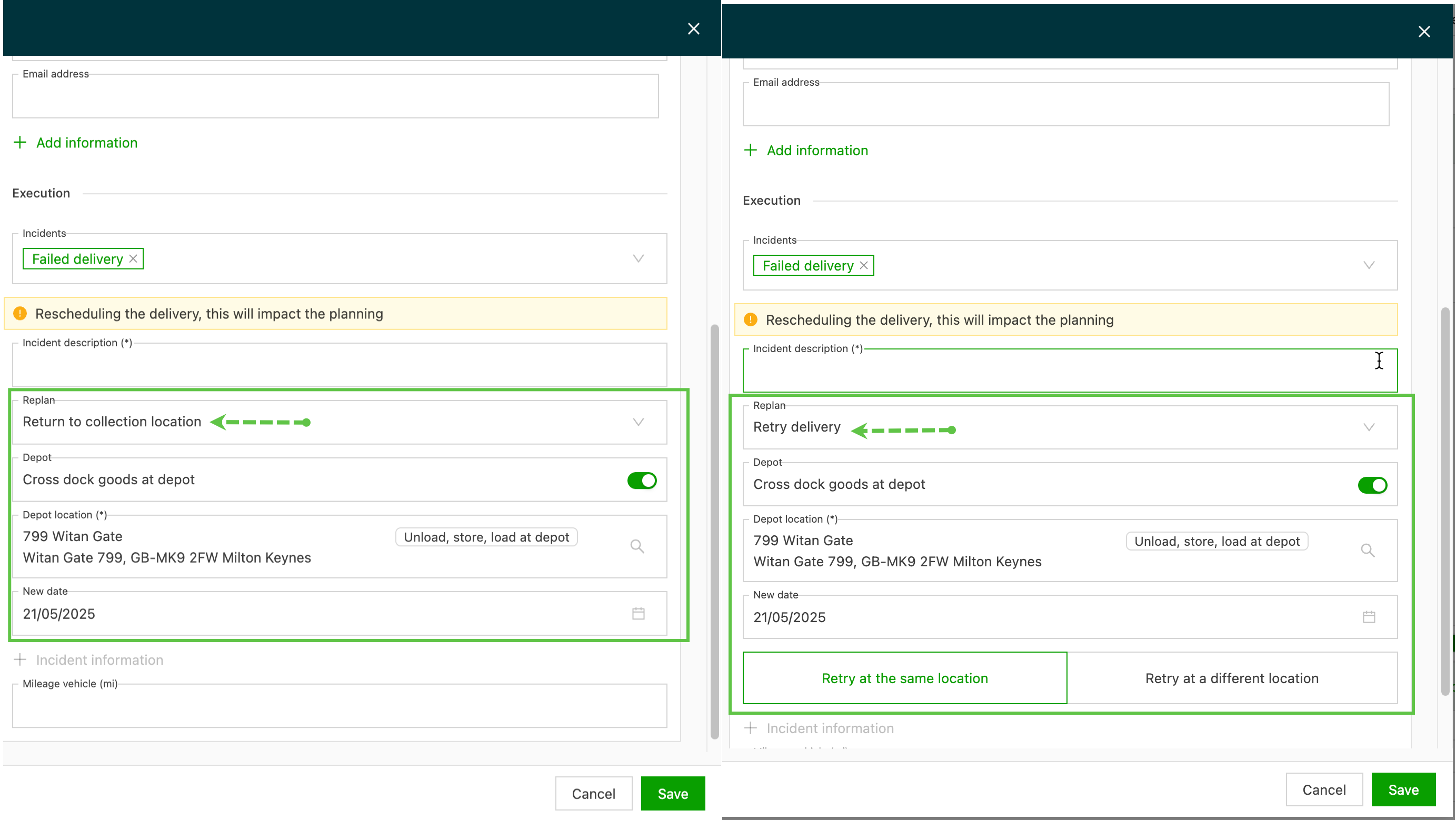
Once the configuration is saved, these incidents can be selected on orders and loads.
Configuring and viewing incidents in the customer portal
Where enabled, customers can view stop incidents in the portal:
- Viewing can be enabled for all customers or for specific customers only.
- Each incident can be configured individually to show or hide it from the customer
What changes in the customer portal
When an incident is logged and visible to the customer, users see the same incident indicator icon, with a summary when hovering over the icon.
For a customer who is not allowed to see an incident type, it no longer appears anywhere in the portal:
- The incident indicator next to the order name in the order list.
- The incident indicator in the order detail header.
- The Incident label in the operations section of the order detail.
- The related incident columns available under Customize.
Internal recording is unchanged: incidents are still logged as before, and only the portal visibility changes.
Troubleshooting
| Issue | Resolution |
|---|---|
| An incident still shows in the portal | Confirm the customer is excluded from Customers who can see this incident on that incident type. |
| The setting cannot be edited | Super Admin access is required to edit incident types. |
| Incidents need to be hidden in the carrier portal | This feature covers the customer portal only. Carrier portal visibility is tracked separately. |