FAQ – Enter resource ID in driver mobile app
As part of the workflow, the driver can enter the trailer or container ID used for a specific order or load.
Q. Can a driver enter the trailer or container ID being used for a particular order or load?
A. Yes. The Qargo driver mobile app can be configured to include a point in the workflow where the driver can enter the appropriate ID. The driver can enter the ID manually. If the trailer or container has a barcode or QR code, the driver can scan it with the app instead.
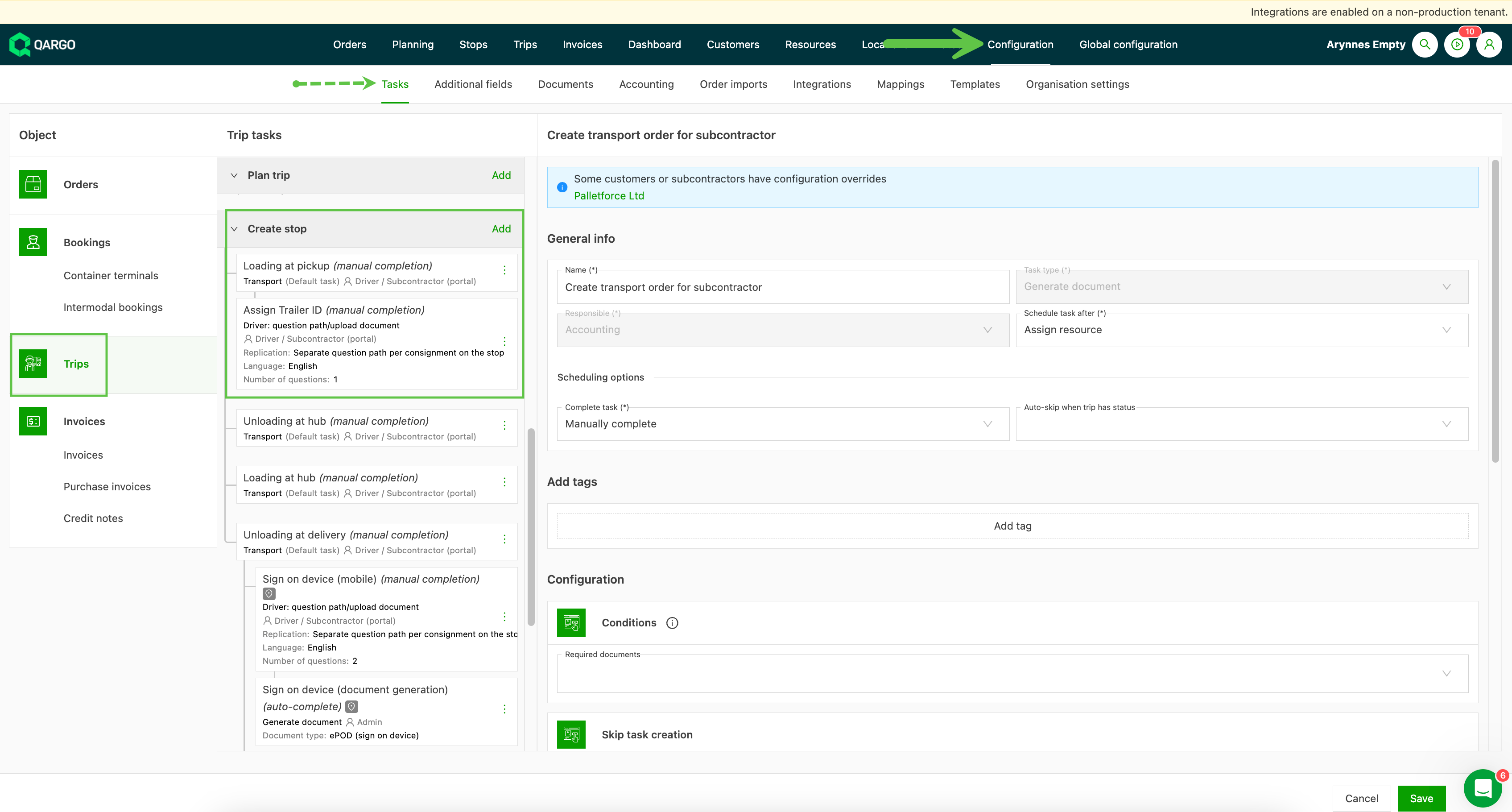
The workflow for the driver mobile app is determined by setting up a “Question path”. Question paths are set in the Qargo application under Configuration > Tasks. Go to Loads to set up the question path at the point in the workflow that best matches how the company operates. Use the toggle to set whether the response is required or can be skipped by the driver.
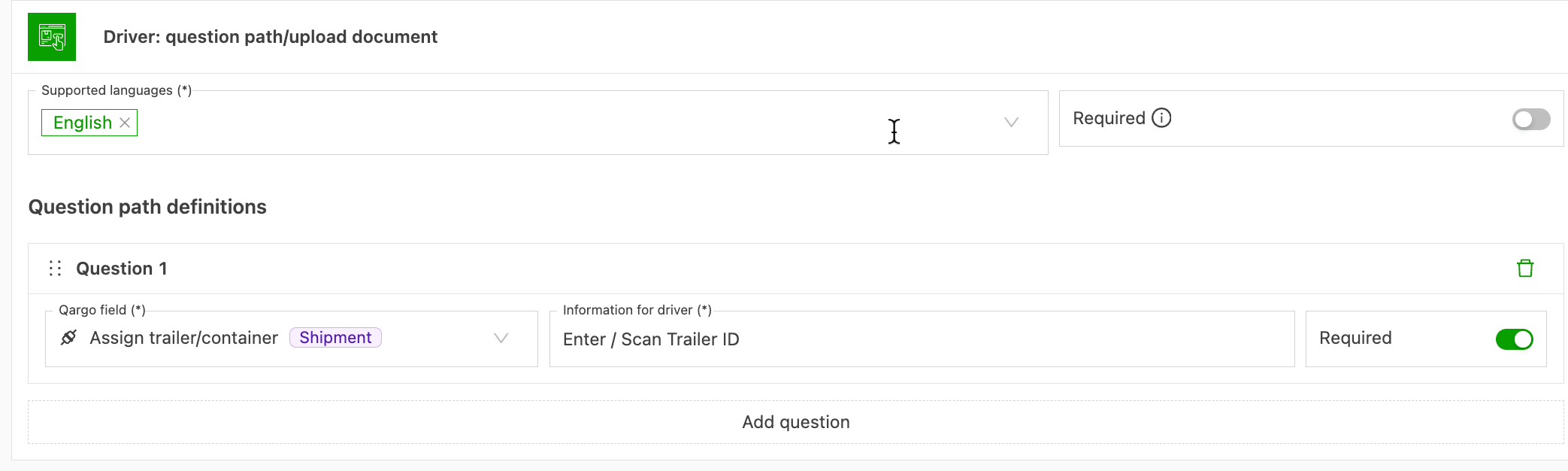
Once the task is created, the next order assigned to the driver shows the option to add the ID.
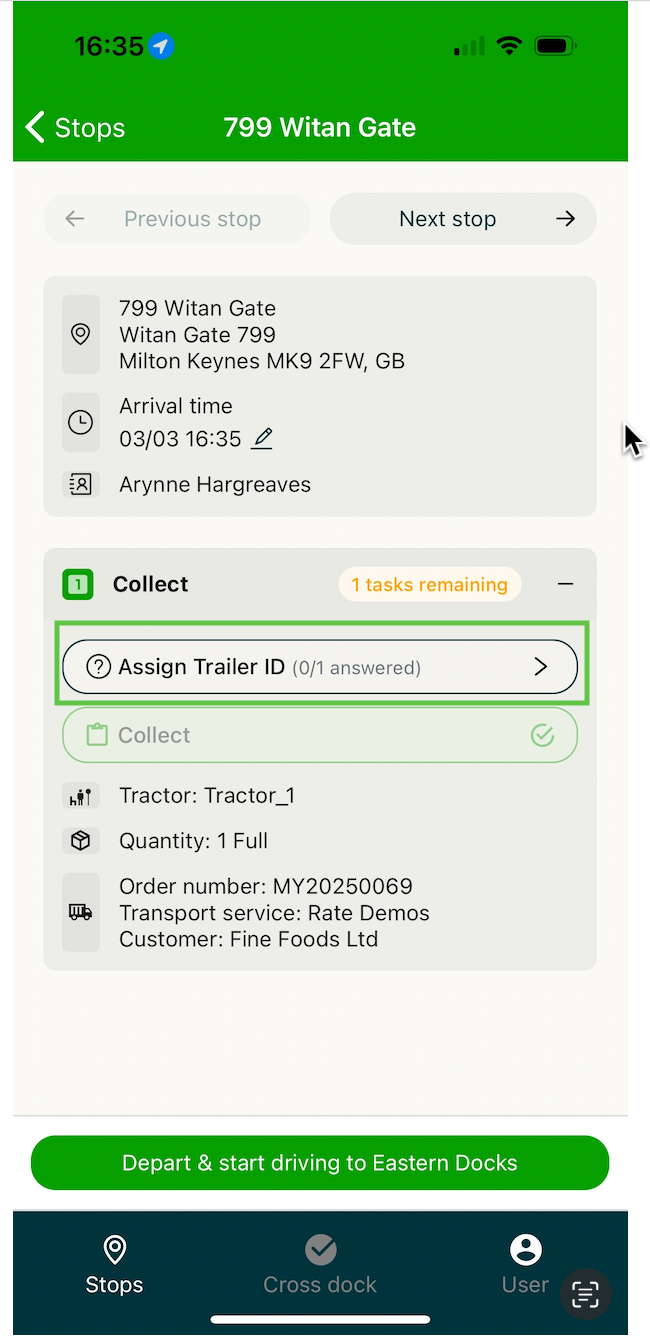
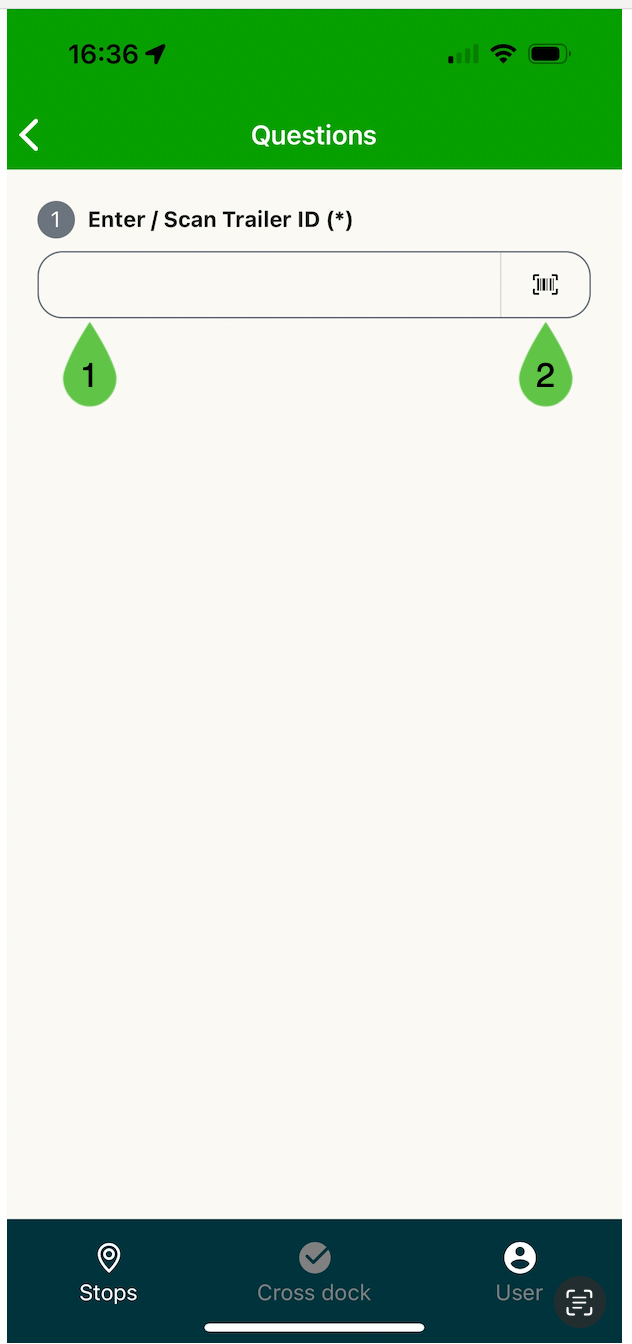
- The driver can enter the ID manually.
- The driver can use the device camera to scan a QR code or barcode.
Once a code has been scanned, the details update automatically. The driver can then move on to the next question or complete the stop.
When the driver adds the resource ID, either manually or by scanning a QR code or barcode, the load and order update with the details. If the resource is listed as an active resource in the account, this resource is assigned.
Order:
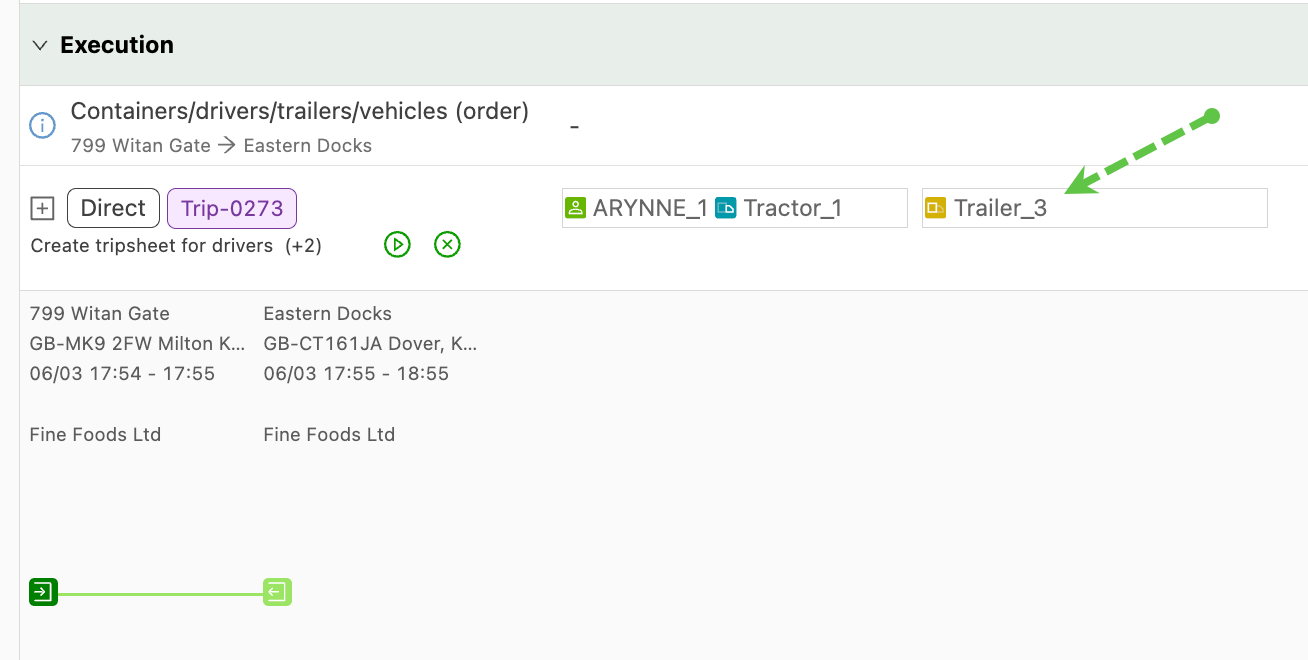
Loads:
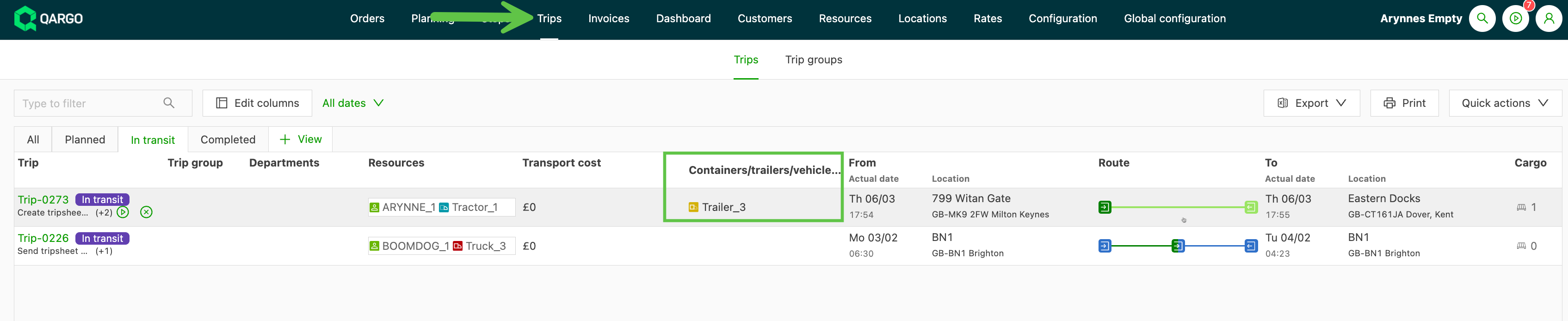
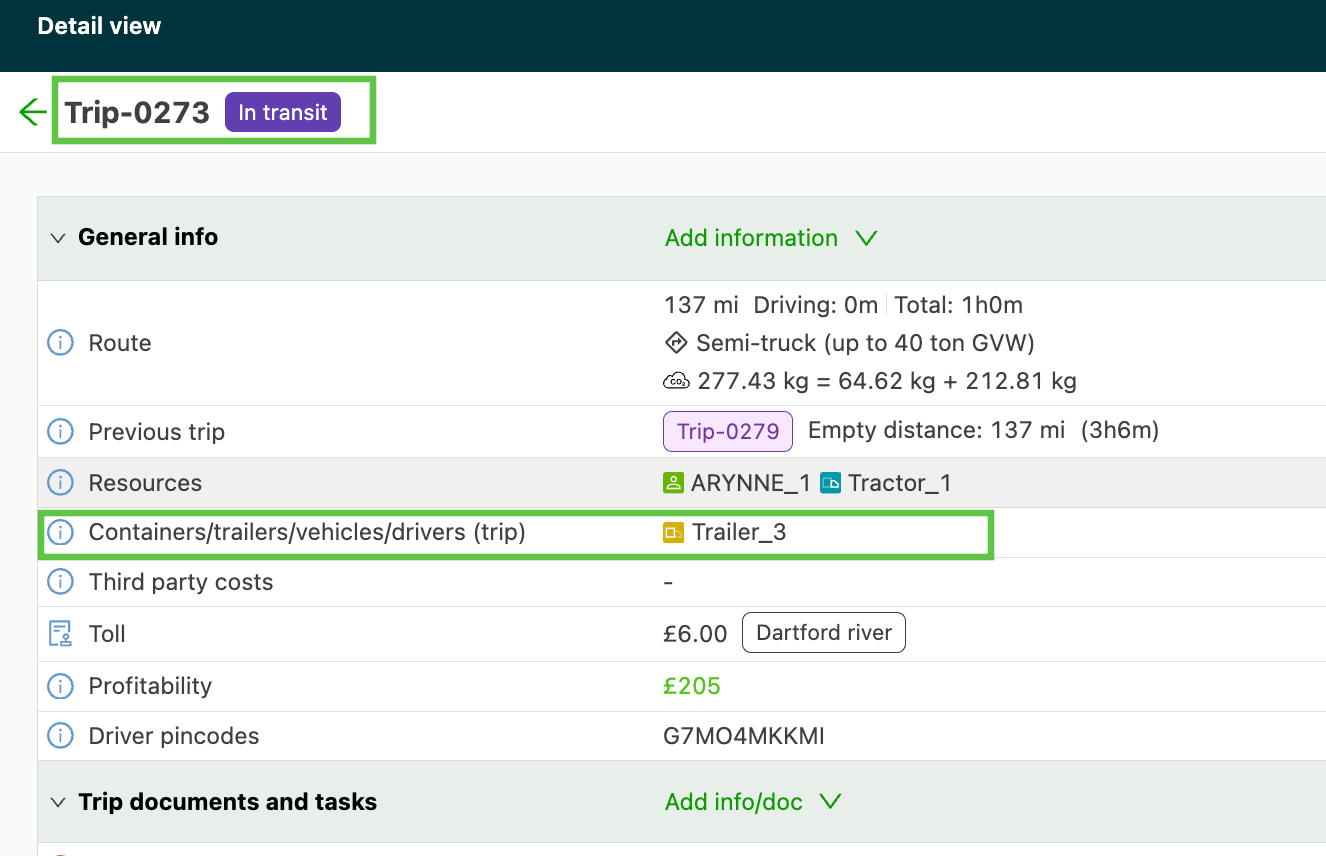
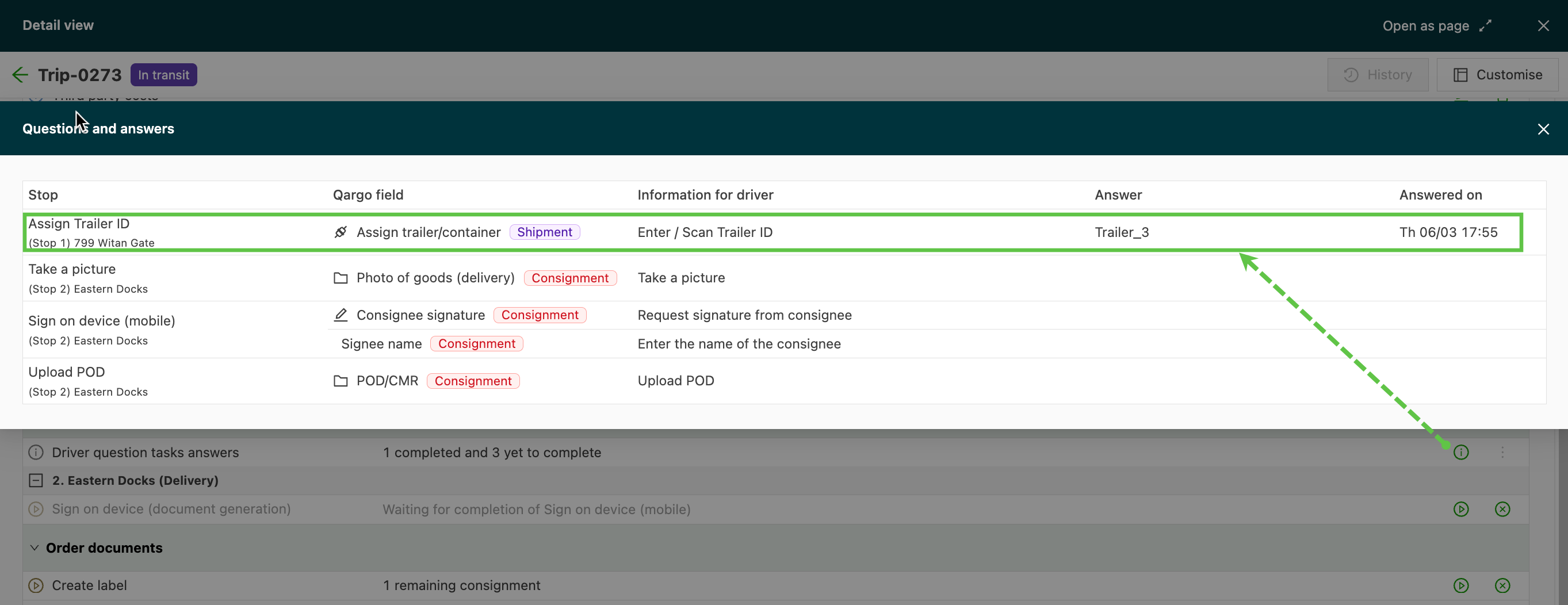
If the resource is not listed in the Qargo account, the ID is recorded in the “Question / Answers” panel.