
Tasks: task creation conditions – what, why and how
Configure creation conditions on task templates to control which tasks are generated per order, load, or shipment. Irrelevant tasks are filtered out automatically, without manual intervention.
Table of contents
🎥 Click the link below to watch a quick product overview.
Introduction
What?
- Task creation conditions are configurable rules added to task templates. They determine whether a task is created when an order, shipment, load, or resource allocation is generated.
Why?
- Different orders require different workflows. Without conditions, all tasks are created for every order, whether they are relevant or not. Conditions eliminate manual skipping and reduce noise in the task list.
How?
- Conditions are configured per task template in Configuration > Tasks, under the Conditions section. When a new order or load is created, Qargo evaluates conditions asynchronously in the background. It only creates tasks whose conditions are met.
Terminology
| Term | Definition |
|---|---|
| Task template | A reusable task configuration set up in Configuration > Tasks that defines the rules, automation, and conditions for a task type |
| Creation condition | A rule applied to a task template that determines whether the task is created when a new order, load, shipment, or resource allocation is generated |
| Trigger evaluation | The background process that checks all creation conditions when a new entity is created and decides which tasks to generate |
| Recalculate tasks | A manual action that re-runs trigger evaluation for an existing order or load; useful when order or load details change after creation |
| Stop task | A task linked to a specific stop on a load. This includes driver question paths. Creation conditions are not available for stop tasks |
Task creation conditions
Task creation conditions are rules on task templates that control whether a task is generated for a given order, shipment, load, or resource allocation. Tasks whose conditions are not met are never created, so no manual skipping or deletion is required.
Tasks without any conditions configured behave as before: they are created immediately when the relevant entity is generated.
Supported condition types
Conditions can be set based on the following attributes of the order or load:
- Route (e.g., specific origin or destination)
- Goods (e.g., freight type)
- Service level
- Transportation service
- Vehicle category
- Customer
- Department
How conditions are evaluated
When a new order, load, shipment, or resource allocation is created, Qargo evaluates all relevant task template conditions asynchronously in the background. Tasks that meet all conditions are created automatically. Tasks that do not meet the conditions are discarded entirely and never appear in the task list. Child tasks of a discarded parent task are also discarded.
Configuring creation conditions
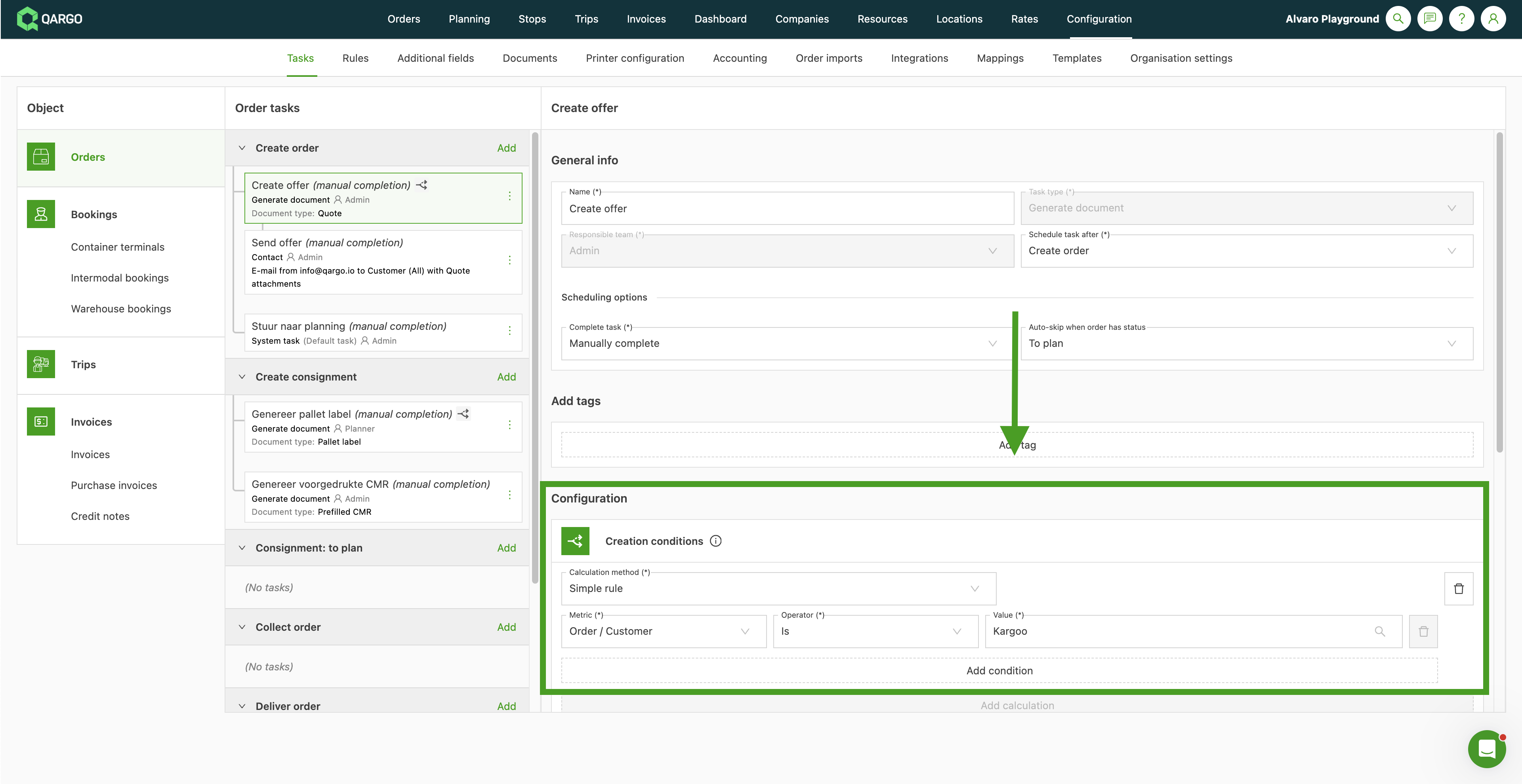
- Navigate to Configuration > Tasks.
- Select the task template to add conditions to.
- Open the Conditions section on the task template.
- Add the conditions using the available fields.
- Save the task template.
Identifying tasks with conditions
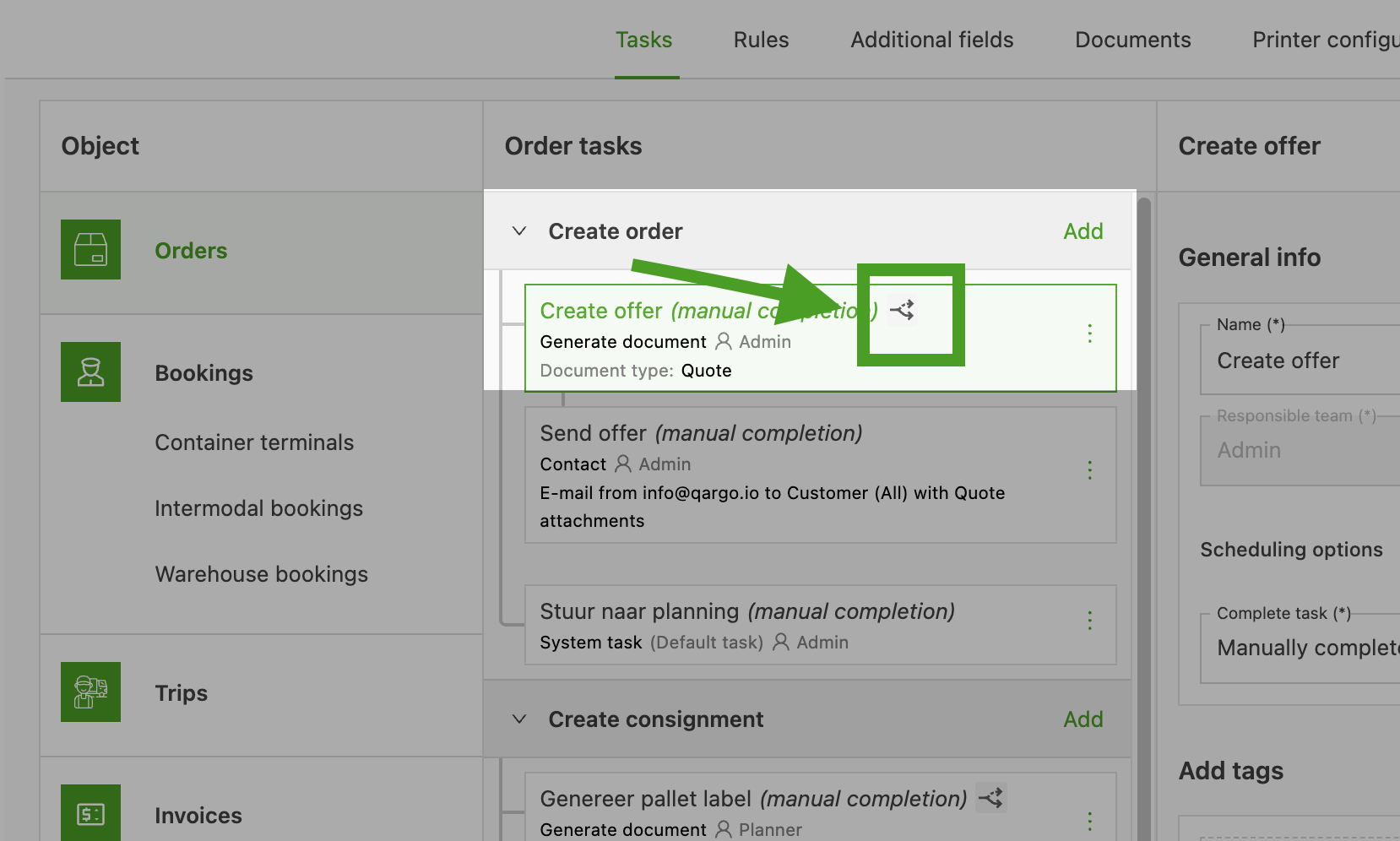
Once conditions are configured on a task template, a visual indicator icon appears next to that task in the task list. Hovering over the icon displays the tooltip “This task has creation conditions”. This makes it easy to see at a glance which tasks are subject to filtering.
Conditions on stop tasks
Stop tasks can carry creation conditions, just like order, load, and shipment tasks. A stop task is only created for stops that match its conditions. Drivers and contract carriers then see only the tasks and questions that apply to their job.
Stop tasks cover driver question paths, stop emails, generated documents, and similar tasks linked to a stop.
Set conditions on a stop task
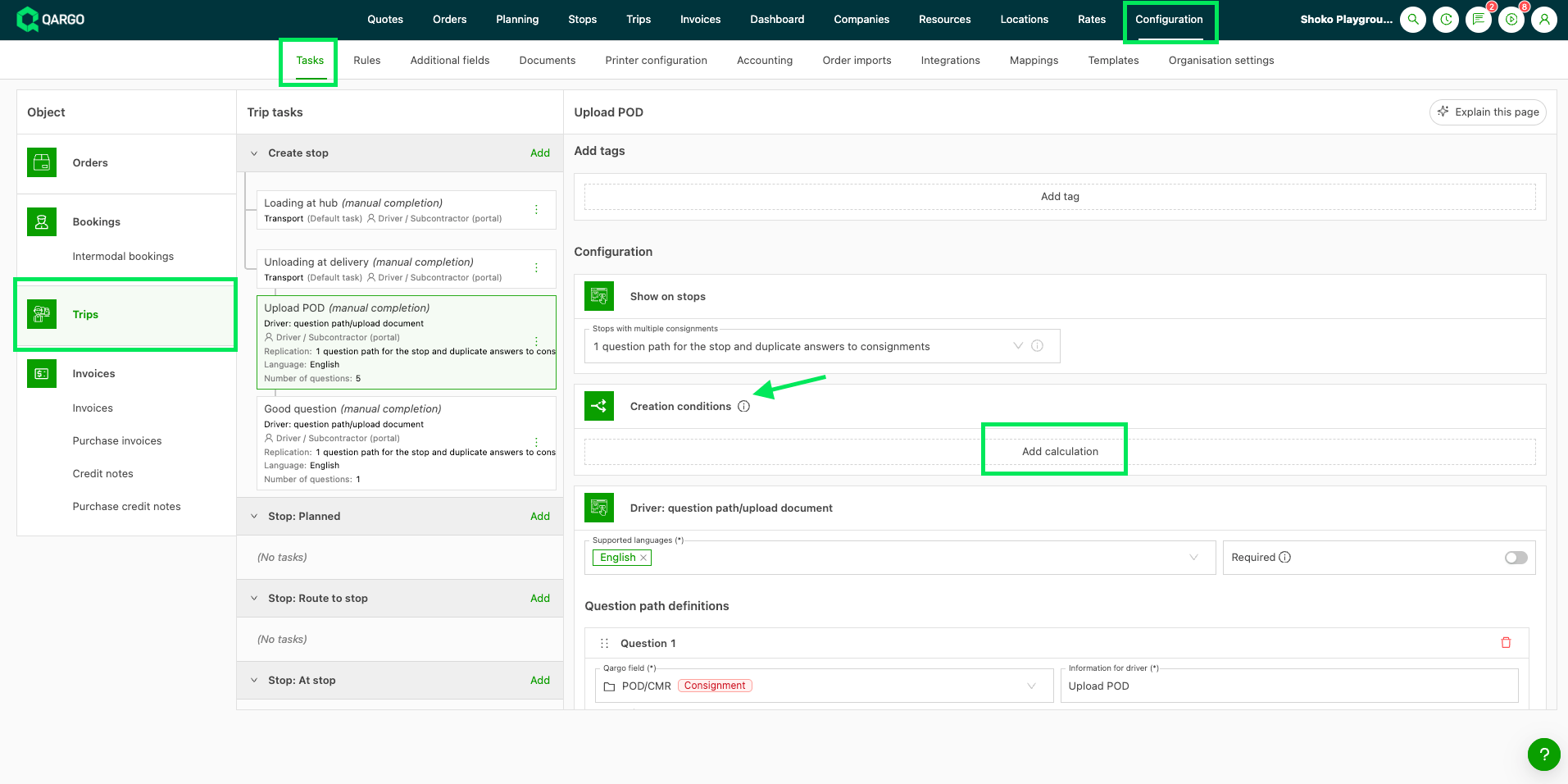
- Navigate to Configuration > Tasks > Loads.
- Select the stop task, for example a driver question path.
- Open the Creation conditions block and click Add calculation.
- Choose Calculation method.
- Pick a metric, an operator, and a value.
- Click Add condition to narrow the task further.
- Save the task.
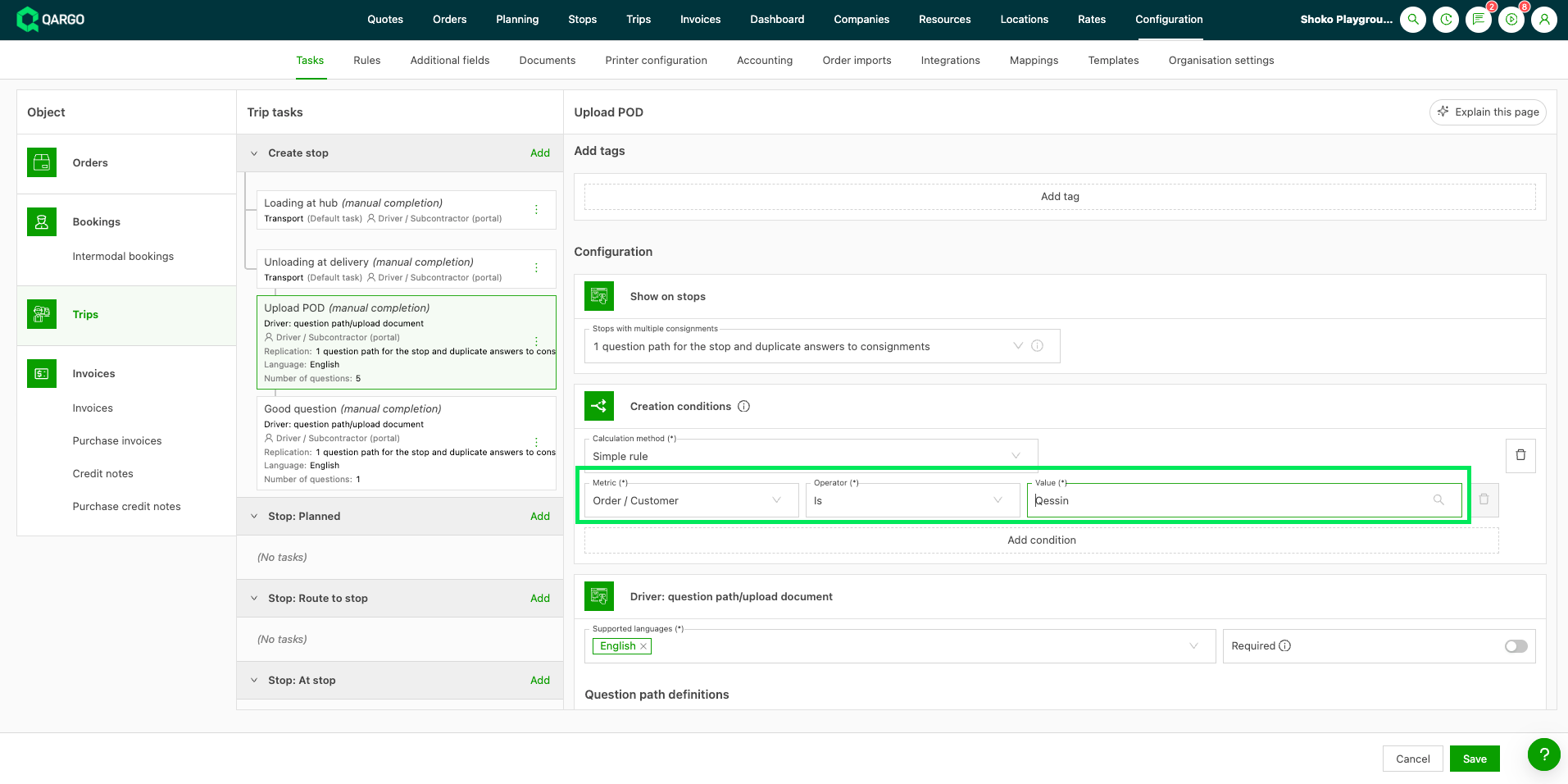
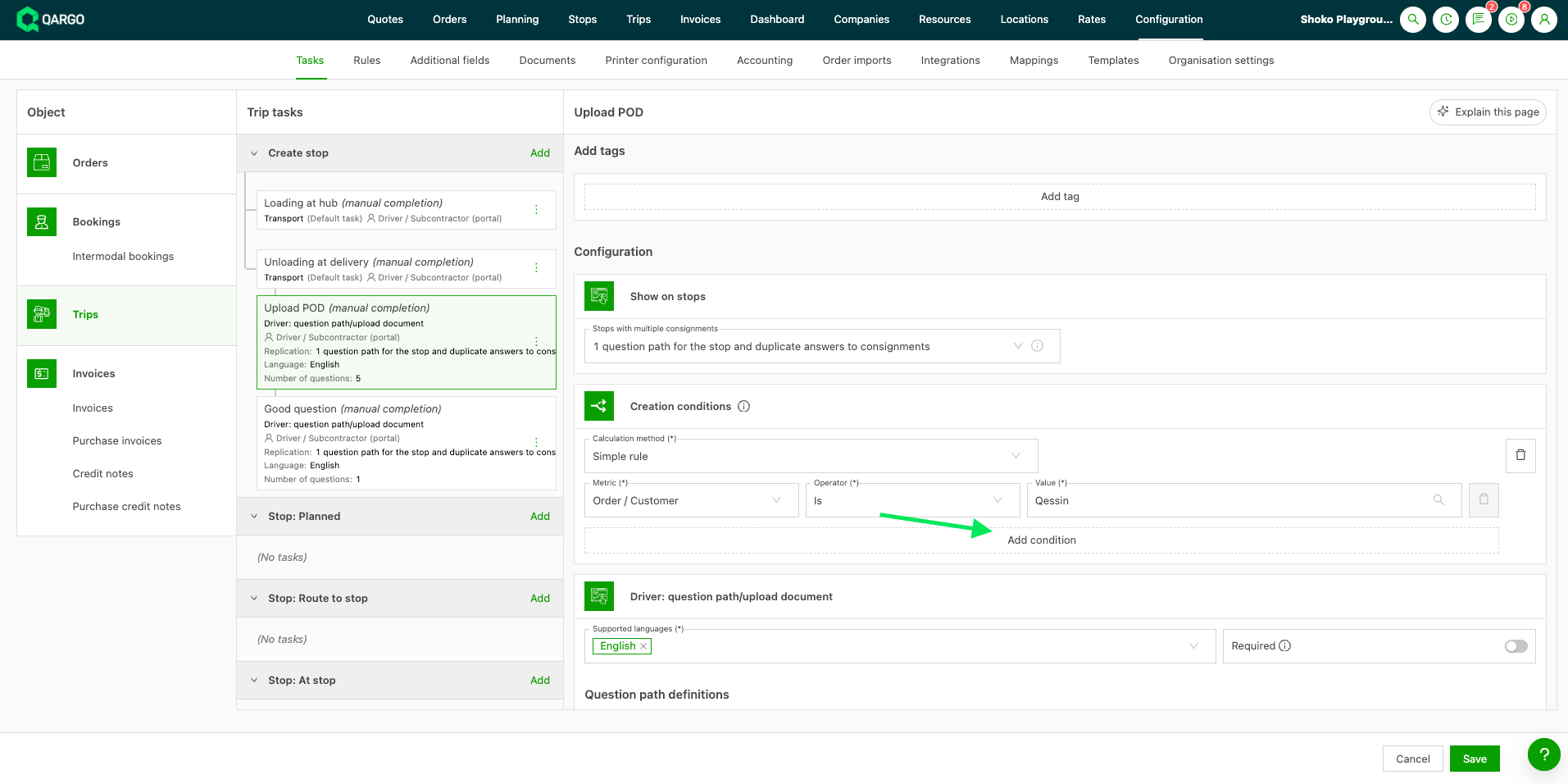
From then on, the task is only created for stops that match every condition. A stop task without conditions keeps working as before: it is created for every stop it is set up for.
What conditions can use
Conditions can look at:
- The order: customer, transportation service, vehicle category, department, service level, and container type.
- The goods on the order.
- The route.
- The stop the task sits on: its location, whether it is a pickup or a delivery, the requested weekday, and public holidays.
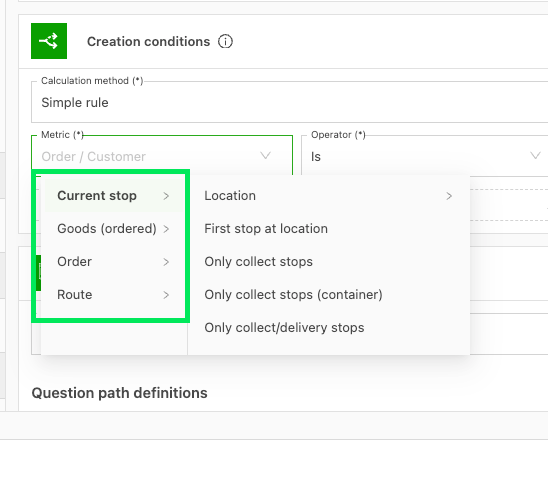
How conditions work on stops
- Conditions are checked for each stop. A task limited to delivery stops only appears on the delivery.
- No conditions on the assigned driver, vehicle, resource group, or contract carrier. Stop tasks are created before anyone is allocated.
- Conditions are checked when the stop is created. If a stop is changed afterward, for example its activity, the task is not added automatically.
- A Location condition with the operator Is not keeps a task away from specific terminals or addresses.
- A task whose conditions do not match is never created, so it never reaches the driver mobile app or the carrier portal.
- Show on locations is no longer offered on new stop tasks. Stop tasks that already use it keep it. Use a Location condition instead.
Recalculating tasks manually
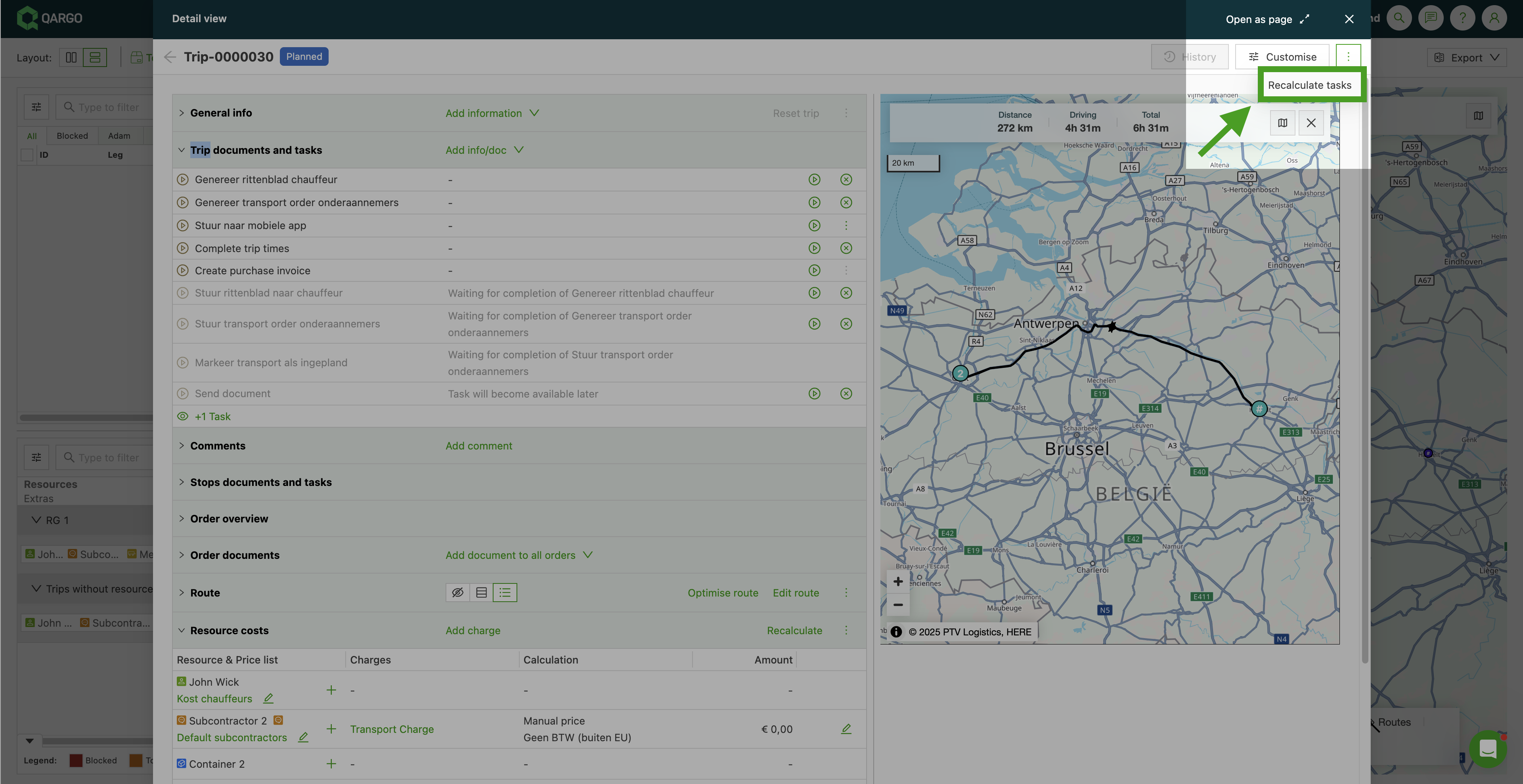
If relevant order or load details change after creation (for example, the customer or route is updated), task conditions can be re-evaluated manually with the Recalculate tasks action.
- On an order: Open the order, click the … menu in the upper right corner, and select Recalculate tasks.
- On a load: Open the load, click the … menu in the upper right corner, and select Recalculate tasks.
- On customer edit: A toggle is available to recalculate tasks for affected orders when saving a customer record.
Limitations
| Limitation | Detail |
|---|---|
| Stop tasks | Creation conditions are not available on stop tasks (which include driver question paths) |
| Default system tasks | System tasks such as Ready to invoice cannot have conditions applied |
| Evaluation timing | Conditions are evaluated at the moment of task creation. Use Recalculate tasks to re-evaluate if order or load details change after creation |