
Feature release June 2025
This article highlights the new features and enhancements released by Qargo this month.
Week 1
Orders: AI signature detection on POD / CMRs
Configuration: Configure decimal separator preference
Configuration: Routing default preference
Mobile app: Driver read notification for load confirmation
Week 2
Intermodal: Quick actions update
Orders: Select PDF pages to scan for orders
Orders: Save custom view columns
Orders / Invoices / Loads: Enhanced bulk task processing
Week 4
Loads: Samsara dispatch function available
Intermodal: Improved visibility for booked connections
Week 1
Orders: AI signature detection on POD / CMRs
- When a signed POD / CMR is added to the system, Qargo Intelligence (Qi) now detects signatures and provides this as a summary on the document.
- Hover over the ‘Signed’ label to see additional details about the signatures.
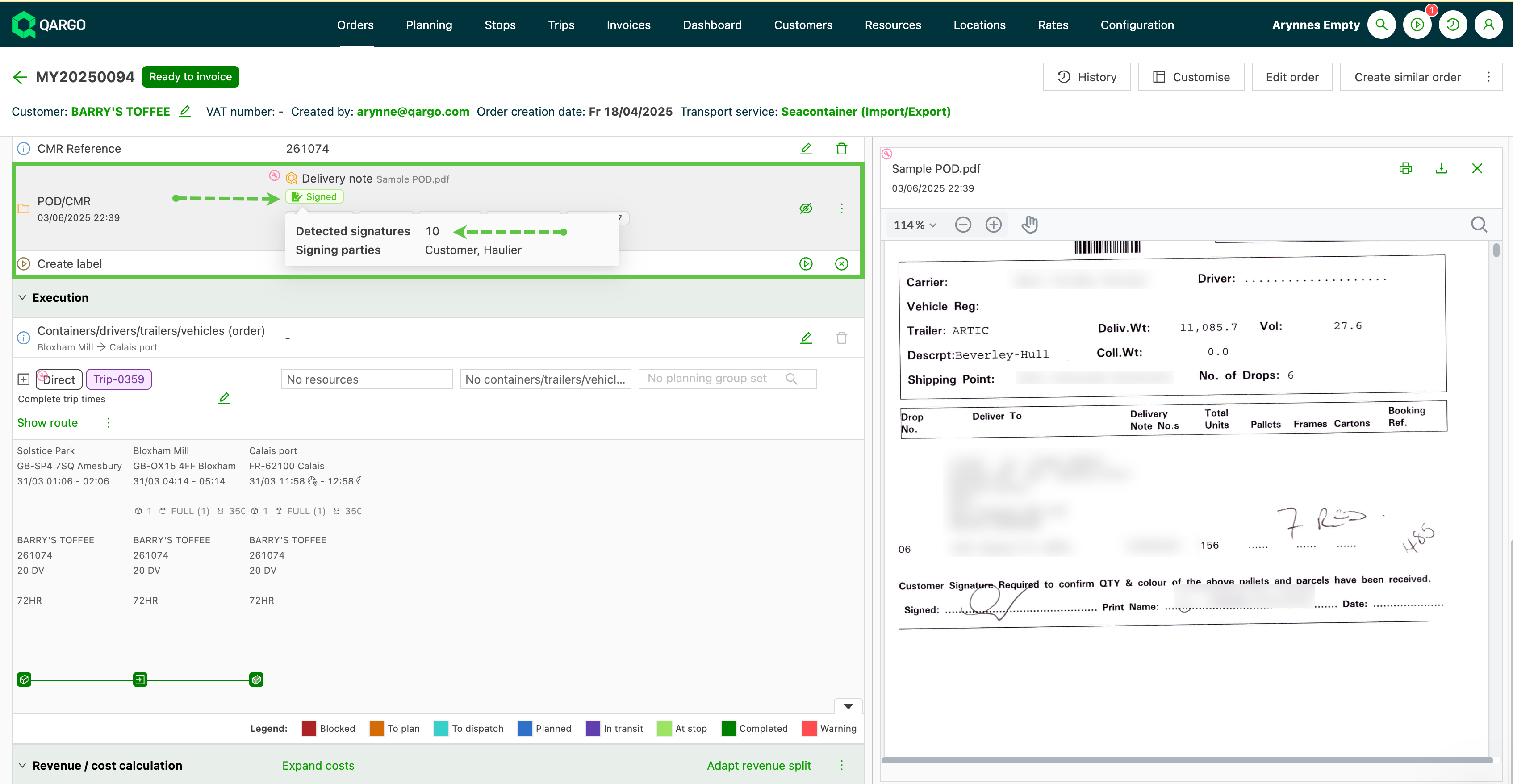
- In addition to signatures, Qi also includes a quality indicator for the document itself by color coding the ‘Q’ logo (Green = Good / Orange = Poor).
- Additional data points from the document are extracted and included in the summary, making key information instantly accessible.

Configuration: Configure decimal separator preference
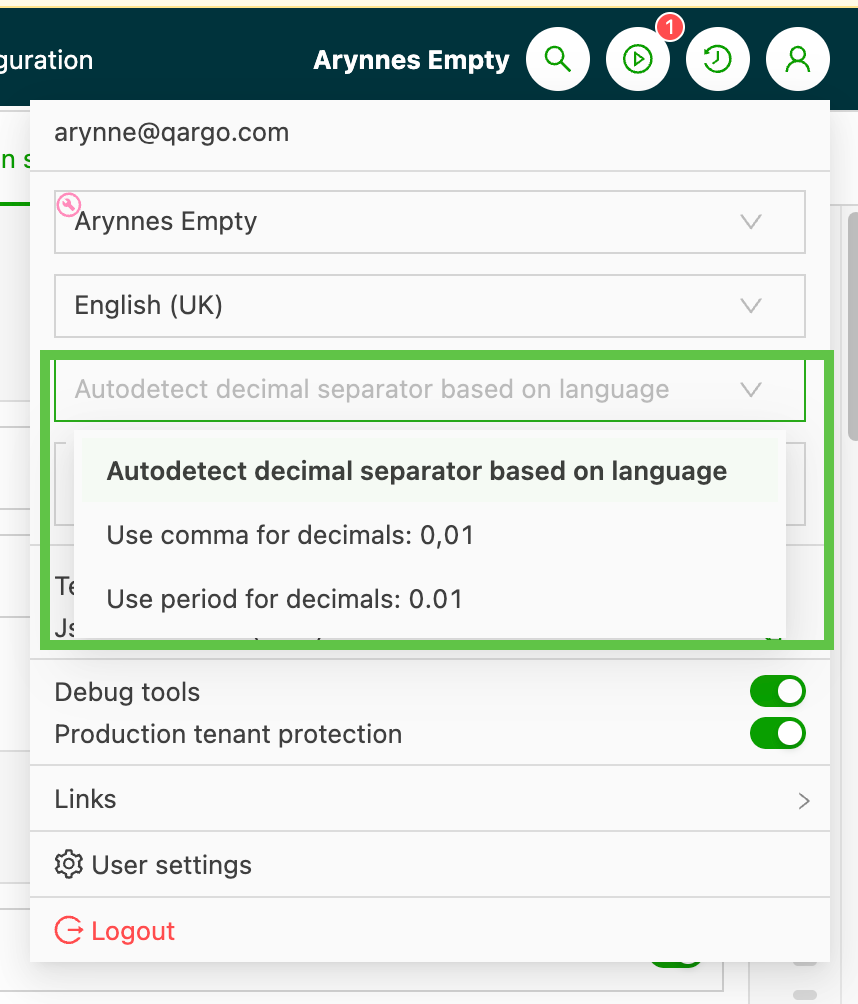
Different locations use different decimal separators when entering amounts. Users can now choose which decimal separator to use, to avoid any confusion when generating amounts throughout the system.
There are 3 options available:
- Autodetect decimal separator based on language (Based on the user’s language setting in the tenant.)
- Use comma for decimals: 0,01
- Use period for decimals: 0.01
Configuration: Routing default preference
It is now possible to adjust routing defaults, with 3 options available:
- Cheapest
- Fastest (default)
- Shortest
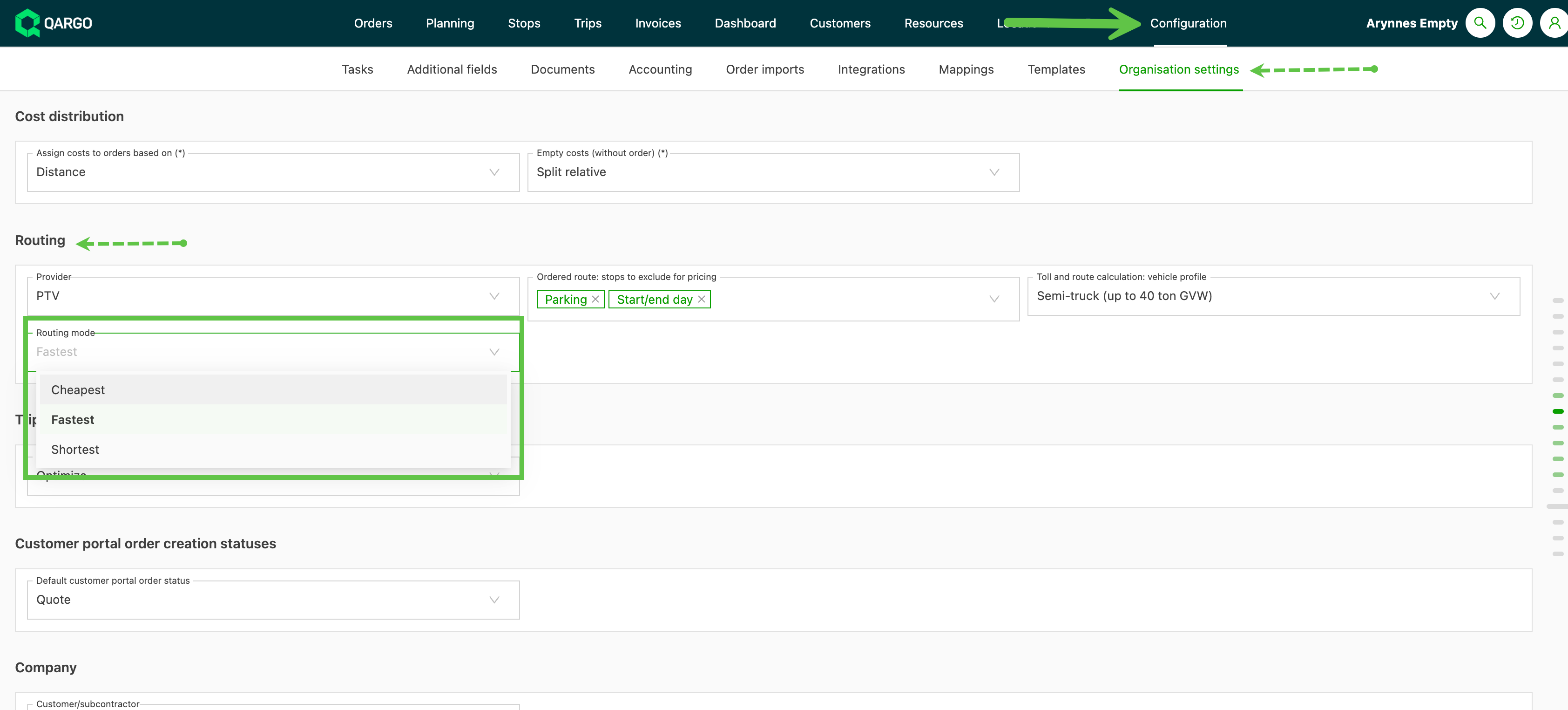
This flexibility allows users to control how their routes and tolls are calculated. This offers more accurate routing and the cost savings that come with it.
Mobile app: Driver read notification for load confirmation
No more guessing whether the driver has received the latest load details!
When a load is sent to the driver’s mobile device, it now has a label showing ‘Unread’. This label shows in the load and on the driver details in the Planning screen.
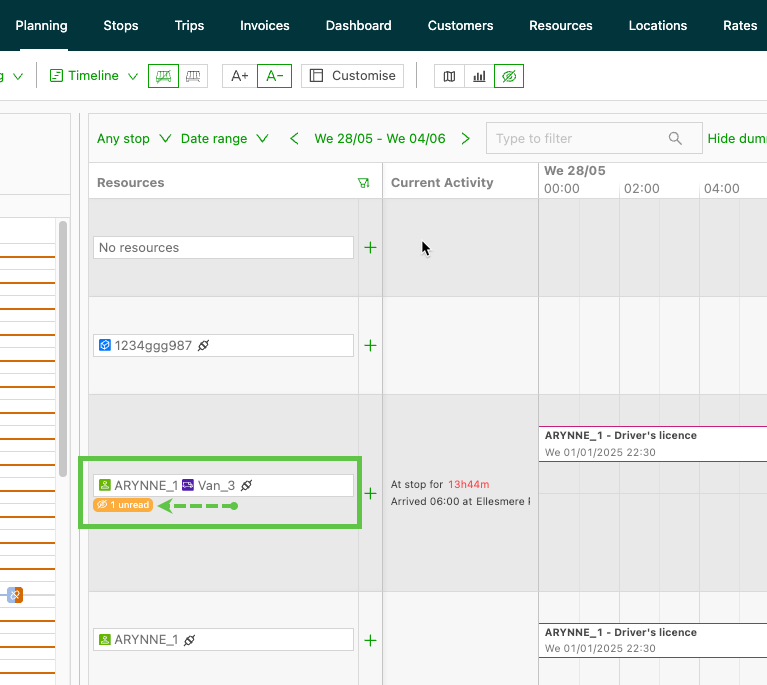
On the driver side, the driver mobile app shows the details with a red border indicating New.
Once the load is acknowledged in the app, the label updates to show ‘Read’ in the load. The label on the planning board is removed.
:::
Week 2
Intermodal: Quick actions update
For customers with a high volume of intermodal orders, completing mass updates across multiple loads was cumbersome. For instance, where sailings needed to be verified, there was a heavy manual effort to verify and update loads individually.
A new ‘Quick actions’ function on the Intermodal planning page now enables efficient completion of loads and tasks without the need to process each one individually.
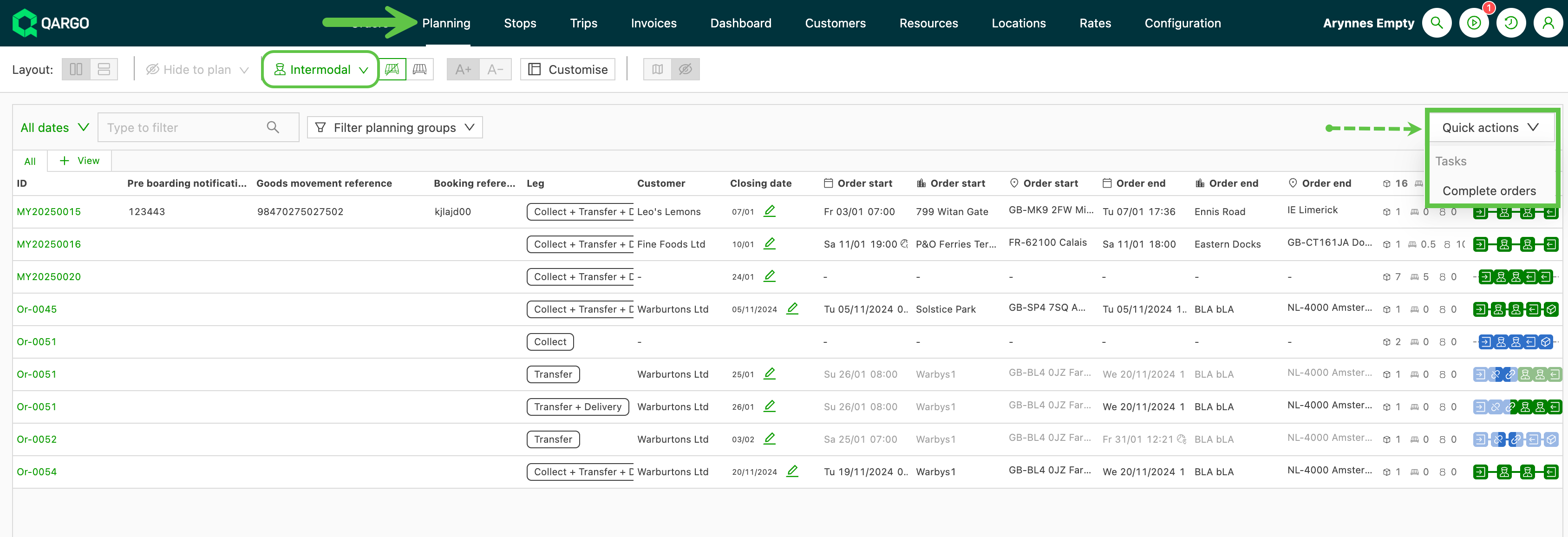
Key benefits:
- Save time by completing multiple loads at once
- Reduce the risk of human error in repetitive tasks
- Maintain a clear overview of pending actions
Learn about intermodal planning here
Orders: Select PDF pages to scan for orders
To create an order using Qargo Intelligence, drag an email or a PDF into Qargo. It is possible to define which pages of the PDF file(s) should be used for the order pre-fill and as the order confirmation.

Once the PDF files have been added, the user can specify which page range should be used. AI scans this range, and the range is used as the order confirmation attachment in the order.
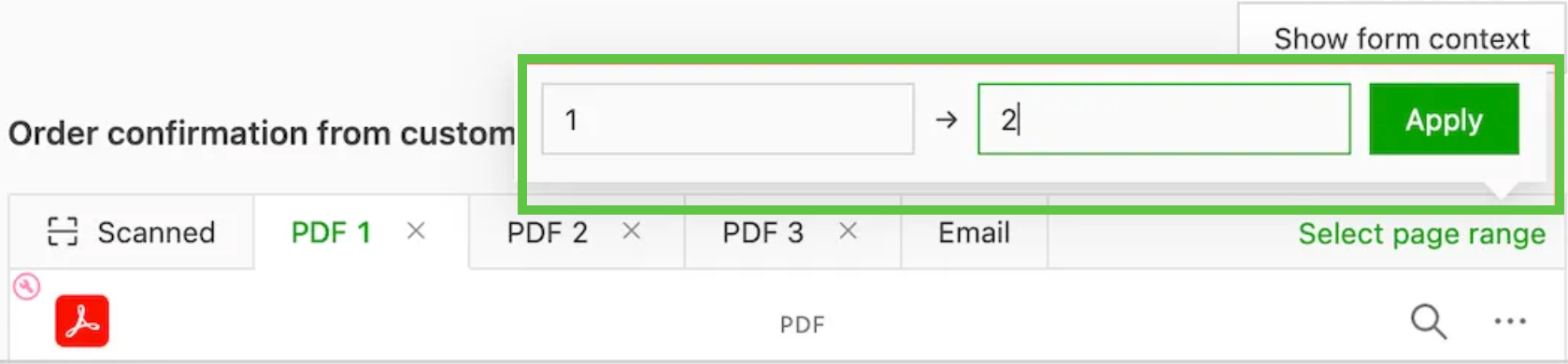
Once the split has been created, it is also visible for review. It is possible to create splits for the different PDF files that have been attached. When multiple splits are created, the last created split is used as the order confirmation. The original PDF files can be deleted, or they can be left to attach to the order as well.

Once the order is created, the last created split is added as an attachment as the order confirmation from the customer, along with the email itself. If other splits were created from other PDF files, these are added as attachments with document type ‘Other’. Finally, the original PDF files are added with document type ‘Communication’
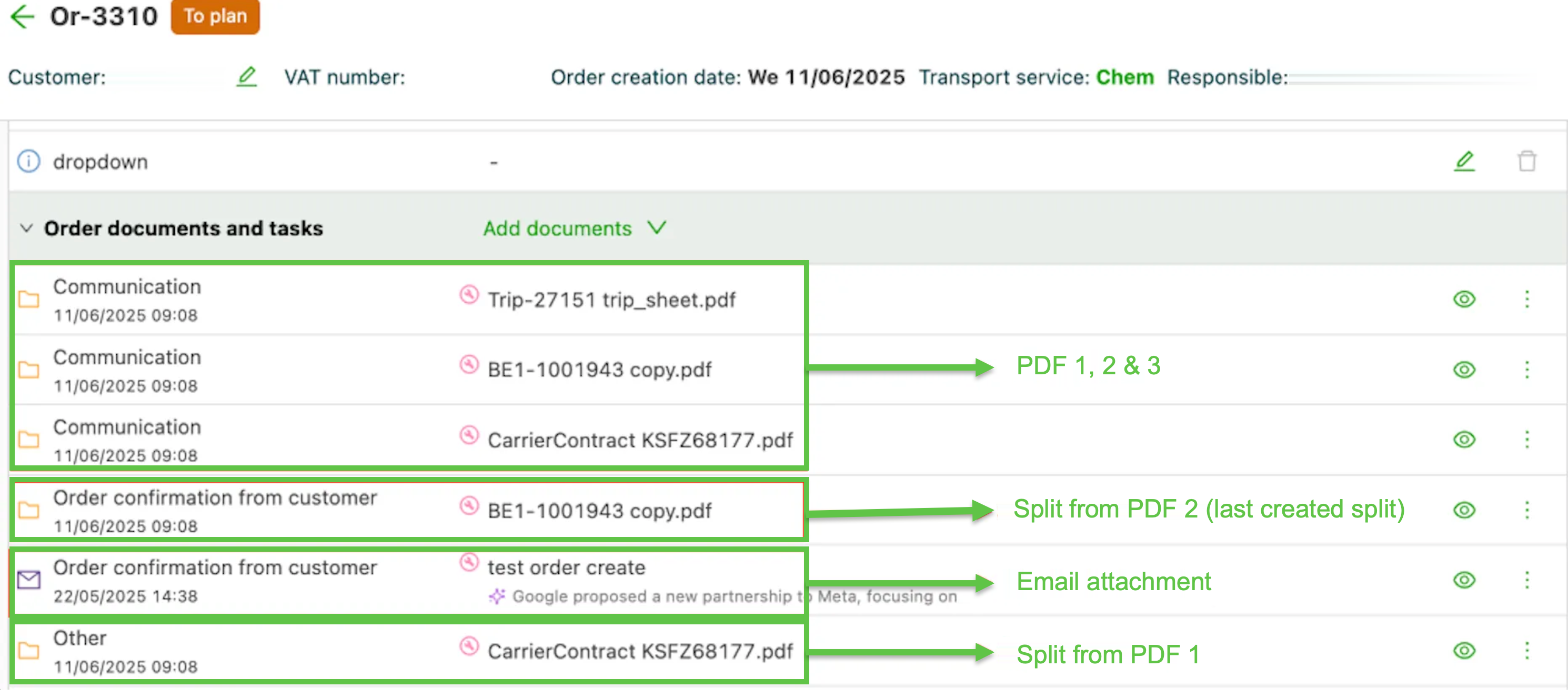
- Customers can now easily extract the order confirmation from larger PDF files.
- More accurate document scanning by specifying the pages to be used.
Click the link below to learn about Qargo Intelligence and order creation
Qi – Order creation via order confirmation document
Orders: Save custom view columns
When a user creates a custom view, users can now modify the columns included in the view without affecting other views.
-
Create the custom view - Click + View.
- Give the view a name and click ‘Create view’
-
Click ‘Edit columns’ in the new view and toggle relevant columns on/off
-
Click ‘Save changes’
Orders / Invoices / Loads: Enhanced bulk task processing
The previous limit of 100 records for executing tasks in bulk has been lifted; it is now possible to select all records for processing.
- Not all tasks are processed at the same time.
- To distinguish them, tasks show a status of ‘in progress’ or ‘upcoming’. Tasks marked ‘upcoming’ are waiting to be put in progress.
- This happens automatically once the records are selected; no further action is required.
The task indicator displays while the tasks are being updated:
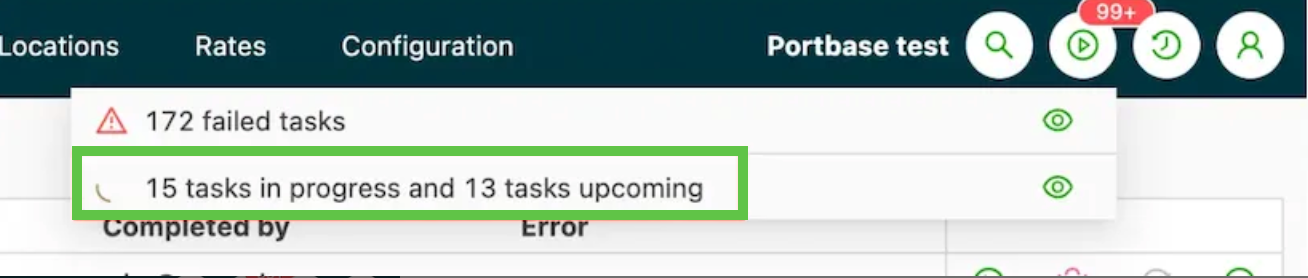
Selecting multiple records is available on the following pages:
- Orders
- Loads
- Invoices
- Carrier invoices
- Credit memos
- Carrier credit memos :::
Week 4
Loads: Samsara dispatch function available
The first version of Samsara FMS Dispatch/Sync is now available. This integration allows users to dispatch loads directly from Qargo to Samsara and automatically sync stop statuses back to Qargo.
This builds on Qargo’s existing features for truck and trailer position tracking, as well as trailer temperature monitoring.
Intermodal: Improved visibility for booked connections
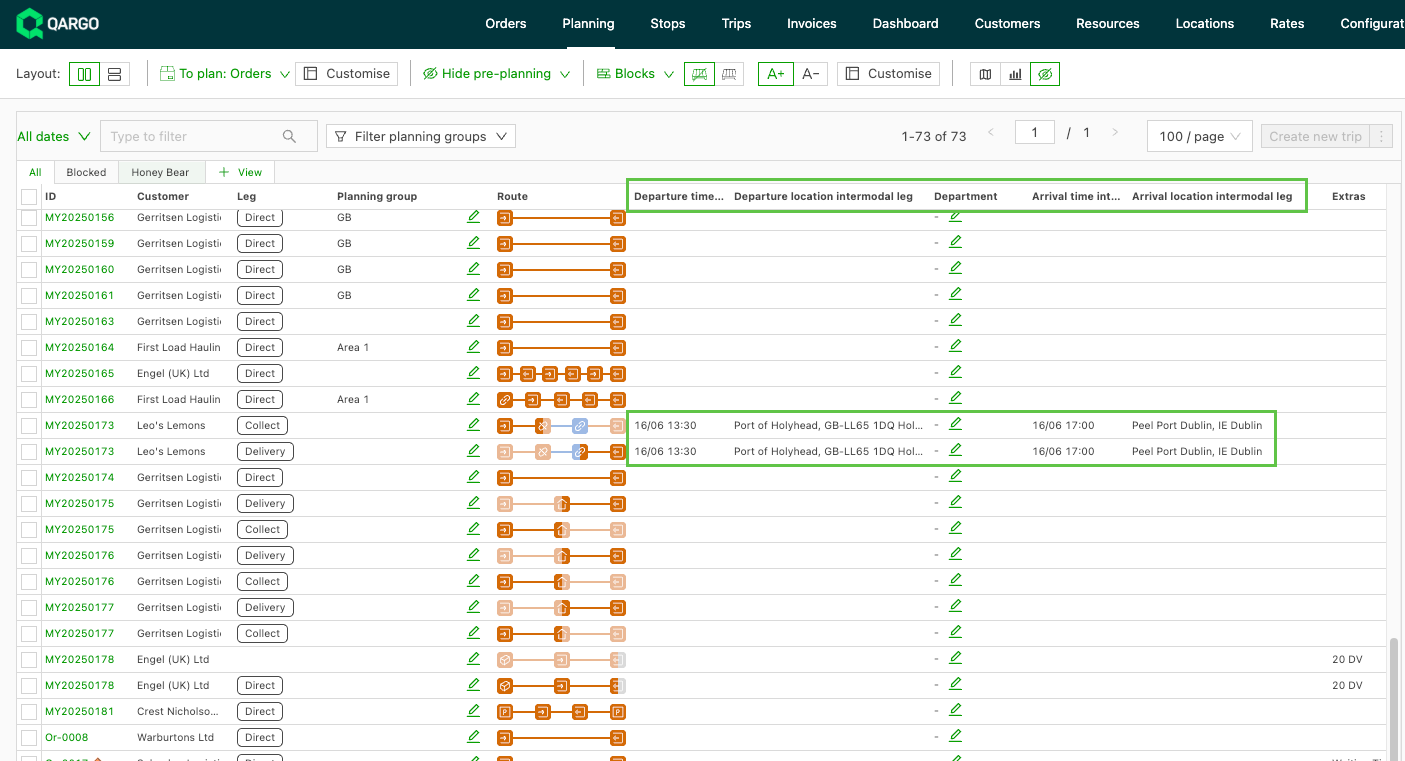
When an intermodal connection was booked, details were previously only visible within the order. Connection details for arriving or departing connections are now also visible in Planning.
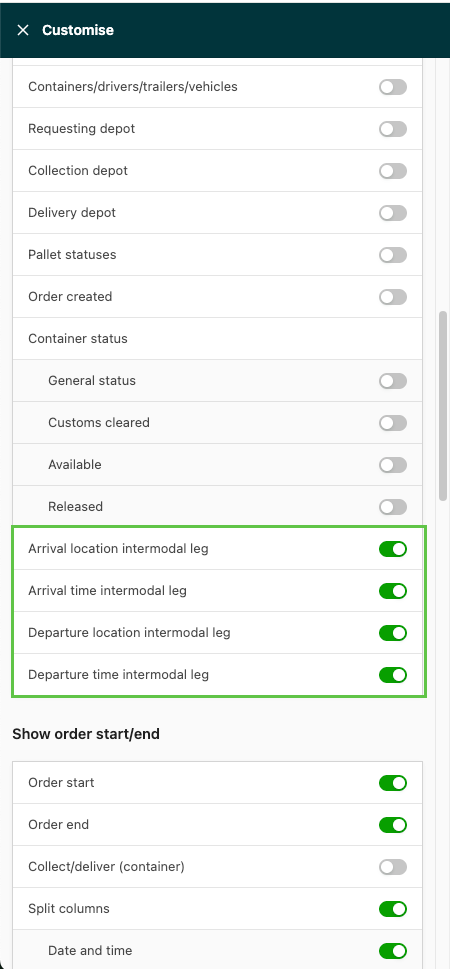
Under To plan: Orders there are 4 new columns with information on the intermodal arrival and departure locations and dates:
- Departure time intermodal leg
- Departure location intermodal leg
- Arrival time intermodal leg
- Arrival location intermodal leg
Click ‘Edit columns’ and toggle them on.
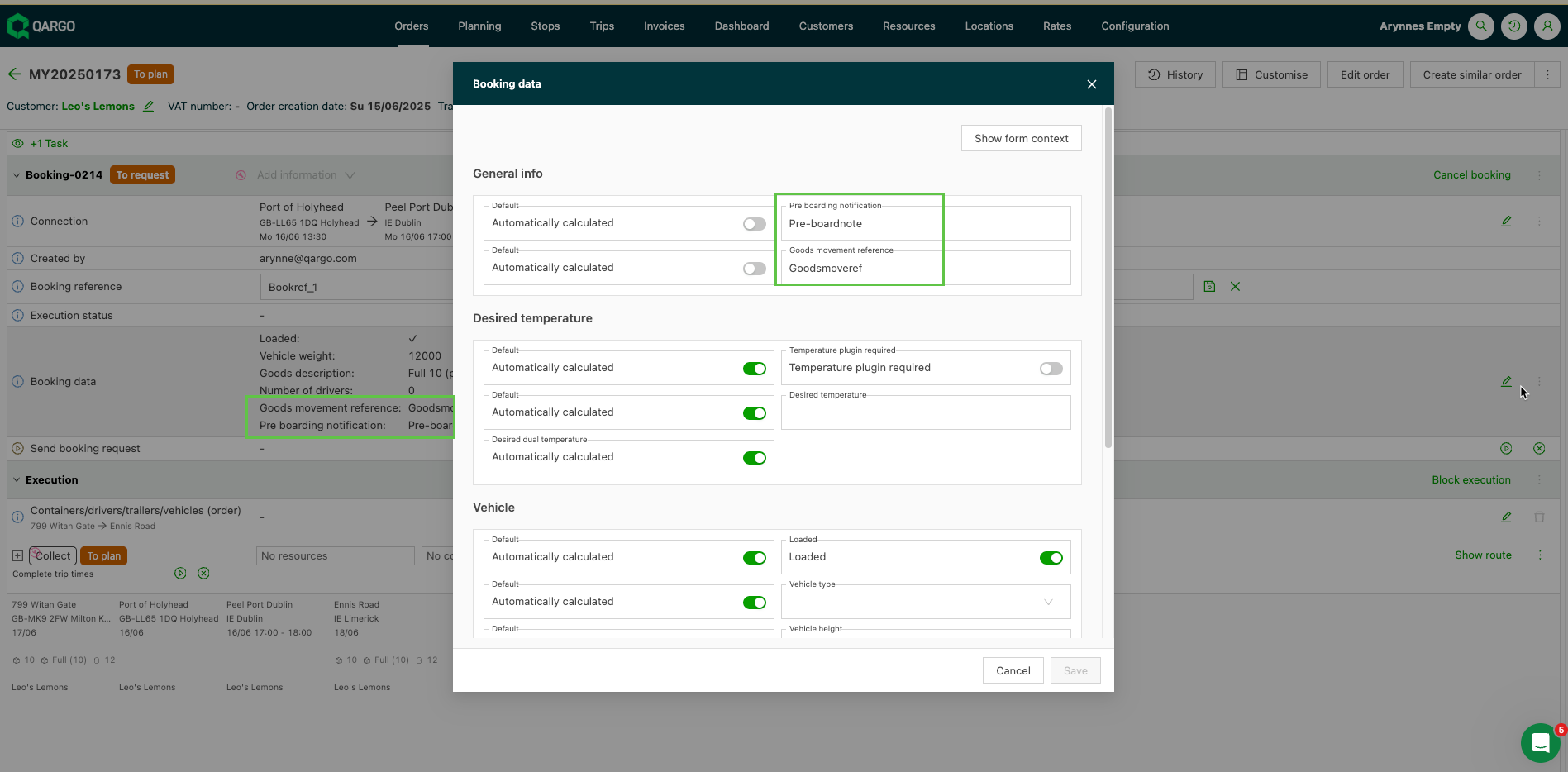
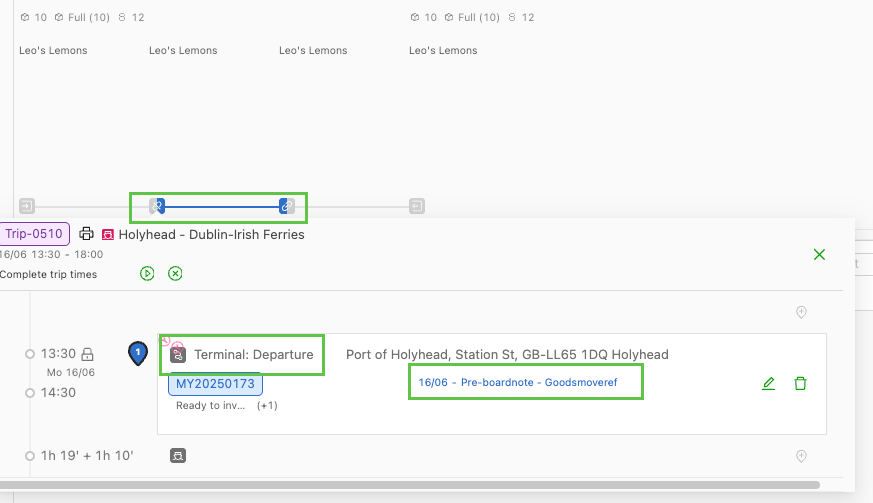
Booking-related references are now also visible on the terminal stop. These can be added to the booking data and show when the terminal stop is expanded.
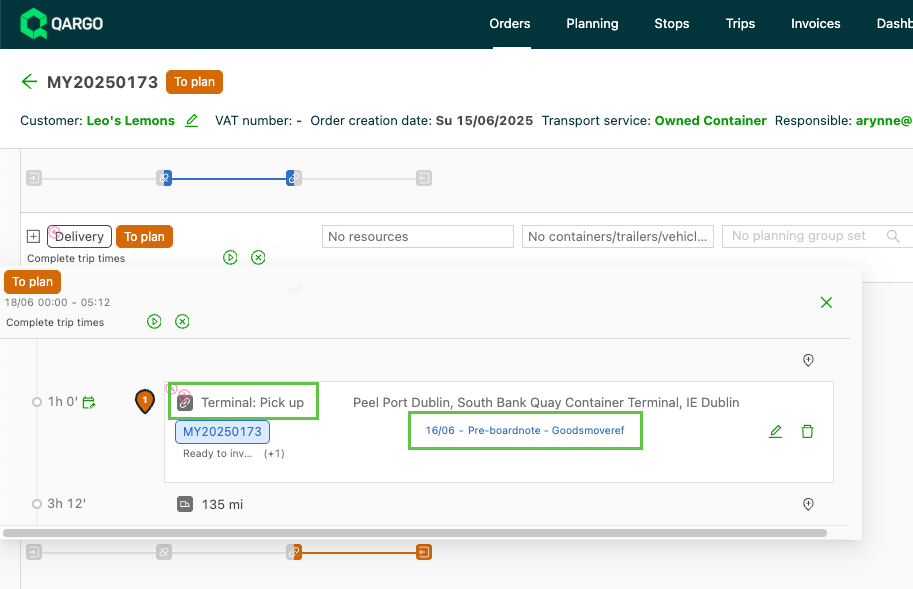
Customer impact
- Better overview of intermodal information on orders and loads
- Easier planning, with intermodal arrival and departure information readily available :::