
FAQ - Language, decimal separator and date format
How to set the user language, decimal separator and the US date format in Qargo.
Table of contents
Available user languages
Q. Is it possible to configure different languages on the platform? Can users have different languages in the same account?
A. Yes. Qargo supports several languages on the platform. Users can set their own preferred default language.
Users can choose from:
- Dutch
- English
- English (UK)
- English (US)
- French
- German*
- Polish*
- Spanish*
- Italian
Configure the preferred user language
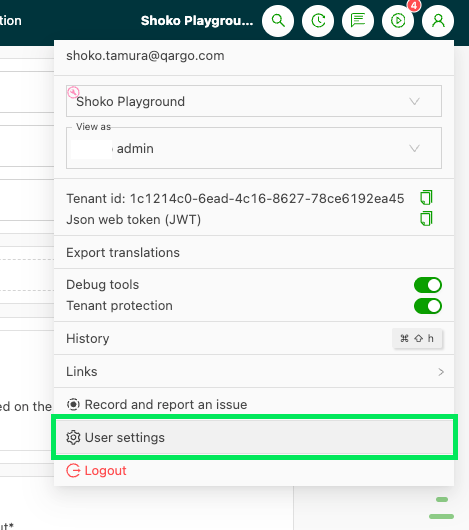
- Click the User profile icon.
- Click User settings.
- In the Preferences section, select the preferred language under Locale.
The platform switches automatically.
Adjust the decimal separator
To adjust the decimal separator manually:
-
Click the User profile icon.
-
Click User settings.
-
In the Preferences section, select the preferred option under Decimal separator.
Three choices are available:
-
Comma separator: 0,01
-
Period separator: 0.01
-
Autodetect: follows the user’s own Language setting. Dutch and French default to a comma. All other languages default to a period.

‼️ This is a per-user setting. Each user sets their own preference, and it has no effect on any other user’s account. There is a tenant-level default, but any user can override it for themselves from their own user menu.
Note: This does not affect the separator in Excel exports. That is managed in the Templates configuration via Expression Builder.
US date format
Q. How can the US date format (MM/DD/YYYY) be set up in Qargo?
A. There are two ways to enable it:
- Individual user setting (self-service): A user selects the format by changing the language setting to English (US) in their personal User settings.
- Organization setting (administrative): To apply the US date format by default for all users across the entire Qargo tenant, the setting must be configured in the General organization settings. To make this change, contact the Onboarding Manager, Account Manager, or Support.