
Qargo aQademy: what, why and how.
A guide to Qargo aQademy: how to log in, set the preferred UI language, work through the role-based learning journey and meet the 14-day due date.
Table of contents
Summary
What is Qargo aQademy?
- Qargo aQademy is the Qargo training space. It provides a guided set of lessons about the Qargo platform, matched to the job each learner actually does.
- A learning journey is assigned automatically, based on the role the Qargo onboarding manager assigns.
Why does it exist?
- So learners arrive at their go-live training already comfortable with the basics, instead of spending that time on general product walkthroughs.
- So learners can learn at their own pace and in their own time, rather than waiting for a scheduled session.
How does it work?
- Each learner receives two emails: one to set a password, one to launch the first course.
- The journey is a sequence of modules. Each one unlocks the next.
- Learners have 14 days from enrollment to finish, and receive an email reminder if they go past that.
- Completing the entire learning journey earns a certificate.
Terminology
| Term | Definition |
|---|---|
| Qargo aQademy | The learning space where Qargo training lives. Separate from the Qargo platform itself. |
| Learning journey | The full set of training modules assigned to a role, in the order they should be taken. Named Welcome to Qargo - [role]. |
| Module | One course within a journey, for example Module: Order capture. Each one takes roughly an hour. |
| Required step | A module that must be completed for the journey to count as finished. Progress reads as x/y required steps completed. |
| Preferred language | The language setting on the learner record. It decides which language version of the journey the learner is enrolled in. |
| Sandbox | The learner’s own practice environment in Qargo. Several modules link into it so the actions can be tried for real. |
Getting into Qargo aQademy
Two separate emails arrive when the onboarding manager sets up the learner. Both may arrive at the same time.
1. Invite email
This is the email that provides access.
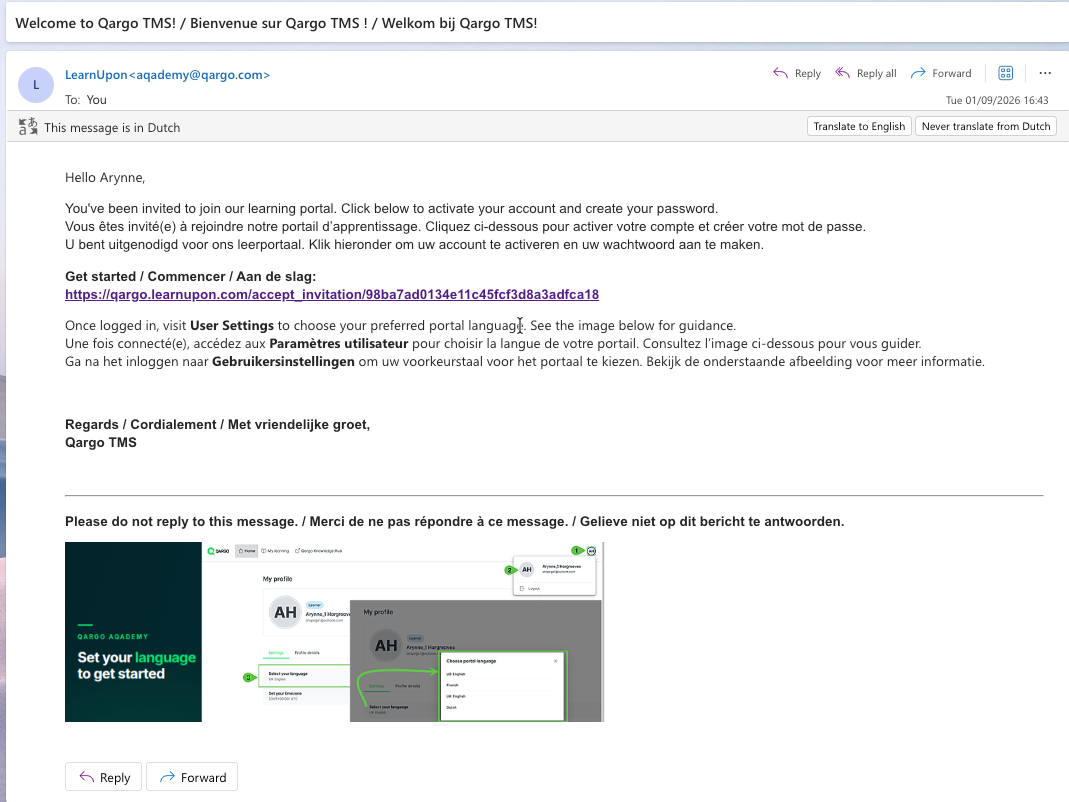
- Click the link in the email to open Qargo aQademy.
- Set a password for the account.
- Save. Logging in is now possible at any time at the address in that email.
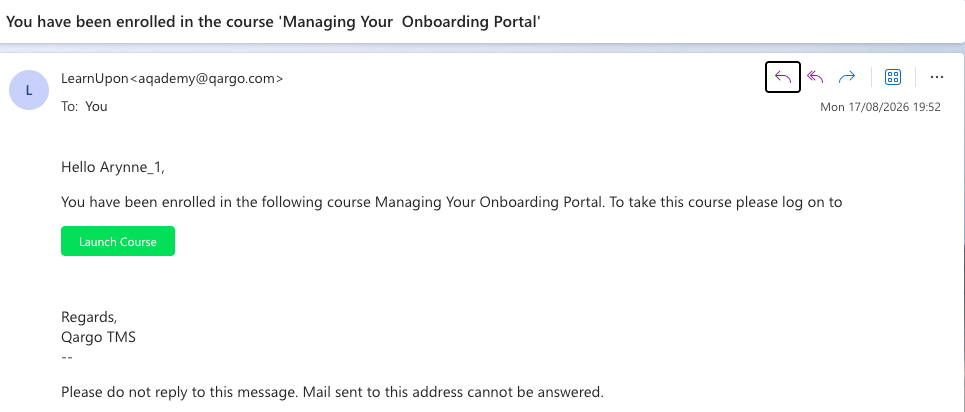
2. Enrollment email
This email is about the training itself, not the account. It confirms which learning journey the learner has been enrolled in and includes a Launch course button.
Setting the language
Qargo aQademy Portal is available in UK English, French and Dutch. There are two language settings, and they do different jobs.
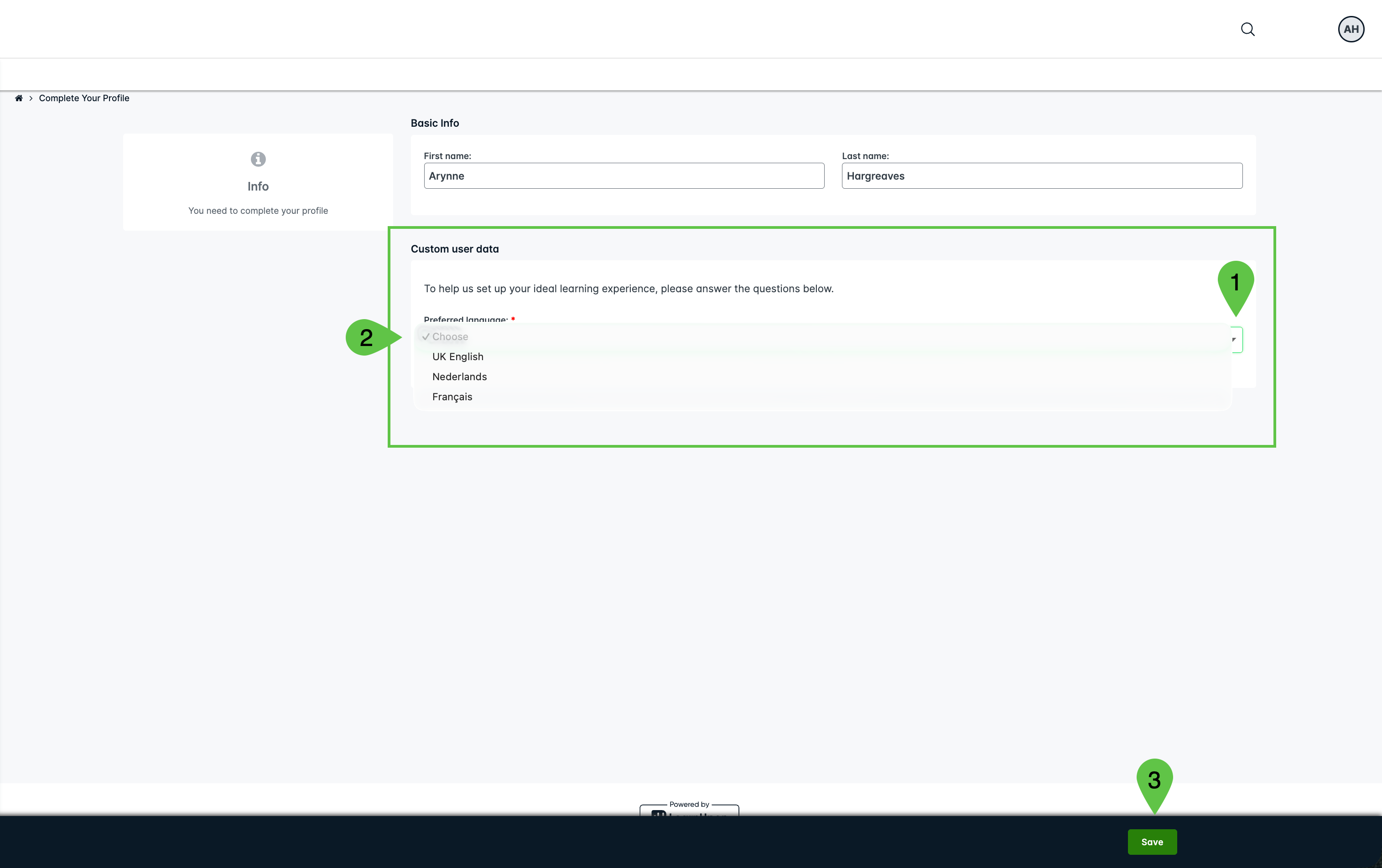
Preferred language: this decides the training
Preferred language is recorded when the account is created, and it does more than change the buttons on screen: it decides which language version of the learning journey the learner is enrolled in.
- If the onboarding manager has already set it, the enrollment is in that language and there is nothing to do.
- If it has not been set, a prompt to choose it appears at the first login. This is not optional: complete it, and the journey is then enrolled in the chosen language.
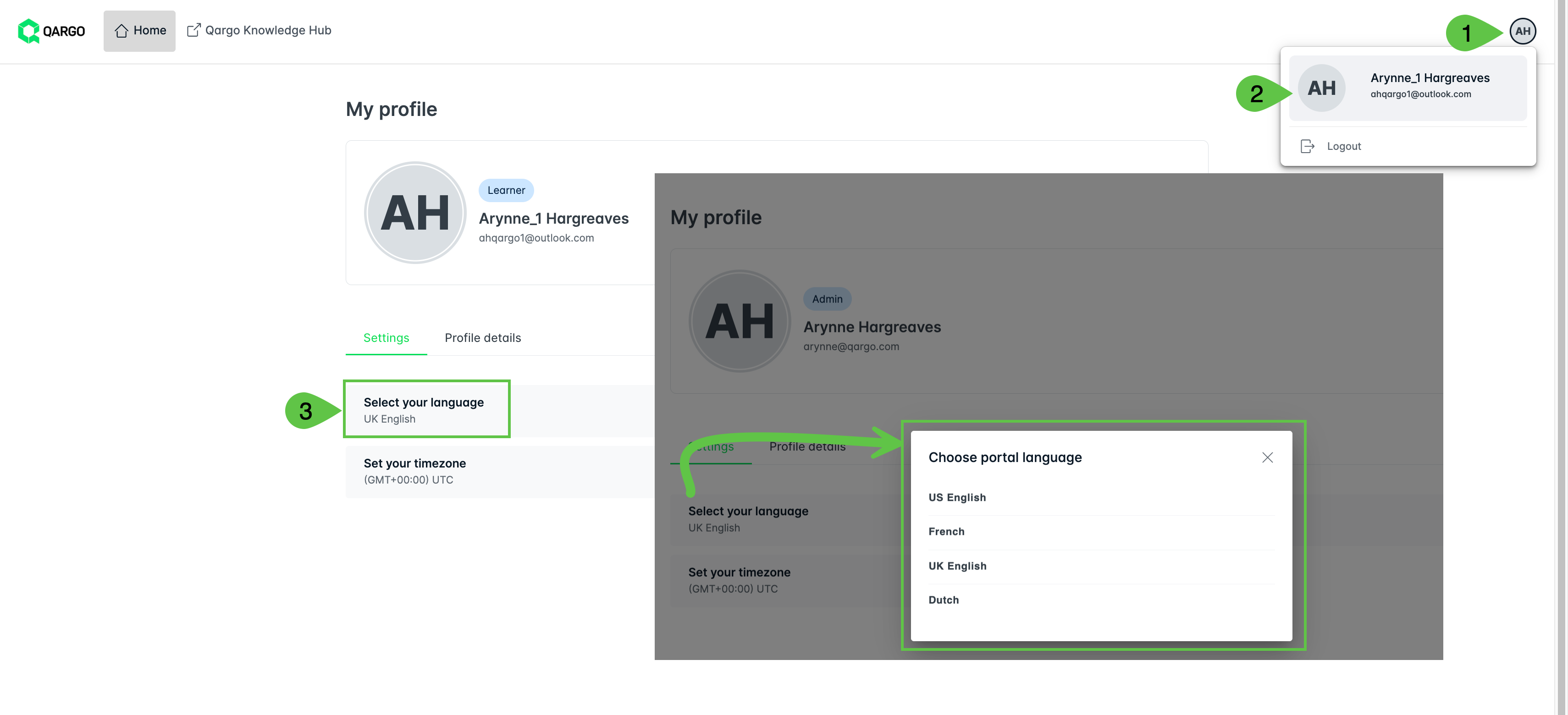
Portal language: this changes the screens
Separately, Selecting your language on the My profile page sets the language of the Qargo aQademy screens themselves: the menus, buttons and labels. The current setting is shown underneath it. The same page is also where to Update your password and Set your timezone.
Learning journey
There are four learning journeys, one per role:
| Journey | Who it is for |
|---|---|
| Welcome to Qargo - Super Admins | The most complete journey. Covers configuration as well as day-to-day work. |
| Welcome to Qargo - Planners | Order capture, planning, stops and loads. |
| Welcome to Qargo - Billing | The finance and billing side of Qargo. |
| Welcome to Qargo - Customer Services | Order handling and load creation. |
-
Learning journeys are made up of individual courses that are relevant to the specific assigned role.
-
Every journey opens with the same first module, Logic & orientation, which introduces Qargo’s vocabulary, the logic behind how the platform is put together, and how to find the way around. From there, the modules follow the work each role does.
- The Super Admin journey, for example, runs: Logic & orientation → Essential setup → Order capture → Planning essentials → Stops & loads → Finance & billing → Certificate.
Finding the way around

Home
Navigation menu
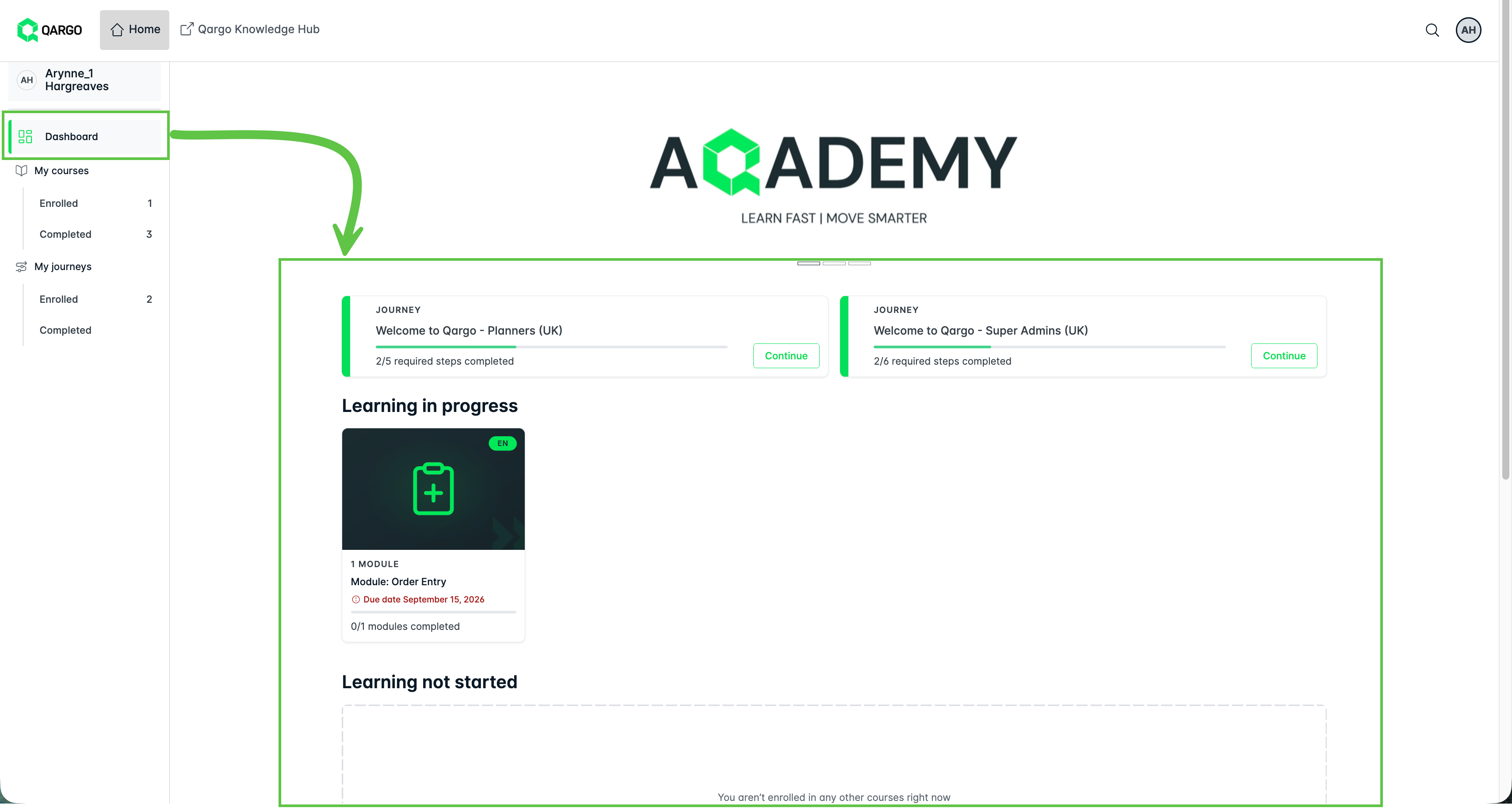
- Dashboard: the default landing page, displaying an overview of enrollments in progress and any learning enrolled in but not yet started.
-
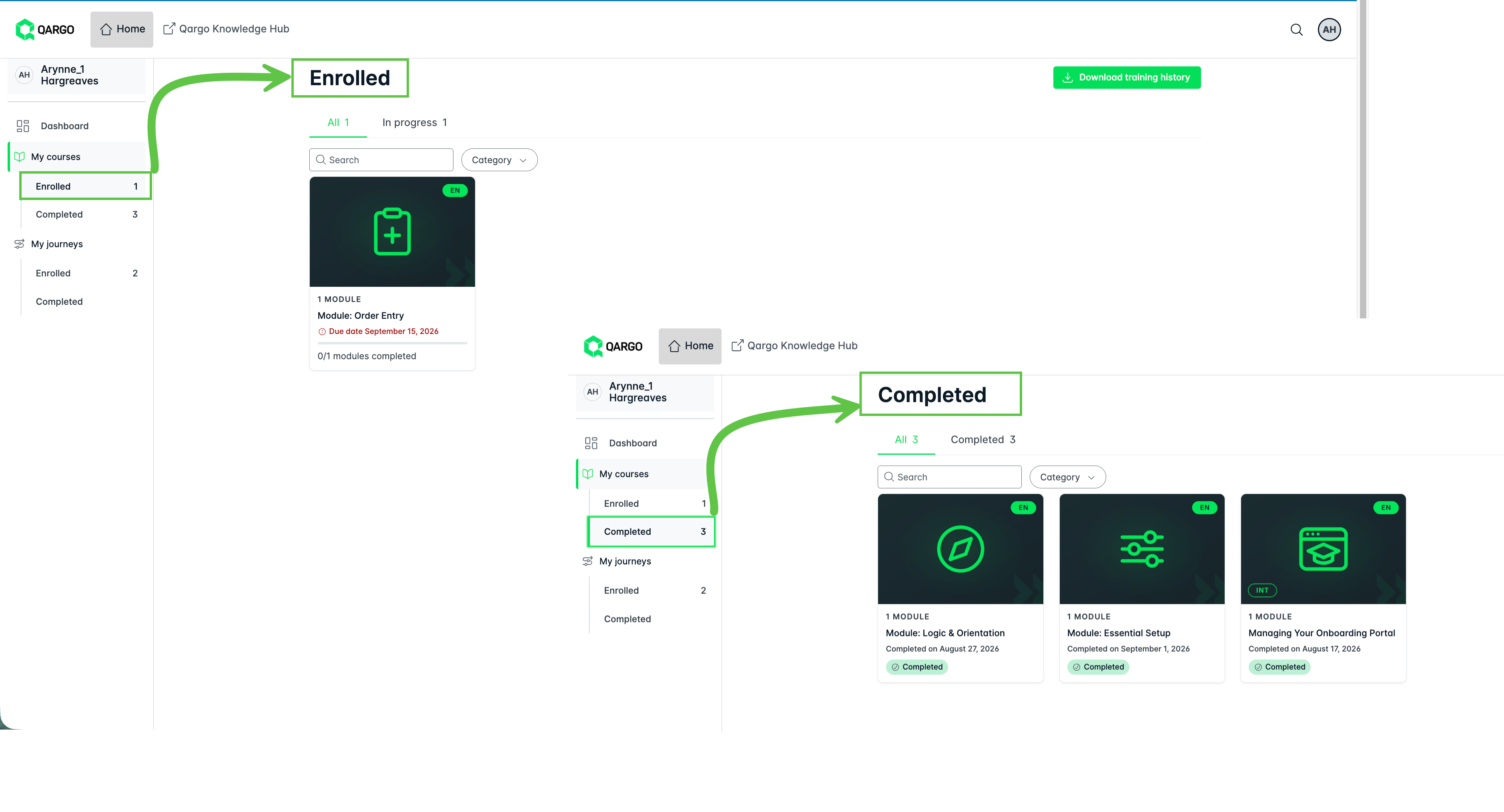
My Courses: the individual modules enrolled in and completed
- 2 tabs showing ‘All’ or ‘In Progress’
- Each course shows a status and due date where applicable.
- My Journeys: the complete journeys enrolled in and completed
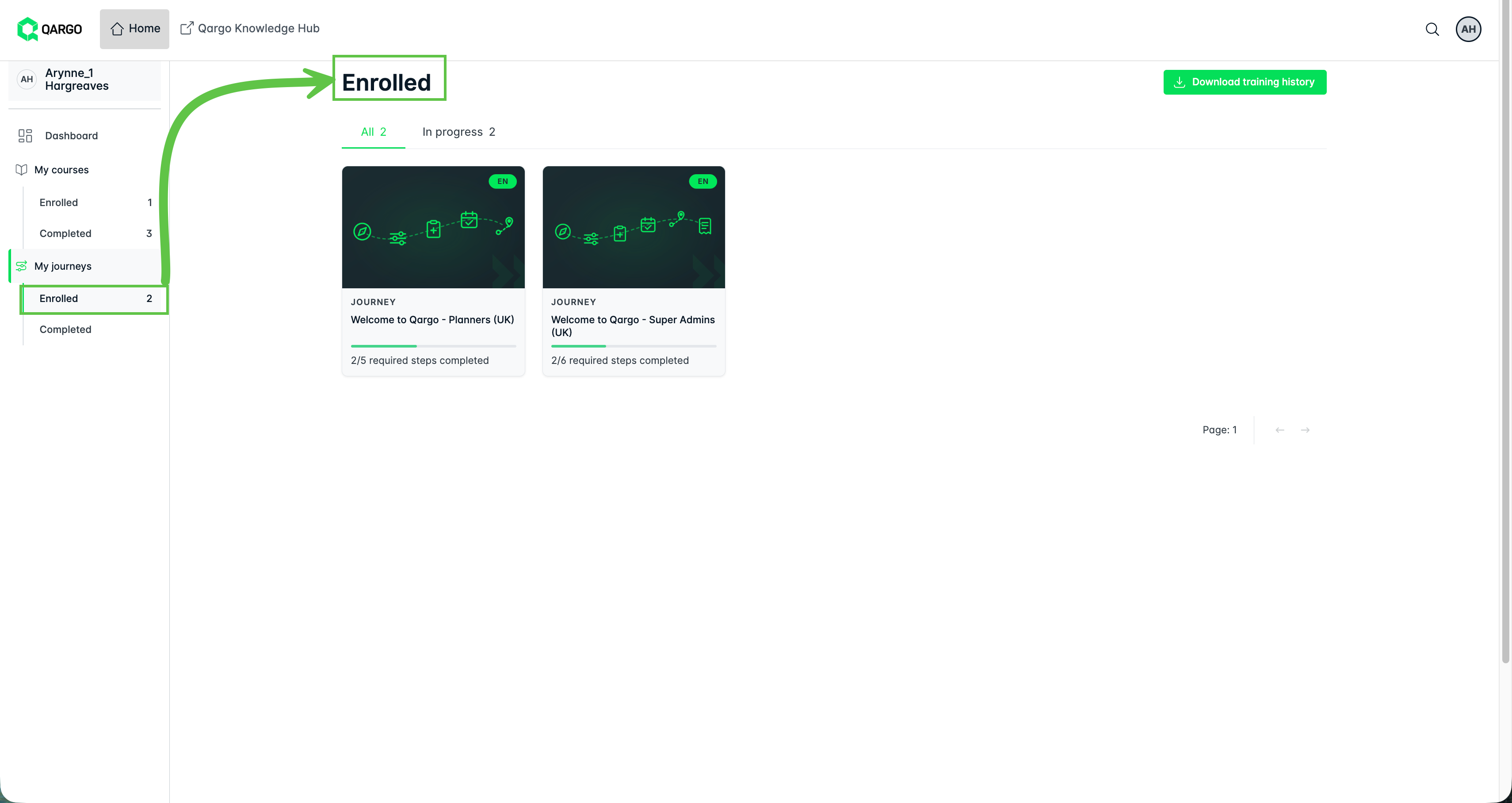
- 2 tabs showing ‘All’ or ‘In Progress’
- Each journey shows a status and due date where applicable.
Download training
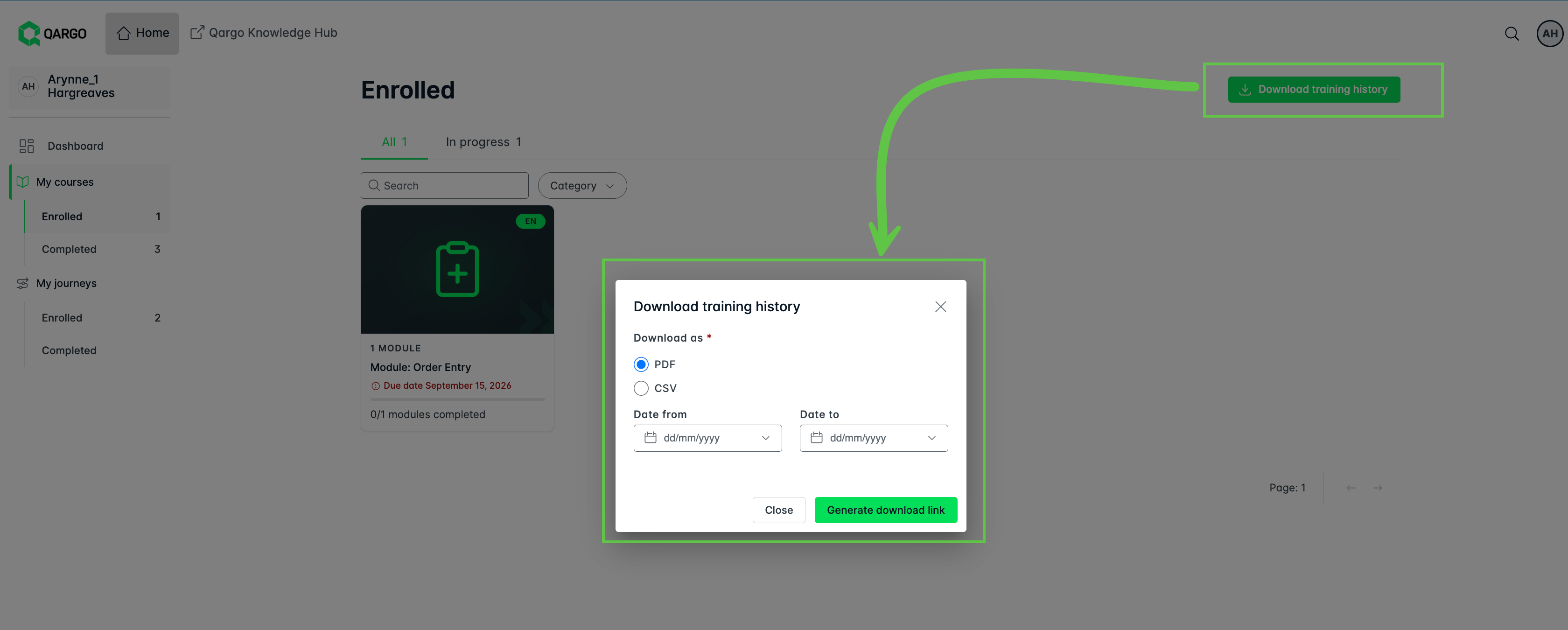
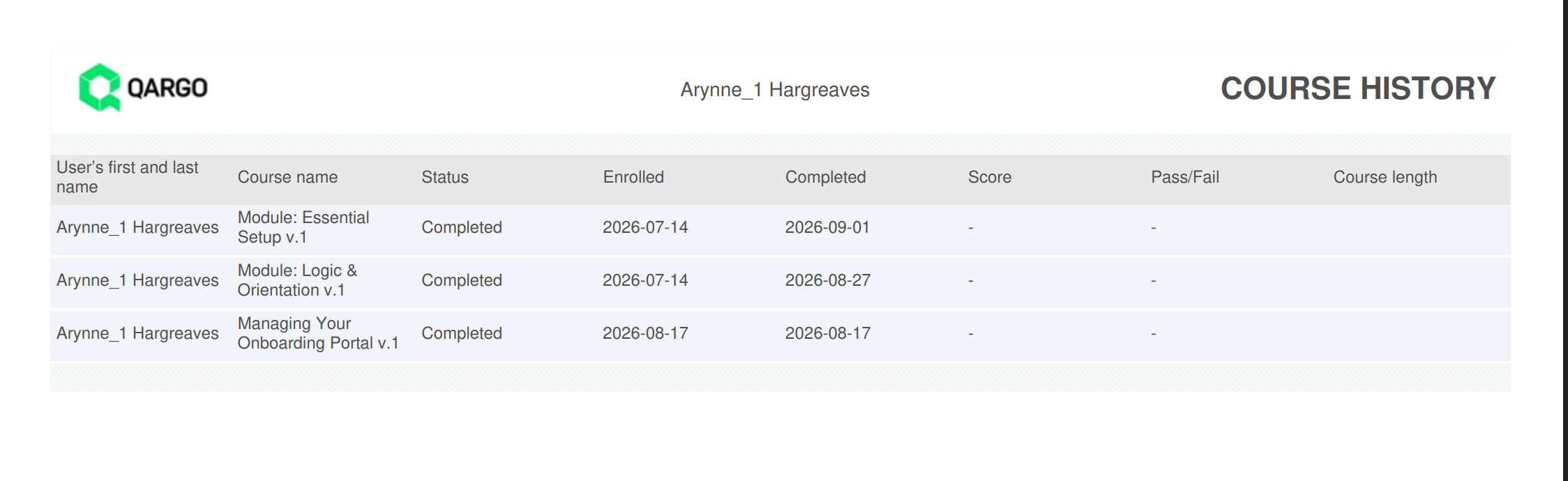
Download training history exports a record of the learner’s own training. This is available at both the course and journey level.
- Click the ‘Download’ button, then select the preferred download file format and date.
-
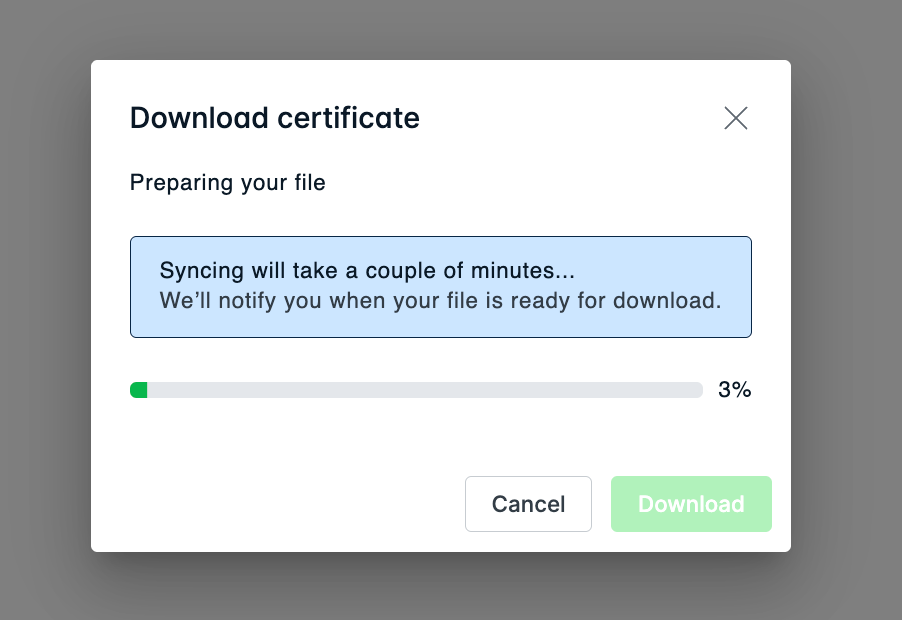
A popup is displayed showing the file processing.
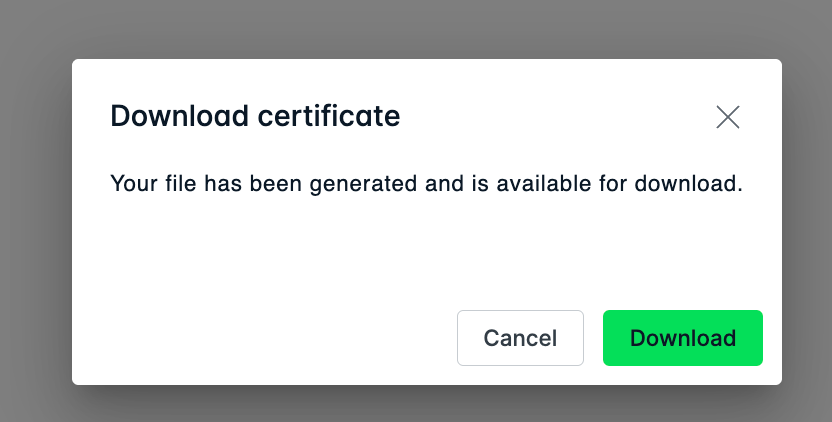
- Note: This indicates ‘certificate’ but it is the history file.
- When processing is complete, the popup shows the option to ‘Download Certificate’. Click ‘Download’ to receive the training history in the selected format.
Qargo Knowledge Hub
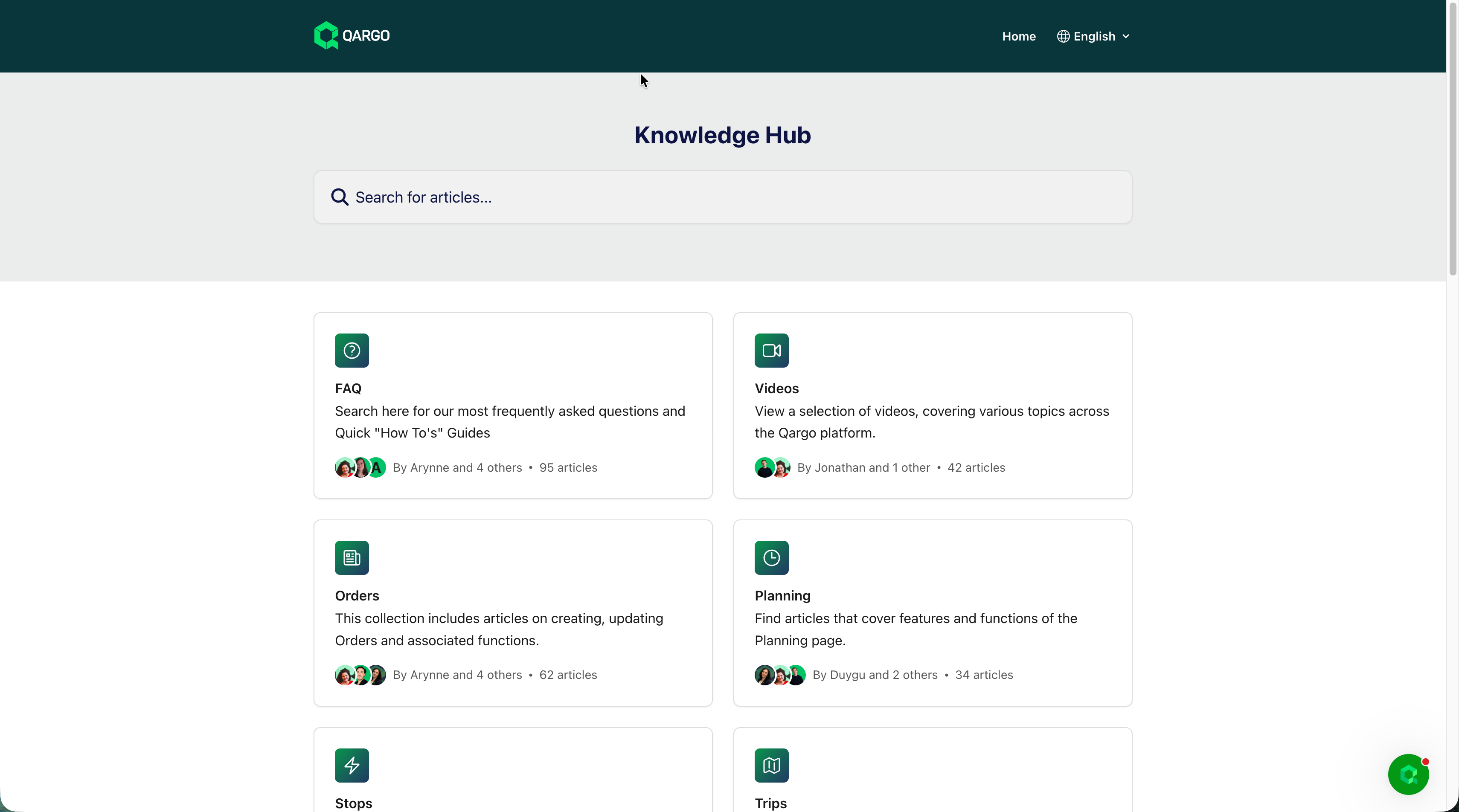
A direct link to Qargo’s help articles, to look something up without leaving the training behind.
Working through a module
A few things behave differently here from a normal video course, and they account for most of the questions received.
Modules unlock in order. Only the current step is open. Steps further along show a padlock until they are reached. The current step shows Continue; a finished step shows Completed and a Relaunch button to go back over it.
Lessons link into the learner’s own Qargo sandbox. Some lessons link straight into the platform to try the action for real. After the first login to Qargo, that link leads back to the learner’s own sandbox each time.
Videos and images can be enlarged. Pop them out if anything is hard to read.
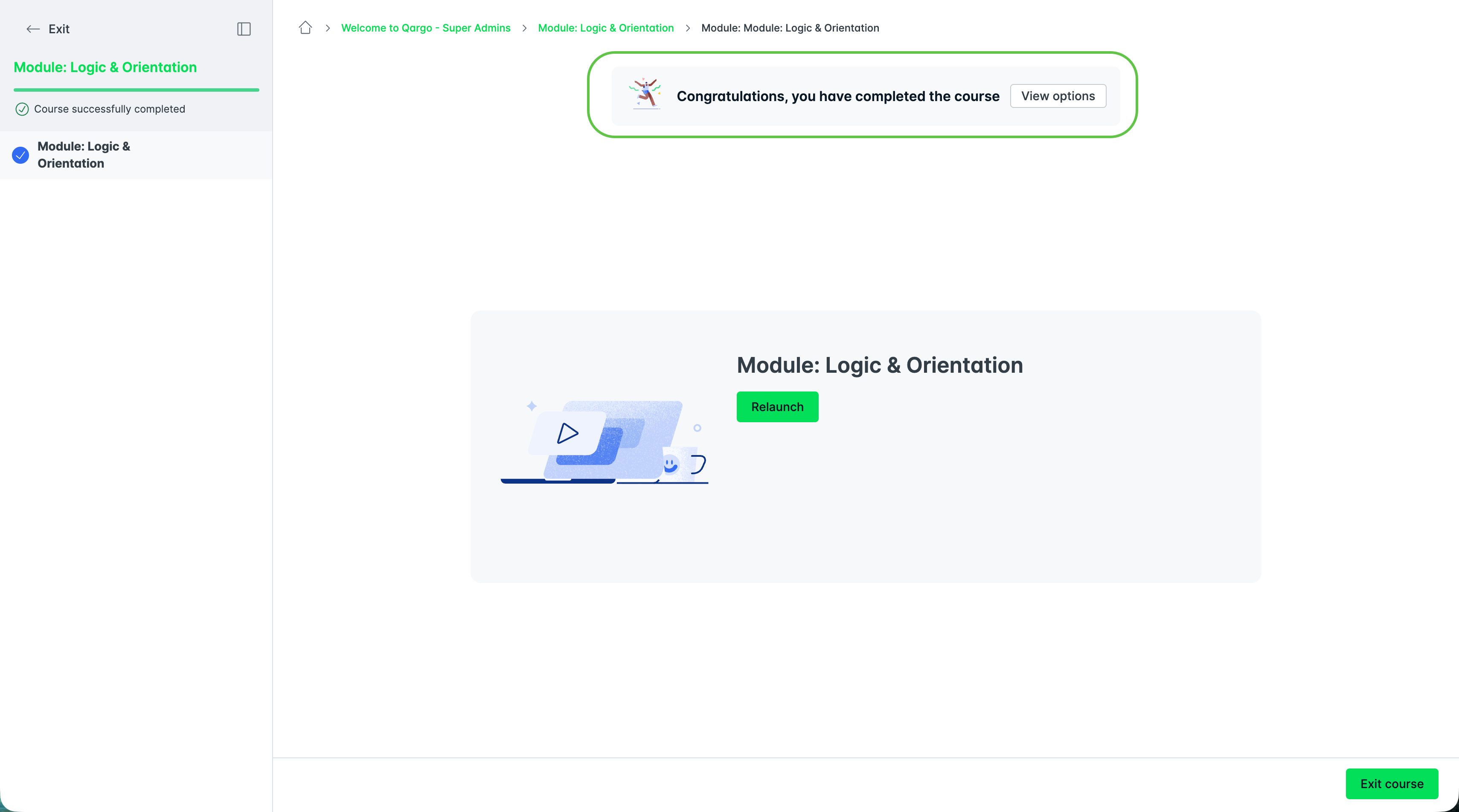
Finishing a module shows a confirmation and a View options button that launches the next module.
Due dates and reminders
Each learning journey carries a 14-day completion window, counted from the day of enrollment. After the due date, Qargo aQademy sends emails automatically:
| When | What happens |
|---|---|
| 1 day past due | A reminder email asking the learner to complete the training. |
| 7 days past due | A follow-up reminder email. |
The onboarding manager can see each learner’s progress and will get in touch if a learner seems stuck on something. If a module is not making sense, raise it rather than waiting.
Certificate
The last step of every journey is a certificate, issued once all required steps are complete. It unlocks automatically; there is nothing to request. The certificate can be downloaded.
Share the certificate (LinkedIn) - coming soon*
After the final course in the journey is completed, a prompt appears to log in to LinkedIn and add the certificate to the LinkedIn account. The course and certificate name are filled in automatically.
Where to get help
- Each module ends with a section that points to support.
- Qargo Knowledge Hub in the top navigation leads to Qargo’s help articles.
- For anything about access, role or due date, contact the Qargo onboarding manager.

Troubleshooting
| Issue | What to do |
|---|---|
| The invite email has not arrived | Check the spam and junk folders. If it is not there, ask the onboarding manager to resend it. |
| The password is set but the training cannot be found | Check the Learning journeys tab on Home, and the My learning screen. If nothing is listed, the enrollment may not have completed; contact the onboarding manager. |
| A module shows a padlock | That step has not unlocked yet. Finish the step before it, and it will open. |
| The module keeps reopening at the same place | Not all of the interactive exercises in that module have been completed. Work through every exercise and submit each one; the module will then register as complete. |
| The module says 0/1 modules completed even though it was watched in full | Watching is not enough; the exercises have to be completed too. |
| The training is in the wrong language | Changing Select your language on My profile only changes the screens, not the training. The preferred language decides which version of the journey the learner is enrolled in; contact the onboarding manager to have it changed. |
| A past-due reminder arrived but the training is finished | Check My learning for anything still showing a due date. A journey is only complete when every required step is complete. |
| A record of completed training is needed | Use Download training history on the My learning screen. |