Feature release November 2024
This article highlights the new features and enhancements released by Qargo this month.
Table of contents
Features – week 1
Email summaries by AI
Automated carrier invoice scanning
ADR: add Not Otherwise Specified (N.O.S.) support
Security: allow multi-factor authentication (MFA)
External API update: improved support for customer and contract carrier records.
Enhancements – week 1
FMS/mobile app: handling loads and updates out of sequence.
Updates to the mobile app (v1.14.2)
Features – week 2
Create carrier invoice: additional consolidation methods
Preplanning loads without resources or with dummy resources
*New* – load groups
Enhancements – week 2
Email Intelligence: task executor email.
Features – week 3
Qargo Intelligence generated summaries on documents.
Improved POD visibility
New text input option on the planning board
New cost distribution options available
New intermodal options available
Enhancements – week 3
Rate card configuration: collections with validity dates
Rate card configuration: add description / note
Rate card configuration: standard price list templates (Pt1)
Improved routing profile options
Features – week 4
Qargo Intelligence: email summaries updated.
Enhancements – week 4
Location search: improved flow from Google lookup
Expanded search options on the planning board
Features – week 1
Email summaries by AI
The summary is shown in the email communication row. The summary is based on the whole email thread if the emails are linked to Qargo, or on the single email if no thread is linked.
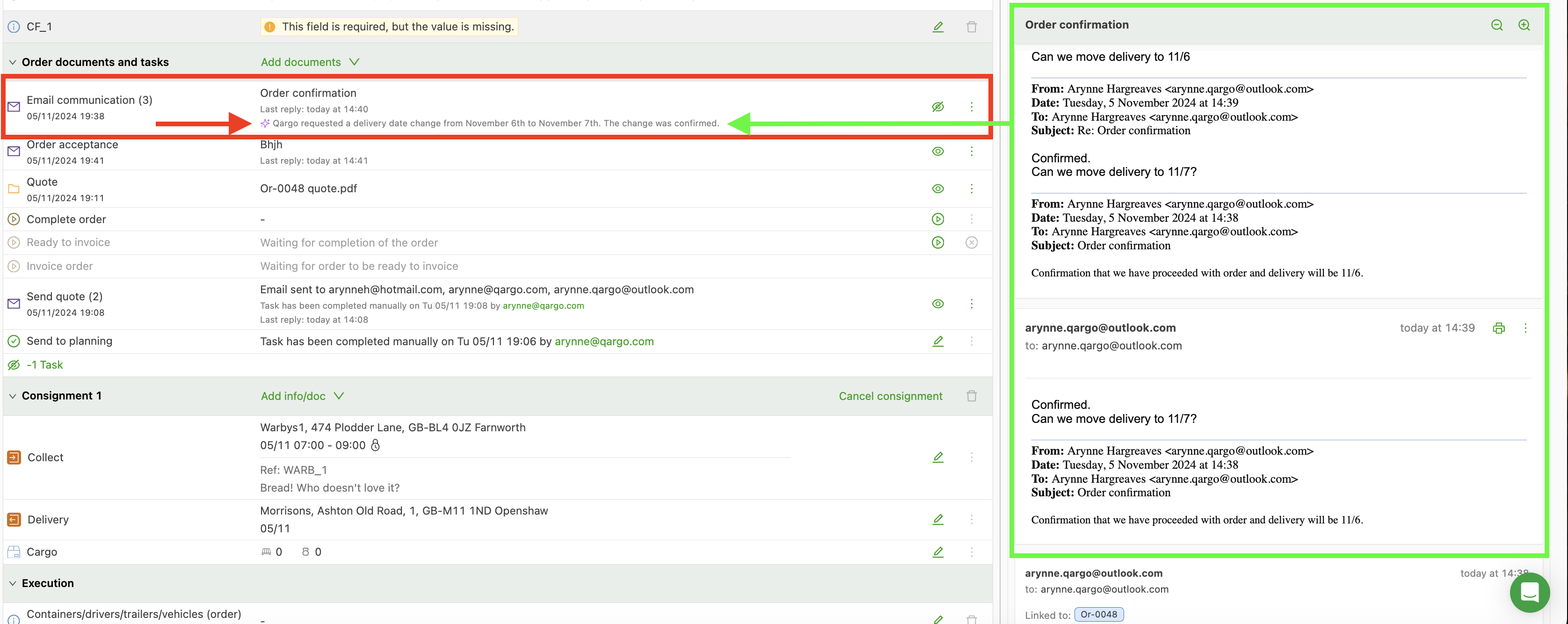
The AI summary respects user language settings. It is presented in the browser language set by the user.
Click to see all the latest Email Intelligence updates.
Automated carrier invoice scanning
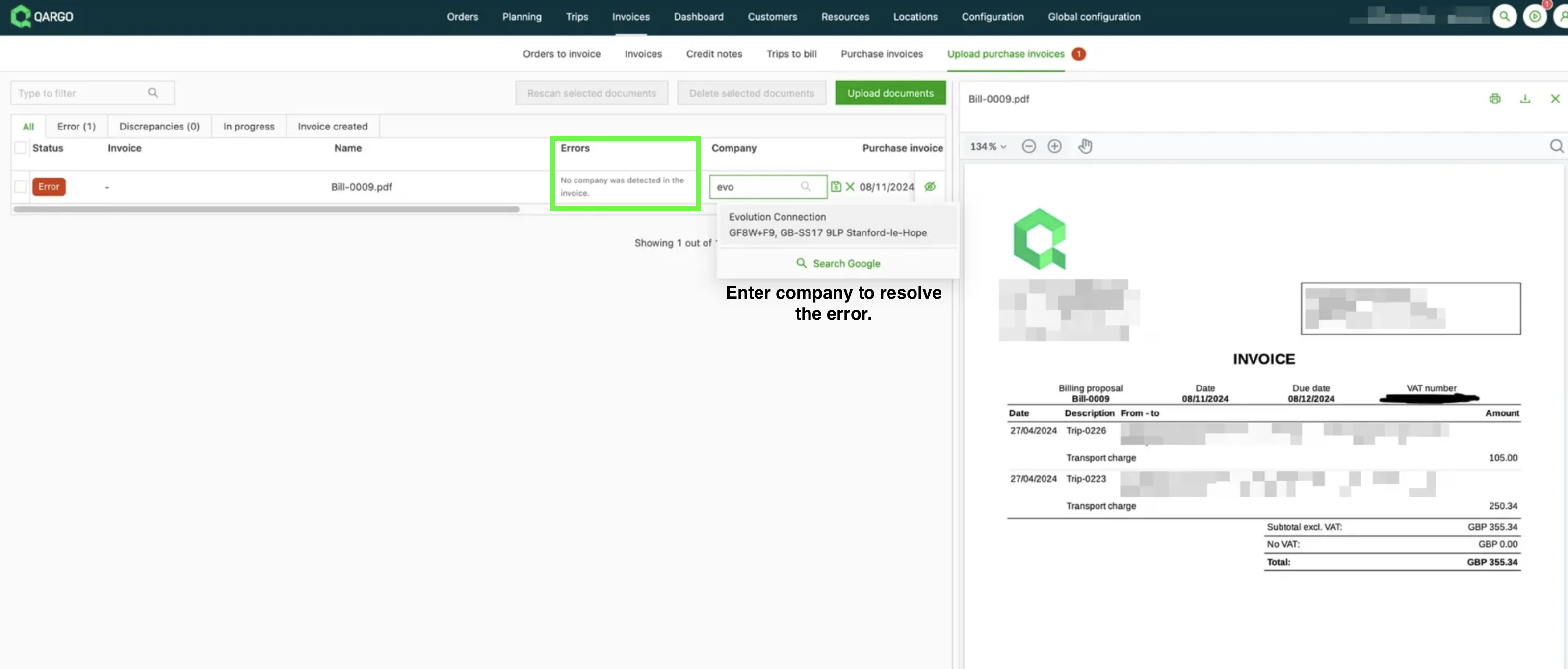
Carrier invoice scanning saves a lot of time when matching the cost charges on a load to the costs actually charged on a received bill. A new “Upload carrier invoices” tab is now available under the Invoices module. Carrier invoice PDFs can be uploaded here in bulk and are scanned in the background. A quick summary of how it works:
- If the contract carrier is detected during the scan, the invoice is automatically created with the detected charges.
- If no contract carrier is detected, the scan goes into “Error” with an error message explaining this. When the user manually selects the contract carrier in the column, the scan restarts automatically.
- The uploaded PDF can be viewed by clicking the eye button on the right side of the table.
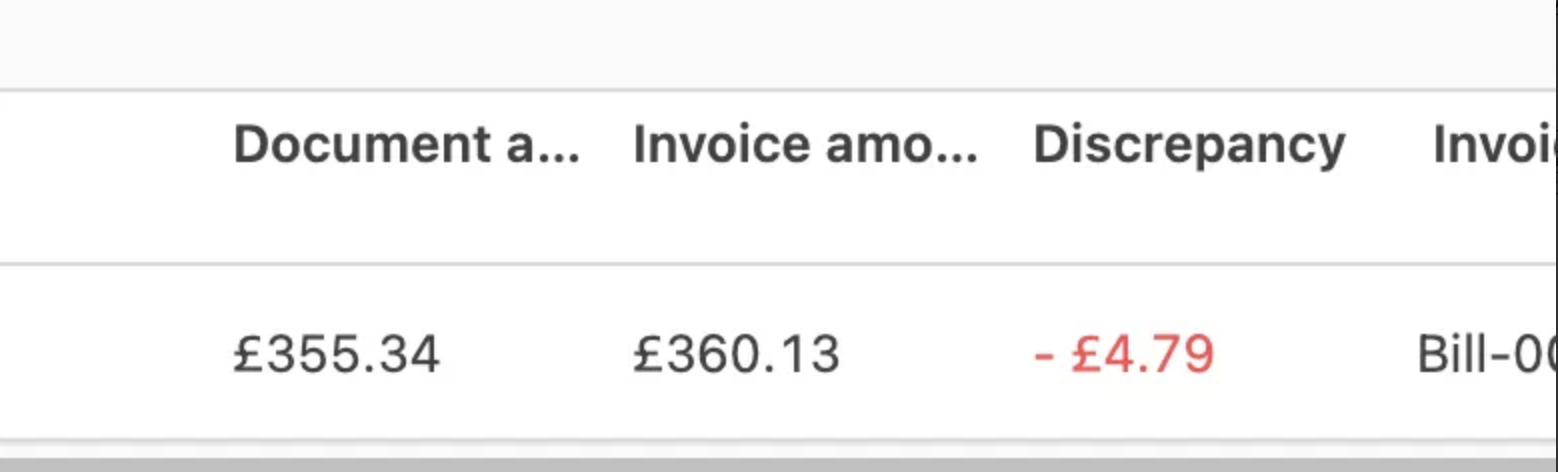
If there is a discrepancy between the charge total on the document and the total of the invoice created in Qargo, it is shown in a new discrepancy column. This new column was also added to the “Carrier invoices” tab.

Learn more about using carrier invoices
ADR: add Not Otherwise Specified (N.O.S.) support
ADR entries that only describe a type of material without a technical name are usually marked with Not Otherwise Specified (N.O.S). Extra validation has been added when entering this type of ADR goods.
If the technical name field is enabled, it becomes required depending on the ADR entry selected. For ADR entries that don’t require it, it remains optional.

Security: allow multi-factor authentication (MFA)
Multi-factor authentication is now available for all users. This additional security measure requires users to verify a login on their phone using an authenticator app (SMS is no longer supported). This guards against compromised passwords, since an attacker also needs access to the phone to break in.
MFA can be set up in the user menu, in the same way as it was previously set up for Qargo admins.
External API update: improved support for customer and contract carrier records.
Syncing company records for customers and/or contract carriers from an external system to Qargo is now supported. Updates to the external API now support the creation and update of companies. Note: currently only customer records can be imported; importing contacts is not yet included. :::
Enhancements – week 1
FMS/mobile app: improved handling of loads and updates out of sequence.
This update corrects loads shifting to different days, where planners lose track of them because drivers complete them too late or too early. For the first stop on the load, the timestamp from the driver is now ignored and the planned time is kept if the timestamp is on a different day and differs by more than 8 hours.
-
Drivers complete stops too early
- Too early means an 8-hour difference from the planned timestamps AND on a different day
- When an update comes in that is too early for a stop, that stop is corrected and gets the planned times as a fallback
-
Drivers complete stops too late
- Too late means an 8-hour difference from the planned timestamps AND on a different day
- For the start timestamp of a stop, only the first stop on the load is corrected to the planned start timestamp
- For the end timestamp of a stop, the existing logic is kept: it is corrected only if the update is 8 hours later than the start timestamp and on a different day.
-
Note that in both cases where the end timestamp is corrected, the planned duration of the stop is lost
Updates to the mobile app (v1.14.2)
-
Added multi-factor authentication (MFA) with Time-based One-time Password (TOTP). If prompted, users should complete any updates to avoid service disruption.
-
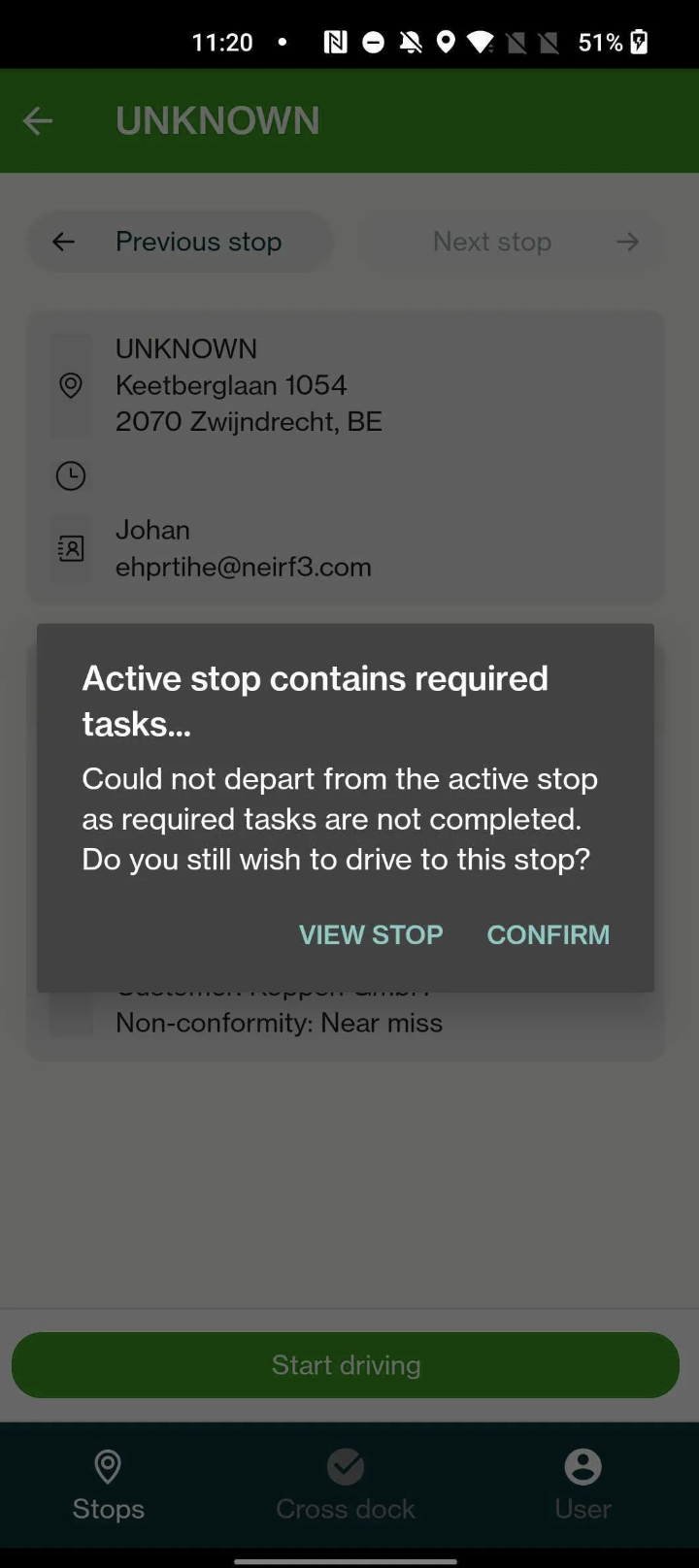
Allow arrival at multiple stops without departures. Previously, the app did not support multiple in-progress stops. Attempting to depart a location with incomplete tasks blocked the user from moving forward. The same scenario now asks the user for confirmation but no longer blocks the user. Users can start a new stop without having to complete the required tasks first.
Features – week 2
Create carrier invoice: additional consolidation methods – custom grouping
When creating multiple carrier invoices at once, the invoices of each company can be grouped together in different ways, for example per 5 loads. They can now also be grouped by load start (by week), load end (by week) or resource. For example, invoices can be grouped together for each truck.
Preplanning loads without resources or with dummy resources
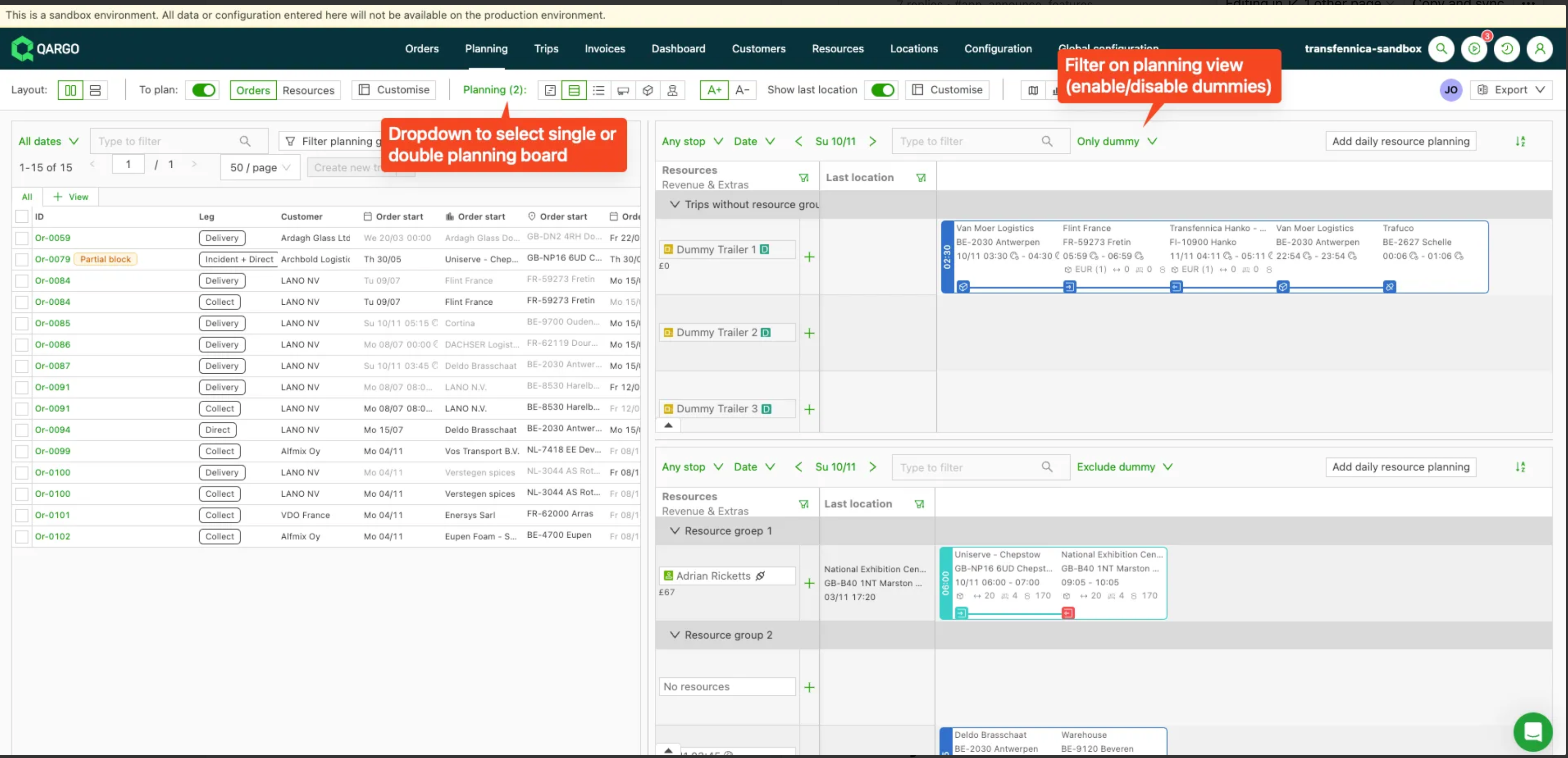
Users can now have a split planning page in Qargo. This option offers flexibility for preplanning resources. To support this, dummy resources (vehicles only) can now also be added and used to preplan loads on one of the 2 planning boards.
Users can choose between 1 or 2 timeline or table views of their planning at the top of the page. Additional filters include:
- All resources
- Only dummies
- Hide dummies
Click for more details on preplanning
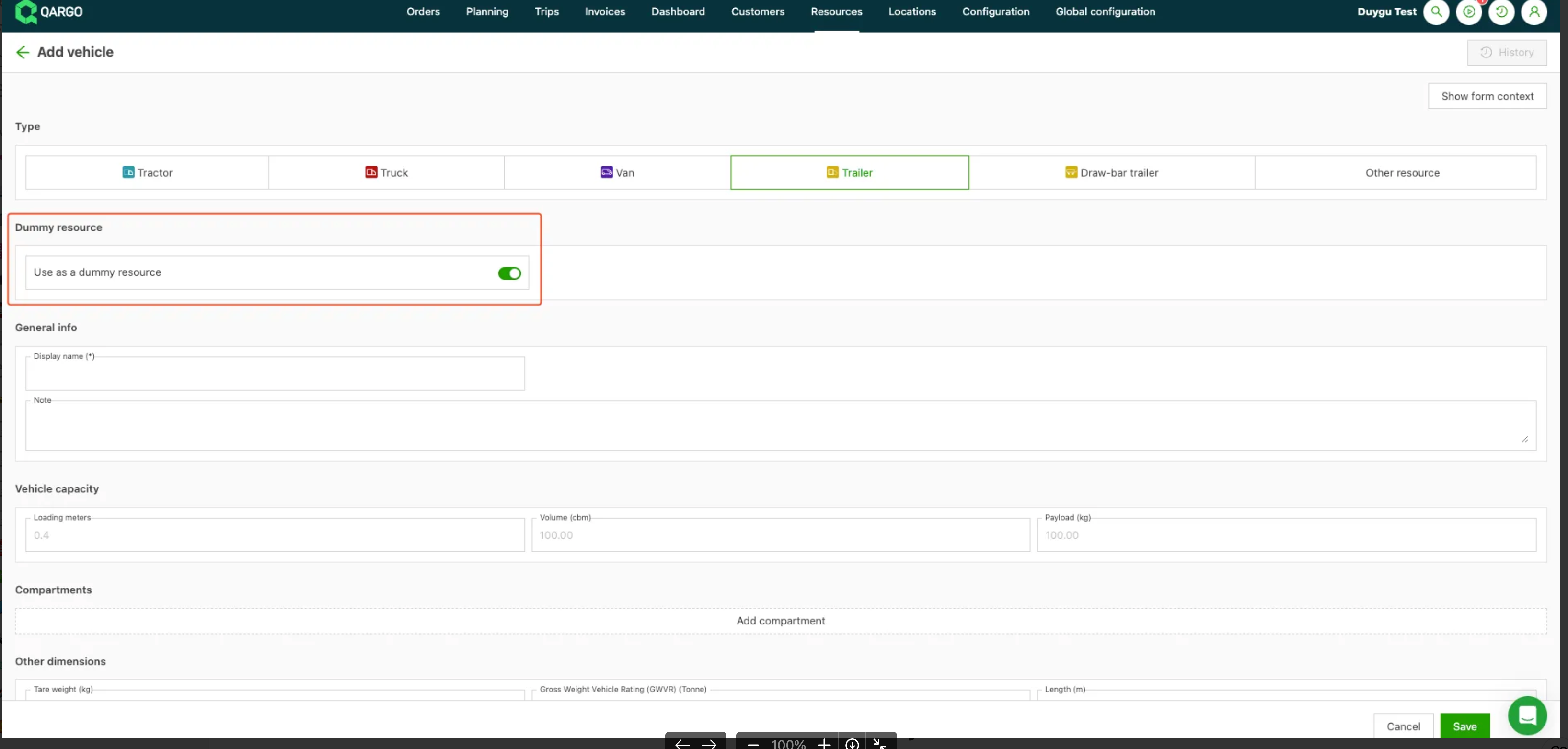
Dummy resources can include drivers and any option under the vehicle category. When creating resources, use the toggle on the Dummy resource field to indicate whether a resource is a dummy.
Click for details on how to create dummy resources
*New* – load groups
A new feature called Load groups is now available. This feature bundles loads together and assigns a resource to them. Load groups make it easy to add orders to existing planning. For an intermodal order, the intermodal connection is added automatically. This reduces the manual input needed to create each order with a connection and makes adding orders together simpler.
A new submenu item under Loads shows the groups.

Load groups can be created in several places in the application, making it quick and easy to create or add to load groups. Check out this powerful new feature. Click the button below to read more.
Everything to know about load groups
:::
Enhancements – week 2
Email Intelligence: task executor email.
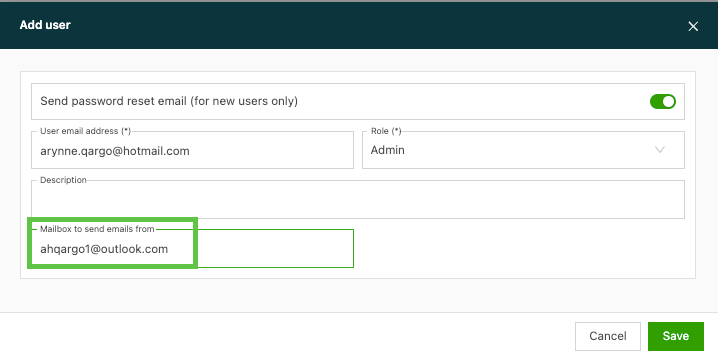
When a task that uses an email is started in Qargo, an additional mailbox can now be set up and used instead of the user’s individual address. The email recipient receives the email from the ‘Mailbox to send emails from’ address, and any replies are sent to that inbox rather than to the user’s email. This alternate mailbox can be a group or distribution list, giving more visibility of incoming replies.

Features – week 3
Qargo Intelligence generated summaries on documents.
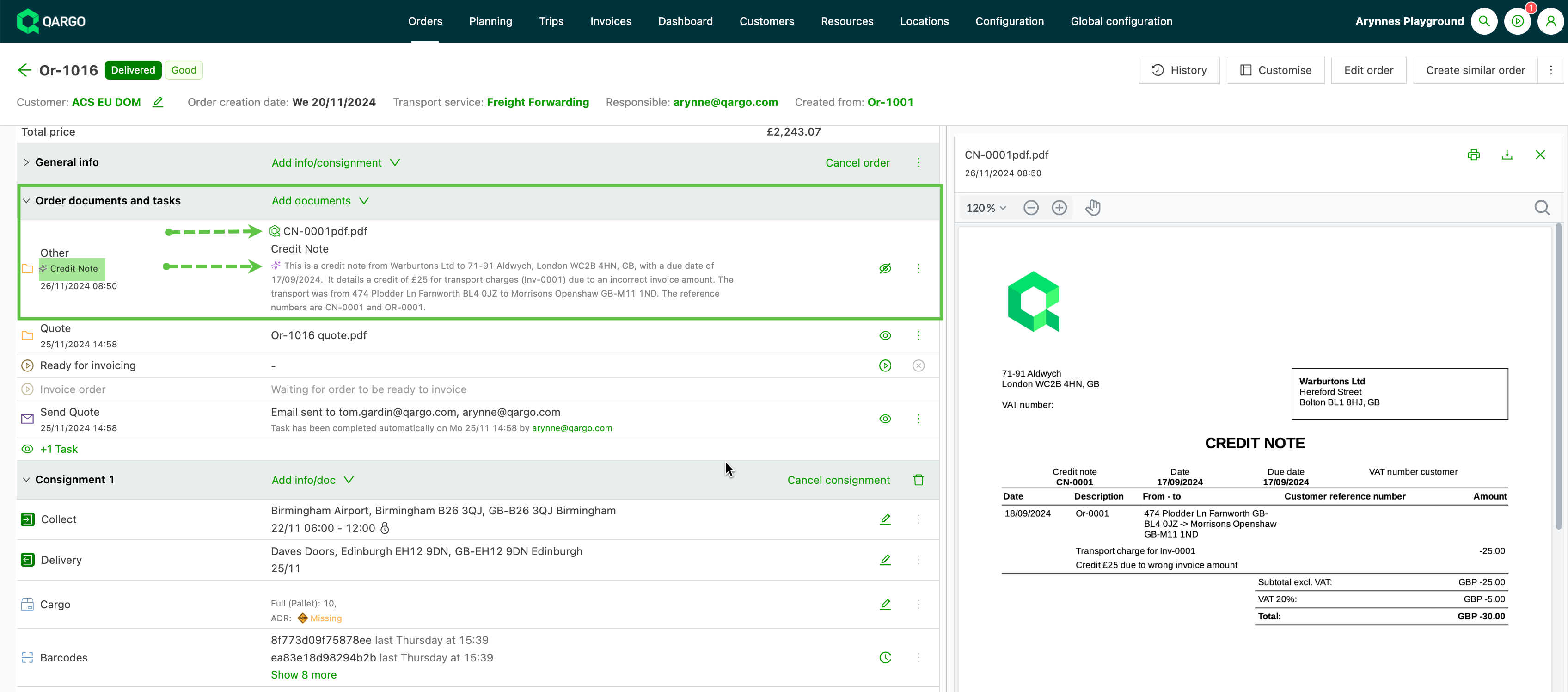
Qargo Intelligence generated summaries on documents are shown in the rows of the detail pages, similar to the email summaries. Click the summary to expand or collapse it. The “predicted” document type generated by Qargo Intelligence is shown on the left, under the Qargo document type. An indication of the “quality” of the document is shown to the left of the document title. A green Qargo icon means good quality. An orange icon means the document is of questionable quality. If the summary or document type on a specific document is not accurate, edit or remove it using the actions (three dots) on the right.
Improved POD visibility
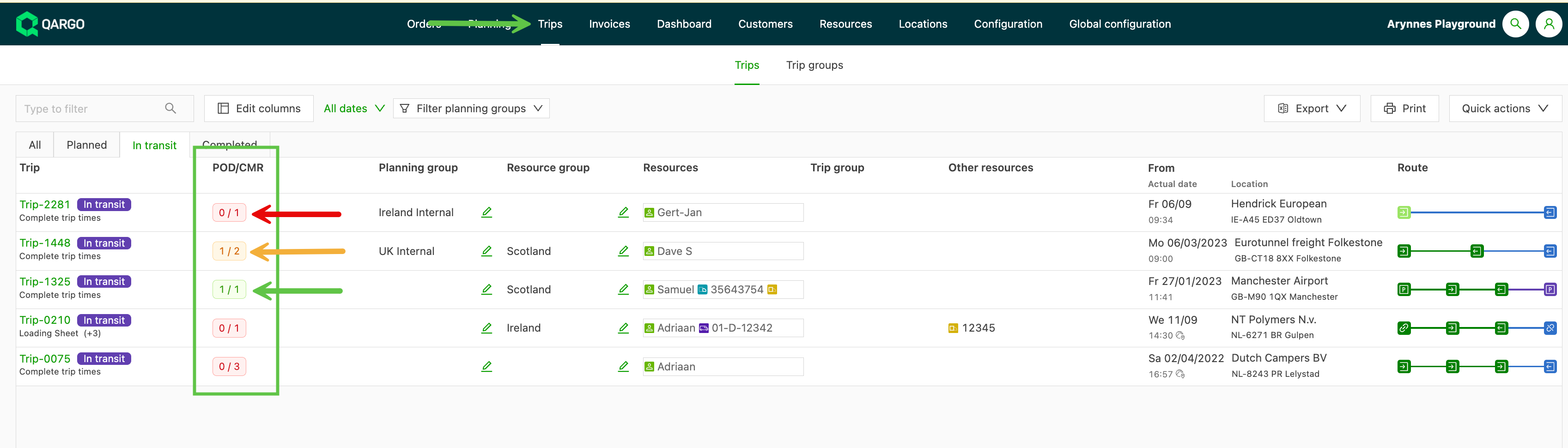
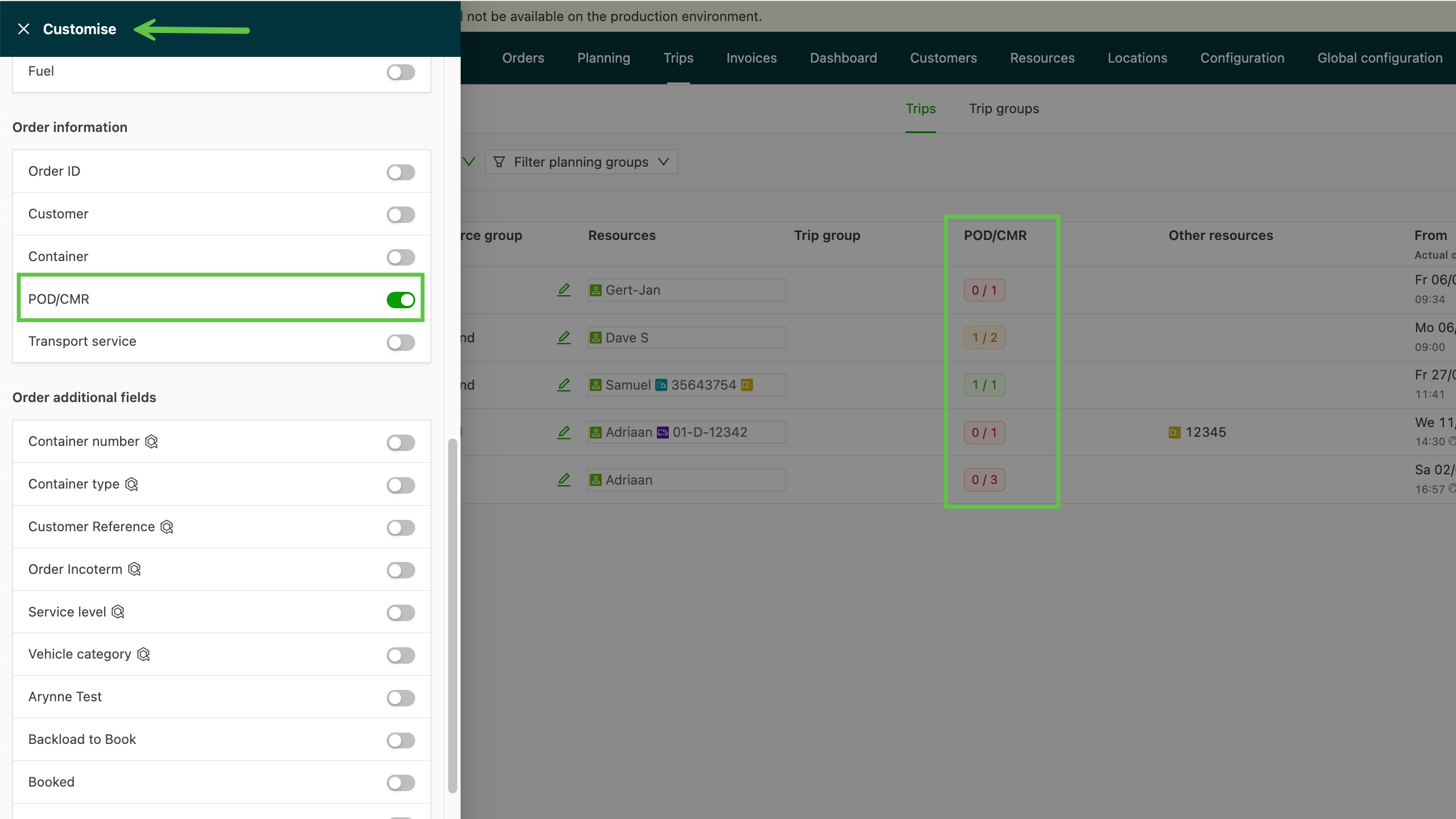
It is now possible to see at a glance whether the POD / CMR has been received for an order. Where multiple documents are expected, the system compares and shows how many documents have been received vs. how many were expected. A color-coded tag makes it even easier to identify orders with missing documents.
- Red – no documents received
- Orange – some documents received / documents still outstanding
- Green – all expected documents received.
New text input option on the planning board
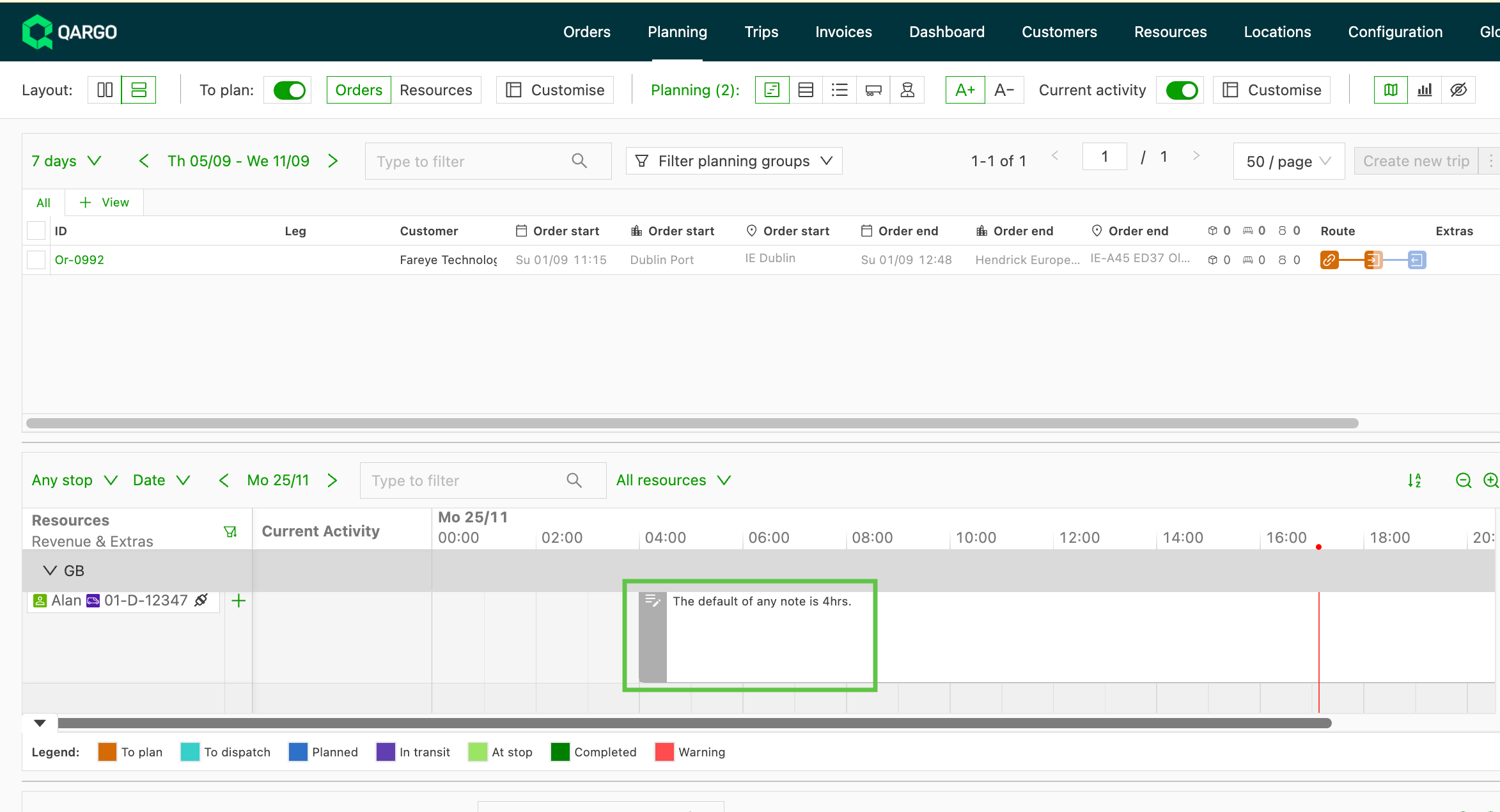
On both the timeline and board views, it is possible to ‘Add a note’, which gives visibility of critical information associated with a resource. Note visibility defaults to a 4-hour time limit, but this can be adjusted manually. Multiple dates can also be selected to show the note.
New cost distribution options available
Cost calculations can be added as part of the initial account setup and onboarding. These calculations help determine what each load costs. Once a price list is configured, the cost is shown on each order that matches the configured criteria. The default cost distribution is based on either distance or time, but other options can be configured.
- Chargeable weight
- Loading meters
- Pallet spaces
- Volume
- Weight
New intermodal options available
There are a few updates to the available intermodal options
-
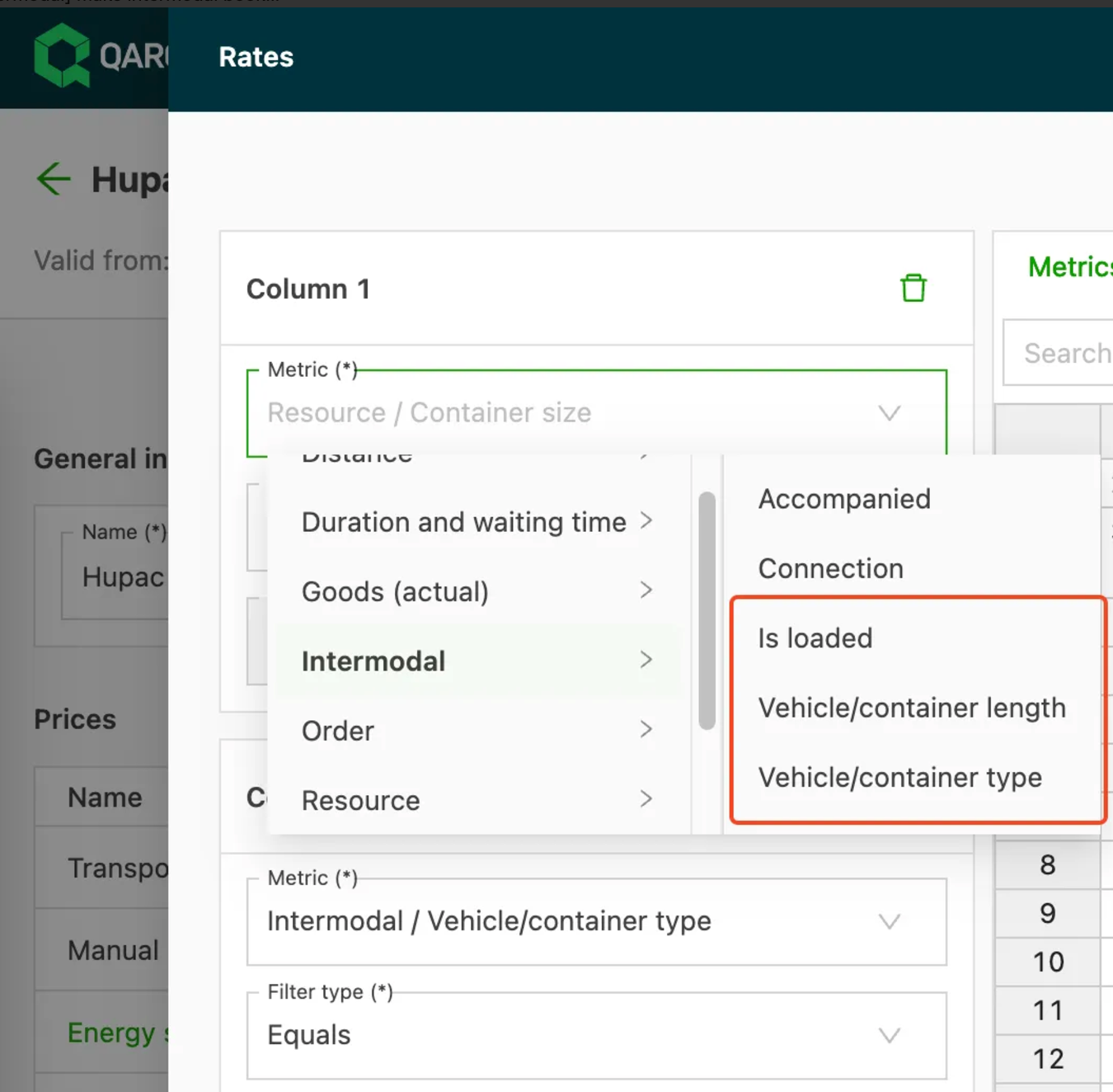
3 new intermodal price metrics
-
Is loaded
-
Vehicle / container length
-
Vehicle / container type
-
-
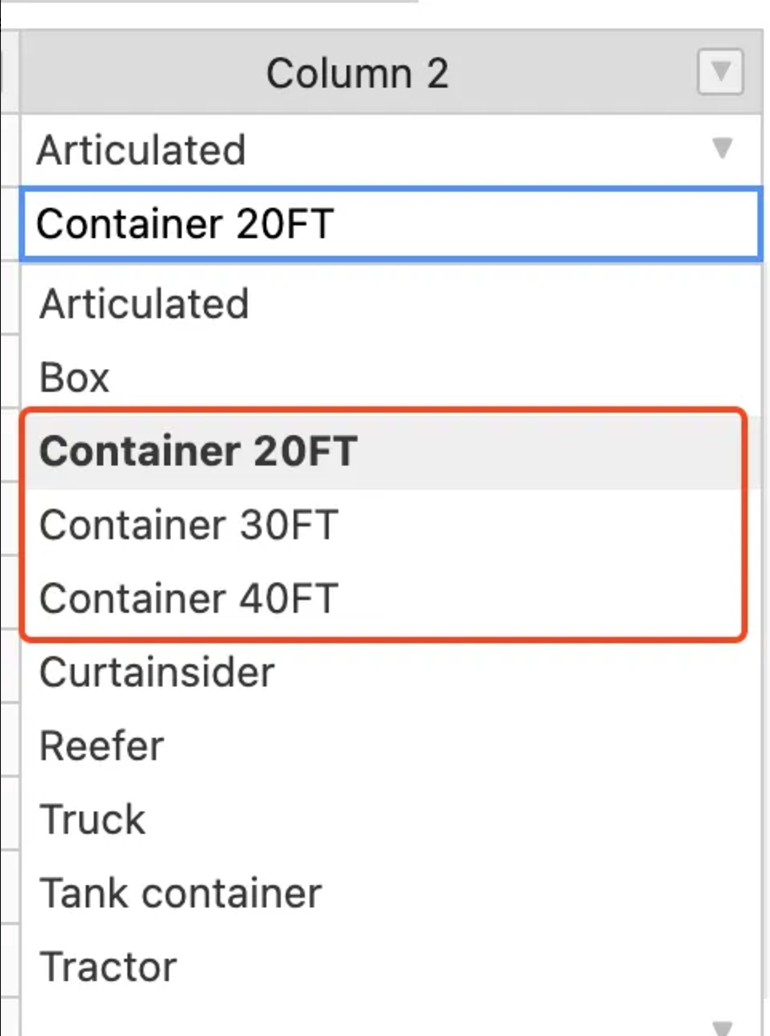
3 new vehicle types for containers
-
Container 20FT
-
Container 30FT
-
Container 40FT
-
-
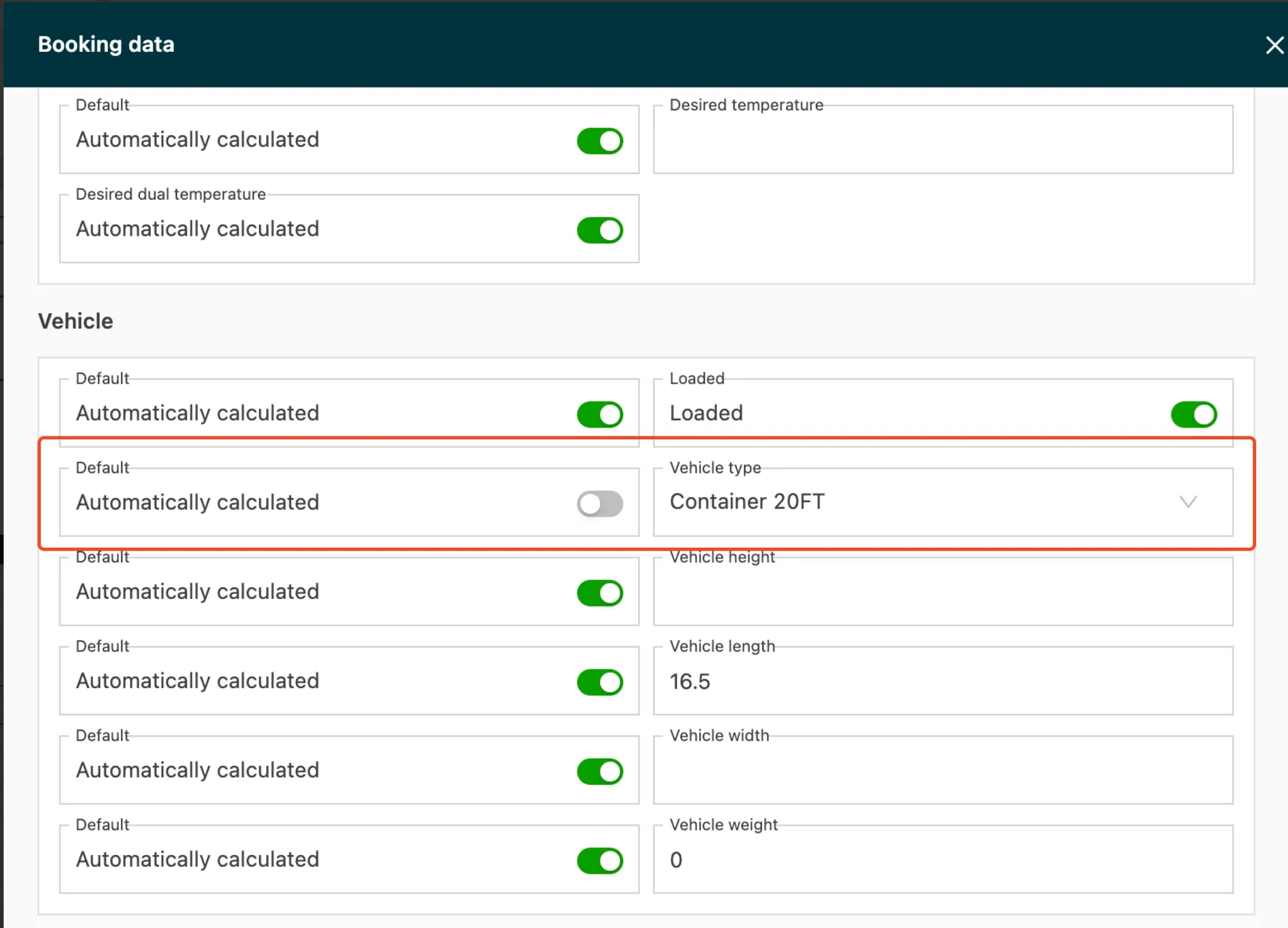
The vehicle/container type can now be overridden on the booking
 :::
Enhancements – week 3
Rate card configuration: collections with validity dates
Updating rate cards is now easier with the introduction of collections. Charges on a price list are now considered a collection, and each collection of charges is set in its own tab. Each collection can be named for better visibility when rating is displayed on other pages, and has both a Valid from and a Valid to date.
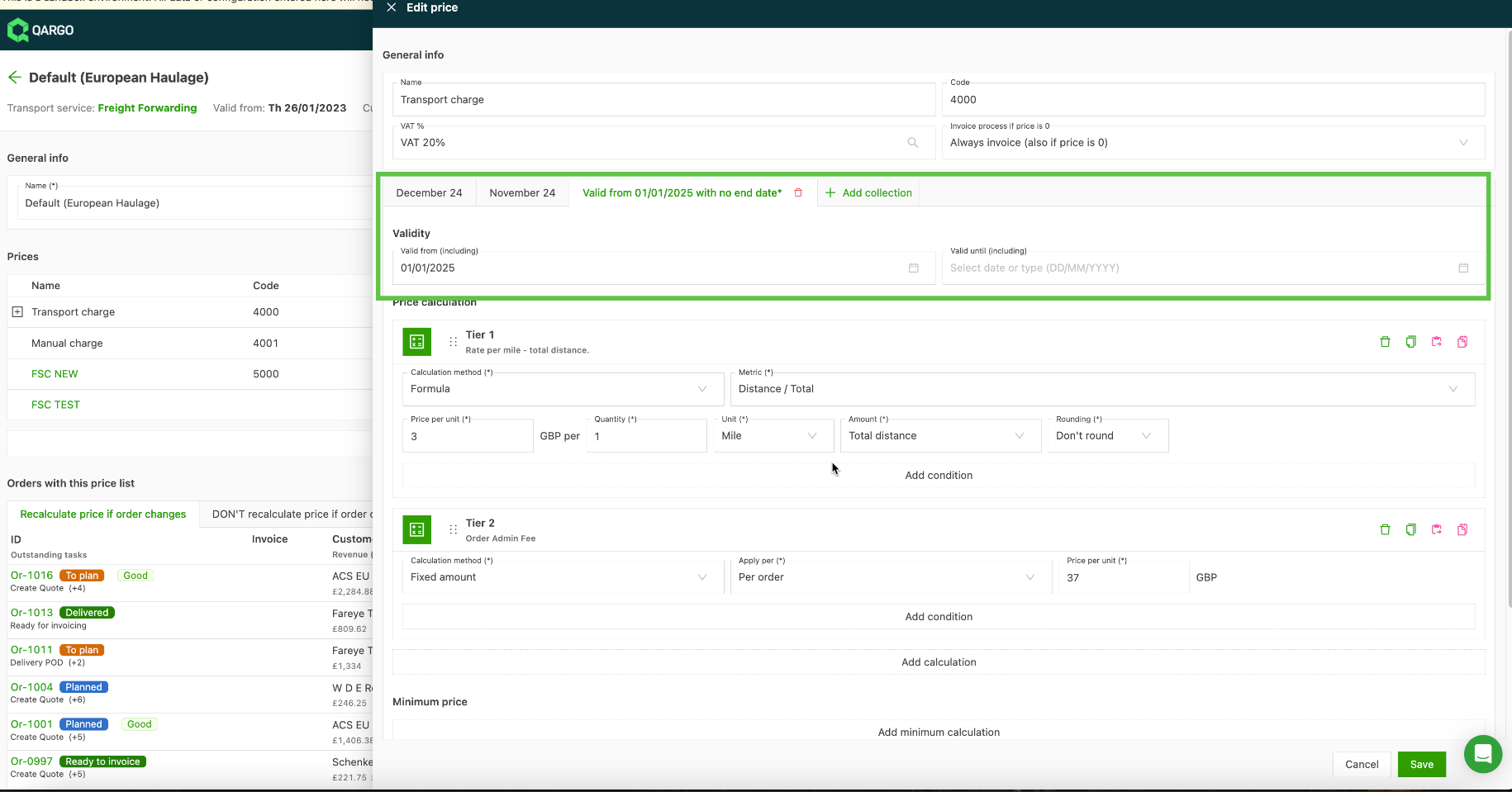
Grouping charges in this way makes updating price lists more efficient. Charges can now be copied from one tab to another, and the system even sets the next validity date automatically based on the previous tab.
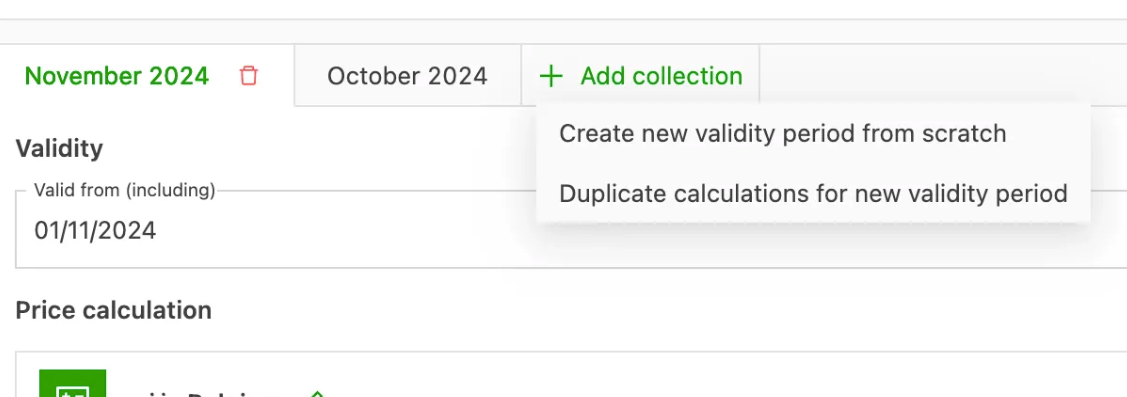
If a price list is past its valid to date and no other price list has been created, a calculation error is displayed.

Rate card configuration: add name / description
Each price calculation in the price list can now have both a Name and a Description / note. This includes both minimum and maximum price calculations. These are free-form fields that can be used as required, but they are not mandatory. This is useful when a price list has multiple calculation scenarios.
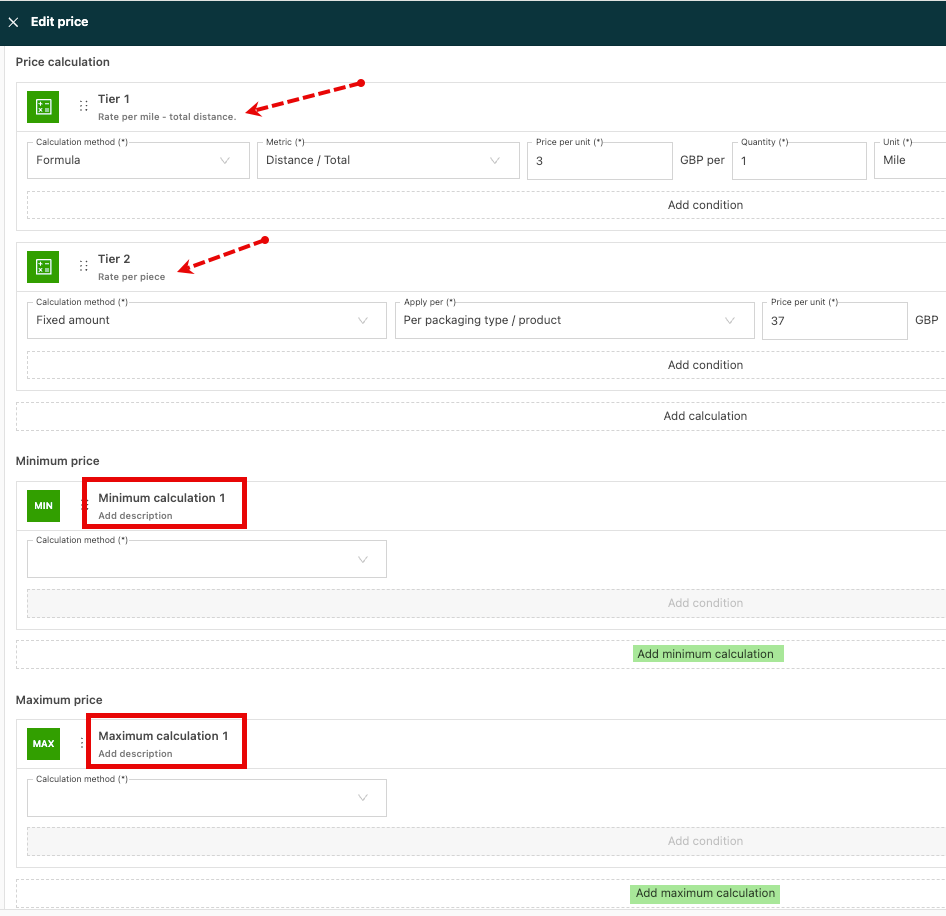
Configuration – rate cards: standard price list templates (Pt1)
Standard price templates are now available to streamline configuring price calculations across multiple price lists. Charge templates offer a significant improvement when updating price lists.
Key features include:
- Reduces manual setup and updates when dealing with multiple price lists, with user-friendly options for copying or linking calculations.
- Templates can be linked to specific transportation services or add-ons, improving synchronization for services.
- Quick and easy updates across linked price lists, and management of validity dates for calculations.
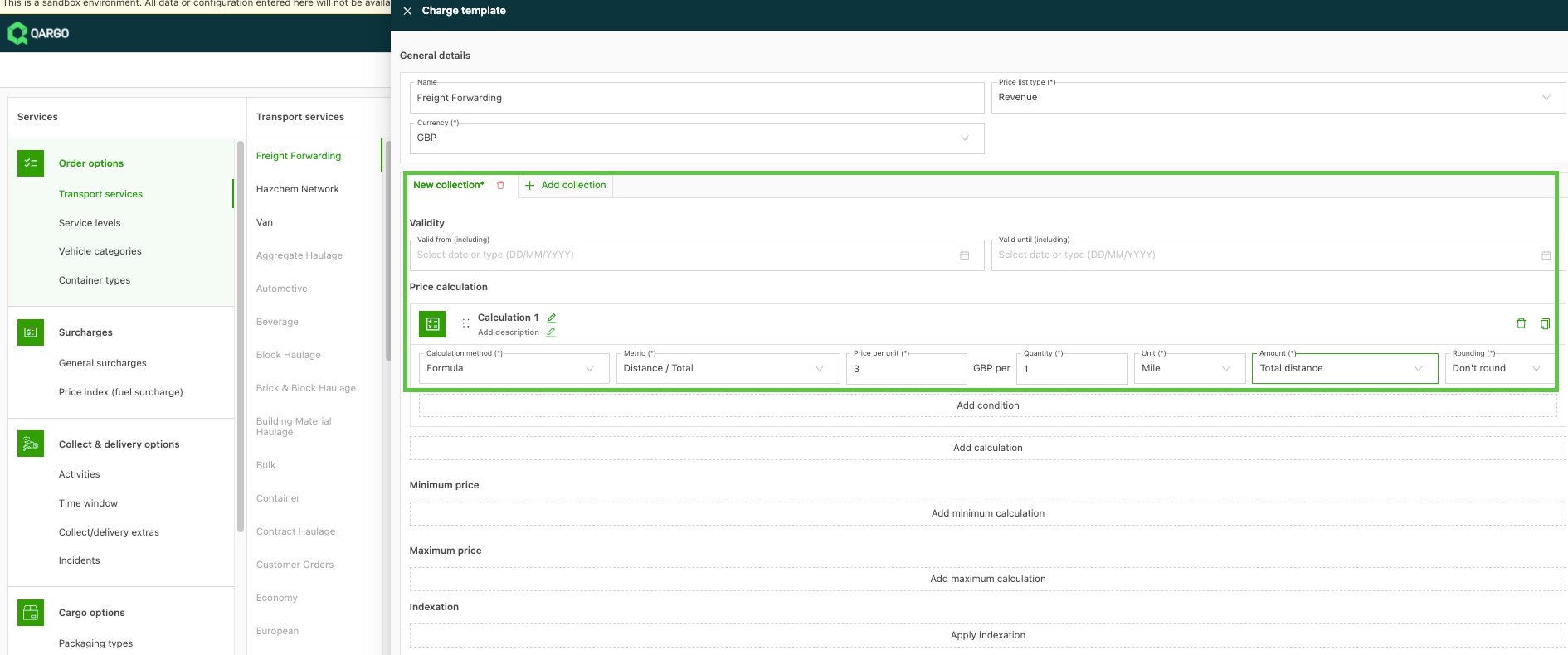
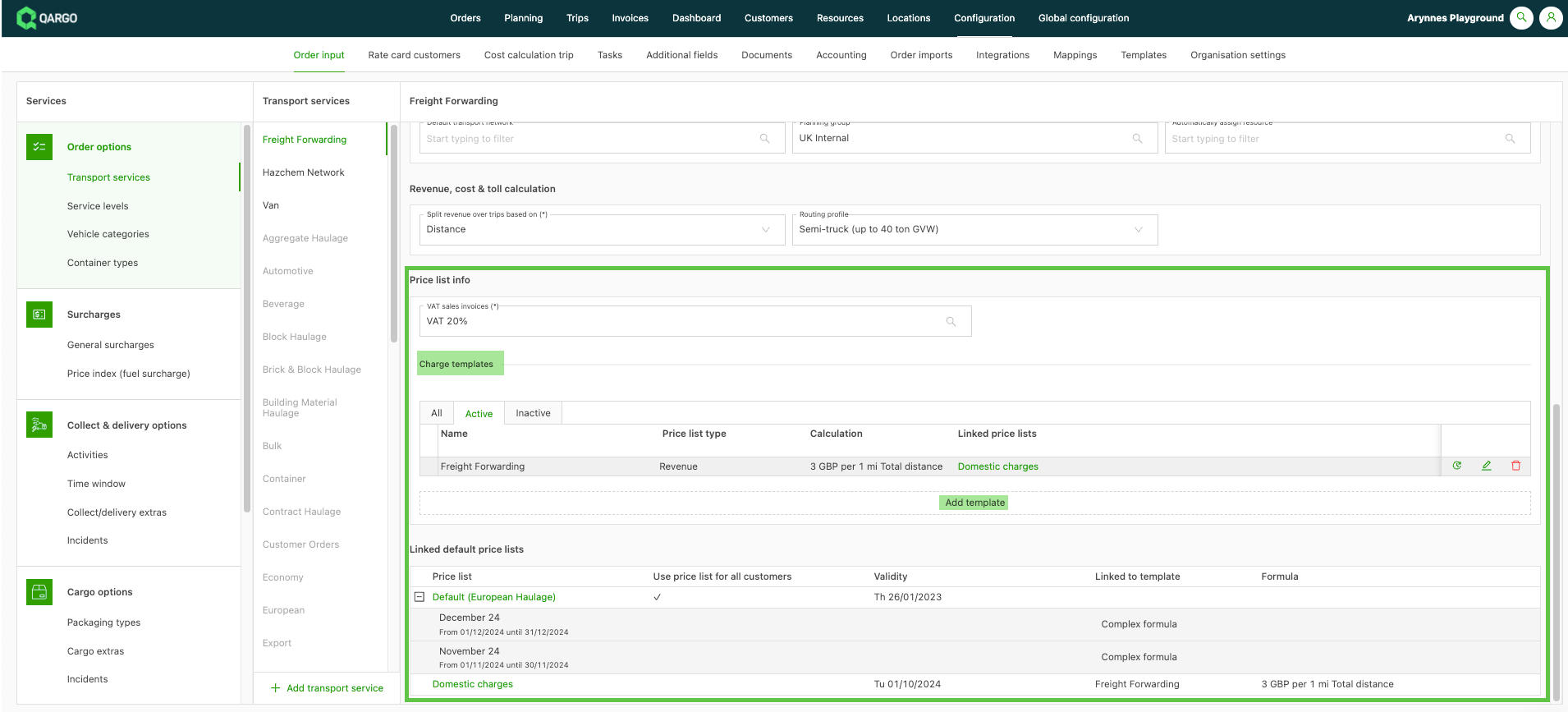
Learn more about creating rate cards
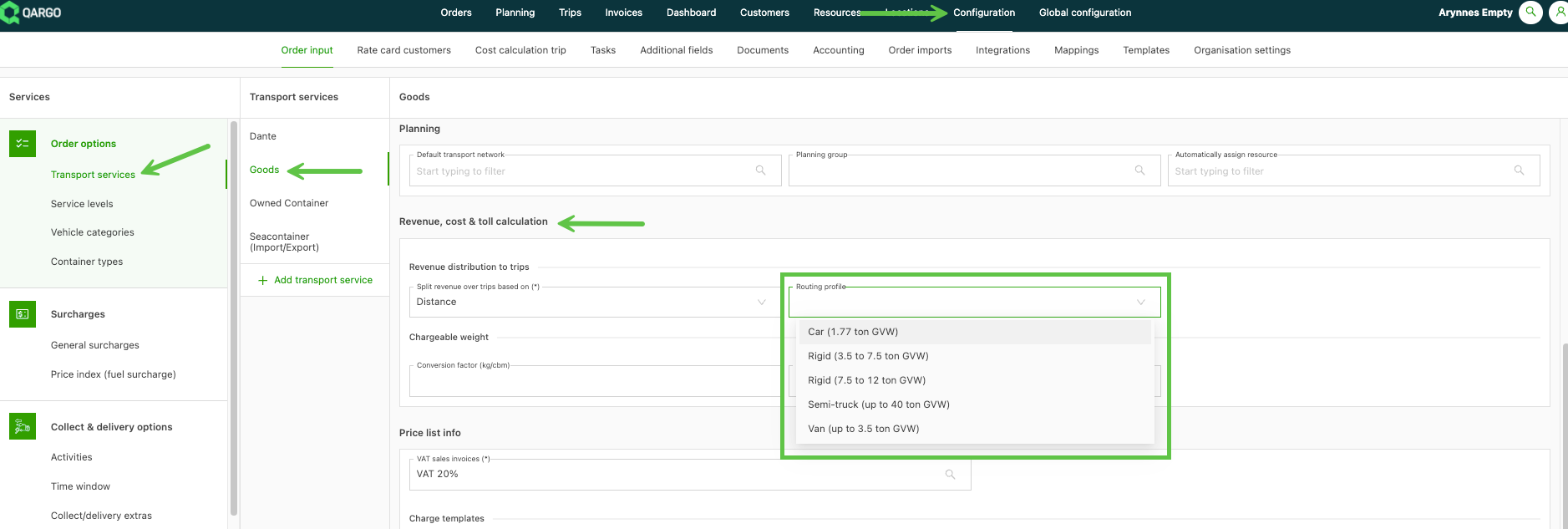
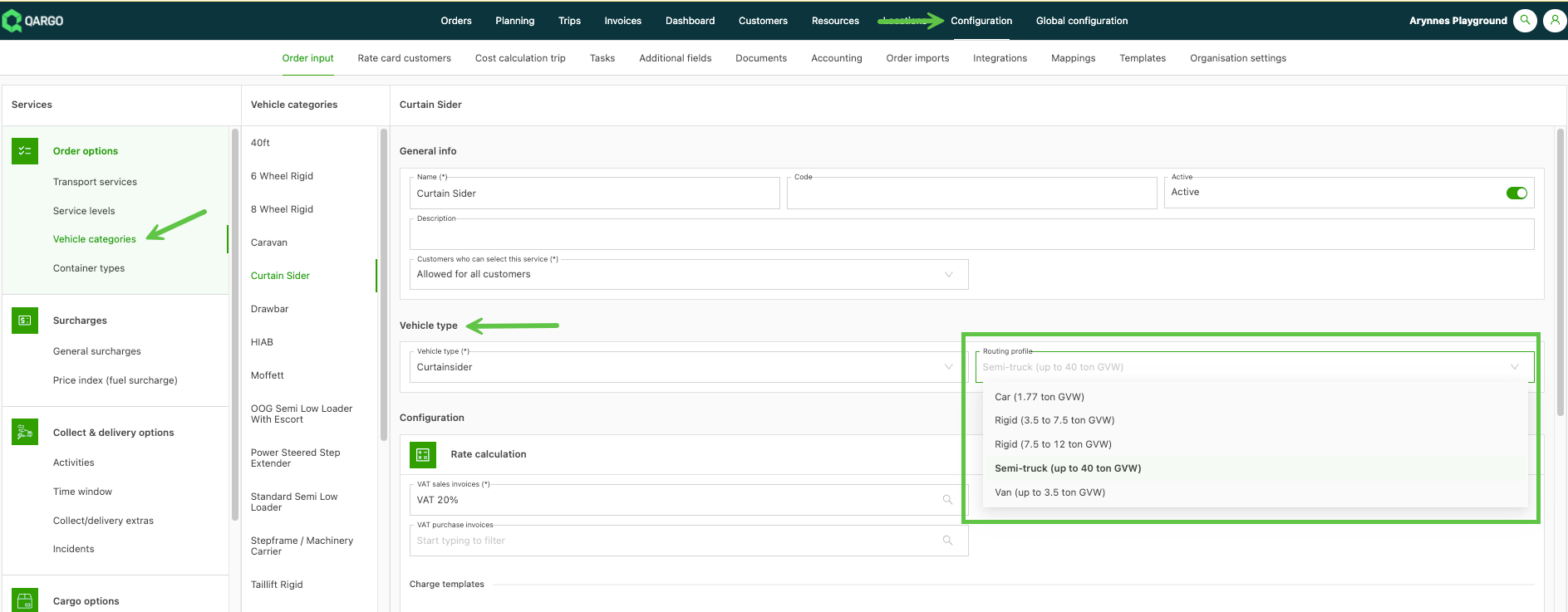
Improved routing profile options
‘Routing profile’ defaults can now be set up for both Transportation services and Vehicle categories. This gives better visibility and control over how orders and loads are routed, and therefore which toll costs are included. When an order is created, the default routing profile is taken from the configured transportation services. Once a resource is assigned and the load is created, the routing profile is updated based on the vehicle category.
Click here to read about routing and toll cost calculations
Features – week 4
Qargo Intelligence: email summaries updated.
Email summaries generated by Qargo Intelligence now have the same functions as the document summaries announced last week. Summary fields can now be expanded or collapsed by clicking in the field. Email summaries can also be deleted using the action menu (dots) on the right side of the row.

Enhancements – week 4
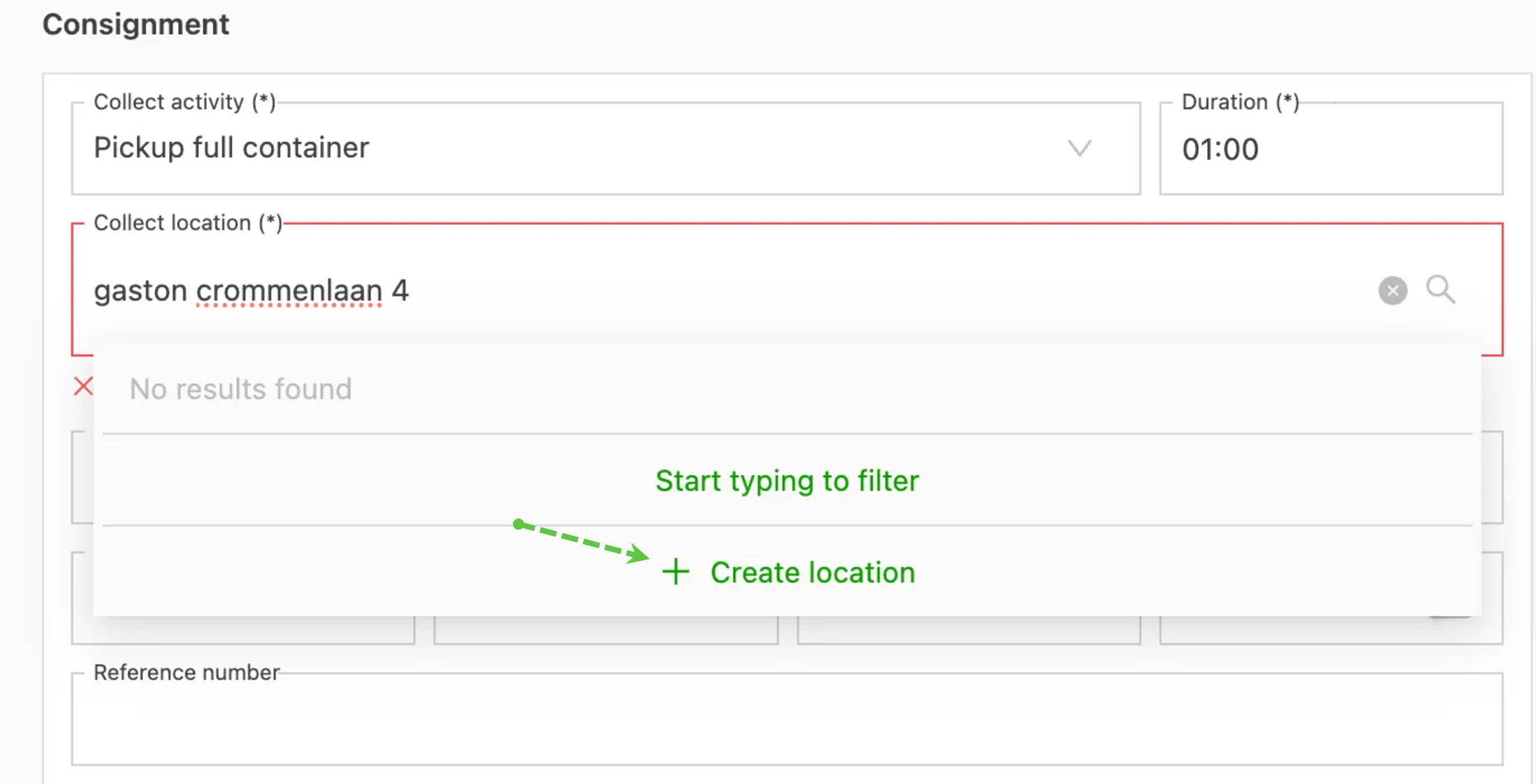
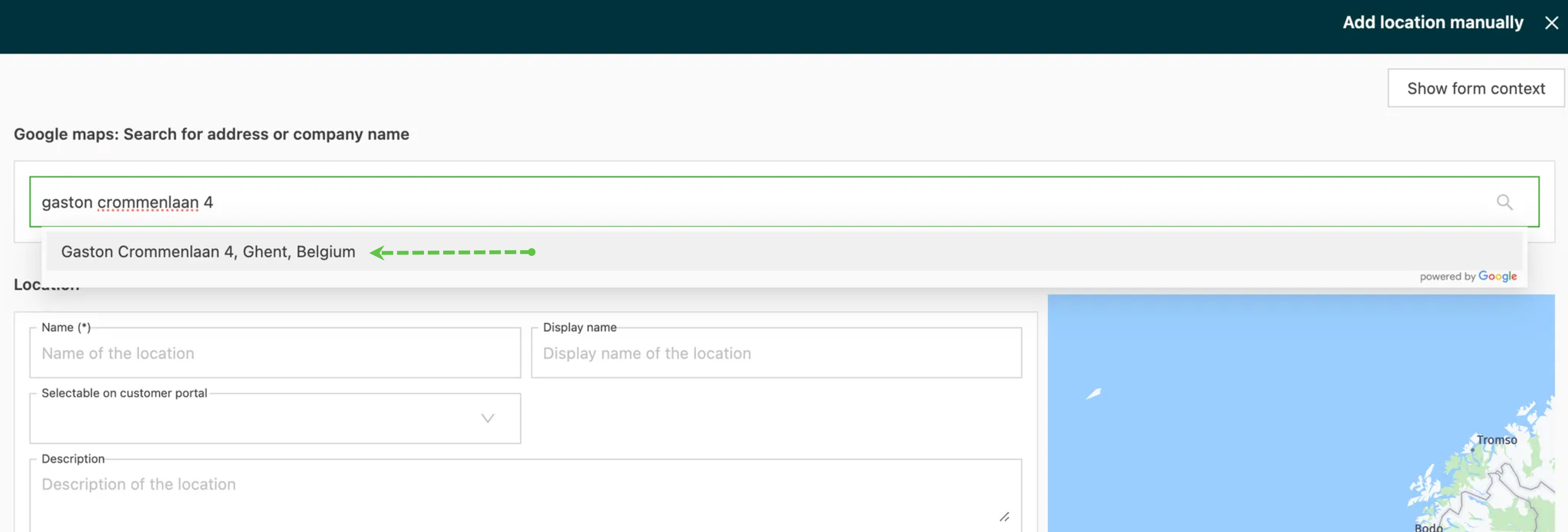
Location search: improved workflow from Google lookup
The workflow for creating a new location has changed, reducing the number of steps needed to add a location. The ‘Search Google’ button has been replaced by the ‘Create location’ button. This new button opens the create location screen directly and pre-fills the existing search in the Google search field, showing results immediately.
If no search has been made, users can create a new location directly with the form. The workflow for creating new companies has also been adjusted to this new method.
Click here to read more about creating new locations and customers.
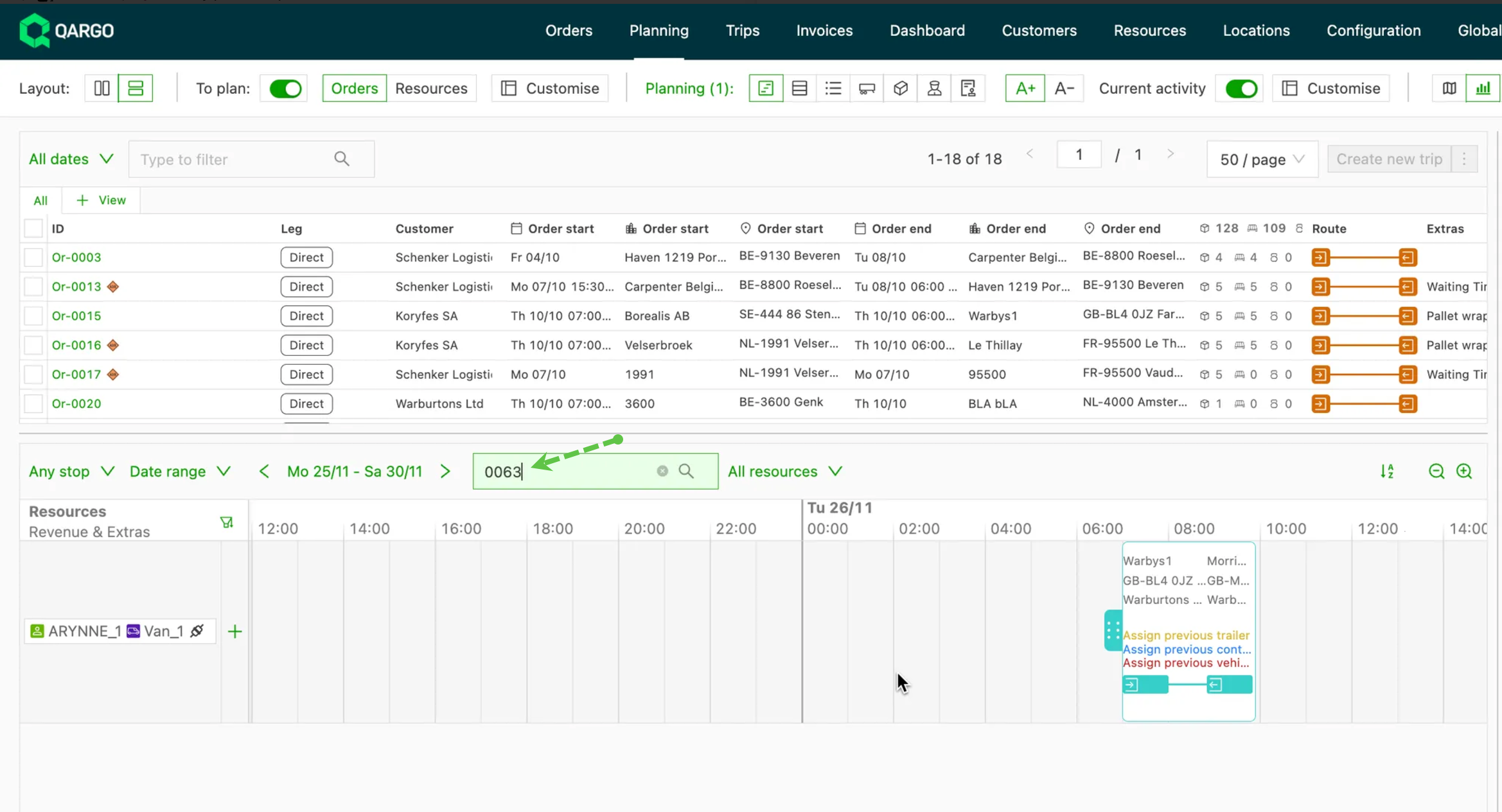
Expanded search options on the planning board
The following can now also be searched on the planning board:
- Order name
- Order department
- Custom fields on load