
2. Email Intelligence: configure task emails to use the linked mailbox.
This article covers configuring task emails to send from a company's own mailbox. This is the 2nd step in setting up Email Intelligence.
Table of contents
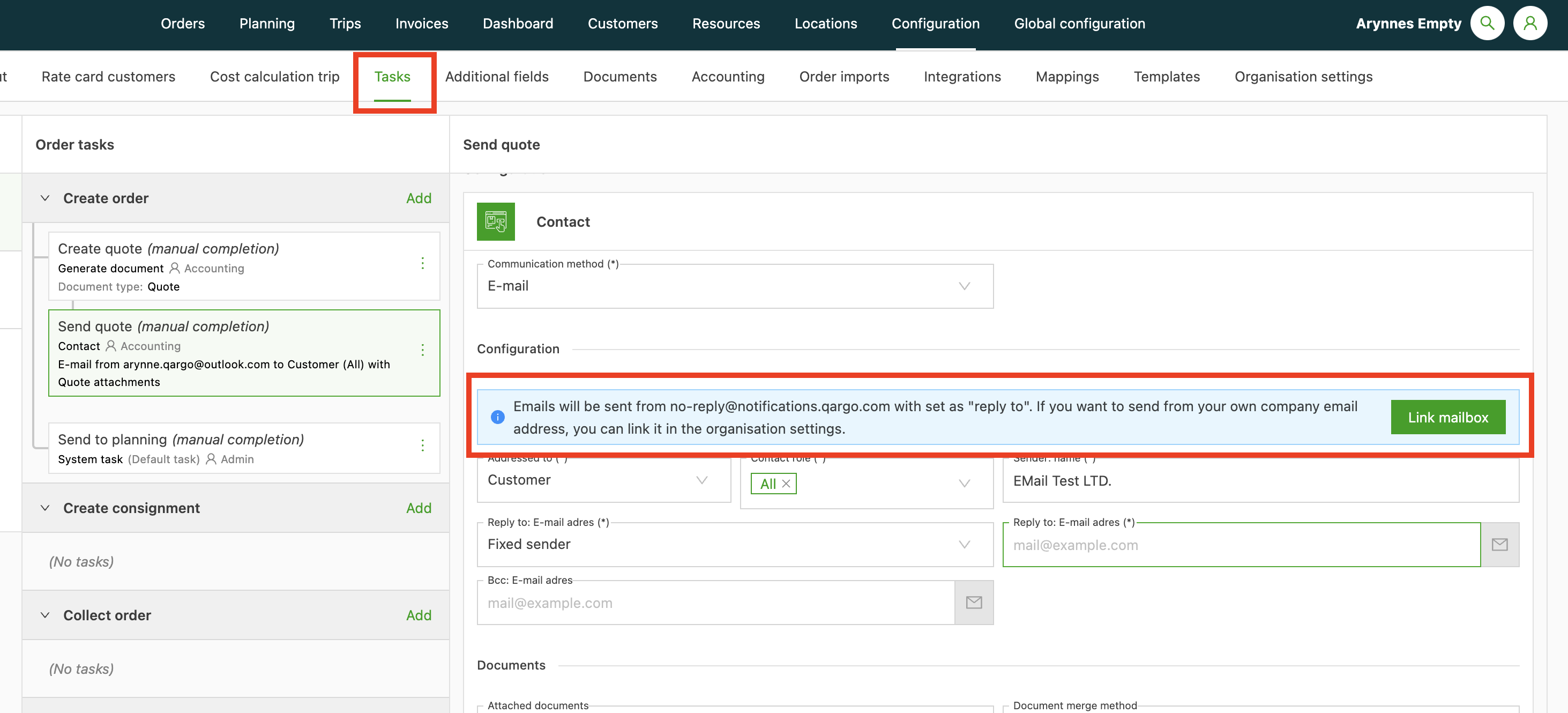
Once a Linked mailbox is configured in Qargo, the email address in the task configuration needs to be updated. This step updates the email address the customer receives the email from.
If there is no linked mailbox in the contact task configuration, the email is sent from the Qargo no-reply email address. This is the default way of sending emails.
Add the email address of the linked mailbox and click Save.
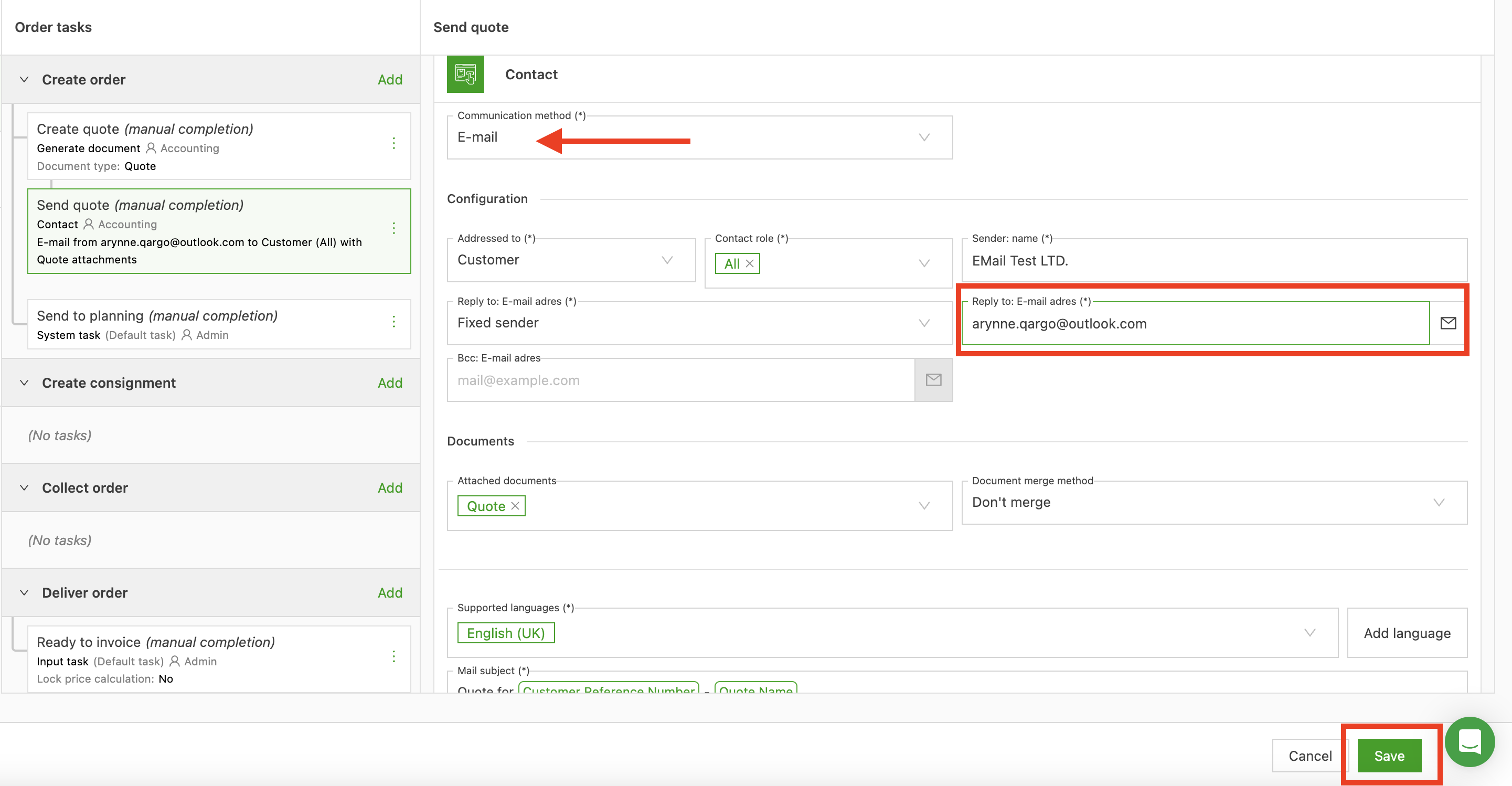
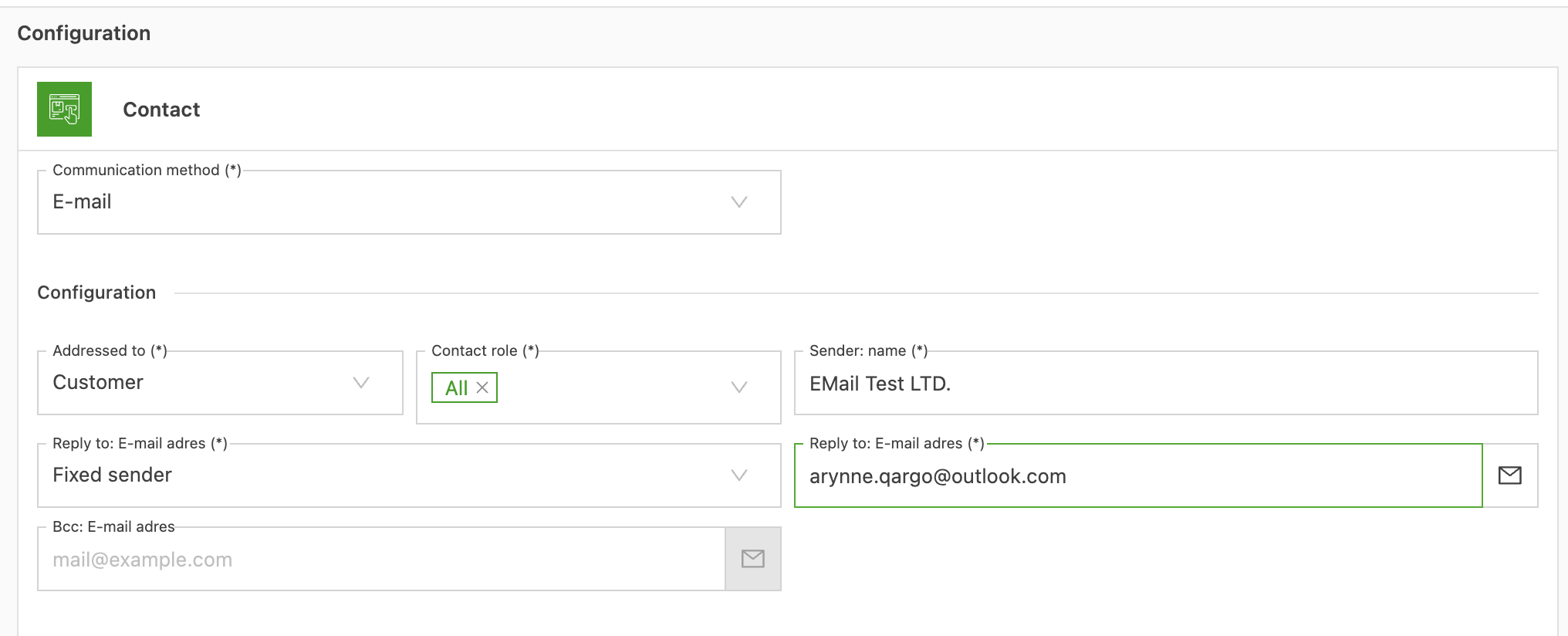
When a linked mailbox is detected in the ‘Sender reply to’ email address field of the contact task, the message disappears.
Next steps:
Download the Outlook extension. Click here.
Create and link orders to emails. Click here.