4. Create & link orders from emails and attachments
Link and create orders without manually keying in data, which increases efficiency and reduces data entry risk. The mailbox must be linked.
Table of contents
Once the mailbox is linked and the Qargo Add-in for Outlook has been added, order communication can be integrated seamlessly, directly from the mailbox.
Create new order
If an email is not yet linked to any order, a new Actions section appears at the top of the Qargo pane. It contains the available action Create new order or Create quote.
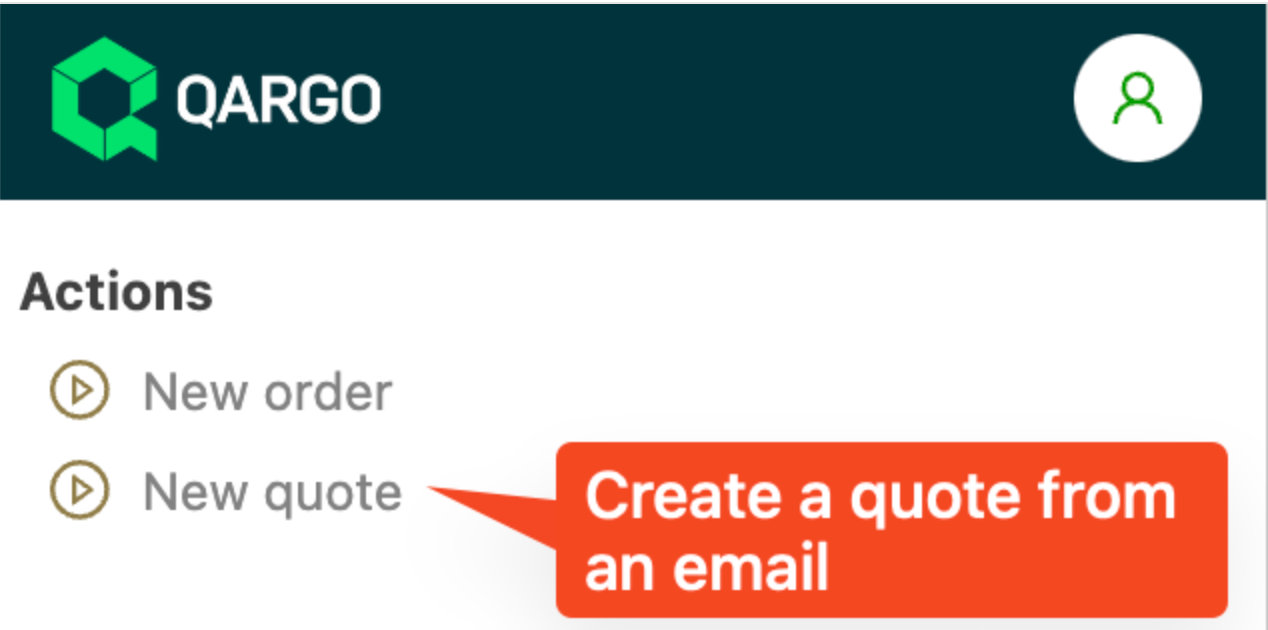
Clicking this action opens a new Qargo window in which the email is preloaded to be scanned. This works in the same way as the existing drag-and-drop function. From this point, enter the order using the existing process.
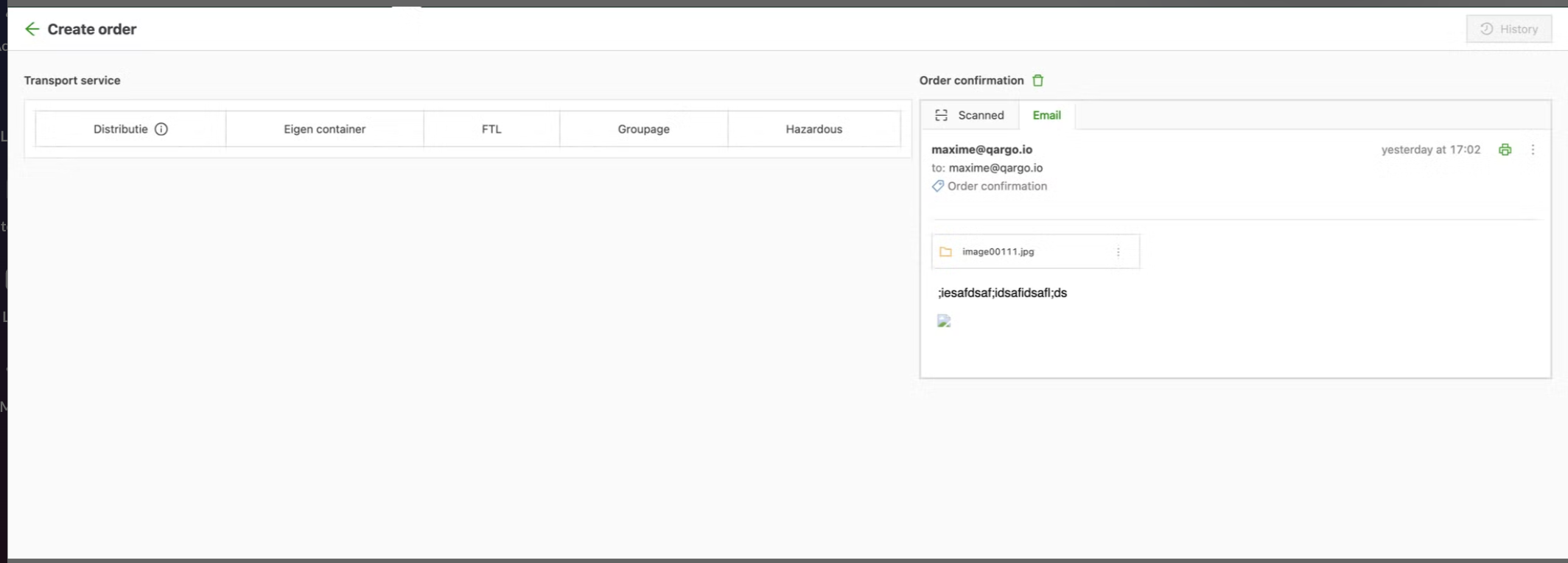
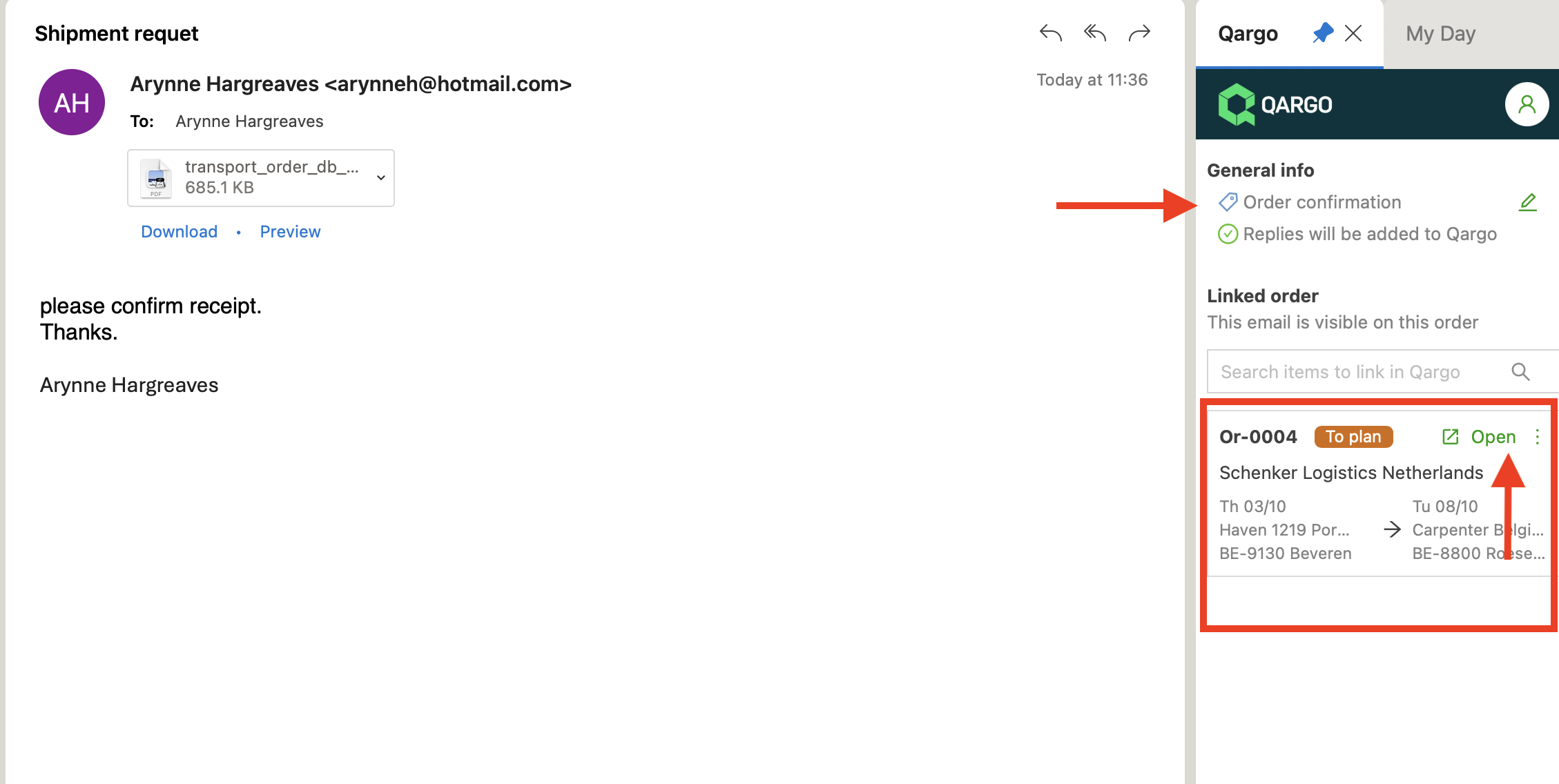
Once the order is created, it is linked to the email. In the Qargo pane, the email details appear under General info. To update the email type, click the pencil icon. The order information appears in the Linked order section.
Linking an order
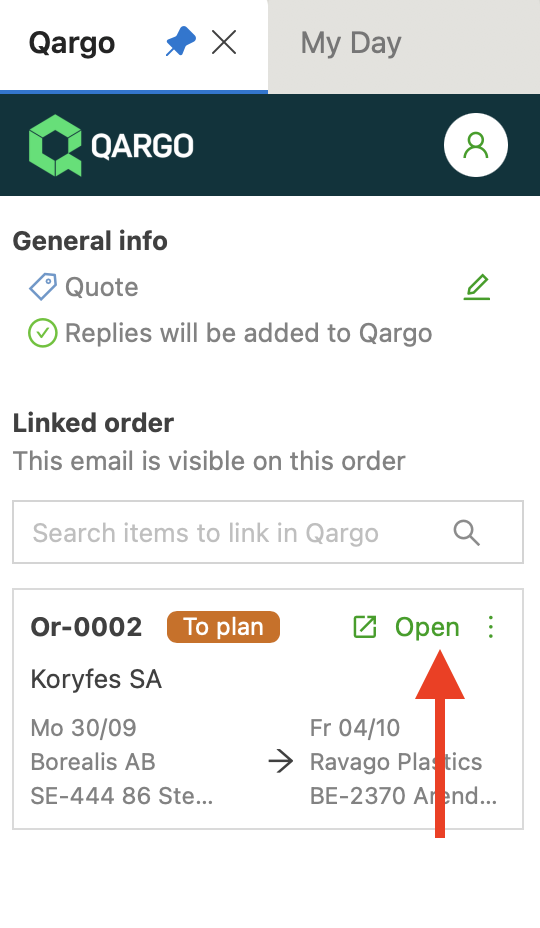
If the order was created from the email, the link is created automatically. The Linked order information includes the order number, order status, customer name, and pickup and delivery information. Clicking Open goes directly to the order in Qargo.
If an email arrives for an order that is already in Qargo, link it by searching for the order number under Linked order. Once the order is found, click +Add to link it.
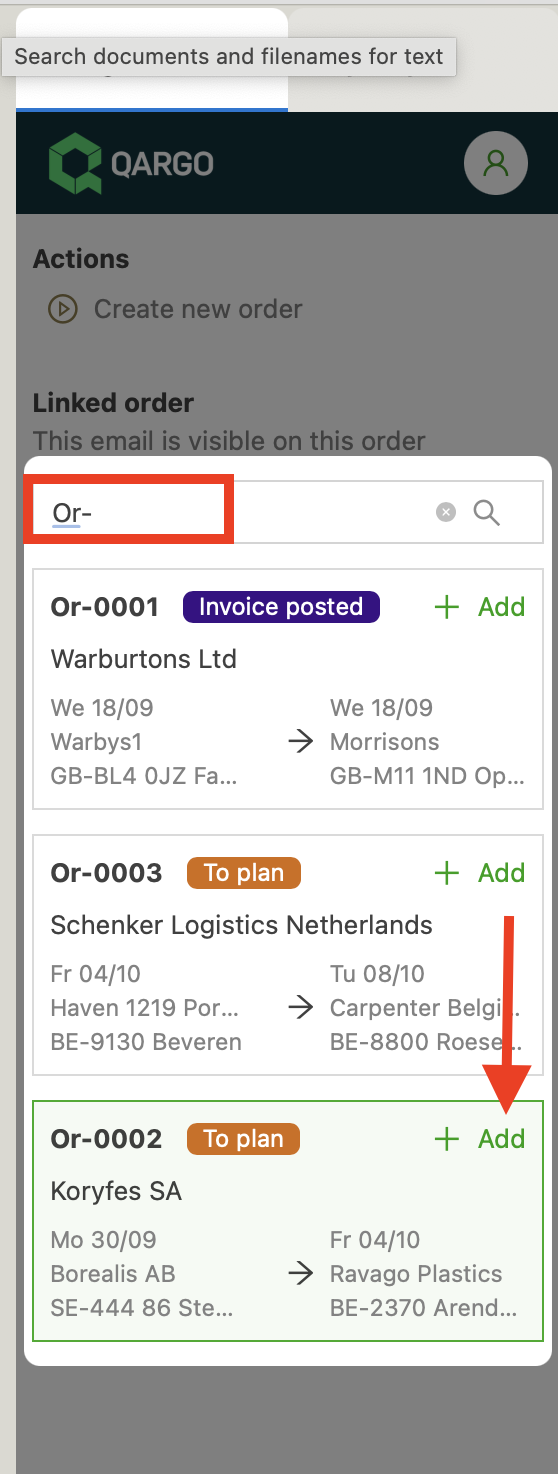
This links the email to the order, so any subsequent emails, both incoming and outgoing, are associated with the order.
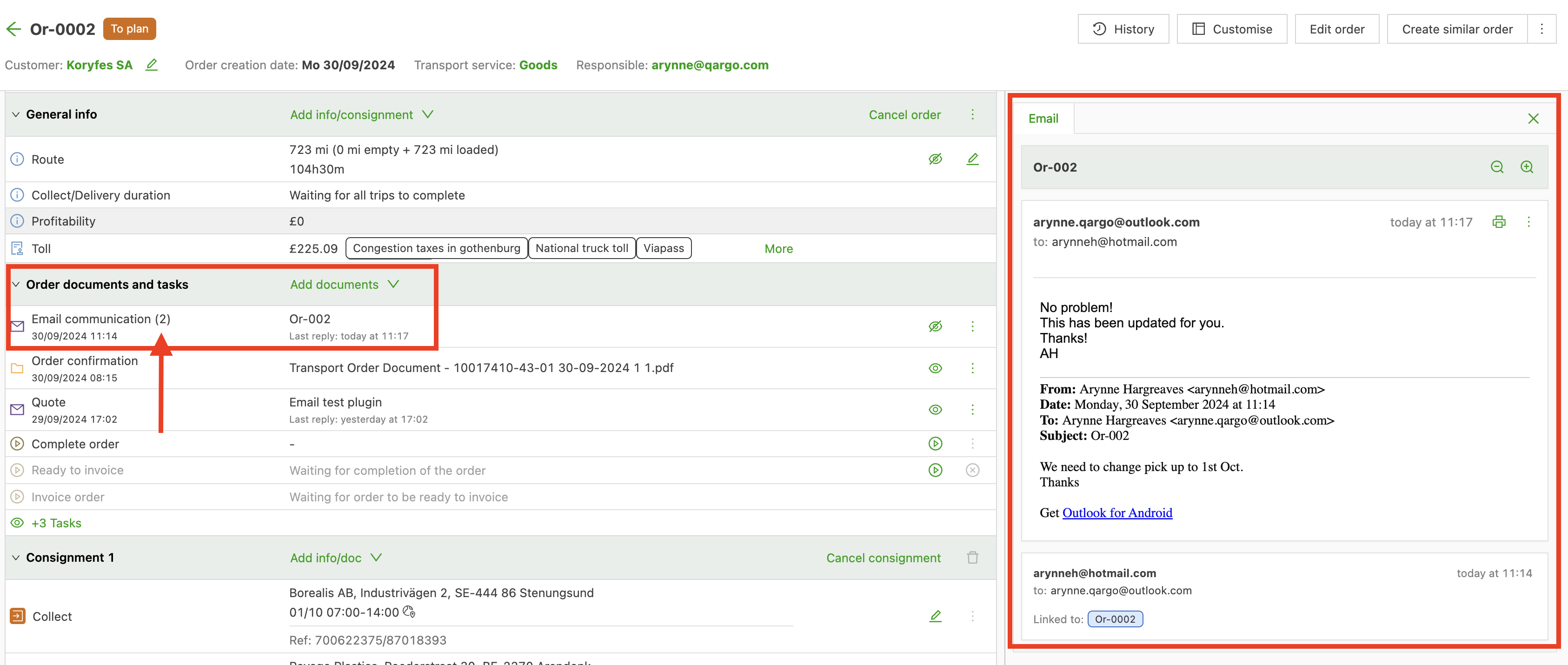
The emails are visible directly in the order in Qargo. The number (x) next to Email communication shows how many emails have been received in that email chain.
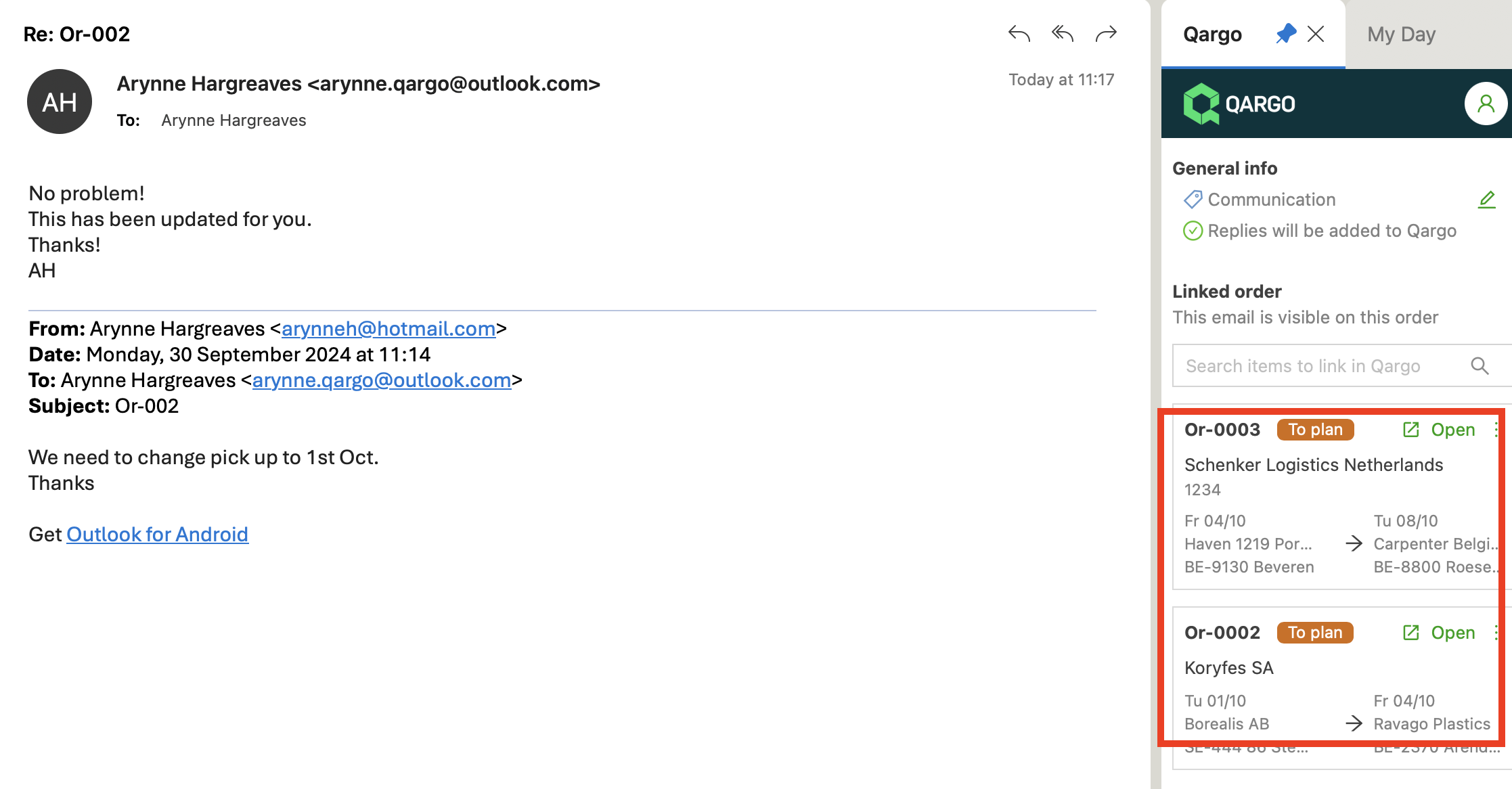
Linking multiple orders to an email: now available!
Click here for details.
Tips:
Unlink email thread
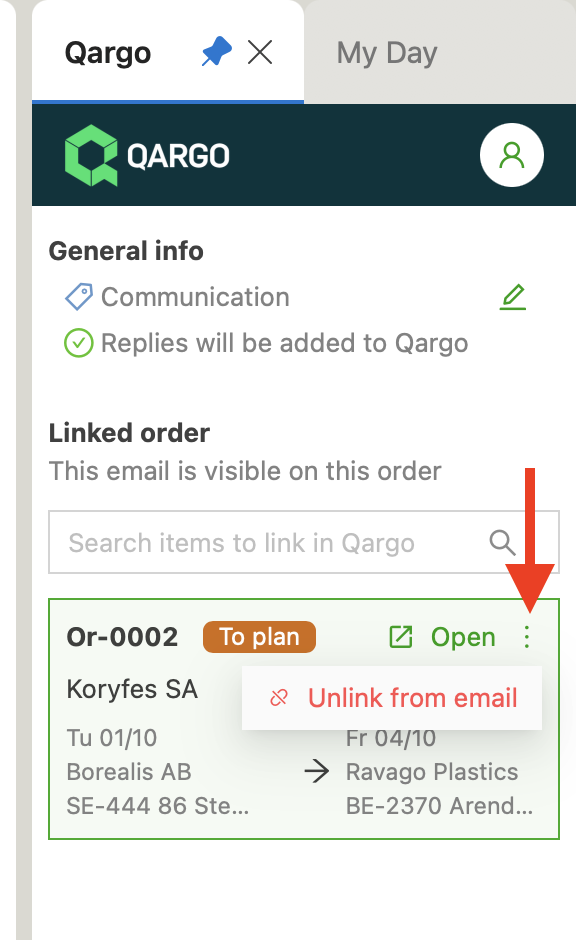
Emails can be unlinked from an order. Click the three vertical dots and then Unlink from email. The thread remains visible in the order, but unlinking prevents any further email communications from being added.
Delete email thread
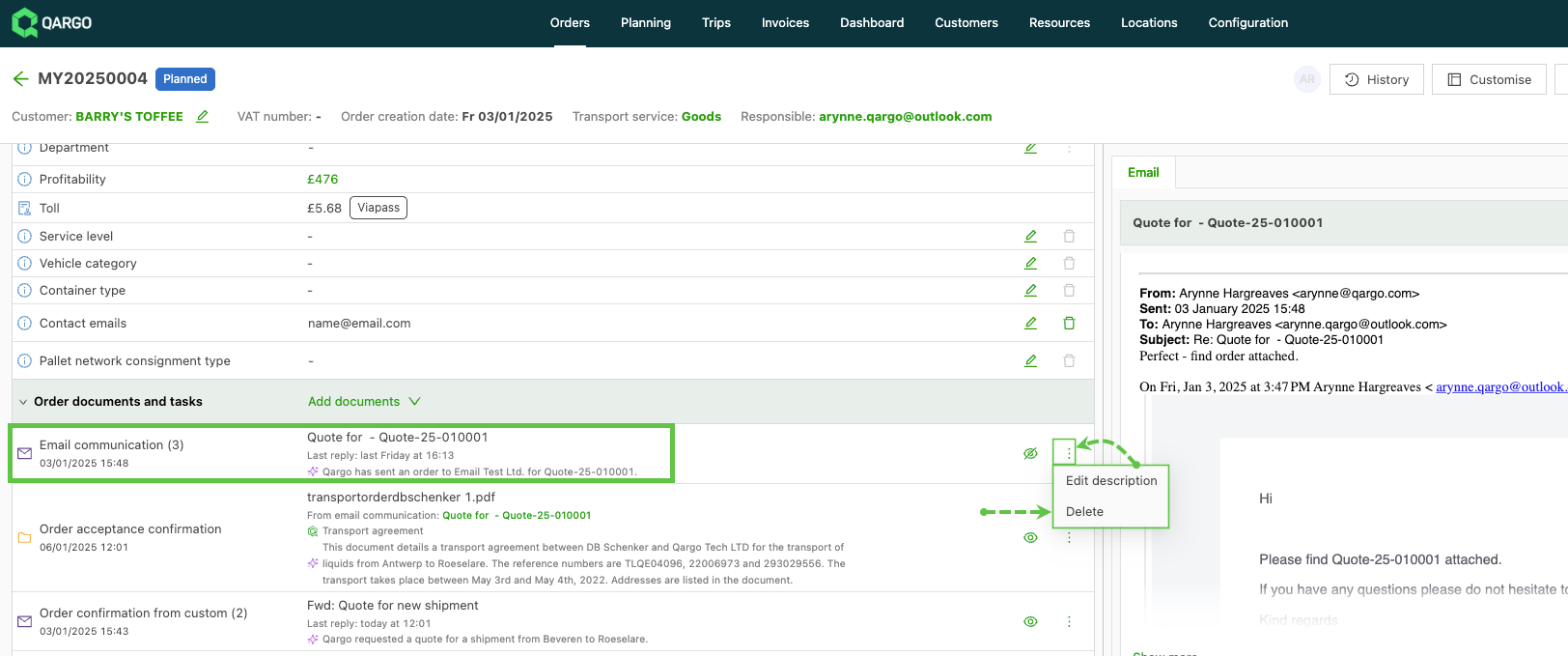
If an email thread has been incorrectly associated with an order, the entire email thread that was linked to Qargo via the Outlook Add-in can be deleted.
- In Qargo, click the three-dot menu in the Email communication panel.
- Select Delete.
- Click Yes to complete the deletion.
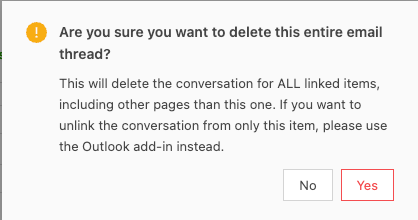
This is not the same as unlinking an order from a thread. Deleting the email thread removes it from the system entirely for all items linked to the messages, i.e., orders, shipments, invoices, etc.
Where’s my email?
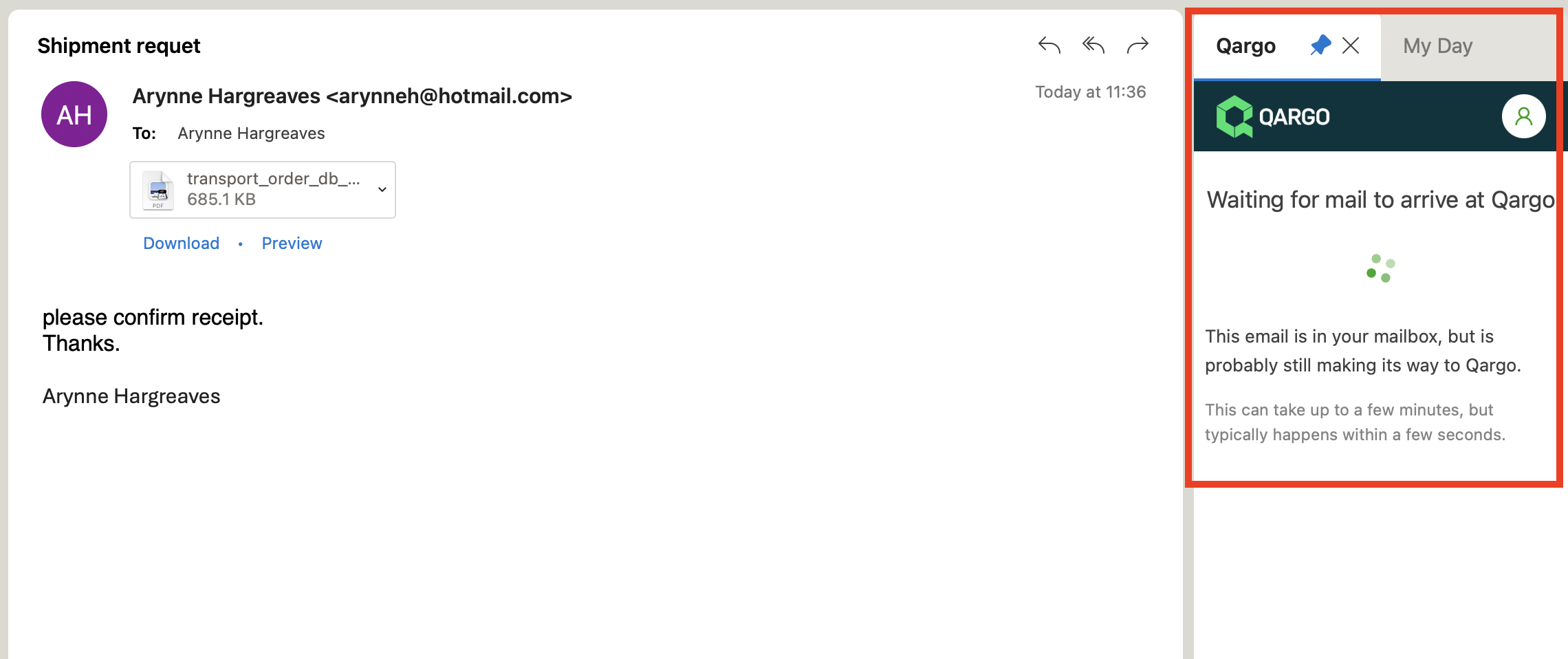
It may take a moment for the email to be received in Qargo. The highlighted message appears while the email is processed.