3. Email Intelligence: Install the Outlook extension
This article explains how to install the Outlook extension required to complete the Email Intelligence configuration.
Table of contents
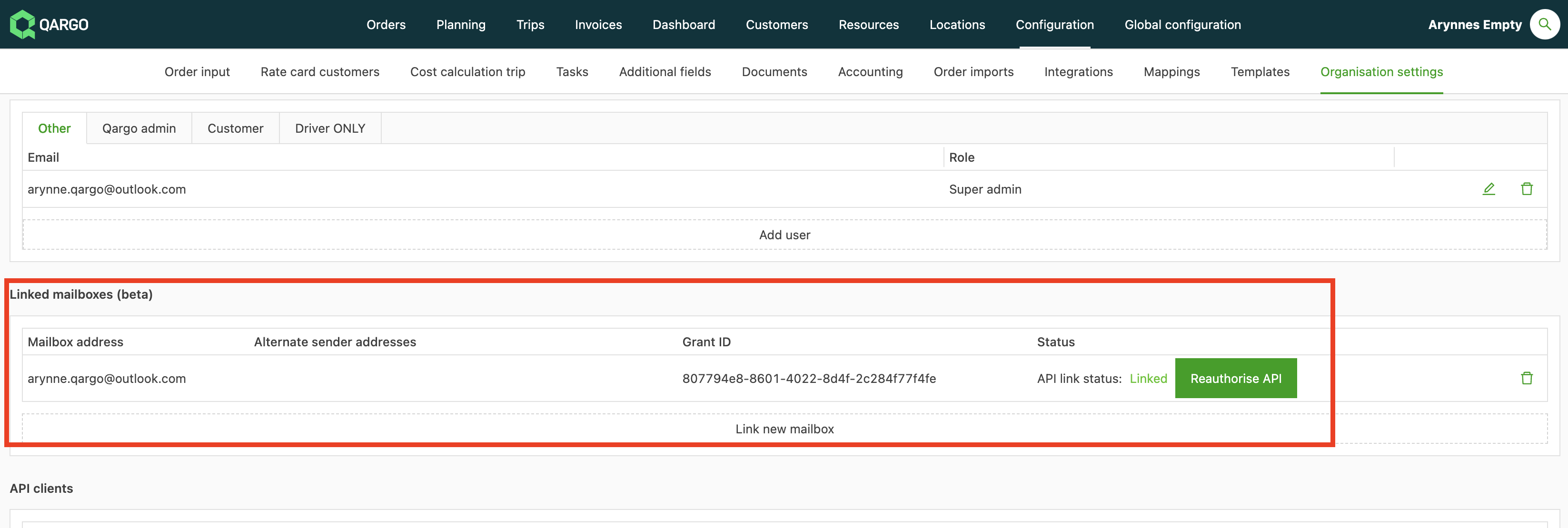
Before downloading the Email Extension, users must have a Linked Mailbox. Read more here.
Installing the extension

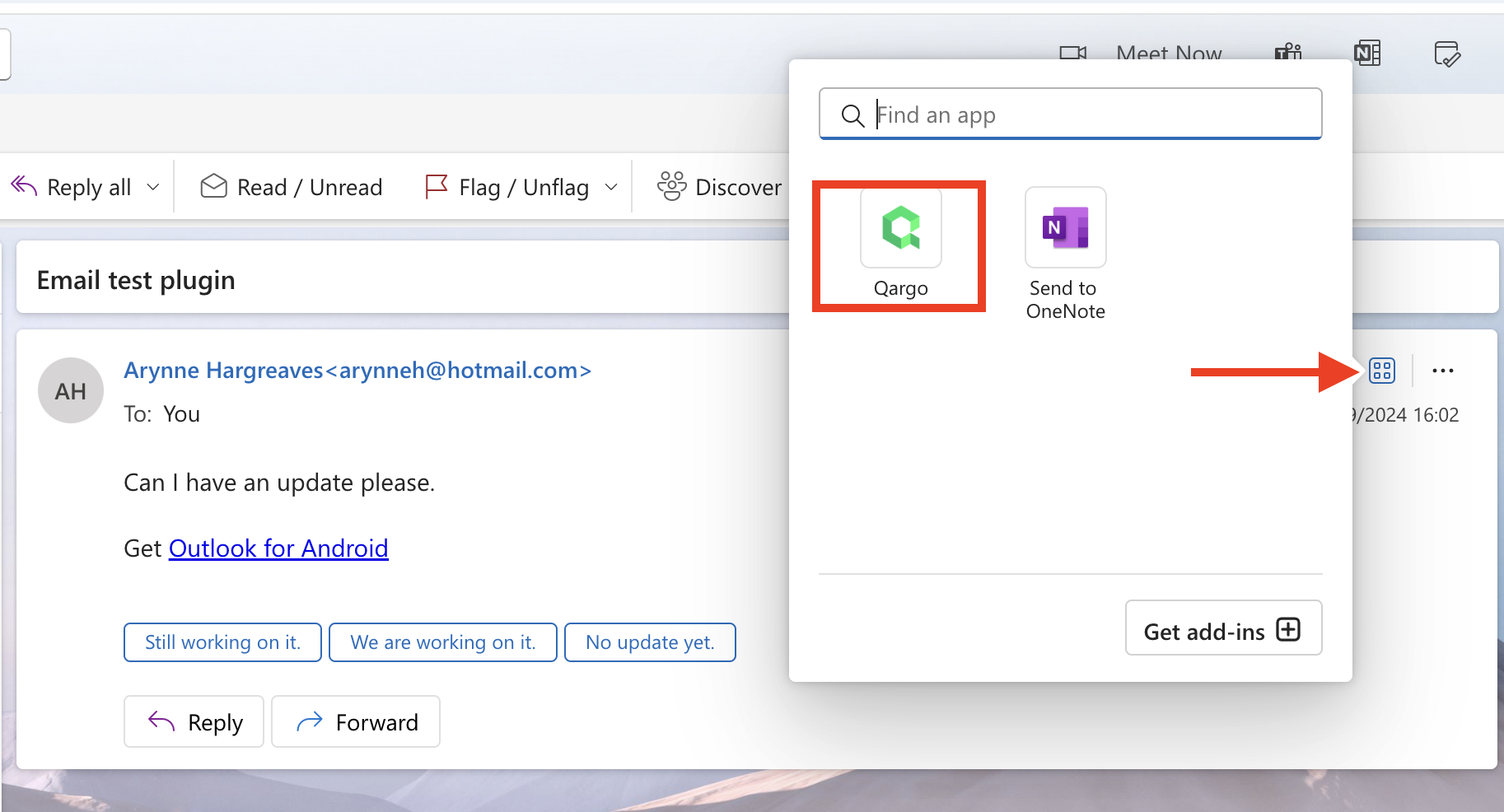
Select an email in Outlook and click the Add-Ins icon.
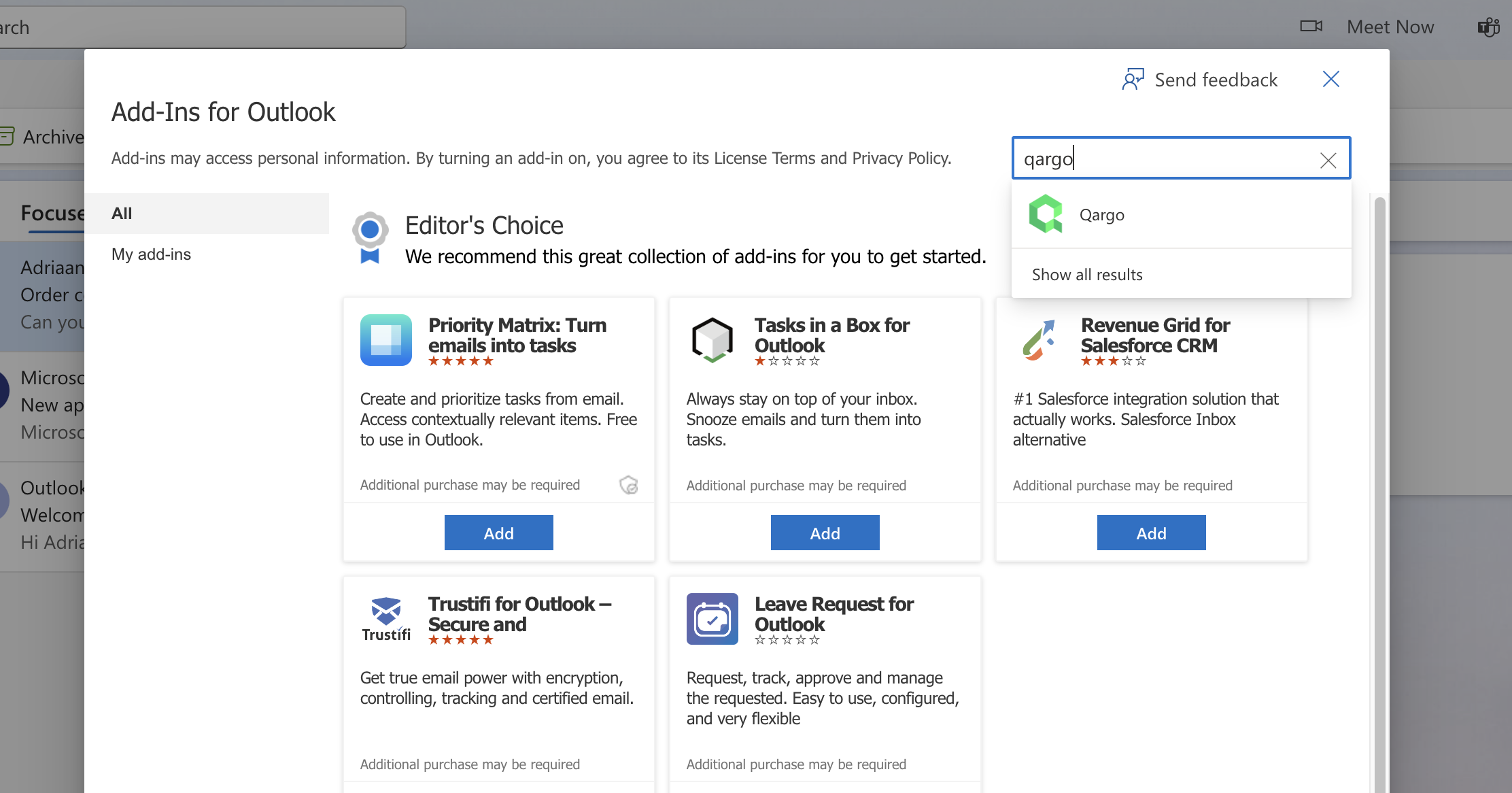
Select “Get Add-Ins” and then search for Qargo.
Using the extension
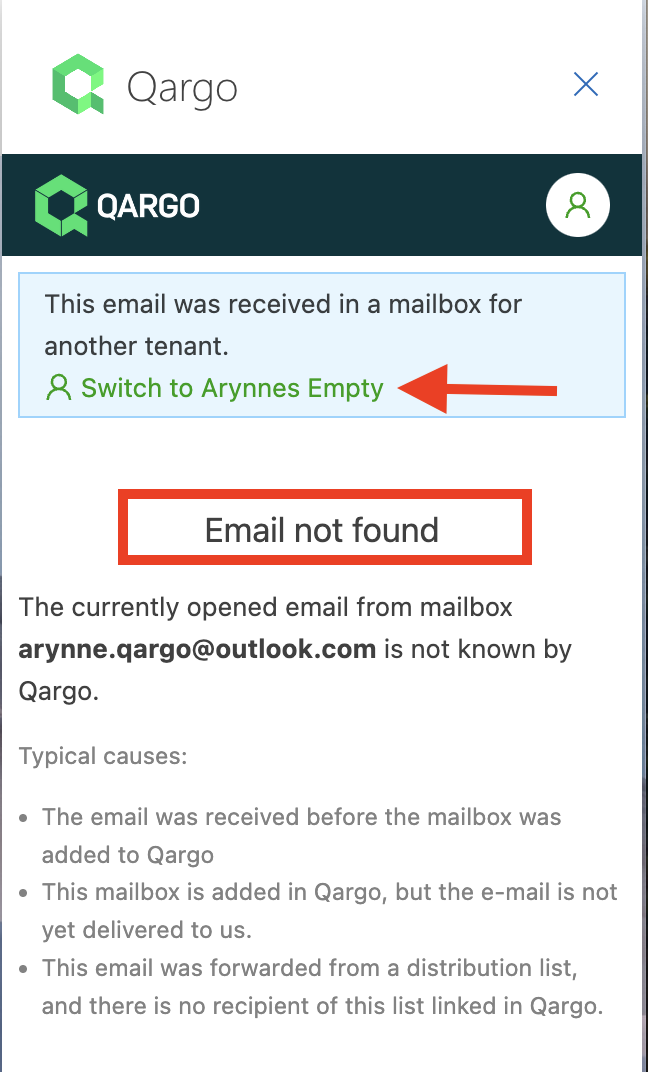
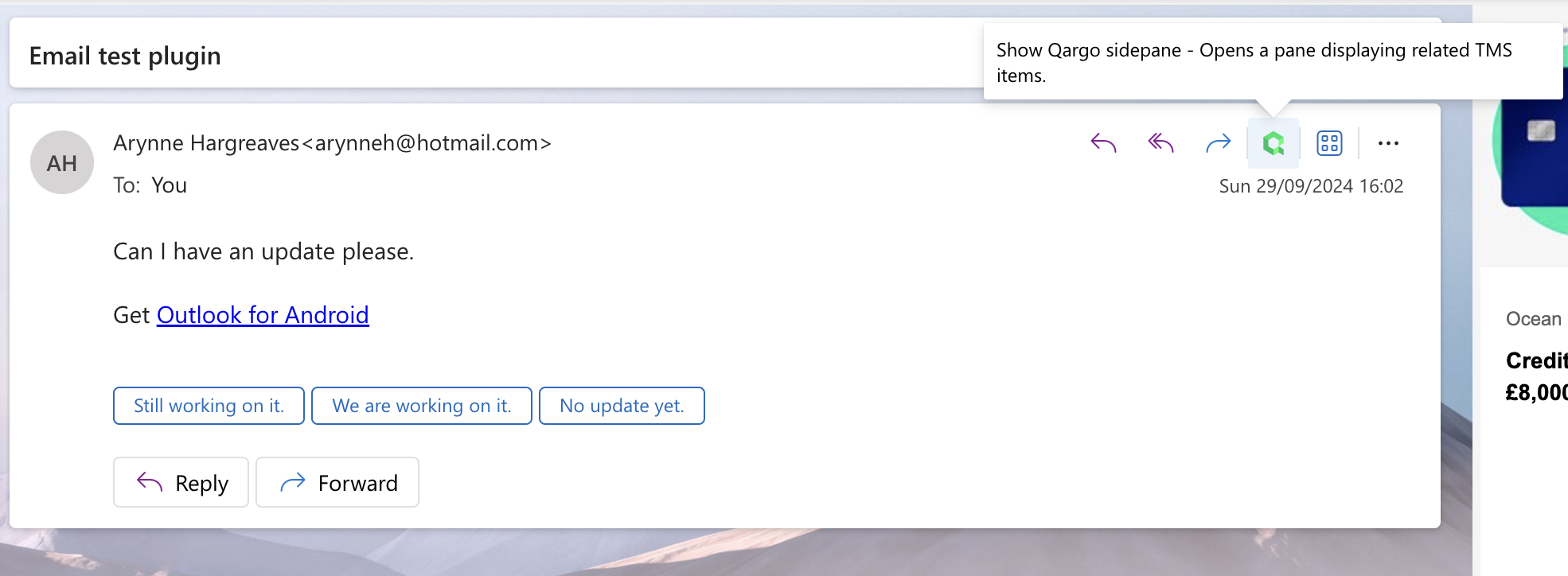
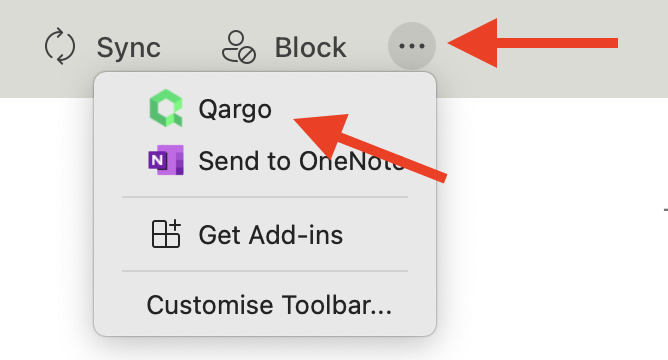
Once the extension is installed, click the icon to open it. Note: It appears slightly differently in the Outlook app and in Outlook desktop.
Outlook app (Qargo icon).
Outlook desktop (three dots, then select Qargo).
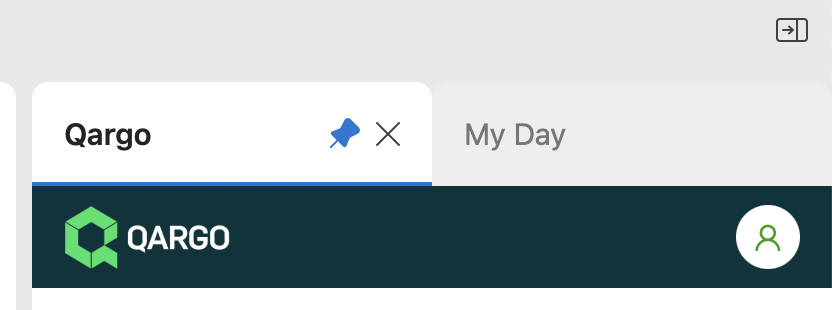
Desktop only! Click the ‘pin’ button to keep the Qargo side pane open when switching between emails. This shows Qargo inside Outlook.
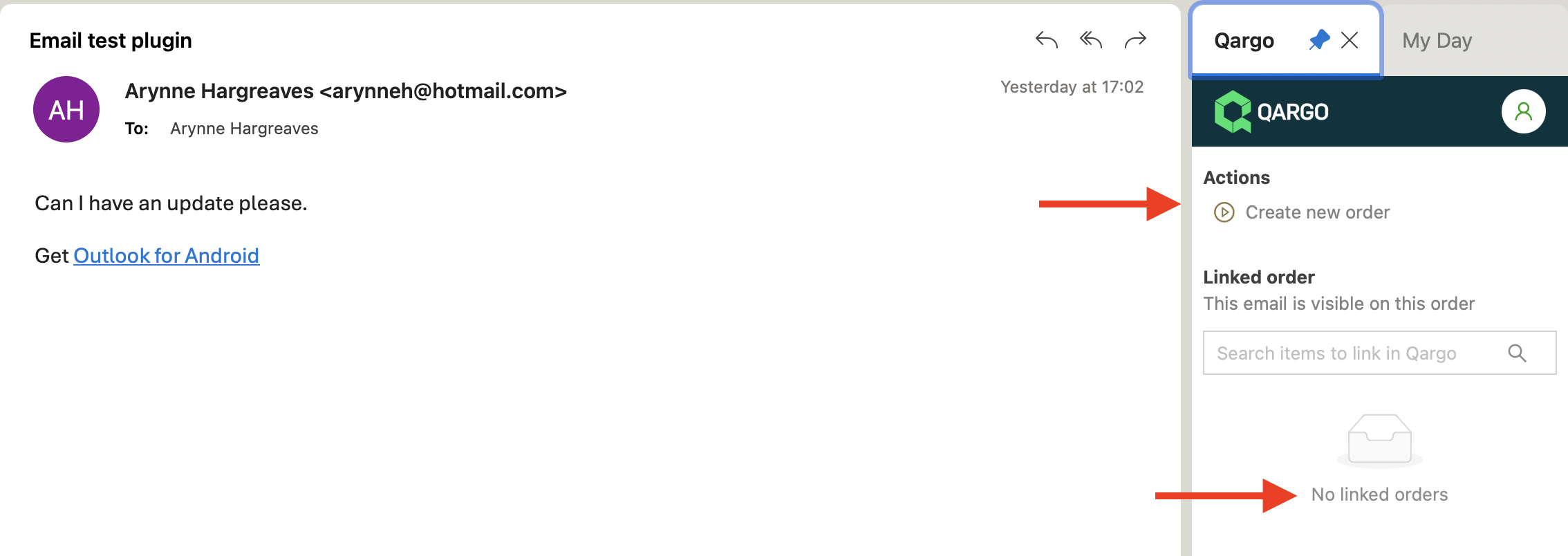
Once the setup is complete and the mailbox is linked, an Actions section appears in the Qargo pane. It offers options to create a new order or link an existing order.
Next step:
Create and link orders. Click here.
💡 Tips: