
FAQ - Install Qargo and system requirements
How to install Qargo as a desktop app, and the minimum system requirements to run Qargo.
Table of contents
Install Qargo on a desktop
To install Qargo as a desktop app:
-
In Chrome or Edge, open app.qargo.com.
-
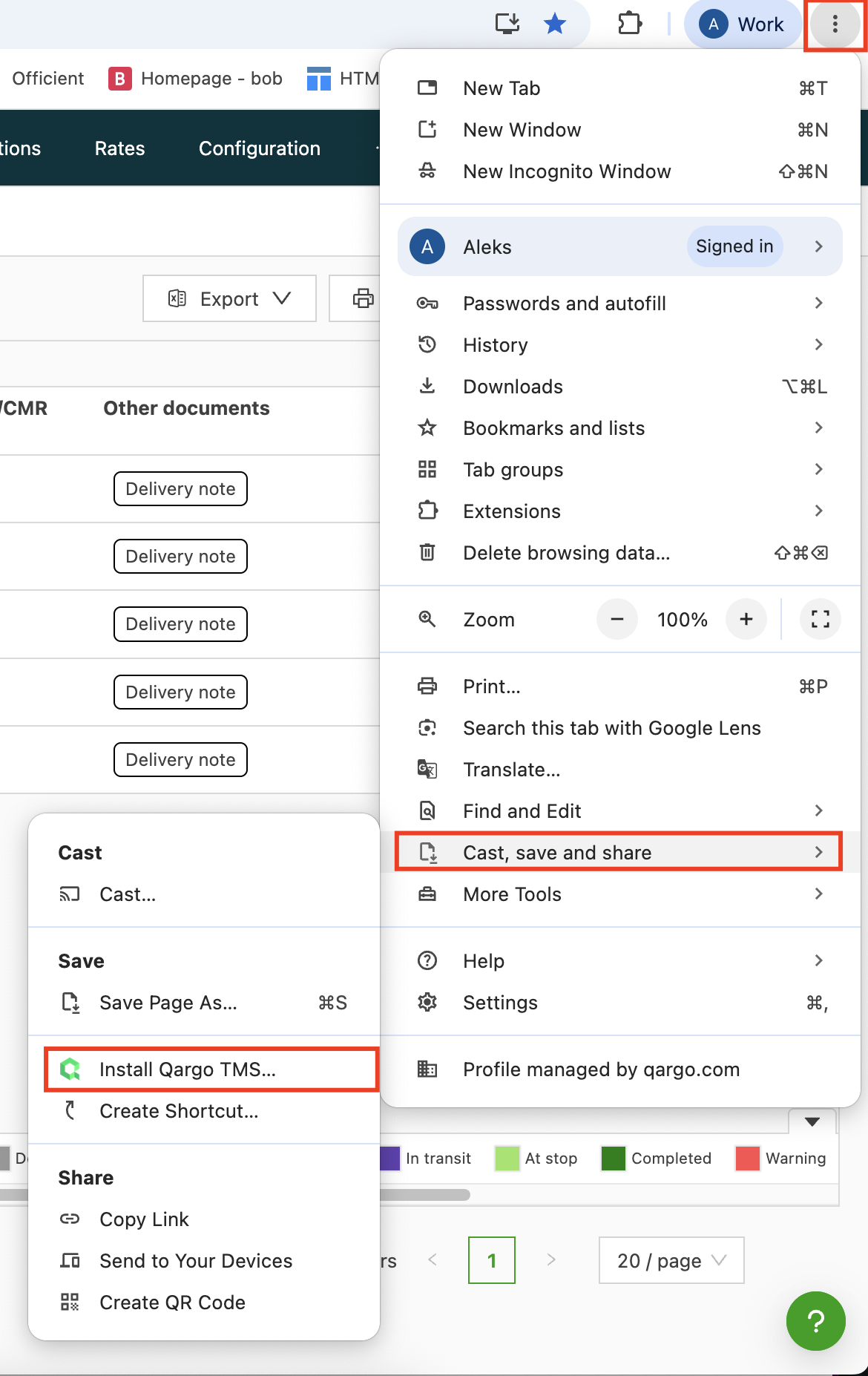
Click the browser menu (⋮ or …).
-
Look for Install Qargo TMS or Add to desktop. This may be listed under Cast, save, and share or More tools. The location can vary by browser.
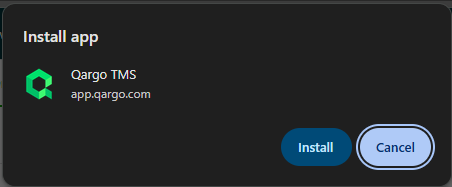
This creates a shortcut on the desktop and opens Qargo in a separate window, similar to an app.
System requirements
Q. What are the minimal system requirements to use Qargo?
A. Qargo is a cloud-based system that users access remotely via a web browser. The primary requirement is a stable internet connection. As a web-based solution, the application is available on any computer with an internet connection. Accessing the application directly is preferred, and it is not typically necessary to set up remote access.
Unlike an on-premise solution, all the heavy calculations run on Qargo web servers, and the information is presented back via the browser. There are no mandatory hardware investments, so users can use their existing infrastructure.
The following recommendations can help optimize performance.
Browser
- Chrome (recommended).
- Average RAM usage is about 500 MB–1 GB per tab. This can increase to 1.5 GB on the planning screen, depending on the resolution and the number of loads displayed.
Minimum RAM: 8–16 GB*
*If other websites or applications are used at the same time, or if multiple Qargo tabs are open at once, select a higher RAM to maintain optimal performance.
Hardware
Although calculations run on web servers, presenting a lot of information in the browser also requires CPU power. An Intel i7 (minimum) is recommended.
Troubleshooting
Q. Remote desktop users experience slowness, even though other sites work well and a speed check passes.
A. As a web-based application, Qargo is available from any computer with an internet connection, and direct access is recommended. If access via a remote desktop is required and the user still experiences slowness, this may need additional IT support and infrastructure checks:
- Review the specific configuration of the remote desktop environment. Is optimization possible?
- Check network latency between the remote desktop and Qargo servers. Are there issues with the ISP?
- Is there a high number of concurrent users on the remote desktop system?