
FAQ: Slow system performance
Quickly check the internet connection and browser, record the slow workflow, and report it to Support with dates/times, affected pages or actions, error messages, and impacted users.
Table of contents
Slow performance can have a few different causes, including any of the following:
- Data loading problems, i.e., loading the Orders list view and waiting for the list to generate on the page.
- Creating/updating data, i.e., creating or editing order data and waiting for the new data to save.
- “Behind the scenes” functions, i.e., generating documentation or running bulk actions to update multiple records.
- Browser is frozen or stuck, i.e., no further action can be taken on the screen.
Internet and browser-specific checks
-
Is it the internet connection? (Pretty obvious, but necessary to rule out anything outside the Qargo application itself.)
- Do a quick check of another website and confirm it works with no performance issues; for instance, a YouTube video loads and plays with no issues.
-
Use incognito/private browsing mode: If the issue occurs only for certain users or specific orders, opening Qargo in an incognito or private browsing window often resolves it. This step can help isolate browser settings that might be affecting users.
-
To quickly enter incognito/private browsing mode:
- Ctrl+Shift+N in Chrome/Edge
- Ctrl+Shift+P in Firefox
- *Use Cmd instead of Ctrl on a Mac
-
-
Use a different browser. Try loading Qargo in a completely different browser, i.e., if using Chrome, try loading it in Firefox.
- Does the performance seem any slower/faster in the new browser?
Reporting slow performance
Share a visual recording (required)
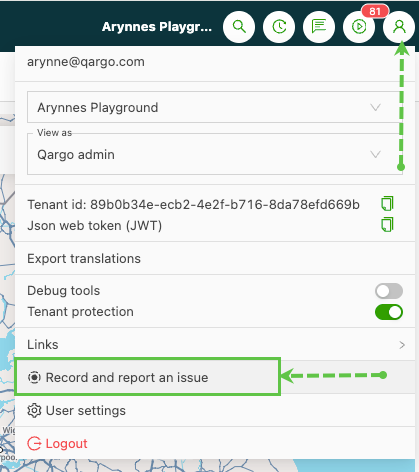
- Open User profile settings and locate the ‘Record and report an issue’ option.
- Click the ‘Record and report an issue’ link.
- Click the ‘Record and report an issue’ link.
-
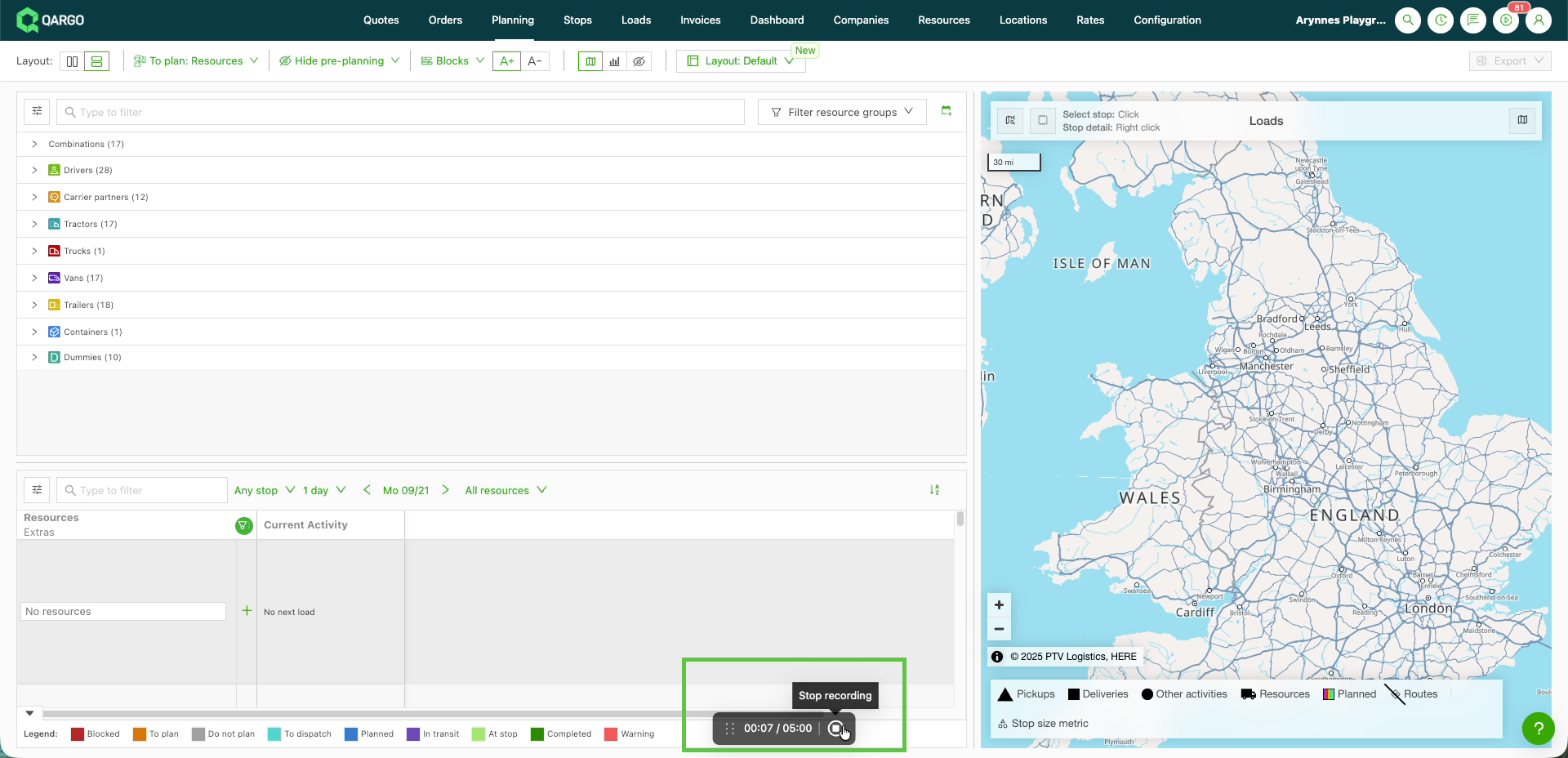
Record the workflow that is affected by slow performance.
- Recording starts right away (max. 5 min)
- Perform the slow action
-
Click ‘Stop recording’ once the affected function has been captured.
-
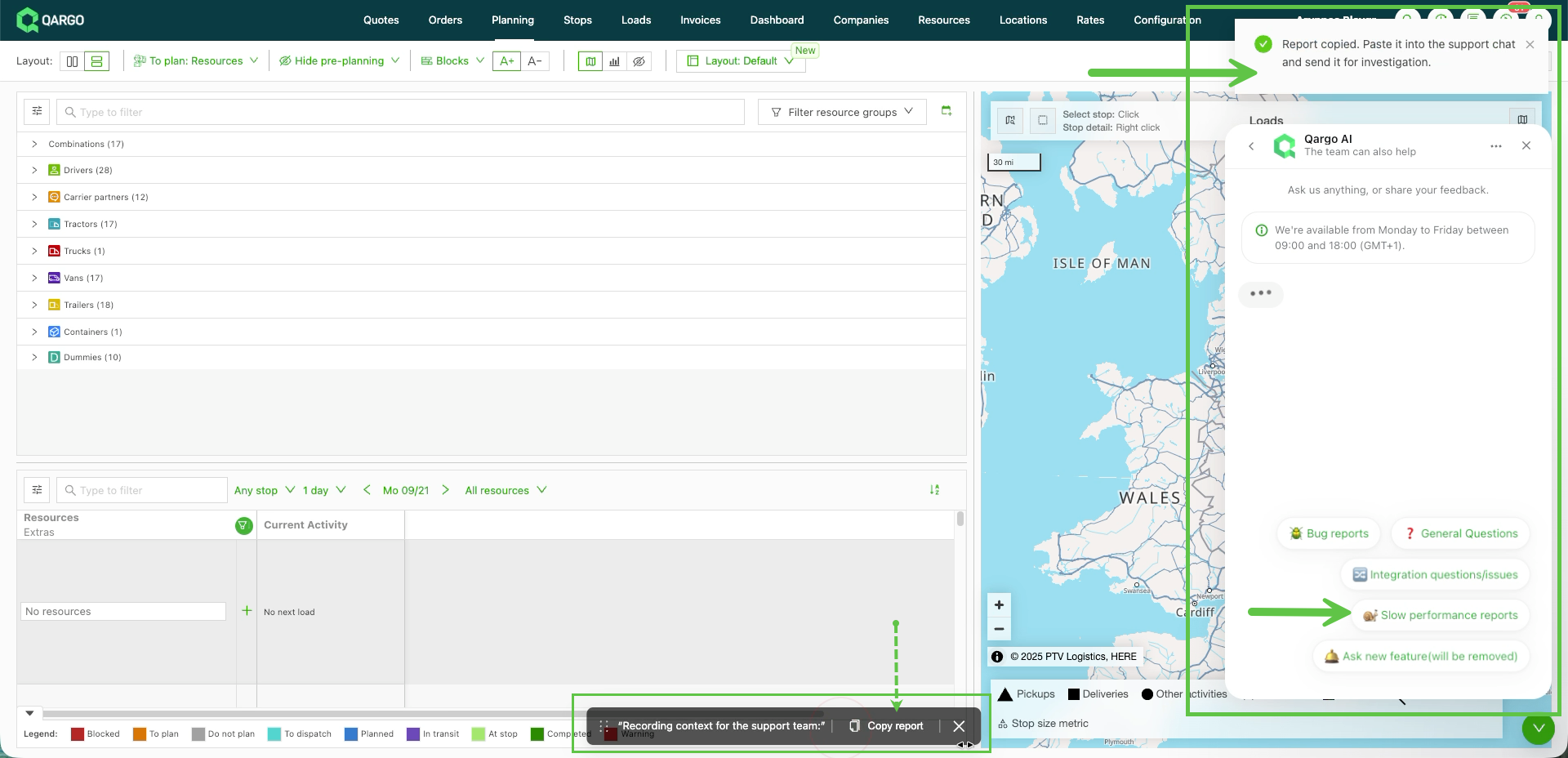
Report the affected workflow to Support. The support channel opens automatically so the recording can be submitted directly to the support team.
- Paste the report (Ctrl+V / Cmd+V) and send it
Provide key details
To allow the support team to investigate and respond as efficiently as possible, provide the following information when reporting any performance issues.
-
When did the issue start? Provide both a date and time for when the issue was first noticed. If the problem is intermittent, provide the start and end date/time for the most recent incident and any other examples that are available.
-
Is it when navigating to a page, the page takes too long to load? Providing both the main menu and any other submenus or areas being loaded can be very useful.
- Which page is being loaded? For instance, is it the Planning screen and the planning board isn’t loading? Navigating to Invoices > Loads to bill? Navigating to Orders, loading the orders list – tab: All, etc.
-
Is it when performing a function, like searching or saving something? Providing context for the functions being run can give helpful insights.
- Which page was open? Provide the menu/submenu (i.e., Orders > Orders).
- What function was being completed/saved? For instance: Planning, dragging Or-1234 to the planning board; Orders > Orders, saving a new order.
-
Is there a specific error message? Did the system display a bug symbol or a specific error message?
- Reloading or refreshing the page removes the error, and work can continue without the issue happening again. This is likely a temporary issue that was resolved by refreshing the page. If it keeps happening, report it, even if a refresh fixes it.
- The error message remains and work can’t continue, or the error appears each time the action is attempted. Report this to the support team using the ‘Record and report’ function.
-
How many users are affected? Is this affecting a single user, or are all Qargo users in the office affected? Provide the affected users’ email addresses. If specific users are affected, include the email addresses of all affected users. If all users are affected, simply state ‘All active users’.
Other configurations that may affect performance
In some cases, outside factors can affect the performance users experience in their office. These can include:
-
Poor Wi-Fi speed and performance. For instance, the internet service provider may be having its own performance issues, or the internet plan may not be fast enough for the number of people using it at the same time.
- Do performance issues occur at specific times, when there is more user activity online?
- Does performance improve when using a mobile hotspot?
-
Internal IT configurations. In some cases, the company’s network security settings can slow Qargo down. Qargo can’t change or modify these. Consult the internal IT team to check this.
Working through a slowdown in performance
Avoid re-planning or duplicating actions for items already saved during a slowdown. If an item was saved without an error, refresh and wait before redoing it. If it’s still missing after a refresh, report it.
Avoid continuously refreshing the screen, as this can cause additional strain.