
Always on planning board toggle
This article gives an overview of maintaining resource visibility on the planning board and allocating a resource to resource groups.
Table of contents
-
Benefits of Always on planning board:
-
Ensures that specific resources or combinations are visible on the planning board every day.
-
Makes it easy to schedule and monitor critical resources.
-
Streamlines the planning process by keeping essential elements visible at all times.
The Always on planning board toggle is a feature that lets users make specific combinations or single resources visible on the planning board every day.
These resources are then readily available in the planning board view for scheduling and monitoring loads.
The option can be applied to single resources or resource combinations.
Enabling Always on planning board for fixed combinations:
Combinations tab:
-
For a specific driver-tractor combination that is used daily, it is useful to create a combination with the Always on planning board toggle.
-
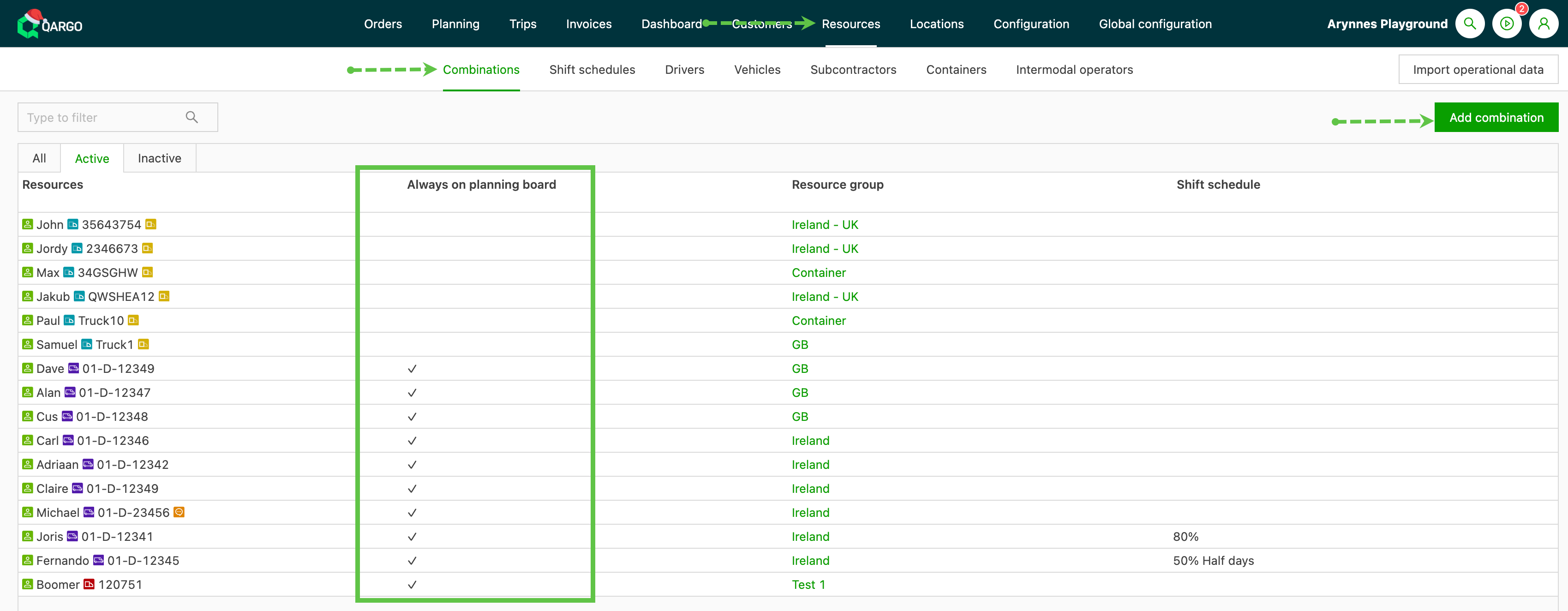
To create the combination, go to Resources and open the Combinations tab.
-
Click the ‘Add combination’ button.
-
The ‘Add combination’ page opens. Create the combination that should appear on the planning board every day by selecting or searching for the resources in the ‘Combined resources’ field. This could be a driver and vehicle, a vehicle and trailer, and so on. Resources that are already combined also show in this list.
-
Turn on the ‘Always on planning board’ toggle.
-
Apply the 👉Resource group option for this combination (if applicable) and save the settings.
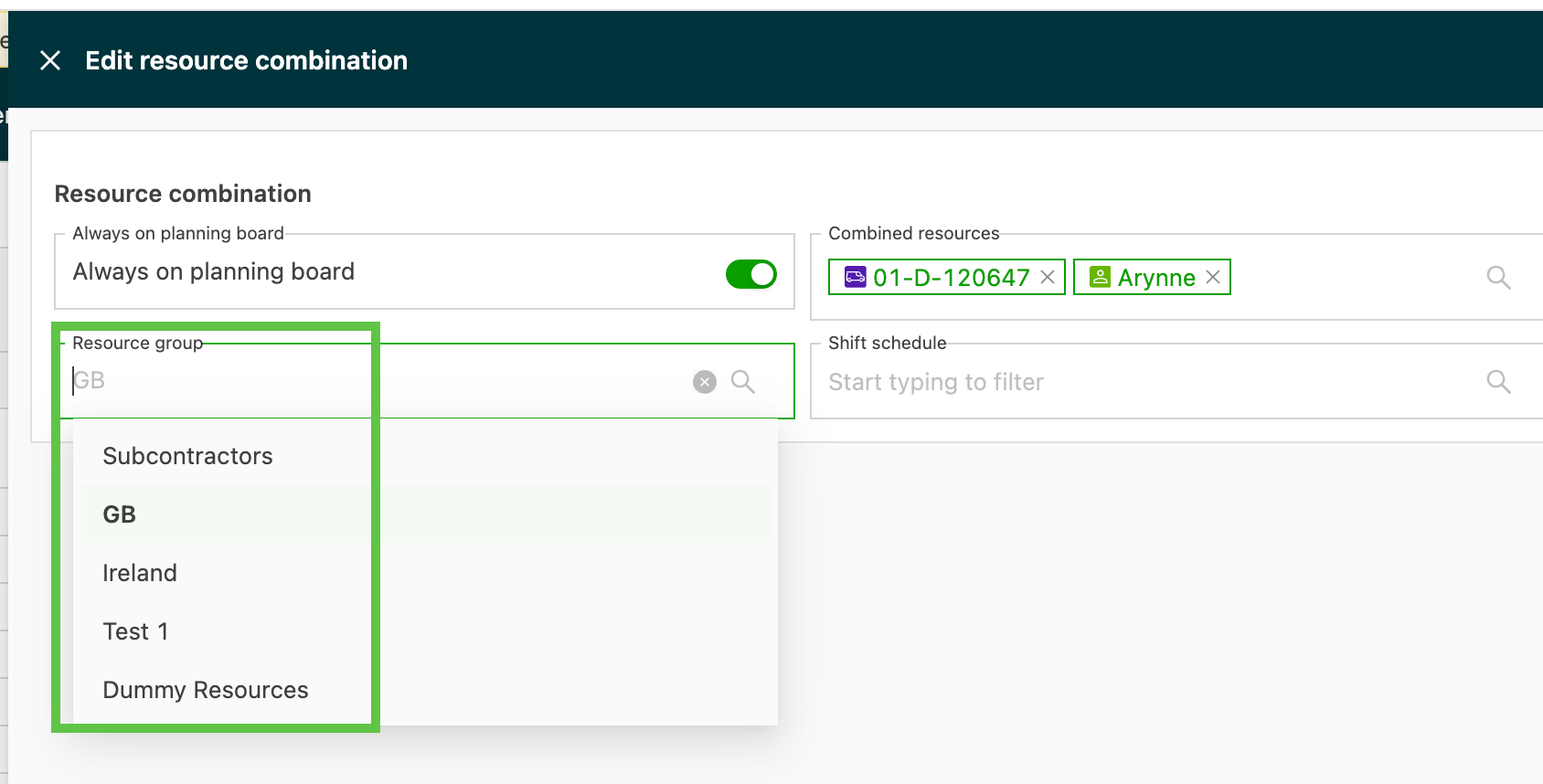
The combination is now visible on the planning board. Resources, both individual and combined, can be made visible under different ‘Resource groups’. For instance, resources allocated to ADR may not always run those routes, so they can be allocated to both the ADR group and another group. This gives maximum visibility for all resources across all groups.
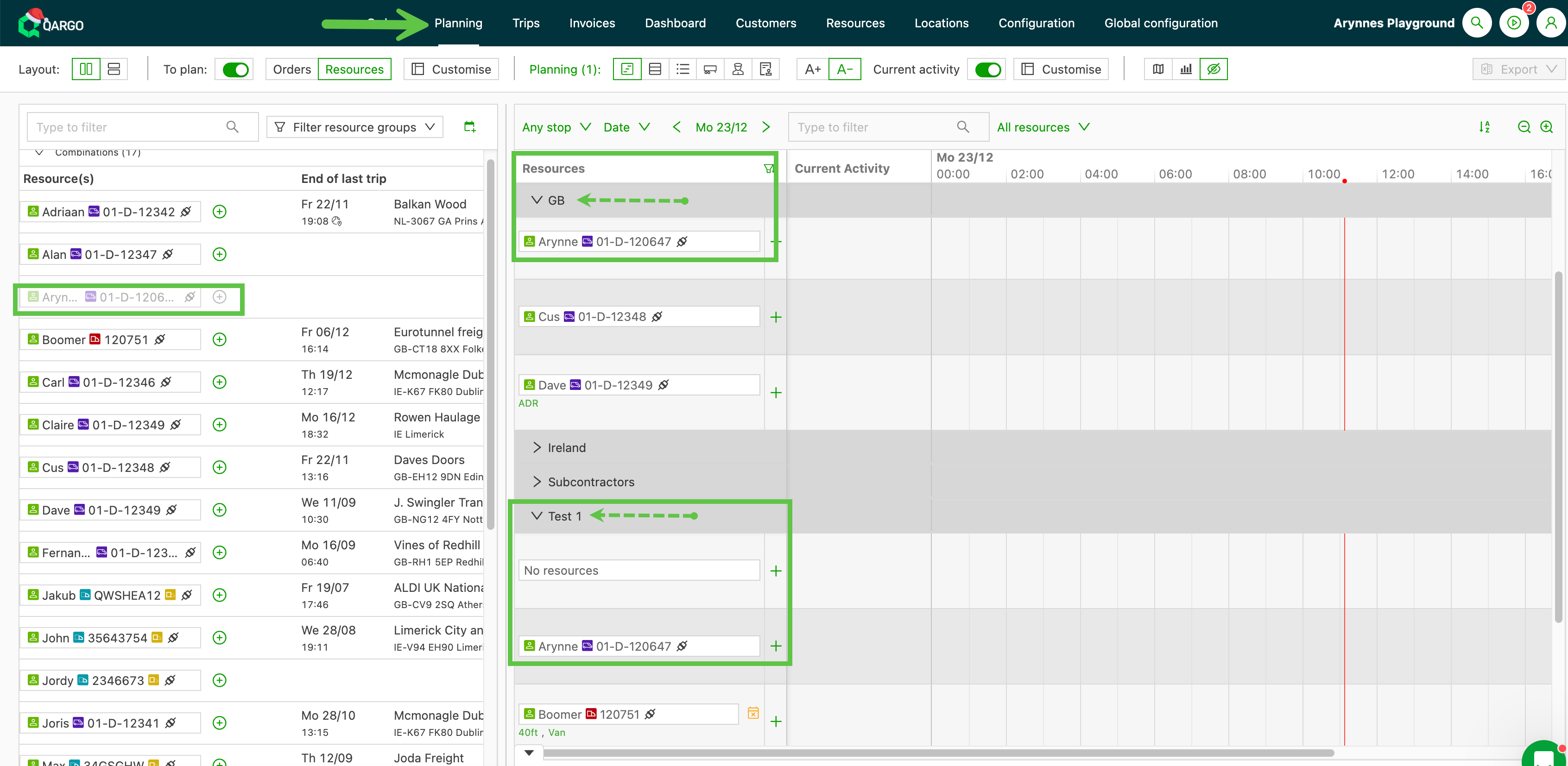
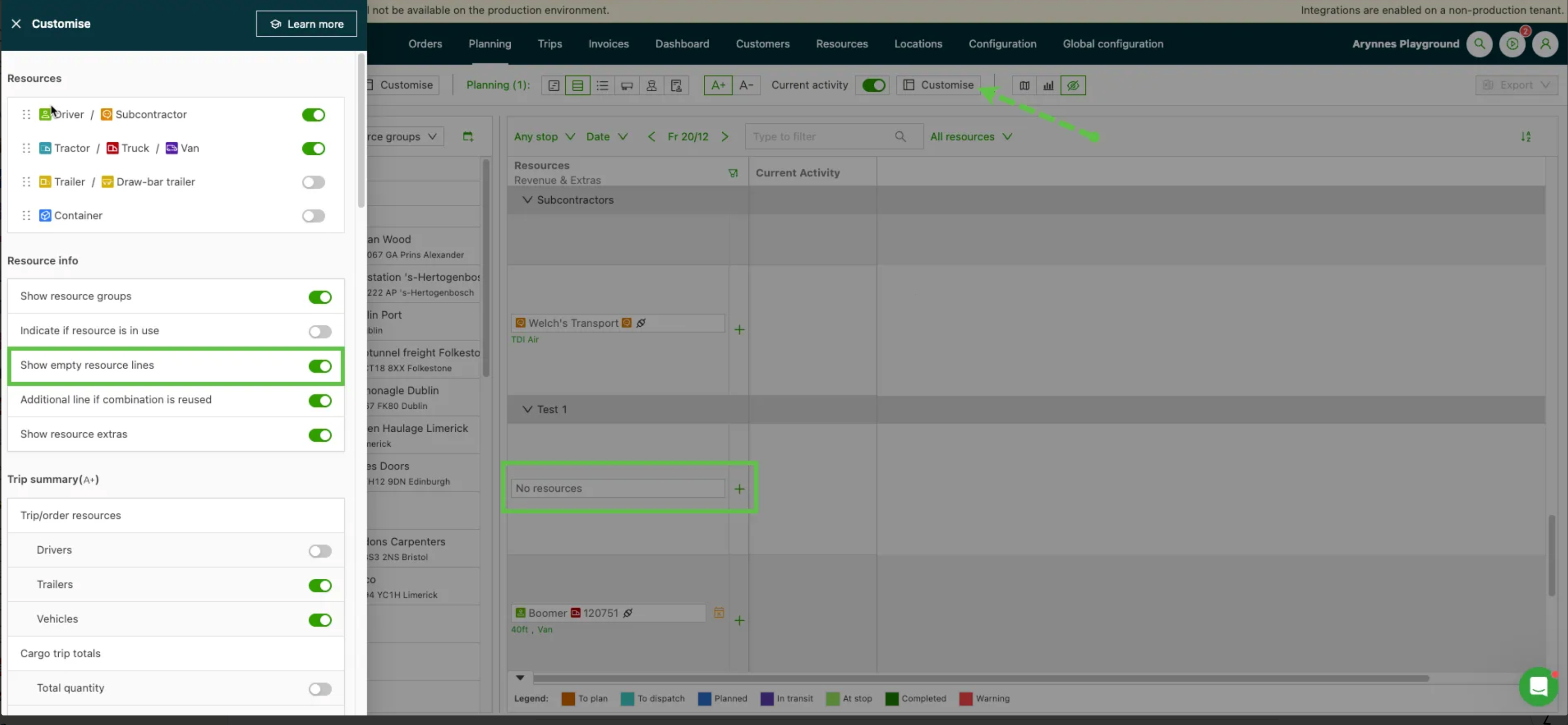
If a resource is allocated to a combination, it shows in the resource profile. From the Resources menu, select the appropriate submenu (Driver, Vehicle, etc.). Each profile has a ‘Resource combination’ panel that shows any combinations. To modify any details, use the ‘Edit’ function (pen icon). However, if a driver still appears on the planning board after a resource combination change, the driver may still be set as an individual resource in their profile. To remove the driver completely, turn off the Always on planning board and Active fields in the driver’s profile.
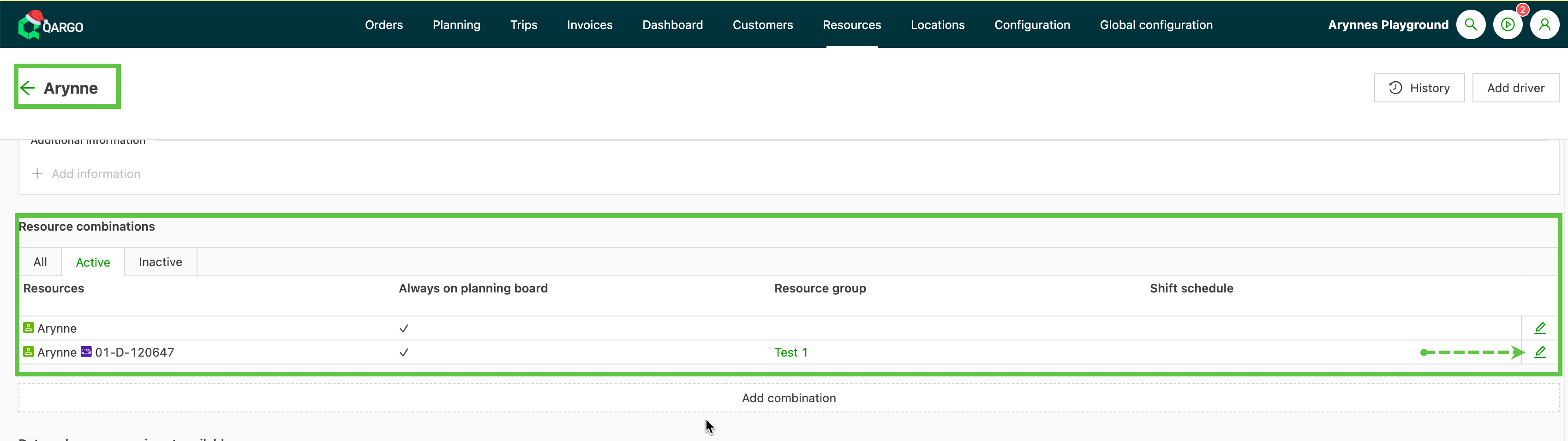
Combinations marked as visible show on the planning board with a ‘Combined’ icon:
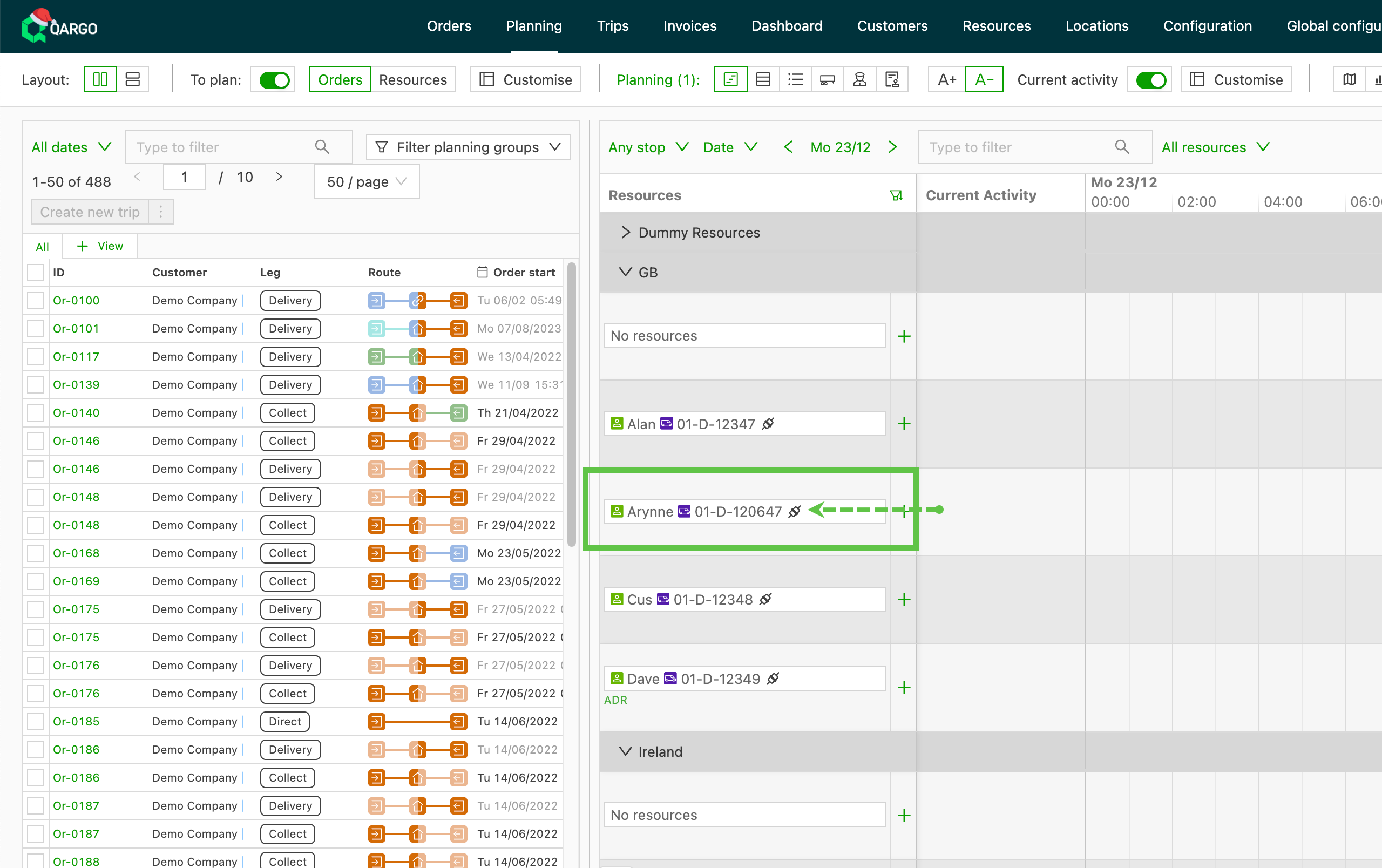
Changes to the combination can also be made on the planning board using the dropdown option. Clicking the resource shows a dropdown menu with the following options:
- View resource profile (eye icon): view and edit resource details
- Set resource availability (calendar icon): update the resource’s availability
- Edit resource combination (pen icon): set ‘always on’ visibility or the combination
- Change resources (link / pen icon): list of all resources; new combination options can be set here for a particular day.
Set visibility in a resource profile
- Visibility can be set directly from the individual resource profile page.
- Go to the Resources menu and click the resource type to update.
- Select the resource to update by clicking its resource ID.
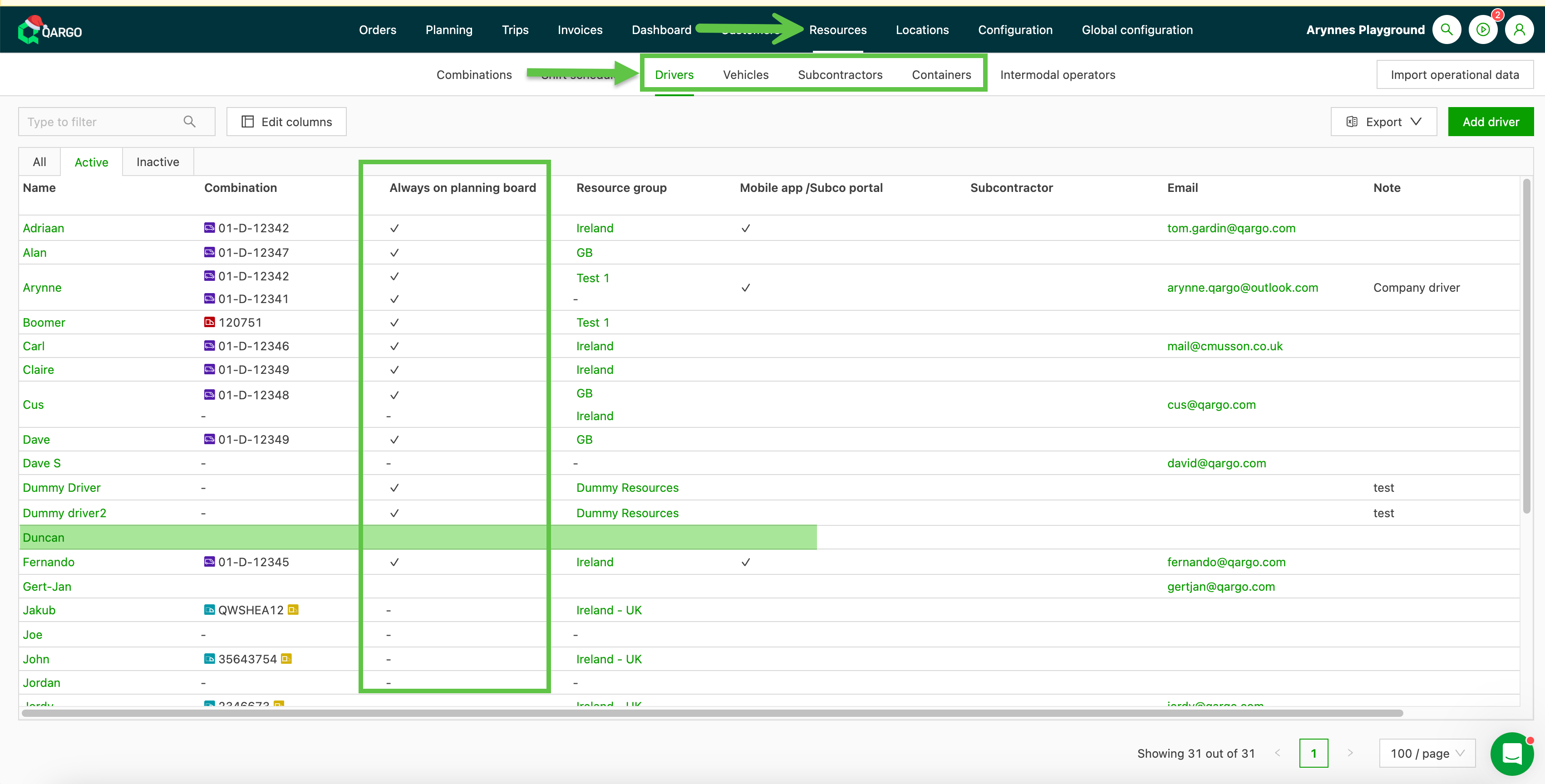
- Go to the ‘Resource combination’ panel in the profile.
- Click ‘Add combination’
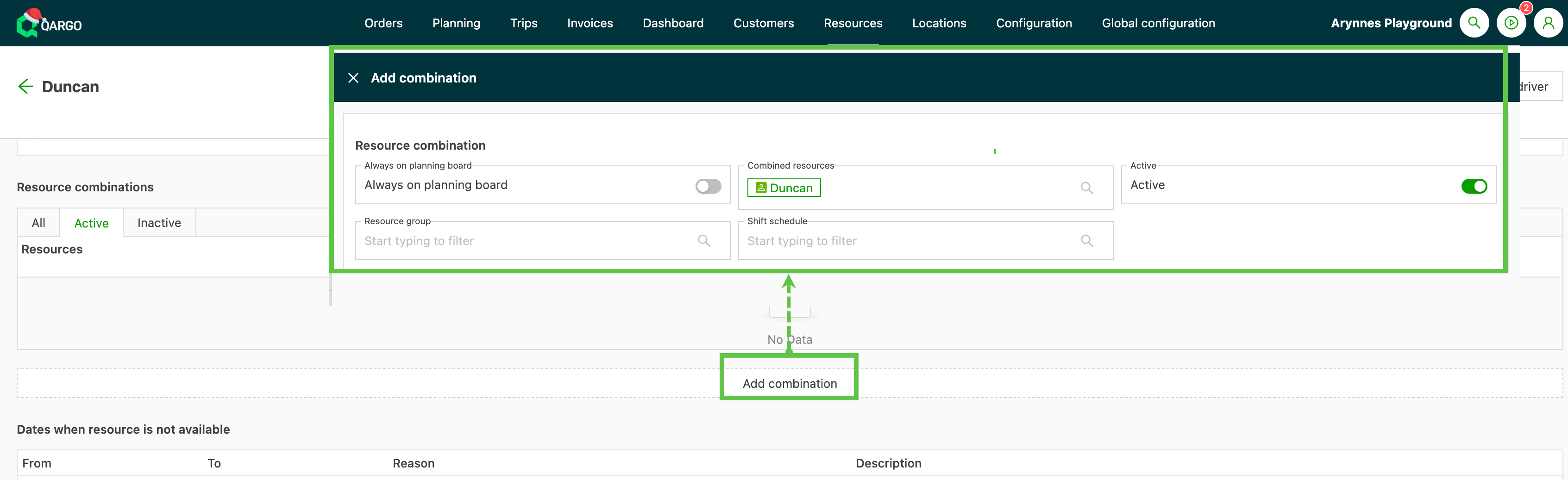
From here, select the additional resources as described above, and/or set the individual resource as ‘Always on planning board’. Save the profile to complete the update. To remove an individual resource from the planning board, open its profile and turn off the ‘Always on planning board’ option. The resource is then no longer listed or visible on the planning board.
Troubleshooting common planning board issues
Driver appearing in the wrong resource group
A driver can appear in the wrong resource group if their assigned loads are linked to other groups. To fix this:
- Open and check the loads assigned to the driver.
- Update the Resource group field for each load as needed.
Driver still visible after combination changes
Drivers removed from combinations may still appear if they are listed as individual resources. Make sure Always on planning board is turned off in their profile.
Removing a driver from the planning board
To deactivate a driver entirely:
- Open the driver’s profile.
- Turn off the Always on planning board and Active toggles. This removes the driver from view completely. These steps resolve common visibility and grouping problems and optimize the planning experience.