
Invoices - Create a standalone sales invoice
Create standalone invoices for non-order charges. Add manual charges, generate a draft, then finalize, send, and post like other invoices.
Table of contents
A standalone Sales invoice is an invoice that is not linked to any orders in the system. It makes it possible to:
- Manually add charges to create an invoice, without connecting it to a specific order.
- Create invoices for items not related to transport, such as storage, rental fees or other services.
Standalone invoices are useful for billing services or charges that aren’t tied directly to specific transportation orders. These invoices are created manually: the charges are added and the invoice is generated manually.
Create a standalone invoice.
- Go to the Invoices menu and select the Invoices submenu.
- Click Create invoice.

- General info: Select the billing customer and complete any further information for the invoice (invoice date, currency, etc.).
- Click Save.

-
The invoice is created as a draft invoice with a value of 0 and a unique invoice number.
-
General info includes the invoice date (the default is the current date) and the customer payment terms. Click the row to update the details if required.
-
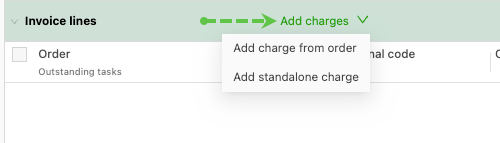
Under Invoice lines, click Add charges.
-
There are 2 options:
- Add charge from order: This displays charges used on other orders for the same customer
- Add standalone charge: This displays standard charges that have been configured in Order Input.
-
Select the appropriate charge option and enter the charge to be invoiced.
-
Use the pencil icon to edit charges that have been added. Clicking the pencil on the charge line opens the charges screen, where details can be updated.
-
Clicking the pencil icon on the tax line opens a new menu to select the appropriate method of calculating the tax (by charge line / by total charges).

-
Once all the charges have been added and the details have been validated, the draft invoice can be updated to a full invoice.
- Click Generate PDF to turn the draft into an invoice with a unique invoice number.
Once the invoice has been generated, it can be processed in the same way as other invoices (Send invoice / Post invoice).
Copying a standalone invoice
Need to reissue the same invoice, for example for recurring monthly charges? An existing standalone invoice can be copied instead of building a new one from scratch.
✅ This is only available for standalone invoices. Invoices linked to transport orders cannot be copied.
- Go to Invoices > Invoices
- Open the standalone invoice to copy
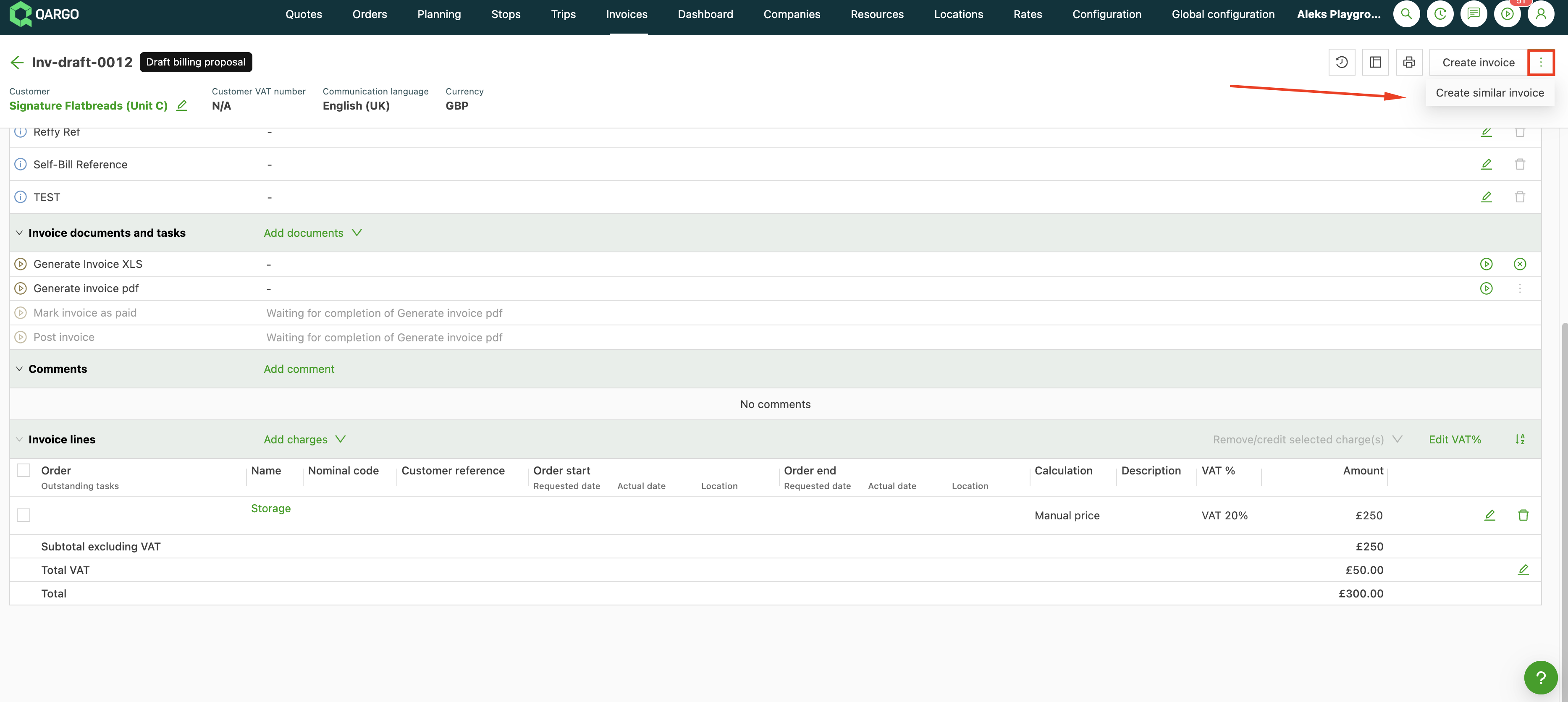
- Click the three-dot menu (⋯) in the top-right corner
- Select Create similar invoice
- A new draft invoice is created with the same customer and charge details already filled in
- Update anything that needs to change, for example the invoice date or charge amounts
- Click Generate PDF to finalize
💡 The copied invoice opens as a draft, so any adjustments can be made before sending it to the customer.
Create a sales invoice via integration (API)
Qargo now supports standalone sales invoices and sales credit memos from external systems, allowing integration partners to push billing data directly into Qargo.
Why it helps
- External systems can create invoices for services rendered outside of Qargo’s core TMS functionality
- Reduces manual data entry and improves the accuracy of billing data
- Enables faster billing cycles for customers with multiple integrated systems
Limitations
- Only standalone charges are supported (no charges linked to orders or loads)
- Invoices are created with an Invoiced status only
- Exchange rate functionality is not included
For more details on how to process invoices, click the link below.