
Rates - Price index (fuel surcharge)
Fuel surcharges offset fuel price changes. Qargo automates FSC setup with flexible price/percentage indexes and customer-specific rates
Table of contents
Introduction
A fuel surcharge is an additional fee that trucking and transportation companies use to offset changes in diesel prices. Fuel costs can fluctuate weekly. Surcharges help carriers keep their base rates stable while covering increases at the pump. These charges are usually linked to official fuel price indexes, which makes them a fair and transparent way to share rising costs.
Key features in Qargo
- Automatic calculations applied through billing based on rate card configurations
- Customer-specific calculations can be set for each customer
- Flexible calculation methods include percentage-based and price-indexed calculations
- Exclusion capabilities allow specific customers to be excluded from fuel surcharges, ensuring tailored applicability.
Terminology
| Term | Definition |
|---|---|
| Fuel surcharge (FSC). | An extra fee added to transportation costs to cover fluctuations in fuel prices. |
| Base rate (or linehaul rate). | The standard charge for moving freight, excluding extra costs like fuel surcharges, tolls, or accessorial fees. This stays steady while the surcharge changes with fuel prices. |
| Price index. | A government-published or industry-recognized average price of diesel fuel (e.g., the UK’s Department for Energy Security and Net Zero weekly fuel data). Carriers use this as the benchmark for calculating surcharges. |
| Percentage index. | A structured table or formula linking fuel prices to a surcharge percentage. As fuel prices rise above the agreed base level, the surcharge % increases. |
Configuration
Create a fuel surcharge template
-
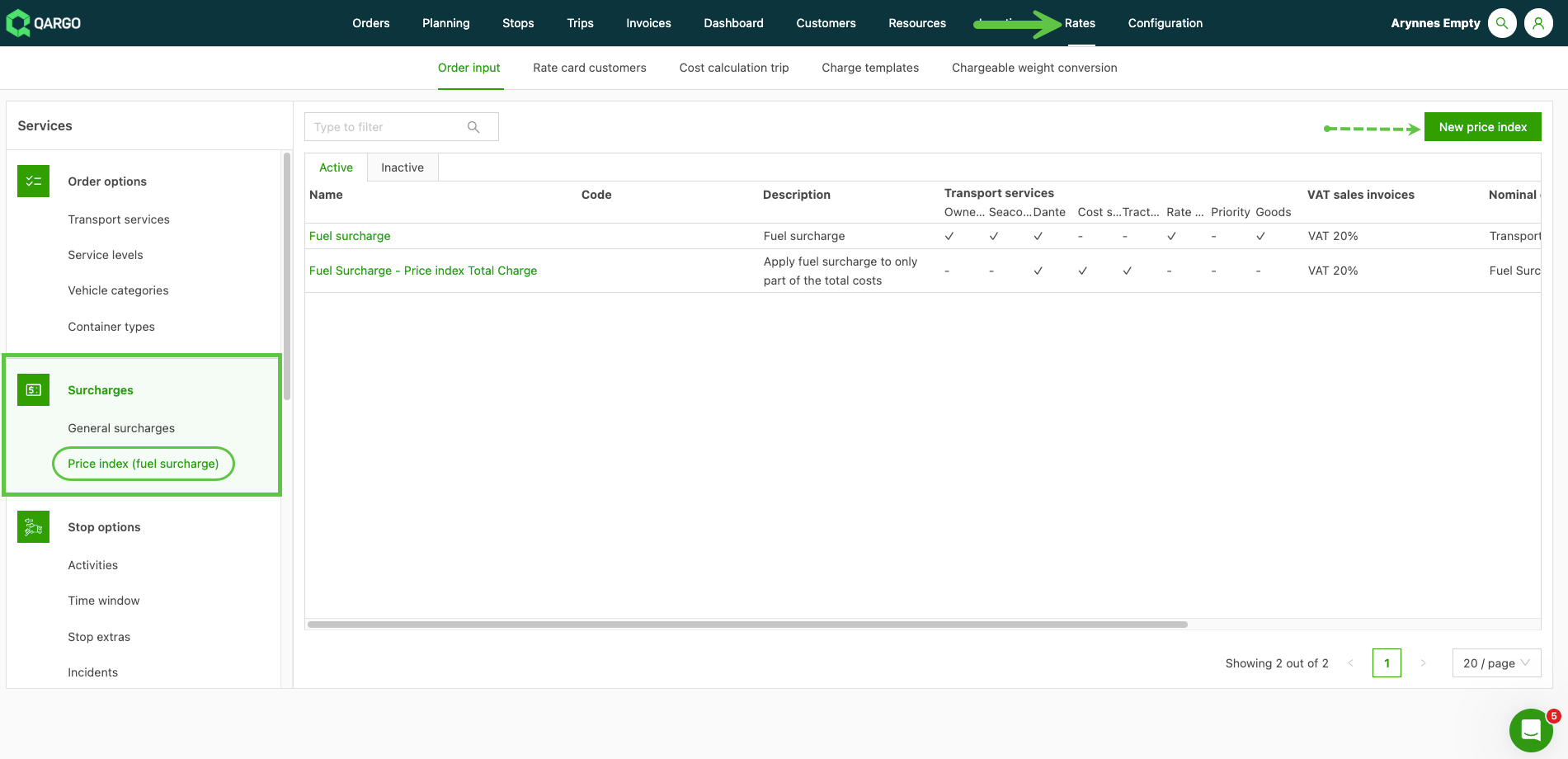
Navigate to Rates > Order input > Price index (fuel surcharge).
- Click ‘New price index’ to start adding a new fuel surcharge.
-
Enter a Name for the fuel surcharge index and complete any additional details, including the description
-
Add the appropriate tax for invoices (both sales and carrier invoices, if applicable)
-
Add the appropriate GL codes assigned for sales/carrier invoices;
- This ensures the fuel surcharge is allocated and imported to the correct chart of accounts
-
Select the Index method. Options include:
-
Price index: based on a fixed value.
- Use this option to calculate the fuel surcharge based on a price index value, or to calculate fuel only based on a % of the charge
-
Percentage index: based on a percentage.
- Use this option to calculate the fuel surcharge based on a percentage rate applied across all charges or only the transportation charges.
-
Configure a price index
-
A price index uses a base index value, with tiered rates configured based on the date and an associated index value.
-
Set the percentage of fuel costs in the field ‘Fuel: % of the total cost’;
-
Can be set up to 100%
- A specific amount can be selected that represents the fuel component within the total value of the charge, i.e., 50% of charge = fuel cost.
- At 100%, the calculation applies across the total value of the specified charges
-
-
Add default index list values.
- Enter the Valid from date
- Add the price index value
-
Activate the transportation service that the fuel surcharge applies to
-
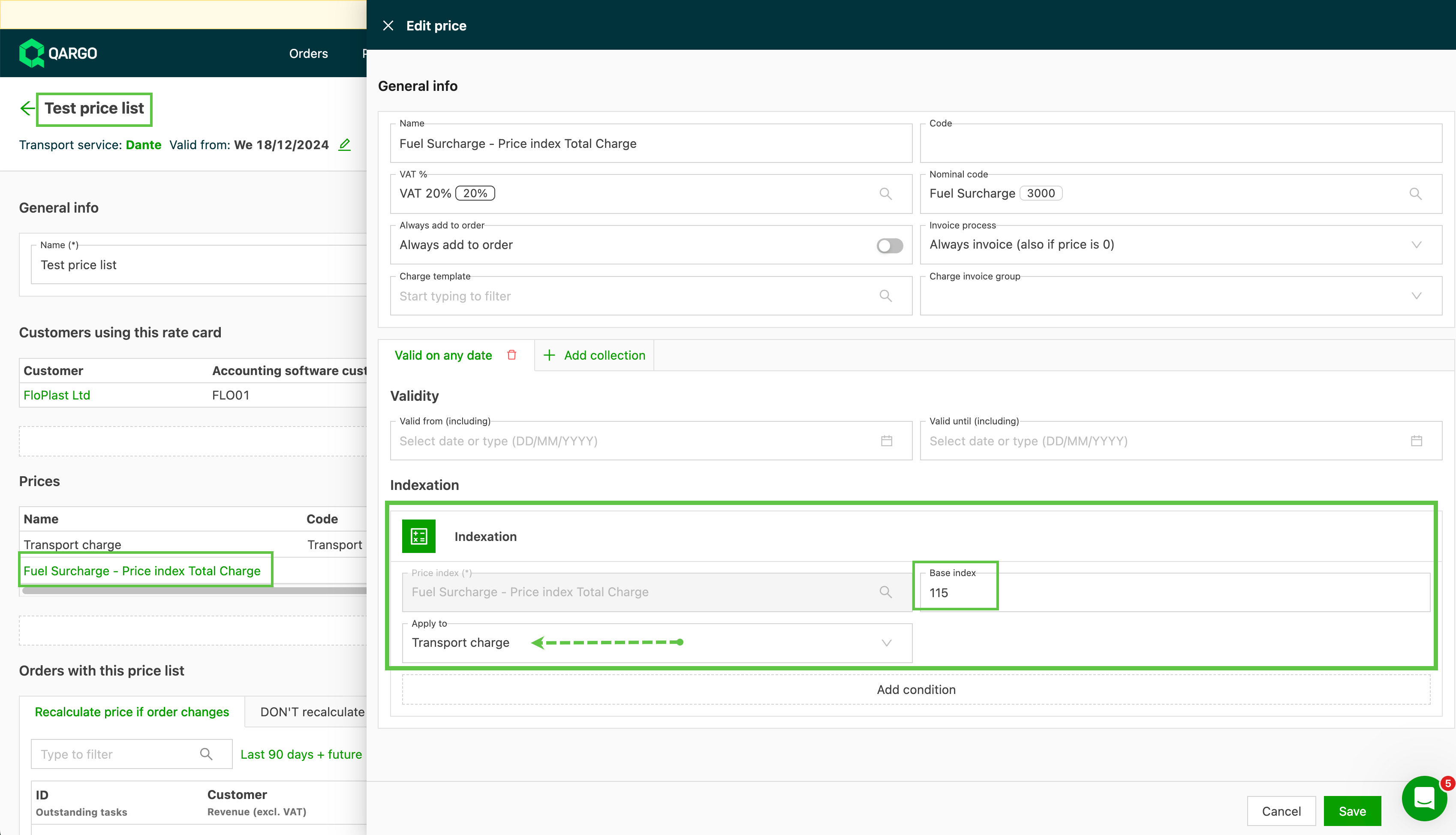
Use ‘Link rate card’ to add the surcharge to the applicable rate card(s).
-
Add the fuel surcharge base value to the rate card
Configure a percentage index
-
A percentage index uses tiered rates configured based on the date and an associated % value
-
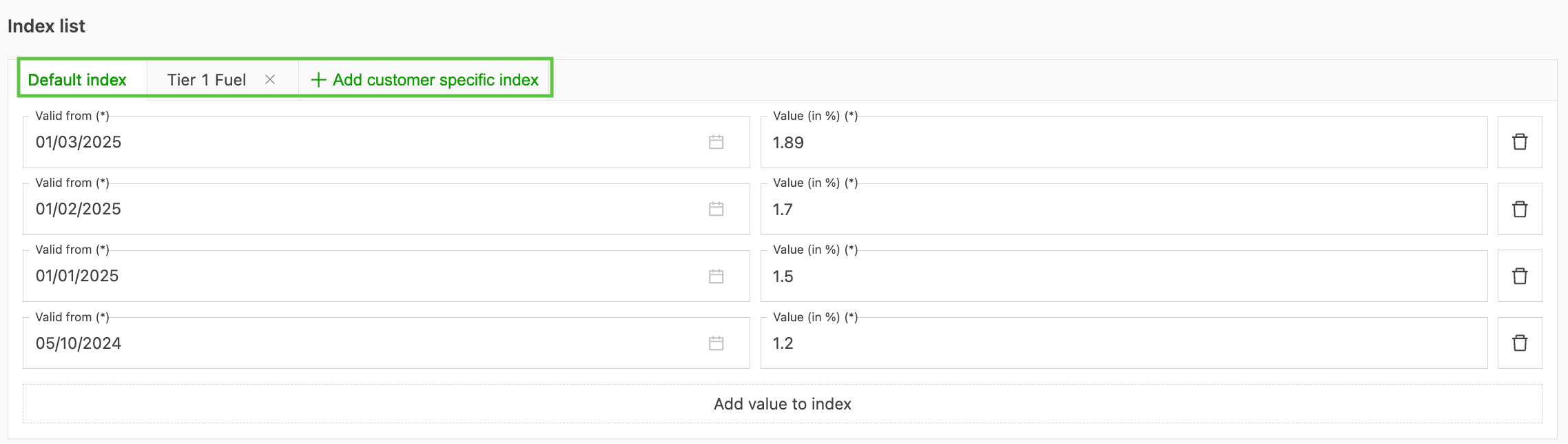
Add default index list values.
- Enter the Valid from date
- Add the price index value
- Activate the transportation service that the fuel surcharge applies to
- Use ‘Link rate card’ to add the surcharge to the applicable rate card(s).
- Set the fuel surcharge charge to “Manual” under the Add to order configuration to prevent automatic application.
How is the fuel surcharge calculated?
Price index calculation
On an order, the price is calculated as follows:
- (Value in surcharge - Base value assigned to the rate card) / Base value * % set in the assigned Fuel % = Fuel surcharge rate
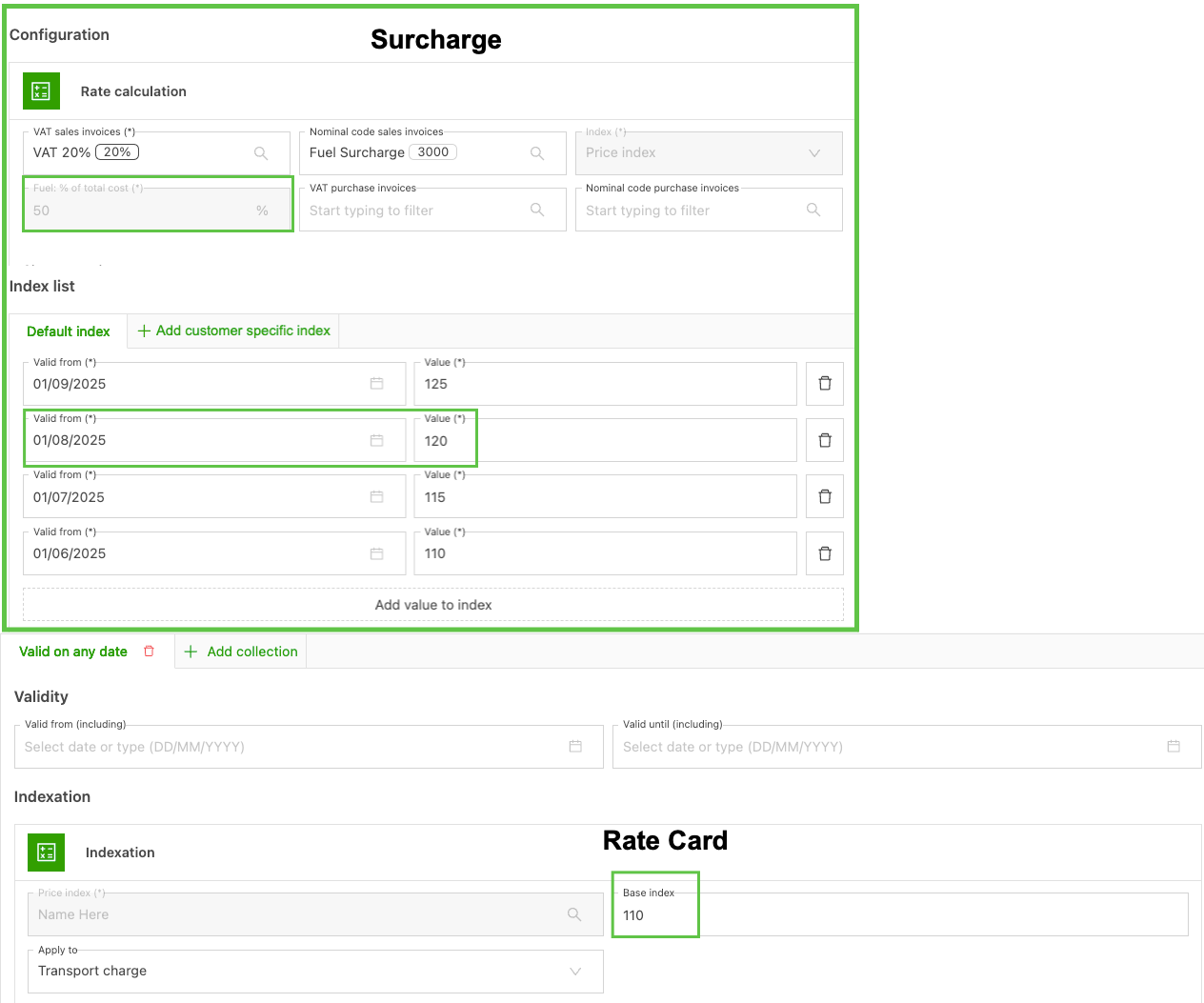
Calculated in the order:
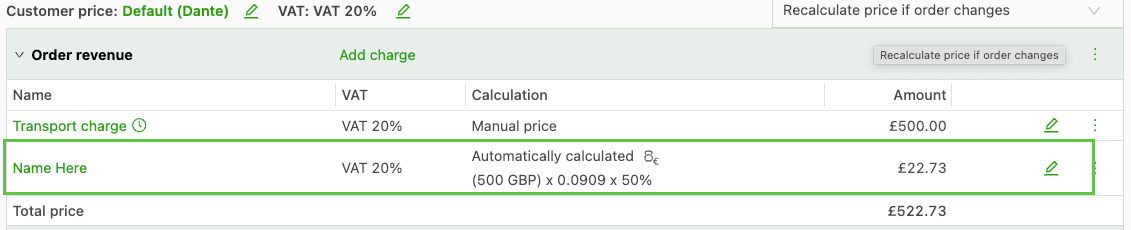
Percentage calculation
On an order, the price is calculated as follows:
-
Specified charges * % rate based on the valid from date
- Compares the pickup date to determine the appropriate valid from date
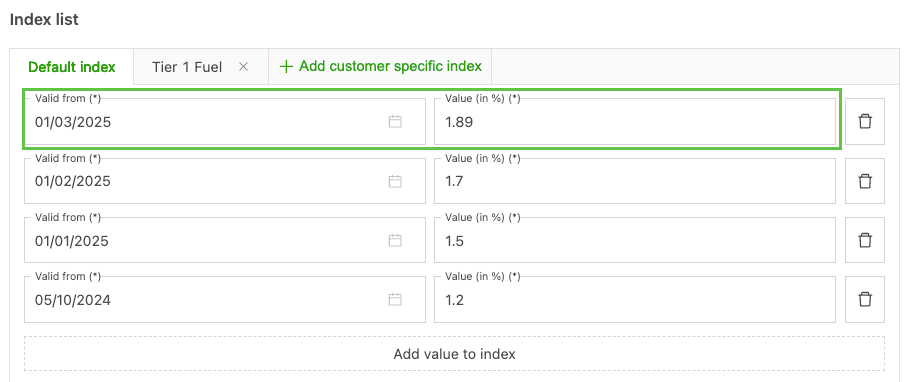
Calculated in the order:
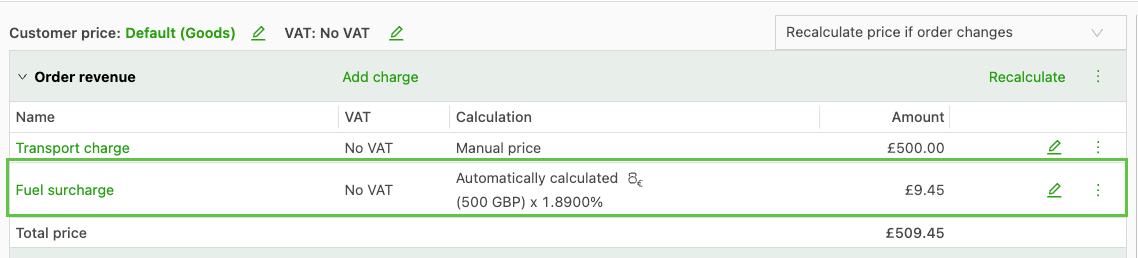
Customer-specific rates
-
Create customer-specific fuel surcharge rates in the same surcharge table
- Navigate to the fuel surcharge
- Click ‘Add customer specific index’
- Complete the Valid from date and Value / %, depending on the index type selected
- Click Save.
Manage fuel surcharges
Bulk update price index rates
-
Manage fuel surcharges for many customers by updating price index values for all of them at once, without editing each customer individually.
-
Inside a price index configuration: + Add new and Edit existing.
- Opens a spreadsheet-style grid that supports direct paste from Excel. This makes it fast to apply new diesel price values across an entire customer base in a single operation.
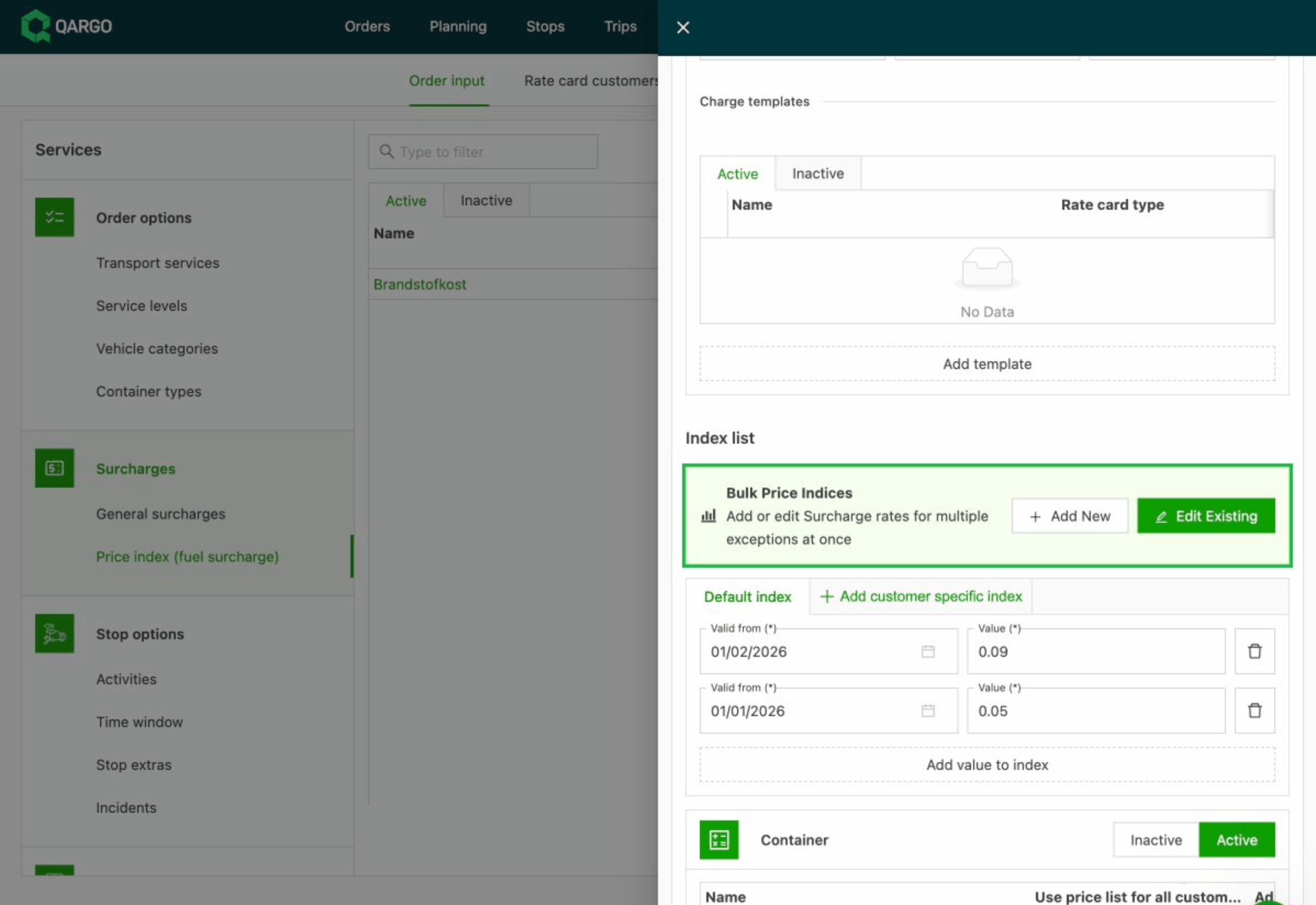
Add new price index values in bulk
Use the Add new flow to insert a new price index entry (e.g., a new date row with updated values) across all customer-specific indexes at once.
-
Navigate to Rates > Order input > Price index (fuel surcharge).
-
Open the relevant price index.
-
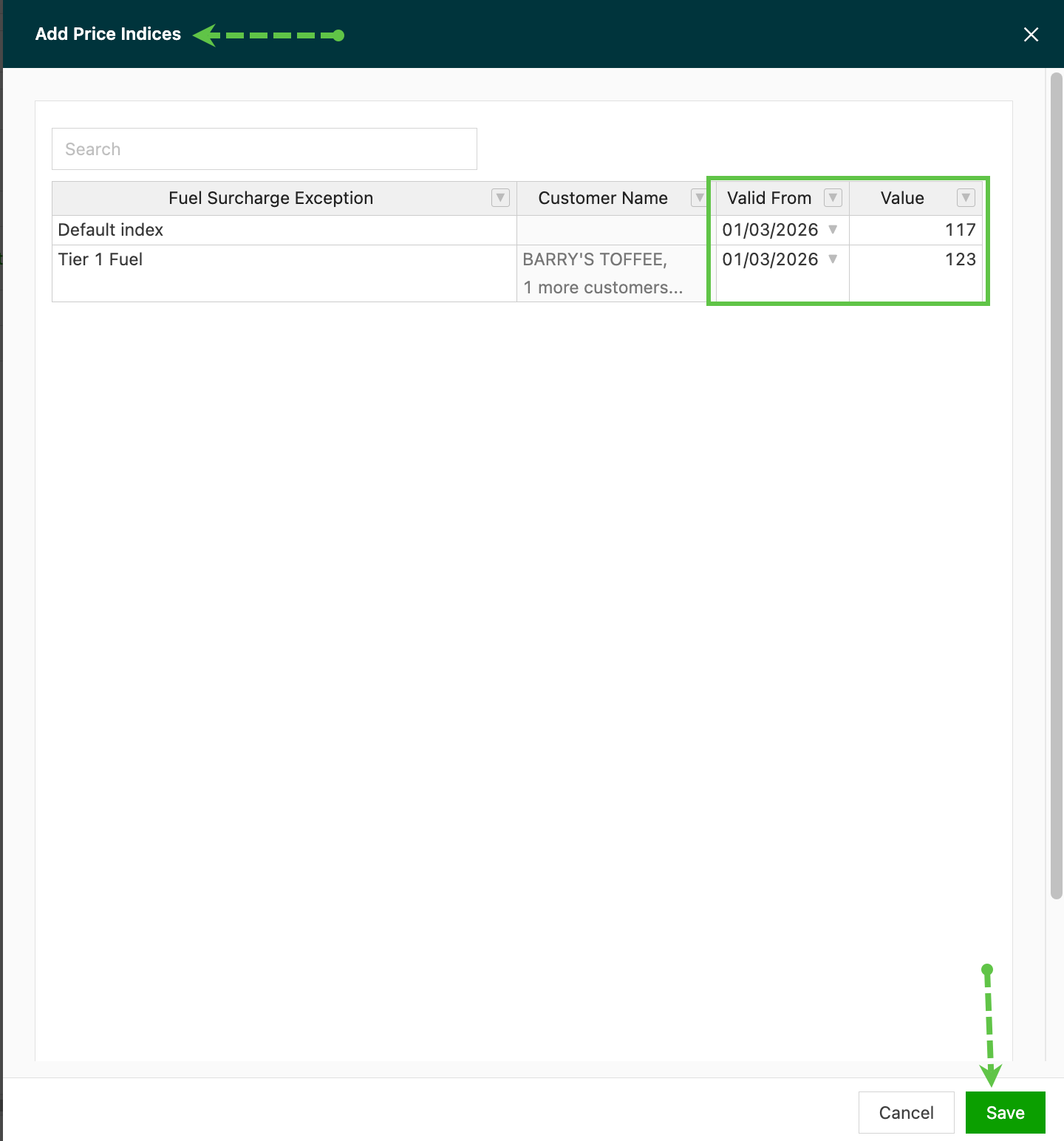
On the Add price indices screen, click + Add new to open the bulk entry grid.
-
The grid shows one row per exception (e.g., the default index, plus any customer-specific indexes).
- Fill in Valid from date and Value (%) for each row, or paste the data directly from Excel.
-
Use the Search bar at the top or the column filter icons to narrow down specific exceptions by name, date, or value.
-
Review the entries and click Save to apply them.
Edit existing price index values in bulk
Use the Edit flow to update or correct existing price index entries across customers, including updating valid from dates.
- Navigate to Rates > Order input > Price index (fuel surcharge).
- Open the relevant price index.
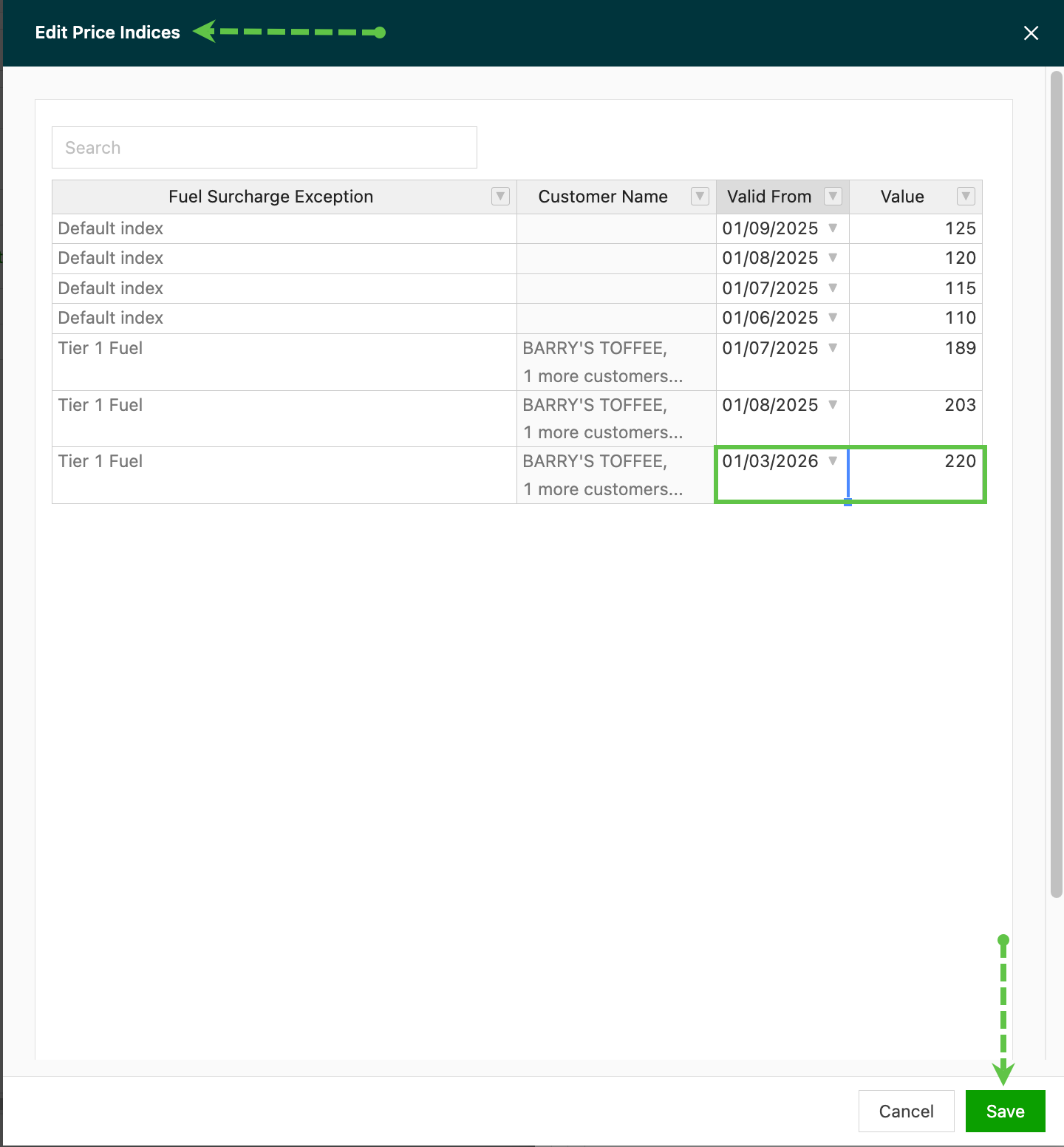
- Click Edit existing to open the bulk edit grid.
- All existing customer-specific index values are displayed in a spreadsheet layout. Edit values directly in the cells, or paste updated data from Excel.
- Use the Search bar or the column filter icons to narrow down to specific exceptions, date ranges, or value ranges.
- Click Save to apply the changes.
-
Data is entered by pasting into the grid interface, not by uploading an Excel file directly.
- Prepare the data in Excel first, then paste it into the grid.
-
Customer-specific indexes must already exist in Qargo before values can be added via the + Add new flow.
- If a customer does not have a customer-specific index configured yet, create it individually first.
-
The + Add new and Edit existing flows are blocked if the price index contains duplicate or unnamed customer-specific indexes.
- Clean up any such entries before using bulk operations.
Troubleshooting
| Issue | Resolution |
|---|---|
| The fuel surcharge does not appear on invoices | Check that the surcharge has been linked to the correct rate card via ‘Link rate card’, and that the applicable transportation service has been activated on the price index. |
| The fuel surcharge calculation returns an unexpected value | Verify that the base value assigned to the rate card is correct. For price index calculations, confirm the formula: (Surcharge value − Base value) ÷ Base value × Fuel % = surcharge rate. Also check that the Fuel % of total cost field is set as intended. |
| The wrong surcharge rate is applied to an order | Qargo uses the order’s pickup date to determine which ‘Valid from’ date applies. Check that the correct date range is configured in the default index list and that there are no gaps in the date coverage. |
| A customer is not receiving their specific rate | Make sure a customer-specific index has been created under the fuel surcharge using ‘Add customer specific index’, with the correct Valid from date and value saved. |
| The percentage index applies automatically when it shouldn’t | Under the ‘Add to order’ configuration, set the fuel surcharge charge to “Manual” to prevent automatic application. |
| The + Add new or Edit existing bulk update flow is blocked | Check for any duplicate or unnamed customer-specific indexes within the price index and clean them up before attempting bulk operations. |
| A customer is missing from the bulk Add new grid | Customer-specific indexes must be created individually in Qargo before they appear in the bulk entry flow. Add the customer-specific index manually first, then use the bulk flow. |
| The fuel surcharge posts to the wrong account in the accounting system | Check that the correct GL codes have been assigned for both sales and carrier invoices in the fuel surcharge template configuration. |
| Changes to the fuel surcharge configuration are not retained | Make sure to click Save before leaving the configuration page. Unsaved changes will be lost. |
| How is the surcharge for ferry fuel added? | The ferry fuel surcharge can be set up as a general surcharge, and does not fall under the price index rate. |