
RESOURCES - Add resources (drivers, vehicles, subcontractors, containers)
This article provides details of how to add resources, including adding Dummy Resources for preplanning.
Table of contents
In the section Resources, you can consult, add, edit and remove resources.
- Navigate to Resources.
- Click on one of the headers of your choice (Drivers, Vehicles ..).
You can opt between the following resources:
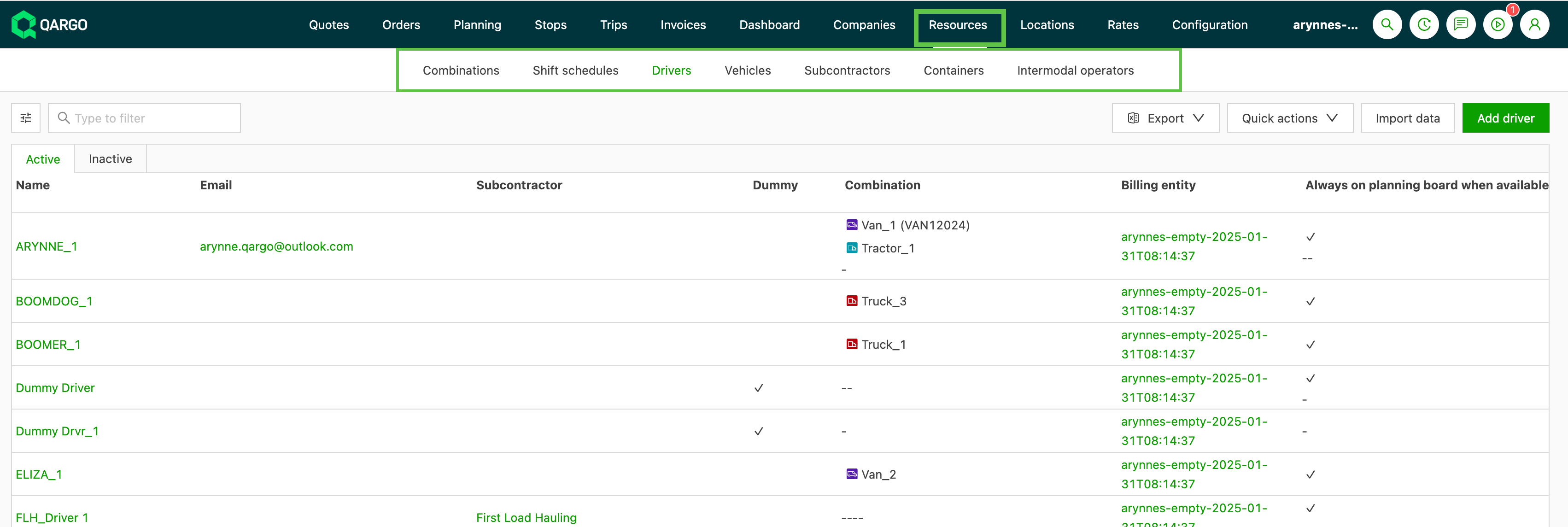
Add a Driver
- Click on Drivers in the header.
- Click on “Add driver”.
- Complete the necessary fields.
- Save it.
Add a Vehicle
Vehicle options include BOTH power units (Tractor, Truck, Van) alongside Trailer and Chassis options.
- Click on Vehicles in the header.
- Click on “Add vehicle”.
- Complete the necessary fields.
- SAVE it.
Add a Container
Click on Containers in the header.
- Click on “Add container”.
- Complete the necessary fields.
- Save it.
You can configure the fields that you like to see when you add a new resource.
Add a Subcontractor
-
Click ‘Add Subcontractor’
- Search the ‘company’ field to see if the subcontractor already exists.
-
Complete the necessary fields
-
Save it
Click HERE to learn more about adding a subcontractor.
Add A Dummy Resource
Dummy Resource can include any option under the VEHICLE, CONTAINER and DRIVER category. When creating Resources, use the Toggle on the Dummy Resource field to indicate if a resource is a dummy.
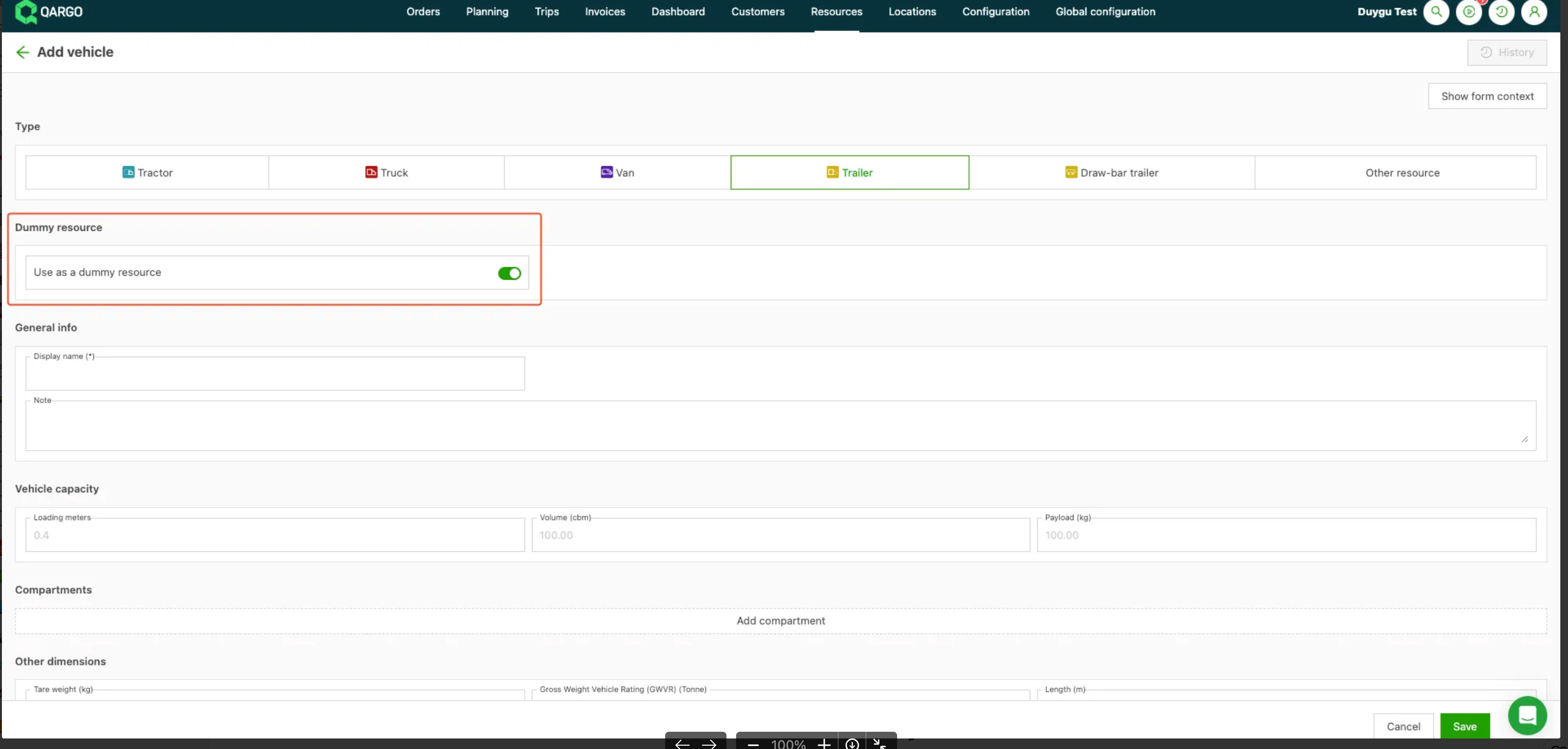
Available fields for ‘dummies’ is limited to name, note and information about the dimensions (for use in route optimisation).
Existing resources (Vehicles, trailers, containers and drivers) can be converted to a Dummy resource, unless they are included as part of a Combination.
Click HERE to see how Dummy Resources can be used for Pre-Planning
External Resources
Prerequisites
- User role: Super Admin (to flag a resource as external and configure default values)
- User role: Planner or higher (to enter per-trip override values)
- The resource must already exist in Qargo master data
Use Cases
- A carrier uses a hired trailer for a single trip; the trailer’s license plate differs from any standing asset
- A shipper supplies their own container; the container number must appear on the CMR
- A third-party driver covers a shift; their name must be recorded on the trip document
Terminology
| Term | Definition |
|---|---|
| External resource | A resource flagged in master data as originating outside the carrier’s own fleet |
| Per-trip override | A name, license plate, or container number entered at trip level that applies only to that specific trip |
| License plate | The vehicle registration number recorded on trip documents and border declarations |
| Container number | The unique ISO identifier for a container, required on customs and shipping documents |
Adding an External Resource
-
Navigate to RESOURCES
-
Select the asset to be added (Driver, *Vehicle, Container)
-
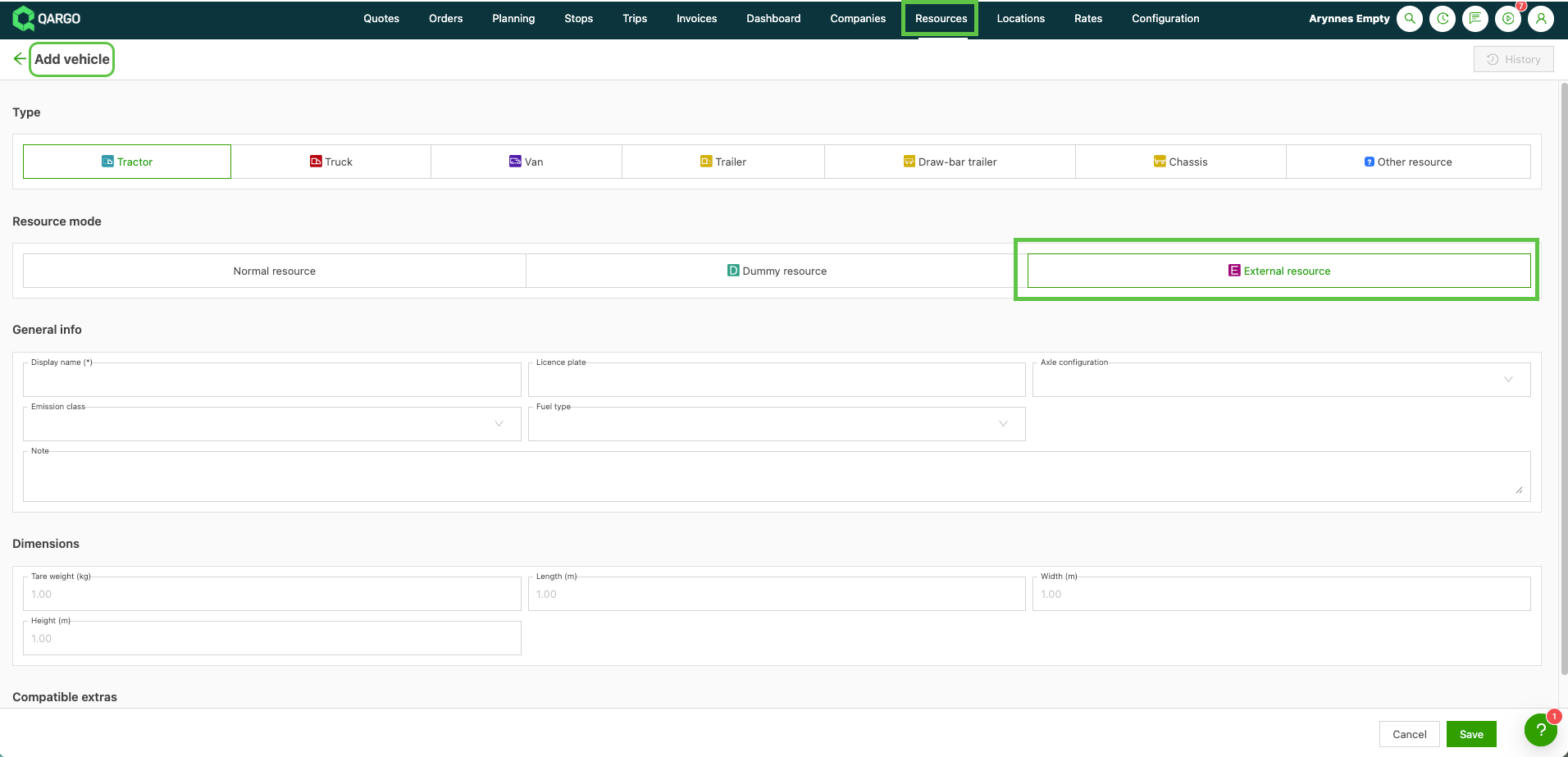
Click ‘External Resource’
-
Optionally, enter default Name, License Plate, or Container Number values — these pre-fill on every trip unless overridden.
-
Save the resource.
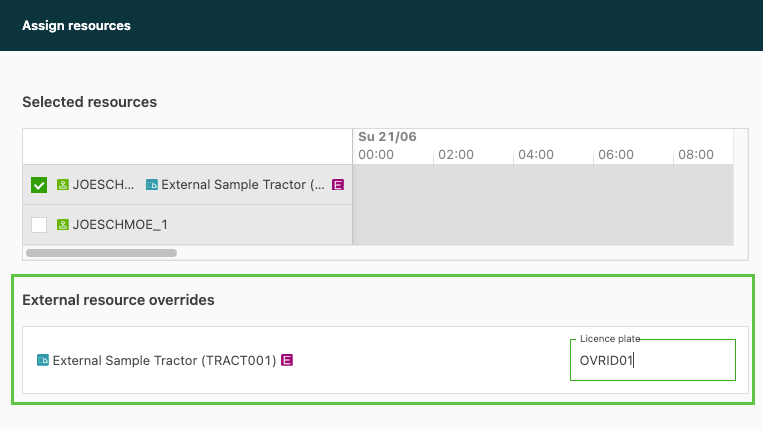
Entering Per-Trip Override Values
-
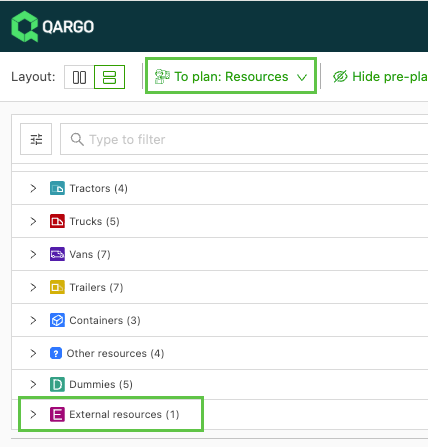
Open the relevant trip in the Planning board.
-
Click the resource assignment panel.
-
Locate the external resource row.
-
Enter the trip-specific Name, License Plate, or Container Number in the corresponding fields.
-
Confirm — the override is saved to the trip and reflected on all trip documents.
Troubleshooting
| Symptom | Likely cause / Resolution |
|---|---|
| External toggle not visible on a resource | Insufficient role permissions.\ |
| Log in as a Super Admin | |
| Per-trip fields are greyed out | Resource is not flagged as external.\ |
| Flag the resource as external in master data first | |
| Override values not appearing on trip documents | Document template not configured to show resource fields.\ |
| Contact the Qargo onboarding manager to update the document template |