
Orders - Split a shipment into parallel stages - Walkthrough
Parallel stages let a planner move the goods of a single shipment in more than one movement (for cross-docking, shuttles, or partial deliveries) without creating separate shipments.
Table of contents
Prerequisites
- The parallel stages capability must be enabled for the tenant. If it is not available, contact the account manager.
- Background on splitting and merging is covered in FAQ - How to handle splitting and merging orders or shipments in Qargo.
Use cases
- Incidents on delivery: some pallets are refused on delivery and need to return to the terminal to be retried the next day.
- Partial shipments known upfront: a shipment arrives from a pallet network but only part of the pallets reach the terminal, so the known part is planned separately.
- Partial shipments not known upfront: during loading, an operator loads some pallets on one truck and the rest on another, so the shipment is split across two movements.
Video walkthrough
🎥 Watch the video walkthrough and/or follow the steps below:
Split a stage into parallel movements
- Open the shipment that holds the goods to move in more than one movement.
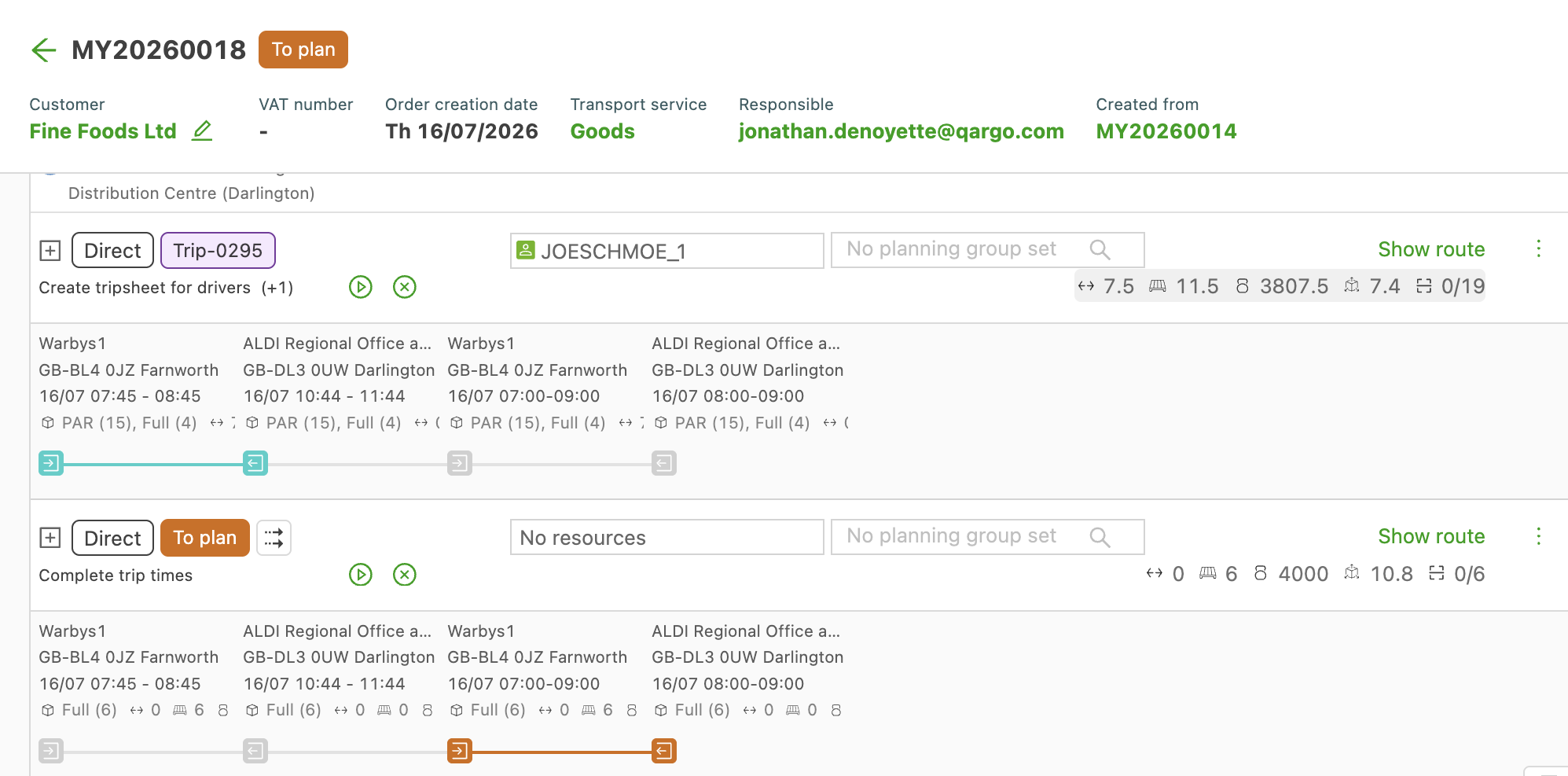
- Select the stage (leg) to divide. The same pickup and delivery locations are copied onto the new parallel stage.
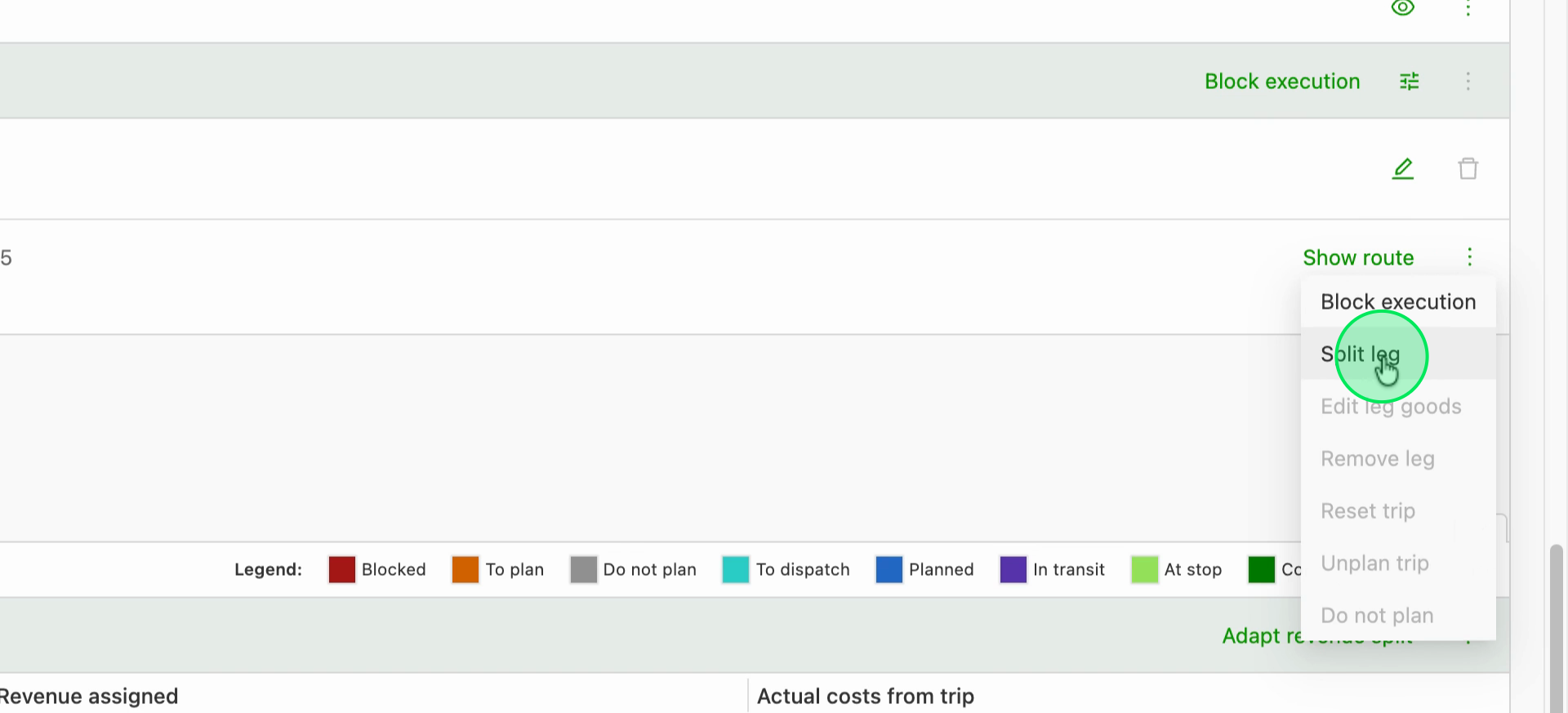
- Click the split stage action on that stage.
- Enter the amount of goods that should sit on each stage. The goods are distributed across the parallel stages rather than duplicated, so each movement carries only its own goods.
- Save the split. The shipment now shows two parallel stages that can be planned onto different loads.
Adjust the goods on an existing stage
- Open the quantities overview widget on the leg.
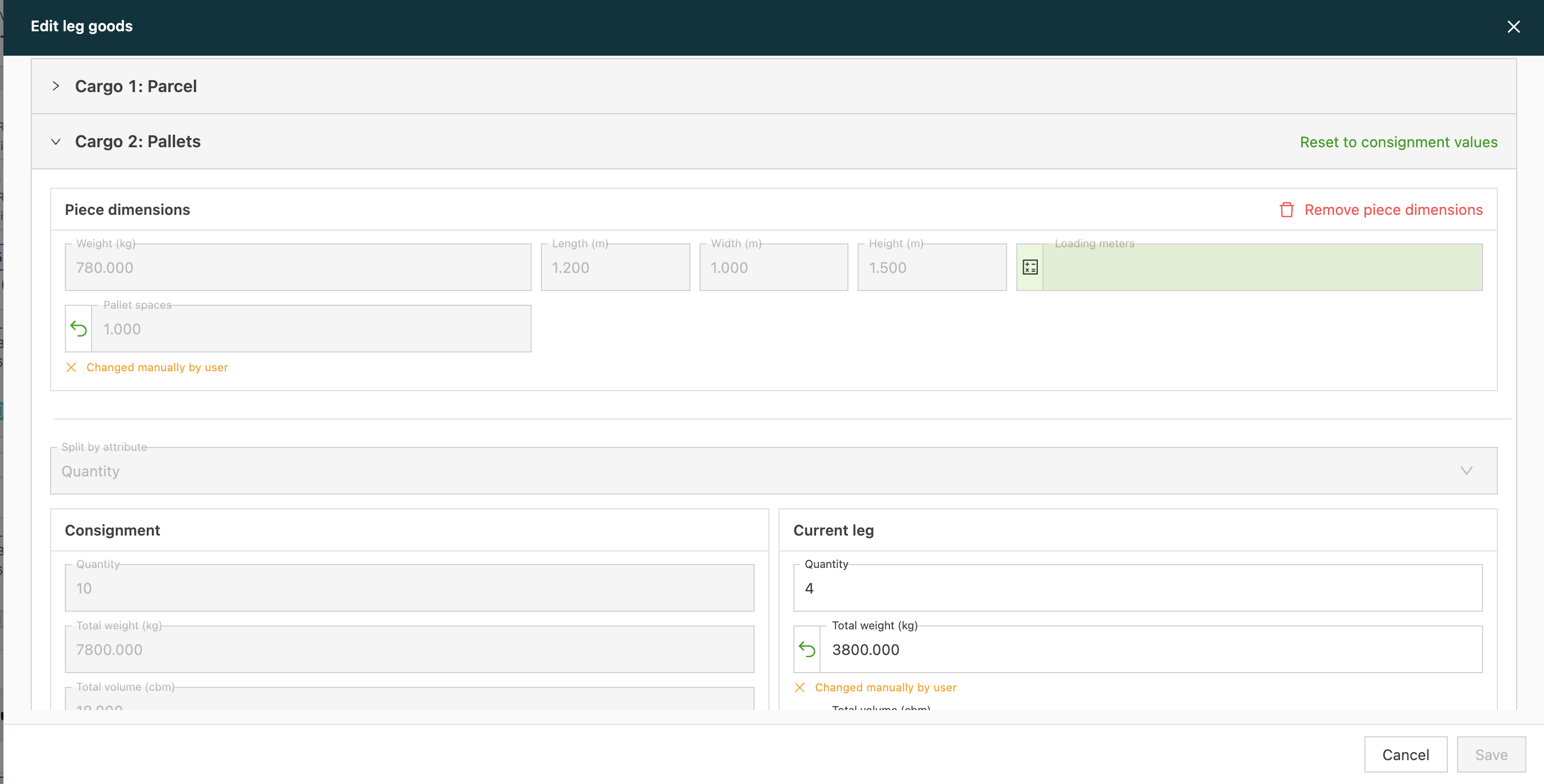
- Review the quantities shown for the stage. This action is available only on a leg that already has a quantity override.
- Edit the amounts in the modal so each stage reflects the goods actually carried.
- Save the changes.
Removing parallel legs
- Open the shipment with the parallel legs.
- Select the leg to remove.
- Click the three dots next to Show route and choose Remove leg.
The original leg can never be removed; only the split legs can.
\
Planning parallel legs {#h_be2b07cc30}
- Open the planning board.
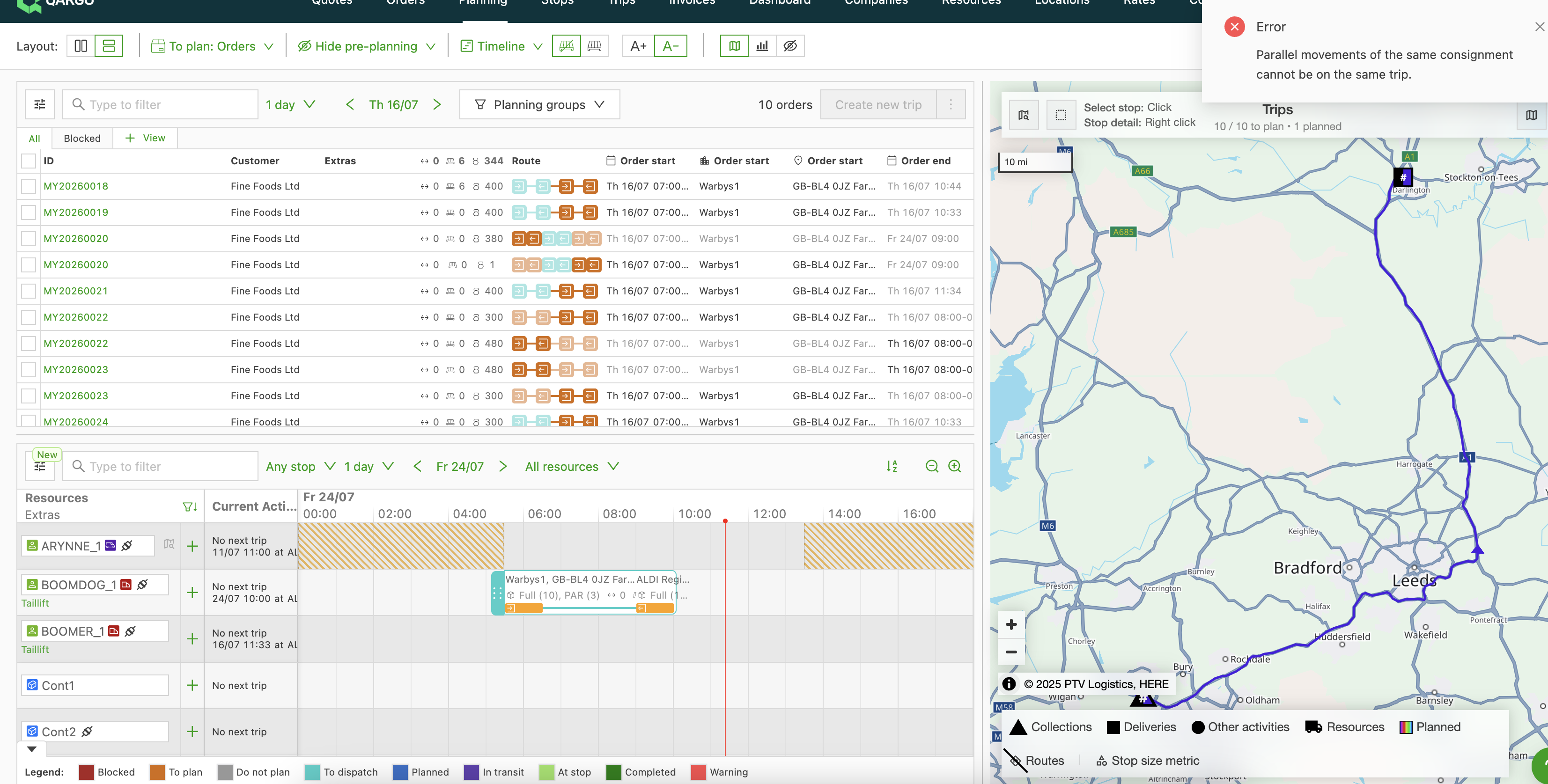
- Review the legs in the overview. Every leg is shown as a separate shipment.
- Plan the legs on the various resources.
Cross-dock scanning with parallel stages
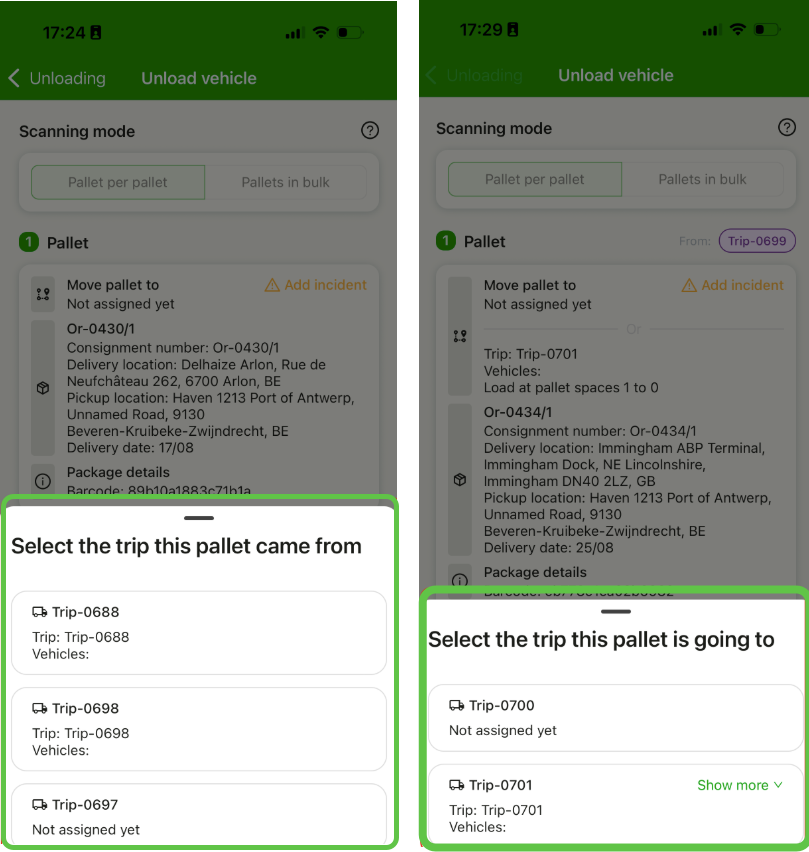
Cross-dock scanning in the driver mobile app works with parallel stages: each pallet scan is registered against the leg (stage) the pallet is actually loaded onto, instead of the whole shipment.
- Open the cross-dock scanning screen in the driver mobile app for the load carrying one of the parallel stages.
- Scan each pallet barcode as normal. The scan is recorded against that specific leg.
- Repeat for the other parallel stage on its own load. Scans on each leg stay independent of each other.
-
Bulk-editing a field on a split shipment updates the field on all goods, not just those on one stage.
- Check the change carefully before bulk-editing.
-
Create similar order and Add similar shipment aren’t available on orders or shipments with parallel stages.
- Create similar order becomes a blank Create order action with template variants disabled; a warning is shown in the tooltip: “Disabled due to parallel legs”
- Add similar shipment is grayed out.
-
Scanning a pallet onto a parallel leg leaves the earlier scan in place; both stay visible. Scanning it out on one leg removes it from the parallel leg’s list, where it can then only be added by barcode.
- Check the leg before rescanning.
Troubleshooting
| Issue | Resolution |
|---|---|
| A shipment that uses parallel stages cannot be dispatched or exported to pallet networks | Keep pallet network shipments on a single stage. Parallel stages are not supported for pallet network dispatch in this release. |
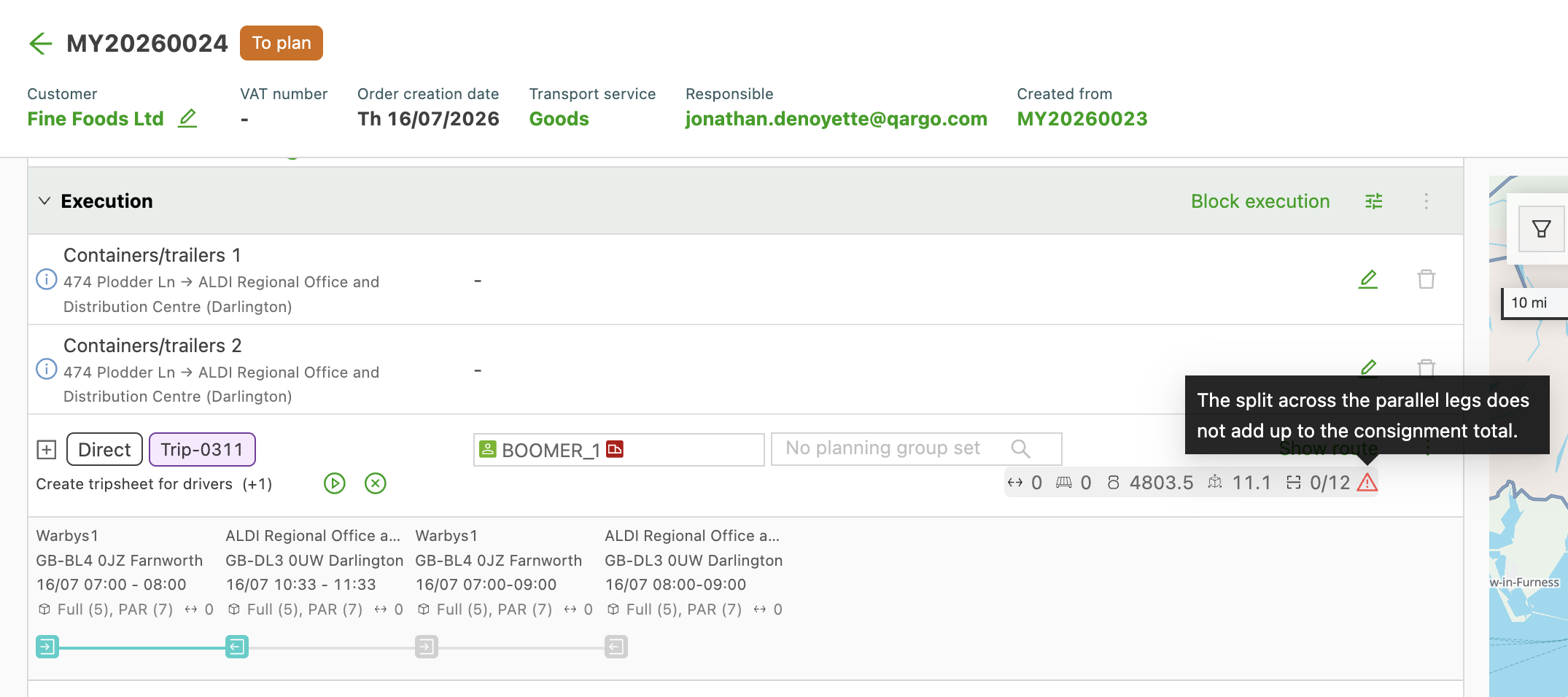
| The amounts on the parallel stages do not add up to the shipment total, but no warning appears | Amount mismatch warnings are not generated in this release. Confirm the totals manually before completing the stops. |
| The original stage cannot be removed | Only the parallel stage can be removed. The original stage is retained, and there is no visual marker for which stage is the original. |
| A parallel stage needs to be undone | Reversing a parallel stage is a manual delete. There is no merge action to recombine stages. |
| Partial pickup or delivery does not behave as expected | Partial pickup and delivery is not in scope for this release. |