Integrations – Xero accounting
Send invoices & credit memos to Xero from Qargo with payment sync, PDF support & analytics. Setup requires matching configurations & authorization.
Table of contents
Introduction
Integrating Xero (API) accounting with Qargo TMS streamlines financial operations. It enables seamless invoice and credit memo management directly from the transportation management system. With this integration, financial documents are sent automatically to Xero, payment statuses are tracked in real time, and accounting workflows stay consistent. For tax codes, analytical accounting and payment updates alike, the setup keeps both systems aligned. This saves time and reduces manual errors.
Functionality
The Xero API integration sends both sales and carrier invoices & credit memos to the Xero accounting system. The following functionality is supported:
-
Send invoices and credit memos to Xero
- Includes analytical accounting support
- Includes PDF
-
Sync back payment status

Prerequisites
-
Valid Xero subscription
-
Xero user account that can authorize the Qargo integration
-
Qargo accounting module set up correctly:
- Number series should match the ones set up in Xero
- GL codes (accounts) should be registered in Qargo
- Tax rate codes should match the tax rate codes in Xero
- Dimensions (analytical field) calculation should be defined in Qargo
Setup
-
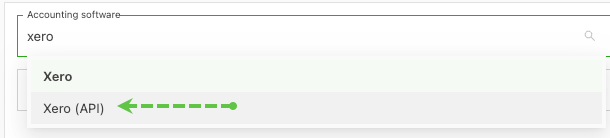
Select Xero (API) as the accounting integration
-
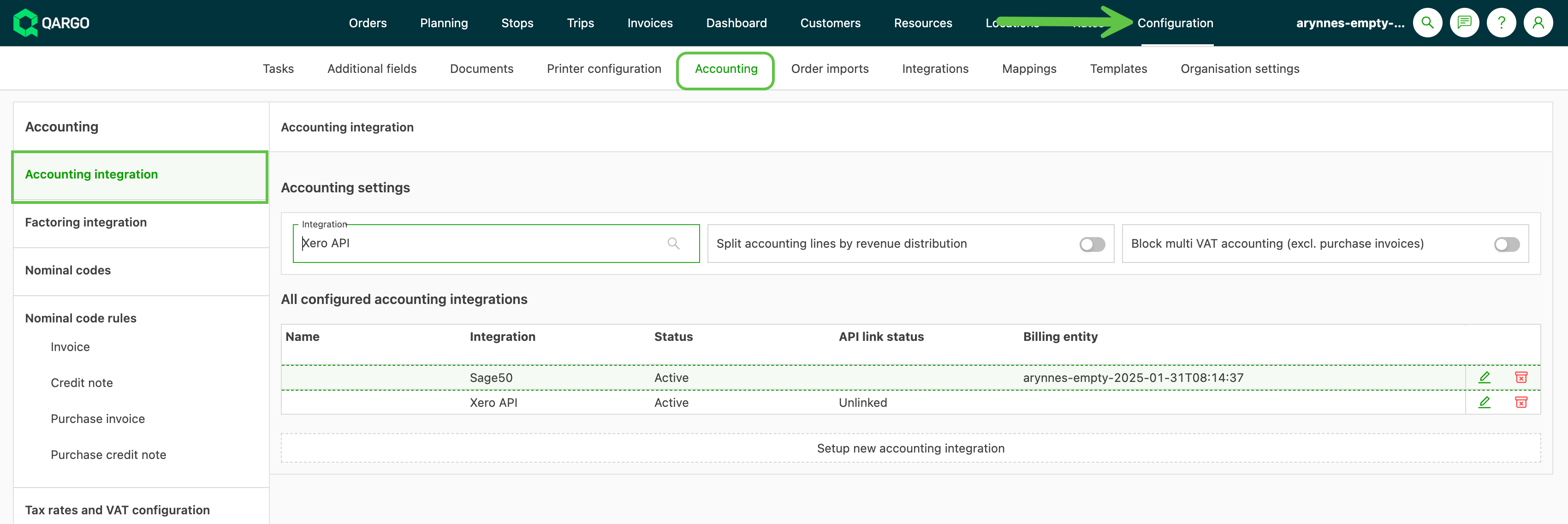
Click the pencil icon to open the integration setup
-
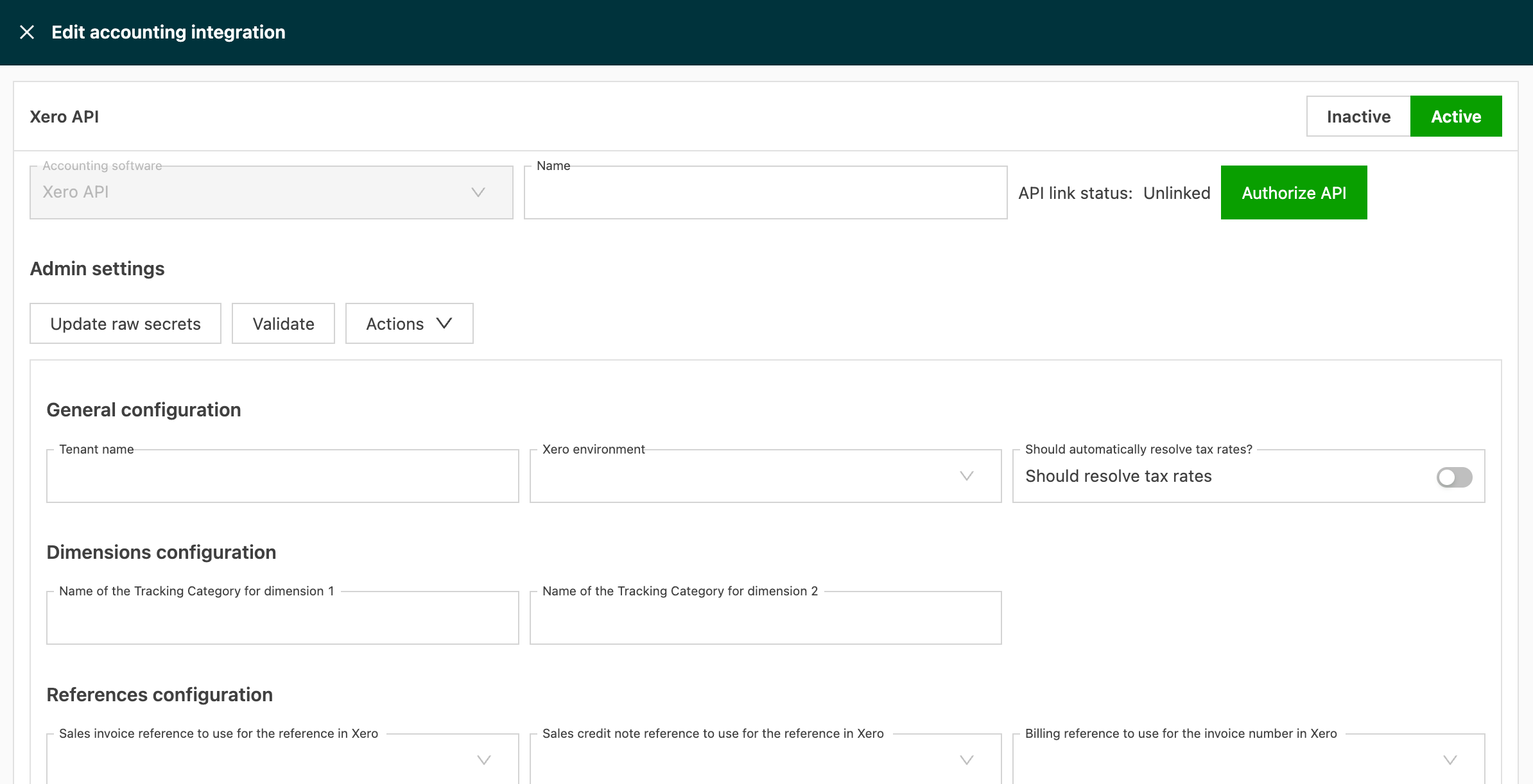
The Xero user account should authorize in Qargo by clicking the ‘Authorize API’ button.
- After authorization, Qargo shows the updated status:

Usage
-
The system is now ready to send invoices
-
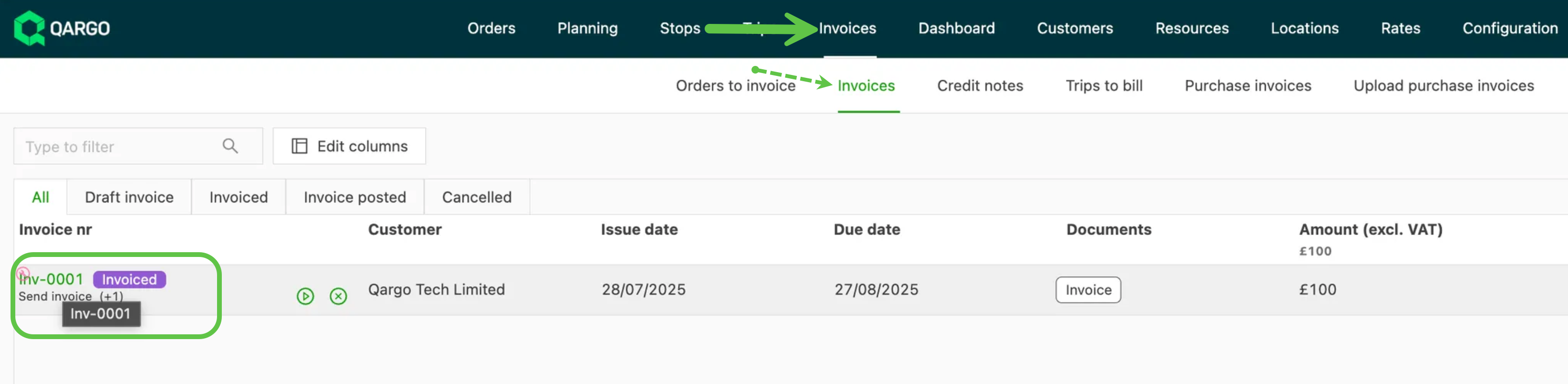
Navigate to an invoice:
-
Send it using the post to Xero task:
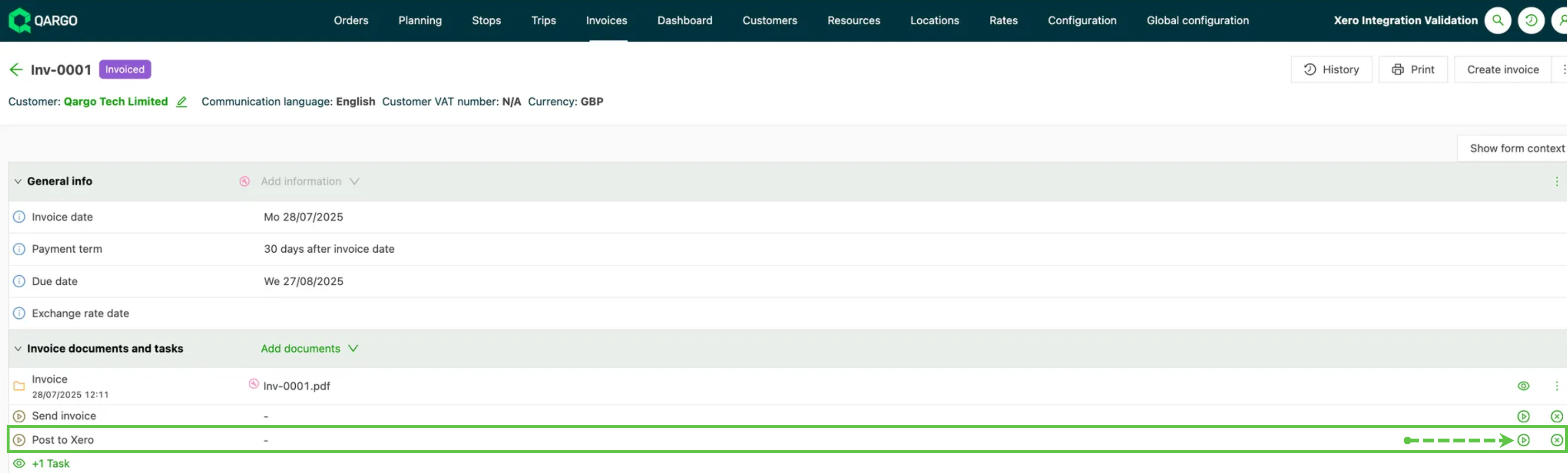
-
Invoice payments are monitored in Xero and synced back to Qargo.
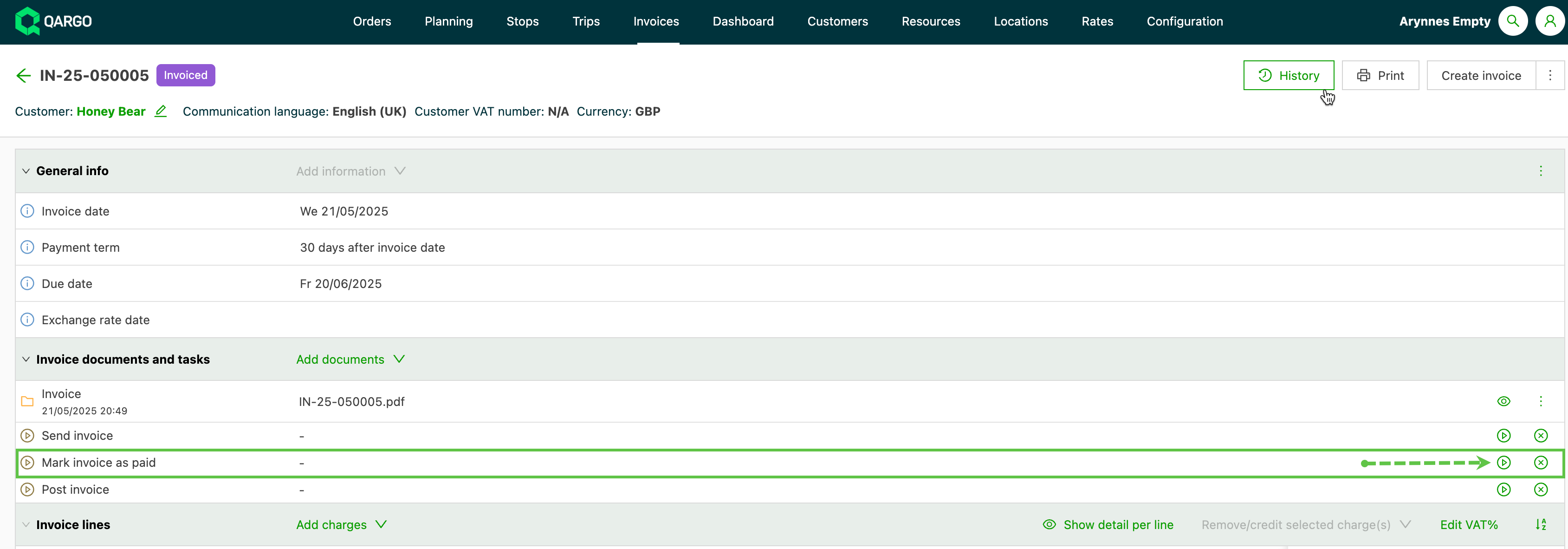
-
FAQ
Can a Xero account be deauthorized in Qargo?
Yes. Navigate back to the accounting configuration page and click ‘Reset API link status’:

Why is there no Post to Xero task in the invoice workflow?
If no task exists to post the invoice, check that the correct accounting integration is enabled (requires Super Admin rights).
-
Navigate to Configuration > Accounting.
-
From the left side menu, select ‘Accounting Integrations’
-
Integration shows the accounting package set up on the account.
- It is shown in light gray and cannot be changed.
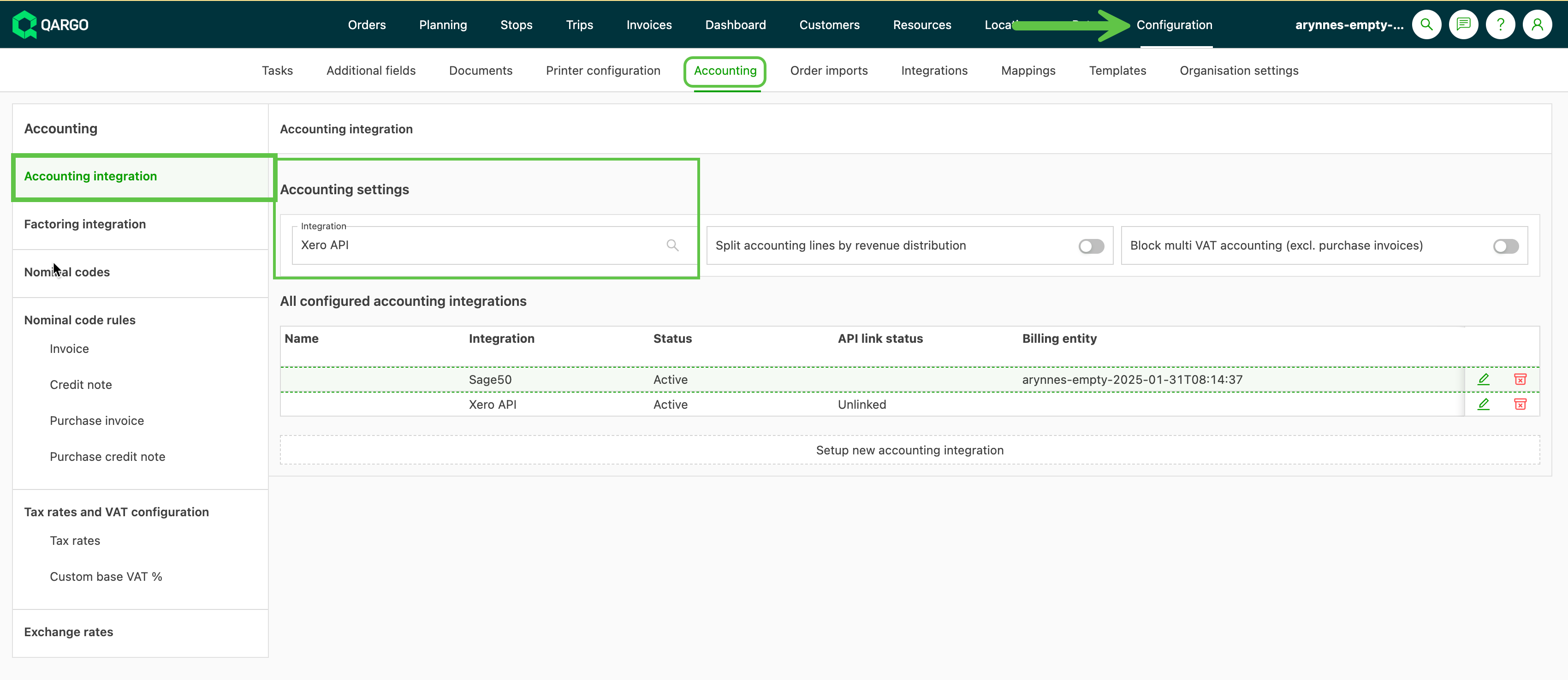
- If the option shown does not include the API tag, contact Qargo Support or the account manager to update this to the correct integration type.