
Rate card FAQ – Pallet network: multi-tier rating
Create a rate card that includes multiple variables, including pallet type, pallet spaces, delivery or pickup zones and service levels.
🎥 Watch the overview video for details on configuring and using multi-tier rates
Introduction.
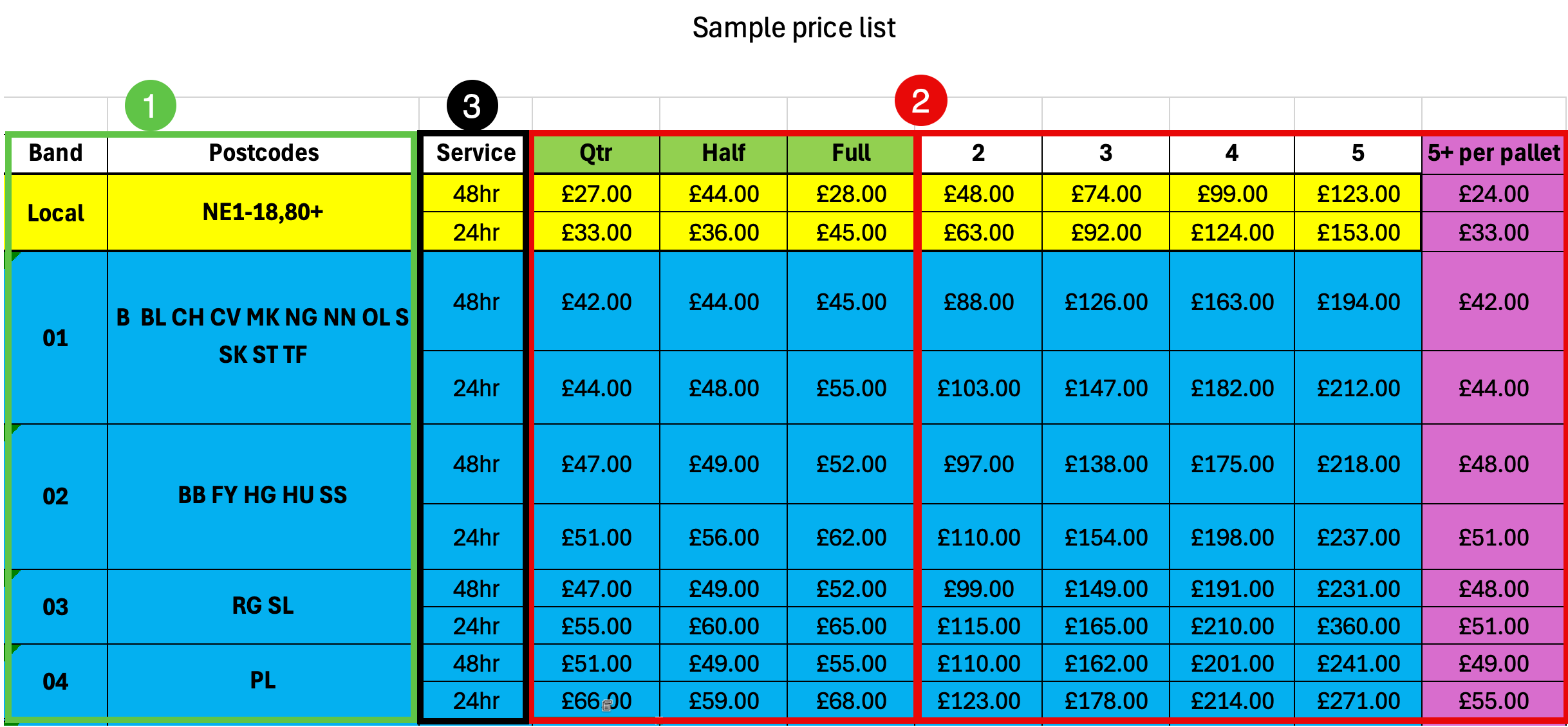
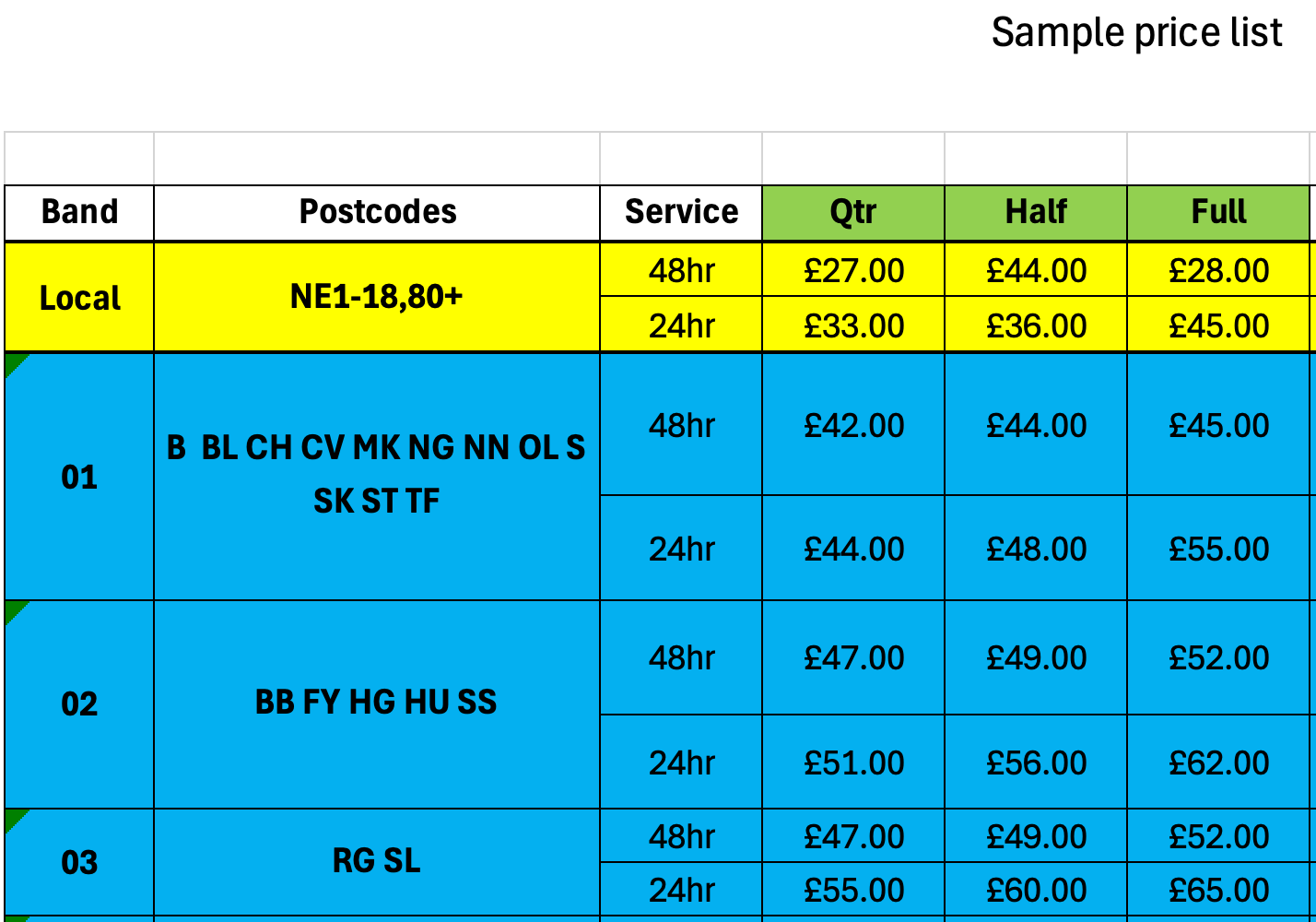
When doing business with pallet networks, setting up rate cards for the variety of rating models can be quite a task. This article looks at one of the most frequently used rating models across the different networks. In this example, there are multiple parameters to consider. Rates are based on the delivery location ZIP code, service levels, pallet type and spaces in the order. See the parameters below. This is configured in a rate table, with multiple calculations and conditions, which generates the transport charge.
Parameters:
-
Based on delivery locations only, determined by ZIP codes, set as ZIP code zones (click for more details.)
-
Service levels:
- 24hr
- 48hr
-
Consider the goods ordered, based on 3 tiers:
- Single pallet type: Quarter / Half / Full (1 pallet only)
- Pallet spaces: fixed price based on the number of pallet spaces ordered (2–5 spaces)
- Total number of pallet spaces: per-pallet rate based on 6 or more pallet spaces ordered.
Configuring the rate card
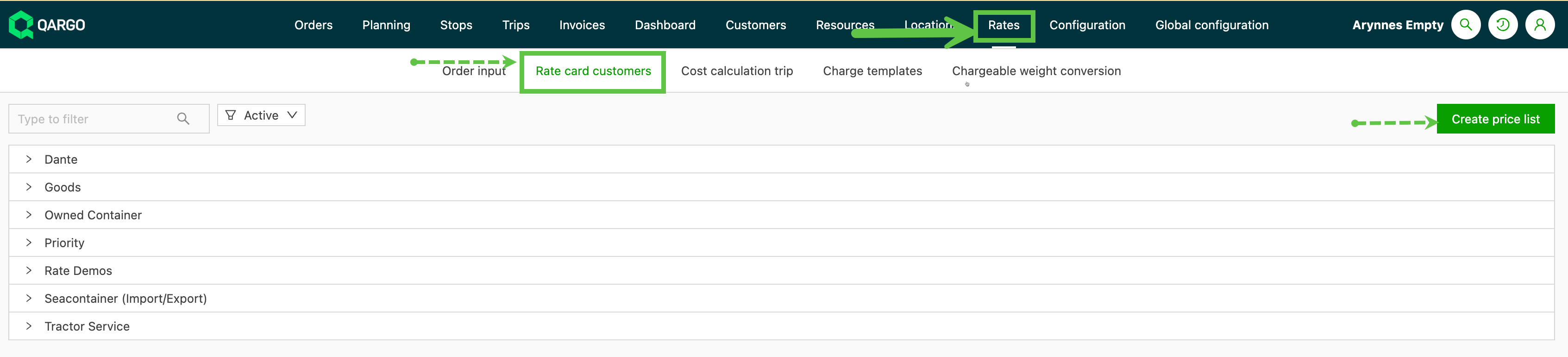
Navigate to Rate & Rate Card Customers.
Click ‘Create price list’. This opens a new screen.
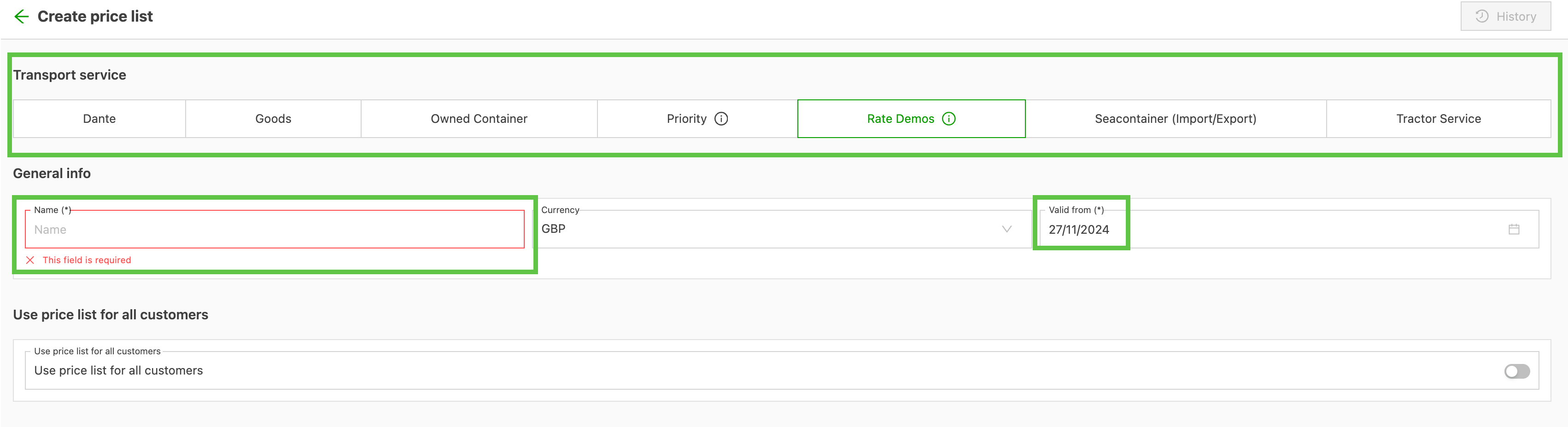
Select the transportation service the new price list is associated with. Give the price list a name that makes it easy to identify. Set a valid from date. If no date is set, the default is the date the list was created.
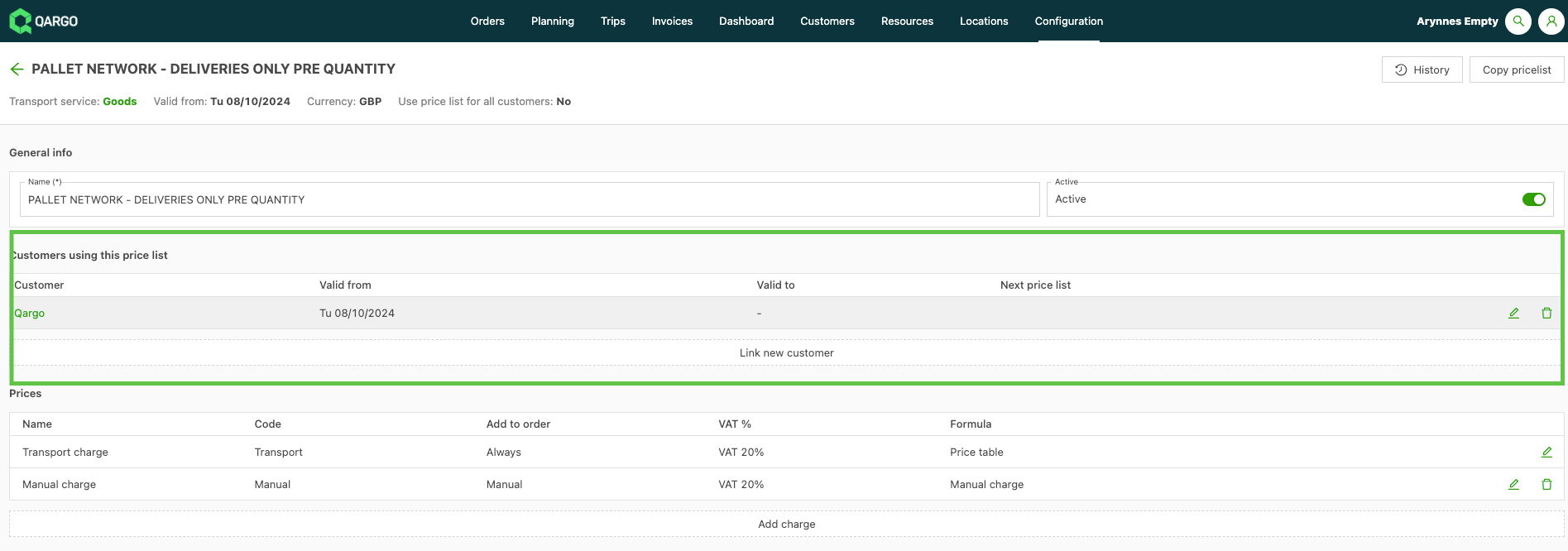
There is an option to set the price list as the default for all customers if required. Otherwise, the price list should be linked to specific customers.
To add the rate table, click the edit icon (pencil) on the transport charge line. This opens the ‘Edit Price’ screen. This price list is broken down into different calculations to allow for the different rating variables that need to be considered.
Calculation 1: Single pallet type
Additional parameters:
- Service level
- ZIP code zone
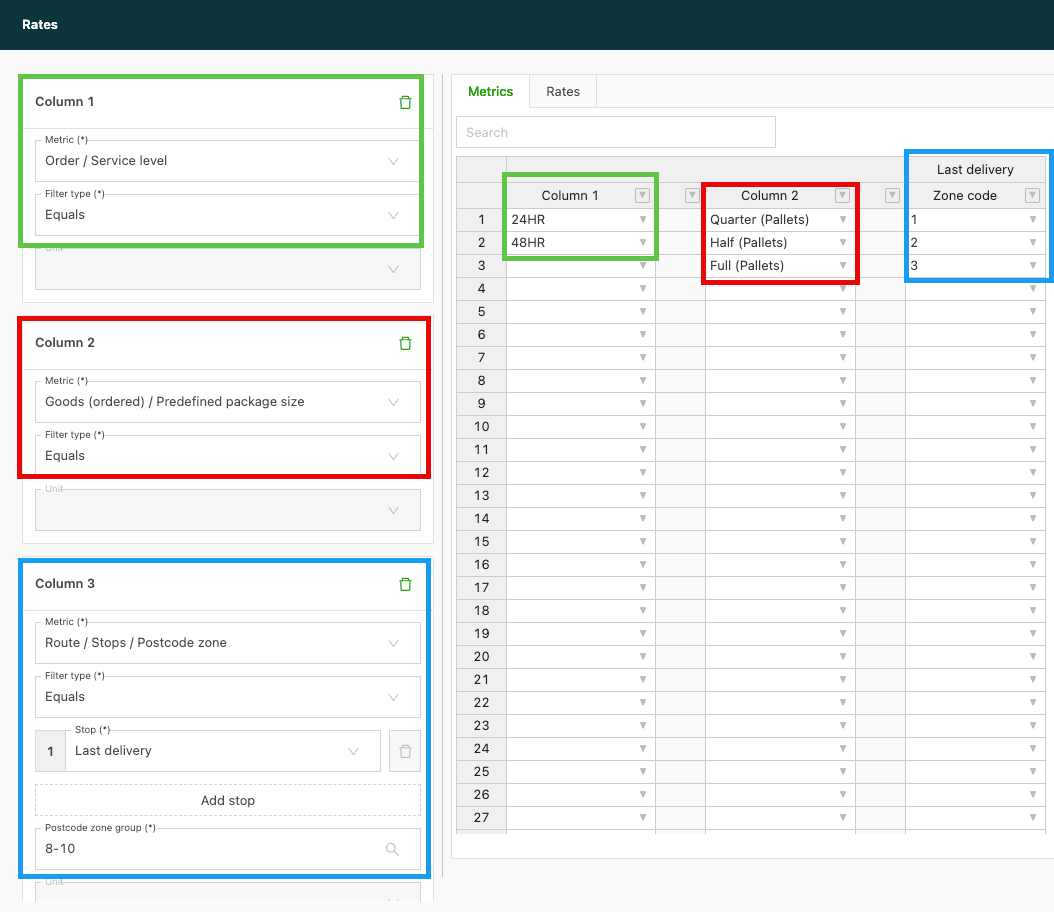
Method is rate table: the calculation looks at the pallet type and the quantity, and the result needs to be ‘Multiplied by a metric’.
Metric: total pallet spaces; in this calculation it is by packaging type/product
Quantity to multiply by: 1 (pallet space)
Click ‘Edit Price Table’ to enter the specific rating components. These metrics pull in from predefined order input options, for instance the service levels or package sizes.
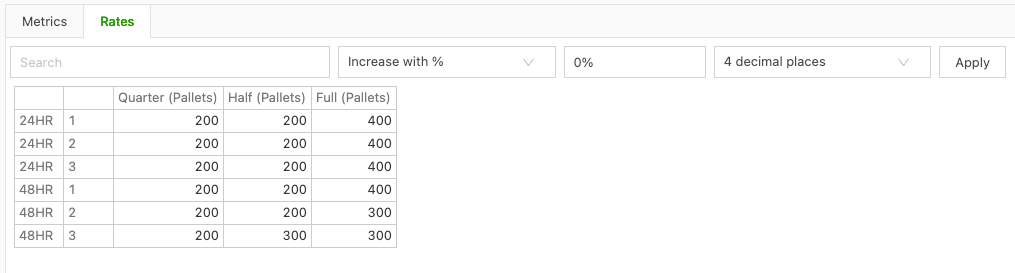
Once the metrics are set up, select the ‘Rates’ tab to enter the rates that apply to each of the parameters set in the metric table.
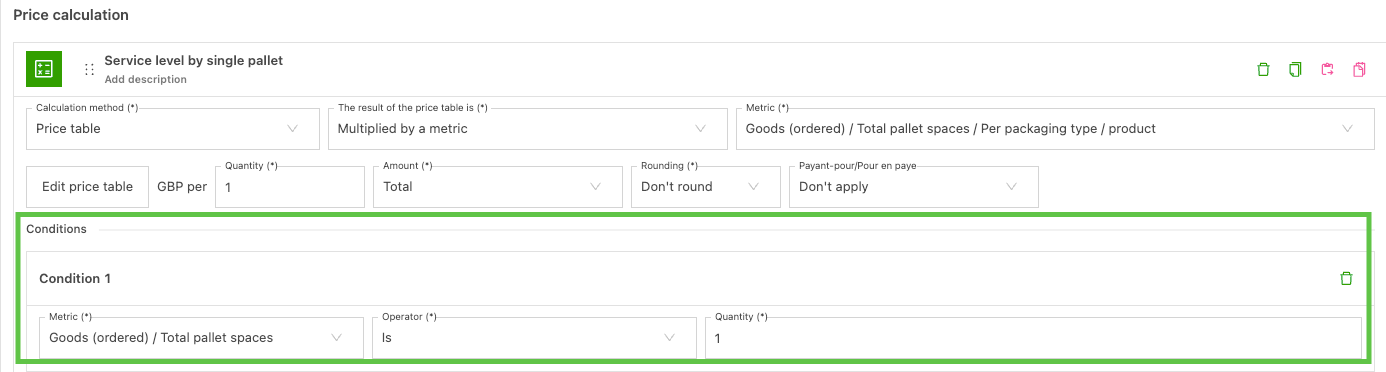
Adding a condition:
When using multiple calculations, it is a good idea to enter a condition that defines when the calculation should be used. In this case, a condition to only use this calculation if a single pallet space is ordered is sufficient.
Calculation 2: Multiple pallet spaces (2–5)
Additional parameters:
- Service level
- ZIP code zone
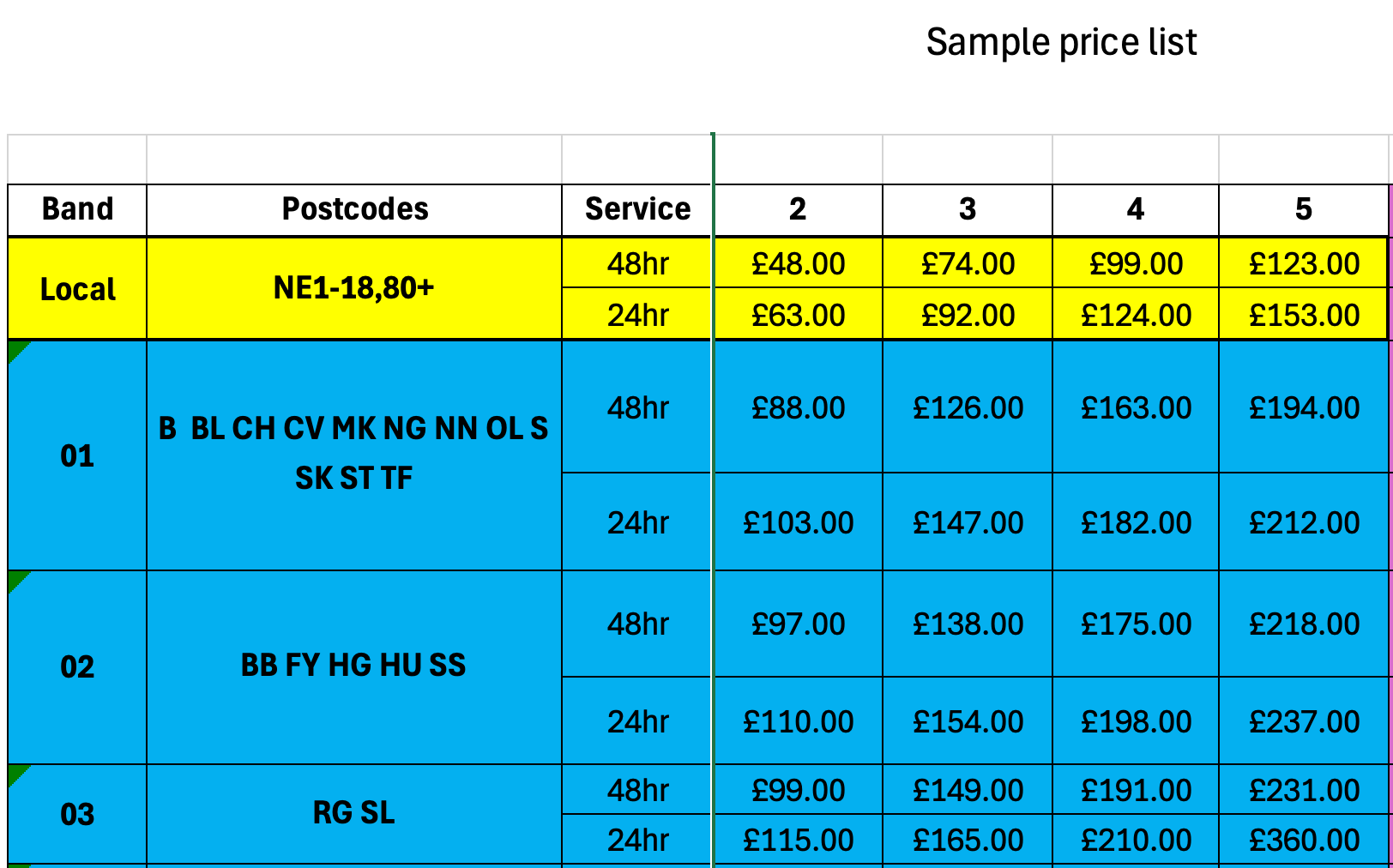
Method is rate table: the calculation looks at the total quantity as a fixed price, and the result is a ‘fixed amount’.
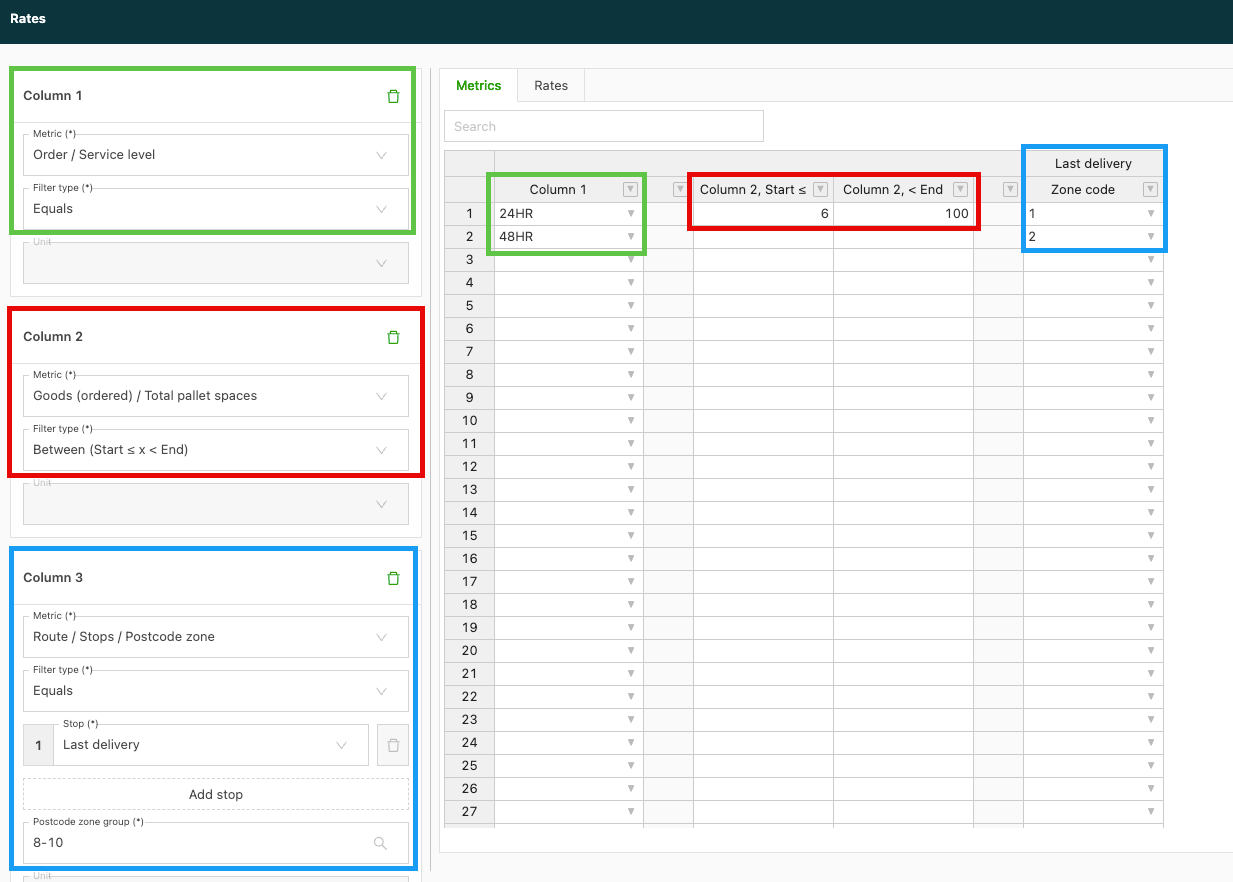
In this instance, the metrics entered are the same, but in column 2 the metric looks at the total pallet spaces, set as individual ranges between 2 and 5.
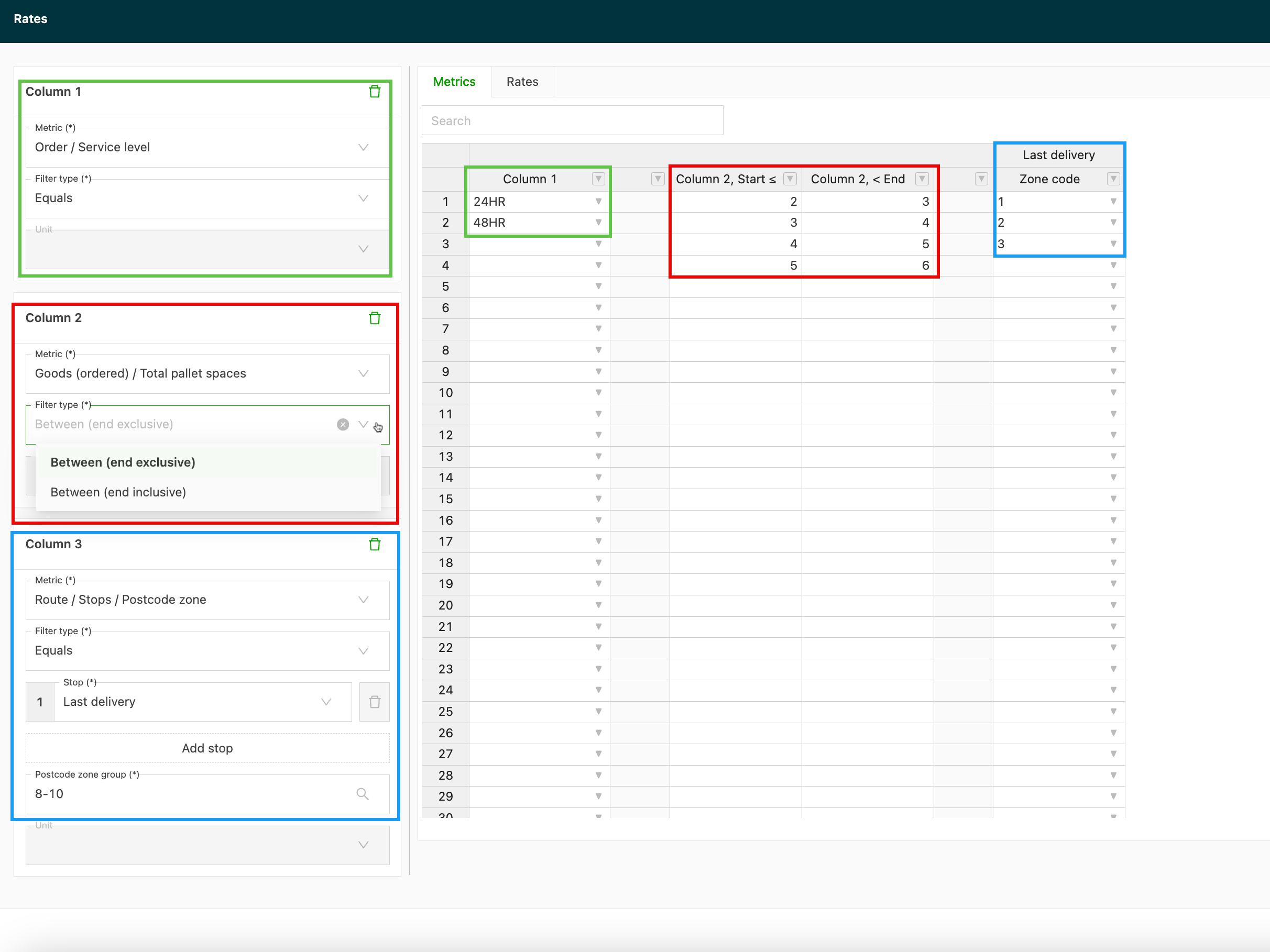
Once the metrics are set up, select the ‘Rates’ tab to enter the rates that apply to each of the parameters set in the metric table.
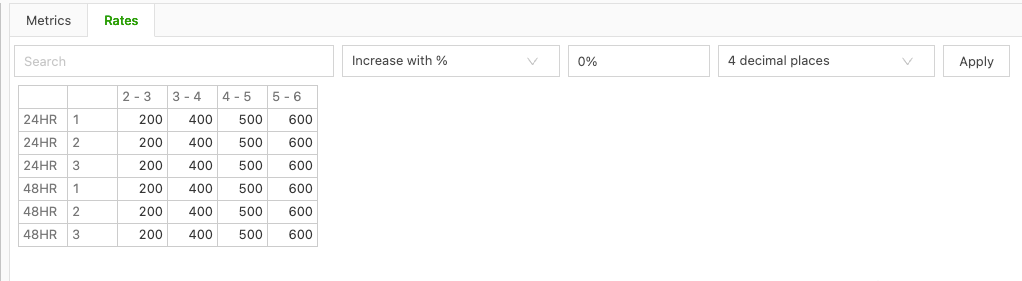
Calculation 3: Multiple pallet spaces (6+)
Additional parameters:
- Service level
- ZIP code zone
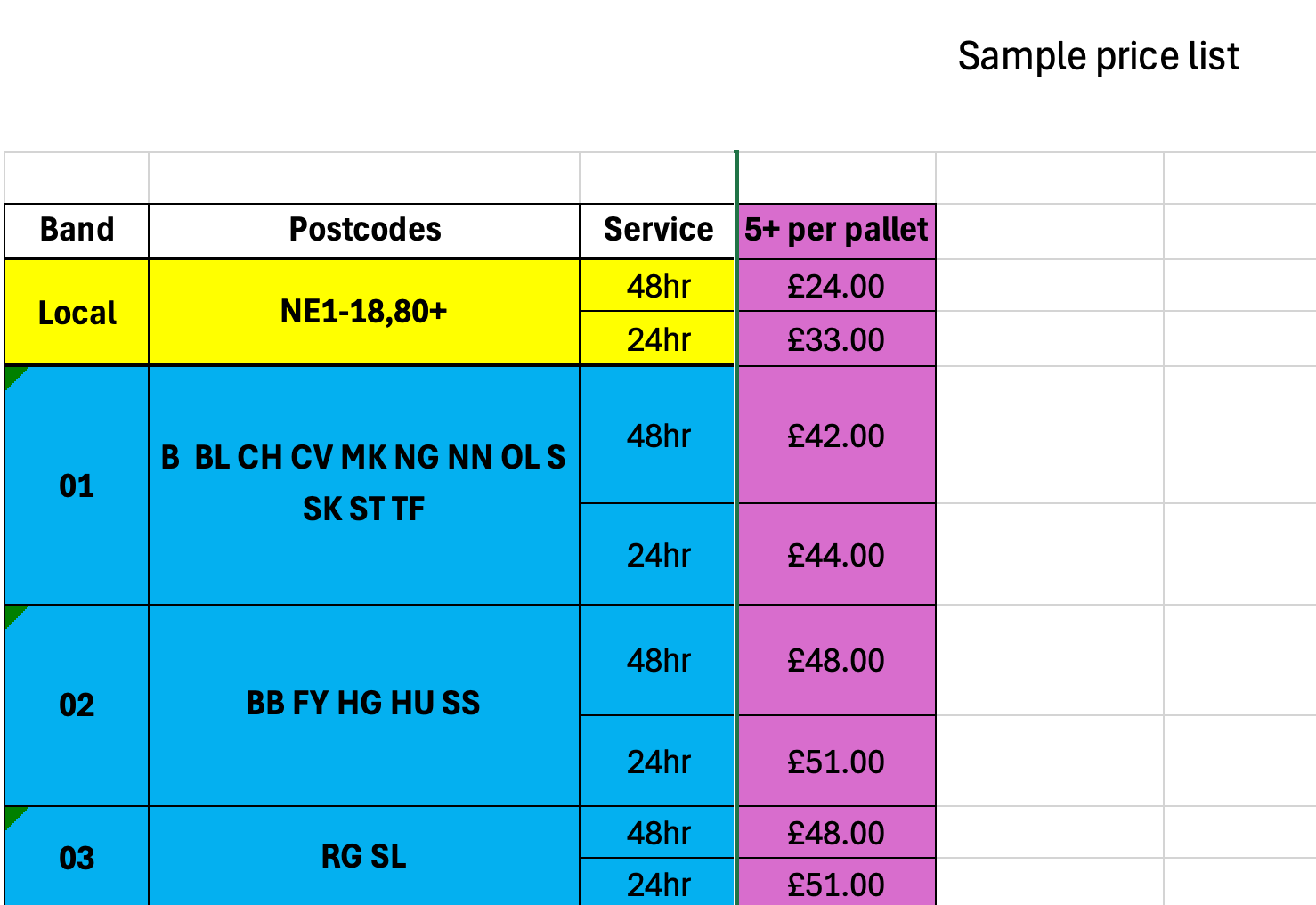
Method is rate table: the calculation looks at the quantity of pallet spaces, and the result needs to be ‘Multiplied by a metric’.
Metric: total pallet spaces; in this calculation it is the total per order
Quantity to multiply by: 1 (pallet space)
For column 2, the metric remains total pallet spaces, and again a range is used. Because the calculation covers 6 or more, the end value can be set to a number high enough to account for all possible spaces.
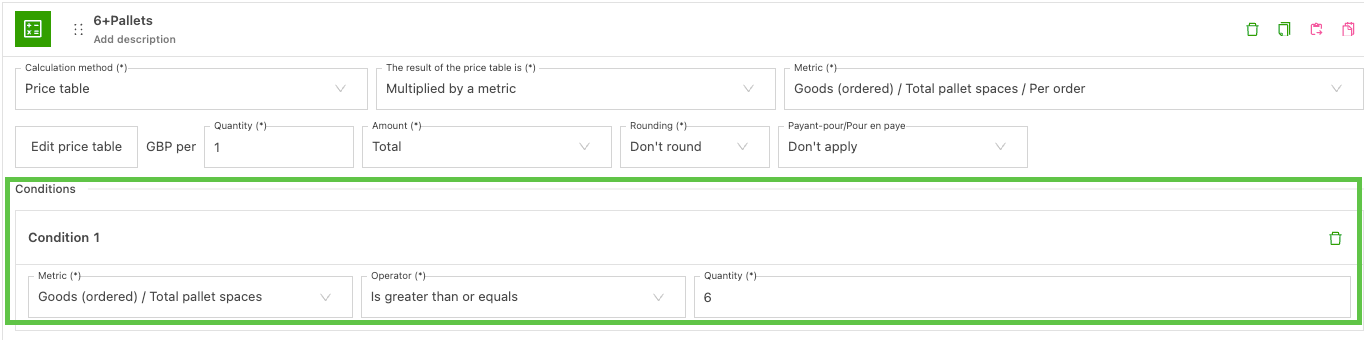
Conditions:
A condition to only use this calculation if 6 or more pallet spaces are ordered is sufficient.
Rating options using conditions:
-
Create a price list that includes both delivery and pickup points, based on ZIP code zones. Once one set of calculations is created, use the duplicate function to quickly add the next set of calculations, and simply modify the necessary fields.
-
In this example, the delivery calculations are copied and the delivery stop is updated to pickup in both the rate table and the condition.
-
-
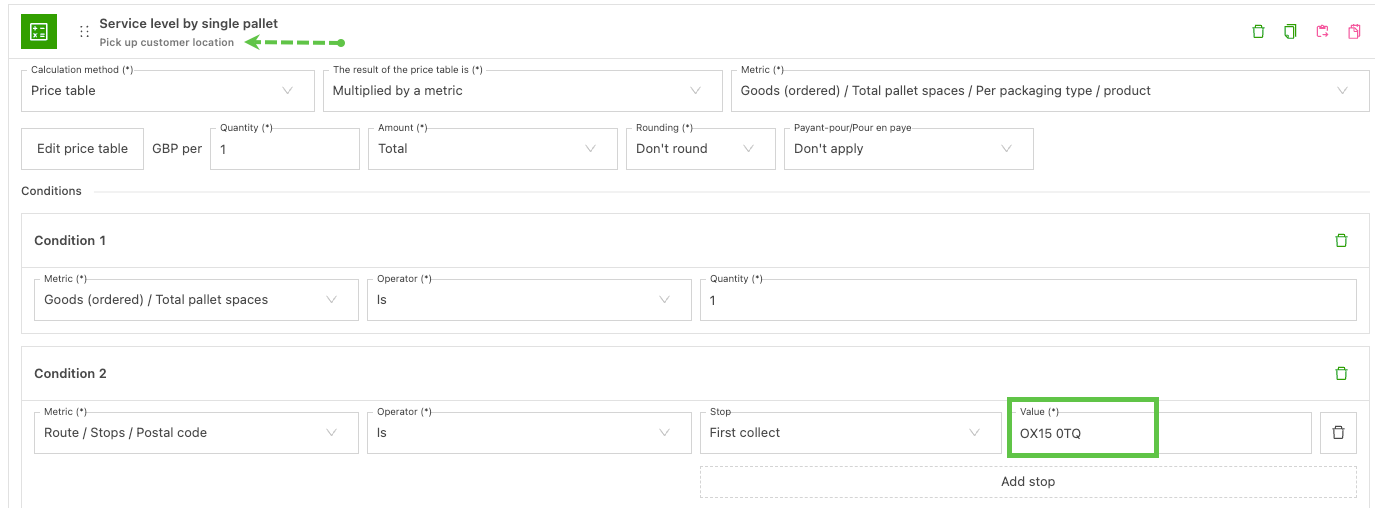
Pickup from a set location outside the set ZIP code zone for pickup or delivery. This can be accounted for as a pickup condition.
-
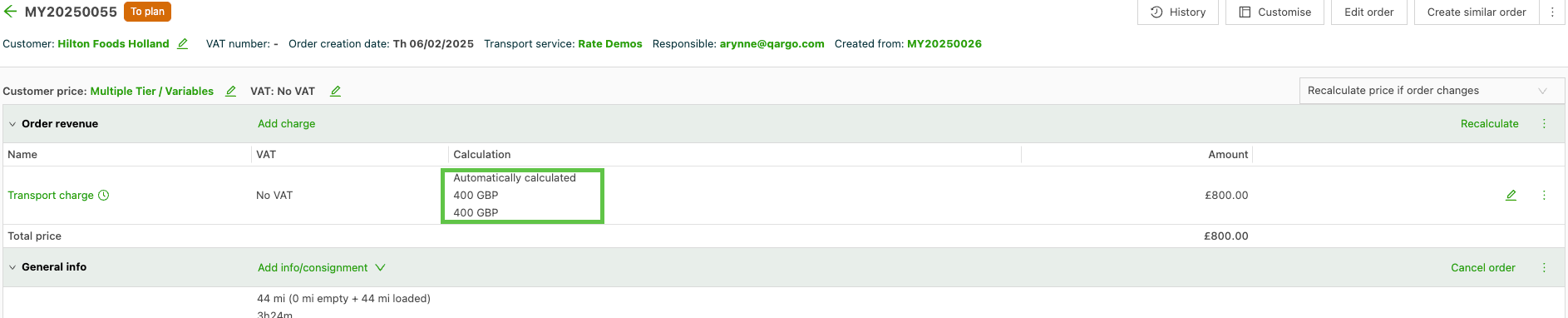
If multiple rate conditions apply, they are automatically added to the order. In this example, both pickup and delivery rates apply:
-
Tip