
Intermodal: customs pre-notification process
Border crossings require customs info. The pre-notification feature captures MRNs, PBN/GMR, declaration type and countries for EU-UK transit.
Table of contents
Orders that involve border crossings come with customs requirements that must be completed. The pre-notification process can be enabled in the tenant to capture the customs information required for import/export pre-notification, for example when going from the EU to the UK.
The following information can be captured:
- The MRNs for customs
- The PBN/GMR reference number
- Declaration type (import/export)
- Origin and destination country
🇬🇧 Great Britain ↔ Northern Ireland
GB and Northern Ireland share the same country code, but shipments between the two still require customs pre-notifications. Qargo detects these crossings automatically using the Northern Ireland postal code prefix (BT). No manual configuration is needed.
A customs booking is created when one location has a BT postal code and the other does not. This covers both GB → NI (e.g., Liverpool → Belfast) and NI → GB (e.g., Belfast → Glasgow).
Configuration
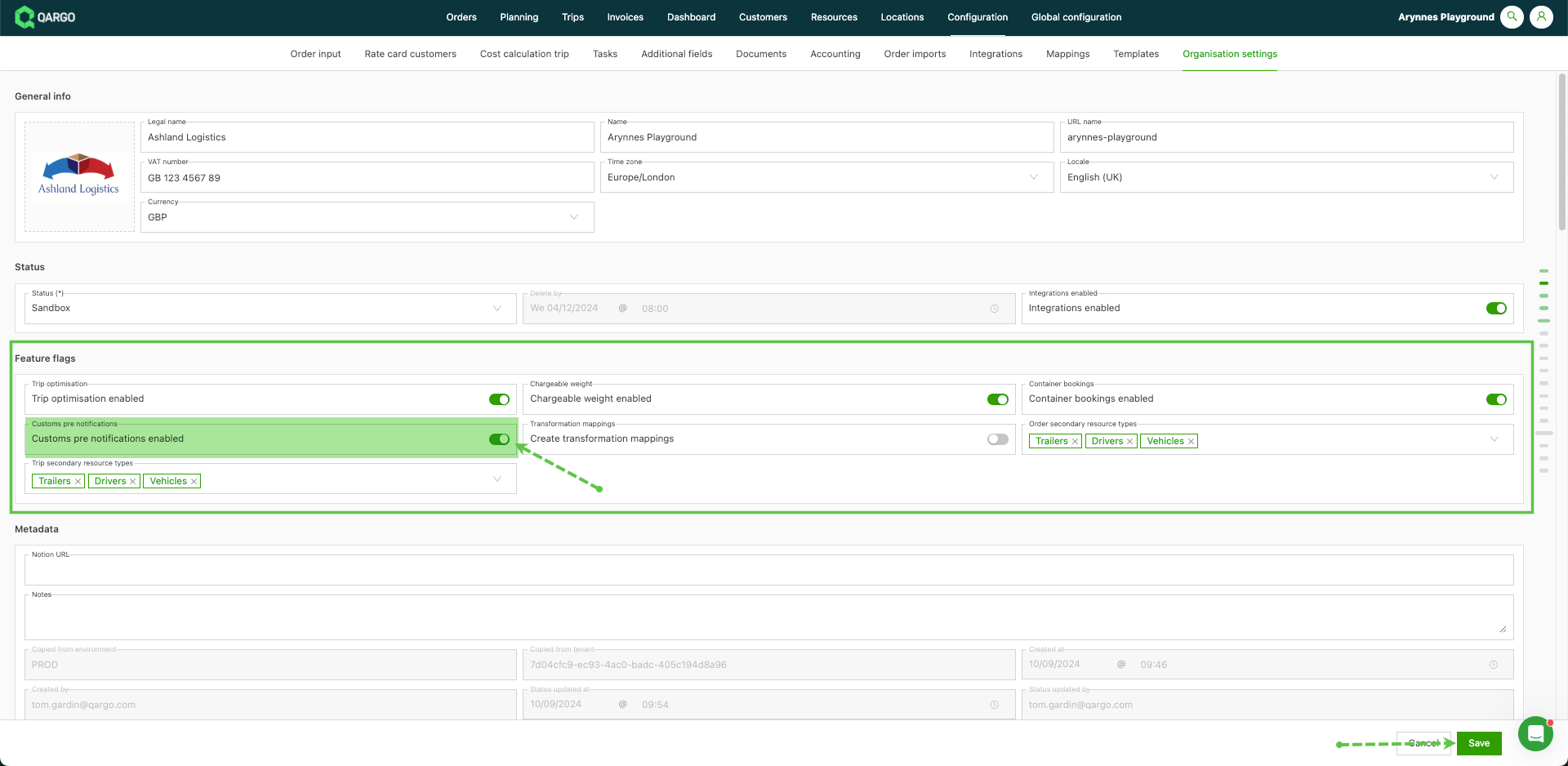
Once the feature is enabled on the tenant, go to Additional fields. The MRNs option becomes visible.
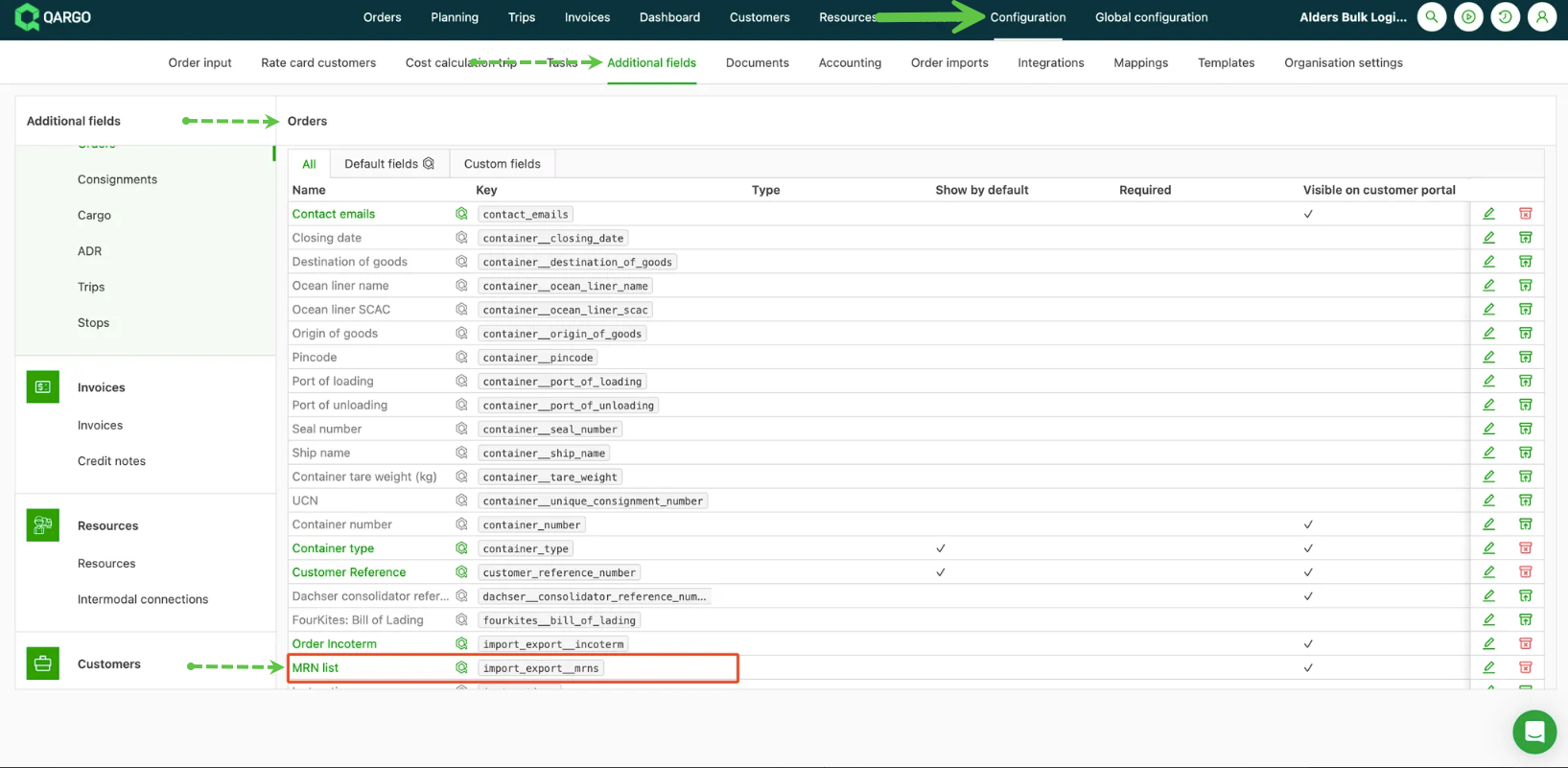
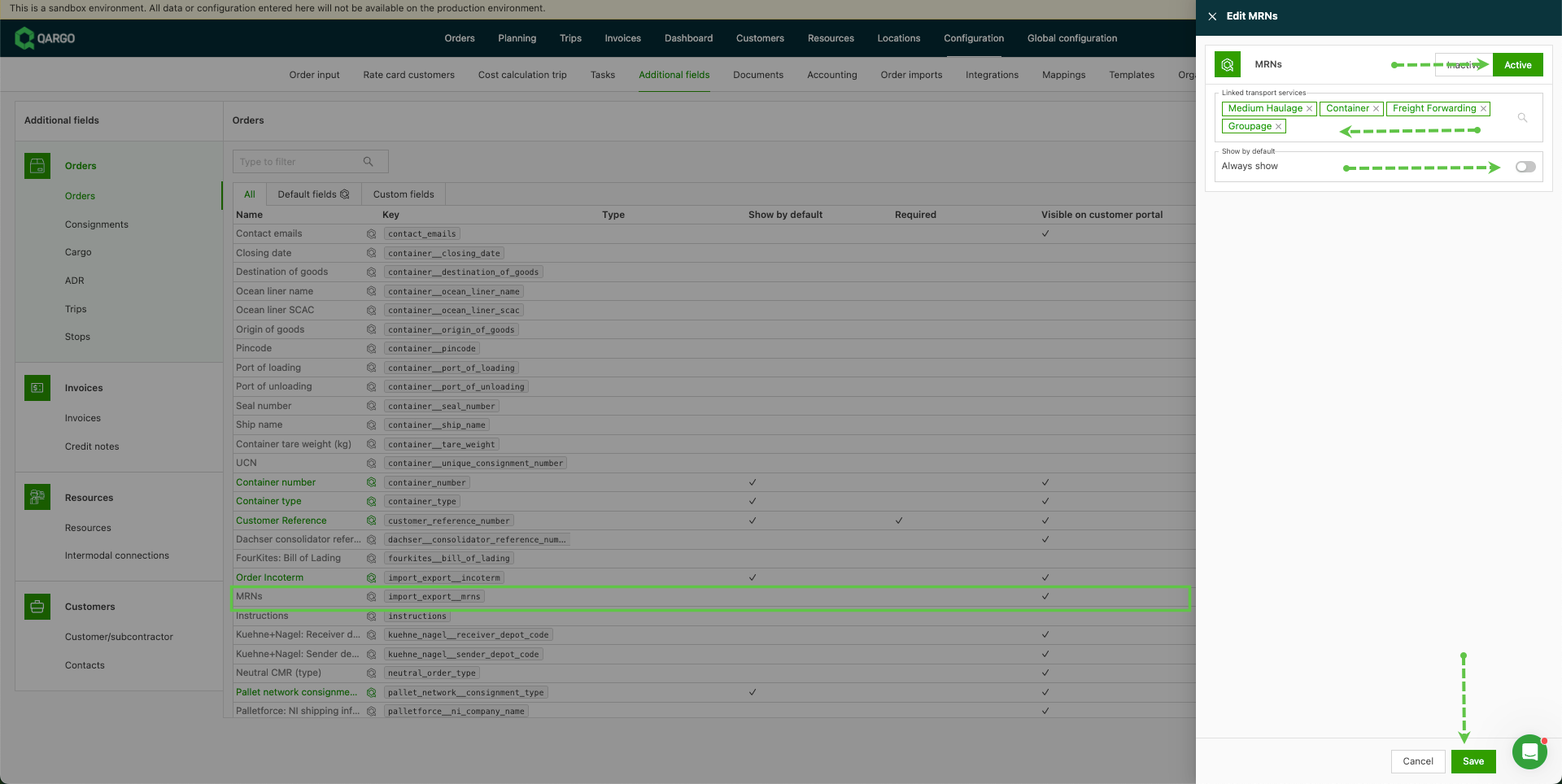
- Click the option and set it to Active.
- Add the linked transportation services the reference applies to.
- Set the toggles for Always show and Required as needed.
- Save the settings.
-
The option to add the MRN is now available on the order.
-
To add it to the order:
- Go to General info > Add info/shipment > Add information.
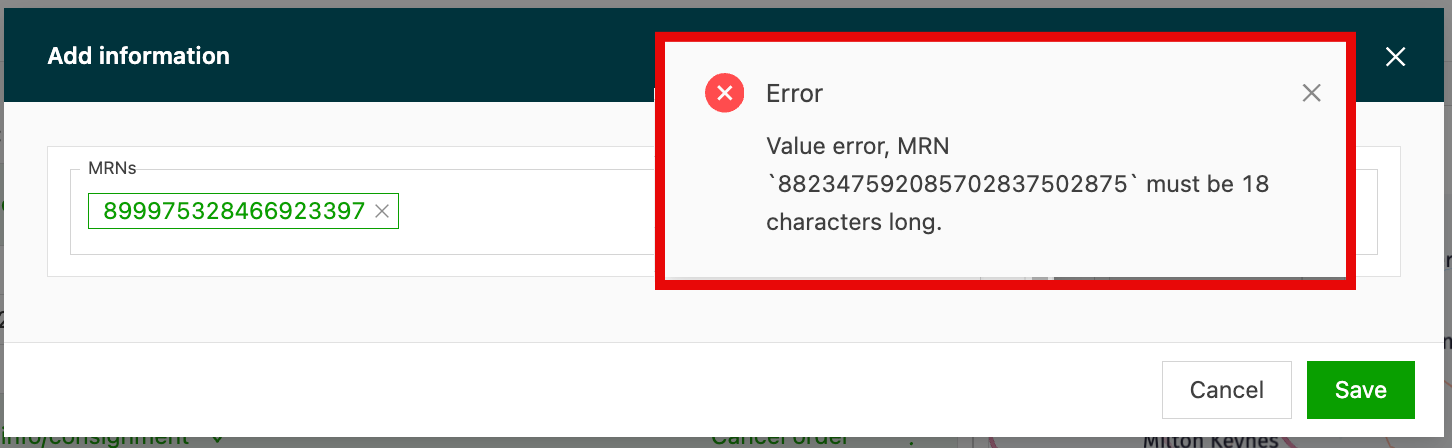
- Select MRN and enter the number.
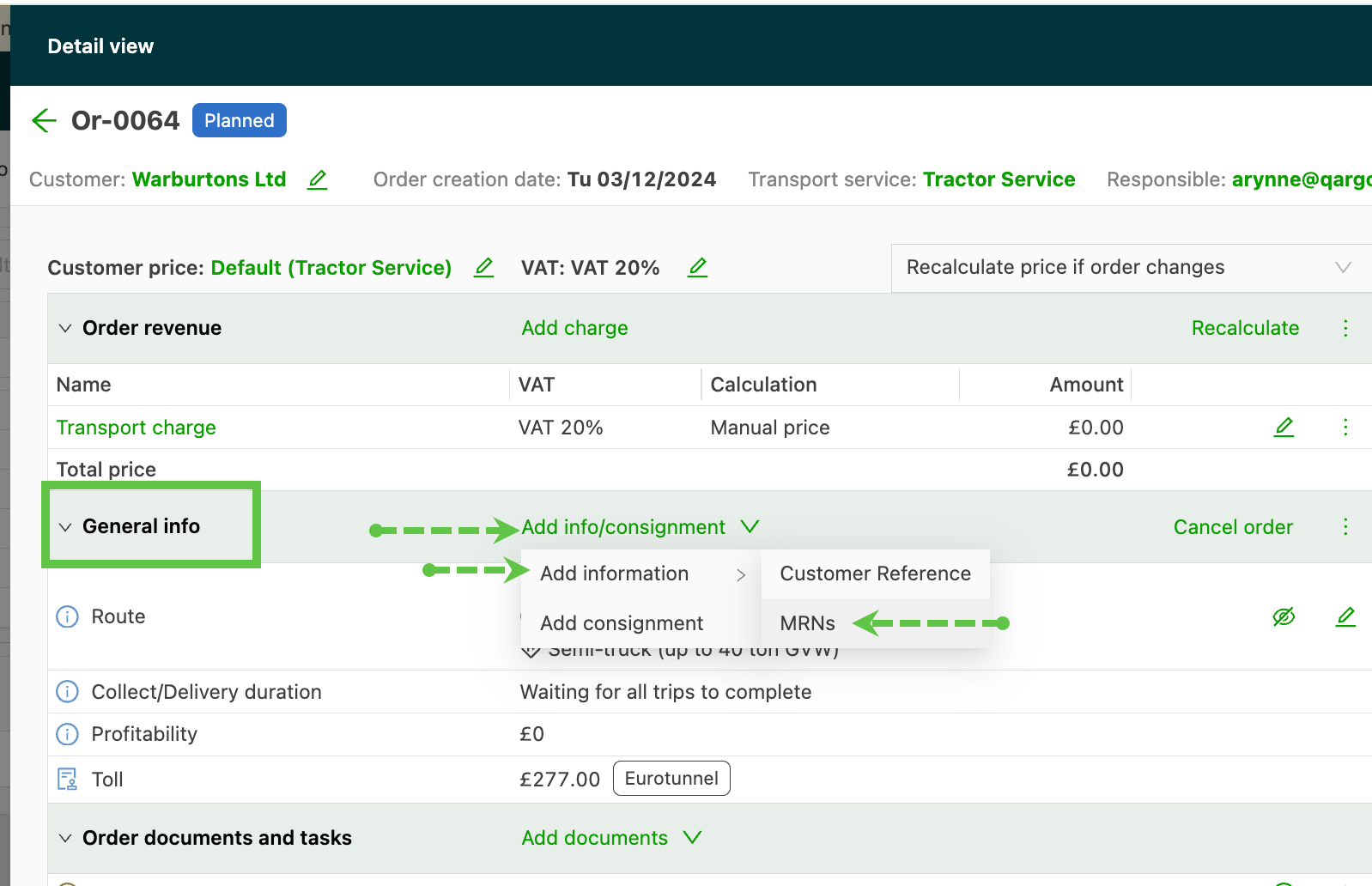
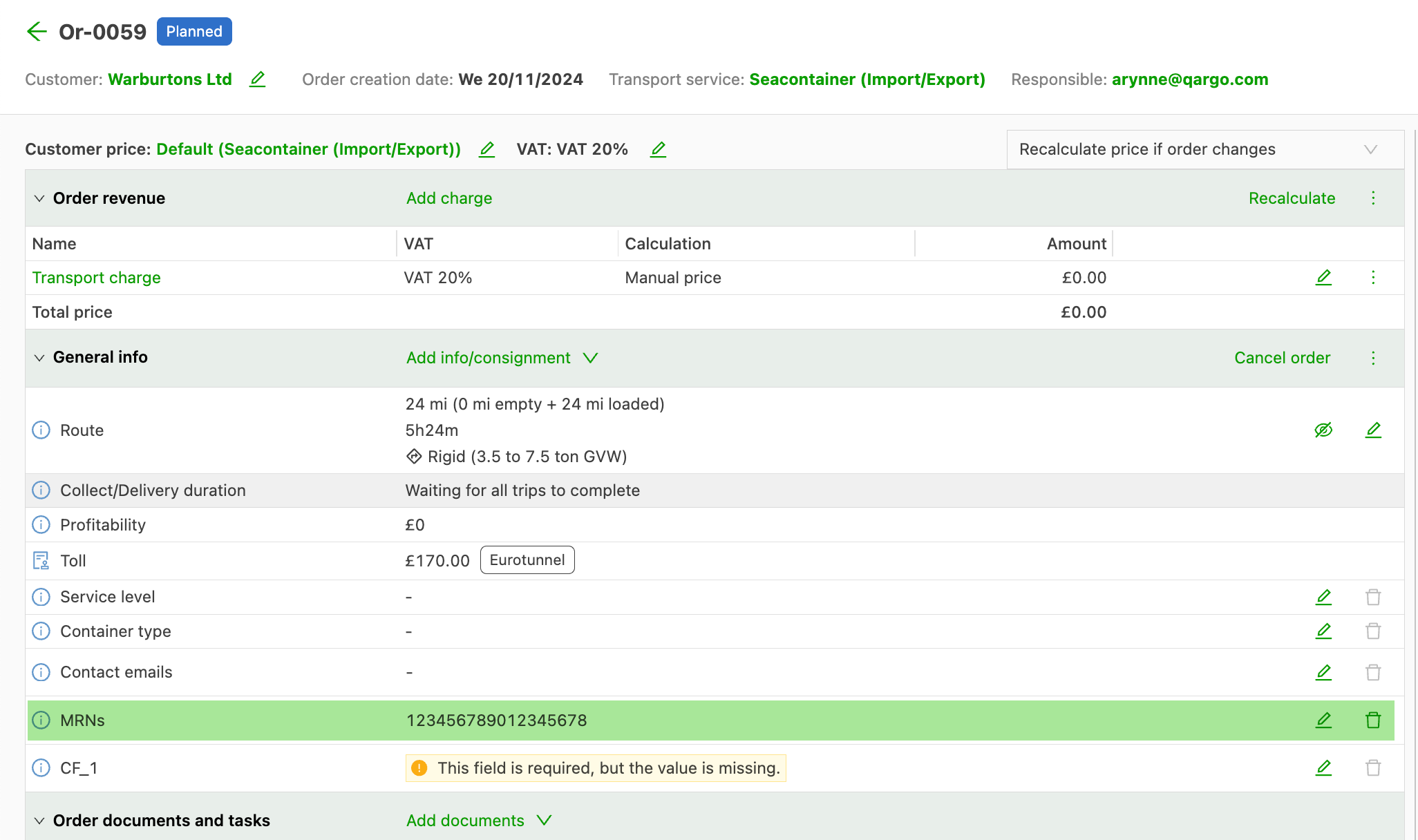
- The added MRN references now appear in the order. They are copied into the customs information once the order is planned to a load.
Adding customs information to an order
Shipments now have three dedicated sections for customs data: Export, Import and Transit. Each section holds the reference numbers and document types relevant to that leg of the journey. These fields automatically pre-populate the customs pre-notification on the load when the order is planned.
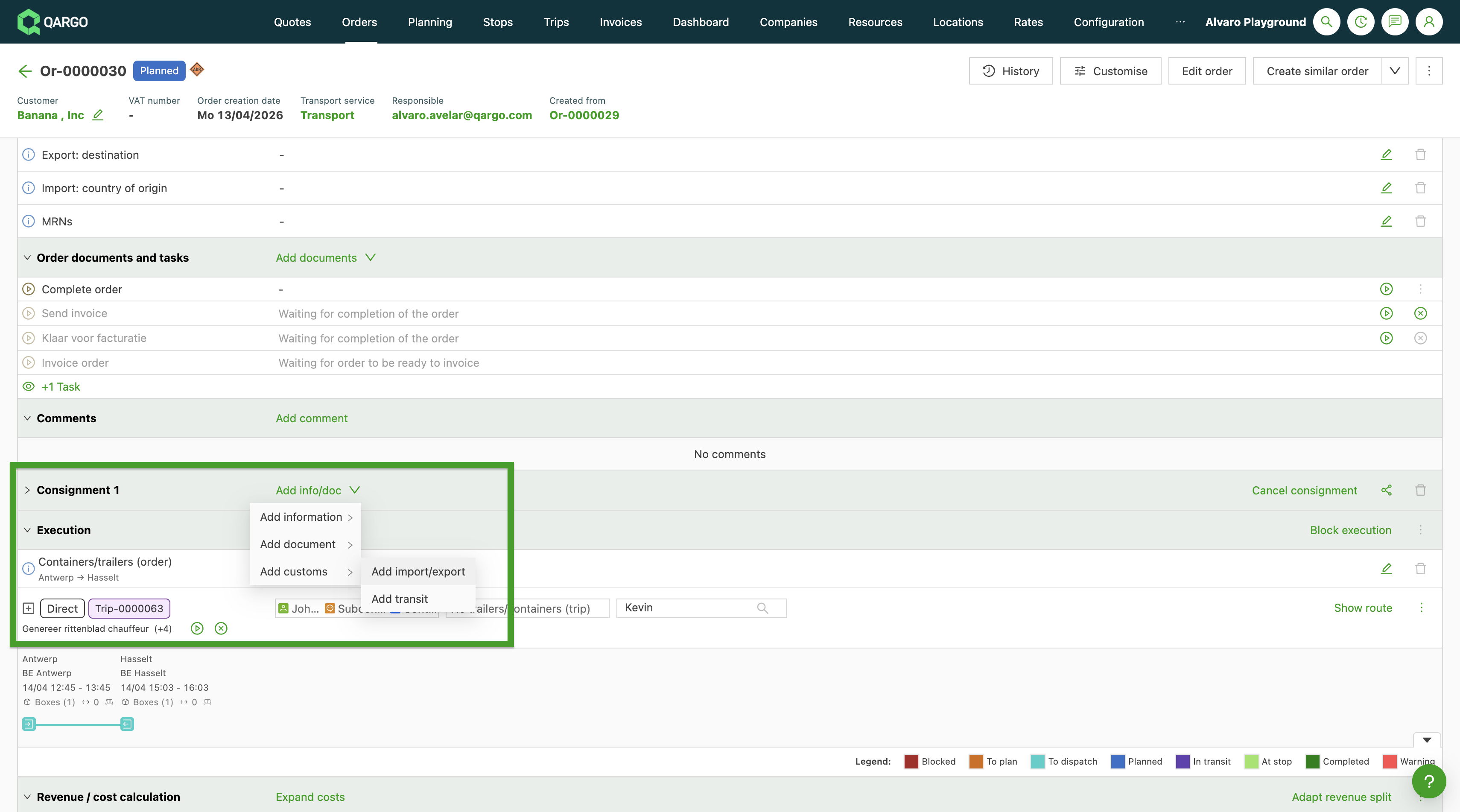
To add customs information on an order:
- Open the order and scroll to the Shipment section.
- Click Add info/doc > Add customs information.
- The customs panel opens with Export, Import and Transit tabs.
- Fill in the relevant fields under each tab.
- Click Save.
Export fields
| Field | Notes |
|---|---|
| Country | All tenants |
| Document type | All tenants |
| Additional border process | All tenants |
| Export MRN | All tenants |
| Export DUCR | UK only |
| Export EXS | All tenants |
| Export emails | All tenants |
Import fields
| Field | Notes |
|---|---|
| Country | All tenants |
| Document type | All tenants |
| Additional border process | All tenants |
| Import MRN | All tenants |
| Import DUCR | UK only |
| Import ENS | All tenants |
| Temporary storage UCN | Belgium only |
| Temporary storage CRN | Belgium only |
| Import emails | All tenants |
Transit fields
| Field | Notes |
|---|---|
| Document type | e.g., T1, T2 |
| Additional border process | |
| Transit LRN | Assigned by the trader |
| Transit MRN | Assigned by customs |
| Transit start office code | |
| Transit end office code | |
| Transit validity date |
Packaged item fields — goods of animal or plant origin
| Field | Description |
|---|---|
| SPS goods flag | Checkbox to mark items as sanitary and phytosanitary goods |
| SPS reference | Reference number assigned to the SPS certificate |
| GGB reference | Goods guarantee bond reference number |
Order list: customs columns
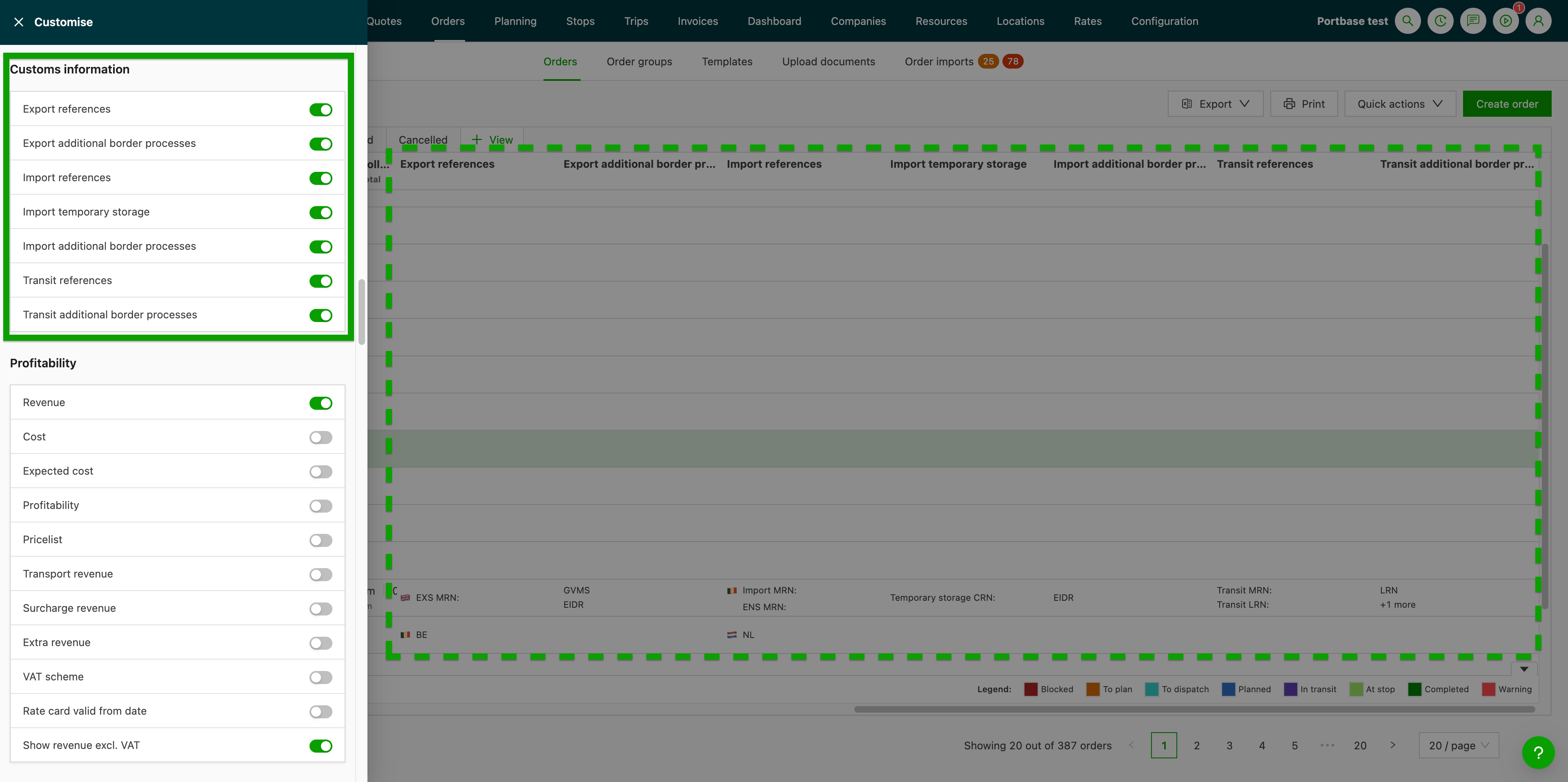
Customs reference data (Export MRN, Import MRN, etc.) can be displayed as columns in the Order list for at-a-glance visibility and filtering. Use Customize columns to turn them on.
Loads
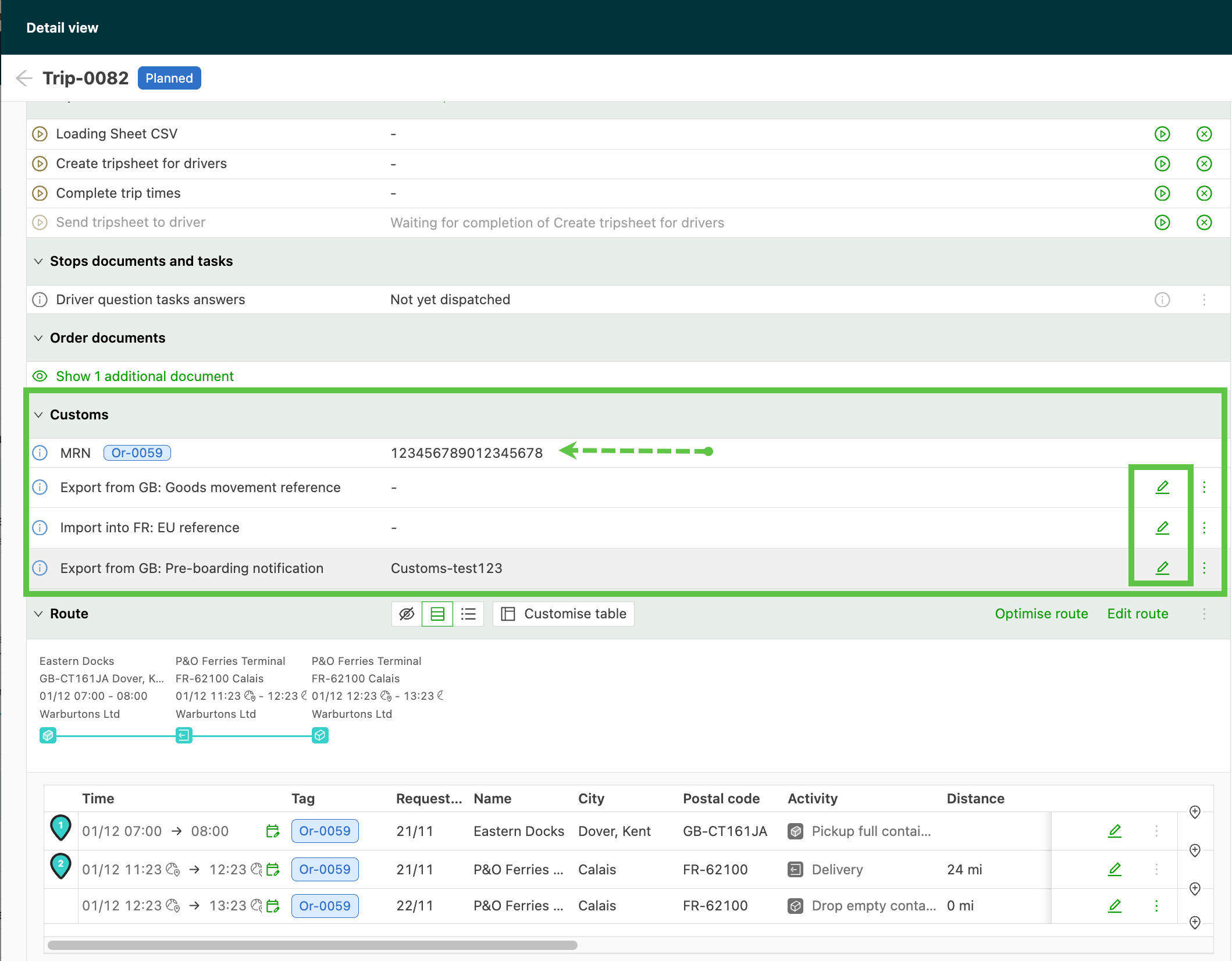
At the load level, when the load crosses a border into a customs territory (i.e., GB–EU), an Import / Export customs pre-notification can be created automatically. The customs pre-notification automatically contains the available order information (i.e., MRN) and details of the exit and entry countries. These are identified from the border crossing found on the route.
-
The customs information can be added to or updated by clicking the edit icon next to the line to update, or by clicking the line itself.
-
The system indicates where details are missing.
- Use the edit icon or click the line to add or modify details.
-
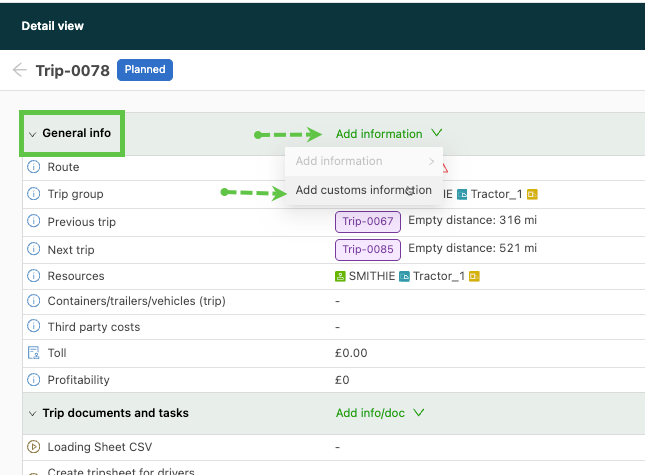
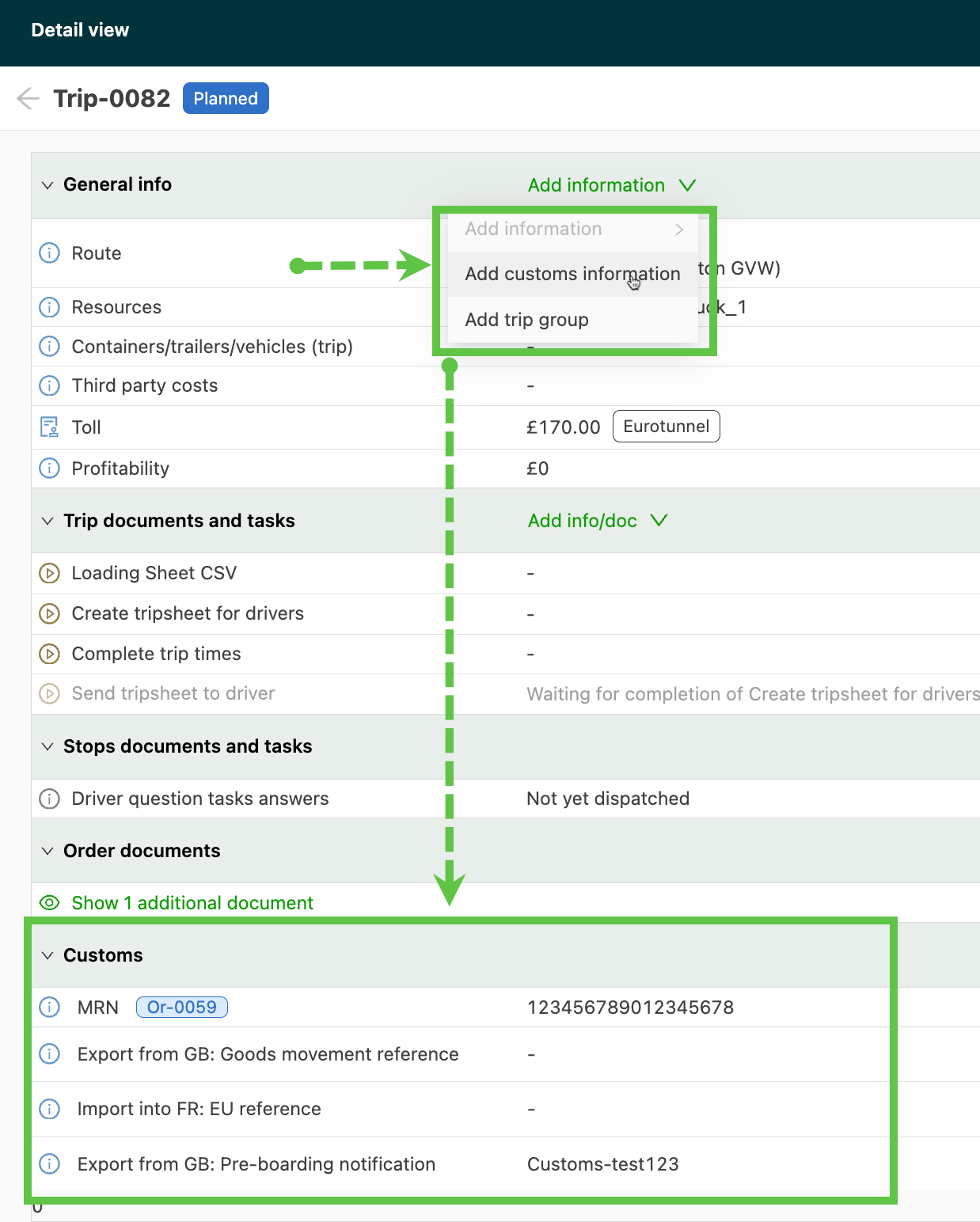
If the customs information was not created on the load, it can be added manually under General info > Add information > Add customs information.
- Enter the relevant reference numbers and details in the Add customs information panel.
- This information is then copied into the load details, under the Customs section.
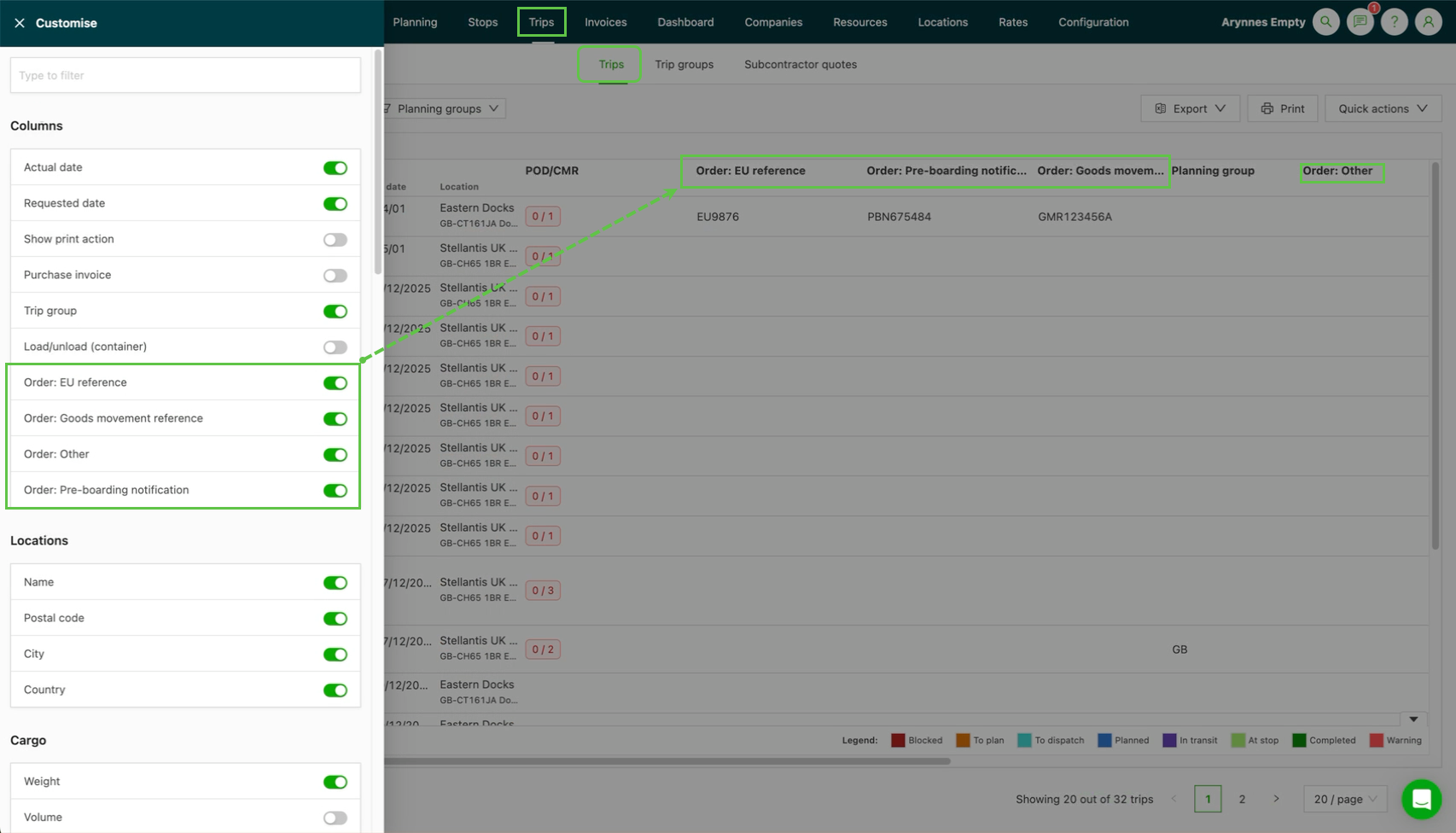
- Customs details can be viewed in the Loads list view.
- Use the customize feature to show the columns in the list.
- When an order with shipment customs fields is planned to a load, the Export MRN, Import MRN, Transit MRN and related fields automatically pre-populate the customs pre-notification, including the border-crossing countries from the route. If both export and import fields are filled in on the order, both sets populate their respective pre-notification sections.