DP World: container terminal bookings
How to configure and book visits for DP World
Table of contents
Introduction
To request this integration, contact Qargo via the chat bubble or at integrations@qargo.com. Qargo then contacts DP World.
The DP World integration supports scheduling appointments (handlings) and truck visits (bookings) for the DP World Antwerp Gateway and the Empty Container service. The DP World terminal is used to import and export containers and to store empty containers.
Terminology
| appointment | Creates a pre-announcement and returns the PA number. Similar to a handling. |
|---|---|
| truck-visit-appointment | Creates a truck visit appointment and returns the TAS number, i.e., makes a visit or container booking. |
| AGW | Antwerp Gateway is the terminal where (full) containers are stored. Most bookings use this terminal. |
| EDS | Empty Depot Service is the terminal where empty containers are stored. A visit to this terminal is only booked to pick up or drop off empty containers that will not be shipped. |
Features & limitations
The DP World integration uses an SFTP connection to send messages to DP World to create appointments or truck visits. After a message is sent to DP World, a response usually takes a couple of minutes. This limitation is mainly on DP World’s side and cannot be made much faster. While the response is pending, the related task keeps spinning.
Managing pre-notifications/handlings
To send status requests to DP World, all the correct information must be filled in on the order. This information can be overwritten in the booking data. If mandatory information is missing, the task prompts the user to fill in the required information. Once all the required data is filled in, click the first handling task to send an appointment to DP World.
Receiving container statuses
This integration does not support container status information.
Managing bookings
Two tasks are involved in making a booking in Qargo. The Create container booking task (second task) is used for the internal representation of the visit in Qargo. In this task, the user can create a new booking or link the appointment to an existing booking or visit.
Operational/day-to-day use
Order detail
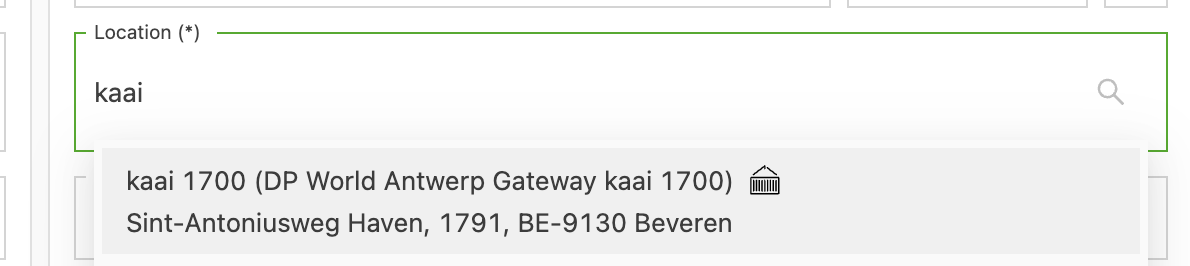
When a new order is created and a terminal is selected, the terminal container icon appears:
After the order is saved, a booking object also appears:
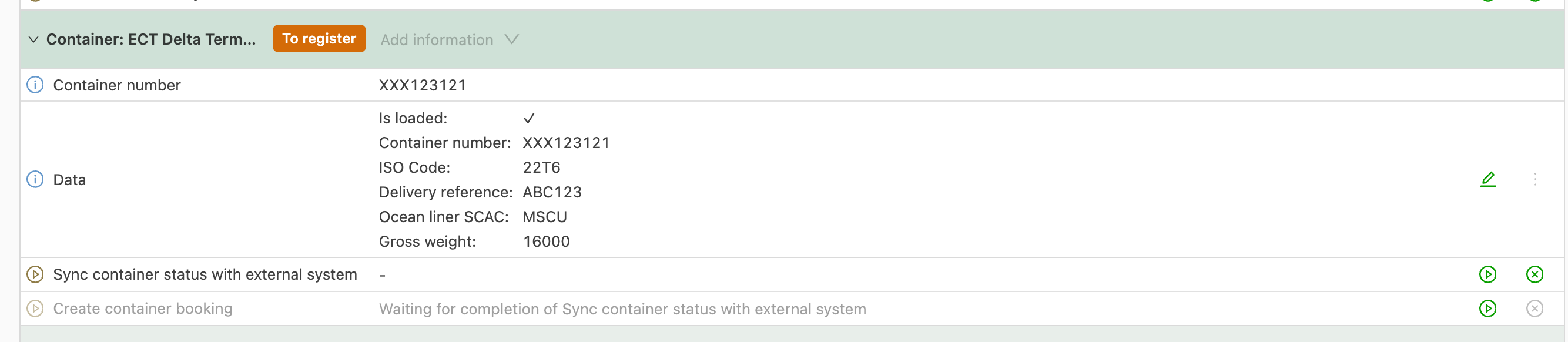
The booking has the status to register, which means the pre-announcement has not been done yet.
To make a container booking, the action to perform at the container terminal must first be announced. This pre-announcement includes reference numbers, details about the transport and the requested action.
Prepare pre-announcement
The required fields for all announcements are:
- Container no.
- Container ISO code
Depending on the location (AGW or EDS) and the activity (pickup/drop-off), additional fields are required.
Antwerp Gateway Services
Antwerp Gateway is the terminal where (full) containers are stored. Most bookings use this terminal.
Pickup at Antwerp Gateway Services
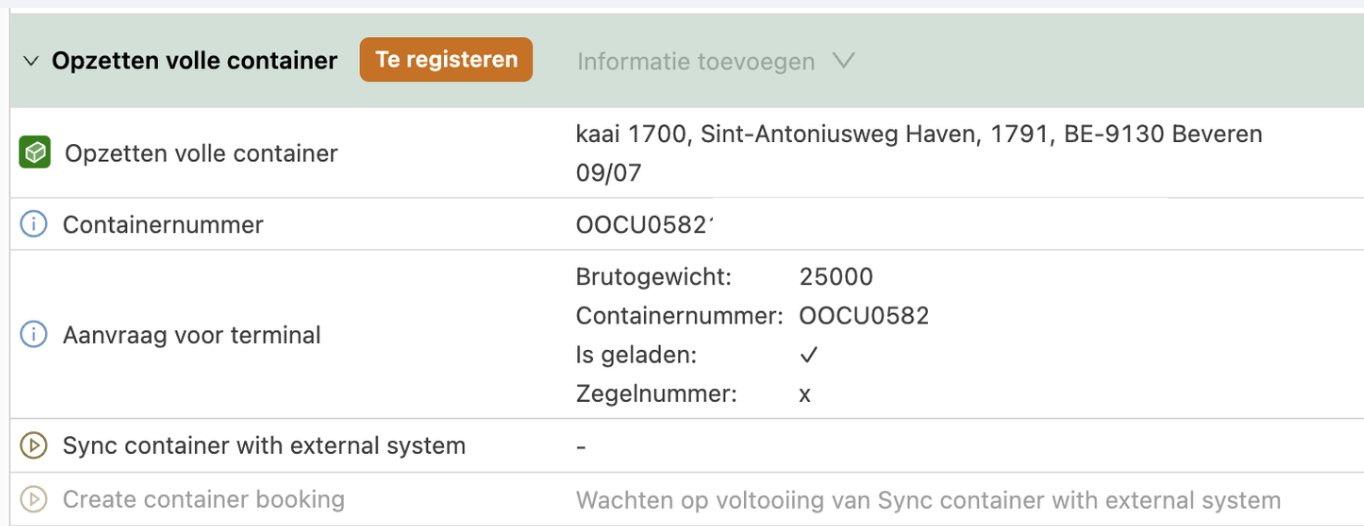
When a full container is picked up at the AGW, the following section is shown in the order detail. To make the announcement, a PIN code is also required in addition to the container no. and ISO code.
Drop-off with booking at Antwerp Gateway Services (drop-off export)
When a drop-off takes place at the AGS and a delivery/booking reference is filled in for the container (the reference is prefilled from the stop), a message announcing the drop-off of the container is sent when the “Sync container with external system” task is executed.
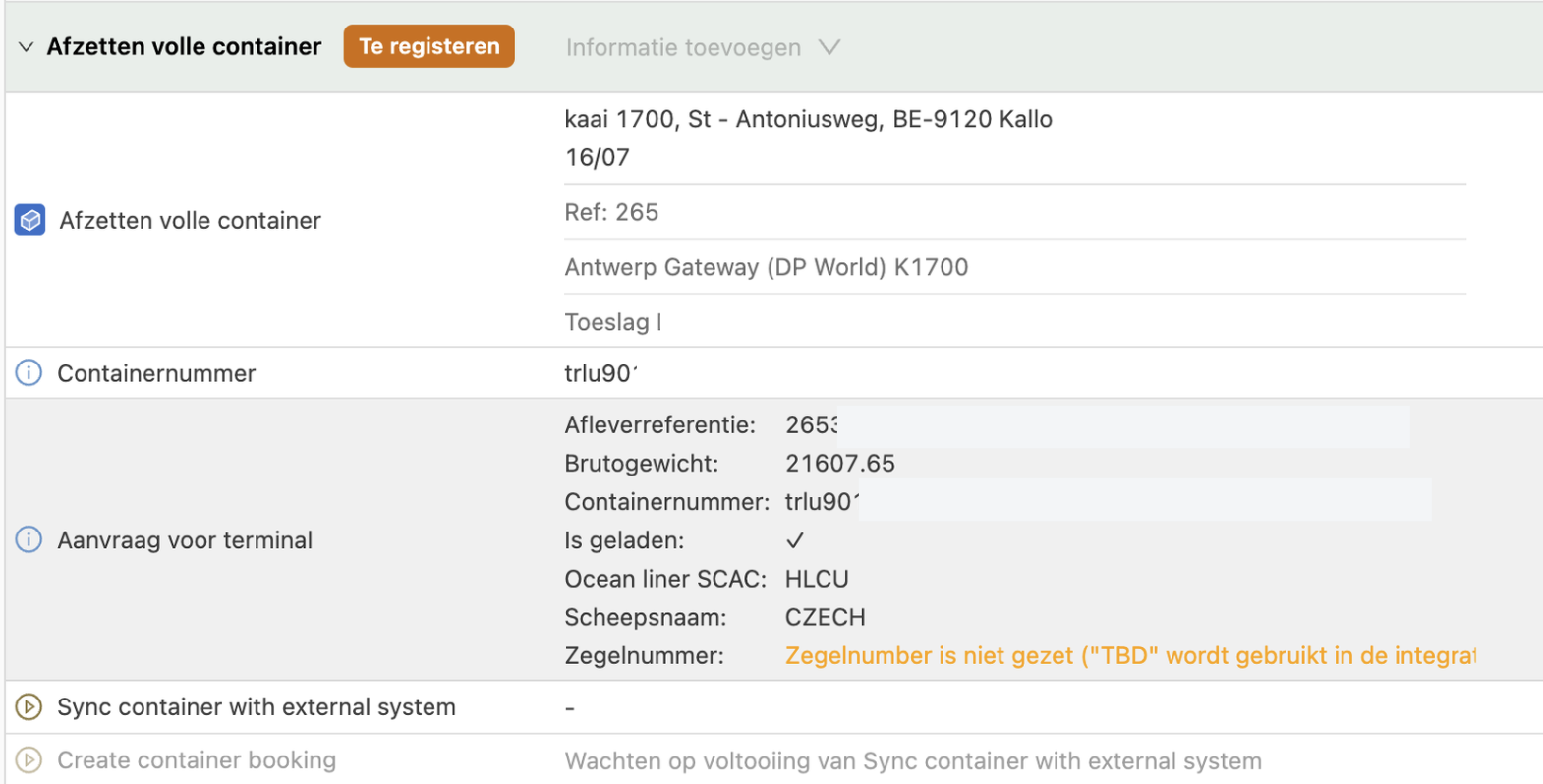
Drop-off without booking at Antwerp Gateway Services (drop-off import)
When the “Sync container with external system” task is executed without a delivery reference, a drop-off without booking is announced.
Empty Depot Services
Empty Depot Service is the terminal where empty containers are stored. A visit to this terminal is only booked to pick up or drop off empty containers that will not be shipped.
Pickup empty at Empty Depot Service
Empty container pickups take place at the Empty Depot Service. No additional information is required besides the container no. and ISO type.
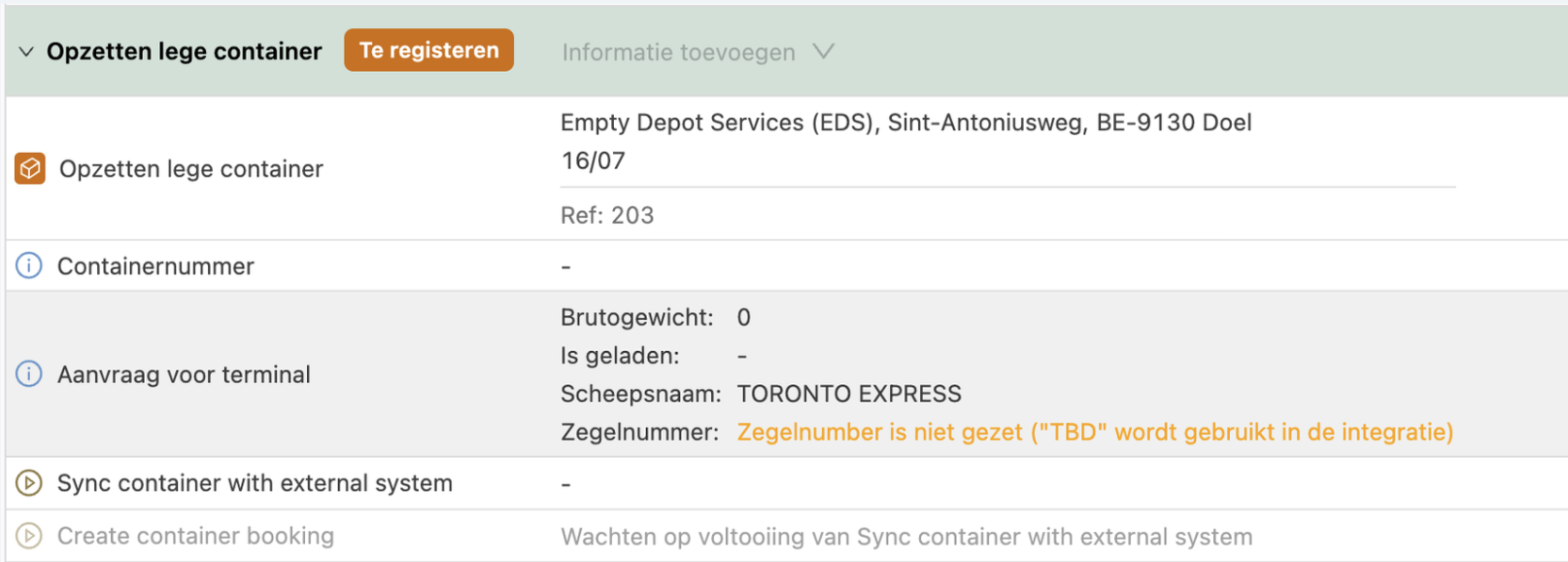
Drop off empty at Empty Depot Service
Empty containers can also be dropped off in the same way. No additional information is required besides the container no. and ISO type.
Execute pre-announcement
Once the “Sync container status with external system” task is completed, a pre-announcement is created and the status changes from to register to registered.
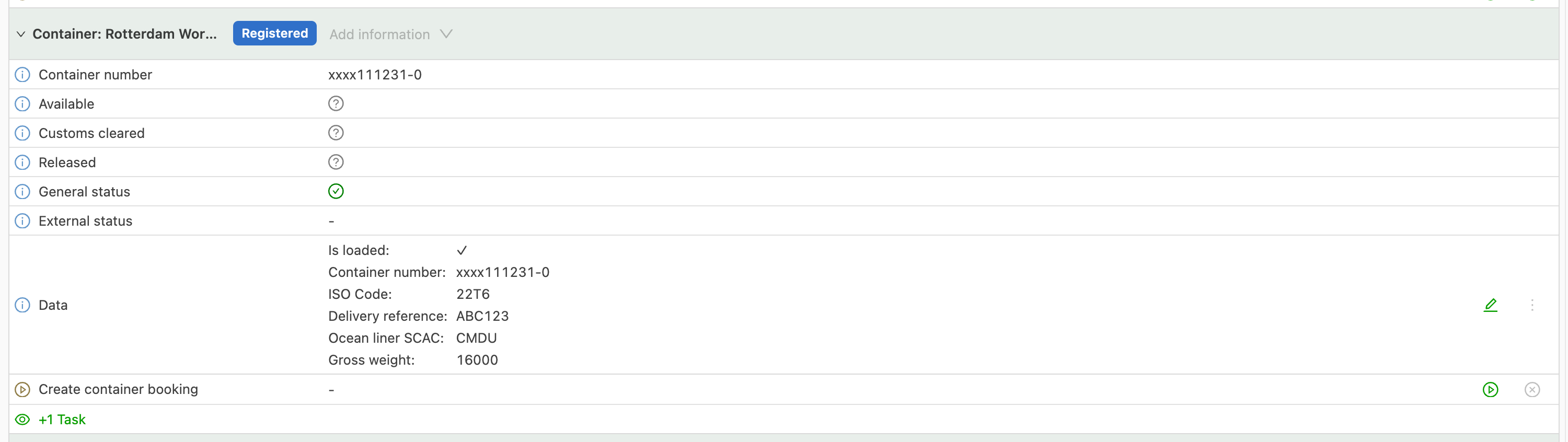
The pre-announcement includes reference numbers, details about the transport and the requested action. It is then sent to DP World and appears on the portal.
The booking task then combines multiple pre-announcements to create an appointment/visit. This task sends the requested time slot so that a time slot and TAS code are returned.
The handling tasks provide details about the container transportation to the operator, while the booking tasks are about scheduling the visit.
Planning
In the To plan section, click Customize:
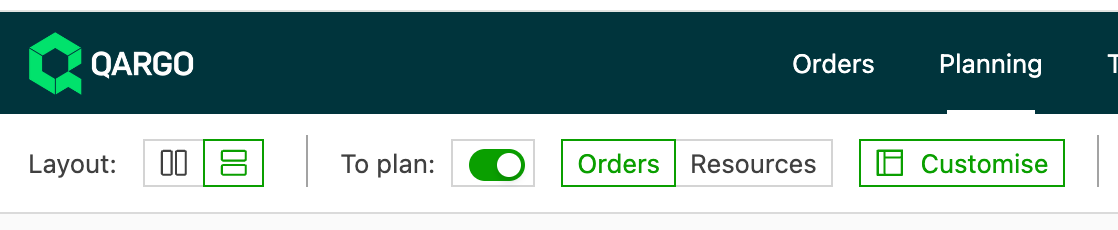
Then activate the Container status column:
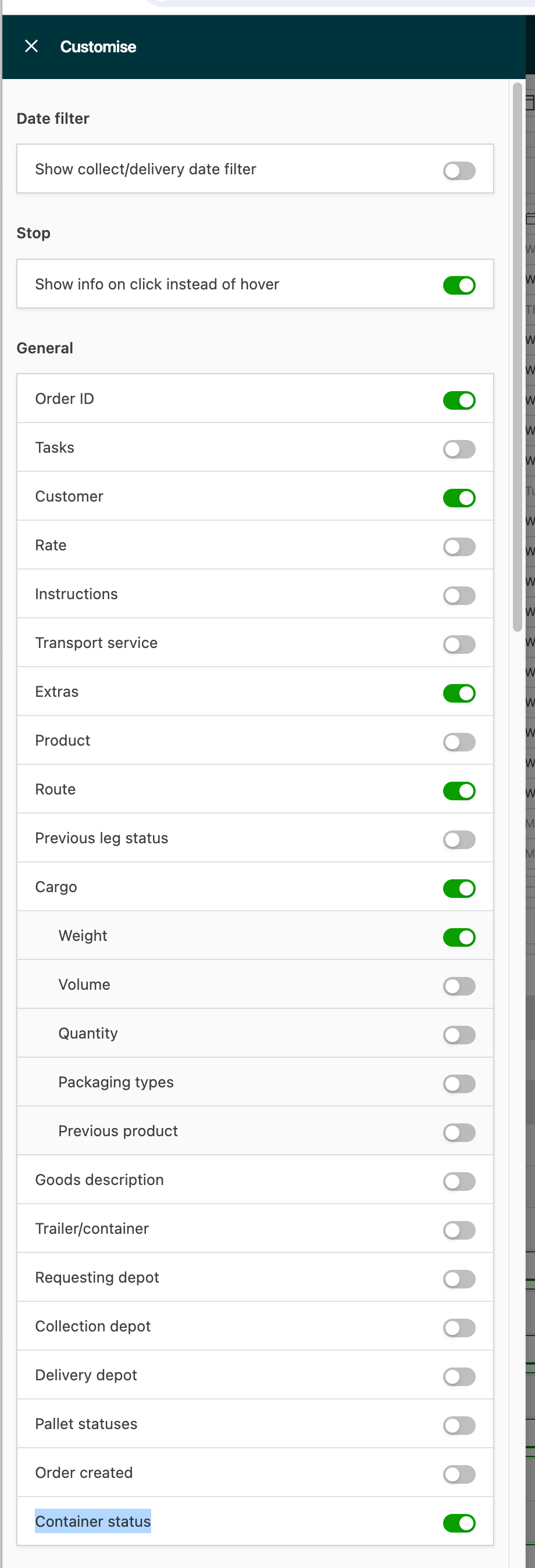
The container status is then shown in the To plan screen.
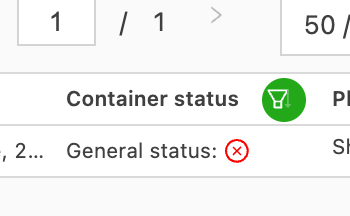
A dedicated container terminal booking screen is also available in To plan:

Clicking this button shows an overview of all container terminal statuses:

Configuration done by the customer
Supported terminals & operators
DP World operates two terminals in the port of Antwerp: Antwerp Gateway (AGW) and Empty Depot Service (EDS). AGW is used for import and export scenarios, while EDS is only meant for exchanging empty containers. The AGW operator has SMDG code 1700, and the EDS operator uses SMDG code 1710.
Location configuration
Terminal locations must be linked to the correct DP World terminals. To do this, go to the location detail via the Locations tab.

Then open the location and select the correct terminal:
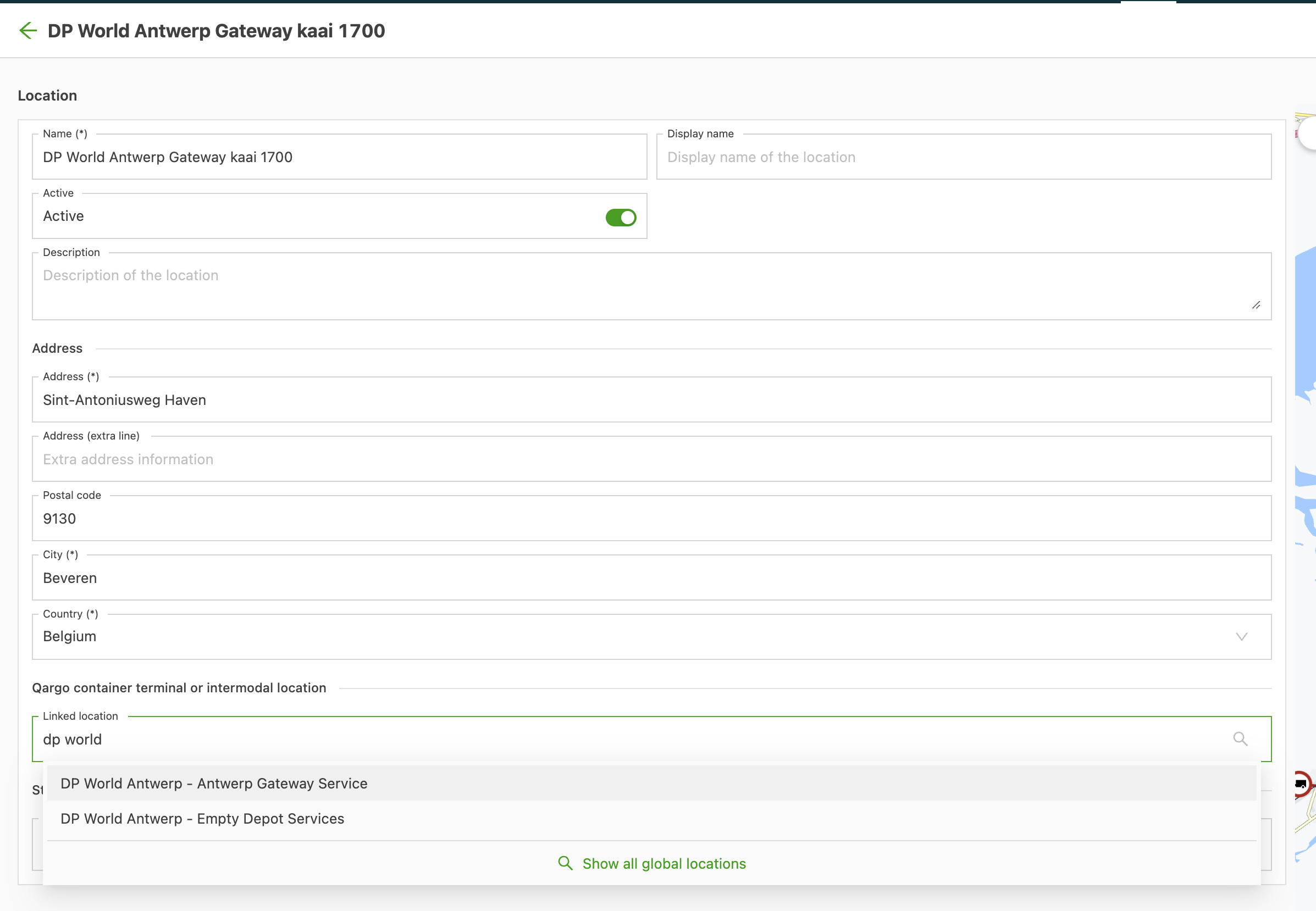
The full list of DP World terminals is:
- DP World Antwerp - Antwerp Gateway Services: use this one for Kaai 1700
- DP World Antwerp - Empty Depot Services: use this one for empties
After selecting the correct location, click Save.
Configuration done by Qargo
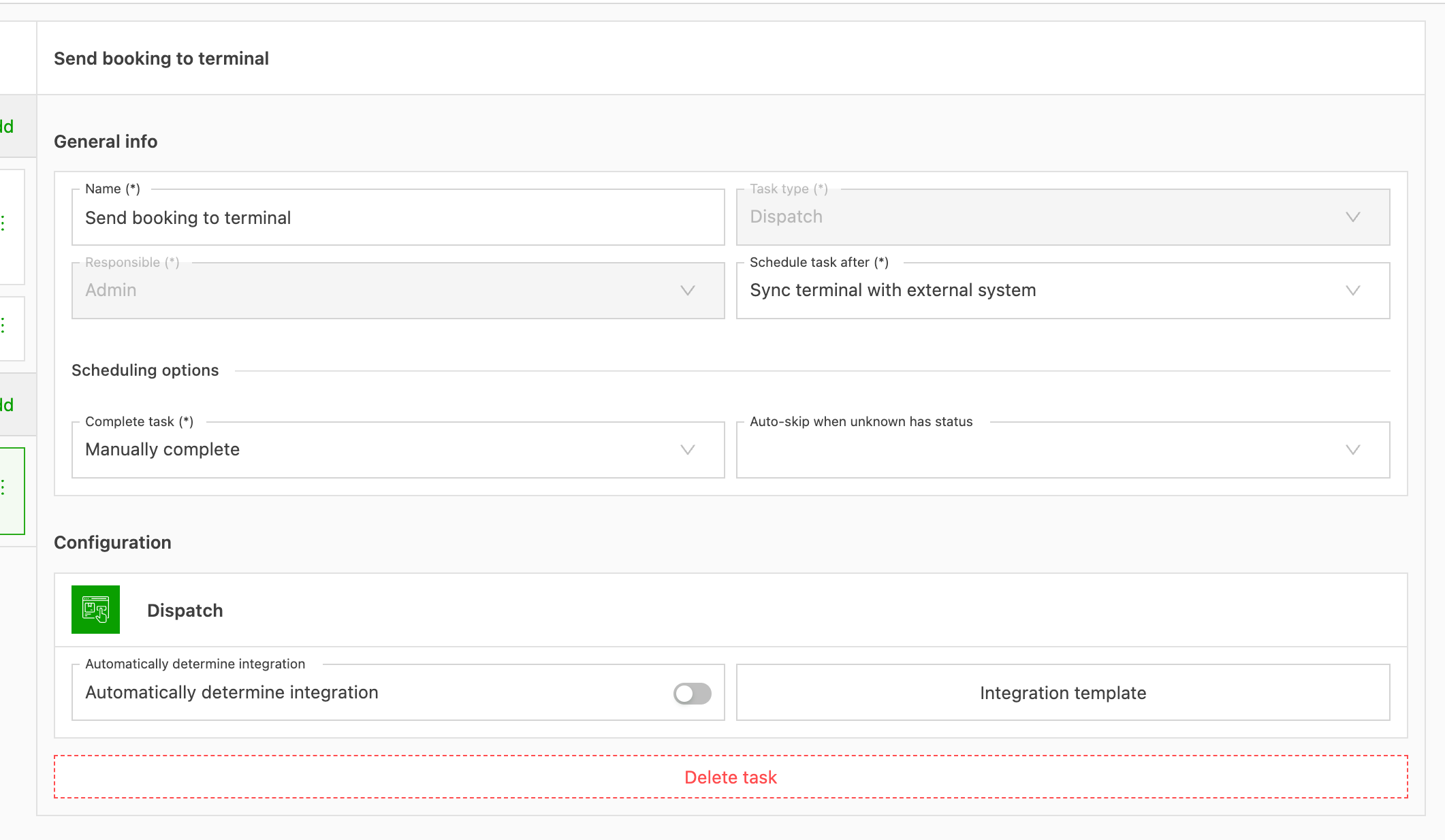
Configuration: Tasks
Go to the task configuration:

An additional “Container terminals” section should appear with the following tasks:
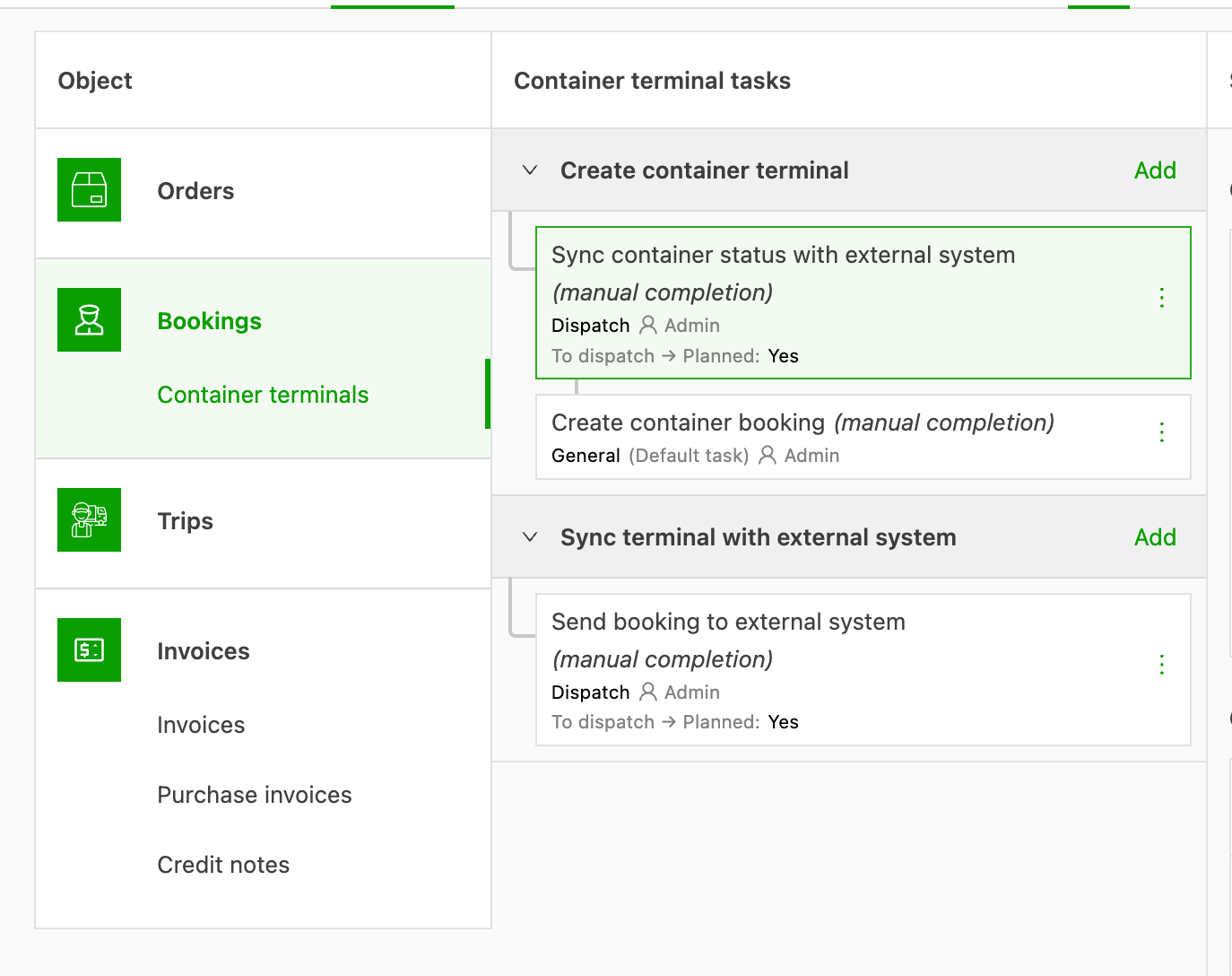
If these tasks are missing, click Add tasks and then Start from template. The following should appear:
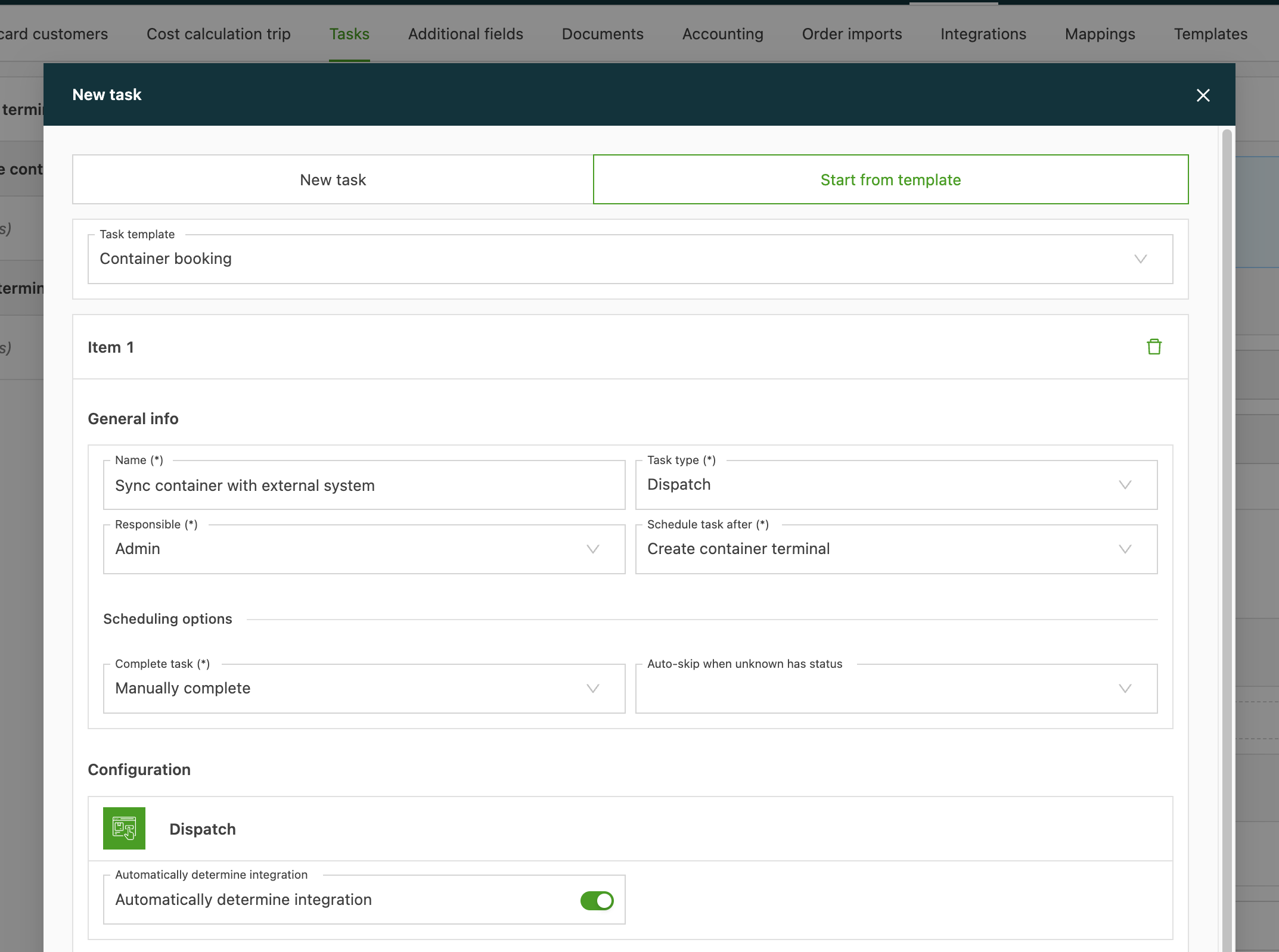
Then click Save.
The following tasks should appear:
-
Sync container status with external system: requests the status from DP World and displays it in Qargo. Ideally, this task is configured as Automatically complete.
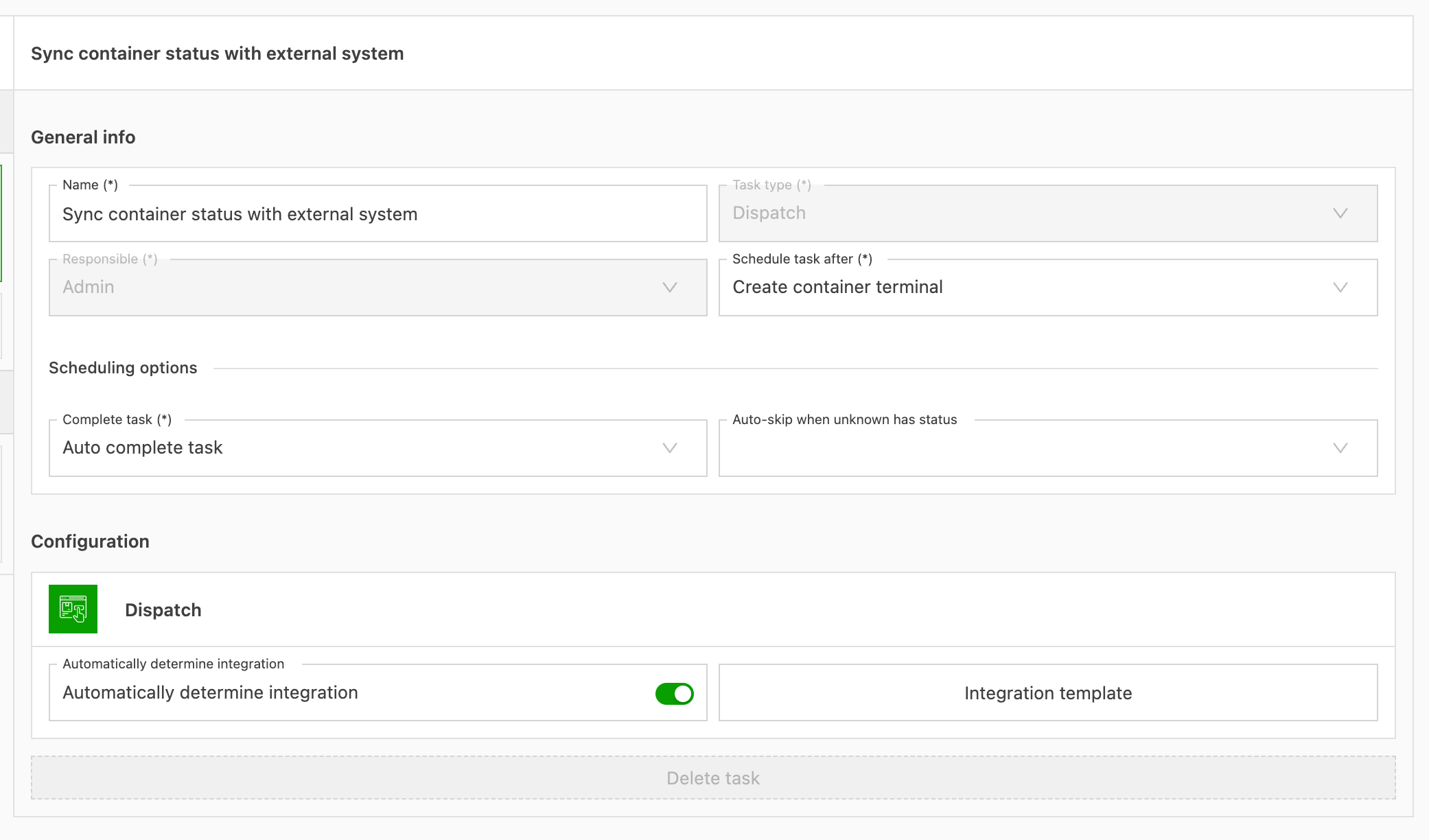
-
Create container booking: gathers the necessary information and creates the container booking, but does not yet send it to DP World.
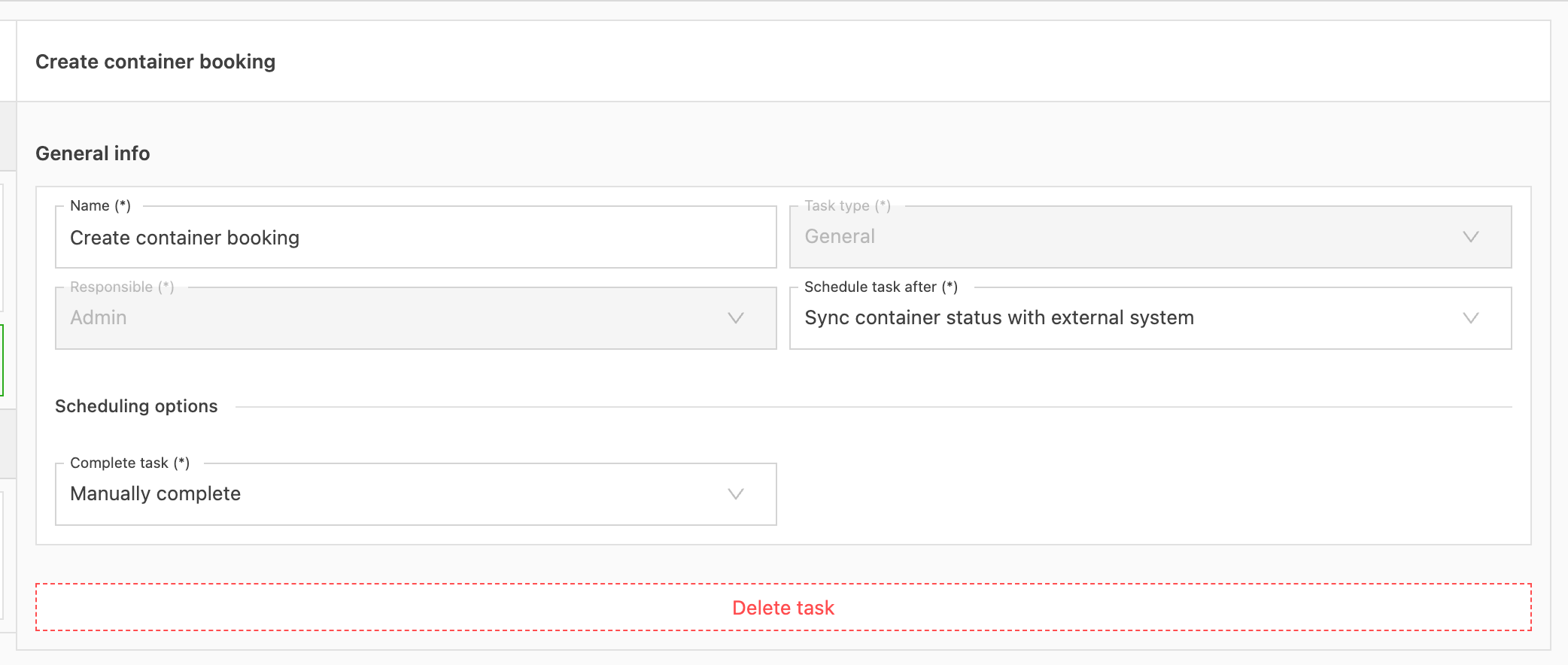
-
Send booking to terminal: sends the booking to DP World.