
Portbase: container terminal bookings
Table of contents
Getting started
To request API credentials, contact Portbase. Portbase charges a fee for this. After receiving the API credentials, contact the Qargo support team to set up the integration.
The Qargo support team needs these API credentials (= Portbase-access-key-id and a Portbase-secret-access-key) before the next steps can proceed.
Operational/day-to-day use
Order detail
When a new order is created and a terminal is selected, the terminal container icon appears:

After the order is saved, a booking object also appears:
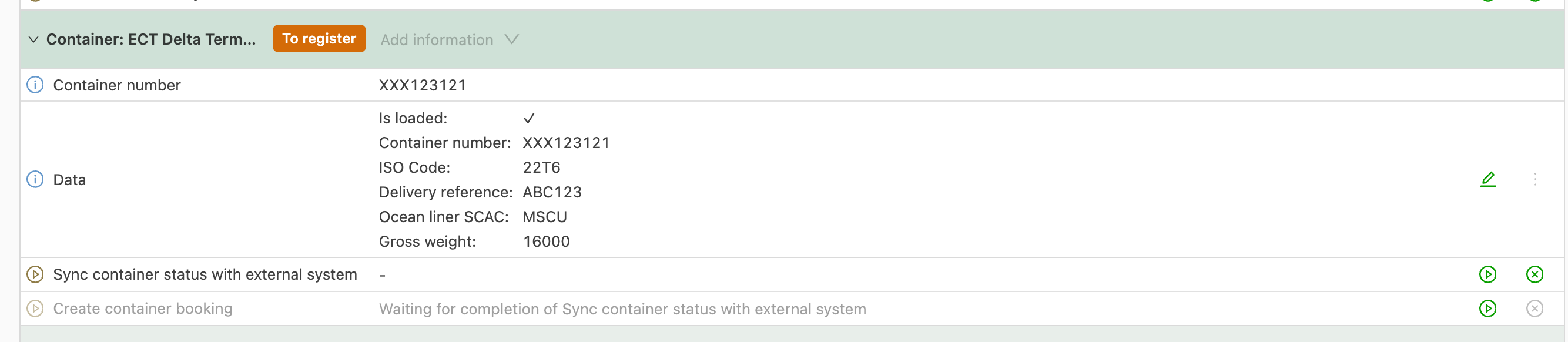
The booking has the status To register, which means the statuses haven’t been requested from Portbase yet.
Once the Sync container status with external system task is completed, status updates start coming in and the status changes from To register to Registered.
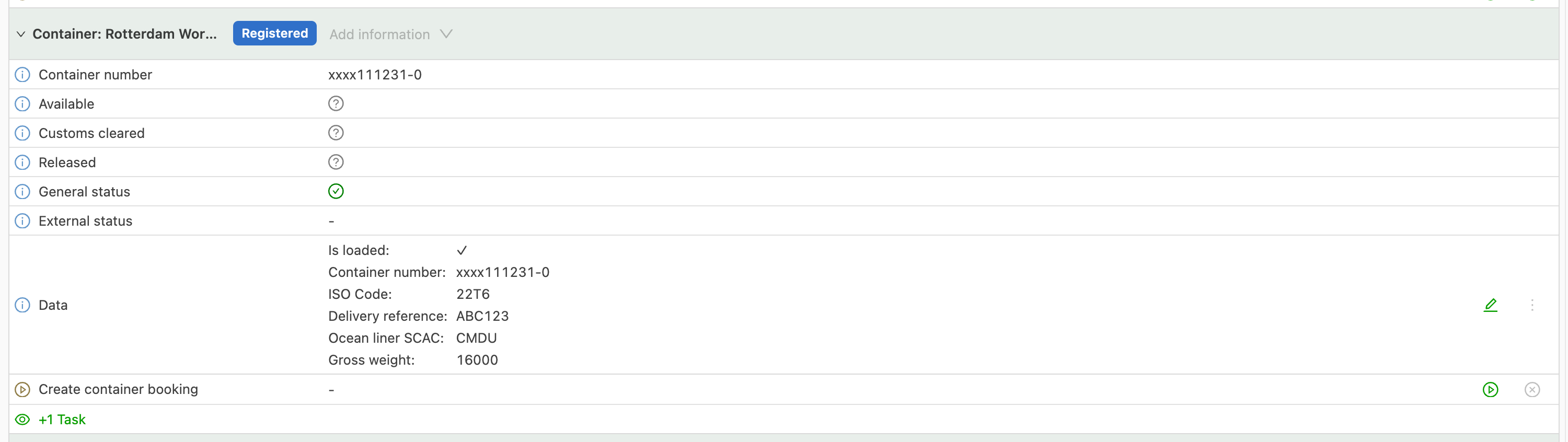
The statuses are the following:
- Available: the container has arrived at the port
- Customs cleared: the container has gone through customs clearance
- Released: the container has been released
- General status: a summary of all the statuses above
Icons:
- Question mark: no status information is available
- Green: everything is OK
- Red: there is an issue
This is similar to what is shown in Portbase.
Planning
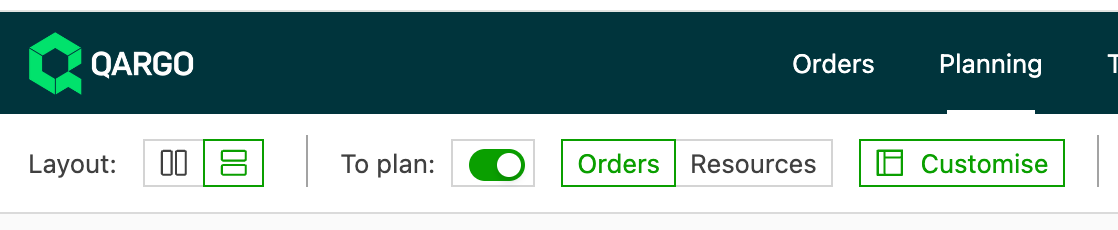
In the To plan section, click Customize:
Then activate the Container status column:
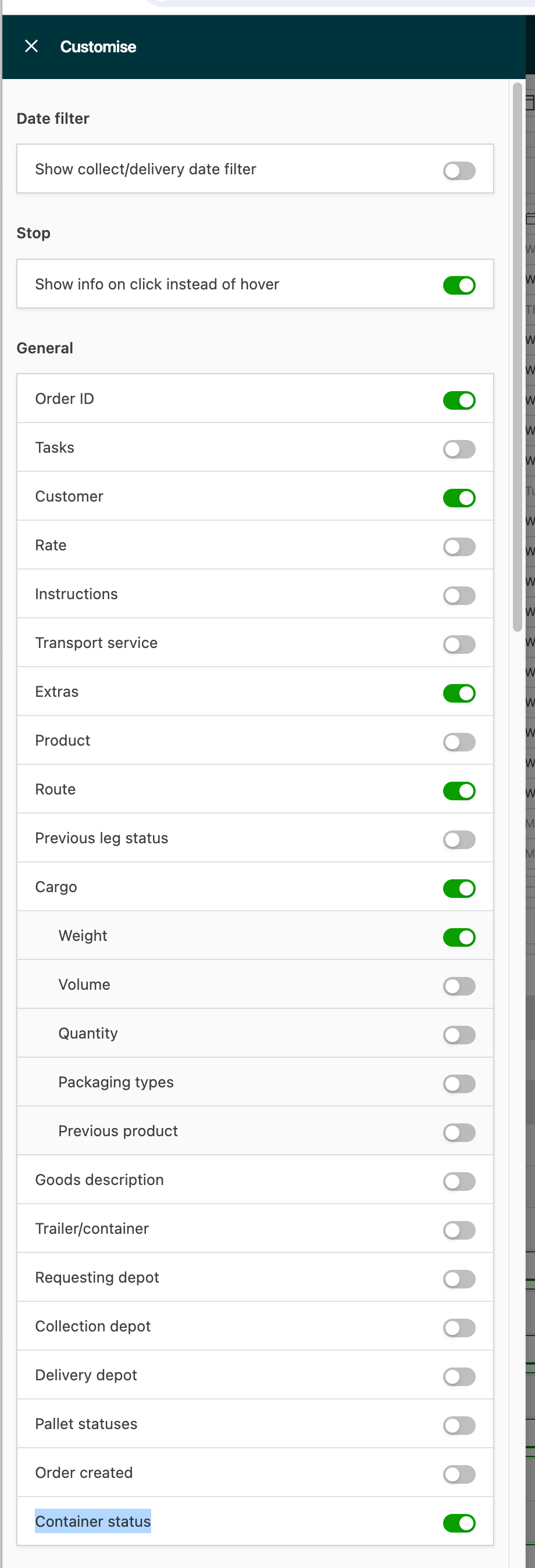
The container status is then shown on the To plan screen.
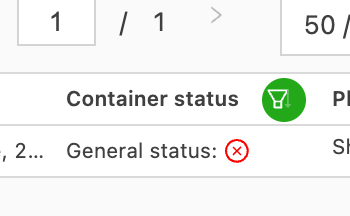
The To plan section also has a dedicated container terminal booking screen:

Clicking this button opens an overview of all container terminal statuses:

Configuration done by customer
Terminal locations must be linked to the correct Portbase terminals. To do this, go to the location detail via the Locations tab.

Then open the location and select the correct terminal:
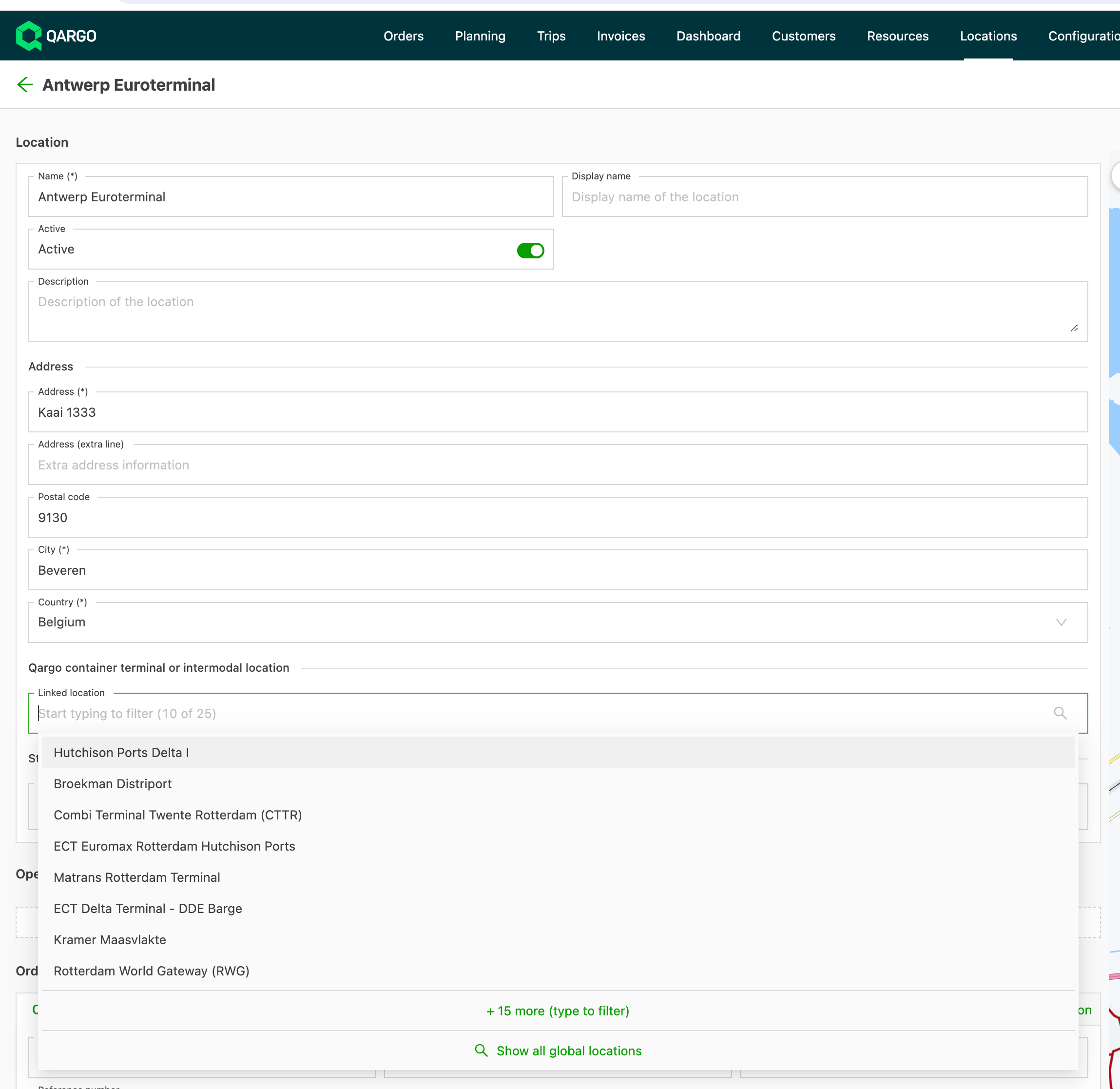
If the terminal isn’t listed, click Show all global locations to get the full list:
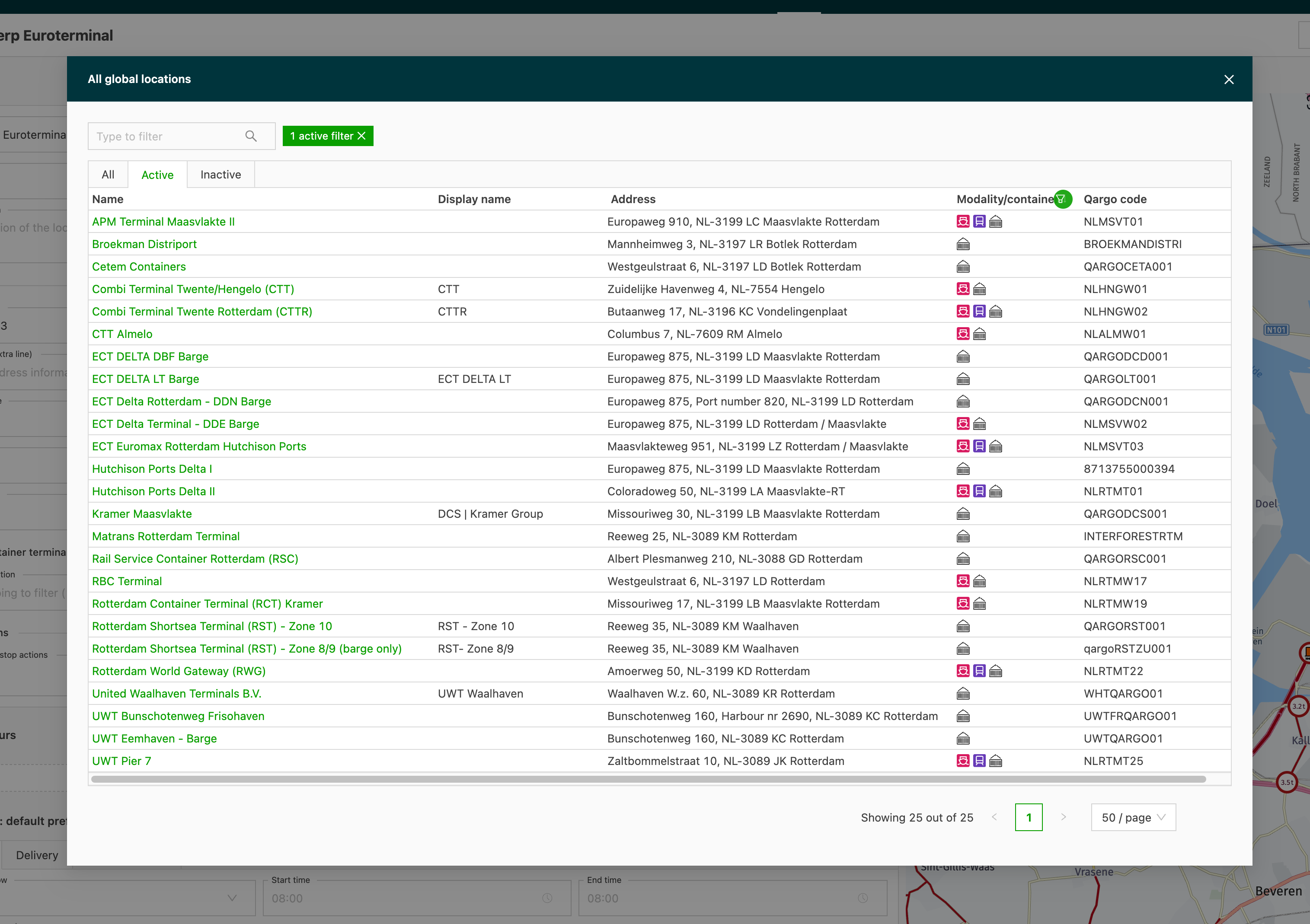
After selecting the correct location, remember to click Save.
Configuration done by Qargo
Configuration: Tasks
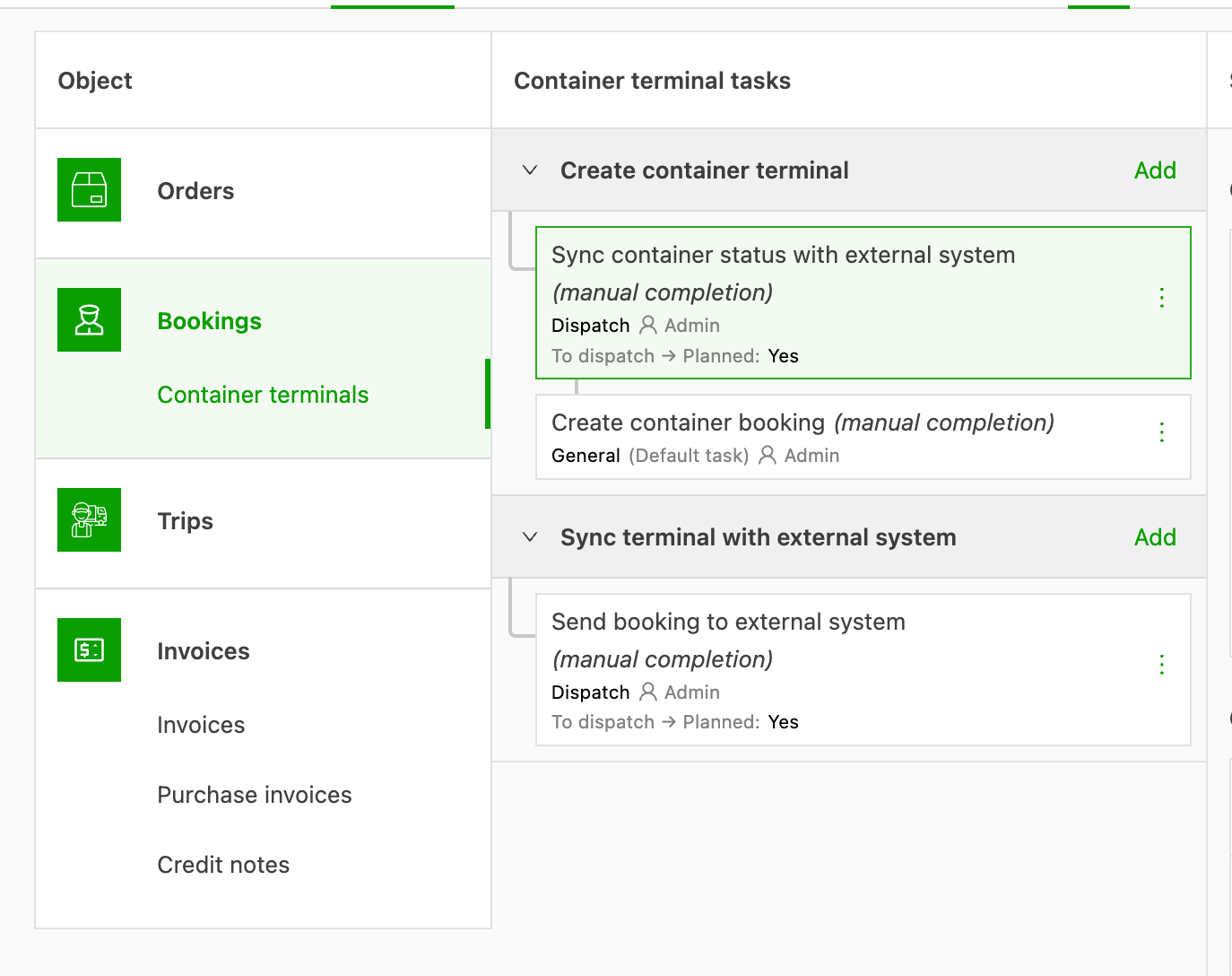
Go to the task configuration:

An additional Container terminals section shows the following tasks:
-
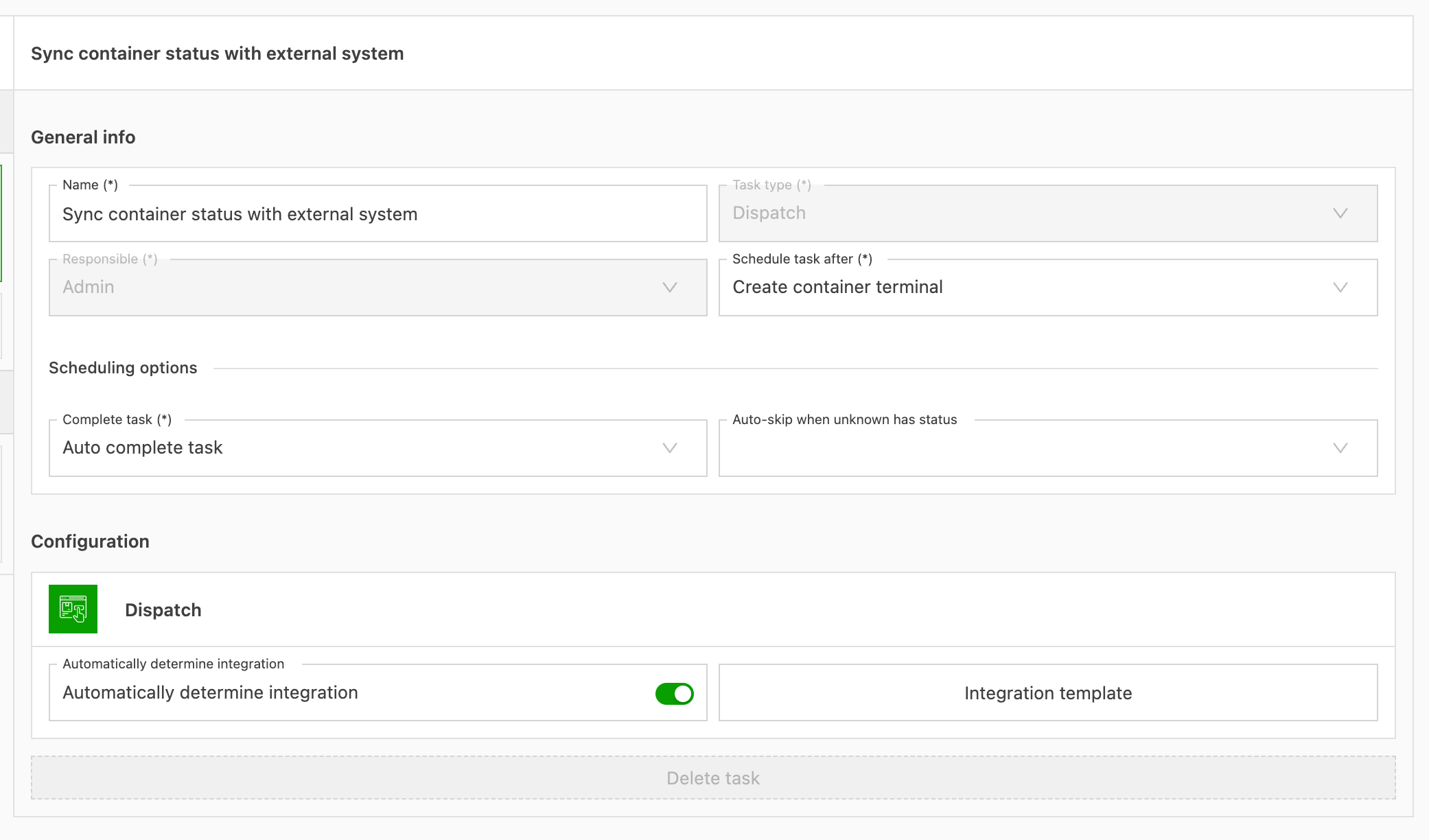
Sync container status with external system: requests the status from Portbase and displays it in Qargo. Ideally, this task is configured as Automatically complete.
-
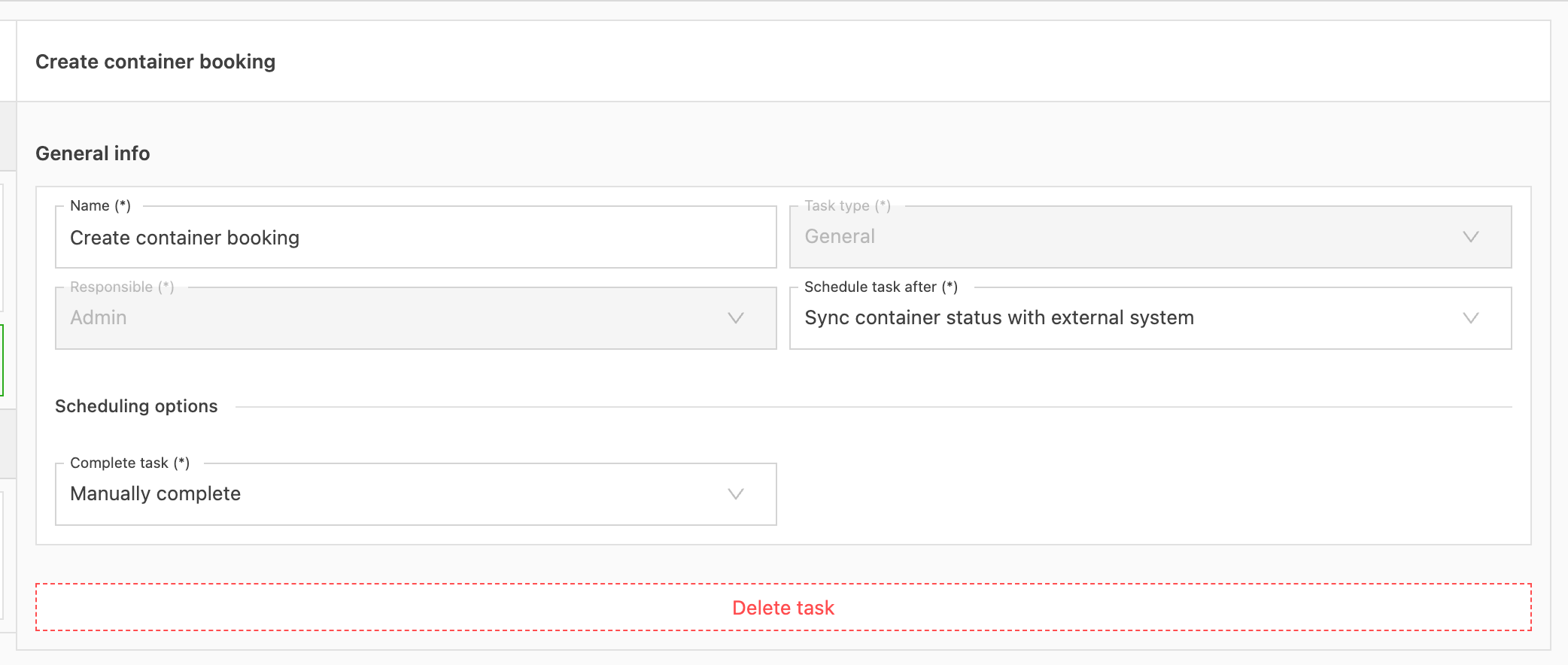
Create container booking: gathers the necessary information and creates the container booking, but does not yet send it to Portbase.
-
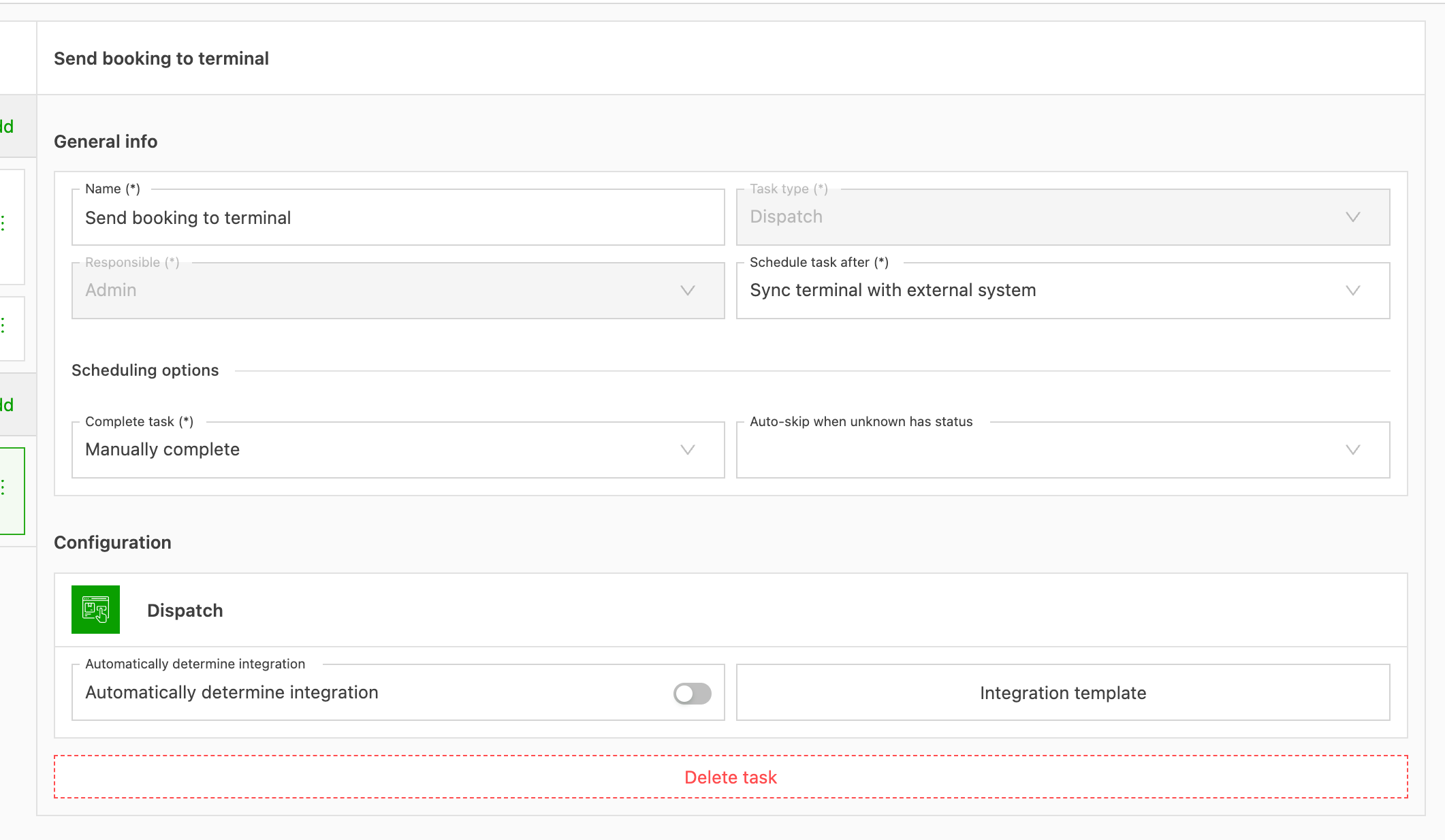
Send booking to terminal: sends the booking to Portbase.
Configuration: Organization settings
To enable container bookings, reach out to the Onboarding Manager, Account Manager, or Support.
Configuration: Integrations
Portbase should be listed under Configuration > Integration:
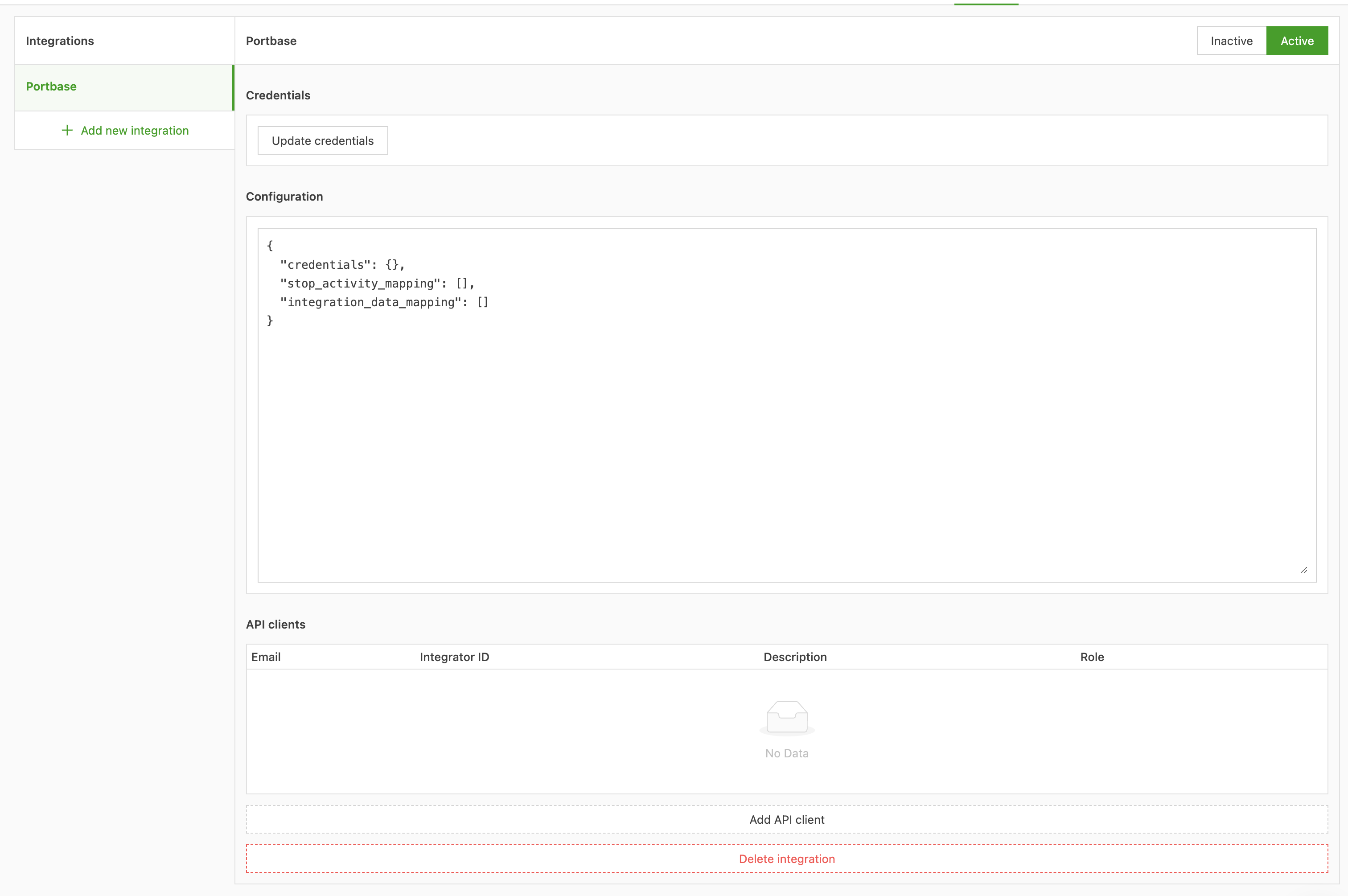
If it isn’t listed, contact the Qargo customer support team to have it activated.