
Deadheads
Use cases:
- Deadheads in Qargo move items, such as a trailer, from one location to another (point A to point B) without being tied to a particular order.
- Deadheads can also be linked to an order for actions that are or should be planned before or after the scheduled and linked load/shipment.
The steps below explain how to create a deadhead:
Creating a deadhead without orders:
Go to the planning board and find the resource (combination) to use for the deadhead. Click the small plus icon at the bottom of the planning board to add a deadhead without an order.
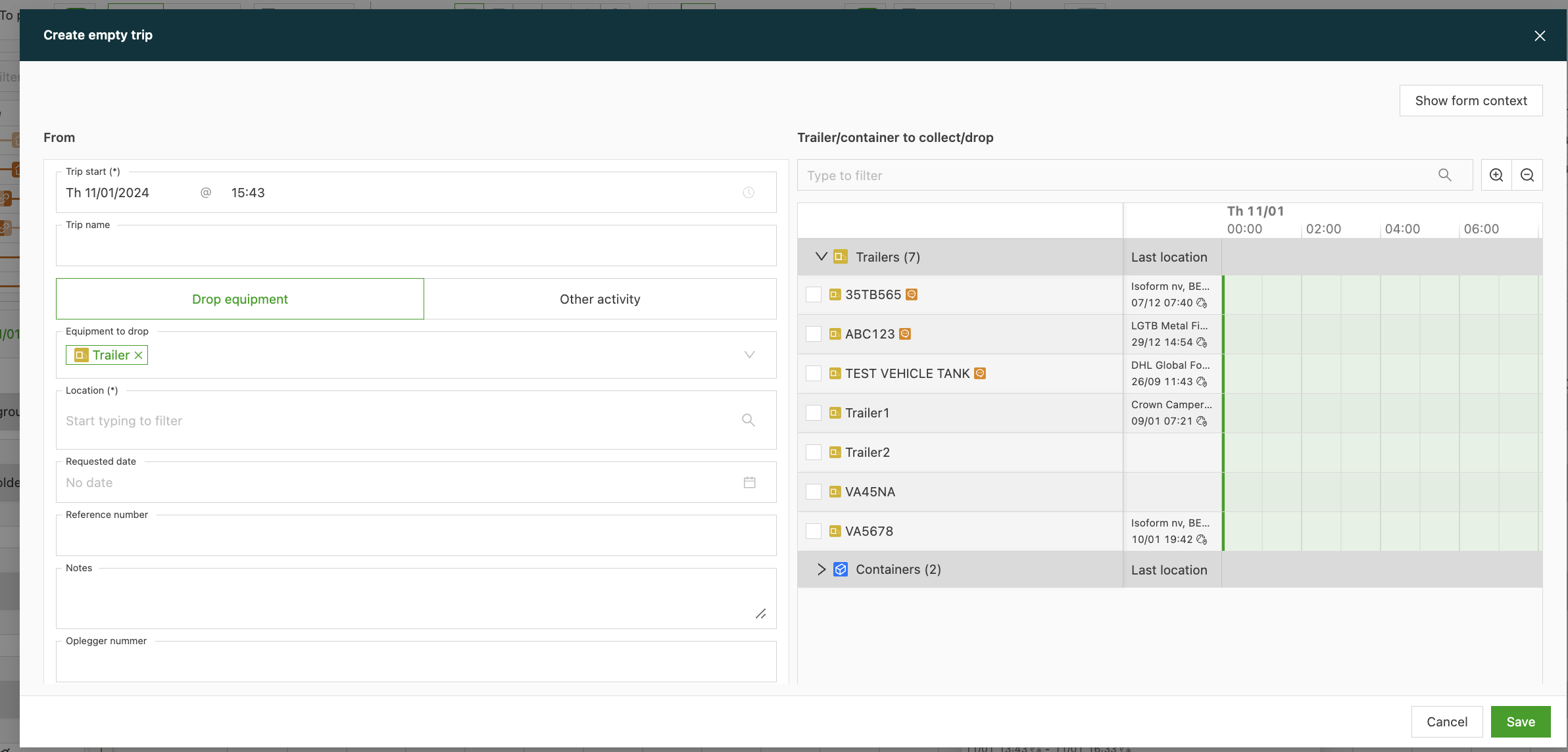
Specify the activity: Choose whether to pick up equipment or perform another activity, or to drop equipment or perform a different activity.
Enter the load details: Select the equipment to pick up (for example, a trailer) and set the destination, such as DP World Gateway.
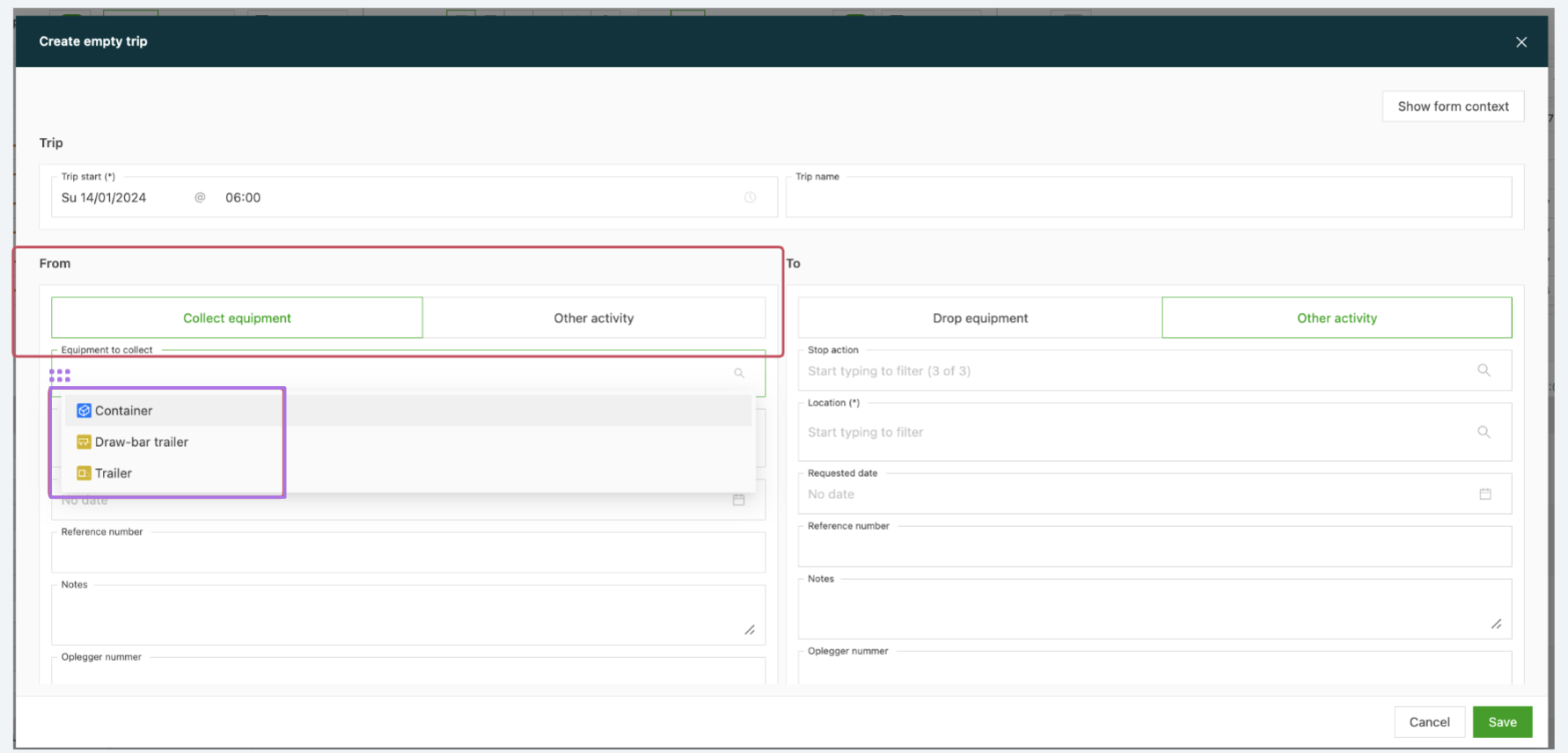
Fill in the load details and additional information: Enter details such as the date, reference number and notes for drivers. Set the time the load needs to start. Scroll down to select the resource (trailer or container).
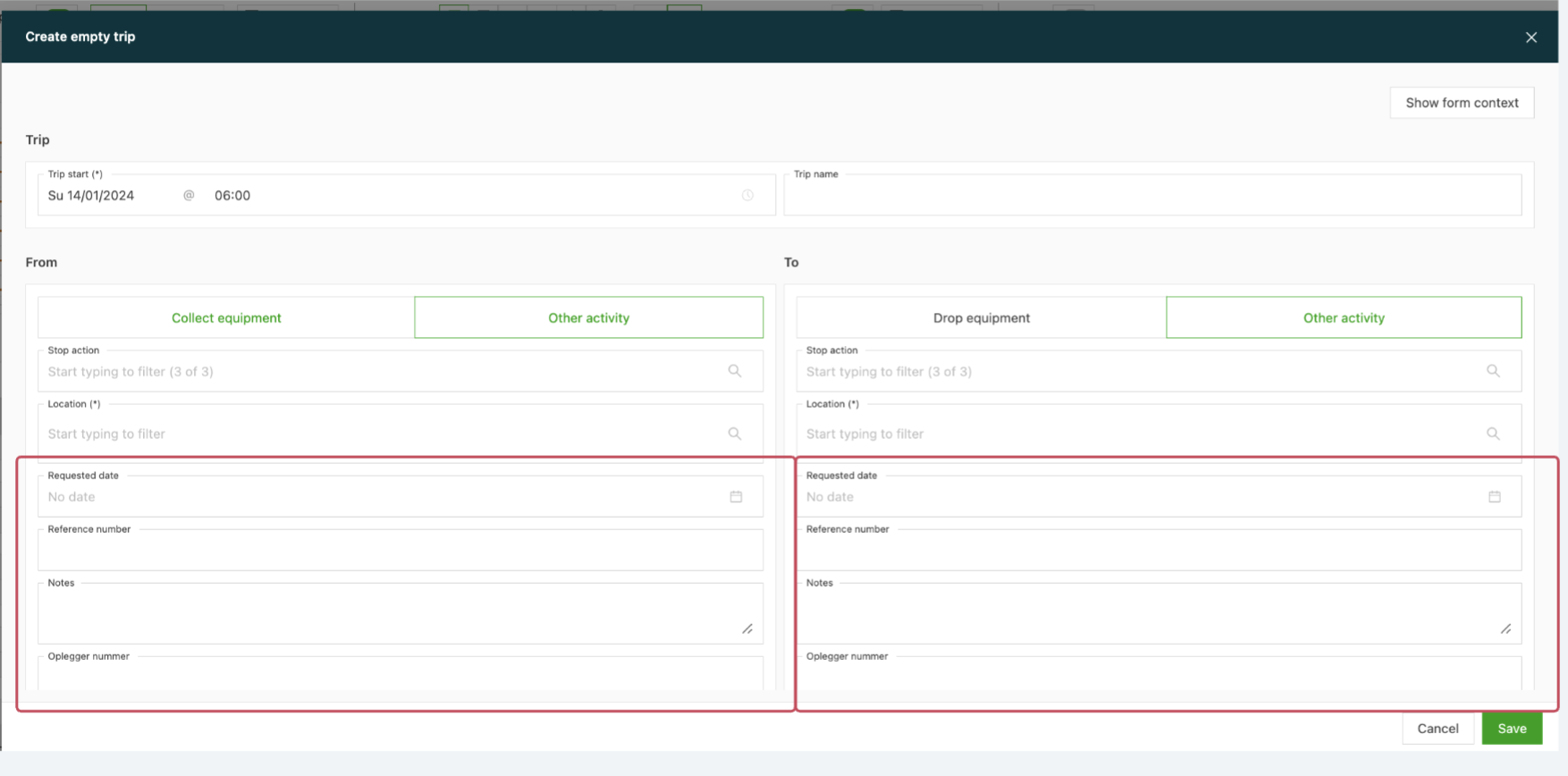
Save the deadhead: Save the new load. It becomes a driver instruction to move from point A to point B, without being linked to a specific order.
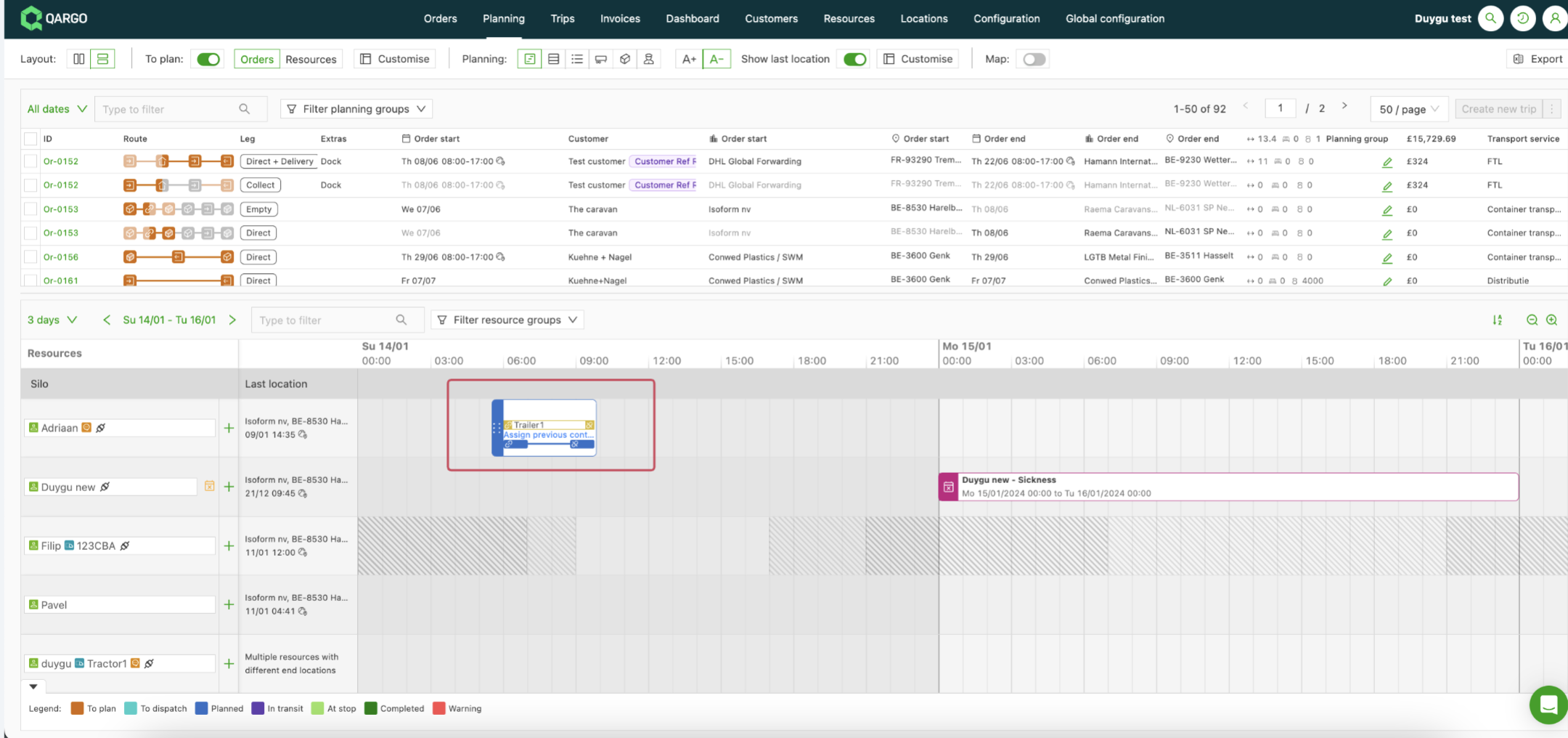
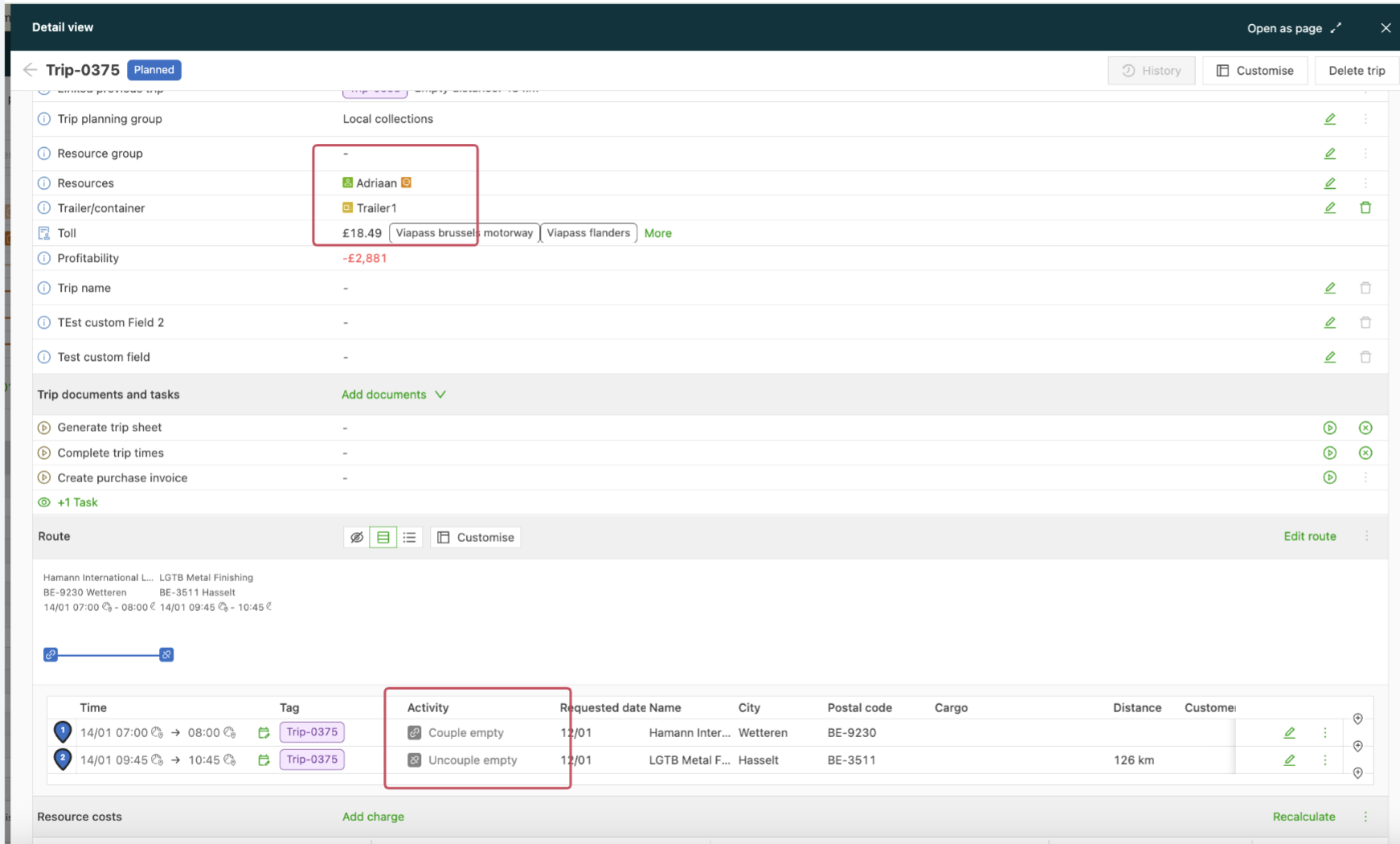
View it on the planning board: The planning board shows the new load, with the linked trailer and the stops for hooking and dropping.
Creating a deadhead within an order:
-
Deadheads can be added to existing orders. For example, before a scheduled load, specify that the driver needs to pick up an empty trailer.
-
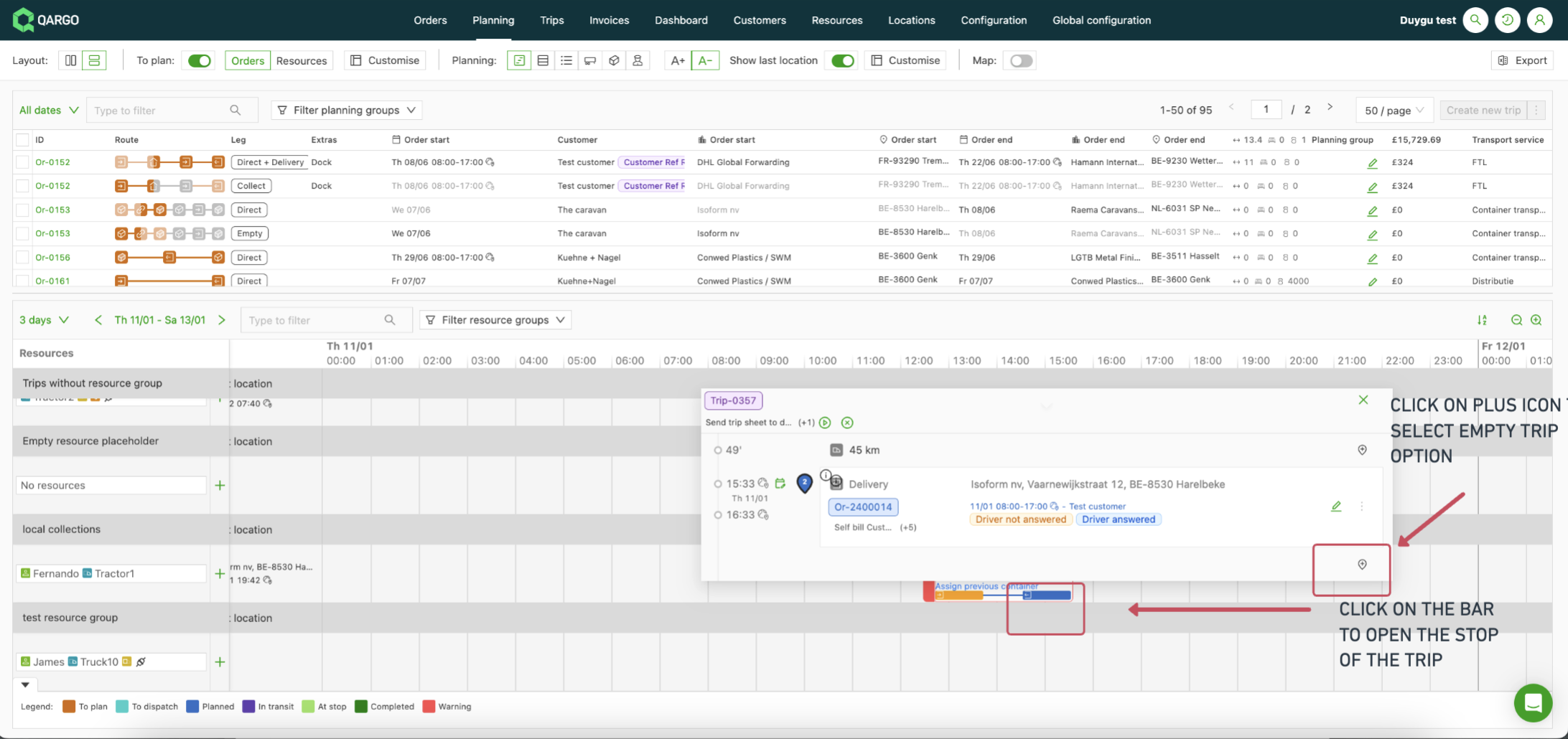
To add an extra stop to the order, open the stop of the order before or after which the deadhead should be planned. Then select the Create deadhead option via the plus icon.
-
Specify whether to hook or drop the empty trailer and select the pickup point.
-
Save the changes. The deadhead is then added to the existing order. Use this feature to create additional loads from point A to point B without linking them to a specific job.