
Fixing export to Palletline orders
Fixing errors that appear when exporting to Palletline
Table of contents
- manifestDate: Consignment cannot be updated with manifest date older than today.
- deliverySurcharges: Surcharge X cannot be applied to postcode X for this hub with this service level
- FullPalletSpaces: Pallet space must be greater than 0.
- Expected either Amazon ASN number or Amazon FBA number to be filled in for delivery stop
- DeliveryPostcode: Invalid postcode
- deliveryPostcode’: [‘Missing value.’], ‘deliveryDepot’: [‘Unable to set the missing Depot from the postcode
- DeliveryFromTime’: [‘The time difference between From and To should be between 04:00 and 06:00 hours.’], ‘deliveryToTime’: [‘The time difference between From and To should be between 04:00 and 06:00 hours.’]
To see all the errors, click the play button with the red dot in the top right:

This opens a screen with all the errors:

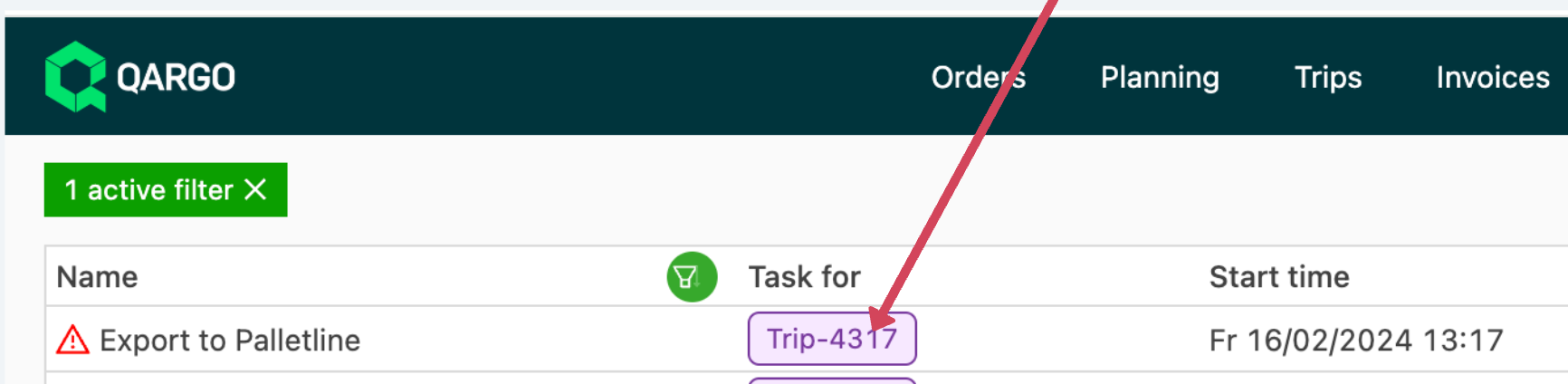
Click the purple load tag to open the load that has the error:
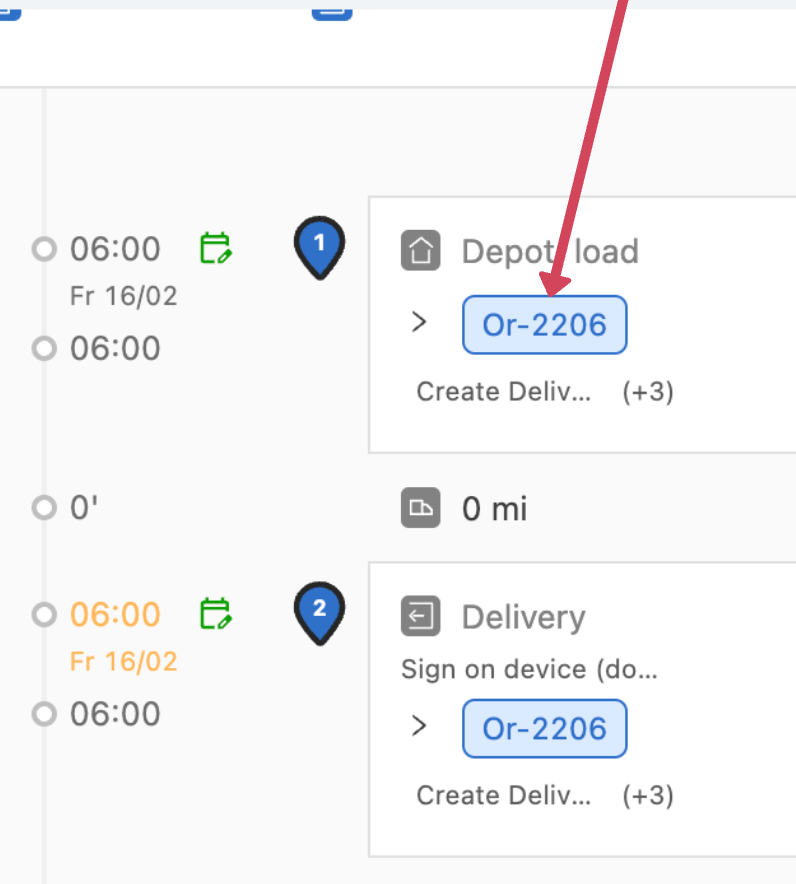
Then click the blue tag to go to the order detail:
Each of the headings below explains what to do.
manifestDate: Consignment cannot be updated with manifest date older than today.
Contrado doesn’t allow sending shipments with a pickup date (manifest date) earlier than today.
This applies both when the order is first exported and when an already‑sent shipment is updated. If the pickup date is in the past, Contrado will not accept changes.
Why it happens
- The pickup date on the order is yesterday or earlier.
- An older order was duplicated and the pickup date wasn’t updated.
- A shipment that was manifested for a past date is being edited.
The solution is to edit the pickup location:

And then adjust the pickup date:
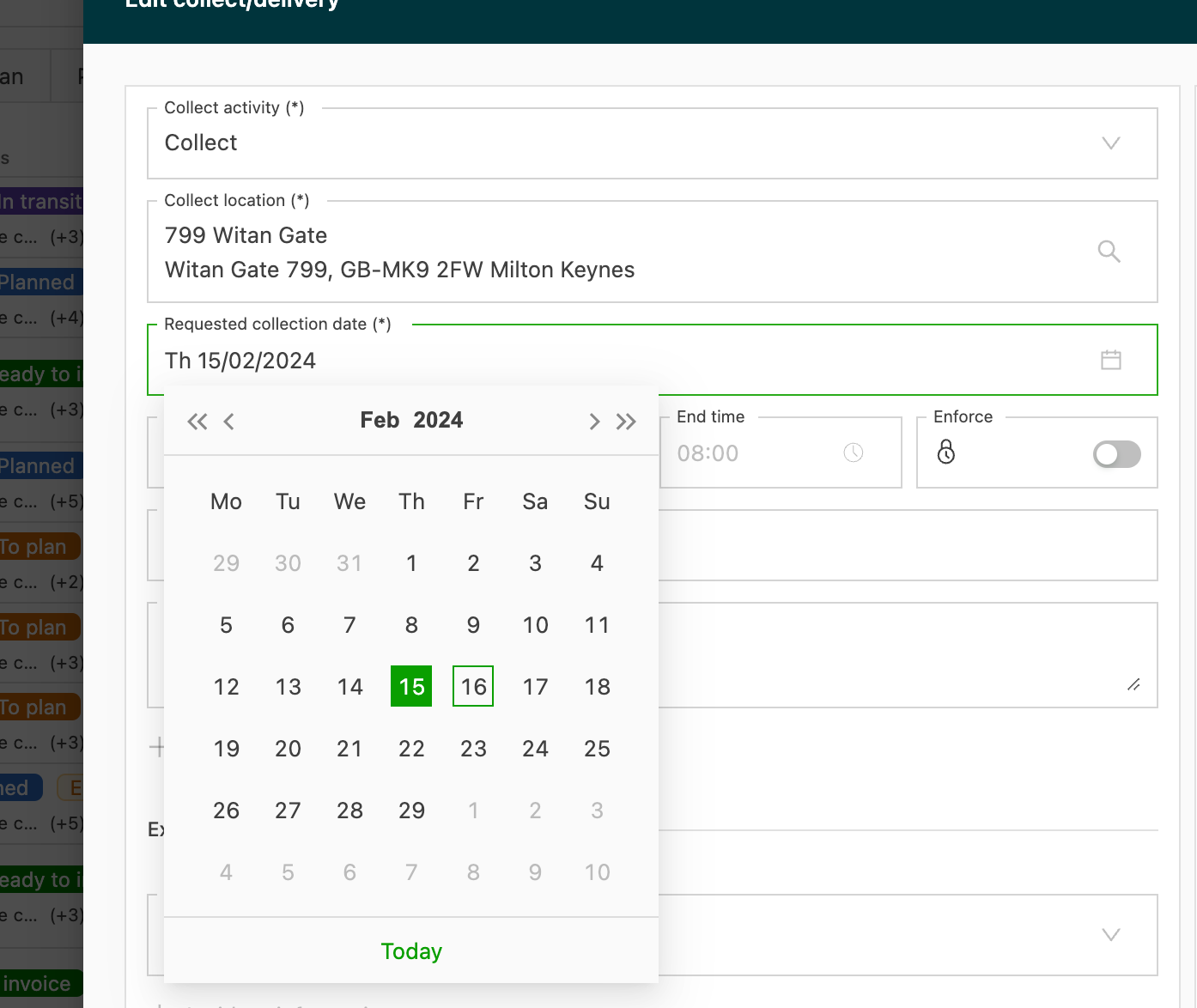
There are then 2 options:
- Adjust the delivery date as well so that it matches the service level.
- Adjust the service level and keep the delivery date in place.
When changing the service level, lock the price calculation if needed so that the rating doesn’t change:

It is best to add a note to the order so that everybody knows why the service level was changed.
deliverySurcharges: Surcharge X cannot be applied to postcode X for this hub with this service level
This means that the surcharge is not allowed for this specific ZIP code.
Why it happens
- The selected surcharge is not valid for the destination ZIP code under the current service level.
- A generic surcharge was applied that this hub does not support for that area.
- The order was duplicated from another region where the surcharge was valid, but the ZIP code is different here.
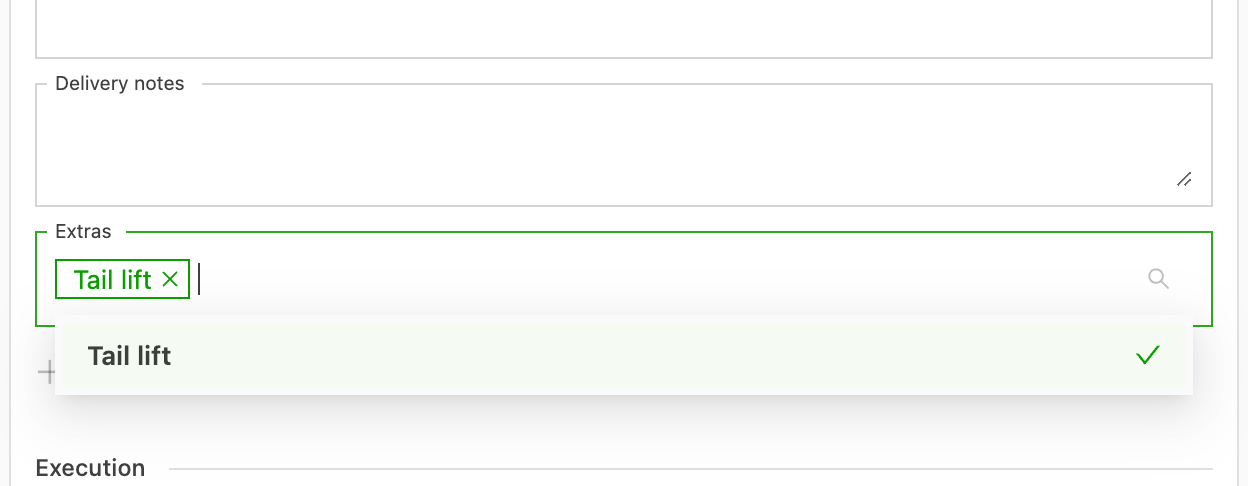
Click the edit icon next to the location:
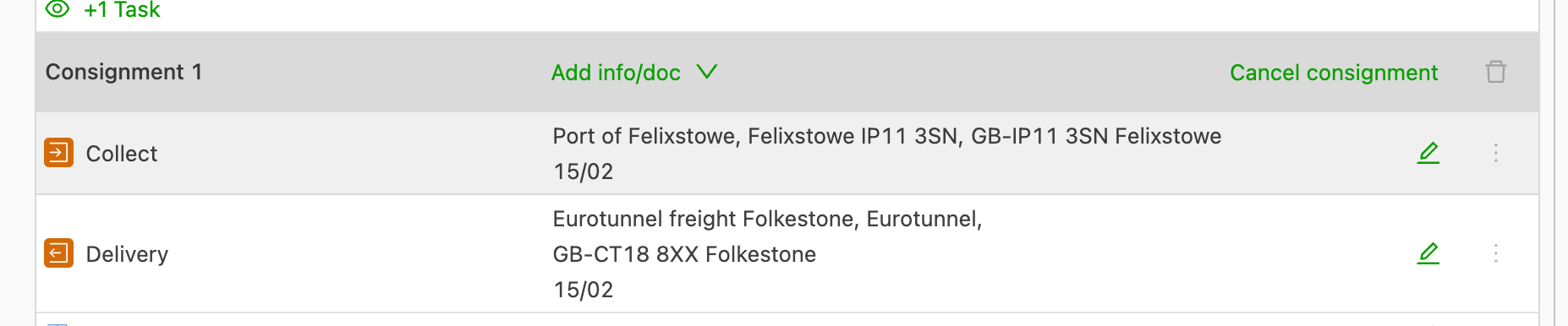
And remove the extra
FullPalletSpaces: Pallet space must be greater than 0.
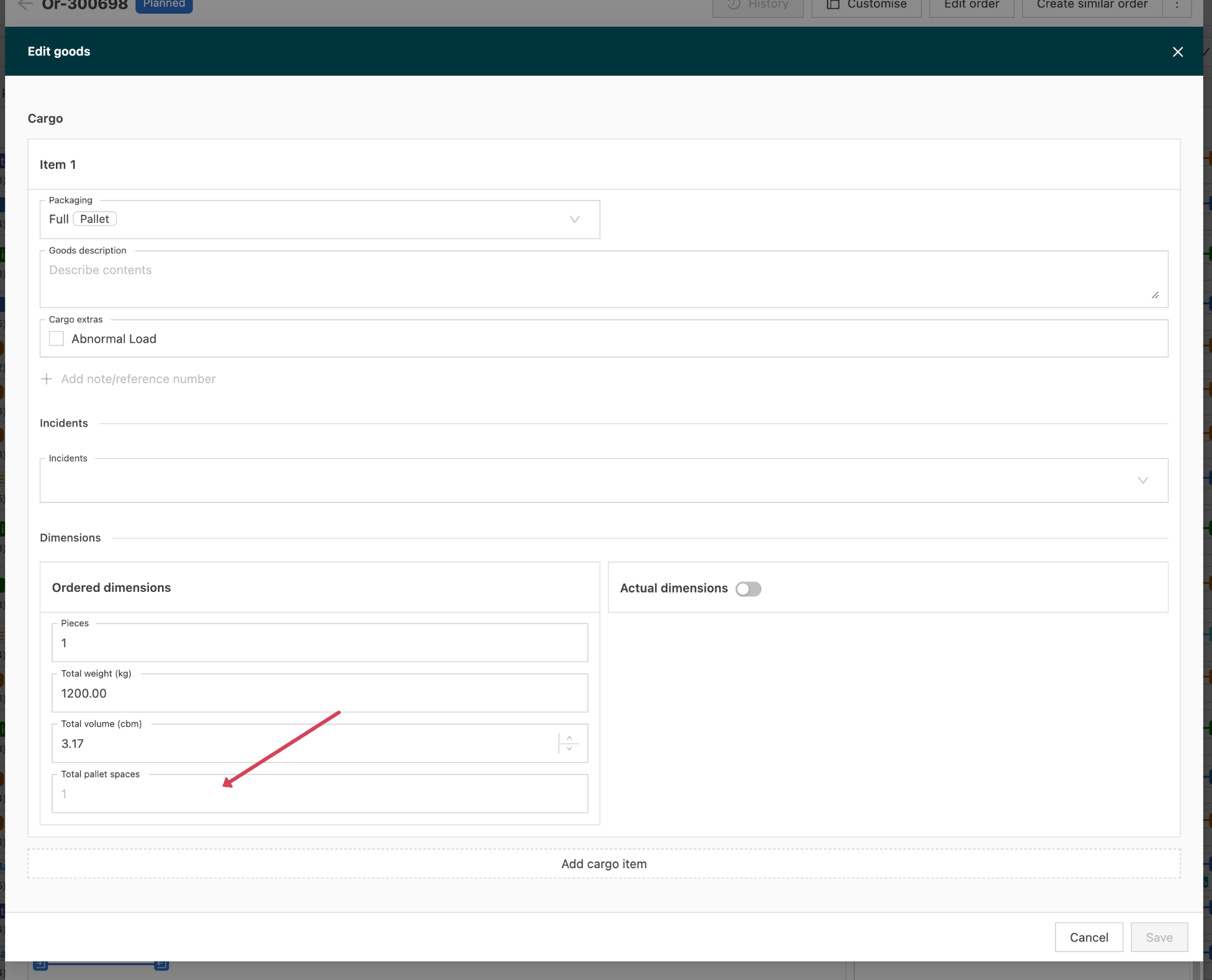
This means that no pallet spaces are filled in on the order, or that the number of pallet spaces is smaller than the quantity.
Why it happens
- An item was added with a quantity but the pallet spaces were left empty
- An order with a different pack configuration was duplicated
- Mixed items on one line, where some require pallet space and others do not
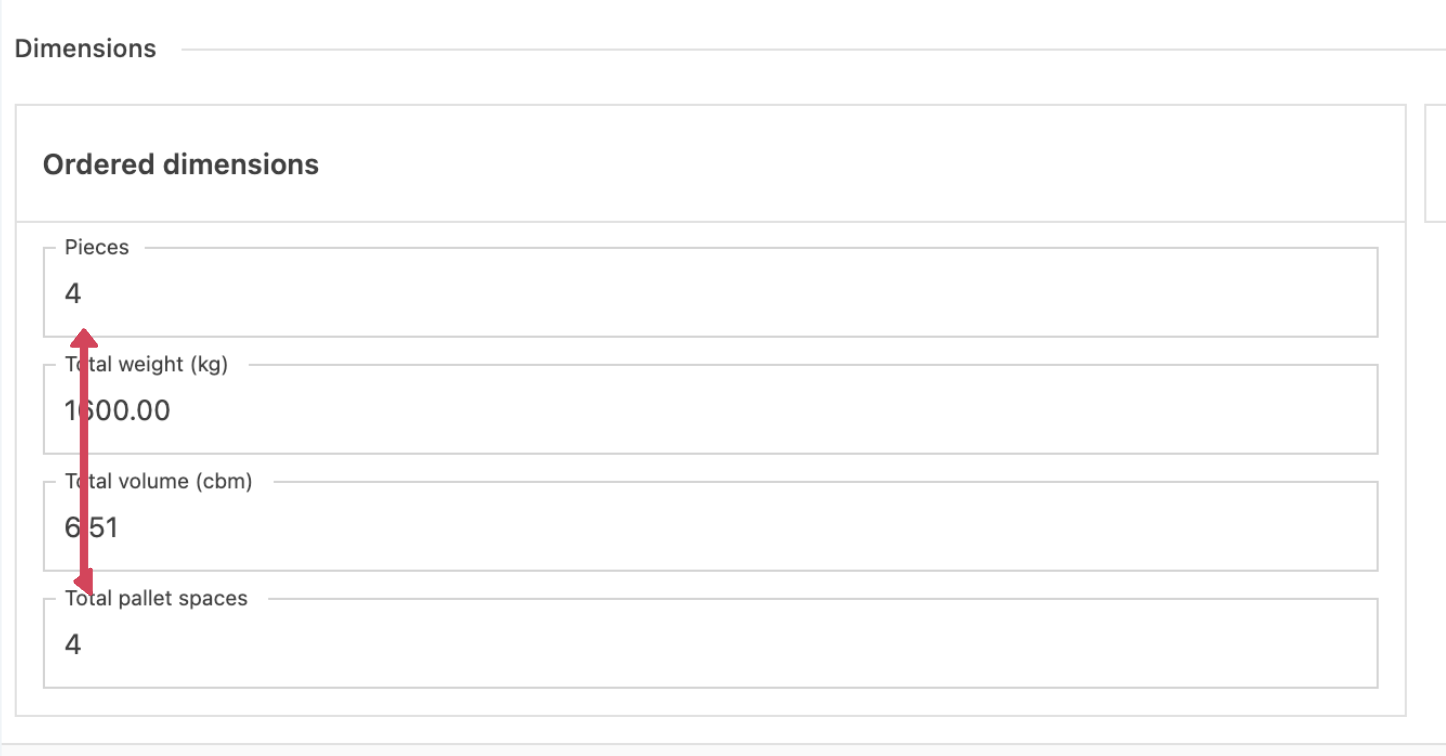
Edit the freight and fill in the pallet spaces:
Expected either Amazon ASN number or Amazon FBA number to be filled in for delivery stop
For Amazon deliveries, Palletline requires a reference that Amazon recognizes. Either the Amazon ASN (Advance Shipment Notice) or the Amazon FBA (Fulfillment by Amazon) Shipment ID must be present on the delivery stop. If neither is provided, the shipment is rejected.
Why it happens
- The delivery location is an Amazon FC but the ASN/FBA field was left empty.
- The order was duplicated from a non-Amazon delivery.
- The wrong reference type was entered in a notes field instead of the dedicated Amazon fields.
Edit the location:

Then fill in the Amazon details:
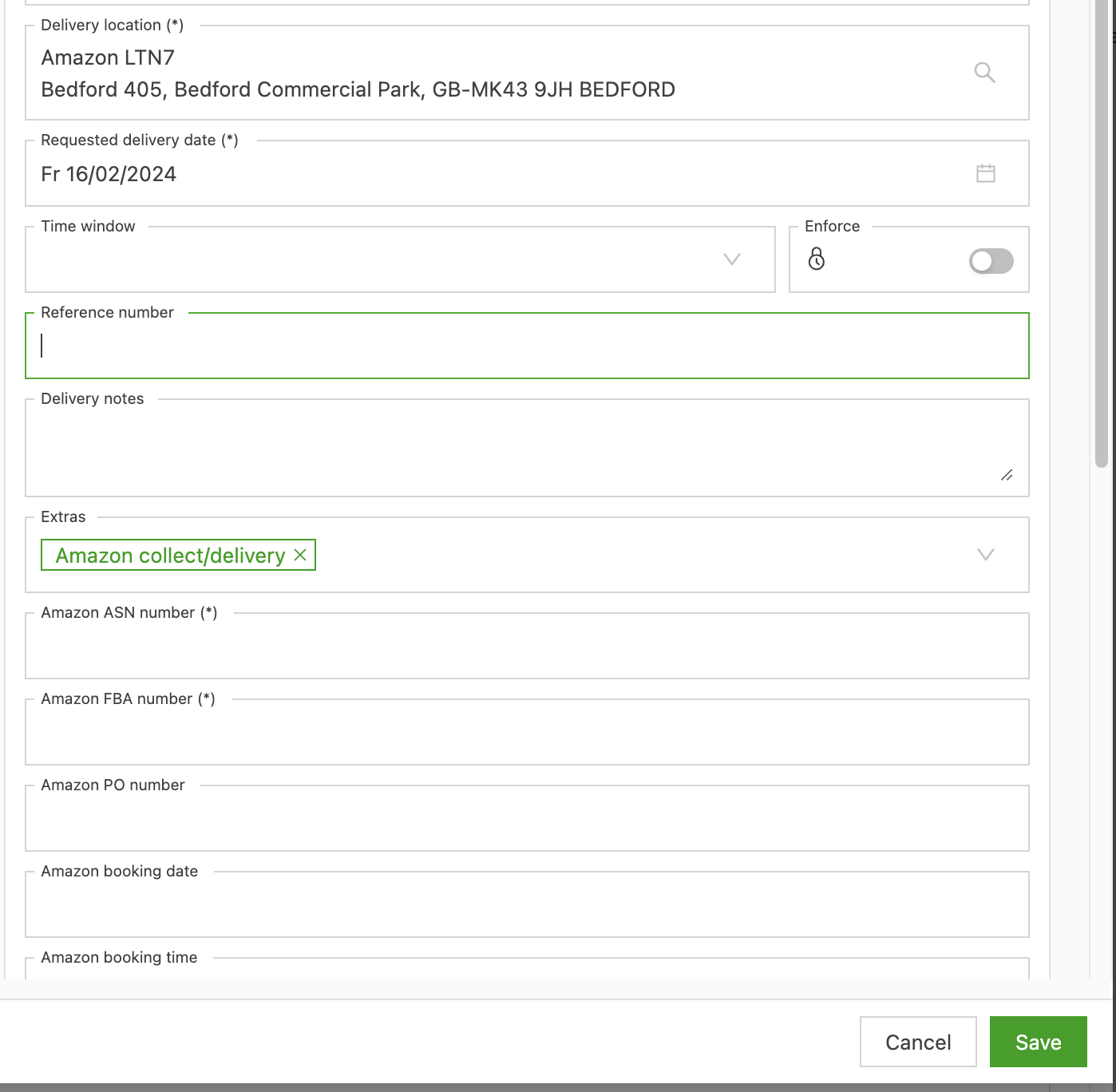
And then save the changes
DeliveryPostcode: Invalid postcode
The destination ZIP code does not pass Palletline’s validation rules. This can be due to an incorrect format, missing characters, extra spaces, or a ZIP code that does not exist for the selected country.
Why it happens
- A typo or a missing part of the ZIP code
- Extra spaces or special characters
- A country and ZIP code combination that doesn’t match
- Copied data with trailing spaces or hidden characters
Edit the pickup/delivery location:
Then click the edit icon next to the actual location:
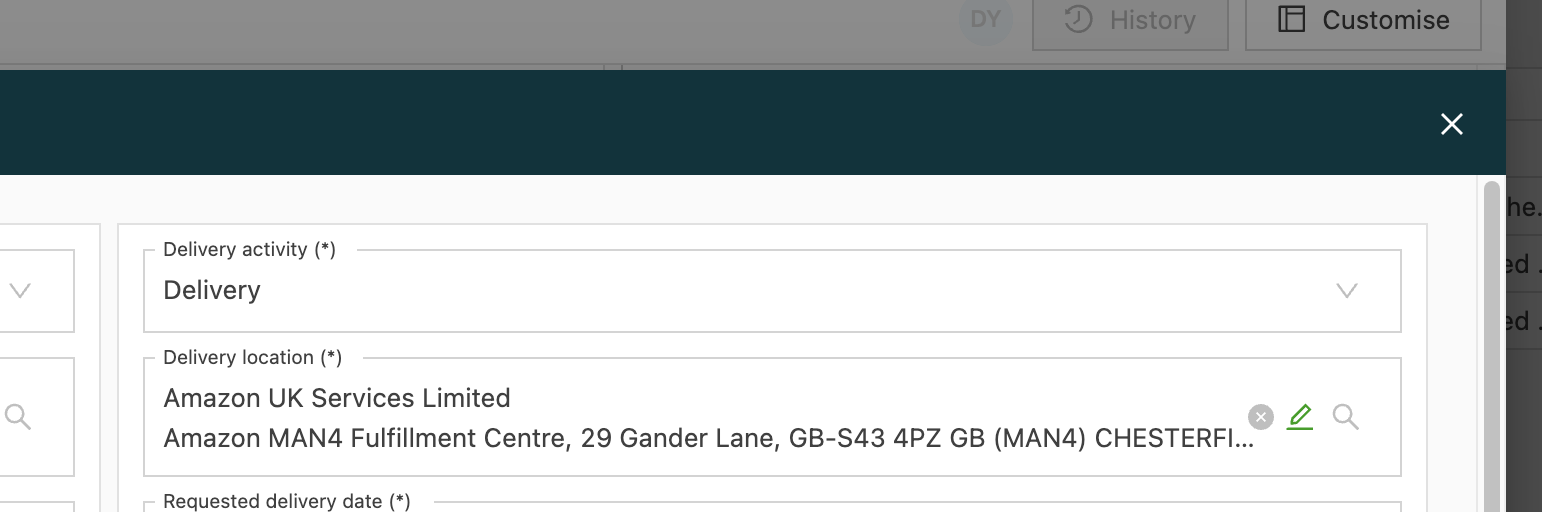
Then correct the ZIP code:
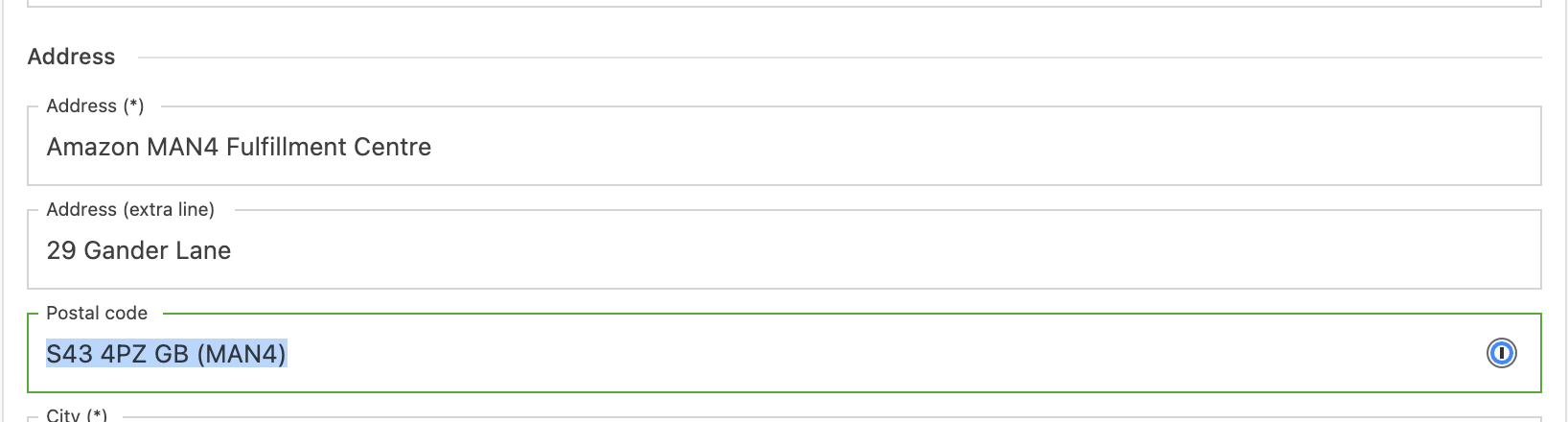
Then click the save button:
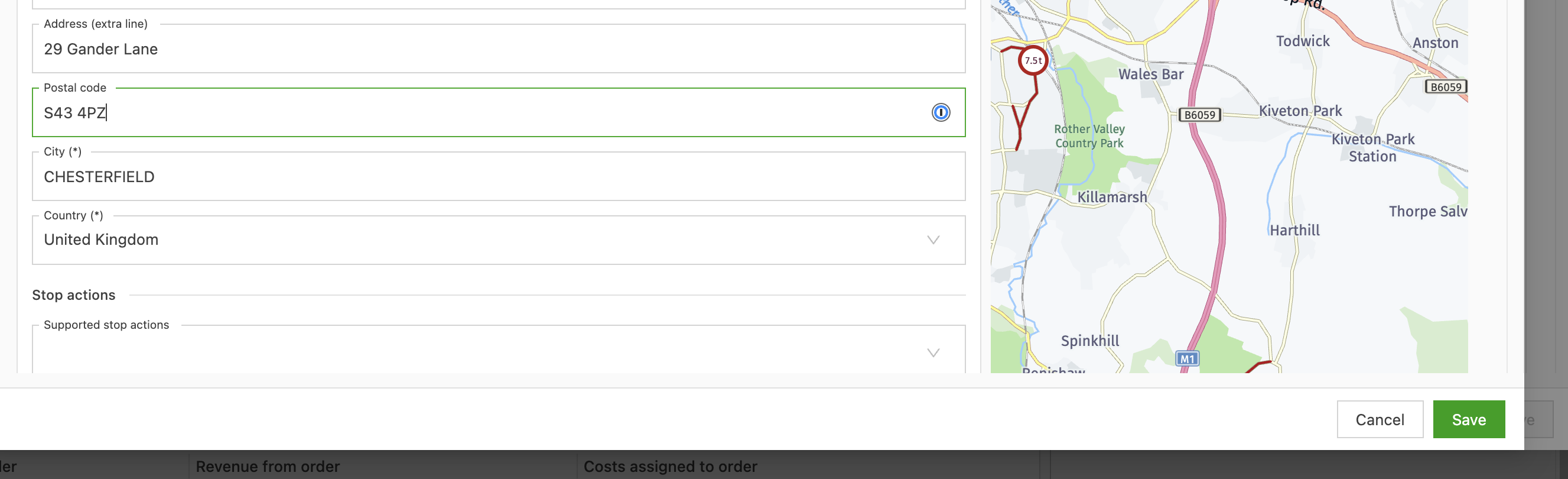
Then go back to the failed tasks and press the resend button:

deliveryPostcode’: [‘Missing value.’], ‘deliveryDepot’: [‘Unable to set the missing Depot from the postcode
The solution is the same as in the example above.
DeliveryFromTime’: [‘The time difference between From and To should be between 04:00 and 06:00 hours.’], ‘deliveryToTime’: [‘The time difference between From and To should be between 04:00 and 06:00 hours.’]
When the Booked Window Delivery add‑on is used, Palletline requires the delivery time window to be at least 4 hours and at most 6 hours. If the “From” and “To” times fall outside that range, the shipment is rejected.
Why it happens
- The window is shorter than 4 hours or longer than 6 hours
- The times were entered in the wrong fields or in the wrong format
- The window crosses midnight without being set as a next‑day end time
- The add‑on is selected but the window hasn’t been adjusted to meet its rules
Edit the delivery location and change the start and end time:

so that there are between 4 and 6 hours between them:

And then press save.