
Copy an order / create a similar order
This article covers how to quickly create new orders by copying existing details or creating a similar order.
Table of contents
Recurring orders with the same or similar details can be created quickly and easily. There are several options for creating similar orders, mainly around including or excluding reference numbers.
Caution: Misusing the “Create similar order” feature can lead to unintentional duplicate orders. Confirm the intent before using this option.
- Go to Orders > Orders list
- Find the order to copy and click the order number
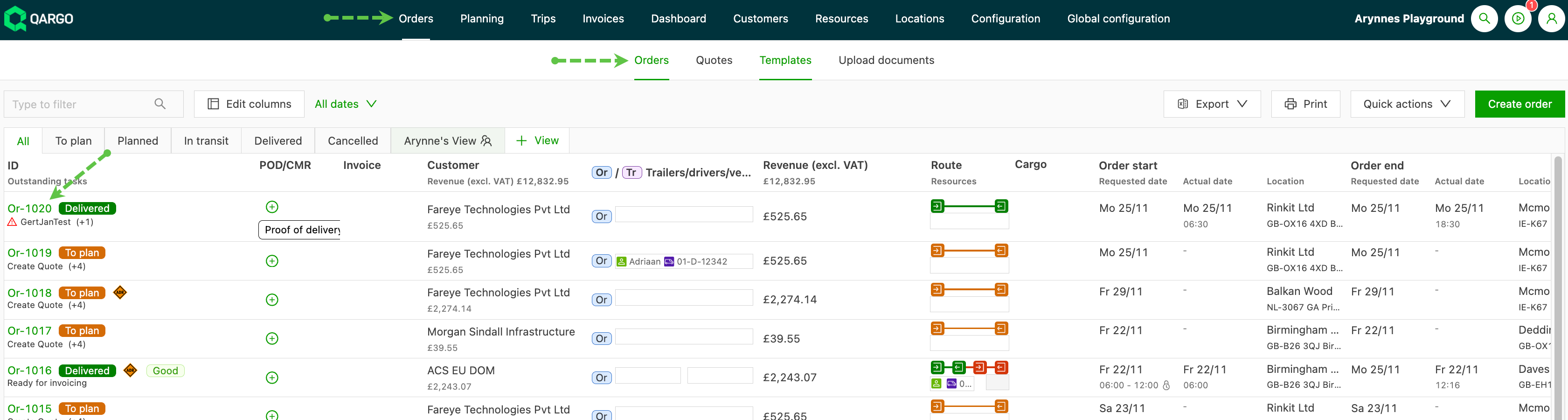
-
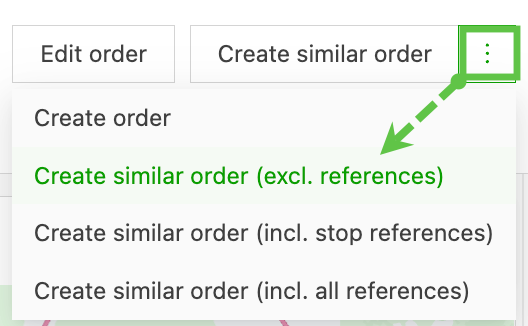
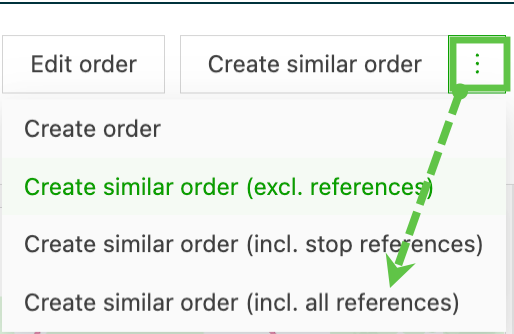
Click “Create similar order”, or use the action menu (3 dots) to see more options to include or exclude reference numbers. What counts as a reference?
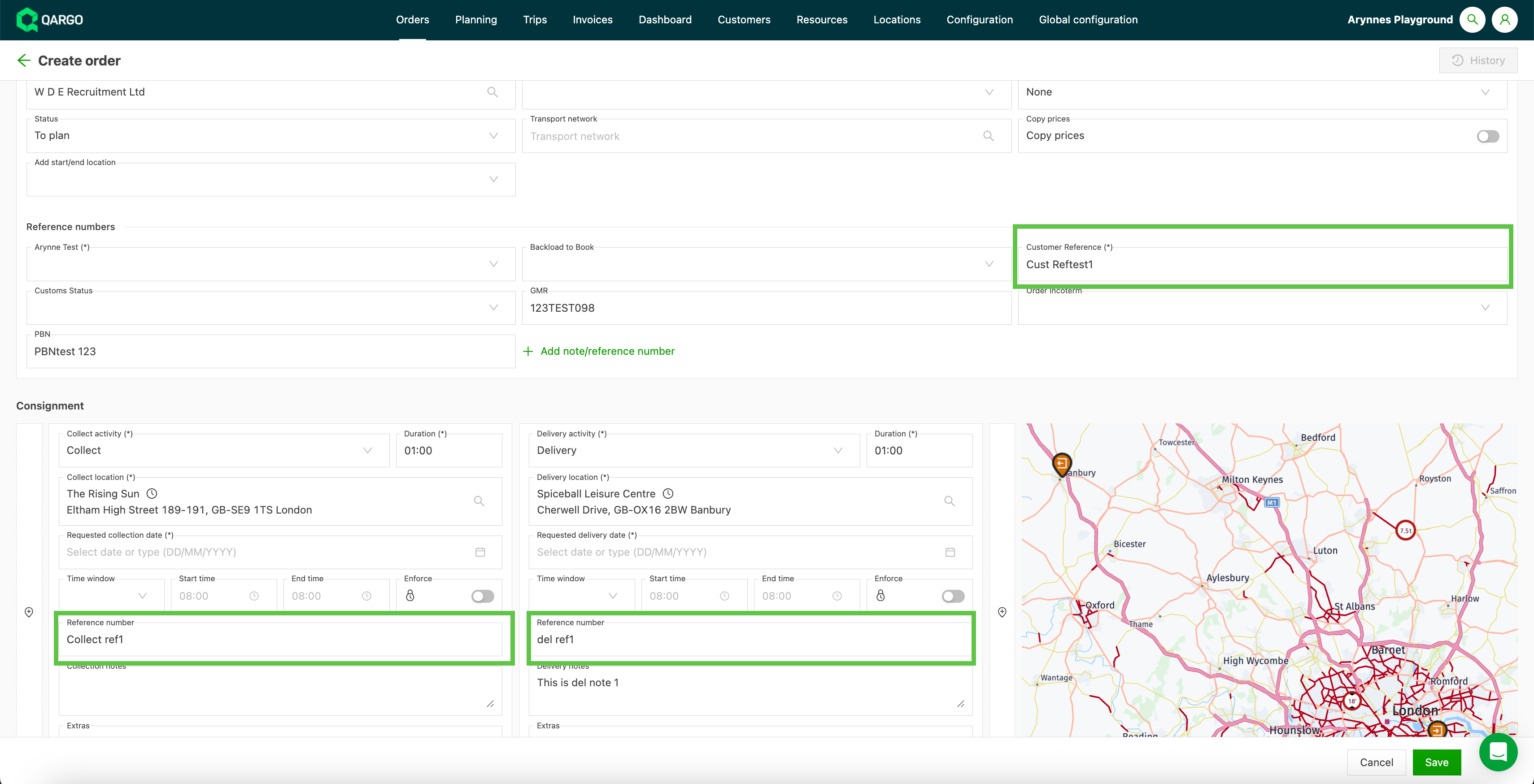
- Customer reference
- Container no.
- Pickup/delivery references
Alternatively, consider editing the existing order if the required changes are minor. This reduces the risk of unnecessary duplication.
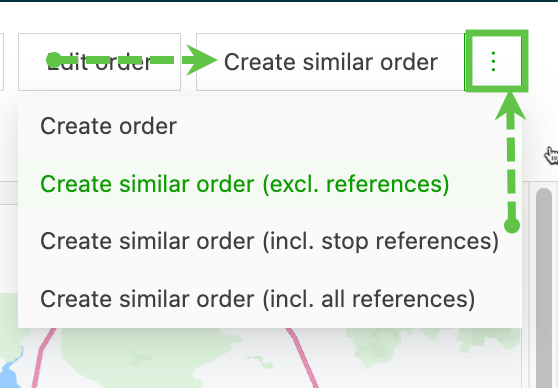
Create similar order
This option copies the critical details (customer, pickup/delivery address) and lets the user edit other details.
Warning: Avoid using “Create similar order” to update an existing order, as it creates a new order instead.
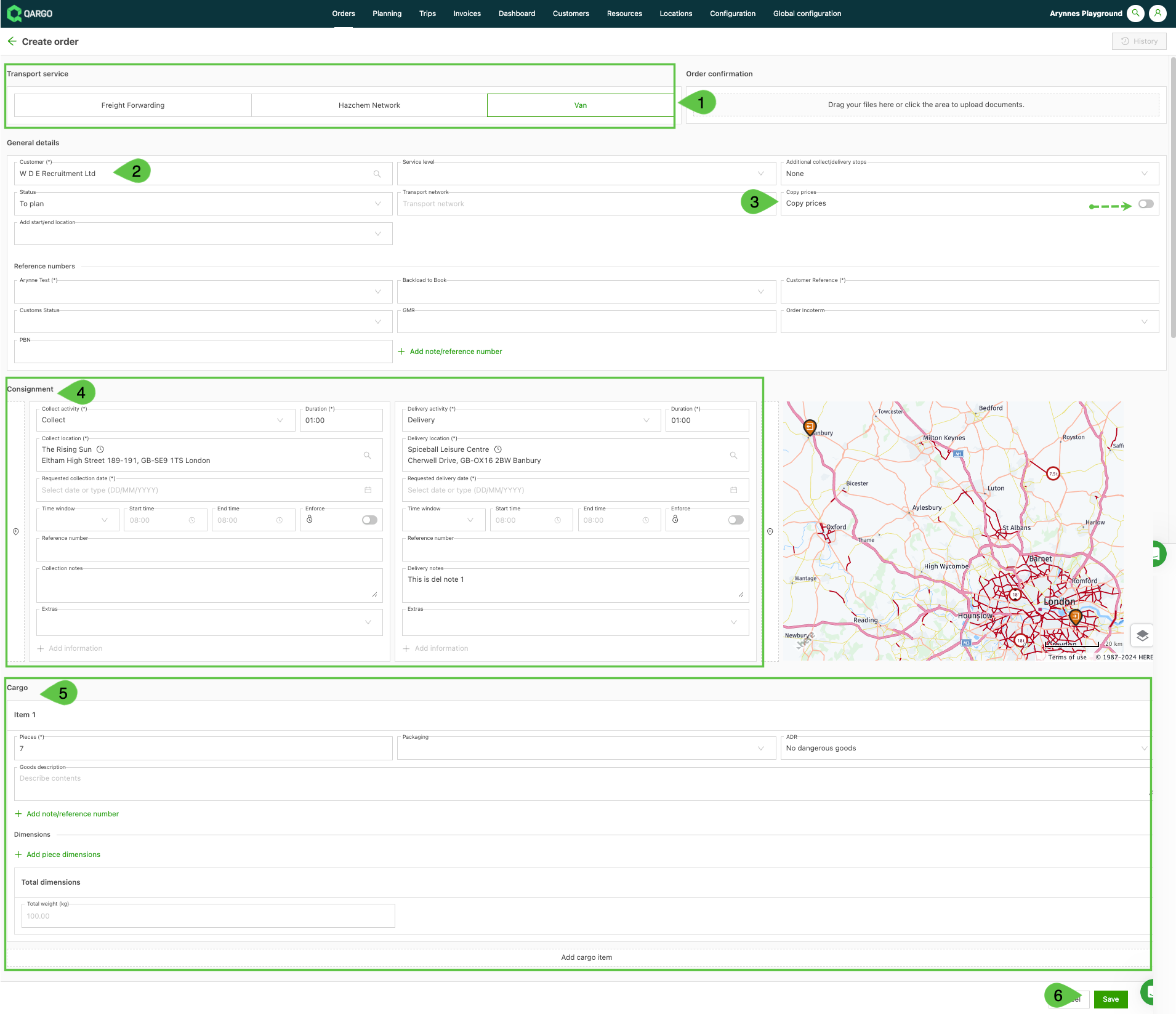
- Select the transportation service. The transportation service from the original order is highlighted by default, but an alternative option can be selected if required.
- Customer details are copied from the original order.
- The copy prices option is off by default. Toggle it on to copy the prices from the original order.
- Shipment details, including the pickup/delivery address, are copied over. The user needs to update the dates/times and any relevant stop details (to copy stop references, use the alternative option below). Stop notes are copied over.
- Freight details, as entered on the original order, are copied over. These can be updated and additional items can be added.
- Save the order.
Troubleshooting duplicate orders
Duplicate orders can occur if “Create similar order” is mistakenly used instead of editing an existing order. To resolve this, compare order details to identify duplicates and cancel any unnecessary orders. Make sure the correct actions are selected to prevent recurrence.
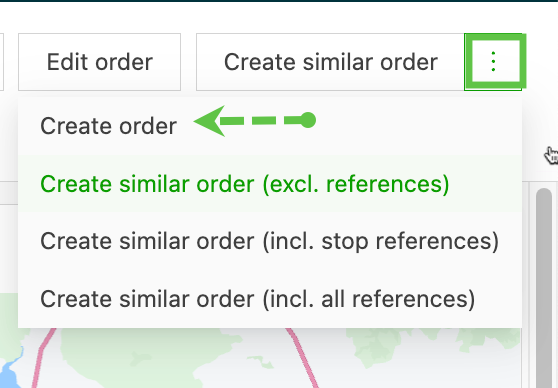
Create order
Create a brand-new order conveniently from within any other order, without going back to the main Orders list page. This option does not copy any options from the original order.
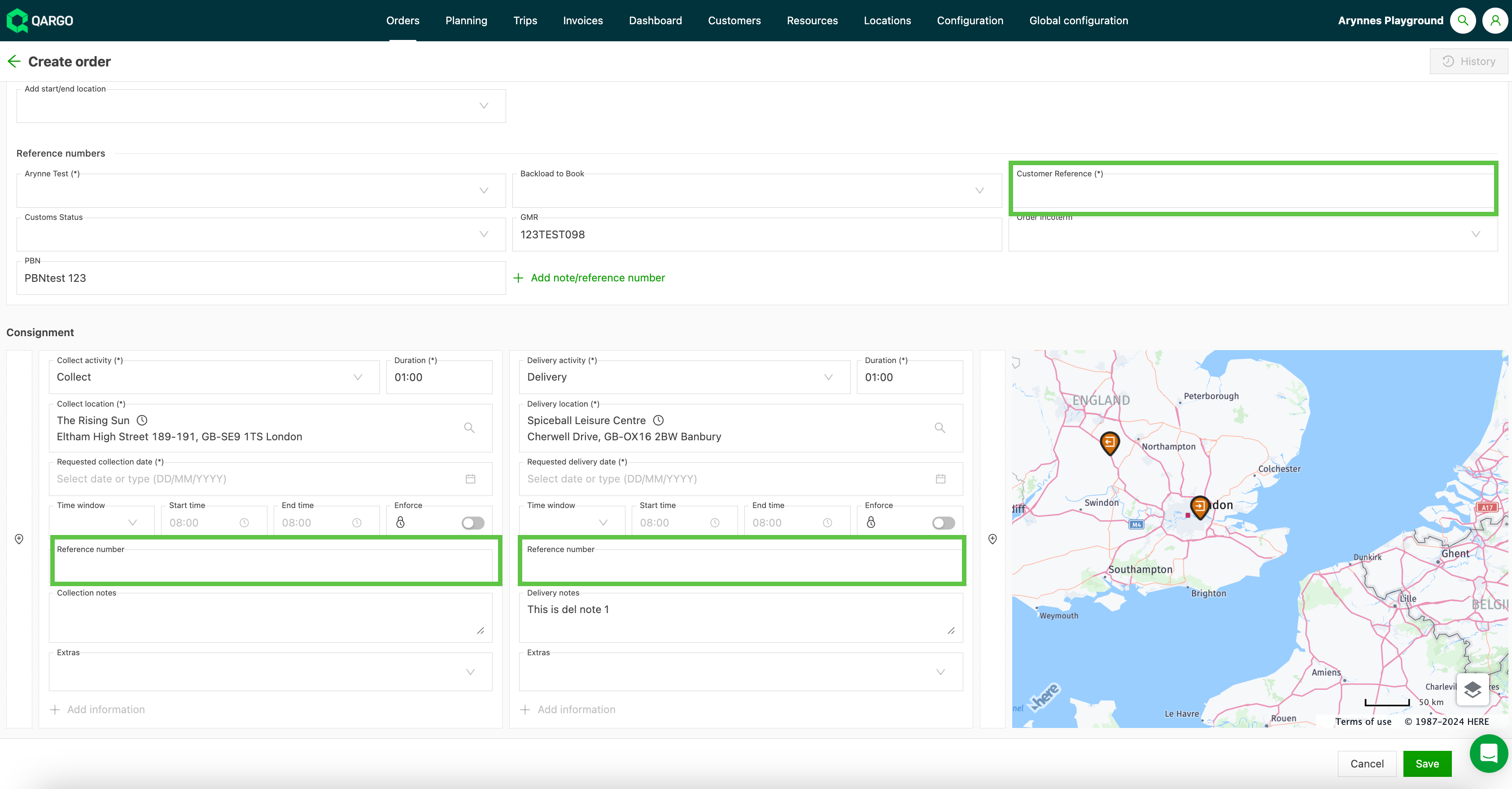
Create similar order (excl. references)
Use this option to copy all the relevant details of the order, excluding all references.
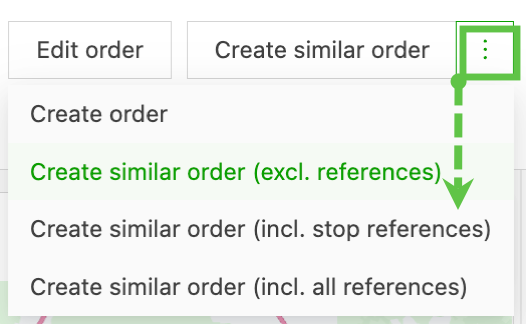
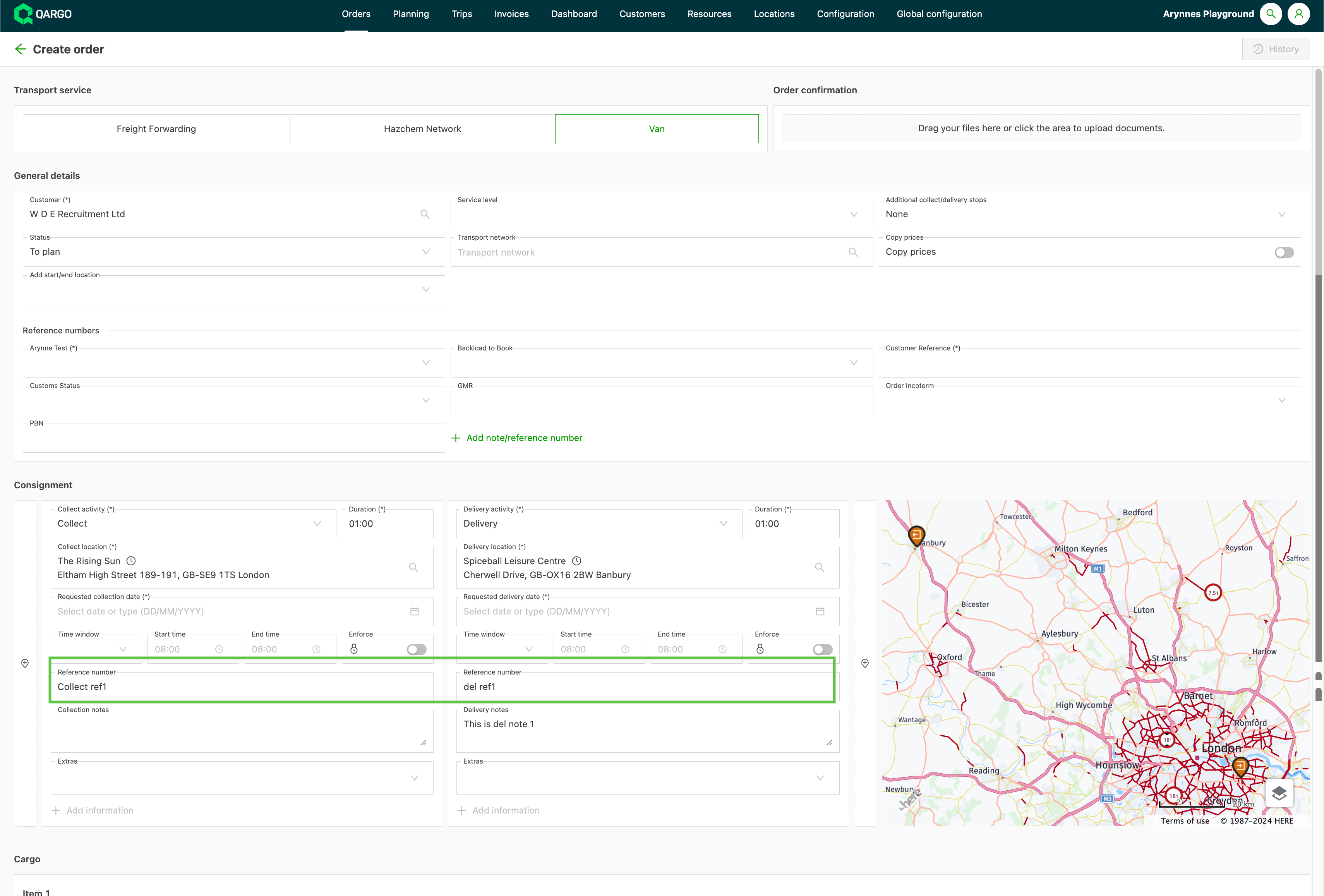
Create similar order (incl. stop references)
Use this option to copy all the relevant details of the order, including stop references. All other references are excluded from the order.
Create similar order (incl. all references)
Use this option to copy all the relevant details of the order, including all references.
Copy order (incl. all stops)
Regular orders can be copied with the Copy order action, the same copy flow available for template orders. The copy is an exact replica of the source order, including all stops, internal stop actions such as cleaning or weighing, and the original stop sequence. Repeated visits to the same location stay separate stops and are not merged.
Copy an order
-
Open the order to copy from Orders > Orders list.
-
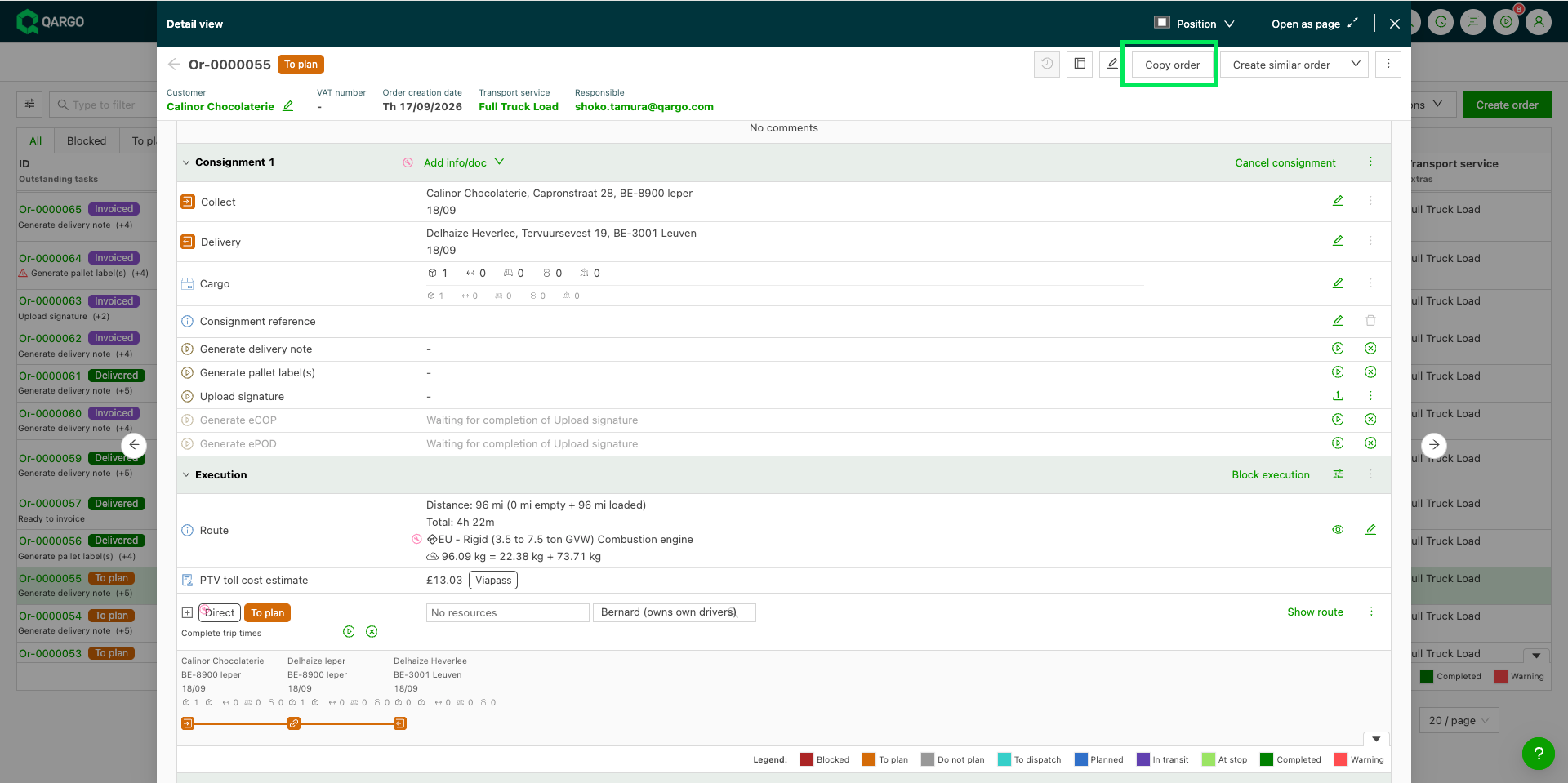
Click Copy order in the header of the order detail page, next to Create similar order.
-
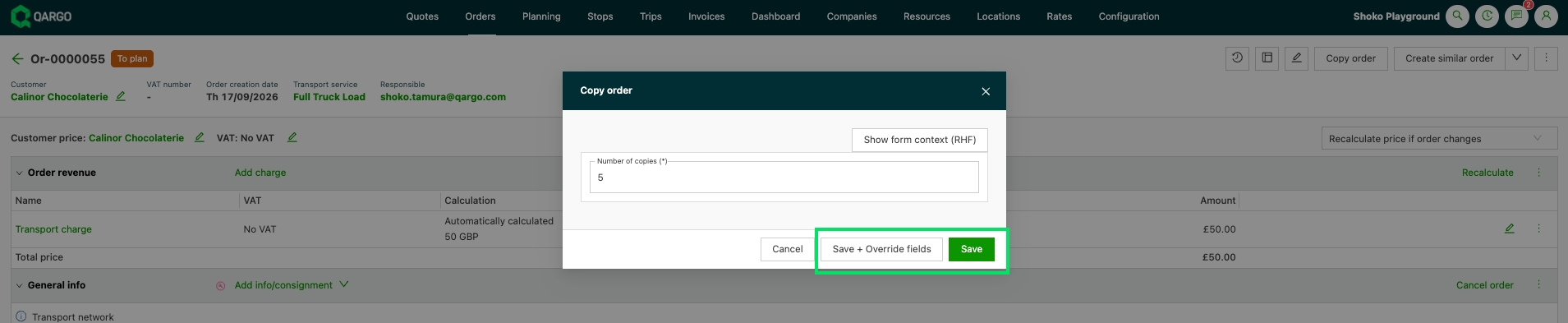
Enter the quantity in Number of copies.
-
Choose between:
Save: With 1 copy, the new order opens right away. With more than 1 copy, the order detail page of the source order stays open.
Save + Override fields: this opens a table where values can be added.
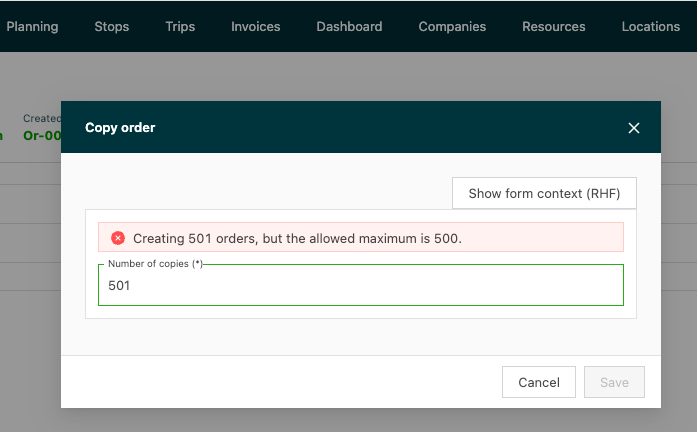
What is copied
- All stops, internal stop actions and the original stop sequence
- Stop notes and stop references
- Stop dates, identical to the source order
The copy keeps the plan of the order, not how it was executed:
- The copy starts in To plan.
- Charges are recalculated from the rate card.
- Auto-assign rules apply as they do for any new order, so a copy can be planned automatically.
- Tasks are created fresh.
What is not copied
- Allocated resources
- Order comments
- Documents
- Incidents on stops
- Manually added charges
Best practices for managing order activities:
-
Communicate template guidelines: Inform the team of the importance of using templates rather than cloning modified orders. This minimizes errors caused by unintended stops.
-
Audit frequently duplicated orders: Identify frequently duplicated orders and evaluate whether templates can be created to replace manual copying. Templates reduce error propagation by adhering to predefined activities.
-
Educate team members: Provide training so all team members understand the difference between template-based order creation and order duplication.