
Orders - Create order templates
Set up repeat orders quickly: create, schedule, and manage order templates, edit details, assign defaults, and cancel them at any time.
Table of contents
Create a template
An order template can be used to set up the same order multiple times. The steps below show how to create a template.
- Navigate to Orders > Templates.
- Click Create template.
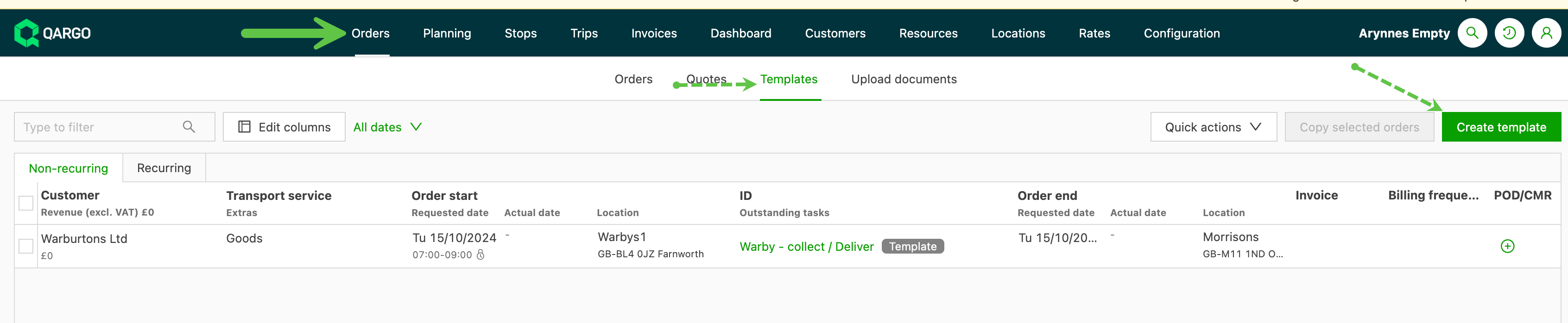
- Name the template according to how it will be used.
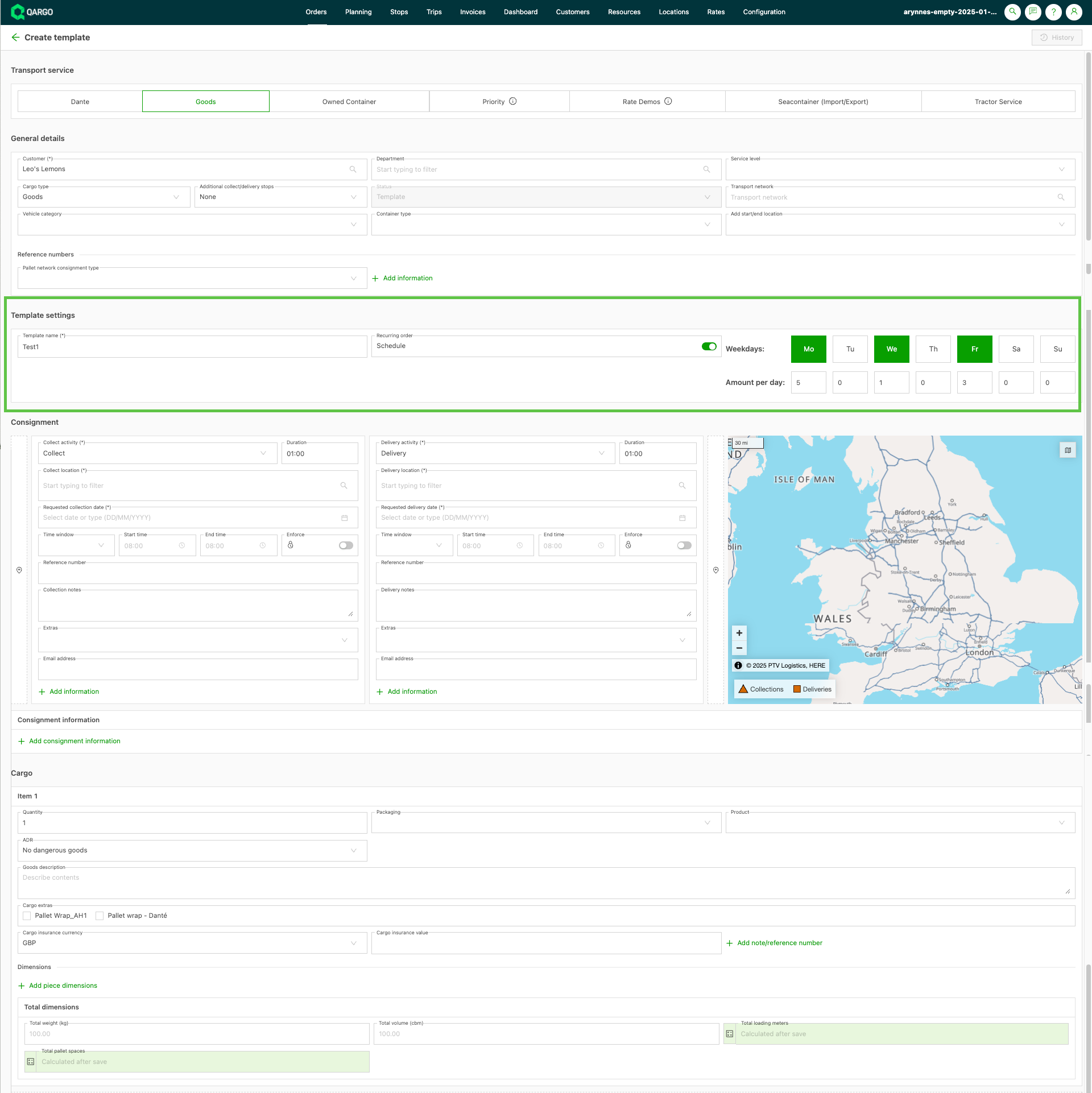
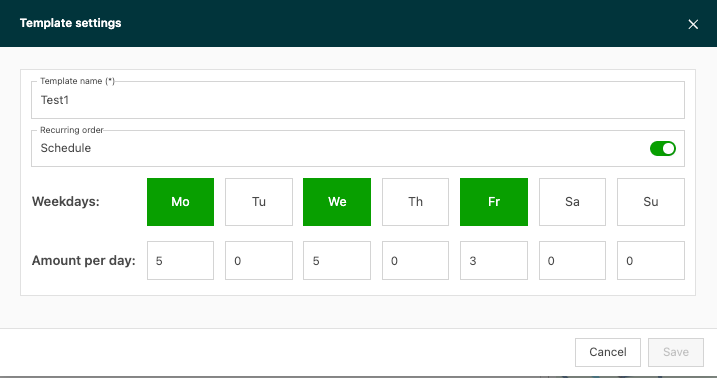
- To create a recurring order template, toggle Recurring order / Schedule on:
-
Fill in the template details just like in order creation
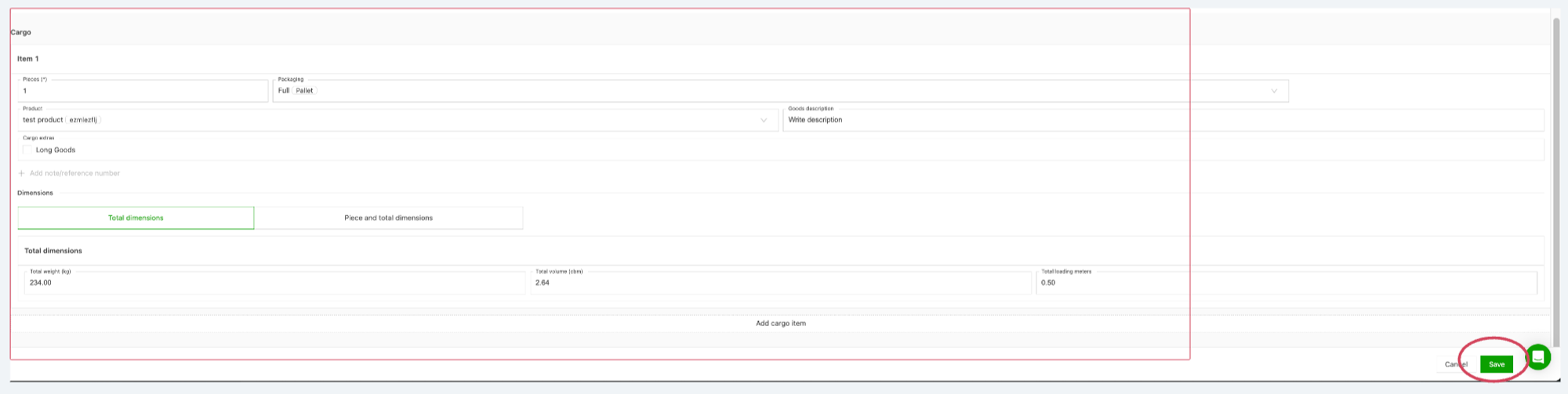
- Set default values for fields such as shipment type, weight and product details, and load/unload instructions and references.
-
Save the template.
Template settings
- Add the number of copies to generate each day. This allows for variance if the number of orders needed differs each time the template is scheduled.
-
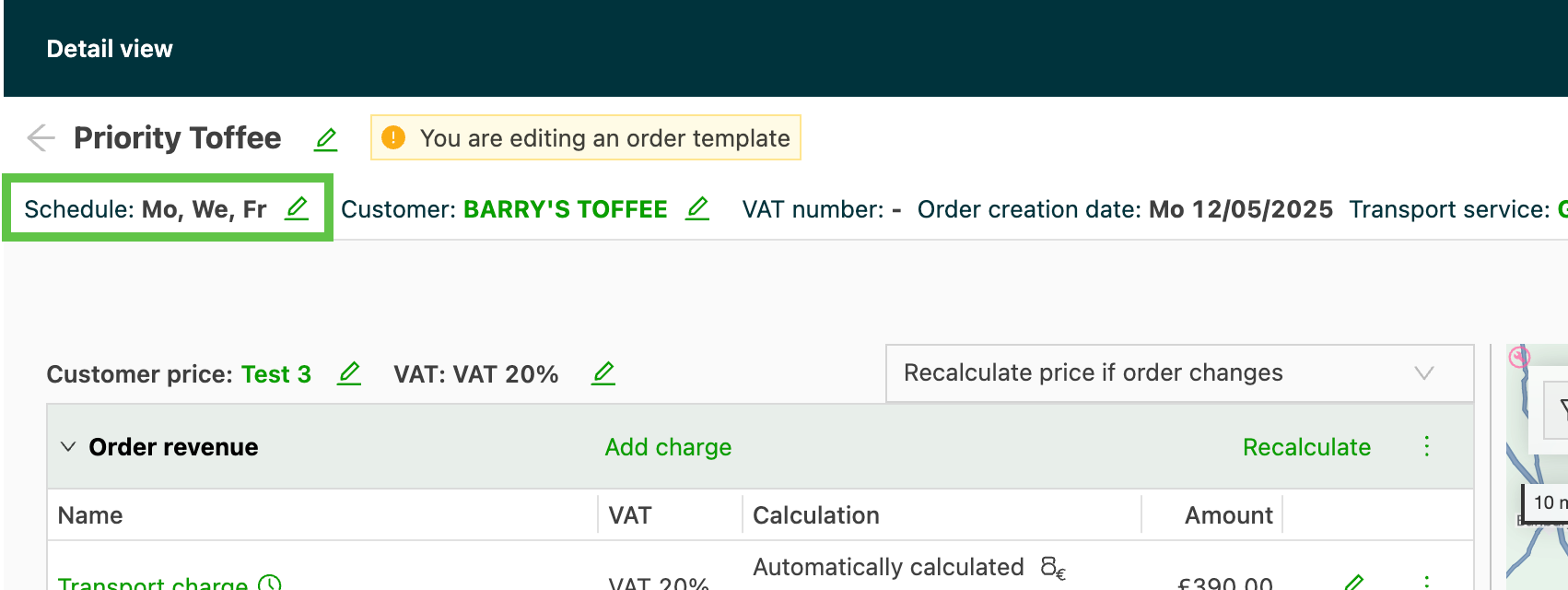
The schedule appears in the template order details and can be updated directly using the Edit icon.
-
Template views are split into non-recurring and recurring
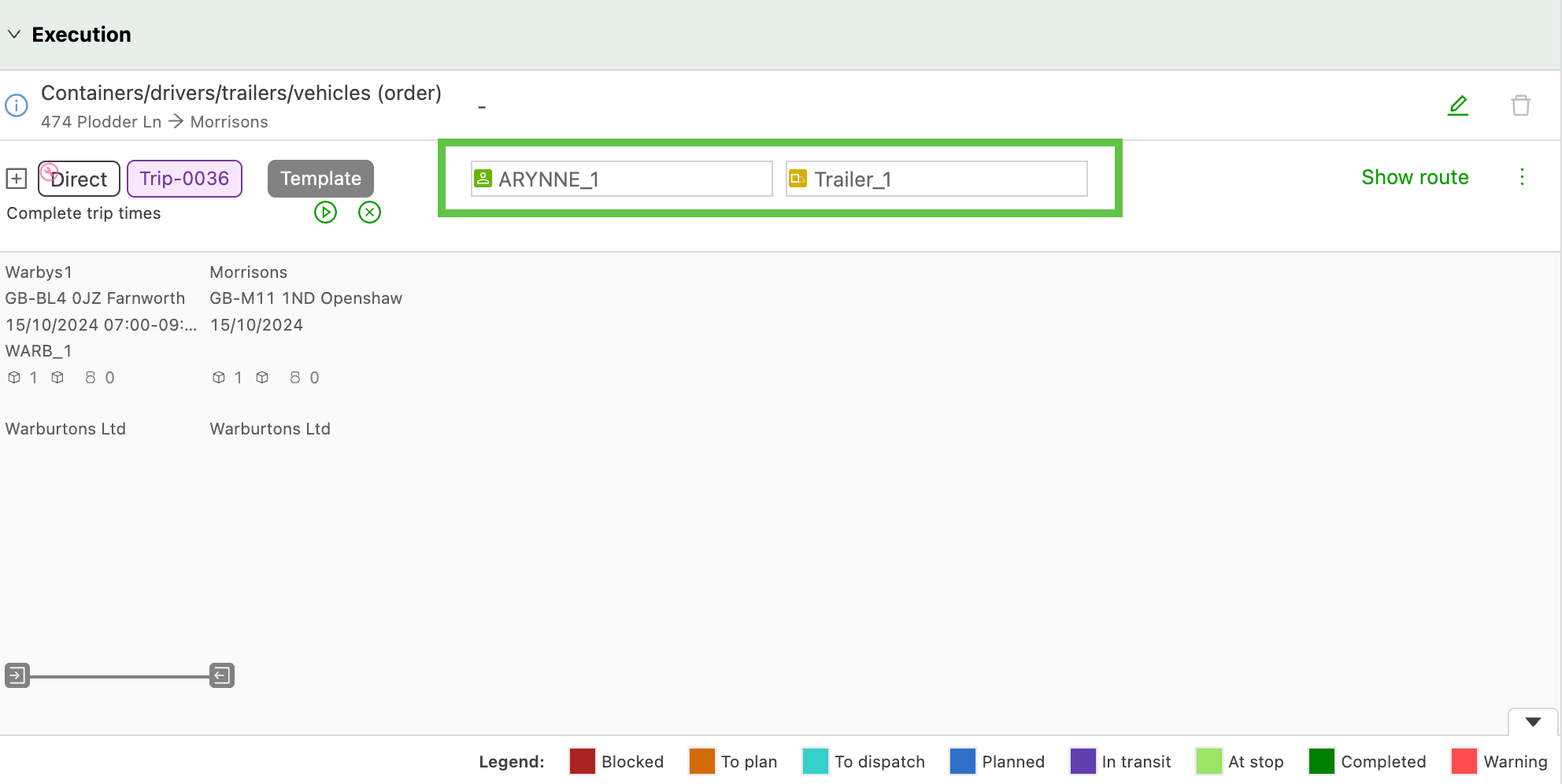
To create a template from an existing order
- Open the order that will be used as the basis for the template
- Click the Create similar order button
- Select Template as the status
- Update/complete the remaining order details
- Click Save.
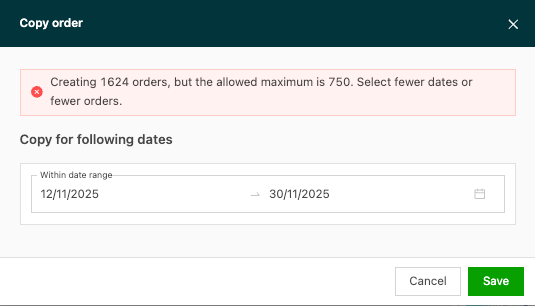
Once a template is set up, it can be used to create orders in bulk.
Cancel a template
- Navigate to Orders > Templates.
- Click the template to cancel.
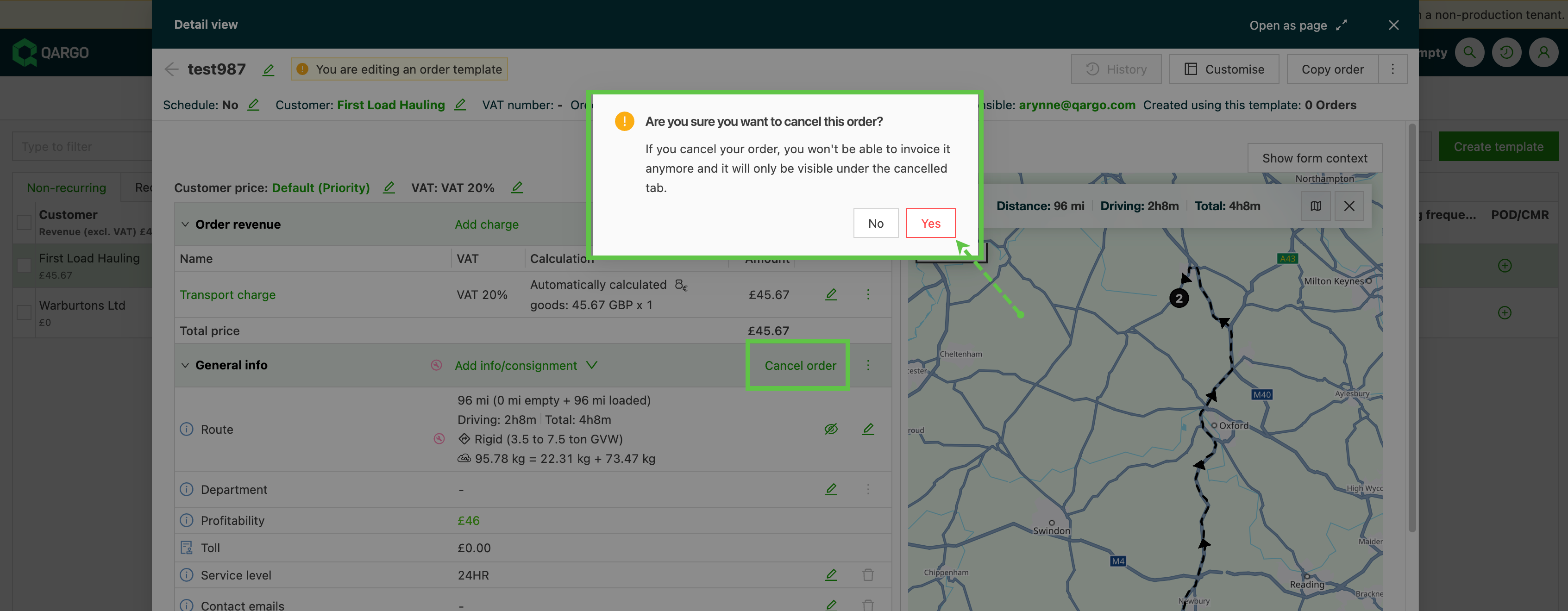
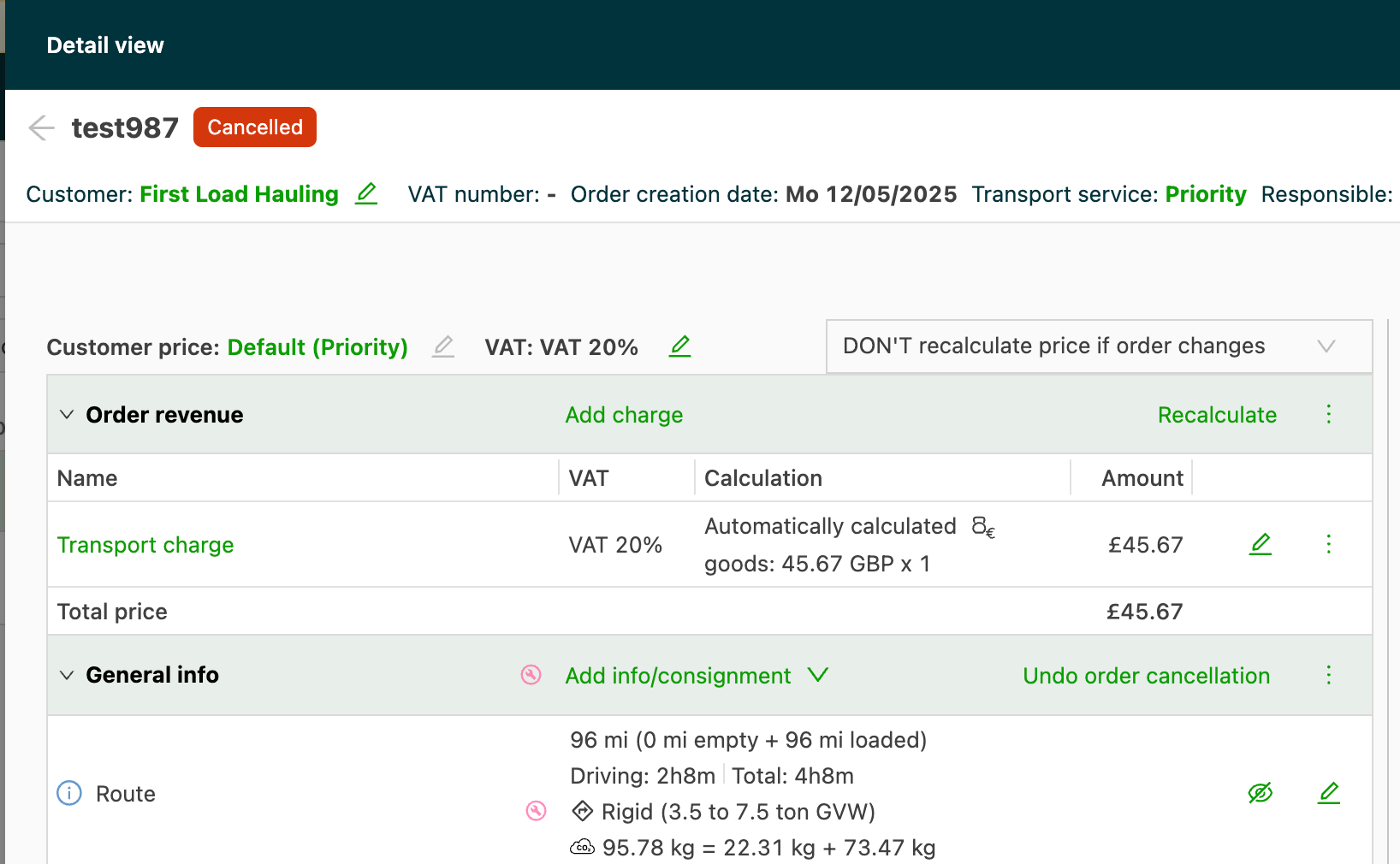
- Click Cancel order and confirm the cancellation of the order.
-
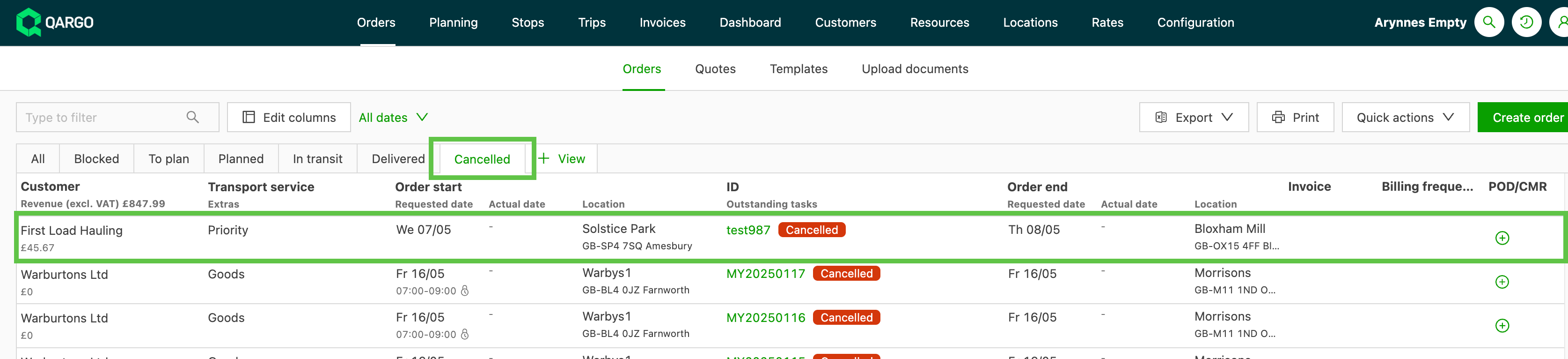
Once the template has been canceled, it has the status Canceled and automatically disappears from the templates list.
- It appears in the Canceled tab on the Orders list page.
To learn more about using template orders in bulk, click the link below👇