
Dispatching the loads
👉Task for dispatching the load is created depending on the integration in use. (see 👉Tasks.
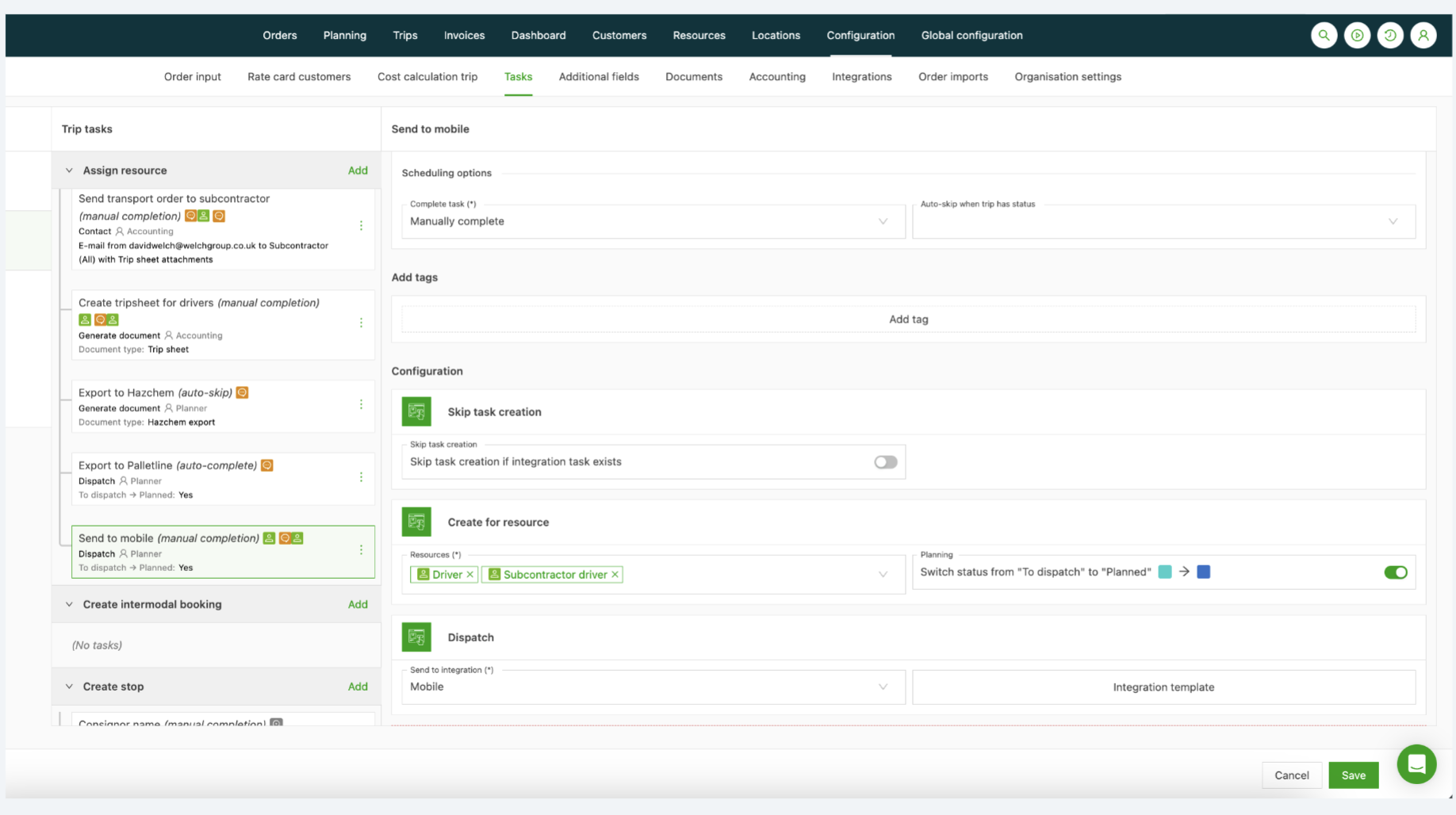
-
The integration type is purely customer-specific and can be “Palletline”, “Qargo driver mobile app”, “Transics”, “Trimble”, etc.
-
Depending on the integration type, integration access needs to be activated first on the driver or vehicle page, with the required fields.
Examples:
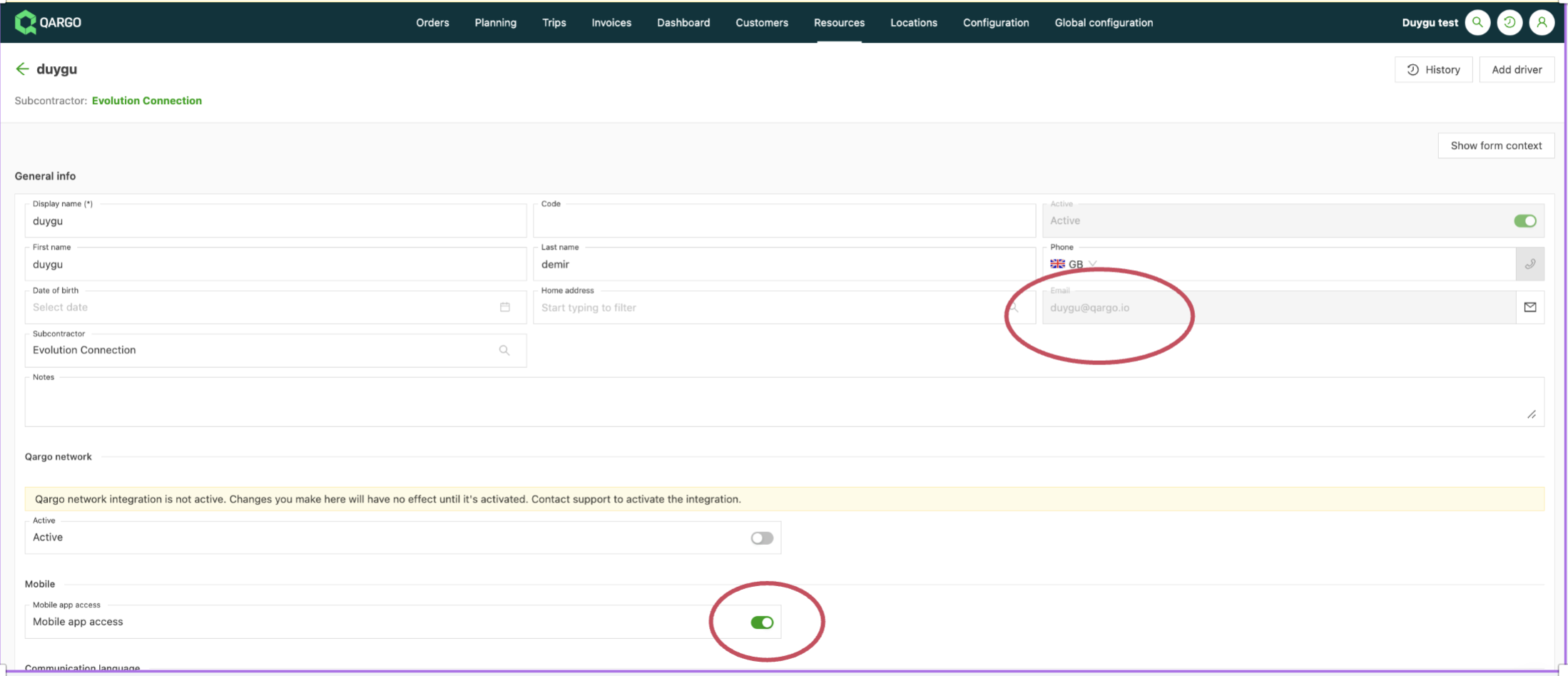
For the Qargo driver mobile app, for example, the driver email and the Driver mobile app toggle are required on the driver page.
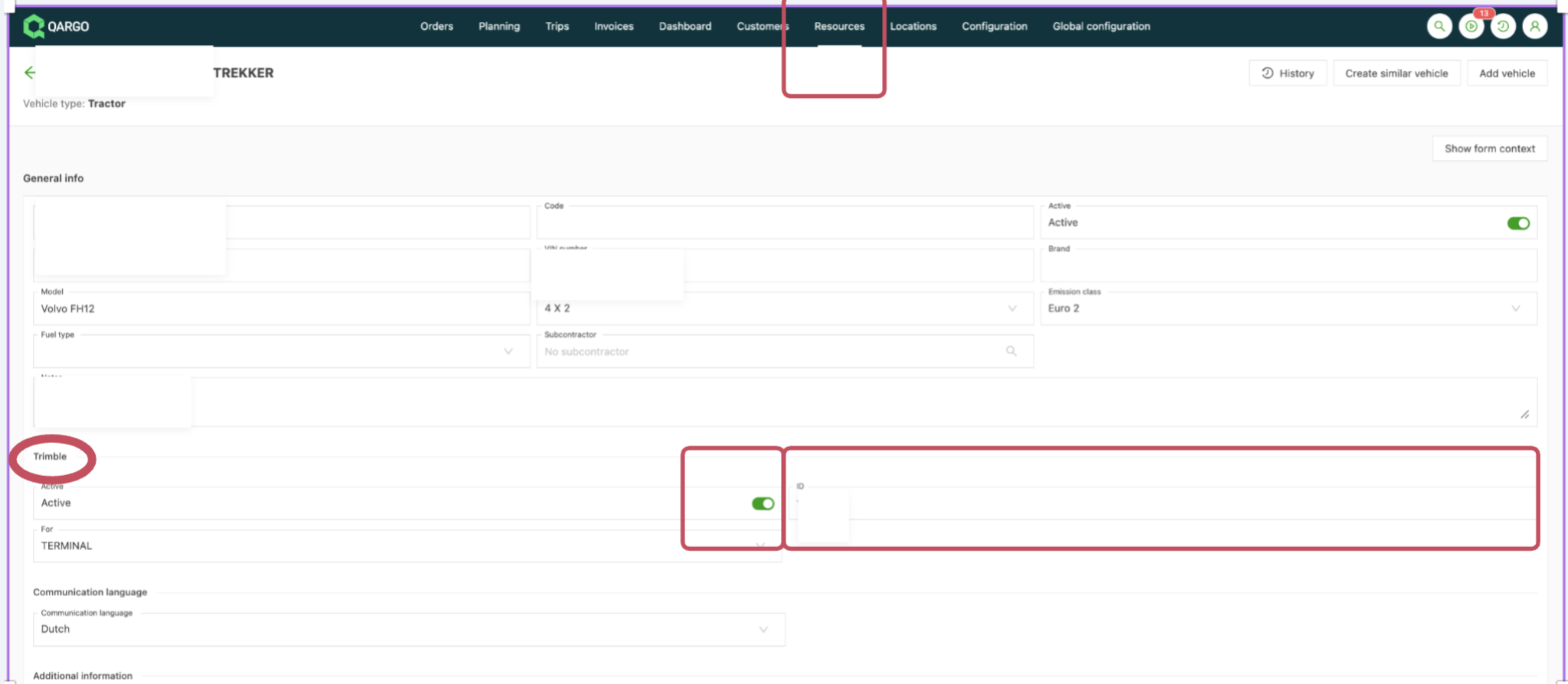
For Transics, the Transics ID is required and the activation toggle must be on in the truck page. For Trimble, the Trimble ID is required and the activation toggle must be on in the truck page.
The “Palletline” integration is done by Qargo engineers.
Once the requirements are present in the resources assigned to a load, the dispatch task appears on the load page, in the planning, or in the load list view. The visibilities are shown below:
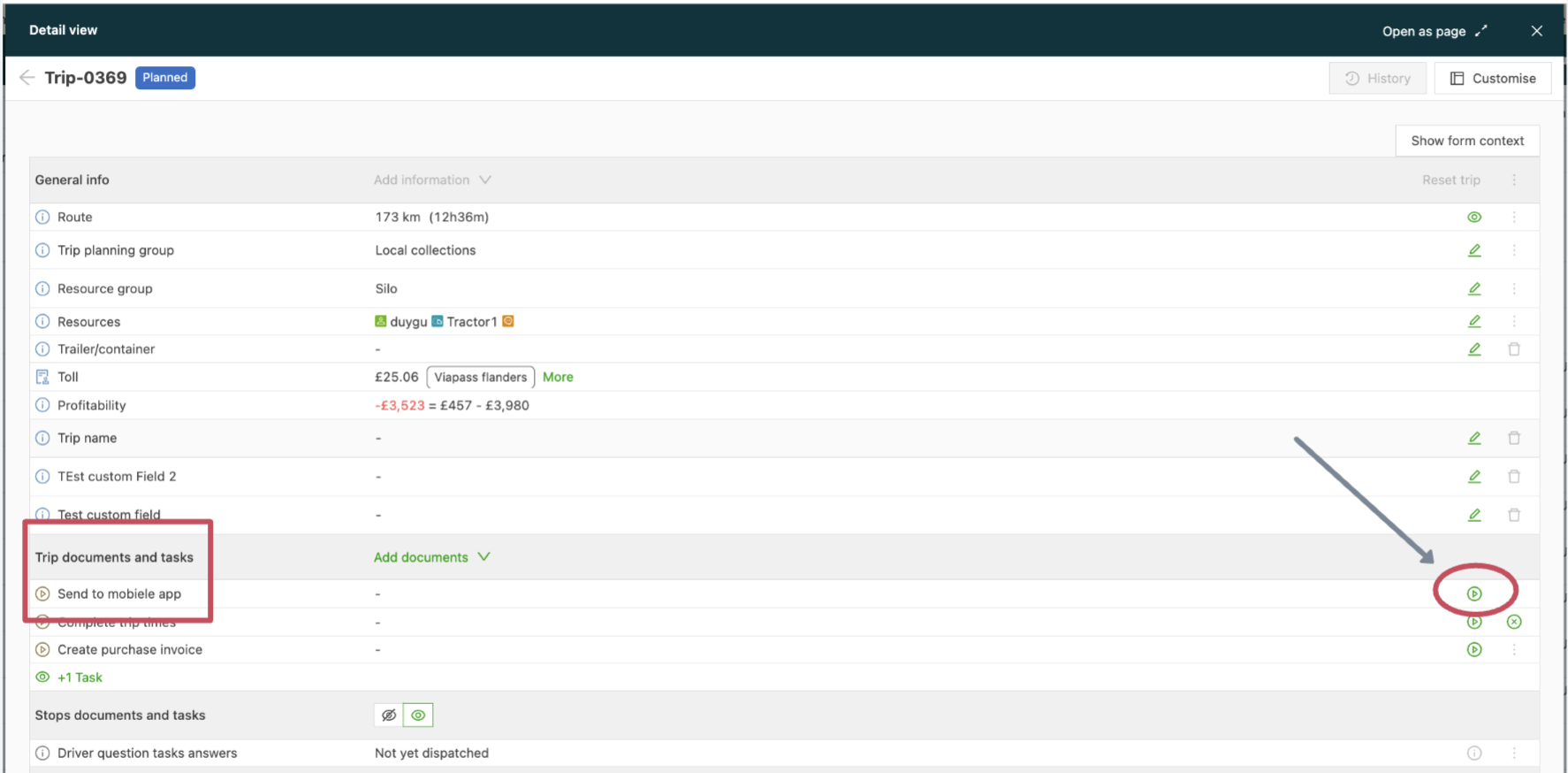
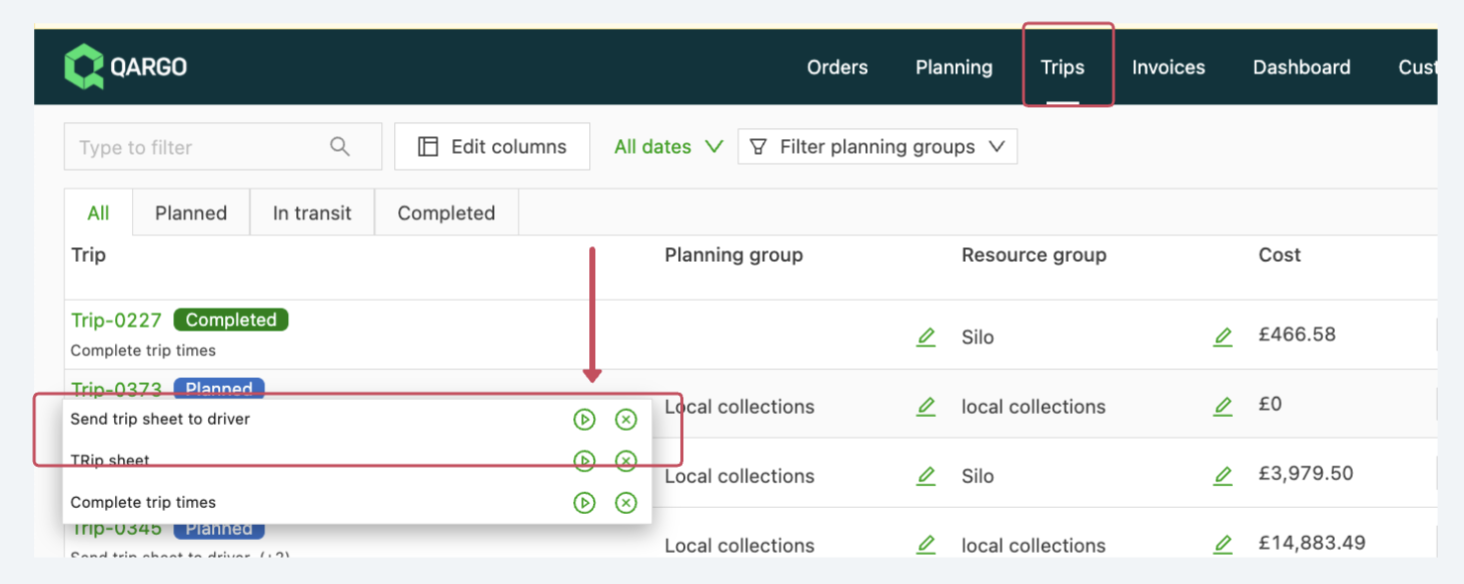
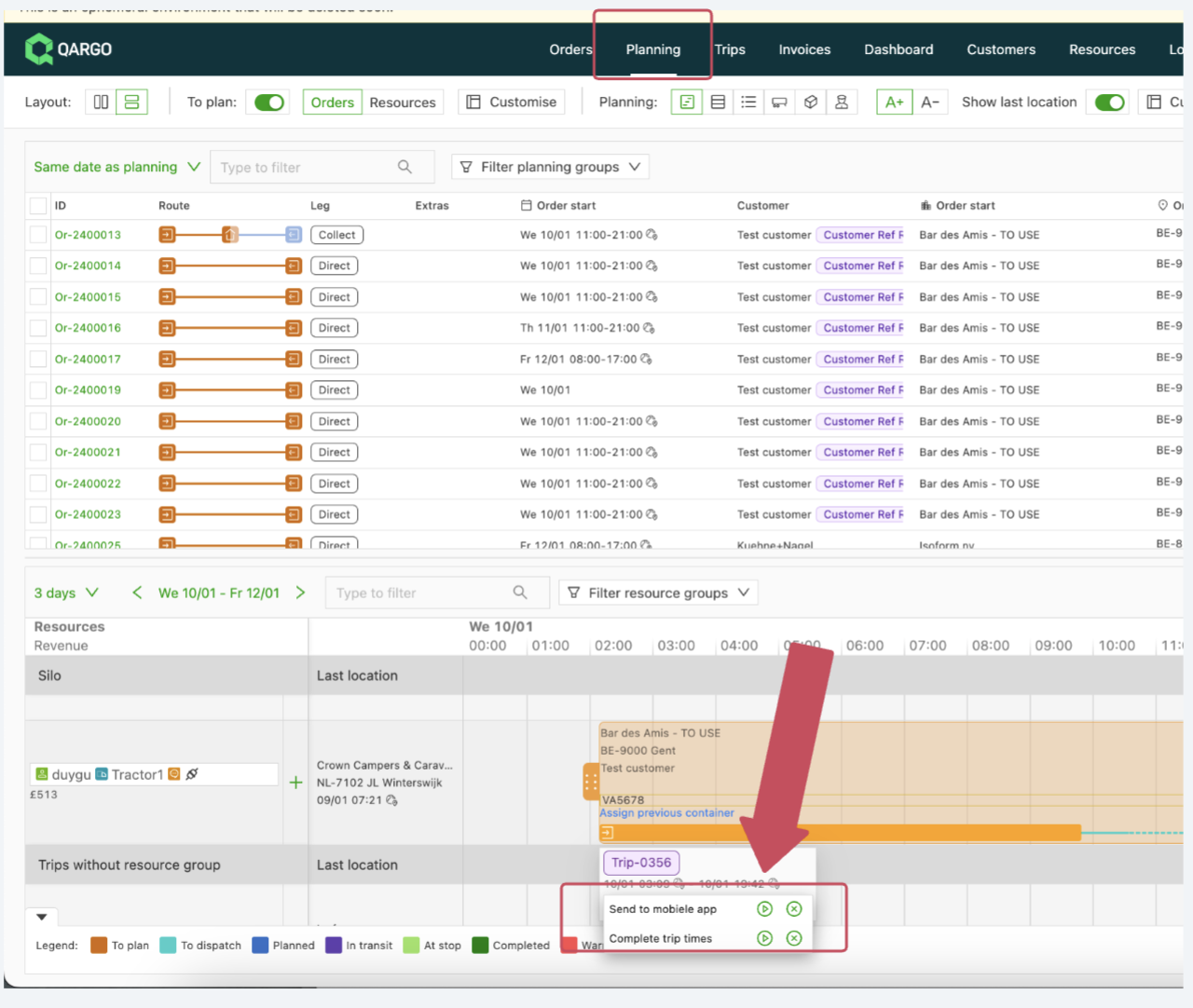
Once the “play” button is clicked in any of these views, the task is executed and the color of the load changes from light blue to dark blue, indicating that it has been dispatched:
The dispatch task can also be executed in bulk for several loads.
- Go to the loads column
- Select quick actions
- Select the dispatch task (this filters the dispatch tasks that have not yet been executed)
- Select the loads to dispatch
- Click the “complete task” option at the bottom right: