
Add a contract carrier
Manage contract carriers with ease. View active/inactive lists, show approval status as a column, customize columns, add filters, create profiles and track statuses.
Table of contents
- Navigate to Resources > Contract carriers to open the contract carrier list. The default view shows a list of active contract carriers. The tabs also make it easy to show Inactive or All contract carriers.
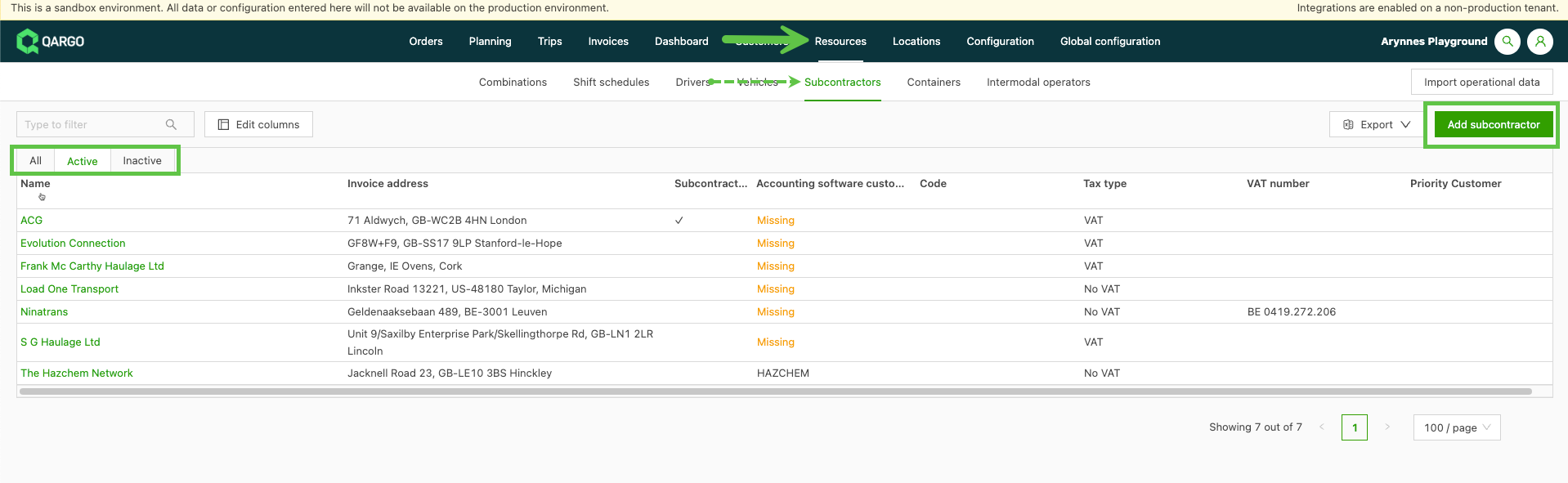
Customize the view and data that are visible on the contract carrier list.
-
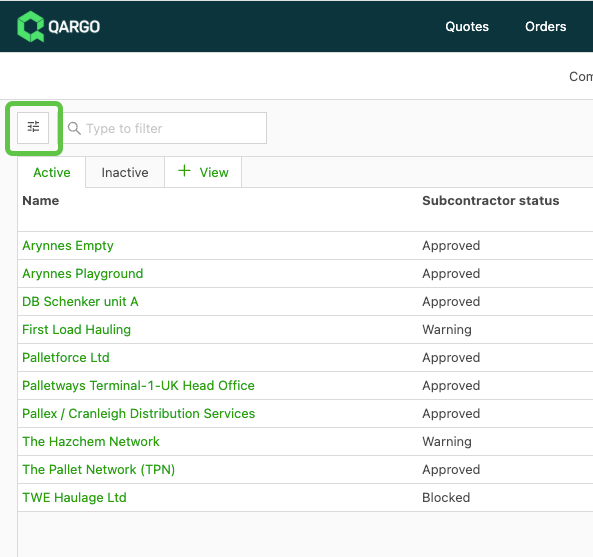
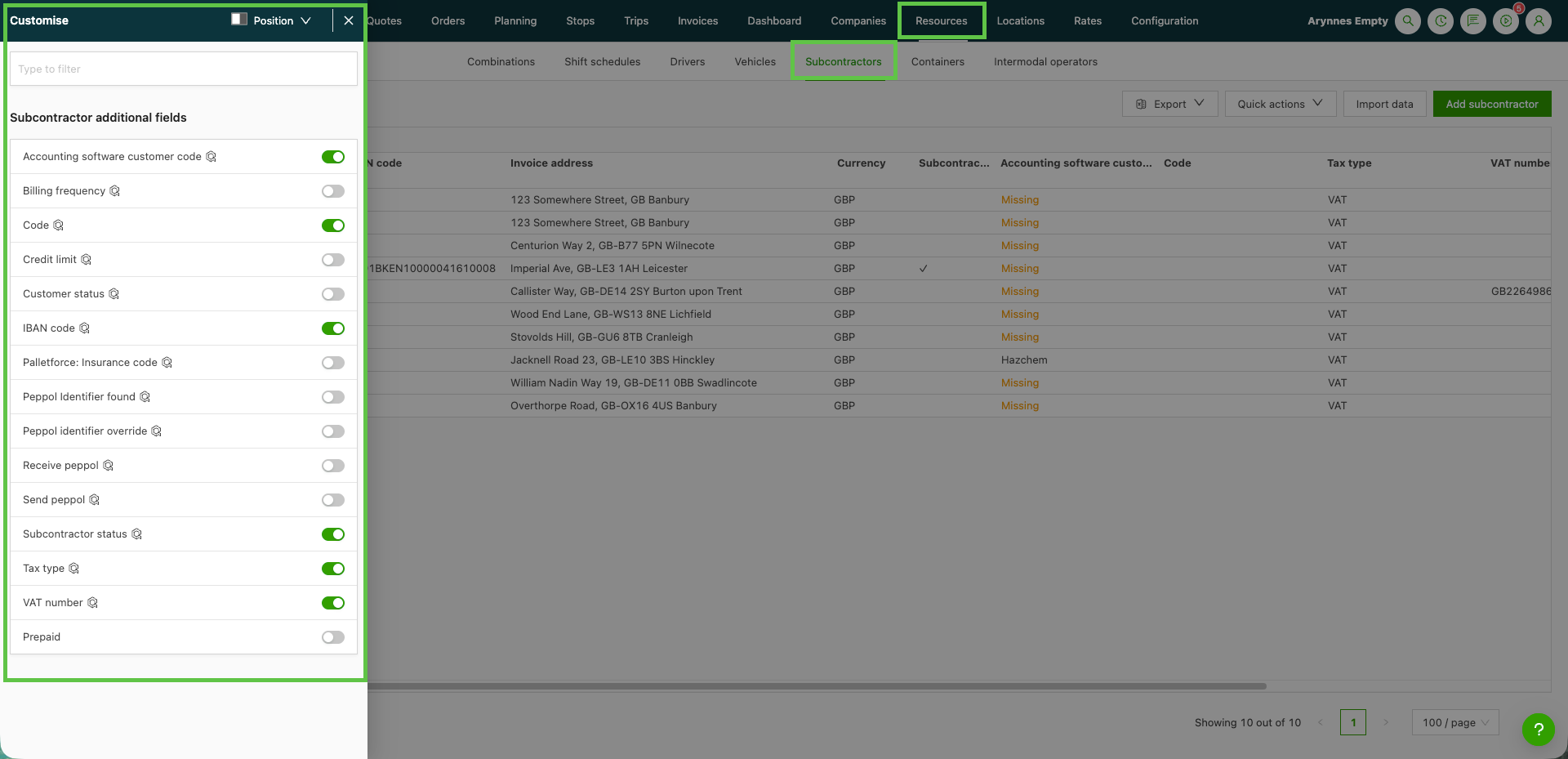
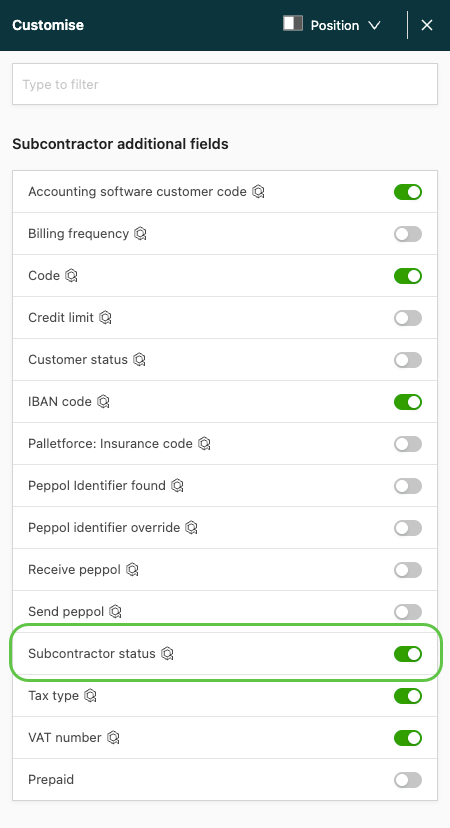
Click the Customize button to open a side menu.
- Toggle additional columns on or off to improve the visibility of key information.
-
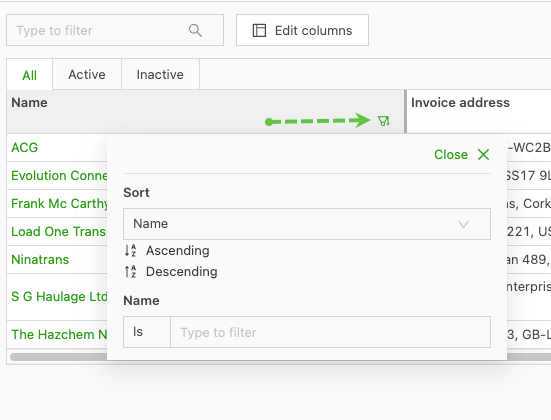
Modify the view by using the filter options in the column headers.
- Place the cursor in the column header. The filter icon appears in the bottom right corner.
- Click the icon to open the menu options for additional filters.
Show contract carrier status on the contract carrier list:
The Contract carrier status column shows the approval status of every contract carrier directly on the list. This makes it quick to see which contract carriers are ready for use on loads, without opening each record one by one.
- Open the contract carrier list.
- Click Customize to open the side menu.
- Toggle on Contract carrier status (listed under Contract carrier additional fields).
- Close the side menu. The status of each contract carrier now shows in its own column.
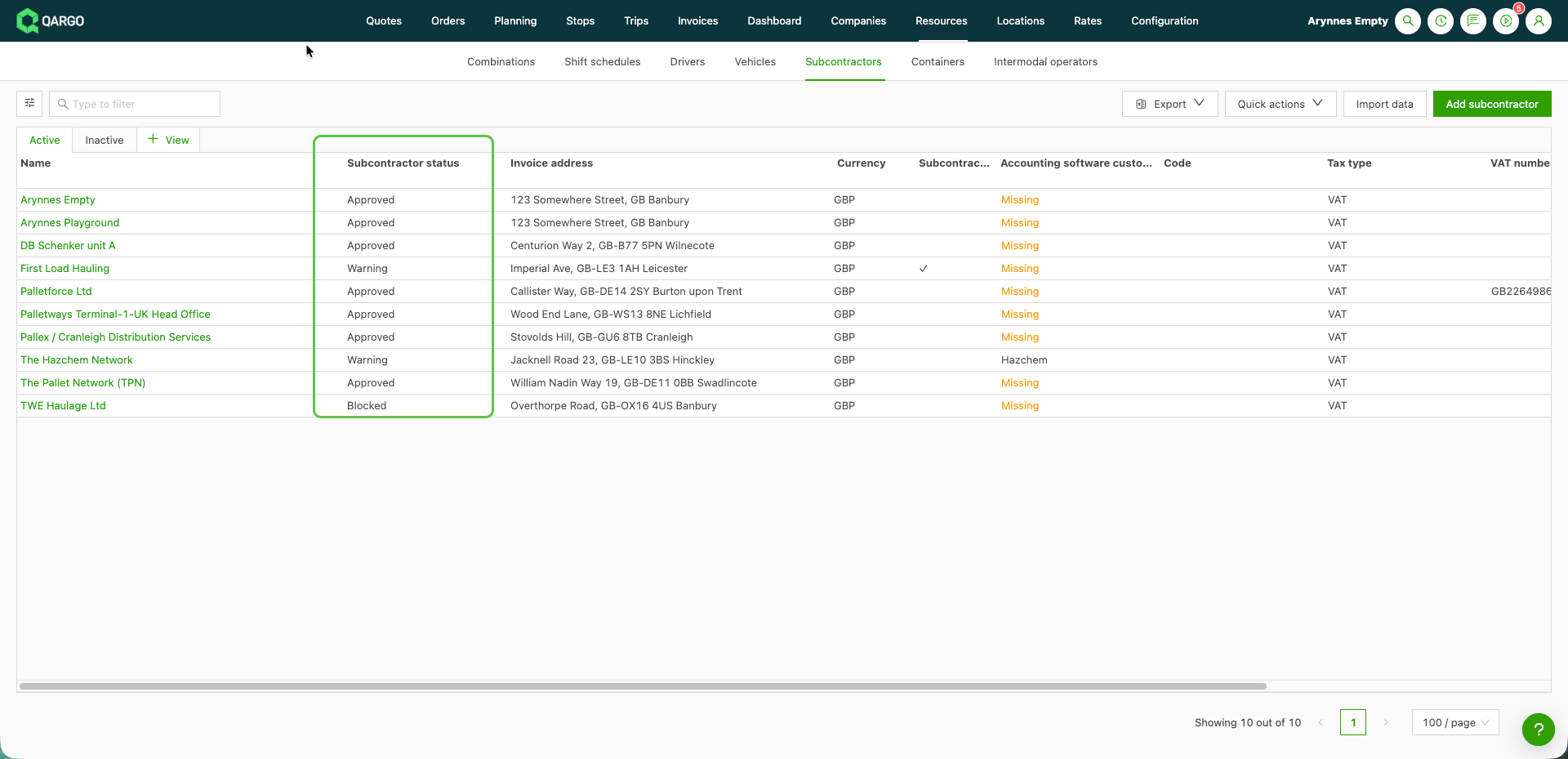
The column works like any other column on the list:
-
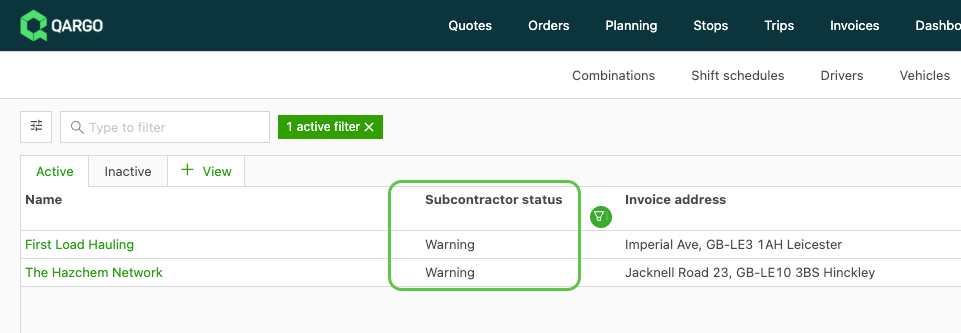
Filter by placing the cursor in the Contract carrier status column header.
- Click the filter icon.
- Select one or more statuses, for example Approved, to show only those contract carriers. The filter matches the exact status, so filtering on Approved does not also return Not approved contract carriers.
-
Sort: sort the column in ascending or descending order to group contract carriers by status.
-
Save the view: save the view to keep the column, filter and sort for next time.
Add a new contract carrier:
- Click Add contract carrier.
- If the company is already a customer, select it in the dropdown. If not, create the contract carrier by searching for the company.
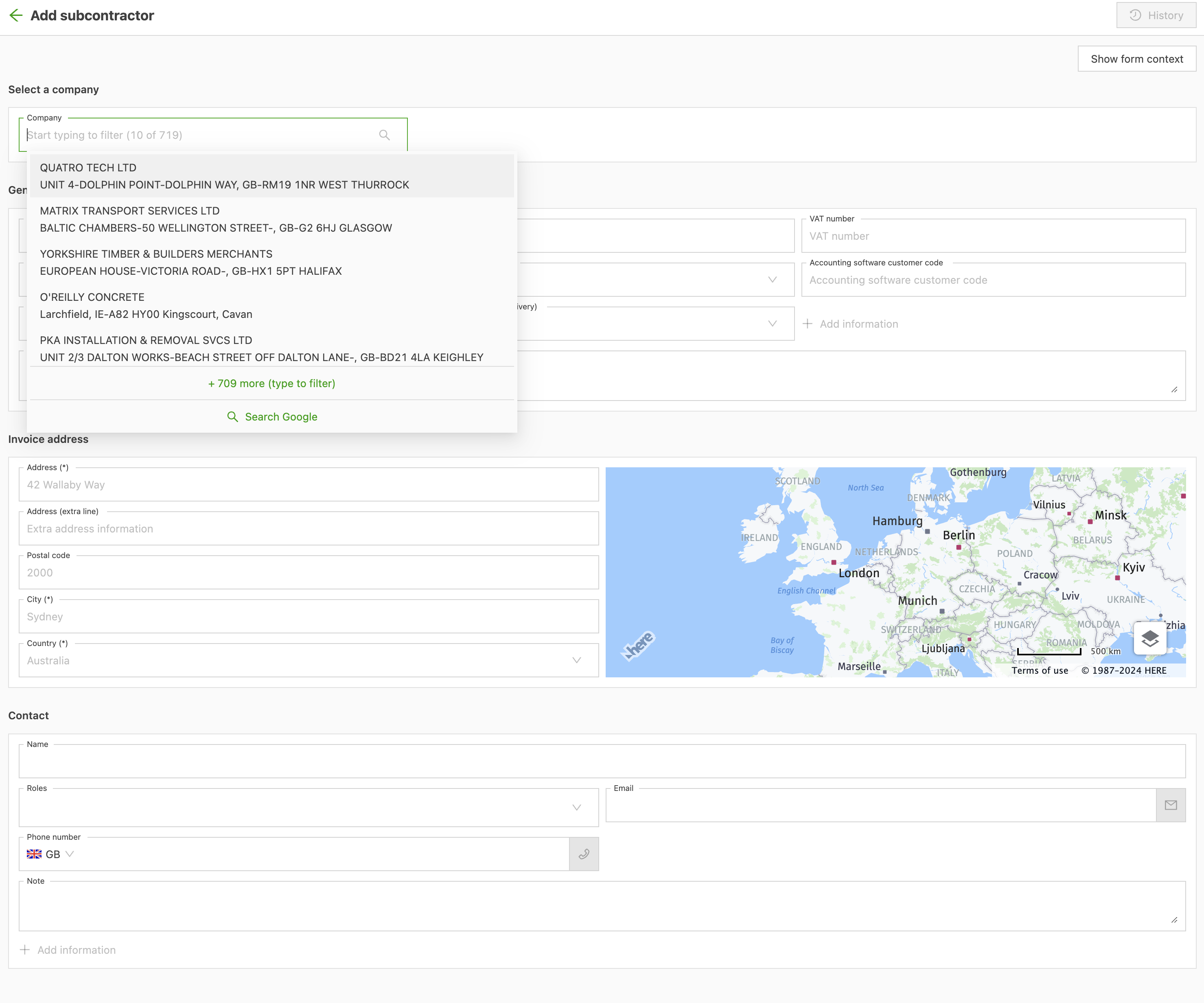
- Once the contract carrier name is selected, the fields in General info are filled in automatically.
- Check the pre-filled fields and complete any other required fields.
- Complete the invoice address information.
- Check that the contract carrier’s activation status is set to Active under Generic resources so that the contract carrier is visible during job resourcing.
Add a contact
- Enter the contact name and select a role. If any specific email tasks are assigned to this contract carrier, the contact assigned to the role receives the email.
- Turn on the toggle to give the contact access to the contract carrier portal.
- Check and Save the profile.
Add contract carrier status
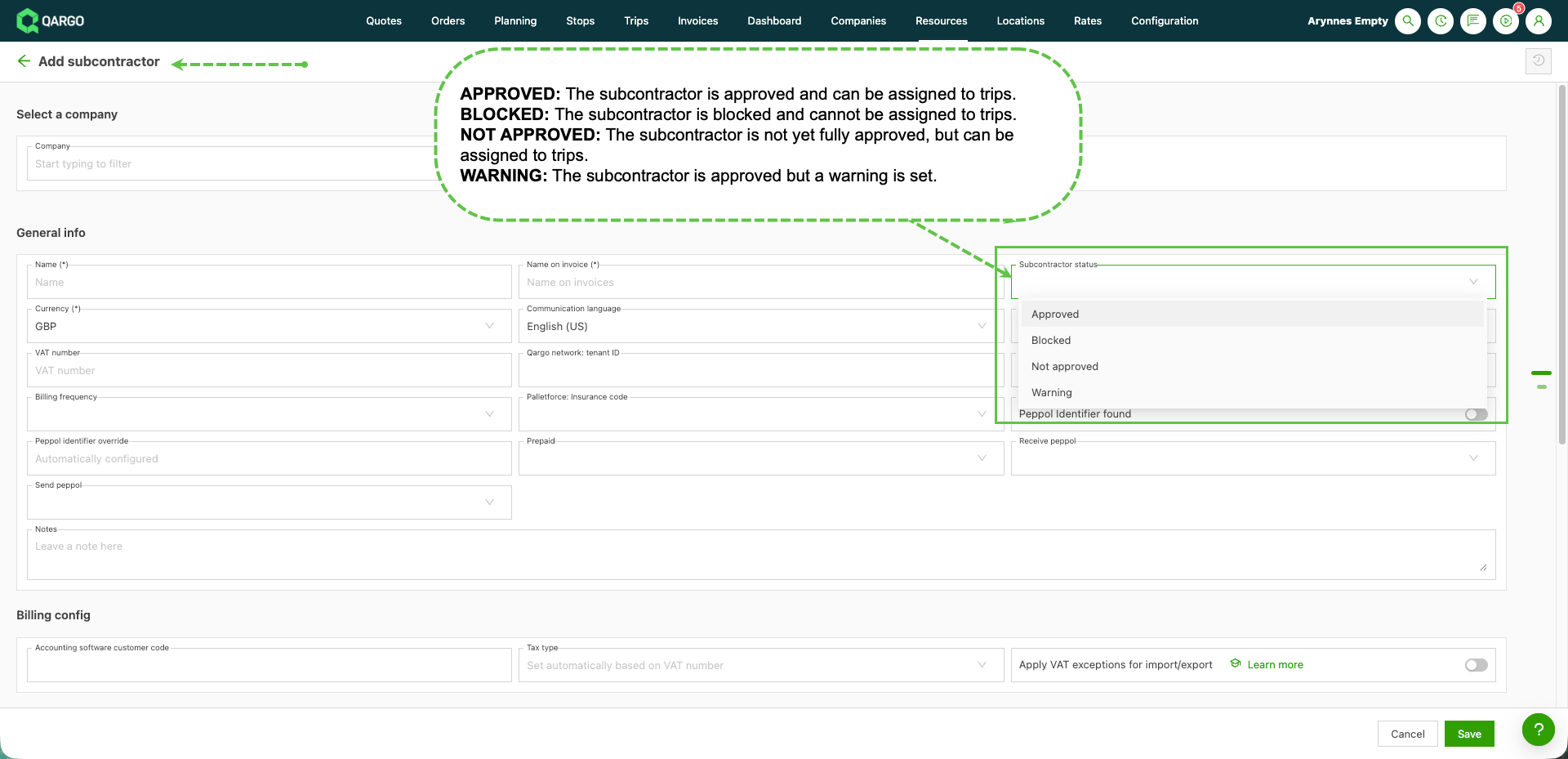
Status indicates whether the contract carrier can be assigned as a resource to a load. The available statuses are:
- Approved: The contract carrier is approved and can be assigned to loads.
- Blocked: The contract carrier is blocked and cannot be assigned to loads.
- Not approved: The contract carrier is not yet fully approved but can be assigned to loads.
- Warning: The contract carrier is approved, but a warning is set.
Troubleshooting
| Issue | Solution |
|---|---|
| The Contract carrier status column is not visible on the contract carrier list | Click Edit columns and toggle on Contract carrier status under Contract carrier additional fields. The setting is per user, so a colleague may see a different set of columns. |
| Customer status is not offered in Edit columns on the contract carrier list | This is expected. The contract carrier list only offers Contract carrier status. Customer status is available on the customer list. |
| Filtering on Approved still shows other statuses | Check that no other status is selected in the column filter and that no other filters or saved views are applied. |
| A status change on the contract carrier form will not save | Saving the status requires permission to change contract carrier commercial details. Contact the company Super Admin to check the role. |