General service levels
Service levels define transit time, cost and resources for shipments. Configured in the Rates > Order input menu: set lead times, costs and more.
Table of contents
Introduction:
The ‘service level’ is the standard or level of service that a carrier or transportation provider commits to delivering to its customers. It outlines the quality and reliability of the services offered. It also covers the various attributes associated with the transportation process.
In Qargo, the configuration options are based on:
- Lead time (or transit time): The amount of time a shipment takes to travel from the point of origin to its destination. Service levels may specify guaranteed transit times for different types of shipments.
- Cost: Service levels may have different pricing structures based on the level of service provided. Premium services with faster transit times and additional features may come at a higher cost.
Service levels can be set up under the Rates > Order input menus. This area allows users to configure the services that will be provided to customers.
General info:
Service levels should be given a name that makes them easy to identify. A description can also be added to clarify any associated information.
Some examples include:
- Priority services – identify based on delivery service, i.e., 24hr / 48hr
- Economy service levels
- Standard services
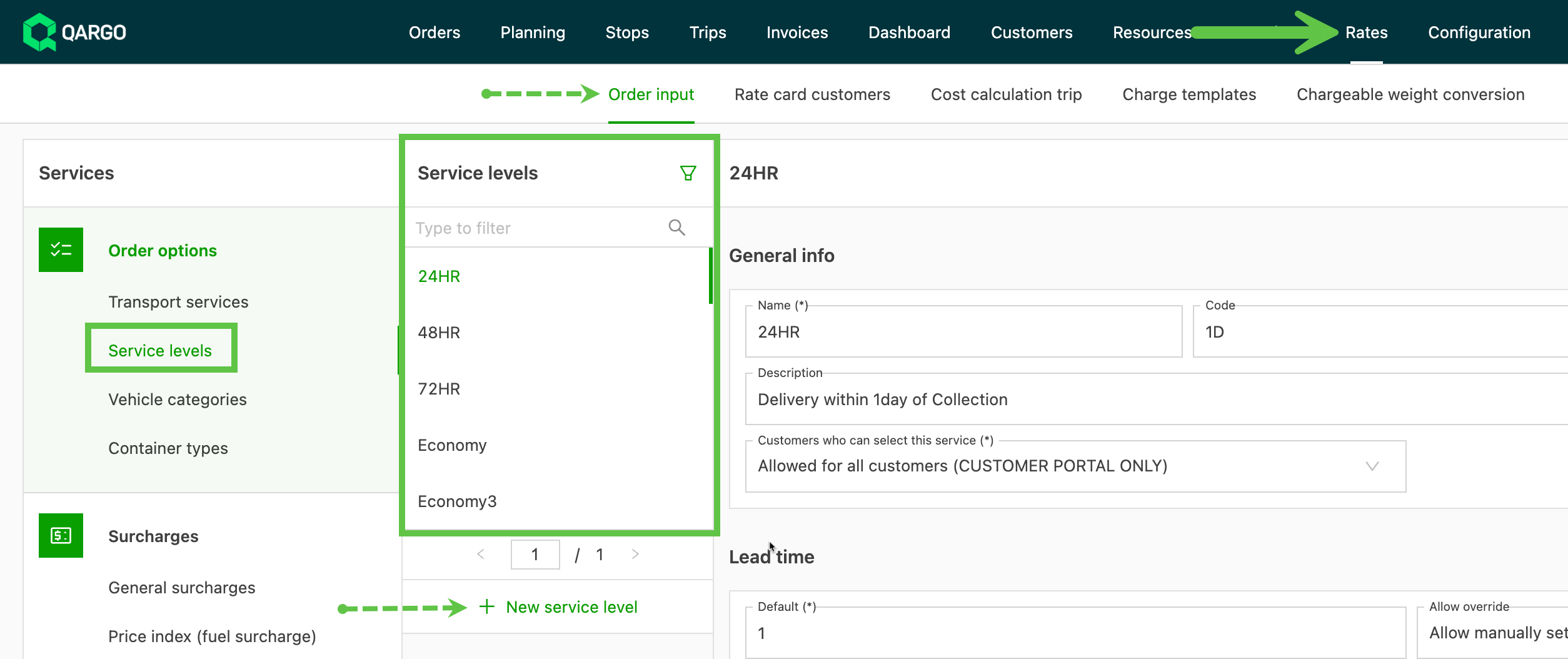
Customer portal users can be allowed to select service levels when submitting orders. There are 2 options:
-
Allow for all customer portal users
-
Select customers allowed: this opens a second field where customers can be added.

Configuration options
Lead time (or transit time)
The amount of time a shipment takes to travel from the point of origin to its destination.
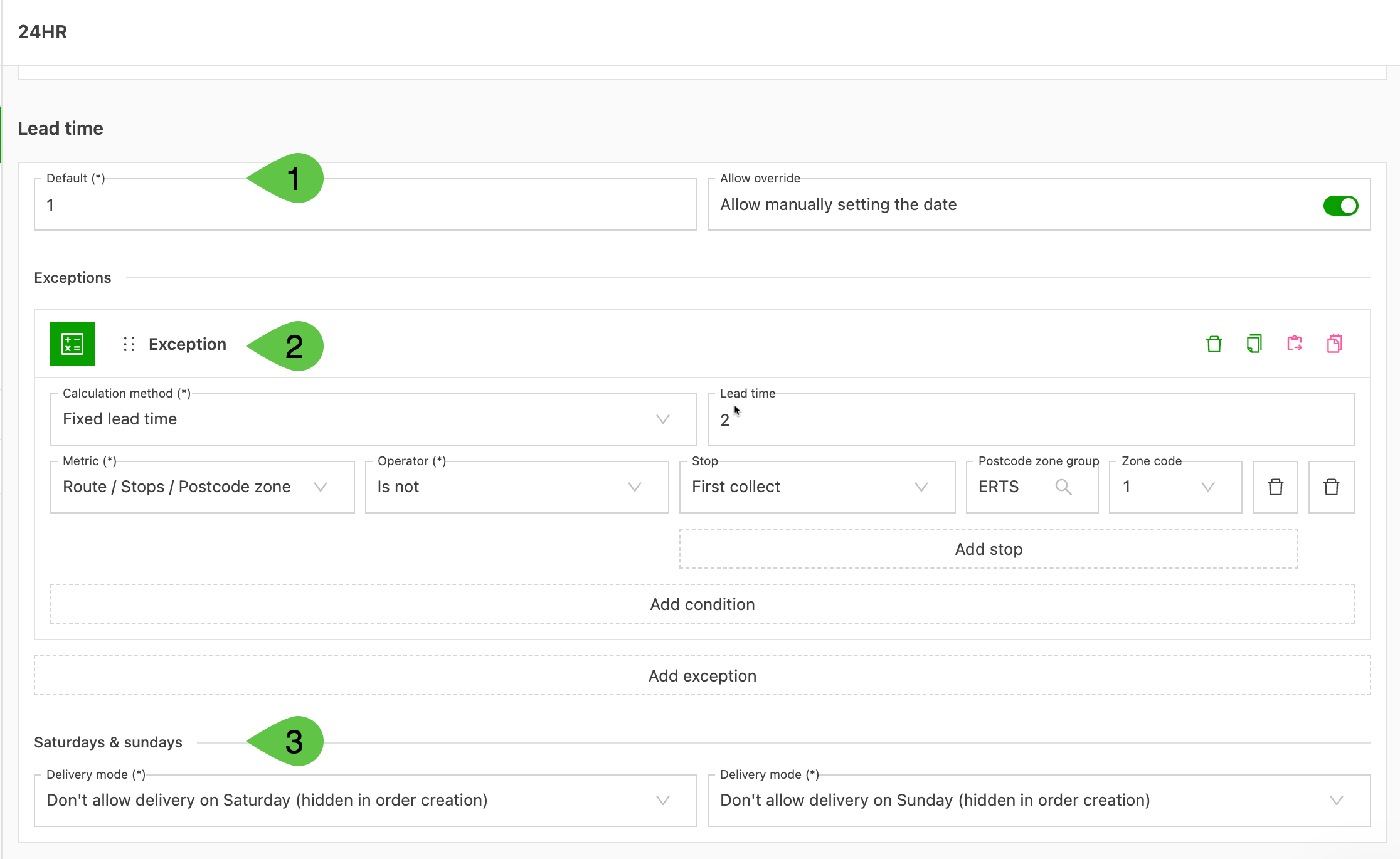
- Define a default lead time. This is used to calculate a lead time based on the service level.
- Add any exceptions that increase or decrease lead times based on specific locations. Multiple exceptions can be added; the first one with matching conditions is used as the override.
- Specify whether Saturday and/or Sunday delivery is allowed.
Configuration
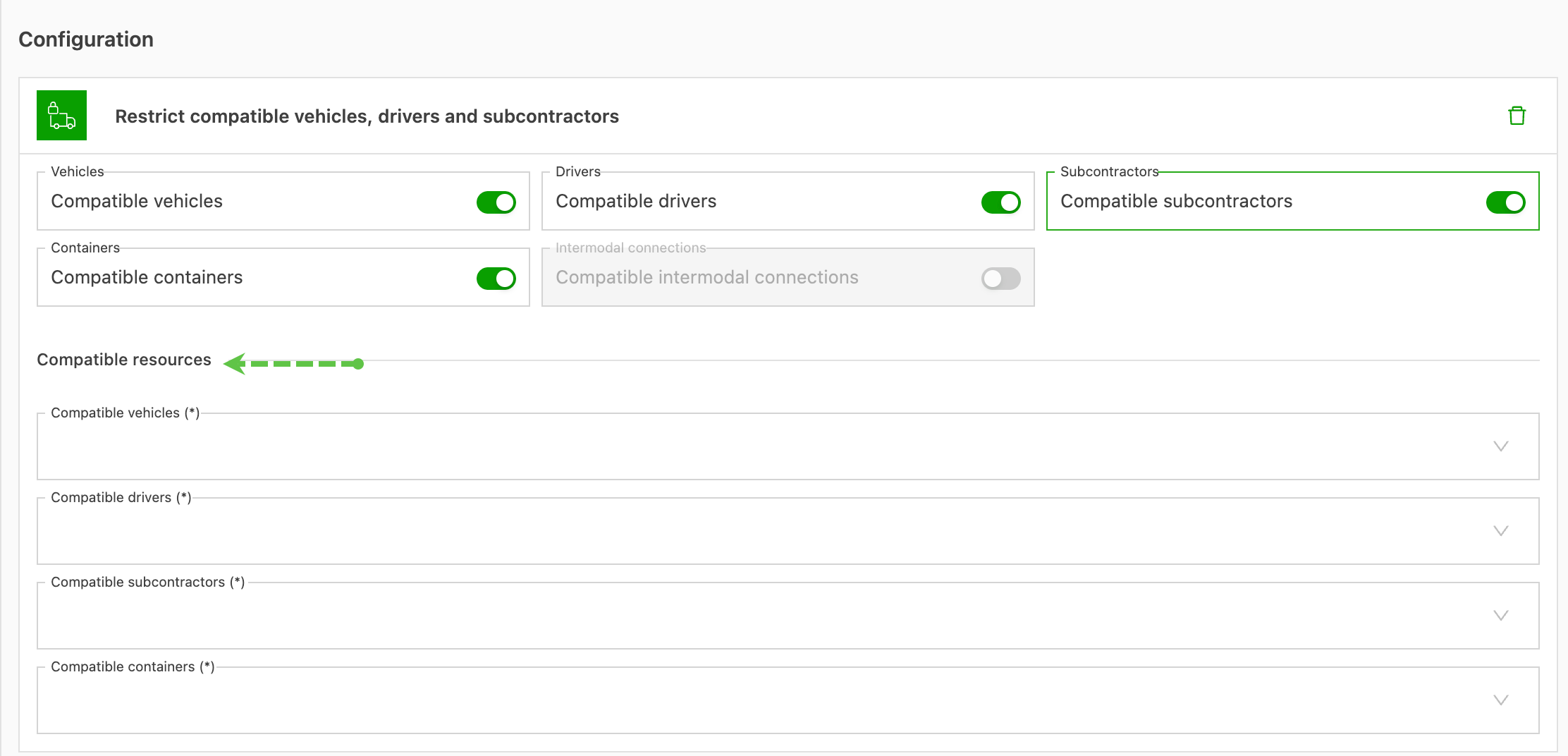
A specific set of compatible resources can be set up based on the service level. These resources include vehicles, drivers and contract carriers. Setting a resource to active with the toggle enables the field where the specific resource can be selected.
Rate calculation (or costs)
As service levels are configured as an ‘Order add-on’, default charges can be set up for rating on orders. Service levels can also be included as a metric when creating rate card calculations.
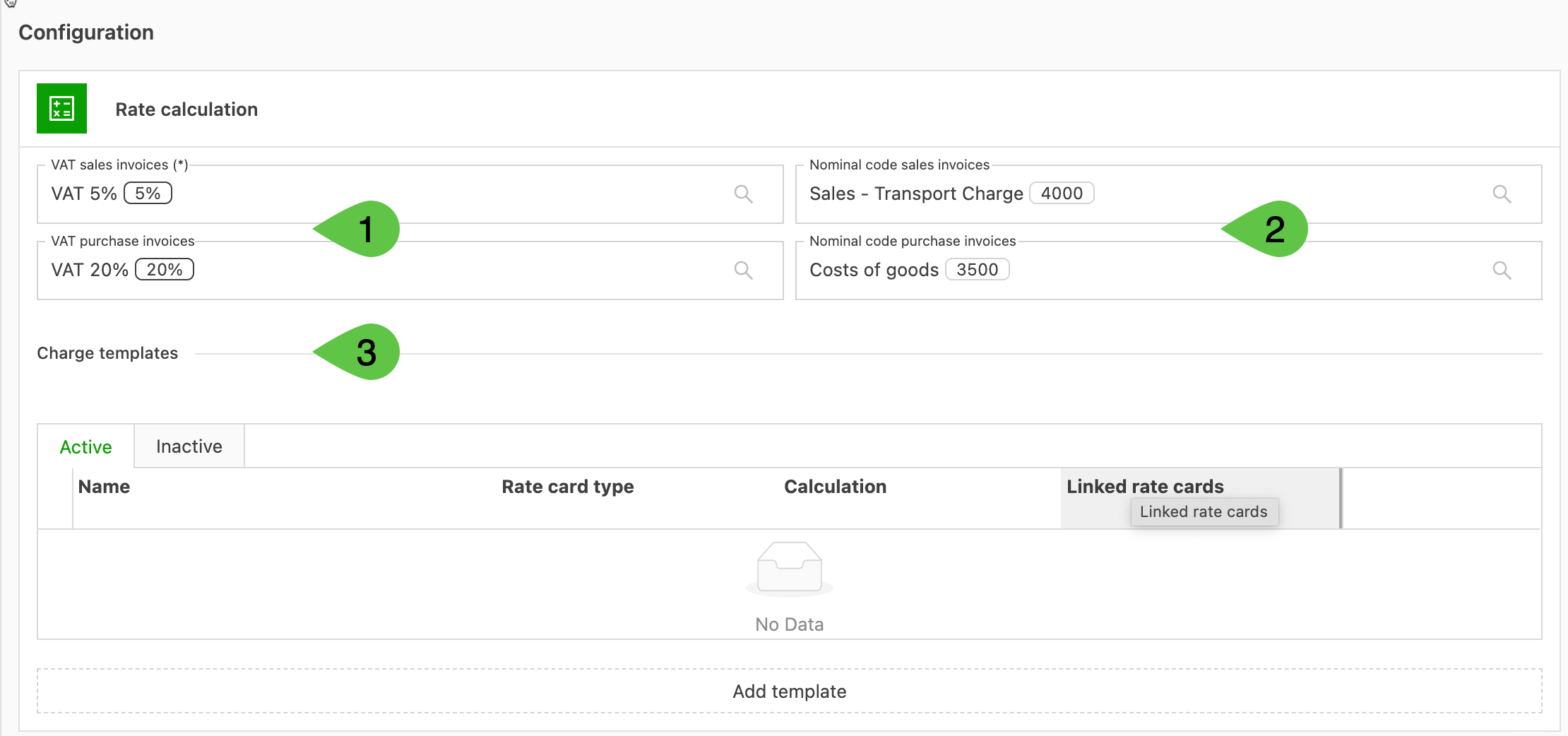
- Set the tax rate here for both sales invoices and carrier invoices. It is then included automatically when appropriate.
- Set GL codes here for both sales invoices and carrier invoices to make importing into accounting software more efficient.
- Create charge templates that can be applied across multiple customer rates.
Transportation service
Service levels can be set to ‘Active’ per transportation service. Once a service level is active, it can be selected at the order level.
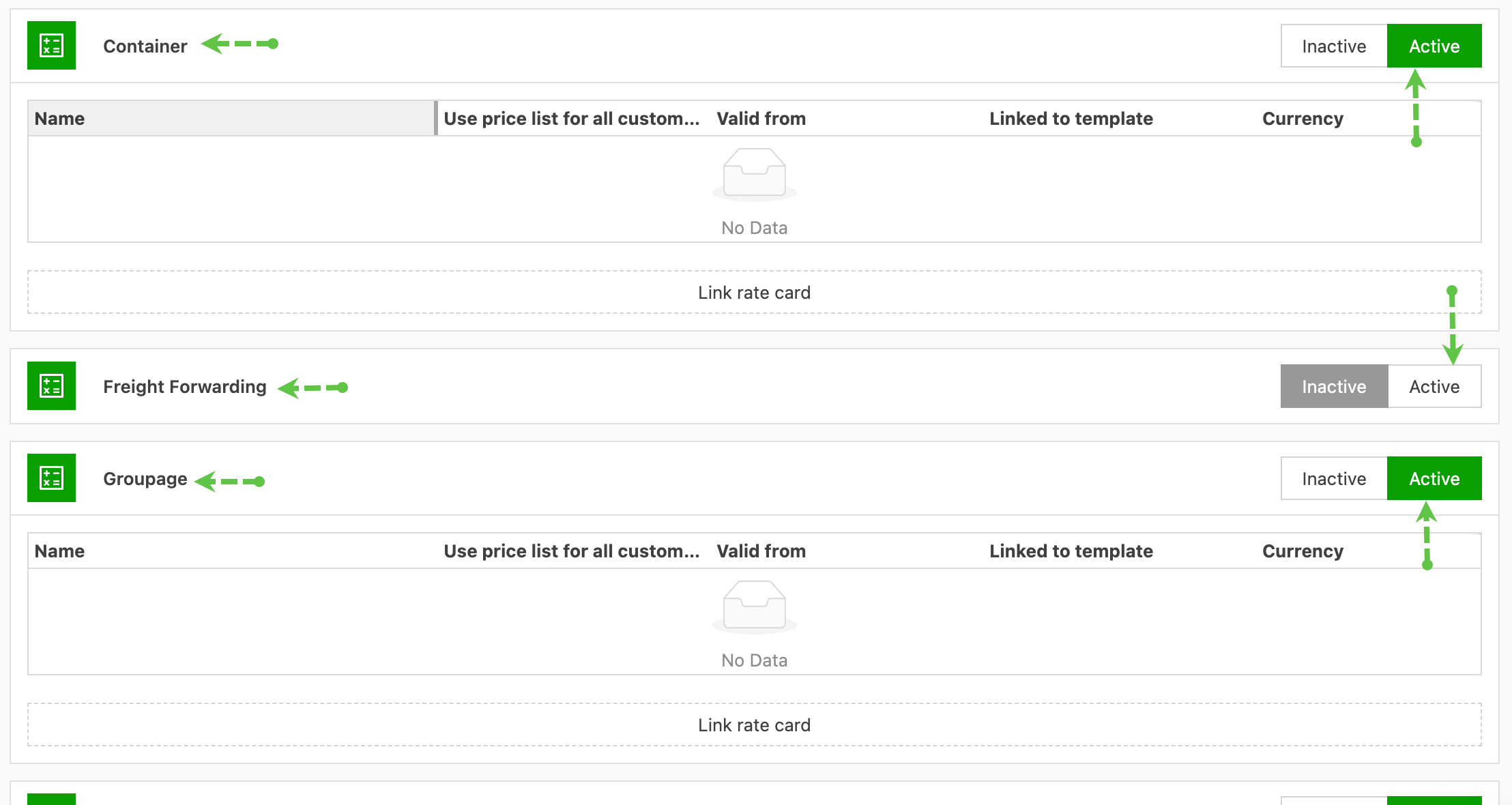
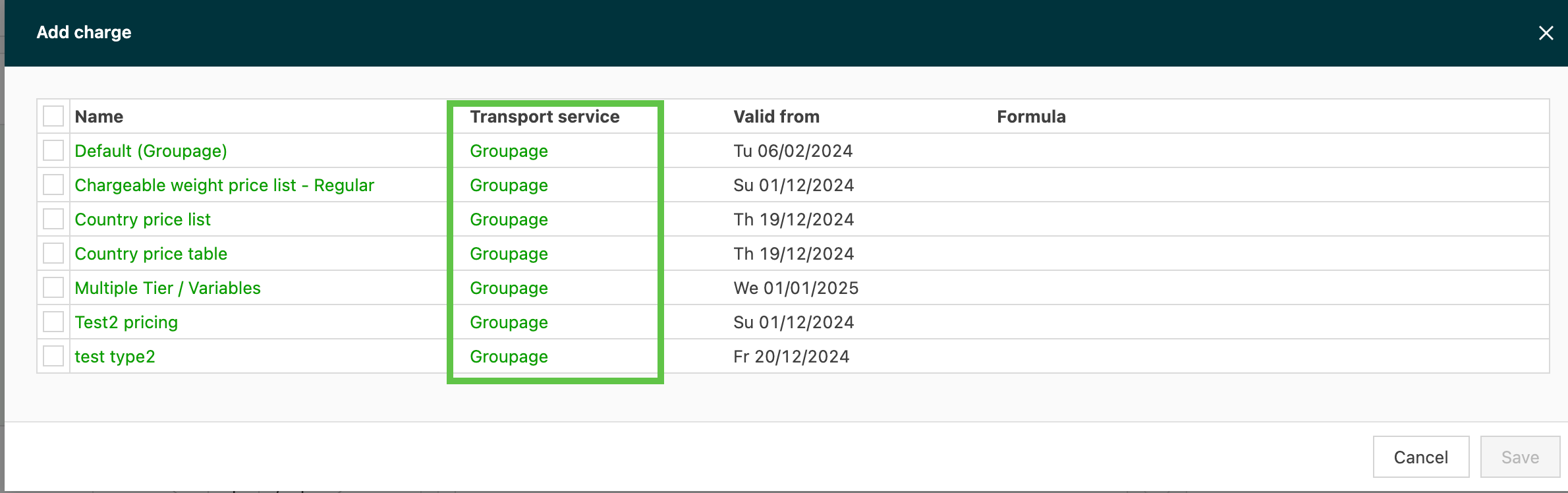
To link specific rate cards to the service level, click ‘Link rate card’. A list of active rate cards associated with that transportation service is displayed: